
How to Open an Accounting Period in Oracle EBS
This guide shows you how to open an accounting period in Oracle EBS. You first change the period status in the GL Periods for Projects window. Then you review the latest open periods in General Ledger and, if needed, open the next encumbrance year. The examples use the APR-20 period and the Progress S&L setup.
Video: How to open Accounting Period and Encumbrance Year in Oracle General Ledger? by GudPal Training (2020). All credit for the demonstration goes to the creator; watch the original on YouTube. The written guide below was generated from this video by Docsie. Creator? Request a change or removal.
This guide shows you how to open an accounting period in Oracle EBS. You first change the period status in the GL Periods for Projects window. Then you review the latest open periods in General Ledger and, if needed, open the next encumbrance year. The examples use the APR-20 period and the Progress S&L setup.
Prerequisites
Before you begin, make sure you have the following:
- A login to Oracle Applications.
- Access to a responsibility such as Grants Accounting, Progress S&L for opening GL periods for projects.
- Access to a responsibility such as General Ledger Super User, Progress S&L for the Open and Close Periods form.
Open the GL period for projects
Step 1: Select the Grants Accounting responsibility
- Log in to Oracle Applications.
- In the main navigator, select the appropriate responsibility, such as Grants Accounting, Progress S&L.
Step 2: Go to Setup > System > GL Periods
- In the left navigation pane, expand Setup.
- Expand the System submenu.
- Select GL Periods.
- Click Open at the bottom of the window to launch the GL Periods form.
Step 3: Find the periods
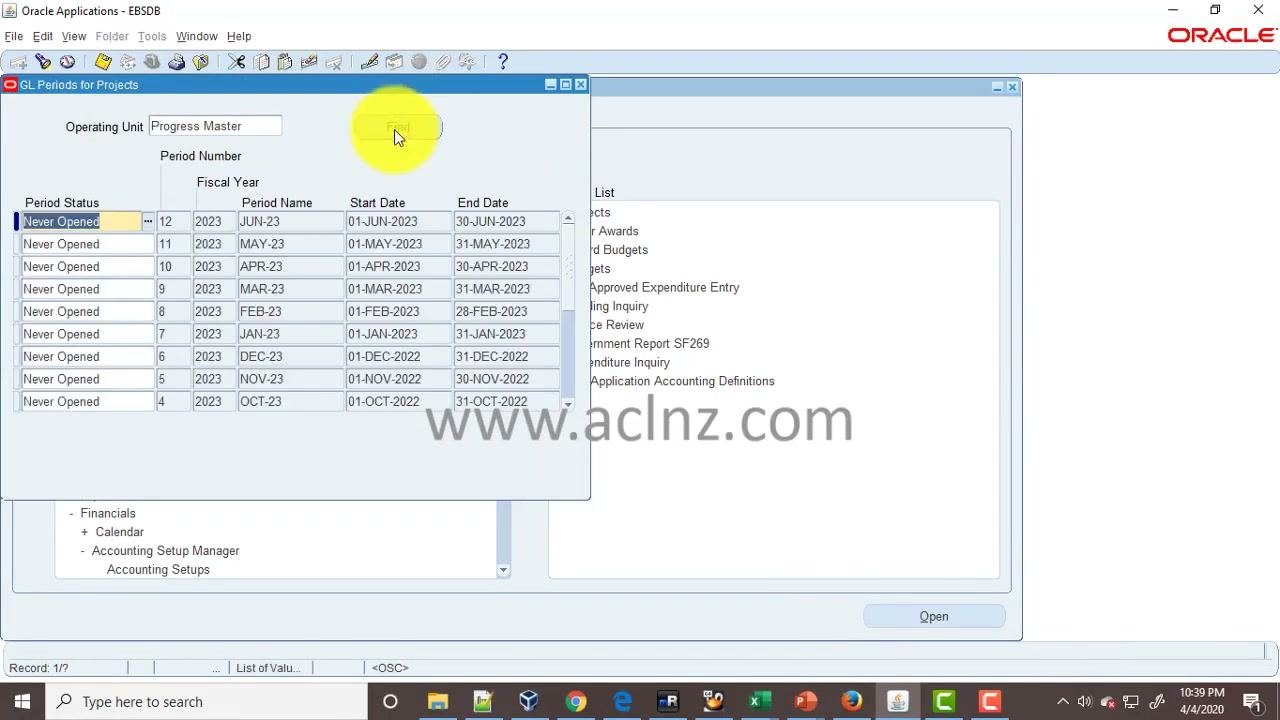
- In the "GL Periods for Projects" window, confirm that the correct Operating Unit is selected, for example "Progress Master".
- Click Find to display the list of periods.
The list shows each period's status, fiscal year, period name, start date, and end date.
Step 4: Locate the period you want to open
Scroll through the list to find the period you want to open. For example, to open April 2020, find the row with these values:
- Period Name: APR-20
- Start Date: 01-APR-2020
- End Date: 30-APR-2020
- Period Status: Never Opened
Step 5: Open the accounting period and save
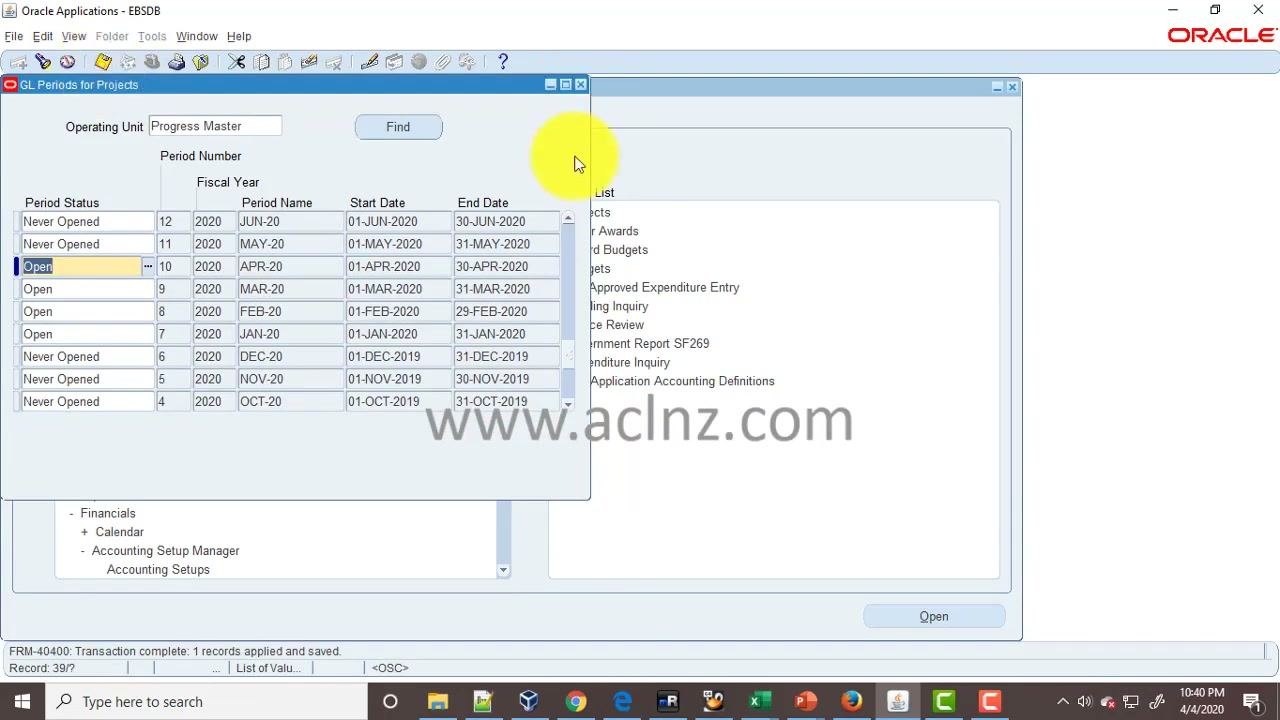
- Change Period Status for the period from "Never Opened" to "Open", for example for APR-20.
- Click the Save icon, or use the save function, to apply the change.
- Confirm that the status now shows "Open".
- Check the bottom of the window for a message such as "Transaction complete: 1 records applied and saved."
Review open periods and the encumbrance year
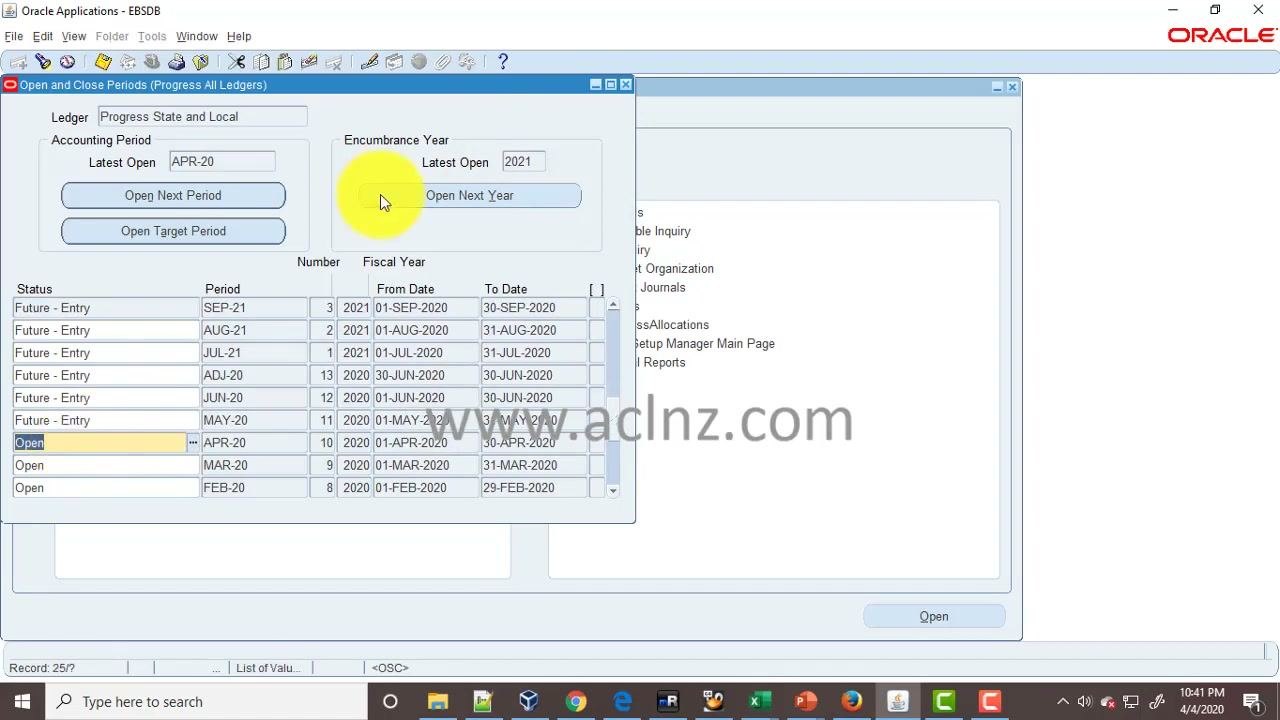
Step 6: Go to the Open and Close Periods form
- Switch to the appropriate responsibility, such as General Ledger Super User, Progress S&L.
- In the main navigator, expand Setup, then Financials, and select Open/Close.
- Click Open at the bottom of the navigator to launch the "Open and Close Periods" form.
Step 7: Review the latest open periods
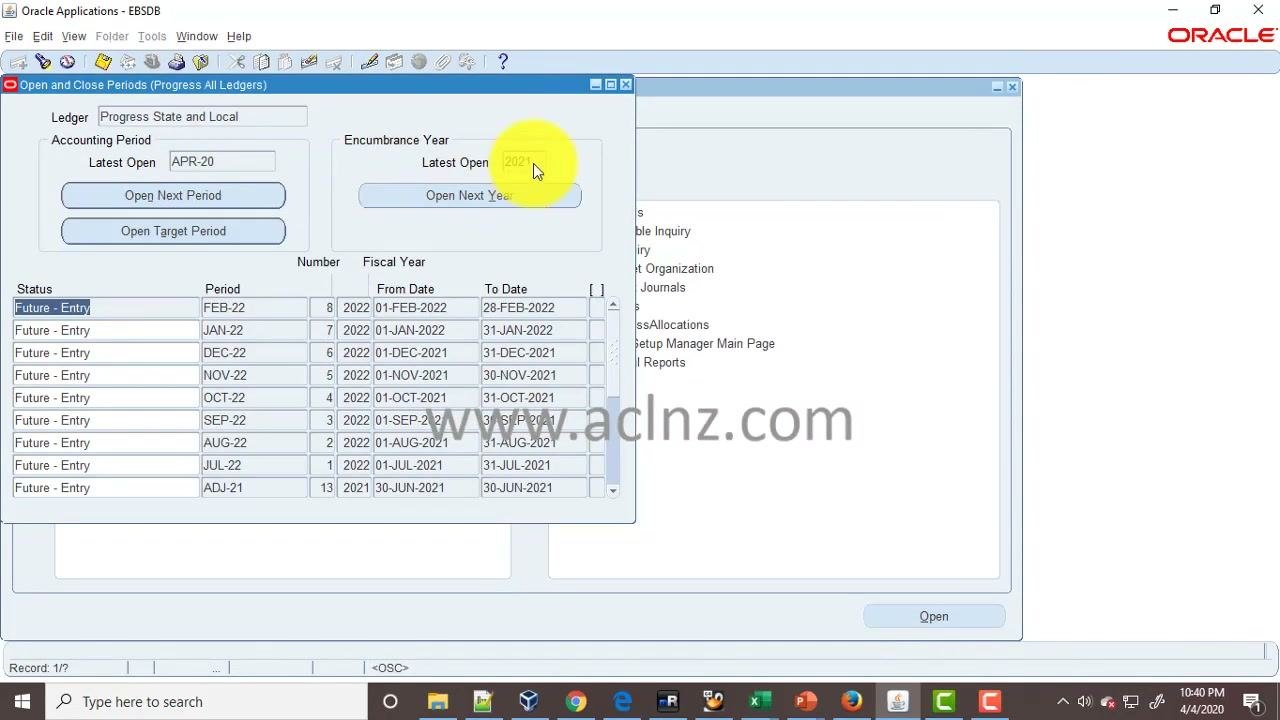
In the "Open and Close Periods" window, check the following:
- Ledger: Make sure the correct ledger is selected, for example "Progress State and Local".
- Accounting Period: Check the "Latest Open" period, for example APR-20.
- Encumbrance Year: Check the "Latest Open" year, for example 2021.
The list below shows all periods with their statuses (for example "Future - Entry" or "Open"), period names, fiscal years, and date ranges.
Step 8: Open the next encumbrance year if needed
Open a new encumbrance year if either of these applies:
- The "Latest Open" encumbrance year is not the current or required year, for example not 2020 or 2021.
- You want to open the encumbrance year for the current year or a future year.
If your accounting setup uses encumbrance accounting, keep the encumbrance year open to avoid accounting errors.
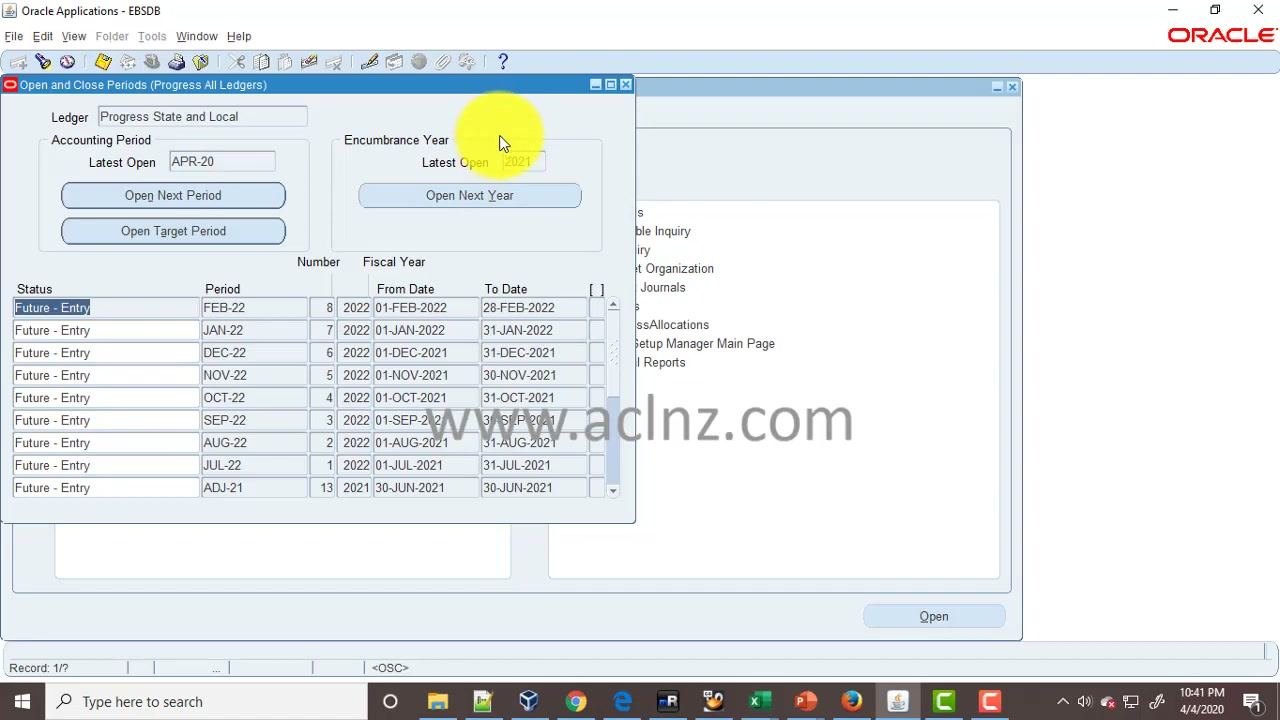
Click Open Next Year under the "Encumbrance Year" section. This opens the next encumbrance year and updates the "Latest Open" field.
Step 9: Verify the encumbrance year is open
- Confirm that the "Latest Open" field under Encumbrance Year shows the newly opened year.
- Make sure the period list updates to include periods for the new encumbrance year.
Summary
You now know how to open an accounting period in Oracle EBS. You changed the period status from "Never Opened" to "Open" in the GL Periods for Projects window and saved the change. Then you reviewed the latest open periods in the Open and Close Periods form and opened the next encumbrance year when needed.
Generation details: cost, quality tiers
Docsie billed 2,000 credits ($1.40) to analyze this 4-minute video at standard quality. The rewrite, template fill and Word/PDF exports were included. The same video at each quality tier:
| Quality | Frames sampled | Credits | Approx. cost |
|---|---|---|---|
| Draft | every 16-30 s | 1,000 | $0.70 |
| Standard (this guide) | every 8-15 s | 2,000 | $1.40 |
| Detailed | every 4-7 s | 4,000 | $2.80 |
| Ultra | every 1-3 s | 8,000 | $5.60 |
Credits priced at $0.70 per 1,000; plans include a monthly allowance. Enterprise customers on on-premise or bring-your-own-model deployments run this on their own inference and pay no per-video credits.
Generated by Docsie Video-to-Docs on 2026-11-15 from a 3-minute video. Screenshots are frames from the source video and belong to their creator, GudPal Training, whose original is embedded above. If you own this video and want the guide removed or credited differently, contact us and we will act within one business day.