
How to Open a Receivables Period in Oracle EBS
Learn how to open a receivables period in Oracle EBS so you can enter and post new Accounts Receivable (AR) transactions. This guide also shows how to close an AR accounting period after month-end work is complete. You perform both tasks in the Open/Close Accounting Periods window as an AR Super User.
Video: How to Open and Close Accounting Periods in AR | Oracle EBS R12 by PressureJet Oracle Learning Videos (2024). All credit for the demonstration goes to the creator; watch the original on YouTube. The written guide below was generated from this video by Docsie. Creator? Request a change or removal.
Learn how to open a receivables period in Oracle EBS so you can enter and post new Accounts Receivable (AR) transactions. This guide also shows how to close an AR accounting period after month-end work is complete. You perform both tasks in the Open/Close Accounting Periods window as an AR Super User.
Why you open and close AR accounting periods
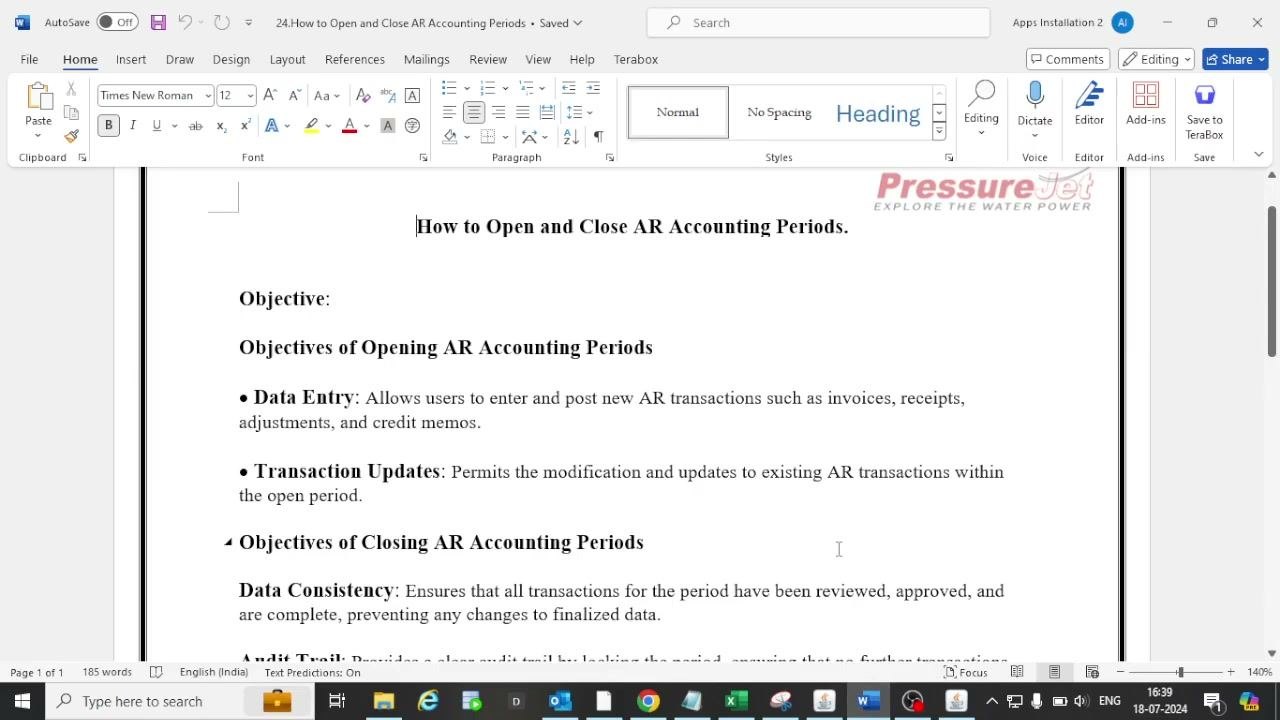
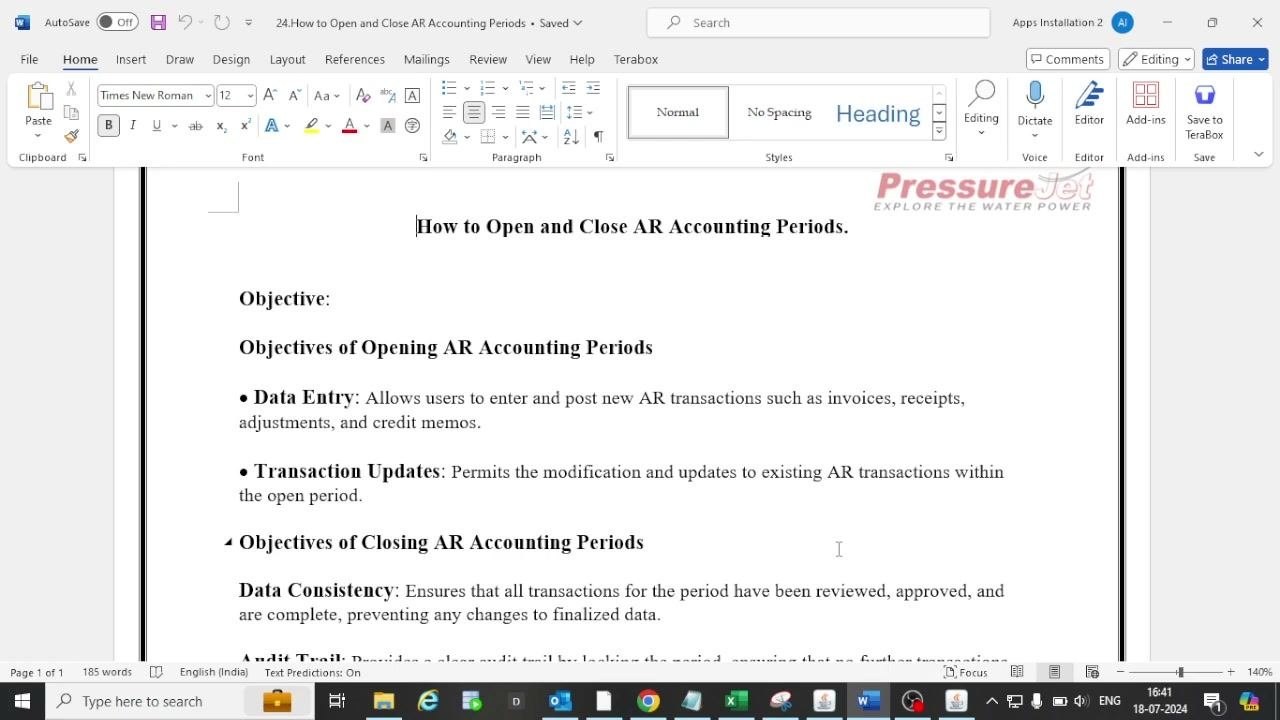
Opening an AR accounting period lets you enter and post new AR transactions, such as invoices, receipts, adjustments, and credit memos. You can also modify and update existing AR transactions within the open period. If the period is not open, you cannot process AR transactions, trade memos, debit memos, or AR receipts.
Closing an AR accounting period confirms that all transactions for the period are reviewed, approved, and complete. It also confirms that sub-ledger and ledger balances match. Closing locks the period, so finalized data cannot change and you keep a clear audit trail. You typically close a period at month-end, but you can also do it quarterly.
Prerequisites
Before you start, make sure you have the following:
- Access to Oracle Applications with the AR Super User responsibility.
- All final postings completed for the previous period (for example, June 2024).
- Balances matched between sub-ledger and ledger accounts, with any required balance transfers made.
Close a period only after you confirm that all of its transactions are matched and finalized. If you leave a period open, past transactions can still be changed manually, which can compromise data integrity.
Open an AR accounting period
Step 1: Log in as an AR Super User
Open Oracle Applications and log in as an AR Super User. The main navigation window appears. Confirm you are in the correct responsibility (for example, AR, Superuser).
Step 2: Open the Open/Close Accounting Periods window
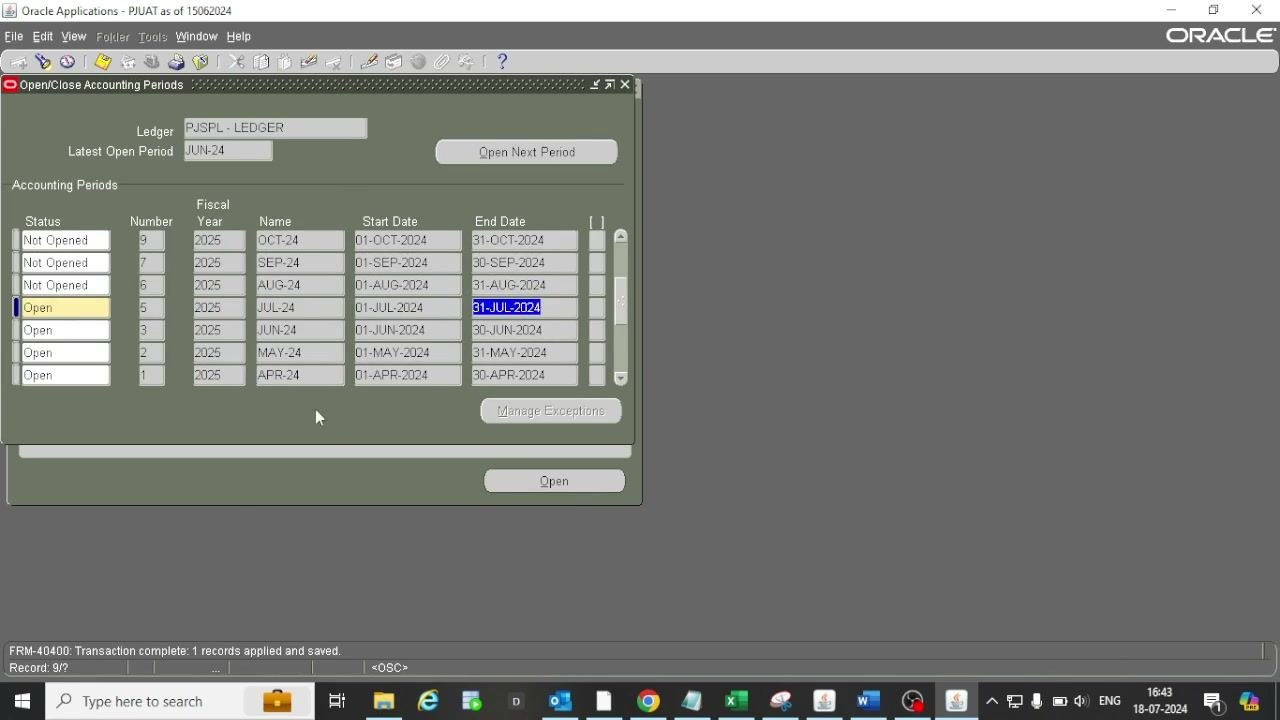
From the Top Ten List, select Open/Close Accounting Periods. The window opens and shows the ledger (for example, "PJSLP - LEDGER") and the latest open period (for example, "JUN-24").
Step 3: Identify the period you want to open
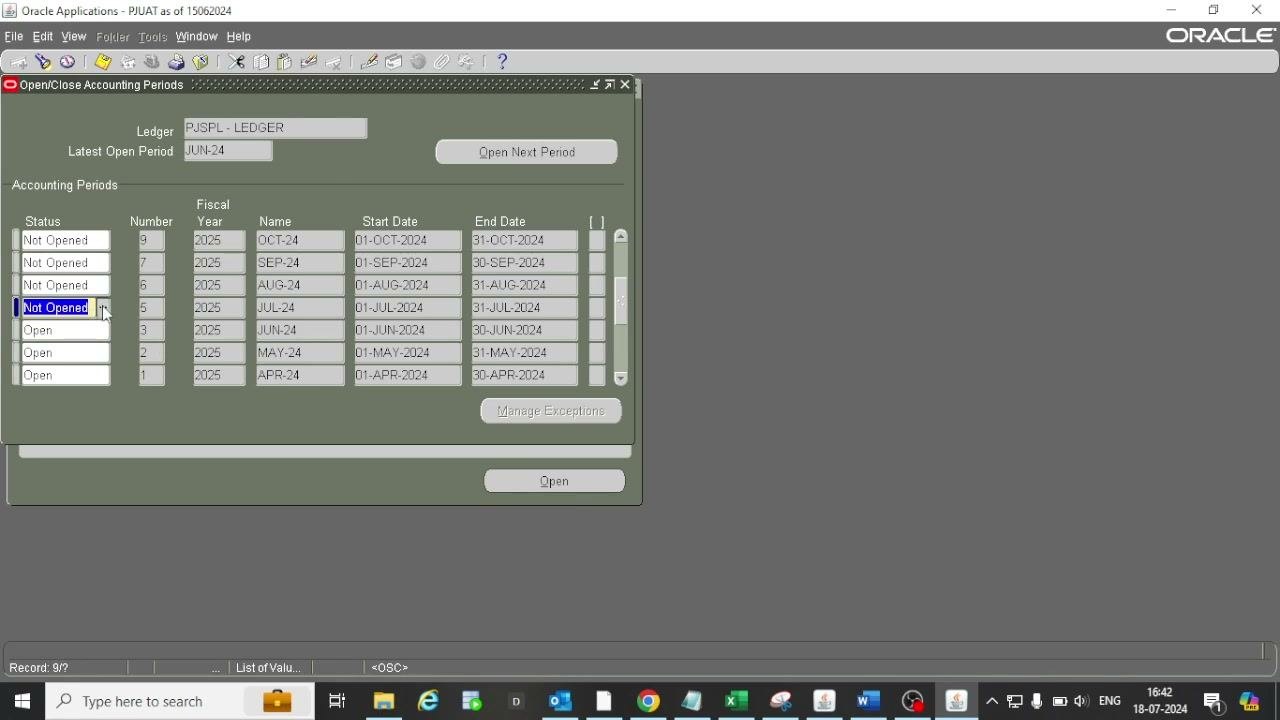
Review the list of accounting periods. The list includes these columns:
- Status
- Number
- Fiscal Year
- Name
- Start Date
- End Date
Status values are "Not Opened," "Open," and "Closed." The fiscal year runs from April to March (for example, APR-24 to MAR-25).
For example, if today is July 1st, select the period "JUL-24" (Start Date: 01-JUL-2024, End Date: 31-JUL-2024). Confirm that its status is "Not Opened."
Step 4: Click Open to change the period status
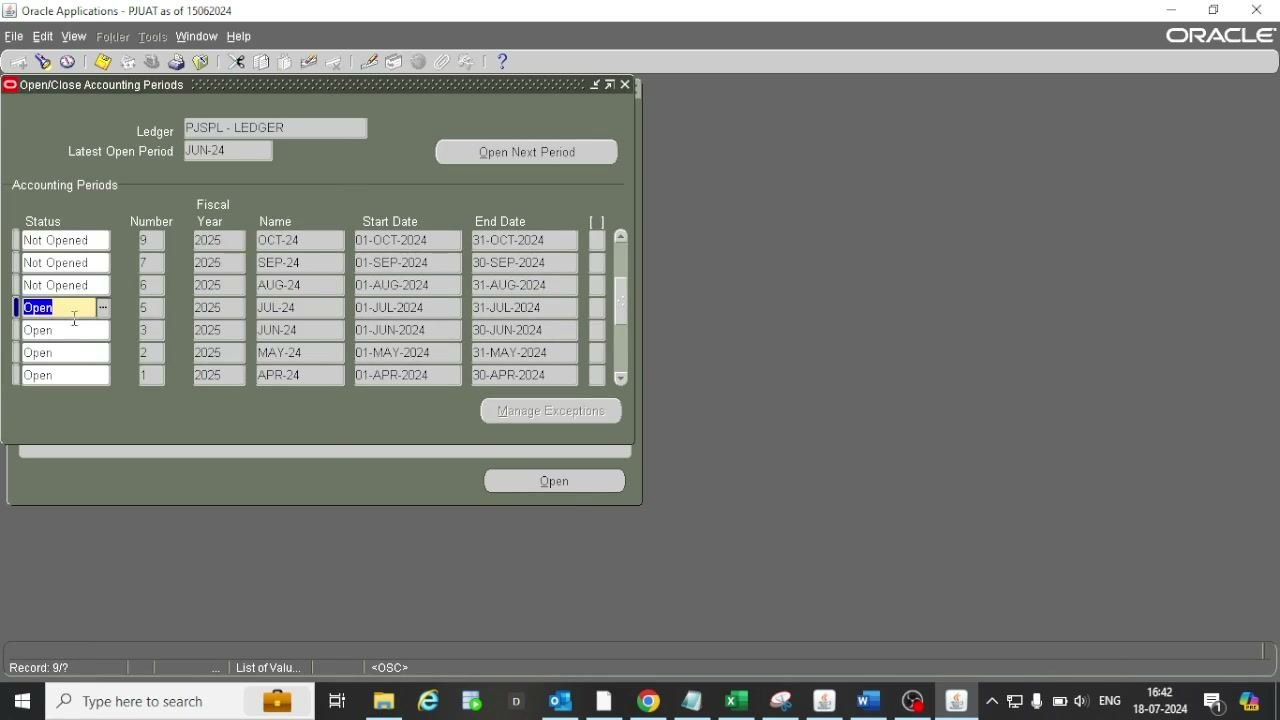
With the period selected, click Open at the bottom of the window. The status for "JUL-24" changes to "Open." You can now enter and post AR transactions for July 2024.
Step 5: Save your changes
Save your changes. A confirmation message appears at the bottom of the screen: "FRM-40400: Transaction complete: 1 records applied and saved." This confirms that the period opened successfully.
Close an AR accounting period
Step 6: Confirm all transactions are posted
Verify that all transactions for the period you want to close are posted. For example, check that all balances are knocked off and no pending items remain for MAY-23.
Step 7: Select the period to close
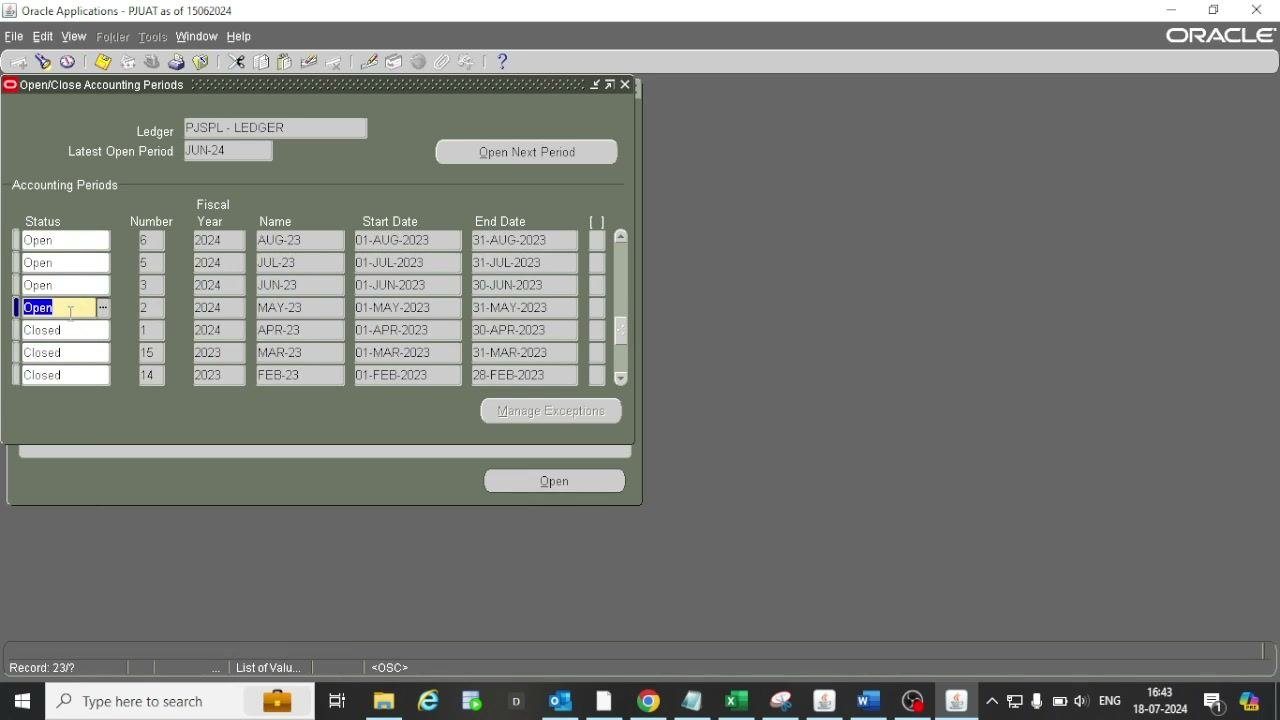
In the list, click the row of the period you want to close (for example, MAY-23). Its status should currently be "Open." The period details are visible: Fiscal Year 2024, Name MAY-23, Start Date 01-MAY-2023, and End Date 31-MAY-2023.
Step 8: Set the status to Closed
Click the status field for the selected period and choose "Closed" from the available options.
Step 9: Save the change
Click the Save icon, or use the save function, to apply the change.
Step 10: Wait for the unposted items check
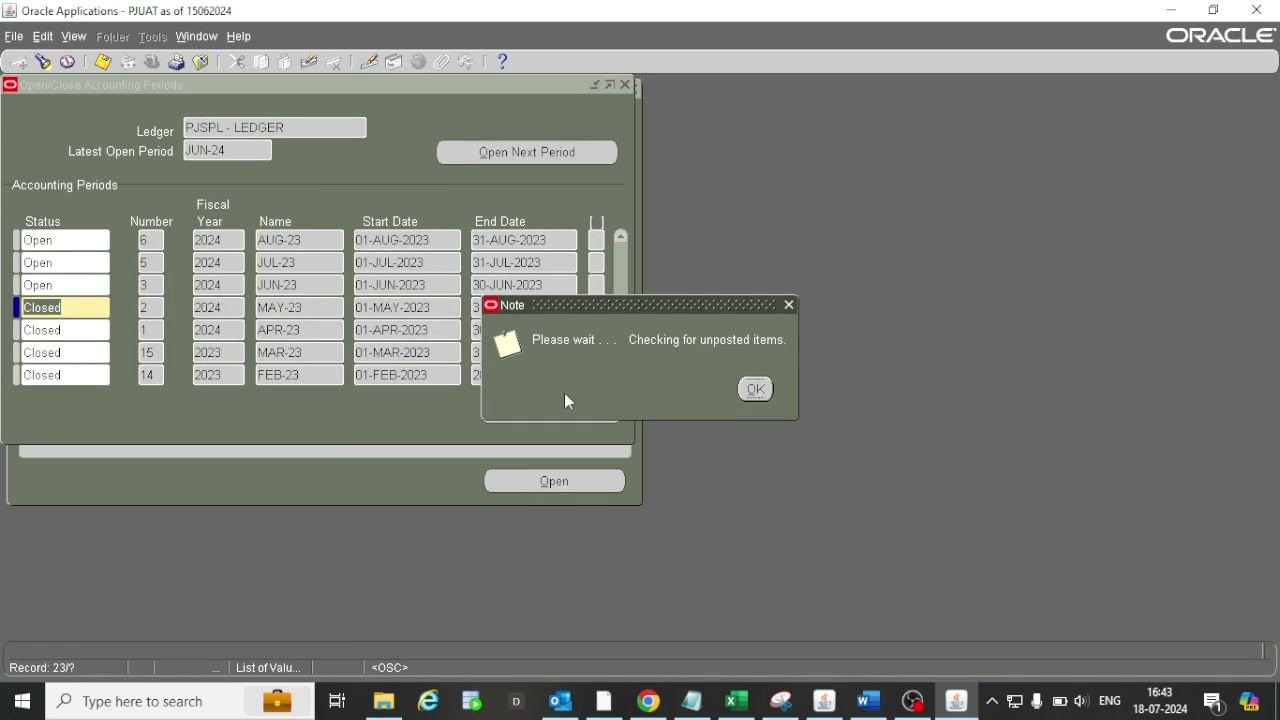
The system checks for unposted items. A pop-up note appears: "Please wait... Checking for unposted items."
- If unposted items exist, an error message appears and the period does not close until all items are posted. Review and resolve the pending transactions, then try closing the period again.
- If no unposted items exist, the process continues.
Step 11: Verify that the period is closed
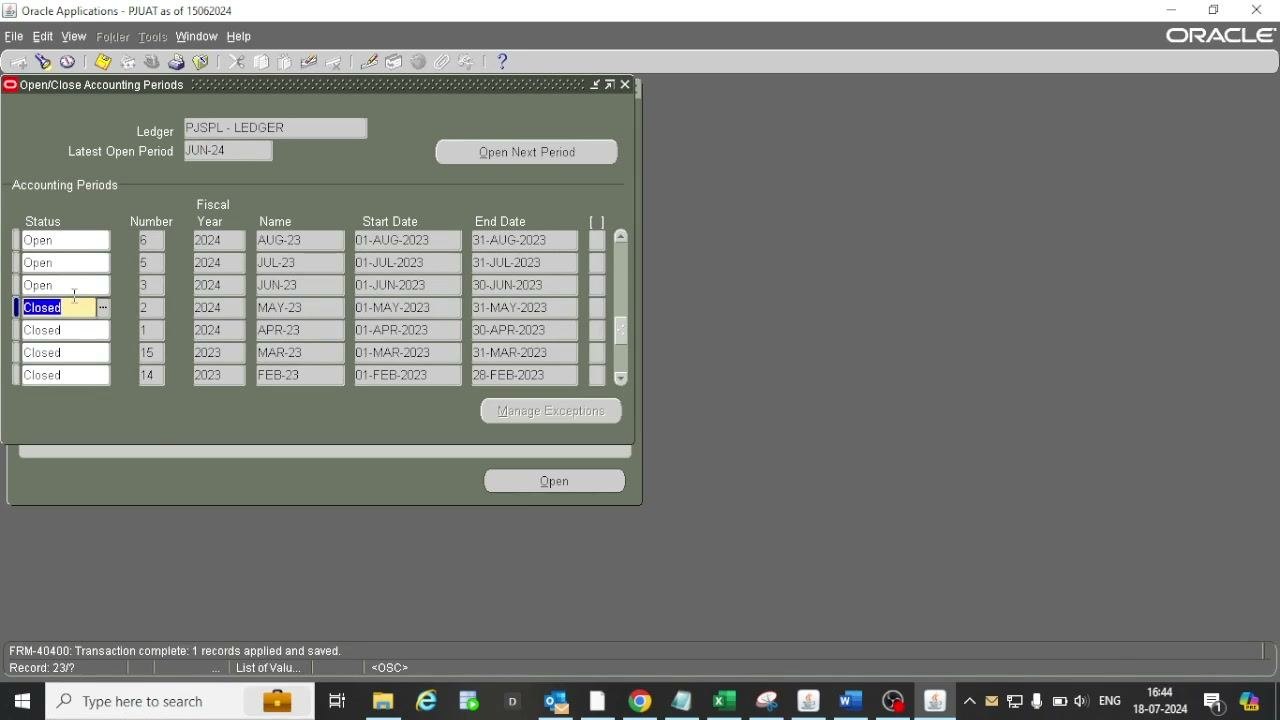
When no items are pending, the period closes successfully. The status for the period (for example, MAY-23) changes to "Closed." The same confirmation message appears at the bottom: "FRM-40400: Transaction complete: 1 records applied and saved."
The previous period (APR-23) remains "Closed," and later periods (JUN-23, JUL-23, and so on) remain "Open" or as previously set.
Summary
To open a receivables period in Oracle EBS, log in as an AR Super User and open Open/Close Accounting Periods. Select the period with the status "Not Opened," click Open, and save. The FRM-40400 message confirms the change.
To close a period, confirm that all transactions are posted. Then set its status to "Closed," save, and wait for the unposted items check to finish.
What's next
- Enter and post AR transactions in the newly opened period.
- Resolve any unposted items reported during the close check, then close the period again.
Generation details: cost, quality tiers
Docsie billed 3,000 credits ($2.10) to analyze this 6-minute video at standard quality. The rewrite, template fill and Word/PDF exports were included. The same video at each quality tier:
| Quality | Frames sampled | Credits | Approx. cost |
|---|---|---|---|
| Draft | every 16-30 s | 1,500 | $1.05 |
| Standard (this guide) | every 8-15 s | 3,000 | $2.10 |
| Detailed | every 4-7 s | 6,000 | $4.20 |
| Ultra | every 1-3 s | 12,000 | $8.40 |
Credits priced at $0.70 per 1,000; plans include a monthly allowance. Enterprise customers on on-premise or bring-your-own-model deployments run this on their own inference and pay no per-video credits.
Generated by Docsie Video-to-Docs on 2026-11-15 from a 5-minute video. Screenshots are frames from the source video and belong to their creator, PressureJet Oracle Learning Videos, whose original is embedded above. If you own this video and want the guide removed or credited differently, contact us and we will act within one business day.