
How to Open a MER File in FactoryTalk
A .mer file is a runtime application file used by FactoryTalk View Machine Edition. To open a MER file in FactoryTalk View Studio, you first restore it with the FactoryTalk View ME Application Manager and then open the restored project in FactoryTalk View Studio. This guide walks you through restoring the file, opening the project, and editing it. It also shows how to delete existing projects you no longer need.
Video: Restore .mer file to edit the project and delete existing project file from factory talk view studio by Cheemalas Automation (2022). All credit for the demonstration goes to the creator; watch the original on YouTube. The written guide below was generated from this video by Docsie. Creator? Request a change or removal.
A .mer file is a runtime application file used by FactoryTalk View Machine Edition. To open a MER file in FactoryTalk View Studio, you first restore it with the FactoryTalk View ME Application Manager and then open the restored project in FactoryTalk View Studio. This guide walks you through restoring the file, opening the project, and editing it. It also shows how to delete existing projects you no longer need.
Prerequisites
Before you begin, make sure you have the following:
- A
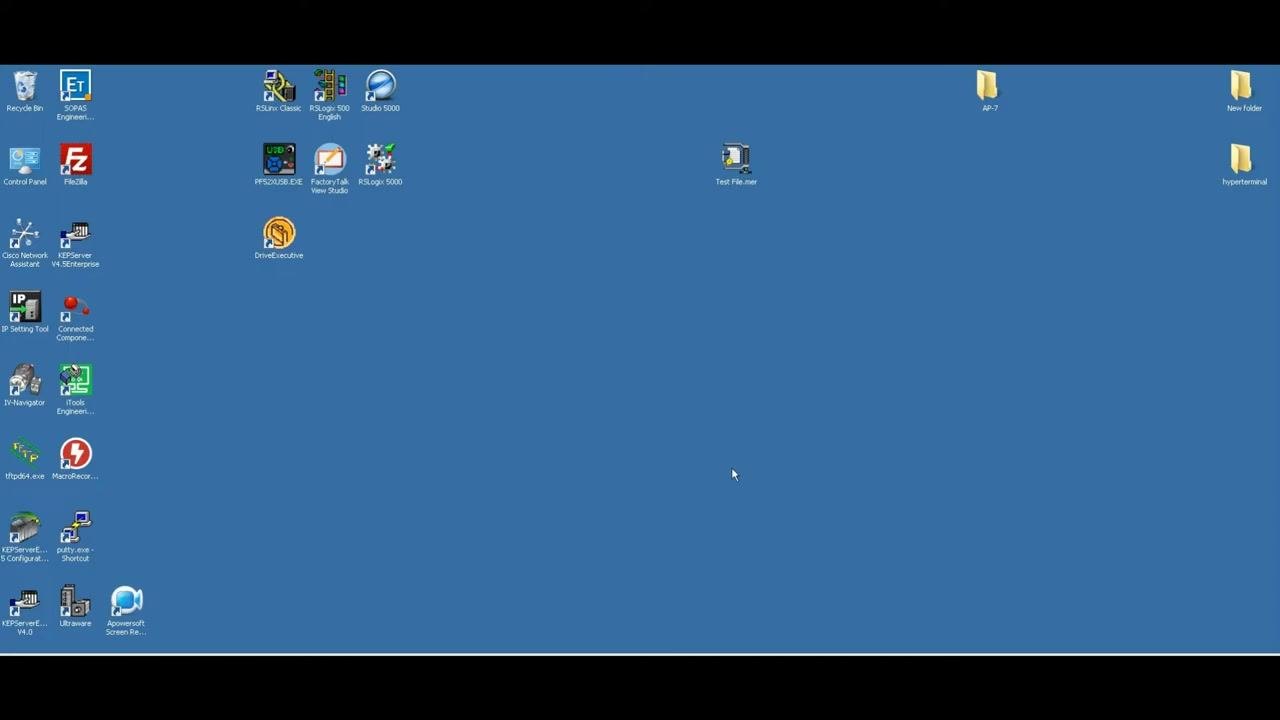
.merfile (for example,Test File.mer) on your desktop or in a known directory. - Access to FactoryTalk View ME Application Manager and FactoryTalk View Studio.
Restore the runtime application
Step 1. Locate the runtime application file
Confirm that your .mer file, such as Test File.mer, is on your desktop or in a directory you know. This is the file you will restore.
Step 2. Open FactoryTalk View ME Application Manager
- Click the Start menu.
- Find and select FactoryTalk View ME Application Manager in the program list.
In the Application Manager window, choose Restore runtime application, and then click Next.
Step 3. Browse to the .mer file
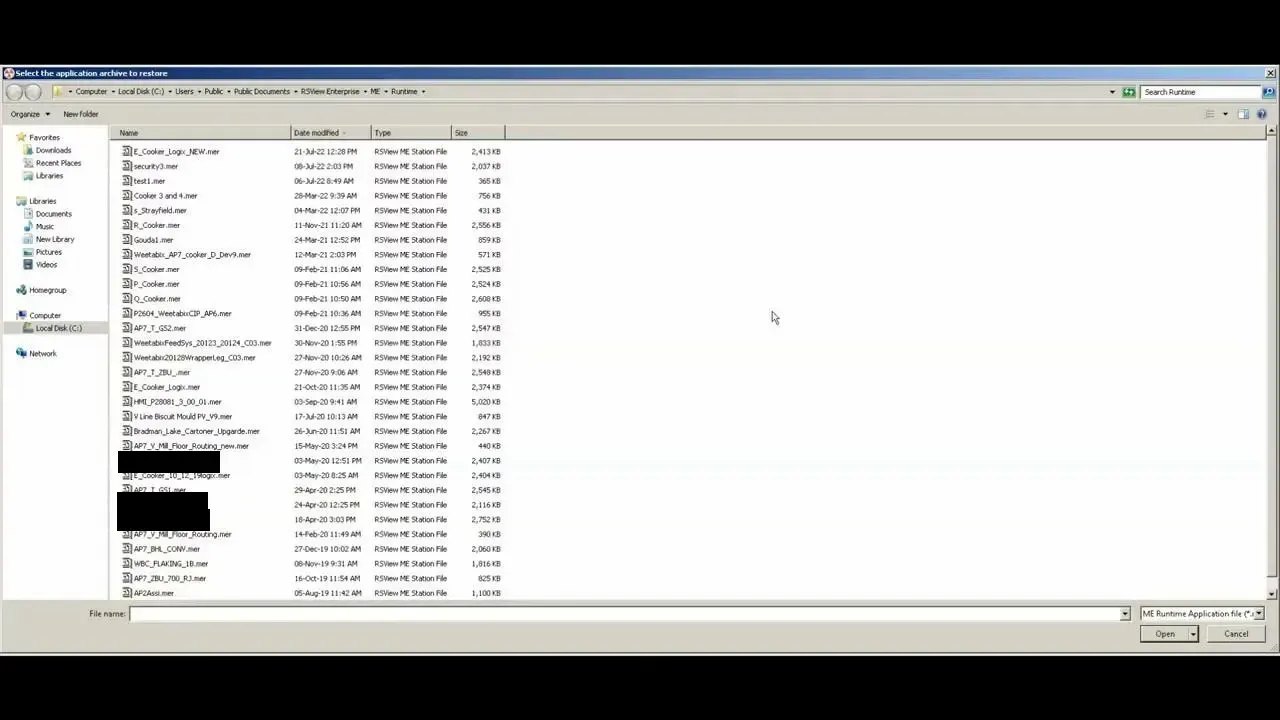
- In the file selection dialog, go to the location of your
.merfile. - Select the file you want to restore (for example,
Test File.mer). - Click Open.
Step 4. Name the project
Enter a name for the new project when prompted. Then click Finish to complete the restoration.
Step 5. Launch FactoryTalk View Studio
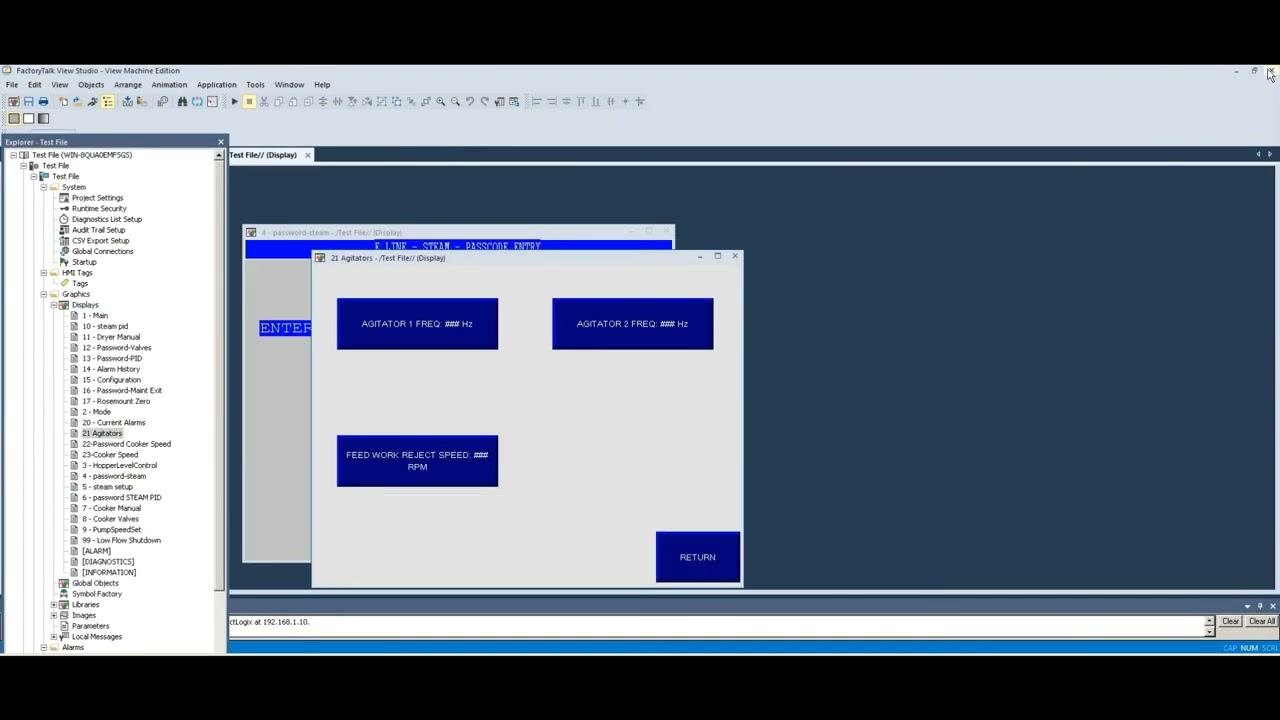
Start FactoryTalk View Studio from your desktop or the Start menu. The main interface appears, with the project explorer on the left and any open project displays in the center.
Step 6. Select and open the restored project
In the New/Open Machine Edition Application dialog, find your newly restored project in the list. Select it and click Open. This step completes how to open a MER file in FactoryTalk View Studio.
Step 7. Acknowledge the version conversion warning
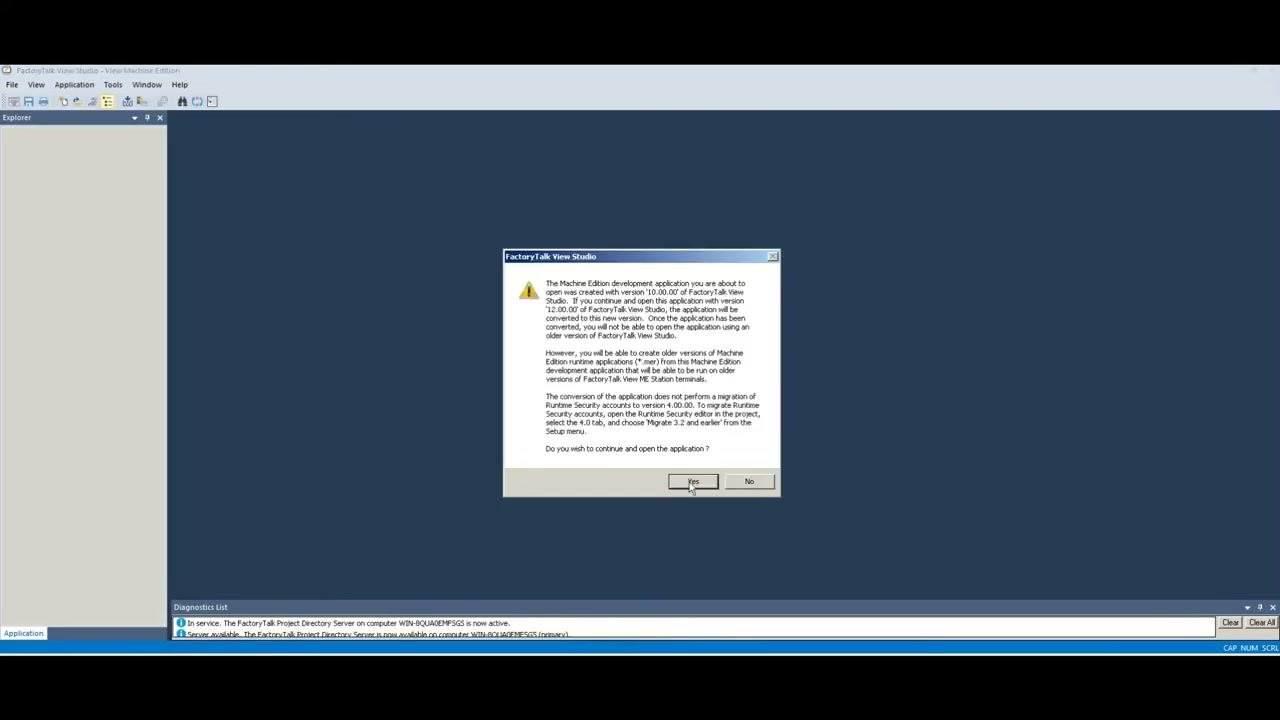
If a warning about version conversion appears, read the message. Click Yes to continue and open the application.
Step 8. Wait for the project components to load
Allow FactoryTalk View Studio to load and save the HMI components. Wait until the process completes and the project tree is visible.
Step 9. Edit the project
When loading finishes, the project is available for editing. You can modify it as needed and create a new runtime application file if required.
Delete existing projects
If you no longer need a restored project, you can delete it with the FactoryTalk View ME Application Manager.
Step 10. Review the list of existing projects
In the New/Open Machine Edition Application dialog, review the projects listed on the Existing tab. Note the names of the projects you want to delete.
Step 11. Open the Application Manager and choose Delete application
- Click the Start menu.
- Go to All Programs > Rockwell Software > FactoryTalk View.
- Select FactoryTalk View ME Application Manager.
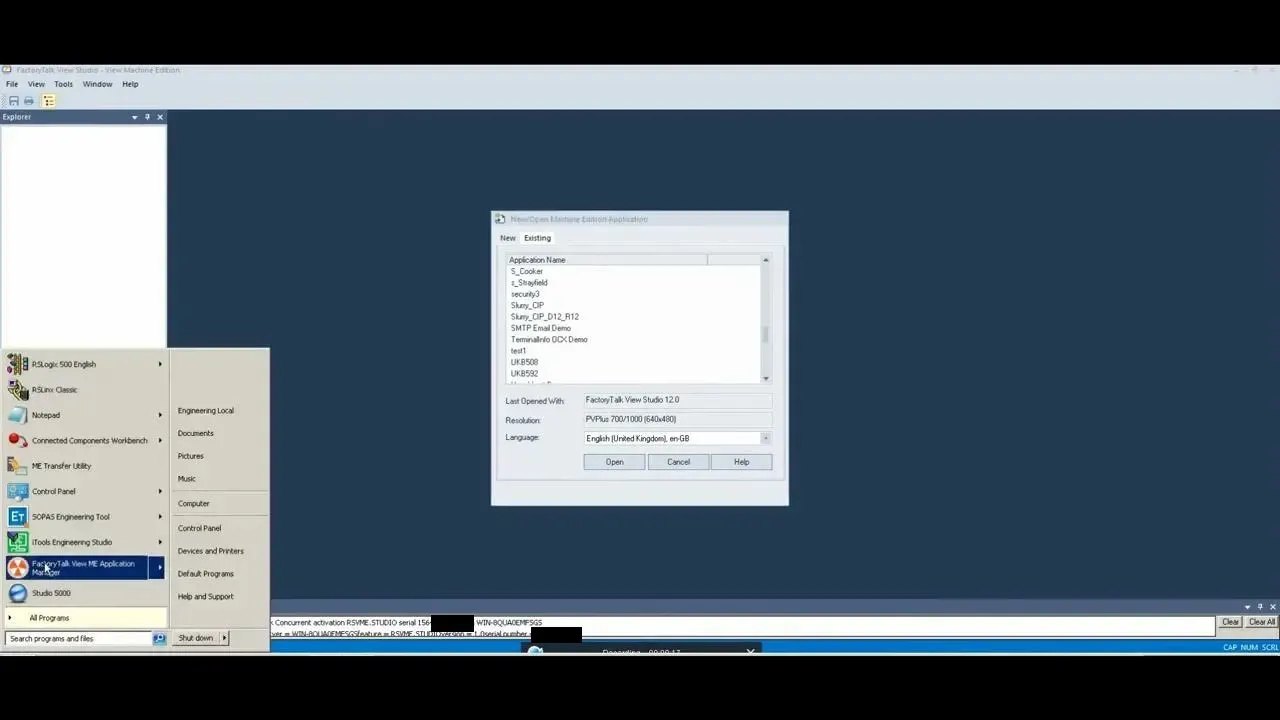
In the Application Manager window, choose Delete application, and then click Next.
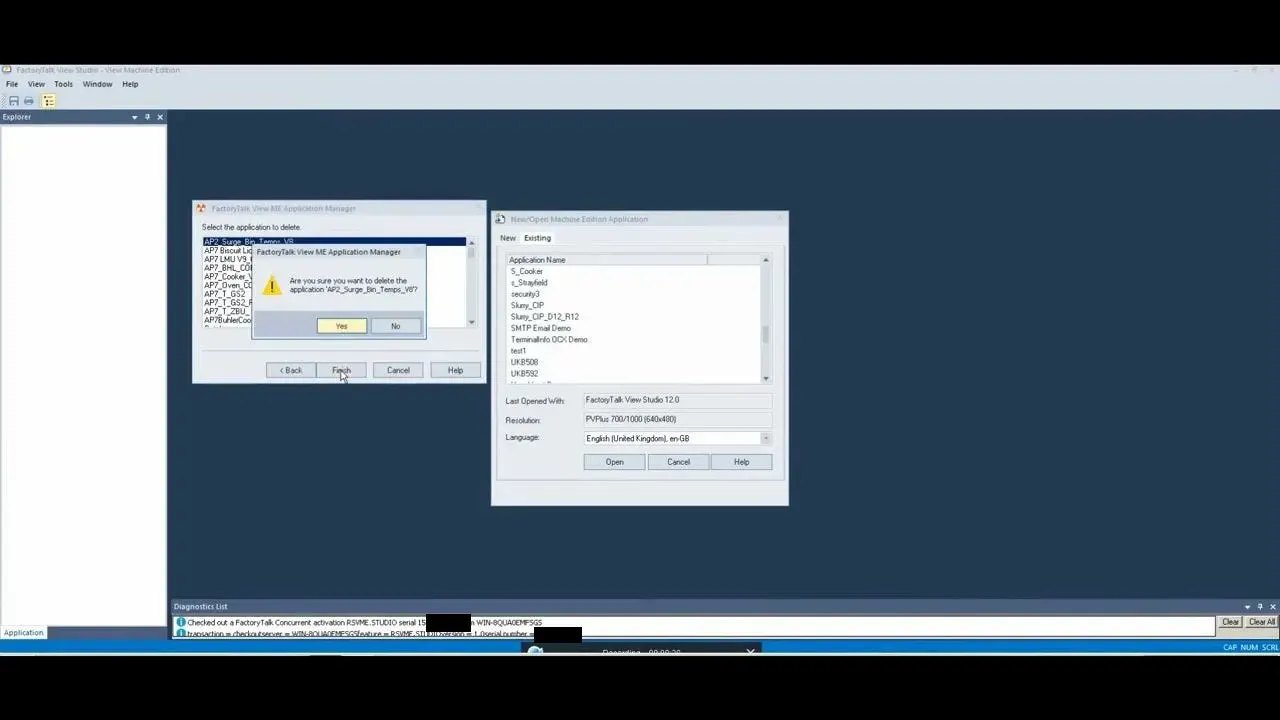
Step 12. Select the project and confirm the deletion
- From the list of available projects, select the project you want to delete.
- Click Finish.
- When the confirmation dialog asks whether you are sure you want to delete the application, click Yes to permanently delete the project.
Step 13. Close the Application Manager
When the deletion is complete, close the Application Manager. You can return to FactoryTalk View Studio to verify that the project no longer appears in the list.
Summary
You now know how to open a MER file in FactoryTalk View Studio. You restore the .mer runtime application file with FactoryTalk View ME Application Manager, open the restored project in FactoryTalk View Studio, and edit it. You can also delete projects you no longer need to keep your workspace organized and up to date.
Generation details: cost, quality tiers
Docsie billed 1,500 credits ($1.05) to analyze this 3-minute video at standard quality. The rewrite, template fill and Word/PDF exports were included. The same video at each quality tier:
| Quality | Frames sampled | Credits | Approx. cost |
|---|---|---|---|
| Draft | every 16-30 s | 750 | $0.52 |
| Standard (this guide) | every 8-15 s | 1,500 | $1.05 |
| Detailed | every 4-7 s | 3,000 | $2.10 |
| Ultra | every 1-3 s | 6,000 | $4.20 |
Credits priced at $0.70 per 1,000; plans include a monthly allowance. Enterprise customers on on-premise or bring-your-own-model deployments run this on their own inference and pay no per-video credits.
Generated by Docsie Video-to-Docs on 2026-11-24 from a 2-minute video. Screenshots are frames from the source video and belong to their creator, Cheemalas Automation, whose original is embedded above. If you own this video and want the guide removed or credited differently, contact us and we will act within one business day.