
How to Activate a License in FactoryTalk
This guide explains how to activate a license in FactoryTalk Activation Manager for your Rockwell Automation software. You enter the serial number and product key from your activation certificate, validate them, download the activation, and confirm that it appears in your list of available activations.
Video: How to Activate Software Using FactoryTalk Activation by Rockwell Automation (2020). All credit for the demonstration goes to the creator; watch the original on YouTube. The written guide below was generated from this video by Docsie. Creator? Request a change or removal.
This guide explains how to activate a license in FactoryTalk Activation Manager for your Rockwell Automation software. You enter the serial number and product key from your activation certificate, validate them, download the activation, and confirm that it appears in your list of available activations.
Prerequisites
Before you begin, make sure you have the following:
- Computer access: Use the computer that will run the software you want to activate. It must be connected to the Internet. If it has no Internet access, refer to Tech Note 587245 for an alternative activation process.
- FactoryTalk Activation Manager: This software is typically installed automatically with any Rockwell Automation software. If you have not yet installed the software you want to activate, install it before you continue.
- FactoryTalk Activation Certificate: This certificate came with your software, usually in a red envelope. It contains the serial number and product key you need for activation.
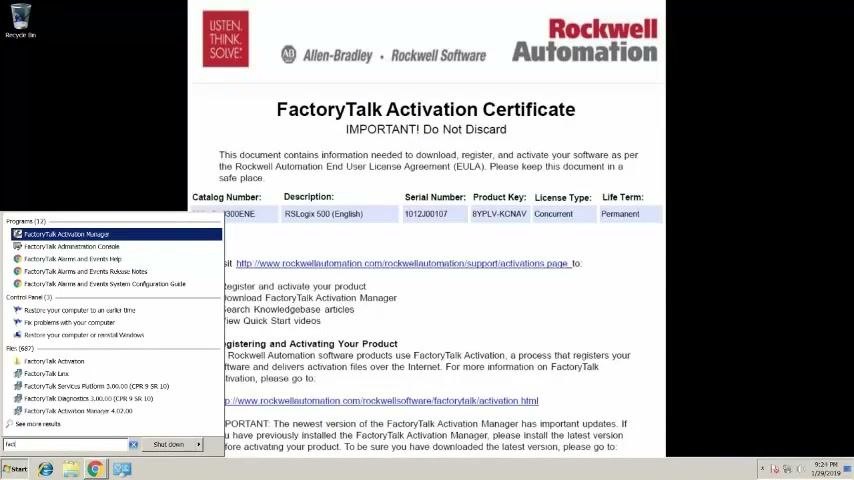
Review your FactoryTalk Activation Certificate
Keep the certificate at hand and note the Serial Number and Product Key. In this example, the certificate shows:
- Serial Number: 1012J00107
- Product Key: 8PYL-KCN4V
The certificate also lists the Catalog Number, Description, License Type, Life Term, and instructions.
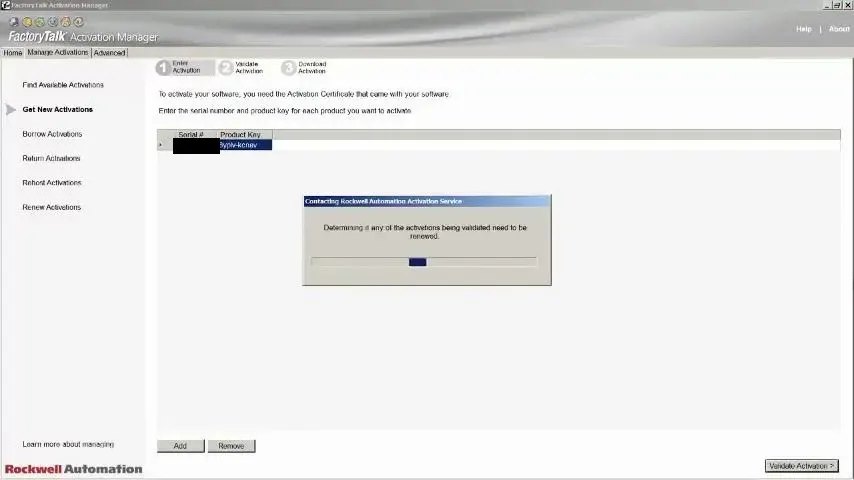
Open FactoryTalk Activation Manager
- From the Windows Start menu, type
FactoryTalk Activationin the Search Programs and Files field. - Locate FactoryTalk Activation Manager under Programs.
- Click the program to open it.
Start a new activation
When the application opens, make sure you are on the Home tab. Then click Get New Activations.
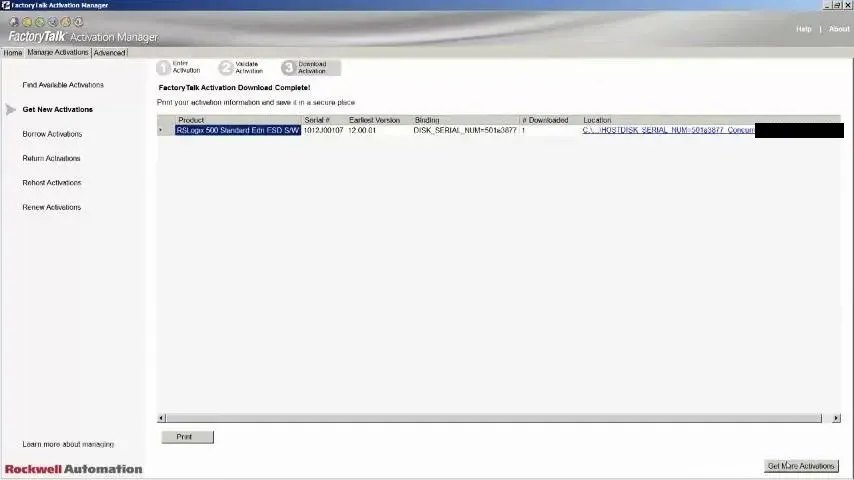
Enter your serial number and product key, then validate
In the Get New Activation view, enter the Serial Number and Product Key from your activation certificate. Then click Validate Activation in the lower right corner.
FactoryTalk Activation Manager connects to the Rockwell Automation Licensing Server to validate your details. A progress dialog shows the connection and validation status. Wait for validation to complete.
If you run into problems or your computer is not connected to the Internet, refer to technical note 106058 or 587245.
Review license availability and details
After validation succeeds, a new screen displays the licenses available on the licensing server. Review the following columns:
- To Download: The number of activations to download. The default is 1. Leave it as is unless you need more.
- Available: The number of activations available for download, which depends on your purchase.
- Product: The product you purchased, for example RSLogix 500 Standard Edn ESD SW.
- Earliest Version: The earliest version you can activate. This column has a drop-down menu.
- Binding: The hardware or dongle the activation is tied to, typically your hard drive serial number.
- Destination: Always set to "This computer". You cannot change it.
- Serial #: The serial number associated with the license.
- Type: The license type, for example Concurrent.
In the Earliest Version drop-down, select the version you want to activate. Select the highest version you plan to use.
Download the activation
After you confirm the details and select the version, click Download Activation in the lower right corner. The activation downloads and is bound to the specified hardware, such as your hard drive serial number.
A confirmation screen then displays the activation details:
- Product
- Serial
- Earliest Version
- Binding (for example, DISK_SERIAL_NUM=501e3877)
- Downloaded status
- Location (file path)
Optionally, click Print to print your activation information for your records.
Refresh the activation server
Refresh the server so the new activation is recognized.
- Click the Advanced tab at the top of FactoryTalk Activation Manager.
- Select Refresh This Server from the left-hand menu.
- Click Refresh Server. The server status updates to "Refreshing."
Confirm your activation in the available activations list
- Click the Manage Activations tab at the top of the FactoryTalk Activation Manager window.
- On the left-hand side, select Find Available Activations.
- Click Refresh Activations at the bottom of the screen.
- Wait for the list to update.
The "Available activations" section displays all licenses currently available on your system. It includes these columns:
- Product: The name of the activated product, for example RSLogix 5000 Pro (English) or FT Transaction Mgr Standard 1500 Tag.
- Serial #: The serial number associated with each activation.
- Expires: The expiration date of the activation.
- Activation: The activation type or code.
- Version: The version number of the product.
- Location: The path or machine where the activation is stored.
- Total: The total number of activations.
- In Use: The number of activations currently in use.
- Borrowed: The number of borrowed activations.
- First Version: The earliest version supported.
Confirm that your newly downloaded activation appears in this list.
Run your software
When your activation is listed under "Available activations," you are ready to use your software. Launch the Rockwell Automation application you want, such as RSLogix 5000 or FTView Studio. The software detects the available activation and lets you use all licensed features.
Get support if you need it
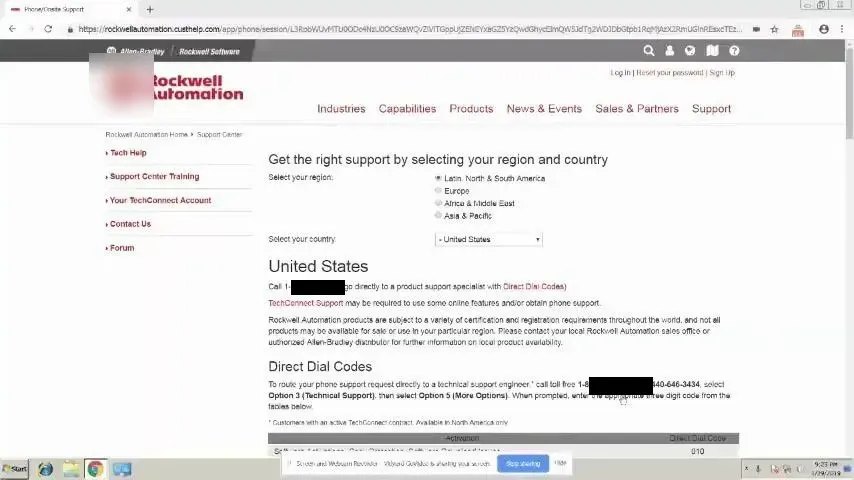
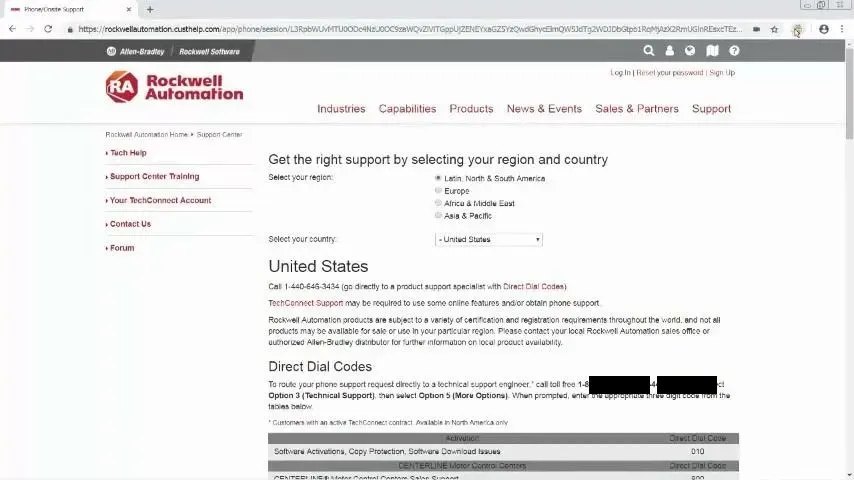
If you run into issues or need further help, visit the Rockwell Automation Support Center at https://rockwellautomation.custhelp.com/. Select your region and country to reach the appropriate support resources. Use the phone numbers or online resources for technical support, license management, or product assistance.
Summary
You now know how to activate a license in FactoryTalk Activation Manager. You:
- Gathered your serial number and product key from the FactoryTalk Activation Certificate.
- Validated them against the Rockwell Automation Licensing Server.
- Downloaded the activation.
- Refreshed the server.
- Confirmed the activation in the available activations list.
Keep your FactoryTalk Activation Certificate in a safe place for future reference.
Generation details: cost, quality tiers
Docsie billed 2,000 credits ($1.40) to analyze this 4-minute video at standard quality. The rewrite, template fill and Word/PDF exports were included. The same video at each quality tier:
| Quality | Frames sampled | Credits | Approx. cost |
|---|---|---|---|
| Draft | every 16-30 s | 1,000 | $0.70 |
| Standard (this guide) | every 8-15 s | 2,000 | $1.40 |
| Detailed | every 4-7 s | 4,000 | $2.80 |
| Ultra | every 1-3 s | 8,000 | $5.60 |
Credits priced at $0.70 per 1,000; plans include a monthly allowance. Enterprise customers on on-premise or bring-your-own-model deployments run this on their own inference and pay no per-video credits.
Generated by Docsie Video-to-Docs on 2026-11-24 from a 3-minute video. Screenshots are frames from the source video and belong to their creator, Rockwell Automation, whose original is embedded above. If you own this video and want the guide removed or credited differently, contact us and we will act within one business day.