
How to Use DAX Copilot in Epic
DAX Copilot is an ambient AI assistant designed to help clinicians document patient encounters automatically. This guide walks you through how to use DAX Copilot in Epic (or your EHR of choice) from starting a mobile recording through to transferring and signing the finished note. DAX Copilot lives in the same mobile application as PowerMic Mobile, so you can toggle between the two tools depending on your workflow needs — PowerMic Mobile turns your phone into a secure wireless microphone, while DAX Copilot listens to the encounter and generates a clinical summary.
Video: DAX Copilot - Demonstration by Total Voice Technologies. All credit for the demonstration goes to the creator; watch the original on YouTube. The written guide below was generated from this video by Docsie. Creator? Request a change or removal.
DAX Copilot is an ambient AI assistant designed to help clinicians document patient encounters automatically. This guide walks you through how to use DAX Copilot in Epic (or your EHR of choice) from starting a mobile recording through to transferring and signing the finished note. DAX Copilot lives in the same mobile application as PowerMic Mobile, so you can toggle between the two tools depending on your workflow needs — PowerMic Mobile turns your phone into a secure wireless microphone, while DAX Copilot listens to the encounter and generates a clinical summary.

Prerequisites
Before you start a DAX Copilot encounter, confirm the following:
- You have the mobile application installed, with both PowerMic Mobile and DAX Copilot accessible from the navigation tabs.
- A scheduling feed is not required to use DAX Copilot.
- You are ready to identify each recording using two patient identifiers, such as name, age, date of birth, or gender.
- You have verbally confirmed patient consent before every recording.
- For reviewing and transferring notes, you have access to the DAX Copilot desktop application (Dragon Medical One) and your EHR open on the same desktop.

Review the summaries list in the mobile app
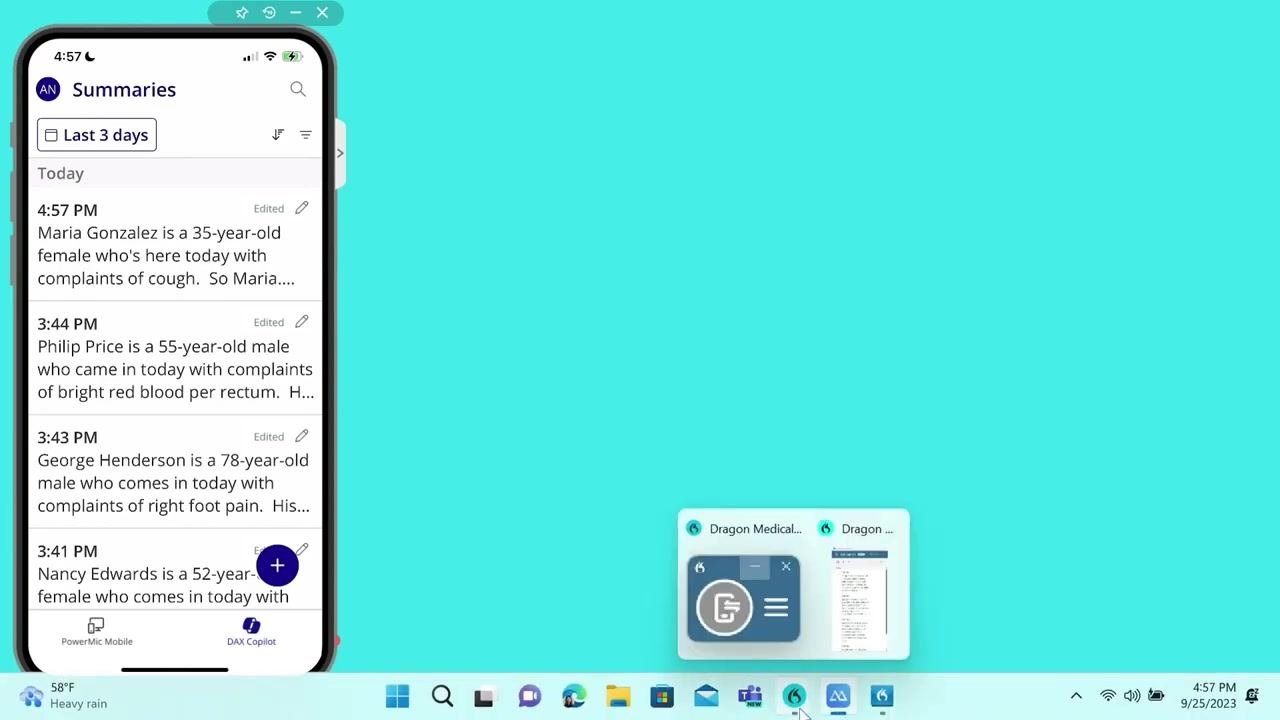
Open the mobile application to see a list of encounter summaries for the day. Each entry shows the patient's name, age, gender, chief complaint, and the time of the encounter. The list is found under the Summaries section and can be filtered by Last 3 days.
For example, entries might read: "3:44 PM: Philip Price is a 55-year-old male who came in today with complaints of bright red blood per rectum," or "3:41 PM: Nancy Edwards is a 52-year-old female who comes in today with complaints of abdominal pain."
Start a new DAX Copilot recording
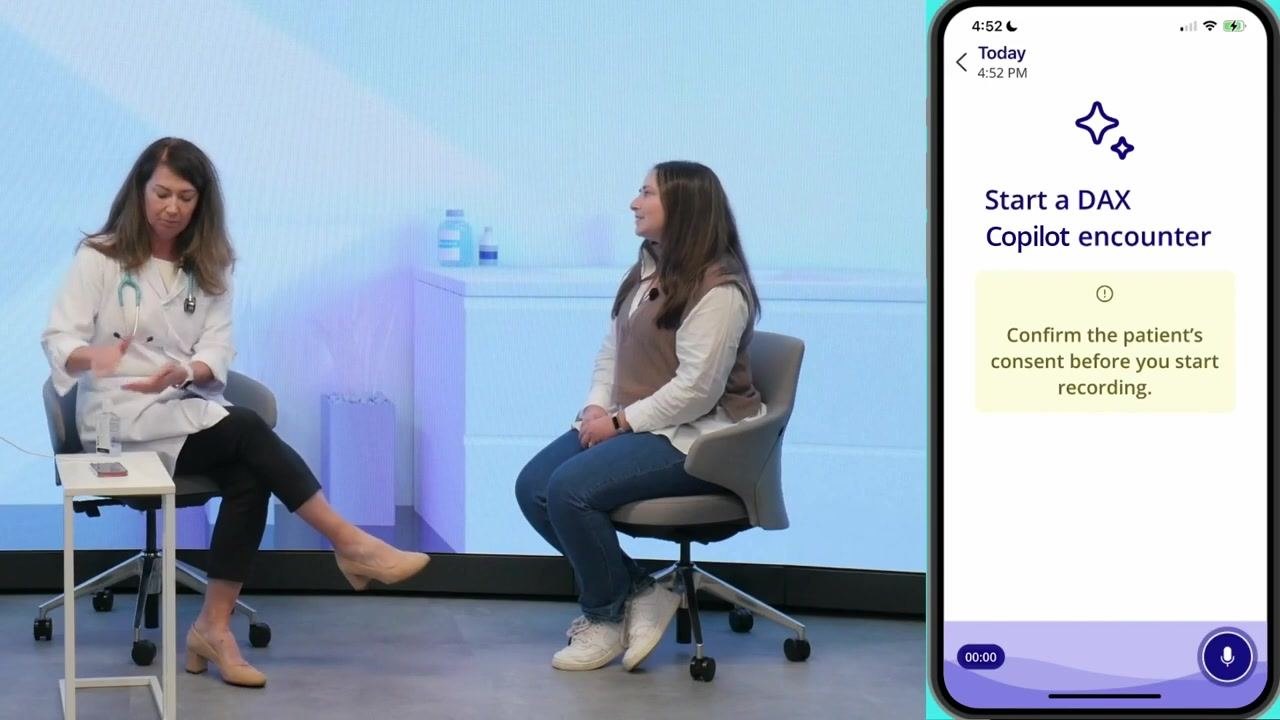
Press the plus (+) button in the lower right corner of the mobile application to begin a new recording. The app displays a reminder to confirm that appropriate patient consent has been obtained before you start.
Confirm patient consent before recording
Before pressing record, verbally ask the patient for consent. For example:
- Clinician: "Are you ready for me to go ahead and begin the recording?"
- Patient: "Yes."
Only proceed once you receive verbal consent.
Begin the DAX Copilot recording
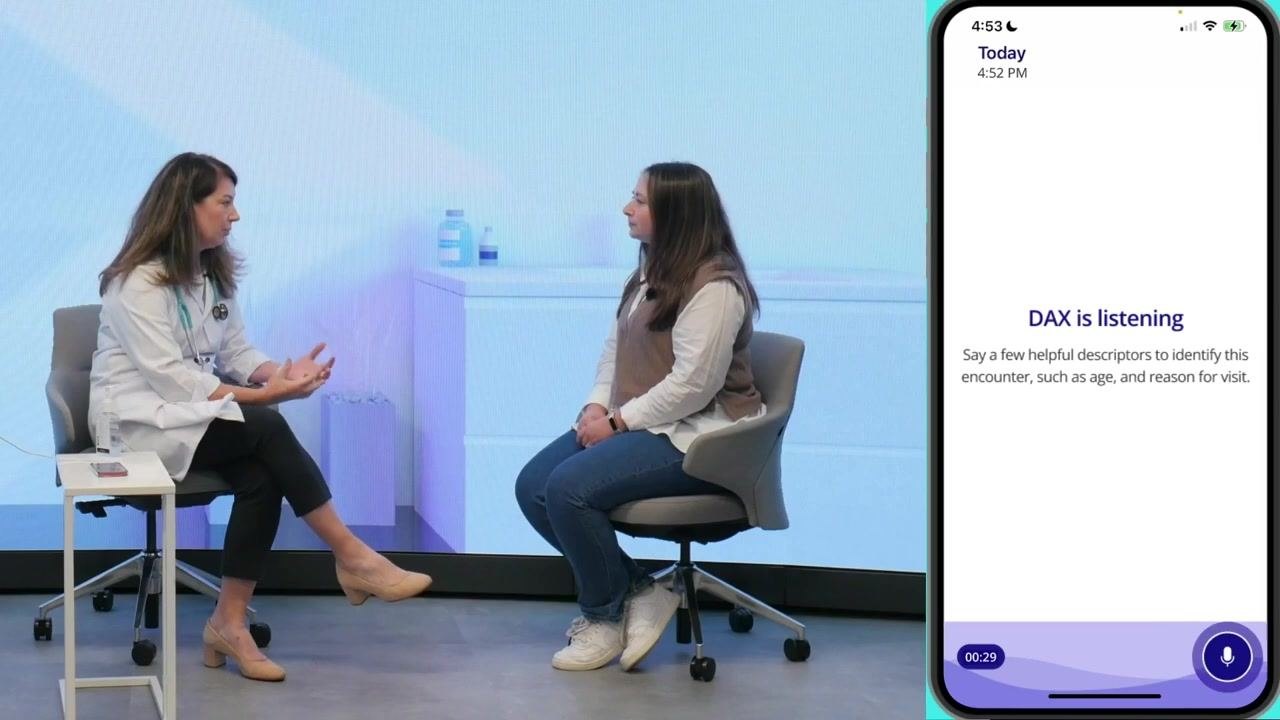
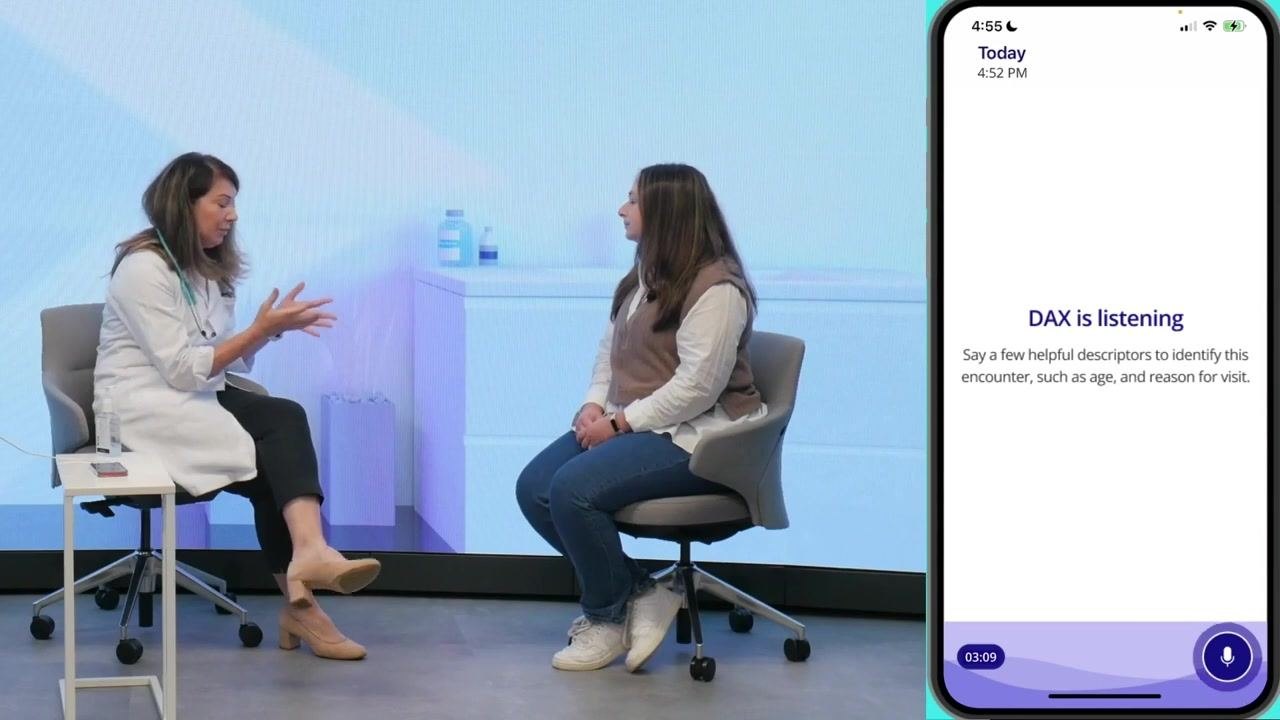
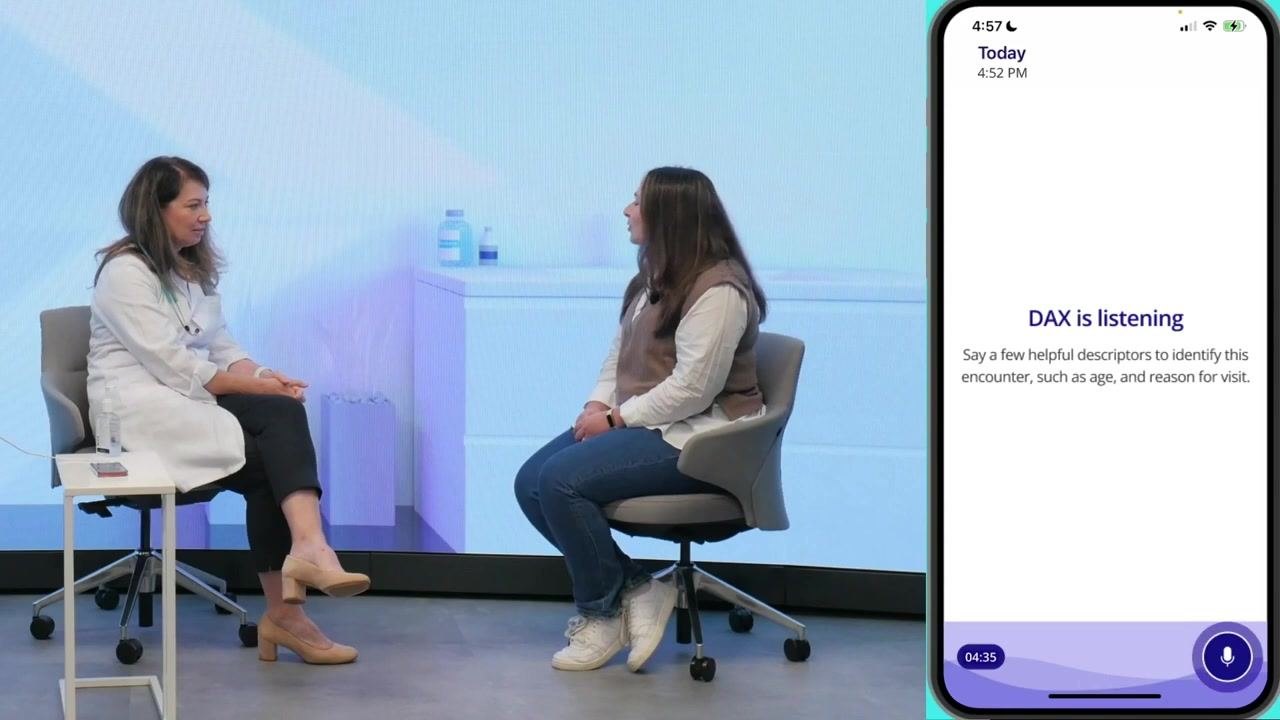
Press the microphone button to start recording. The app displays a running timer and the message: "DAX is listening. Say a few helpful descriptors to identify this encounter, such as age, and reason for visit." State the patient's name, age, gender, and chief complaint — for example, "Maria Gonzalez is a 35-year-old female who's here today with complaints of cough."
Conduct the clinical interview
Ask the patient to describe the onset and progression of symptoms, then continue with relevant follow-up questions. In the example encounter, the patient explains:
- Onset: "About two weeks ago, I noticed a little tickle in my throat."
- Progression: "It's gotten progressively worse into a deep, rough cough."
- Associated symptoms: "I've even been coughing up some green mucus," with no blood noted.
Continue asking about fever, chills, hydration, facial pain, congestion, sore throat, and possible exposure. In this example, the patient recalls being on a trip where a friend was sick.
Let the app continue listening through the full interview
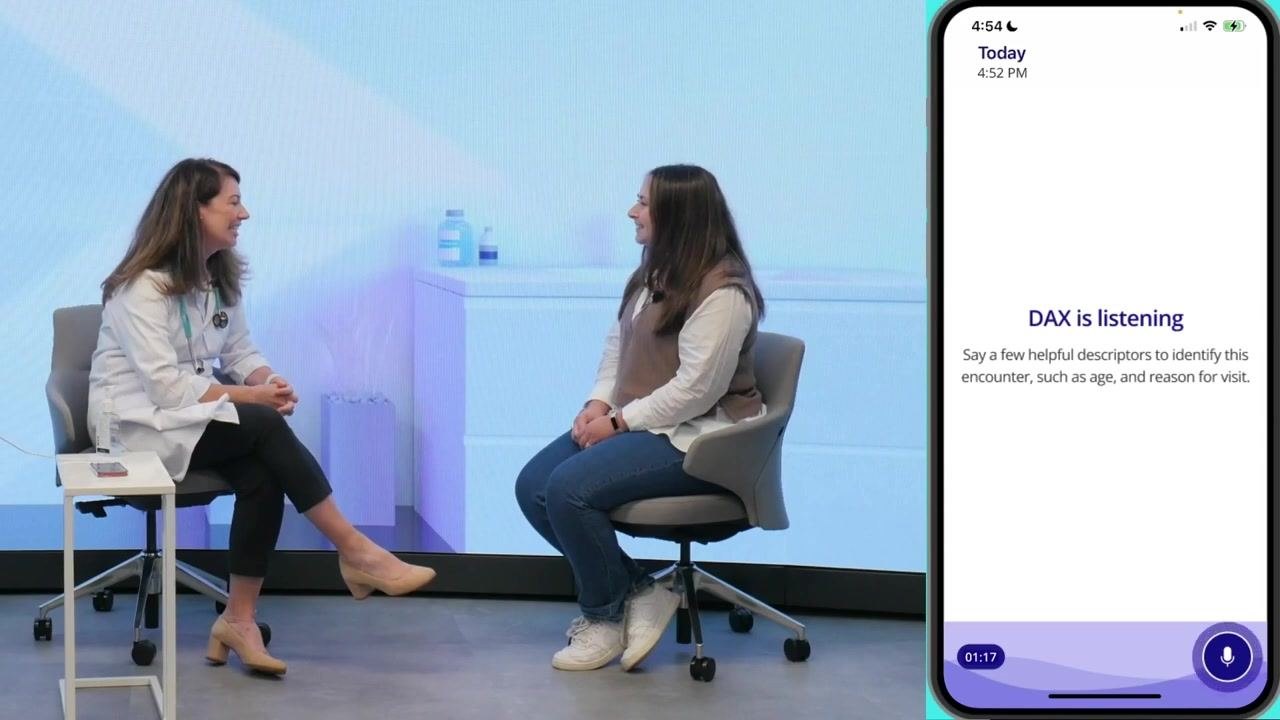
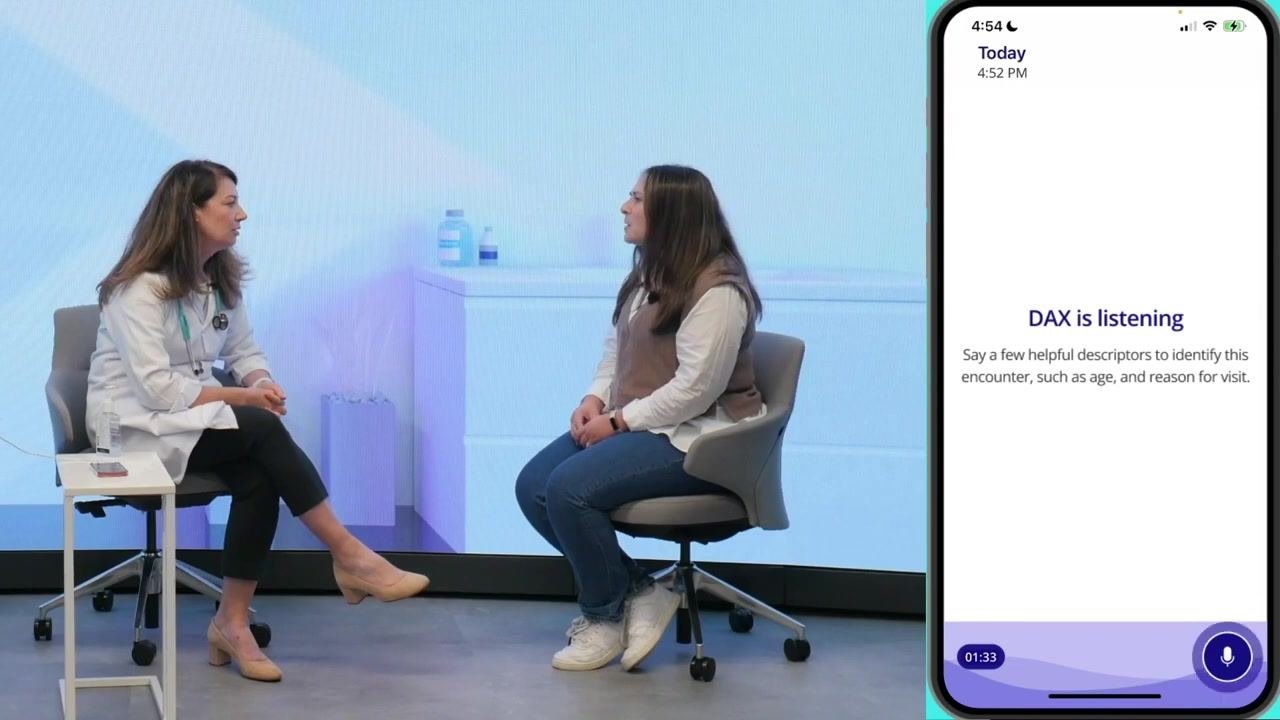
As the conversation continues, the app keeps the timer running and repeats the message: "DAX is listening. Say a few helpful descriptors to identify this encounter, such as age, and reason for visit." Maintain clear, descriptive communication throughout so the AI accurately captures the encounter.
Review additional medical history
Continue the history by asking about other medical problems. In the example, the patient reports a prior blood clot and current blood thinner use. Follow-up questions address shortness of breath, leg swelling, compression sock use, and ongoing specialist follow-up with a hematologist — all captured by DAX Copilot as you speak them aloud with the patient.
Transition to the physical exam
Let the patient know you are about to perform a physical exam, and reassure them that you will explain the findings afterward. For example: "Now, I want to go ahead and just do a quick physical exam. I'm going to be calling out some of these exam findings, but I'm going to let you know what that means when I'm done, okay?"
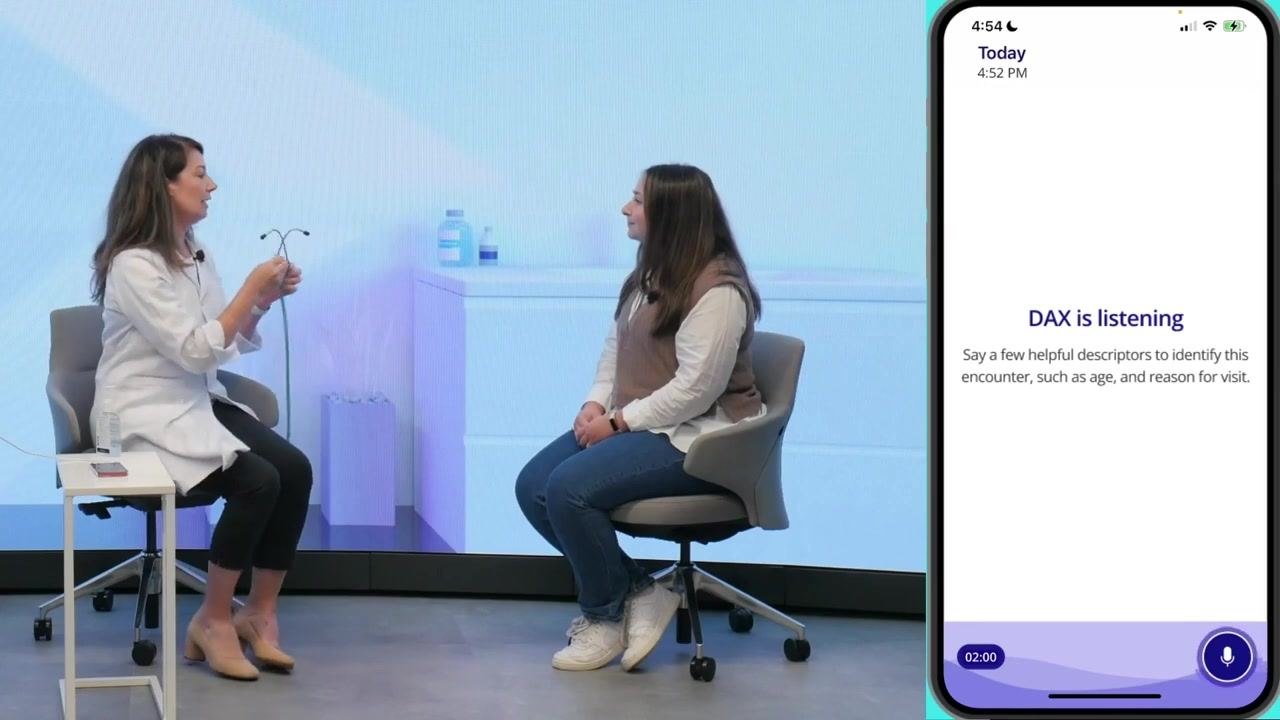
Perform and verbalize the physical exam
Perform each part of the exam and speak the findings aloud so DAX Copilot can capture them. In the example encounter, the clinician verbalizes findings for the face, throat, neck, heart, and lungs, such as: "On facial examination, there's mild pain to palpation of the frontal sinuses bilaterally," "On throat exam, the uvula is midline, no evidence of any peritonsillar exudate," "On neck examination, there's no cervical adenopathy present," and cardiac and pulmonary findings including coarse bronchi and occasional expiratory wheezing.
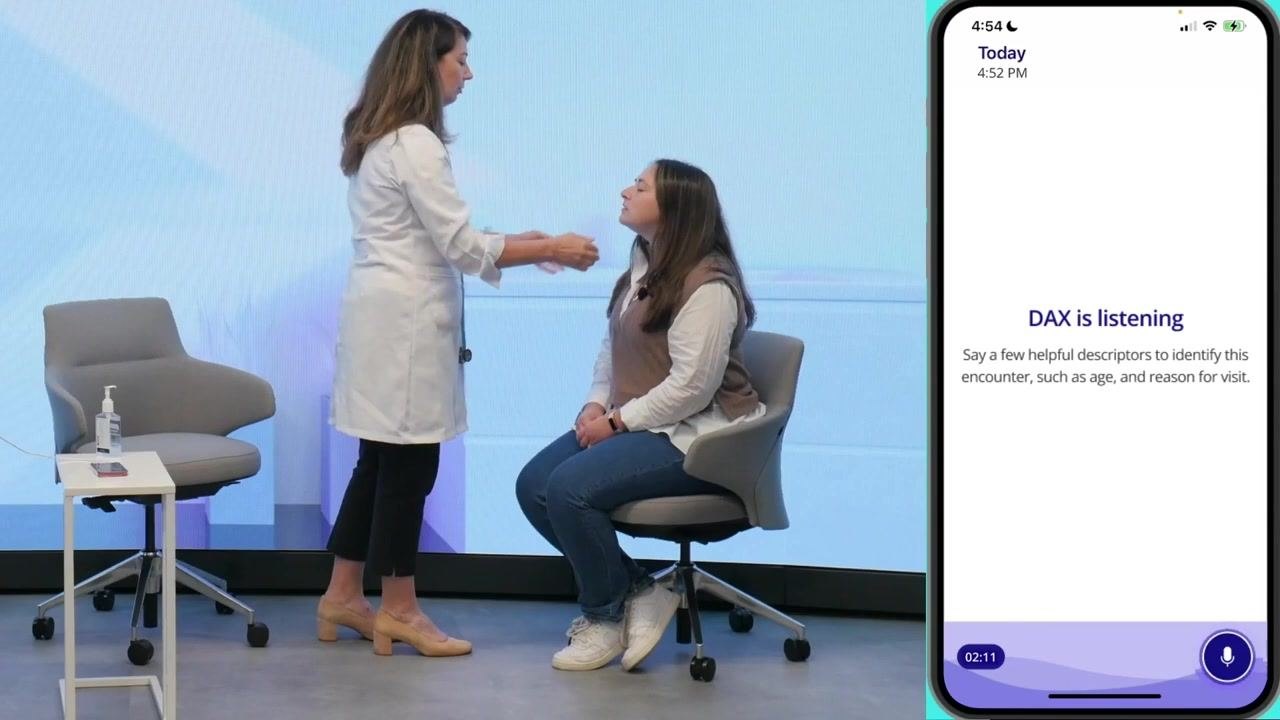
Explain the findings to the patient
Summarize the physical exam results in clear, patient-friendly language — for example, explaining that wheezing and congestion point toward a likely diagnosis.
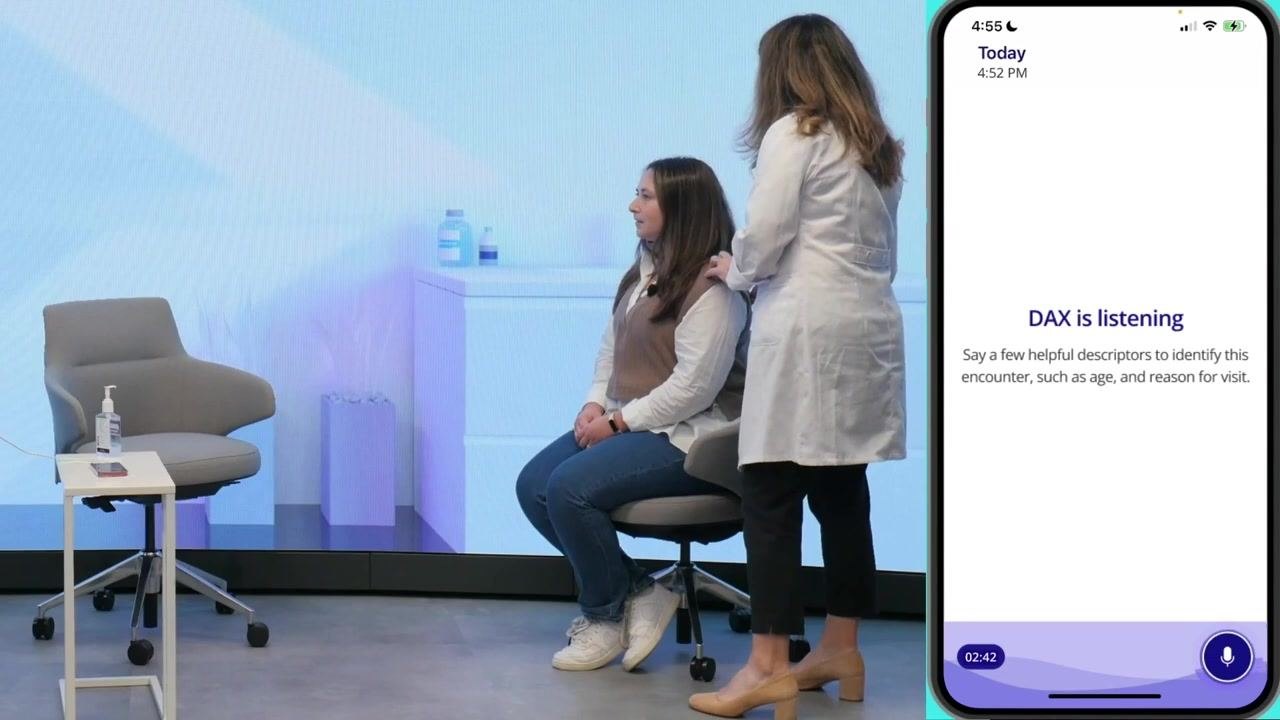
Confirm the patient understands the findings
Continue the explanation until the patient understands the results and their implications. Make sure all relevant findings and explanations are verbalized so DAX Copilot accurately captures the note before moving to the treatment discussion.
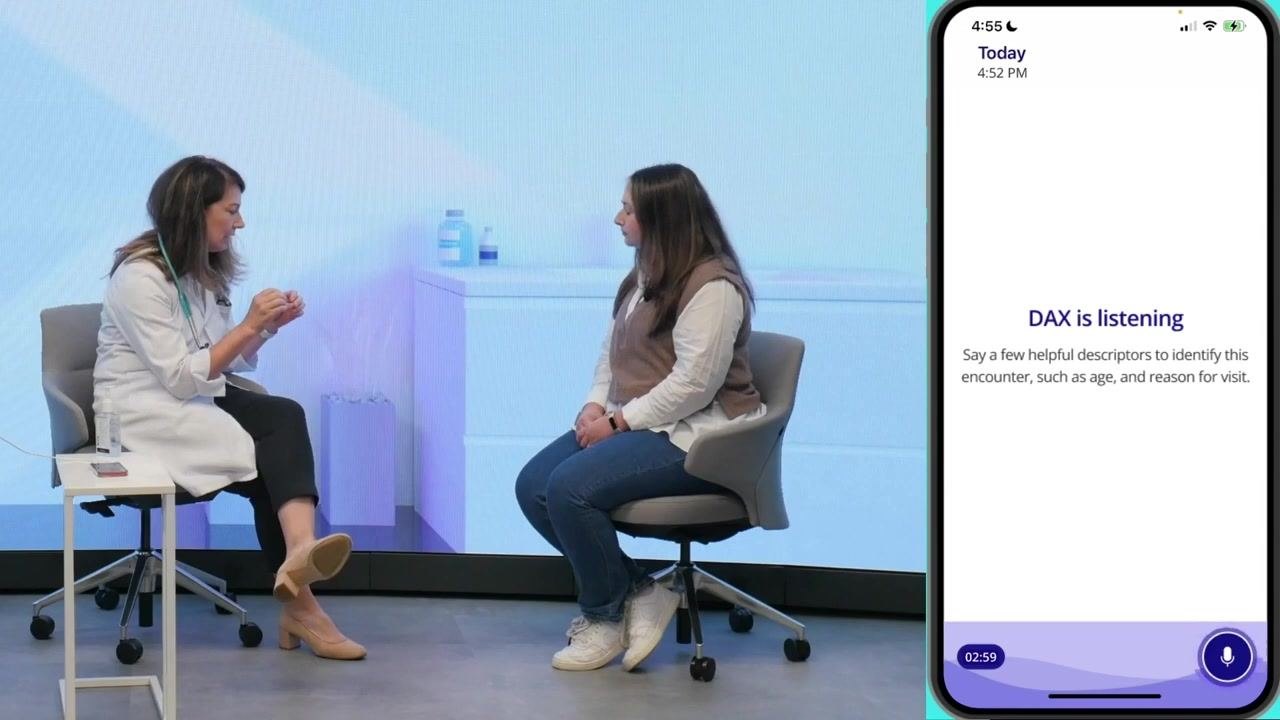
Document the treatment plan during the consultation
With the DAX app still open and listening, discuss the diagnosis and plan. In the example: "For your cough, I do believe that you most likely just have a viral syndrome, like a viral bronchitis." Explain the rationale for any decisions, such as holding off on antibiotics while ordering a chest X-ray, prescribing an albuterol inhaler for shortness of breath or excessive coughing, and prescribing guaifenesin 600 mg twice a day for mucus. Address any patient questions, such as medication interactions with a blood thinner, and review immunization status, recommending a flu shot if appropriate.
Conclude the consultation
Confirm the patient has no remaining questions and is comfortable with the plan before ending the session. In the example, the patient confirms: "No, it all sounds good."
Let DAX Copilot generate the summary
After the conversation ends, the DAX app status changes to "Writing..." indicating that the AI is generating the clinical summary. Keep the app running until processing completes.
Review the AI-generated summary on your mobile device
Once the summary is ready, open it in the DAX app. Locate the entry for the current patient (for example, "Today, 4:57 PM") and read the generated text, which may begin: "The patient is a 35-year-old female who is here today with complaints of..." Use the Summary and Transcript tabs to toggle between the condensed summary and the full transcript, and tap Edit if corrections are needed.
Access all recent encounter summaries
Open the Summaries section and use the Last 3 days filter to view recent encounters. Identify the relevant entry by patient name and timestamp (for example, "Maria Gonzalez, 4:57 PM"). Other recent summaries appear in the same list, each with a brief preview and edit icon, alongside navigation for PowerMic Mobile and DAX Copilot.
Open the summary on your desktop for transfer to the EHR
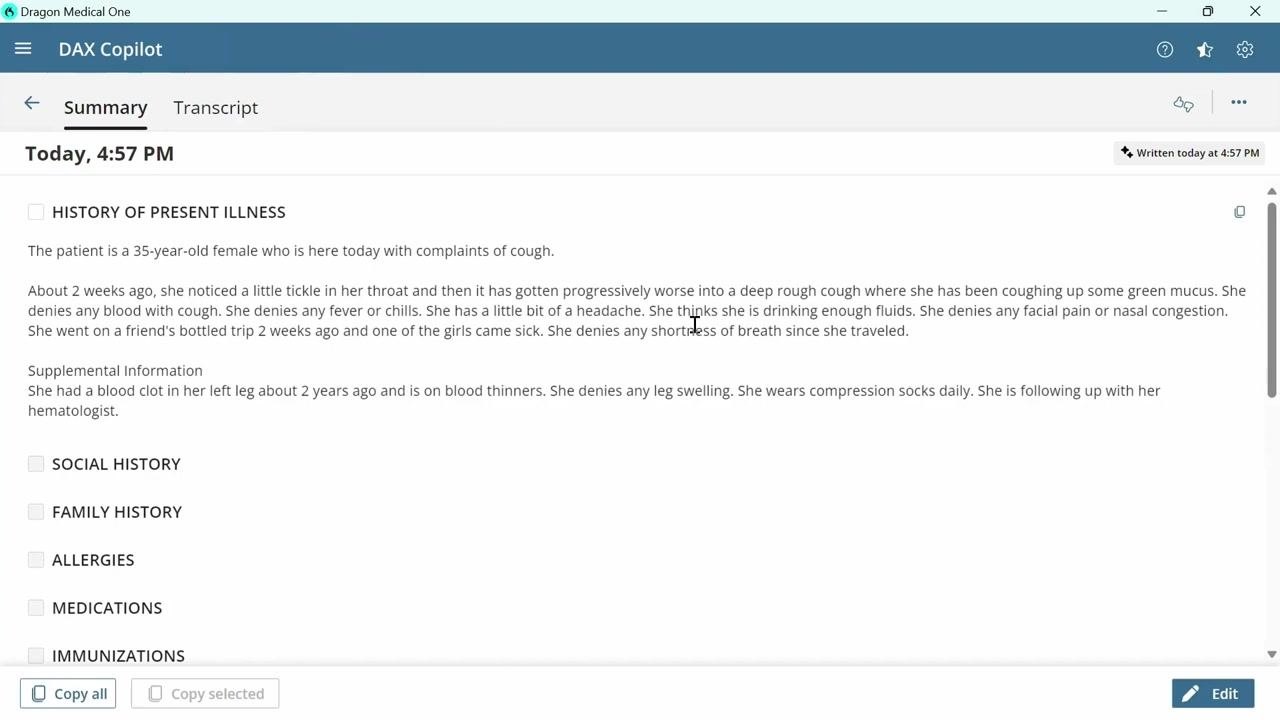
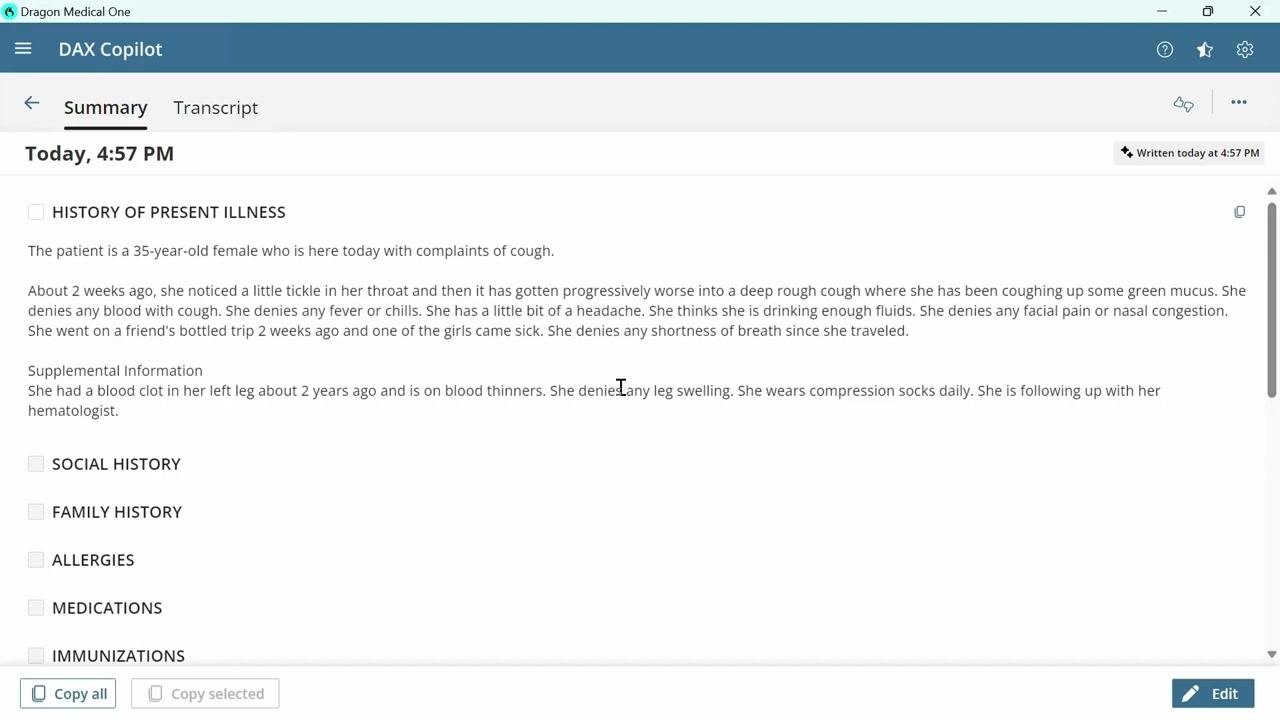
On your desktop, launch the DAX Copilot application (Dragon Medical One) and open the summary for the current patient. The summary is organized into sections such as HISTORY OF PRESENT ILLNESS, Supplemental Information, SOCIAL HISTORY, FAMILY HISTORY, ALLERGIES, MEDICATIONS, IMMUNIZATIONS, REVIEW OF SYSTEMS, and PHYSICAL EXAM, with detailed narrative text drawn directly from the encounter.
Review the physical exam findings in the summary
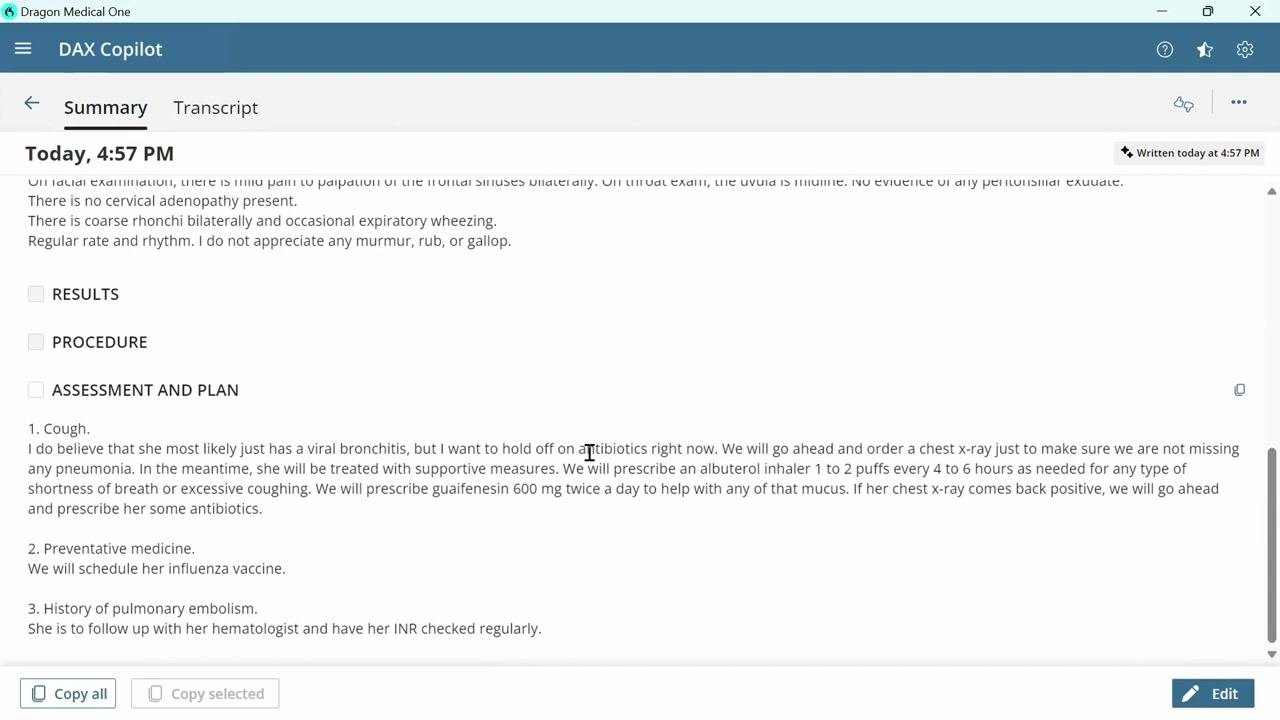
Scroll through the summary to review every section, including the physical exam findings such as: "On facial examination, there is mild pain to palpation of the frontal sinuses bilaterally," "On throat exam, the uvula is midline. No evidence of any peritonsillar exudate," and "There is no cervical adenopathy present." Confirm the summary follows a standard structure based on specialty, and use the Edit button for any necessary corrections before transferring it to the EHR.

Review summary sections and copy options
In addition to the AI-generated summary, you can use any pre-existing documentation macros you've created within Dragon Medical One. The desktop application displays sections including FAMILY HISTORY, ALLERGIES, MEDICATIONS, IMMUNIZATIONS, REVIEW OF SYSTEMS, PHYSICAL EXAM, RESULTS, PROCEDURE, and ASSESSMENT AND PLAN, with Copy all and Copy selected buttons at the bottom and an Edit button available for manual changes.
Review the Assessment and Plan section
The ASSESSMENT AND PLAN section consolidates the visit's conclusions, for example:
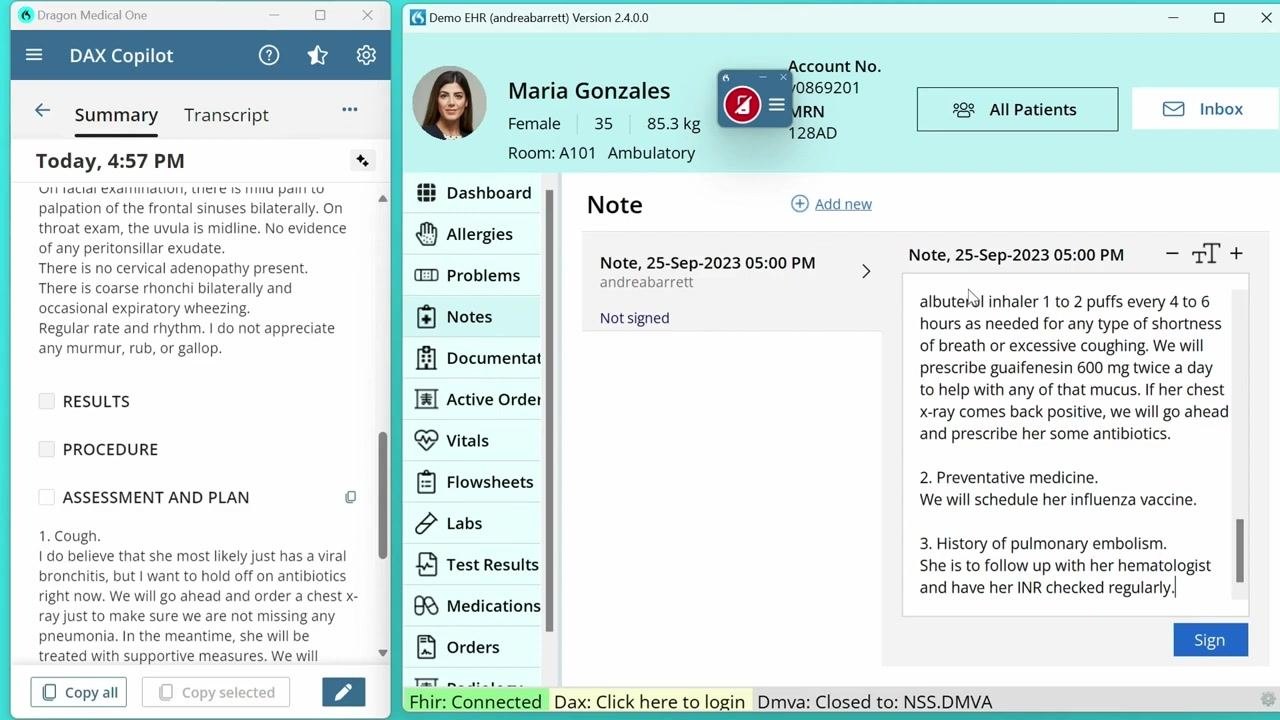
- Cough: "I do believe that she most likely just has a viral bronchitis, but I want to hold off on antibiotics right now. We will go ahead and order a chest x-ray just to make sure we are not missing any pneumonia. In the meantime, she will be treated with supportive measures. We will prescribe an albuterol inhaler 1 to 2 puffs every 4 to 6 hours as needed for any type of shortness of breath or excessive coughing. We will prescribe guaifenesin 600 mg twice a day to help with any of that mucus. If her chest x-ray comes back positive, we will go ahead and prescribe her some antibiotics."
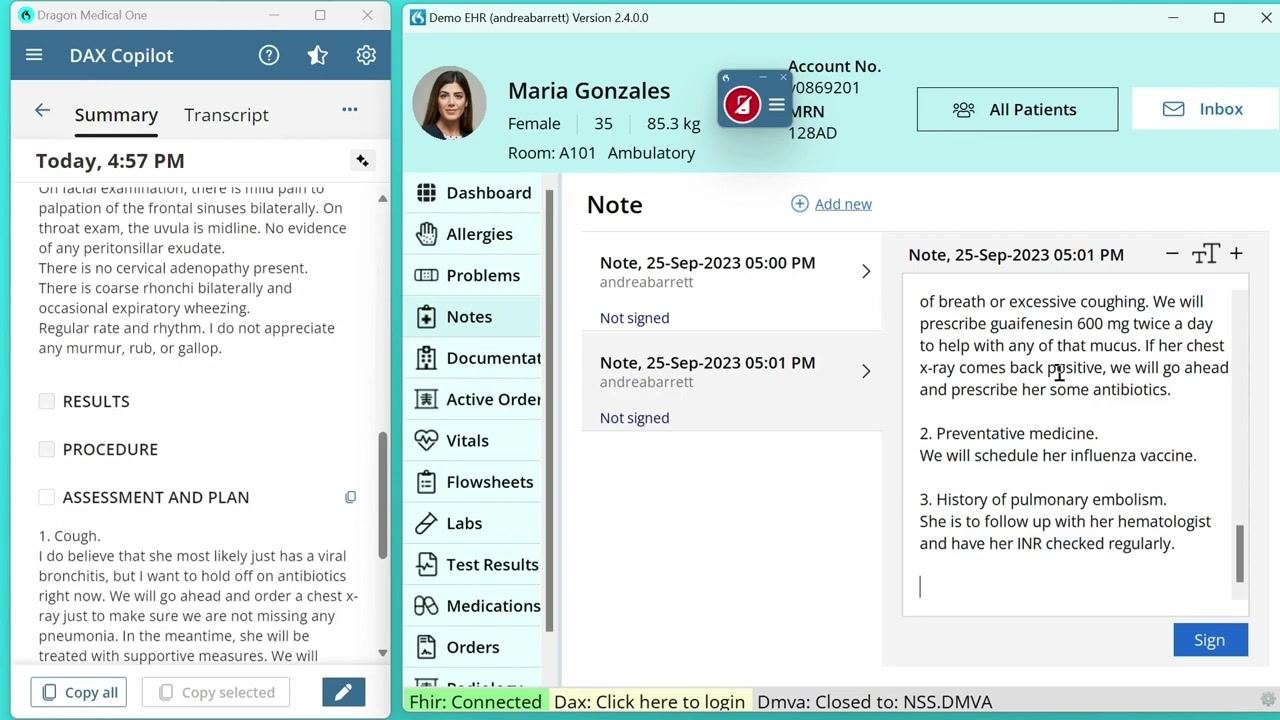
- Preventative medicine: "We will schedule her influenza vaccine."
- History of pulmonary embolism: "She is to follow up with her hematologist and have her INR checked regularly."
Edit the summary if needed
In this example, the summary needed little editing apart from one detail (the bachelorette party reference). To make changes, click the Edit button in the lower right corner of the DAX Copilot window and update the summary directly before transferring it to the EHR.
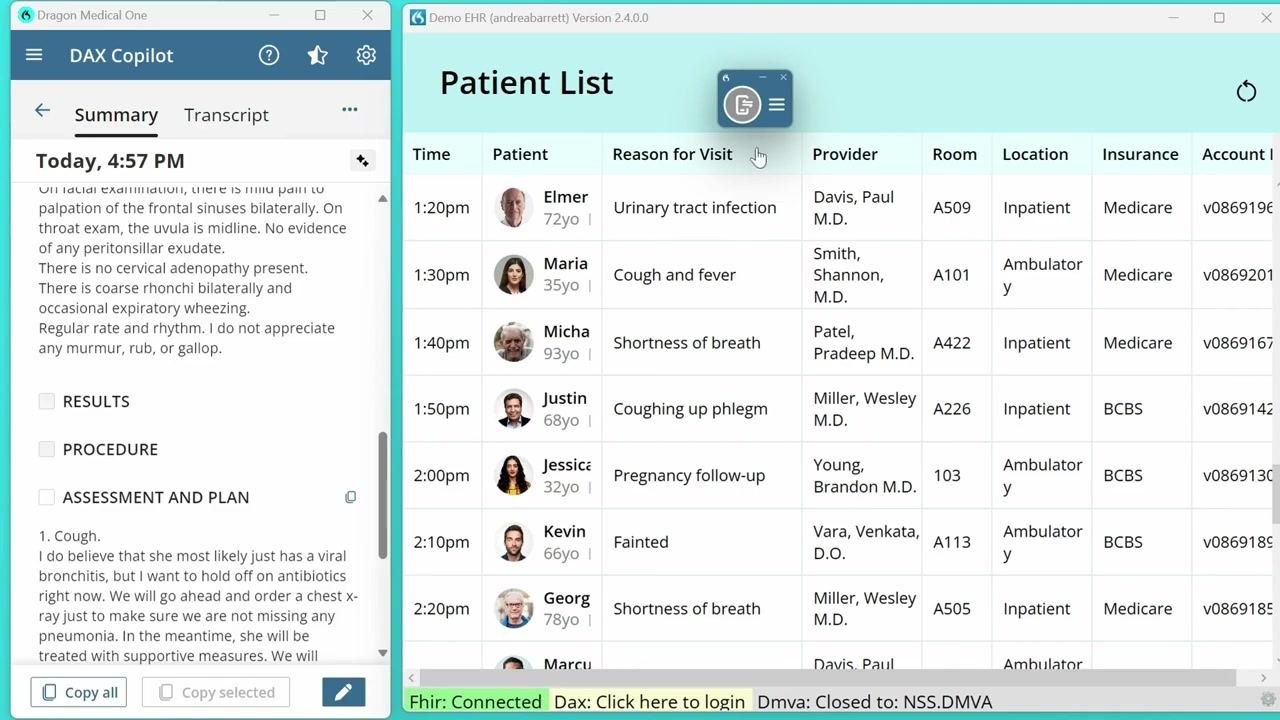
Open DAX Copilot and your EHR side by side
To move information into the EHR, open both the DAX Copilot desktop application and your EHR application side by side on your desktop. In the EHR (Demo EHR), the patient chart for "Maria Gonzales" is displayed with demographic details and a Notes section ready for new documentation, while the DAX Copilot window continues to show the summary for the same patient.
Transfer the summary into the EHR
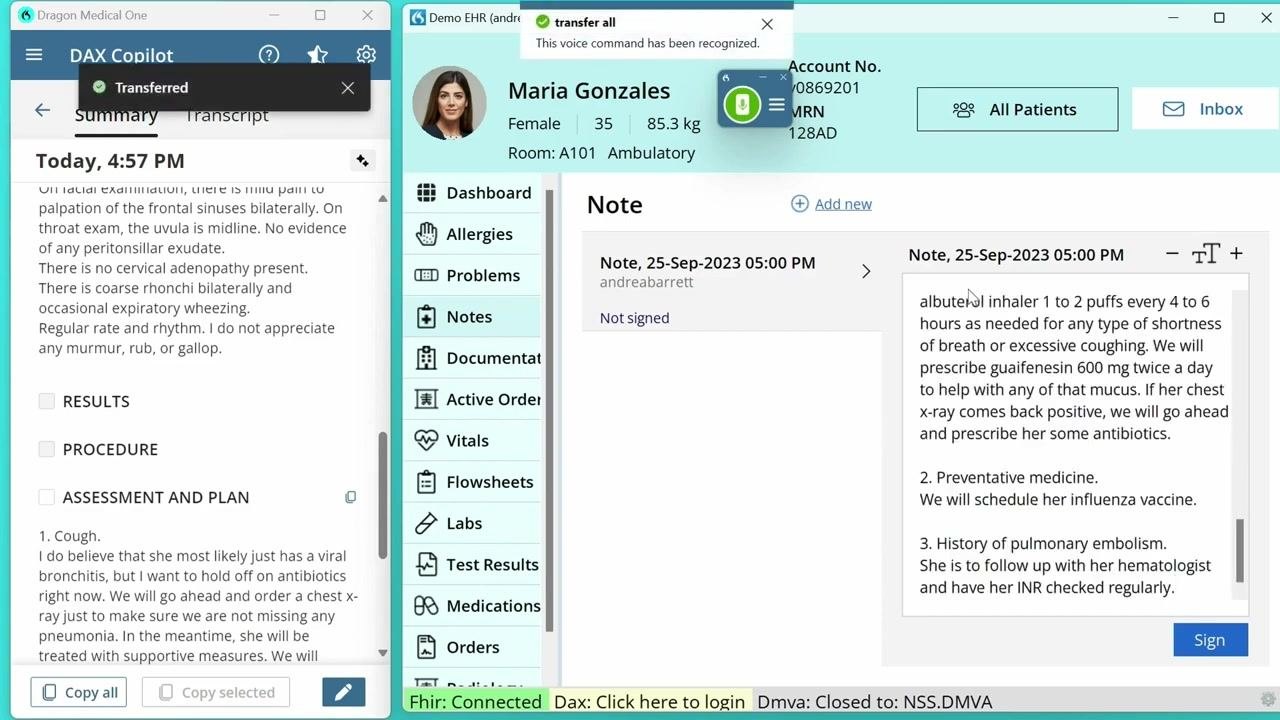
In the EHR, click Add new to create a new note for the patient if one is not already open, then place your cursor in the note entry field. Use the Copy all button in DAX Copilot, or issue a voice command such as "transfer all" using Dragon Medical One, to paste the summary text directly into the EHR note field.
Verify the transfer was successful
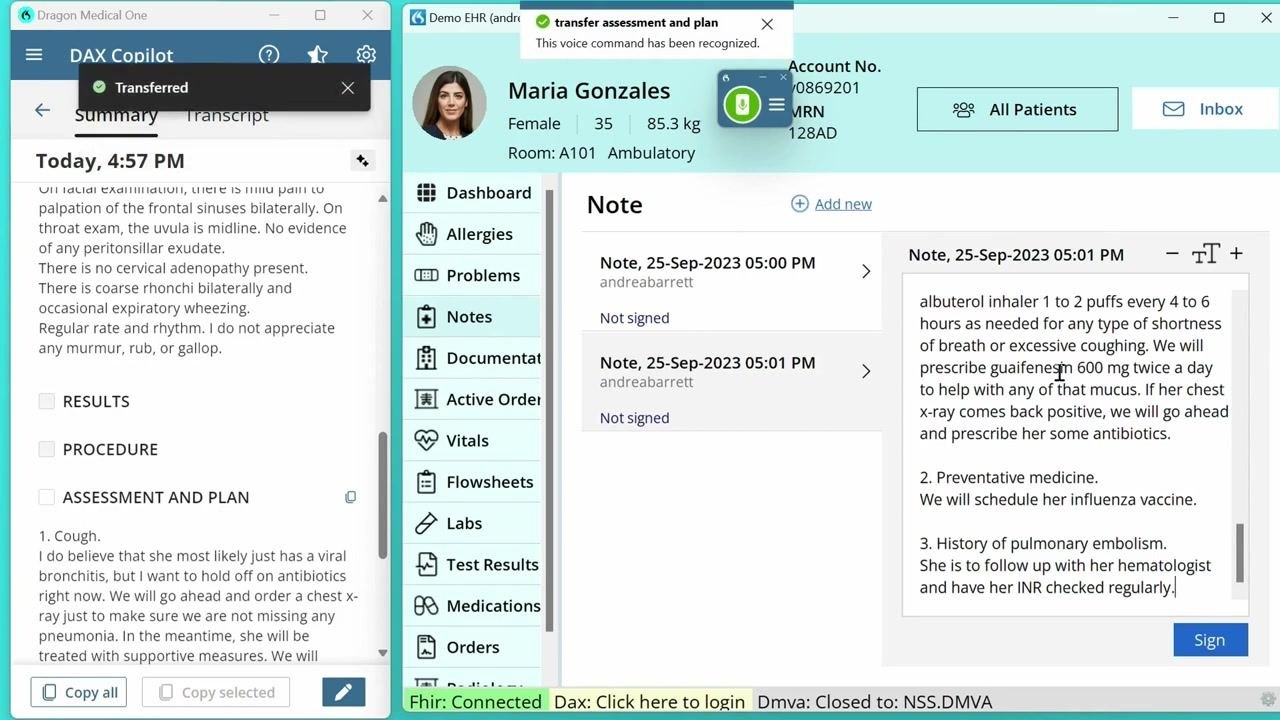
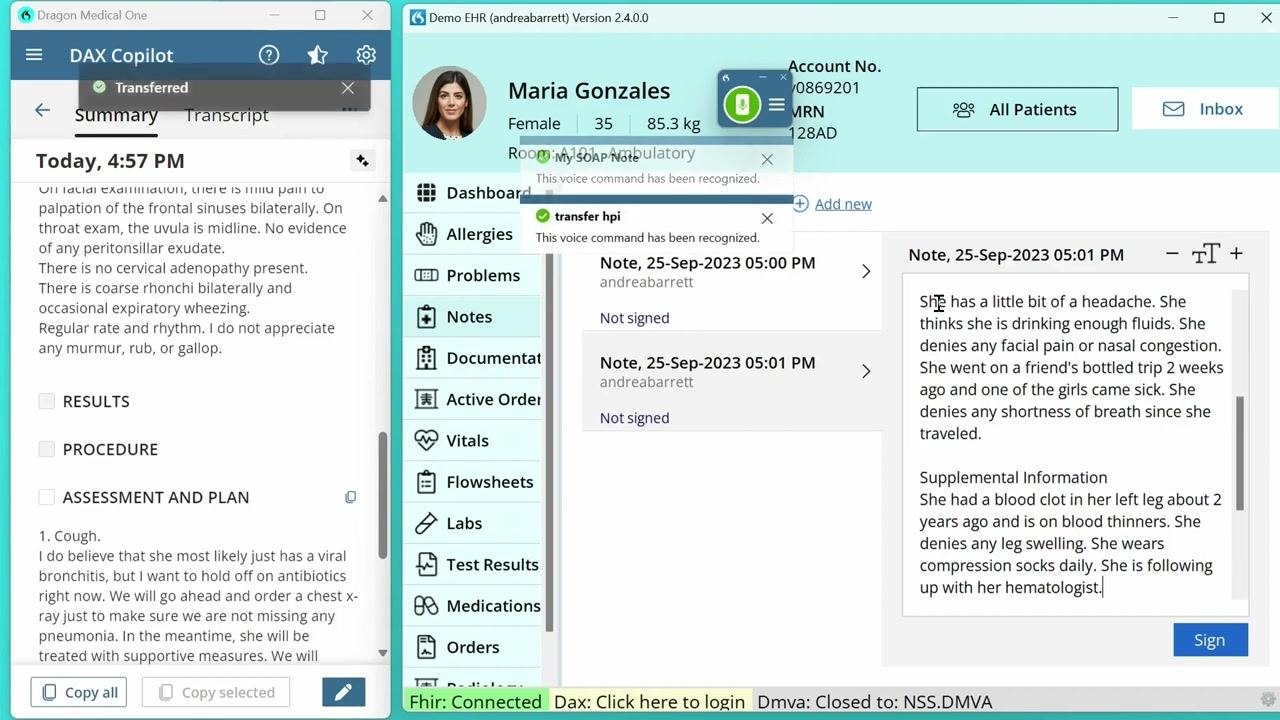
Check for the confirmation message "Transferred" in the DAX Copilot window and "transfer all: This voice command has been recognized" at the top of the screen. Review the EHR note to confirm it now includes the cough management plan, preventative medicine details, and pulmonary embolism follow-up instructions. The note remains unsigned, allowing further edits or review before finalizing.
Review information in Dragon Medical One and the EHR together
The Dragon Medical One window shows the DAX Copilot panel on the left with the summary and transcript of the encounter, including the time-stamped entry (Today, 4:57 PM) and sections for RESULTS, PROCEDURE, and ASSESSMENT AND PLAN. The right side shows the EHR with patient details for Maria Gonzales, including demographics and medical record number, with the Notes section open for a note dated 25-Sep-2023 05:00 PM.
Use voice commands to transfer information
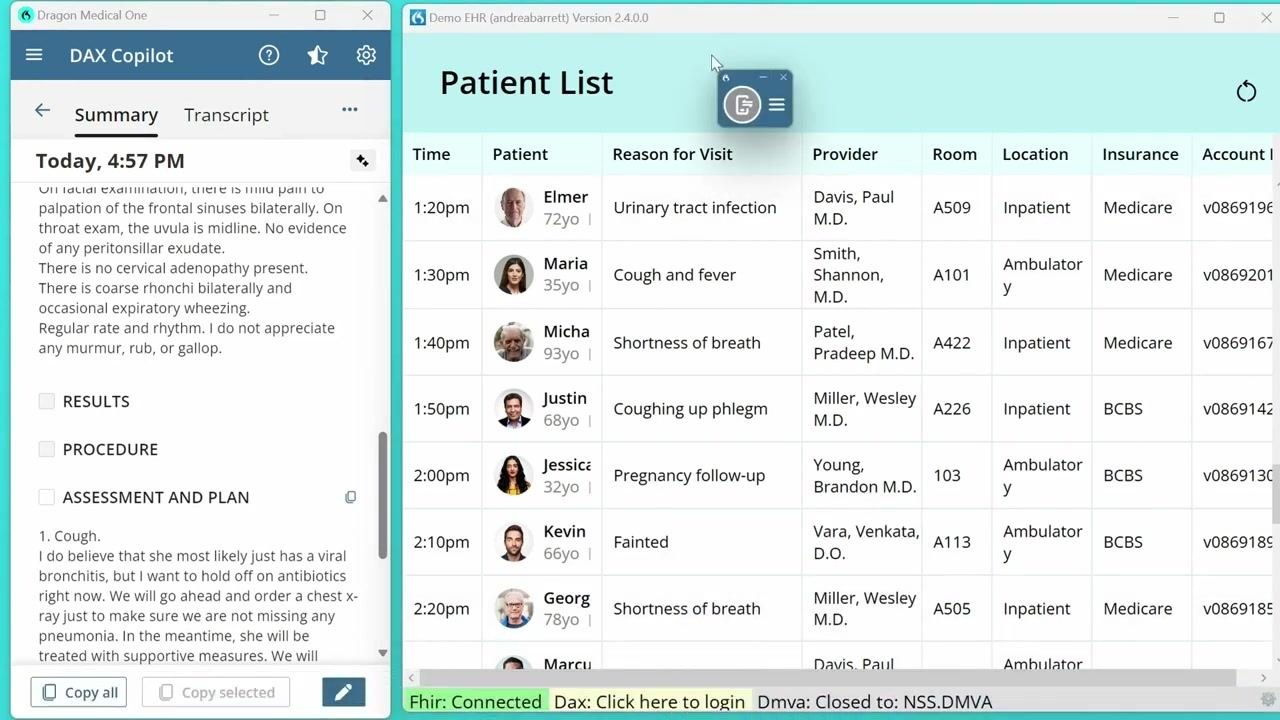
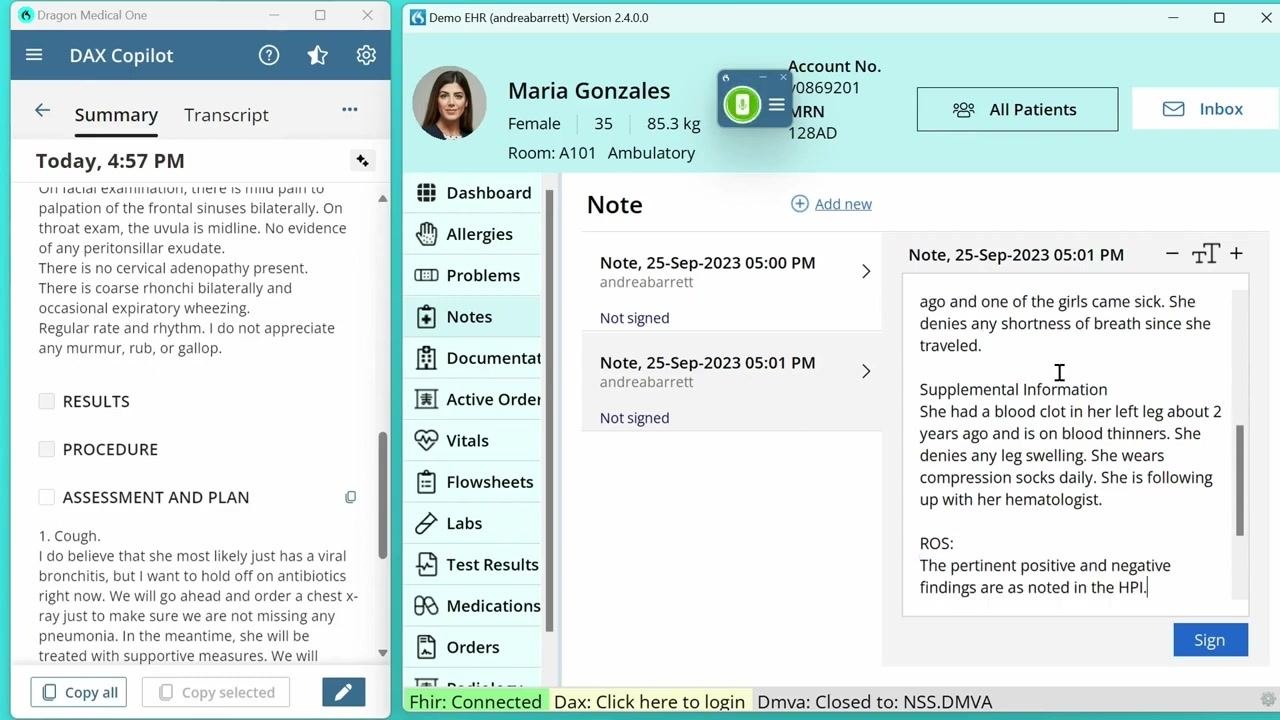
In the EHR, click Add new to create a new note if needed, or use templates to transfer structured information efficiently. Dictate or use predefined voice commands, such as "My soap note" or "transfer hpi," to move information from Dragon Medical One into the EHR note. Confirm the command has been recognized by checking for messages such as "This voice command has been recognized" and "Transferred." The transferred content will include patient symptoms, supplemental information, and follow-up instructions.
Augment the note with auto text
Add frequently used documentation phrases, known as auto text, to the note for efficiency. For example, add "ROS: The pertinent positive and negative findings are as noted in the HPI." Ensure all relevant clinical information is included and formatted appropriately.
Transfer additional sections using voice commands
Use voice commands such as "transfer assessment and plan" to move specific sections from Dragon Medical One directly into the EHR note. Verify that the transferred information appears correctly, so the note contains all necessary clinical details and is ready for review and signature.
Sign the note using voice commands in Epic
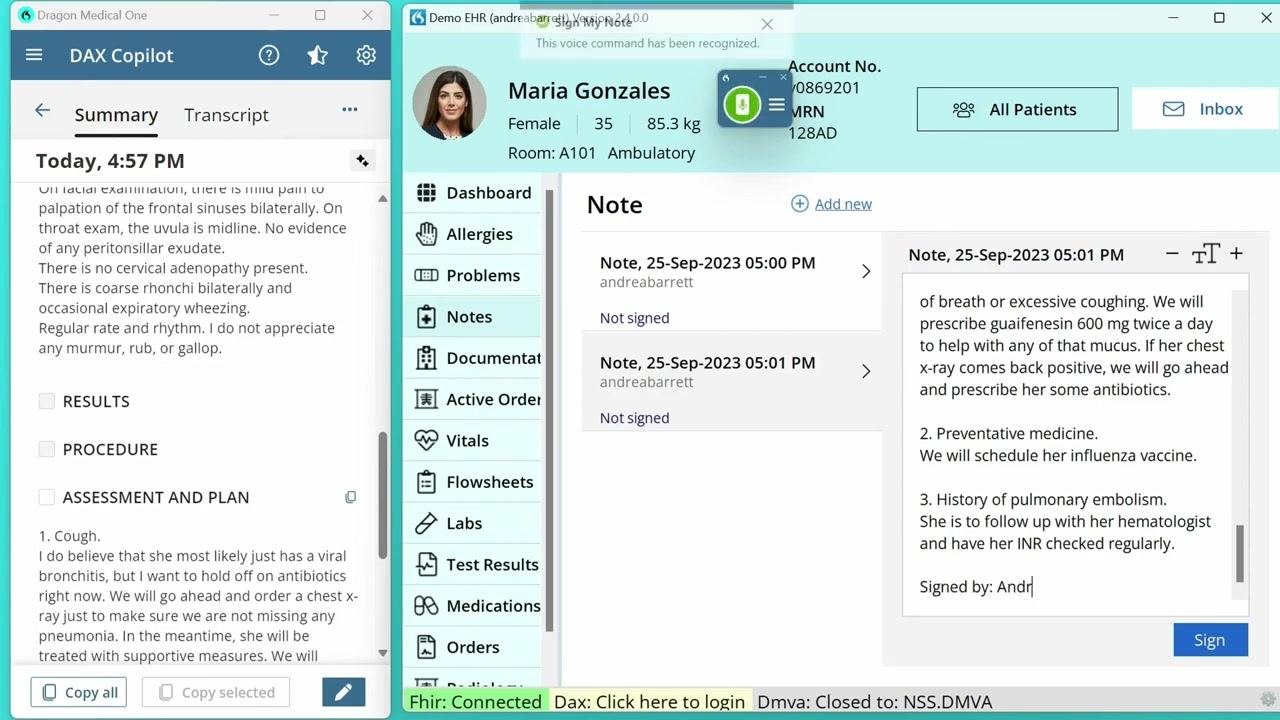
Open the EHR note you wish to sign — in this example, the note for 25-Sep-2023 05:01 PM in the Demo EHR interface. Confirm the note contains all required clinical information, including assessment, plan, and any additional documentation. Use a voice command such as "sign my note" to initiate the signing process; the Dragon Medical One DAX Copilot panel remains visible on the left for reference, while the EHR displays the patient's details (Maria Gonzales, Female, 35, 85.3 kg, Room: A101, Ambulatory, MRN: 128AD) with the Sign button available at the bottom of the note.
Confirm the signature is recognized
Watch for the confirmation message at the top of the EHR window indicating that the voice command ("sign my note") has been recognized. The note updates to include a signature line, and the note status changes from "Not signed" to reflect the completed signature.
What's next
By following this workflow, you can use DAX Copilot in Epic (or any connected EHR) to capture a full patient encounter, generate an AI summary, transfer it into the chart, augment it with templates and auto text, and sign it — all primarily through voice. Voice-driven transfer and signing commands reduce manual entry and let clinicians focus more on patient care.
Always review the AI-generated summary and any transferred documentation for accuracy and completeness before signing and finalizing it in the EHR. You can combine manual copy/paste, voice commands, or your own macros depending on your preferences and your organization's documentation policies.
Generation details: cost, quality tiers
Docsie billed 6,500 credits ($4.55) to analyze this 13-minute video at standard quality. The rewrite, template fill and Word/PDF exports were included. The same video at each quality tier:
| Quality | Frames sampled | Credits | Approx. cost |
|---|---|---|---|
| Draft | every 16-30 s | 3,250 | $2.27 |
| Standard (this guide) | every 8-15 s | 6,500 | $4.55 |
| Detailed | every 4-7 s | 13,000 | $9.10 |
| Ultra | every 1-3 s | 26,000 | $18.20 |
Credits priced at $0.70 per 1,000; plans include a monthly allowance. Enterprise customers on on-premise or bring-your-own-model deployments run this on their own inference and pay no per-video credits.
Generated by Docsie Video-to-Docs on 2026-10-06 from a 12-minute video. Screenshots are frames from the source video and belong to their creator, Total Voice Technologies, whose original is embedded above. If you own this video and want the guide removed or credited differently, contact us and we will act within one business day.