
How to Search for a Patient in Epic
Chart checking is the process of reviewing a patient's full record before rounding, and it begins with learning how to search for a patient in Epic and open their chart. This guide walks you through locating a patient on your list and then systematically reviewing their vitals, labs, imaging, notes, intake and output, medications, and orders. Complete this process each morning for any patient who has been under your care for several days or who was admitted overnight.
Video: How to Chart Check Patients in EPIC Like a Pro — In Minutes! by Paul Del Prado MD. All credit for the demonstration goes to the creator; watch the original on YouTube. The written guide below was generated from this video by Docsie. Creator? Request a change or removal.
Chart checking is the process of reviewing a patient's full record before rounding, and it begins with learning how to search for a patient in Epic and open their chart. This guide walks you through locating a patient on your list and then systematically reviewing their vitals, labs, imaging, notes, intake and output, medications, and orders. Complete this process each morning for any patient who has been under your care for several days or who was admitted overnight.
Prerequisites
- Access to Epic with permissions to view patient charts.
- The patient must appear on your assigned list (for example, GenSearch or Gen Surg).
- The patient should be one admitted to you for several days or overnight, since chart checking is intended for ongoing inpatient care.
Search for the patient and open their chart
Go to your GenSearch or Gen Surg patient list in Epic to search for the patient you need to review. Identify the correct patient from the list, which displays room/bed, name, age/gender, problem, and attending. Select the patient, then click Open Chart to access their full record.
Review the patient summary
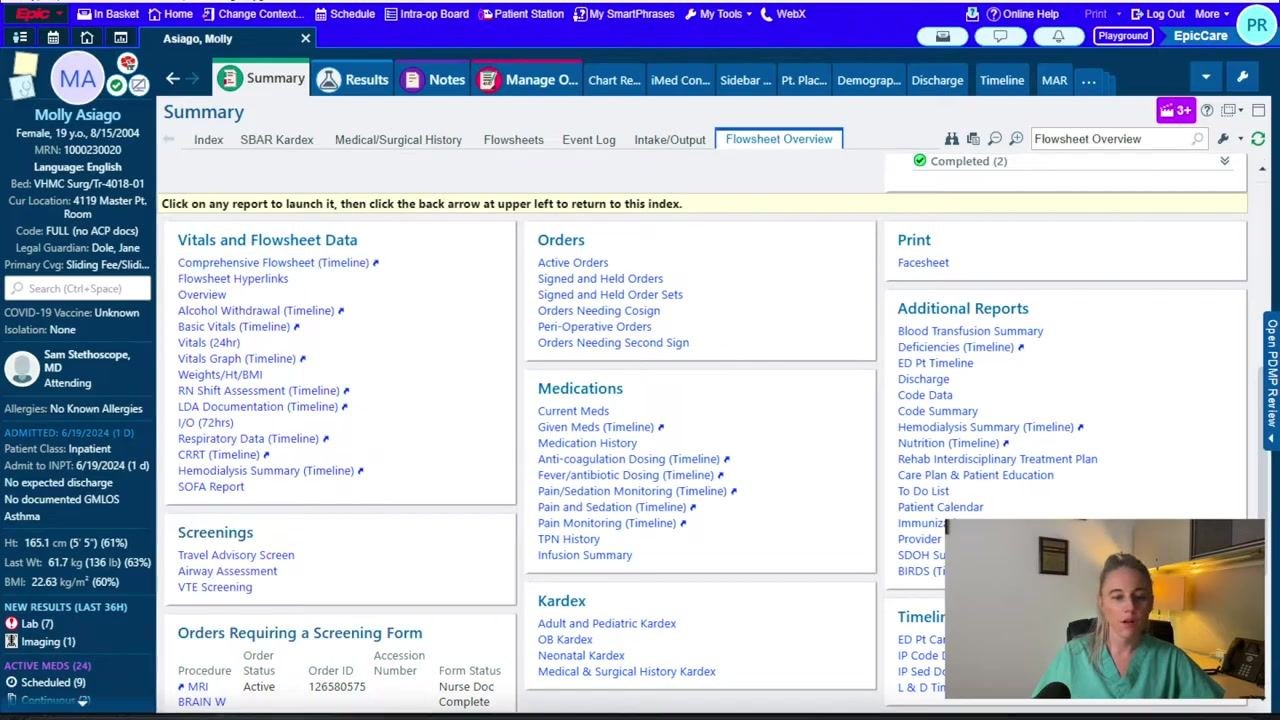
Once the chart opens, confirm you are on the Summary tab. Review the links listed under Vitals and Flowsheet Data, then click Comprehensive Flowsheet (Timeline) to view all recorded vitals. Check temperature, heart rate, respiratory rate, and other recorded vital signs, paying special attention to oxygenation status and whether the patient is on supplemental oxygen.
Review laboratory results
Navigate to the Labs tab under Chart Review to examine all lab results from the admission. Compare current labs to previous days to identify trends or changes, and check the right-side panel for any microbiology or pathology results that may be relevant.
View labs in chronological order
You can switch to an alternate view of the Labs tab to see a chronological list of tests, their status, and authorizing provider. This view is useful when you want a quick timeline of what has been ordered and completed.
Review imaging
Go to the Imaging tab within Chart Review and click Service Dates to sort results so the most recent images appear at the top. Review the radiology reports and click into the actual images if needed. Check for any EKGs under the appropriate tab as well.
Review clinical notes
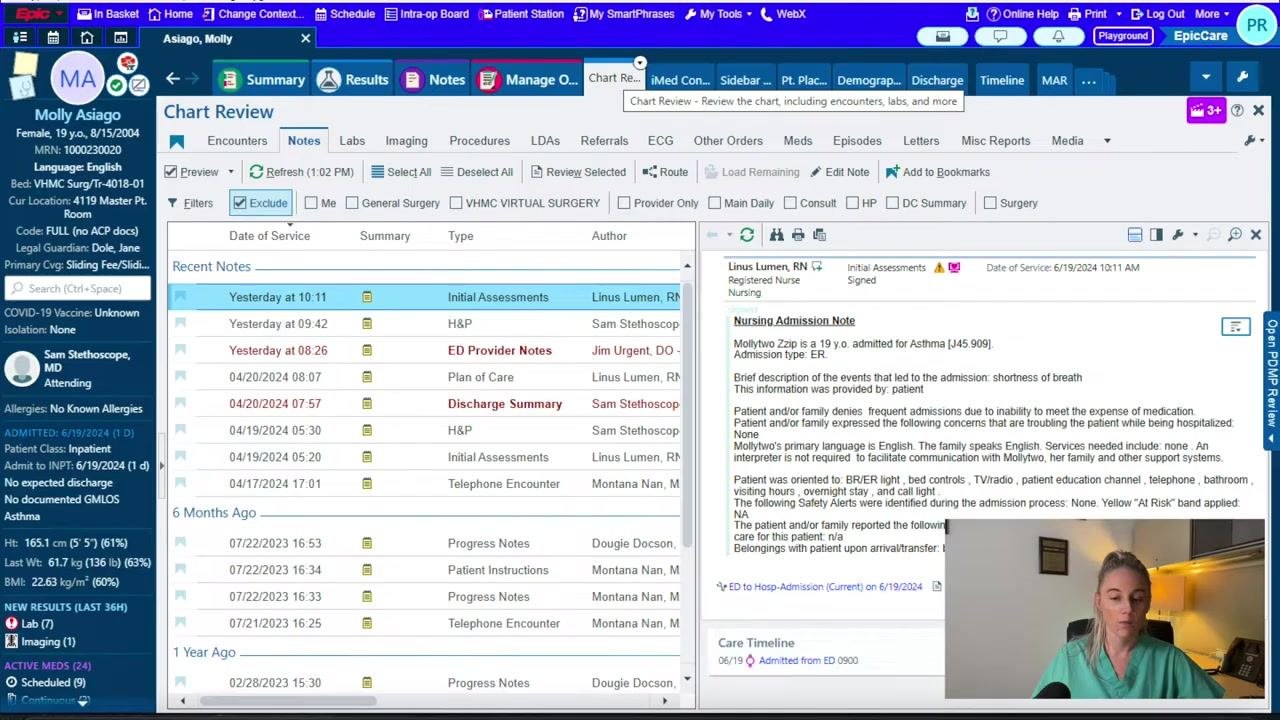
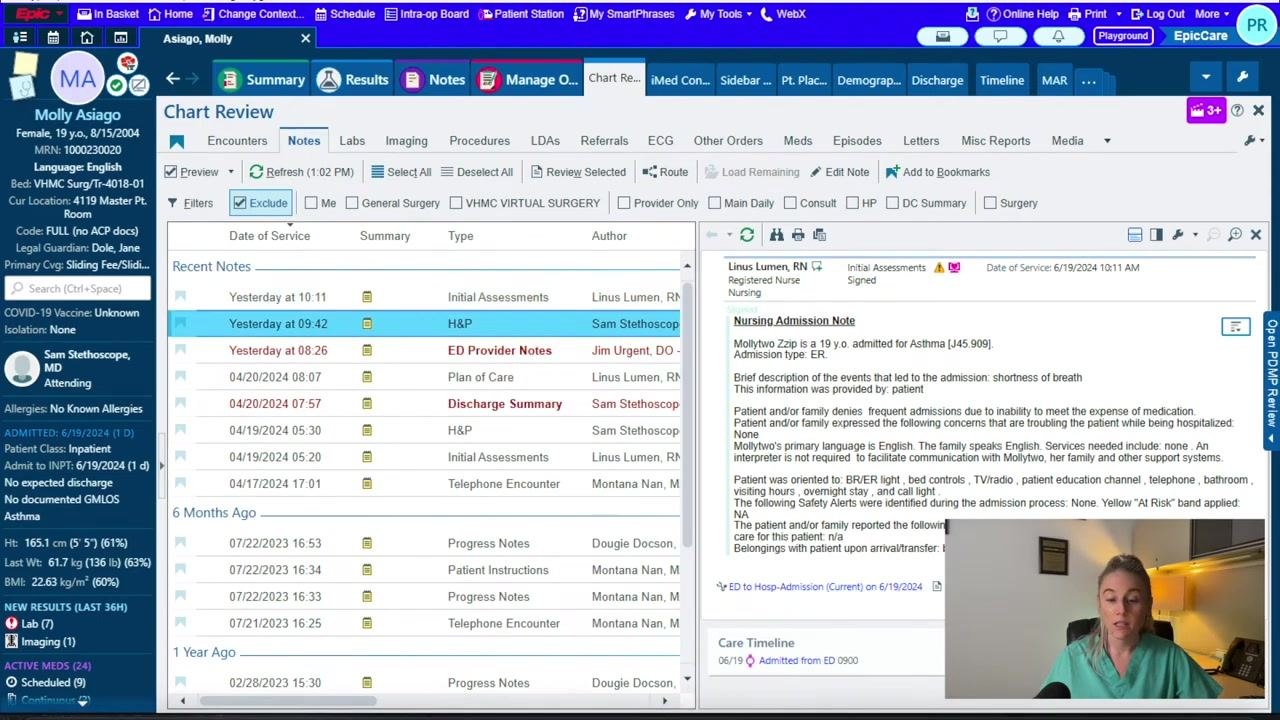
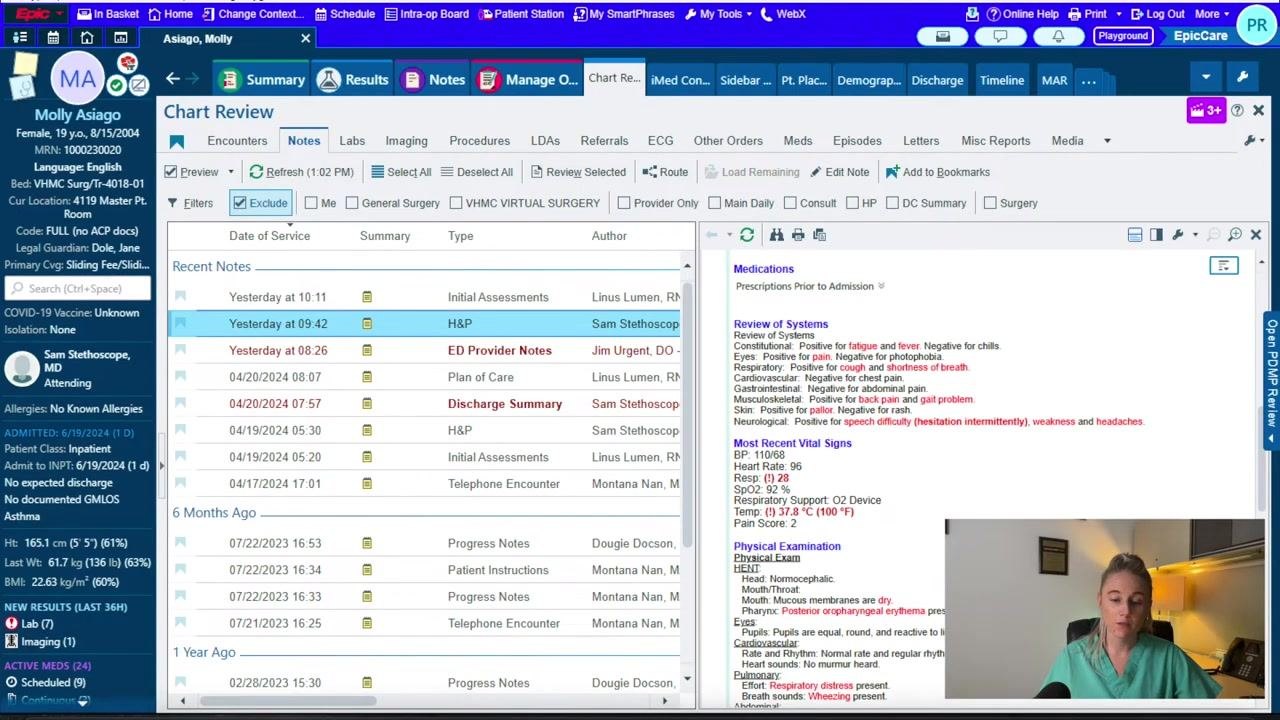
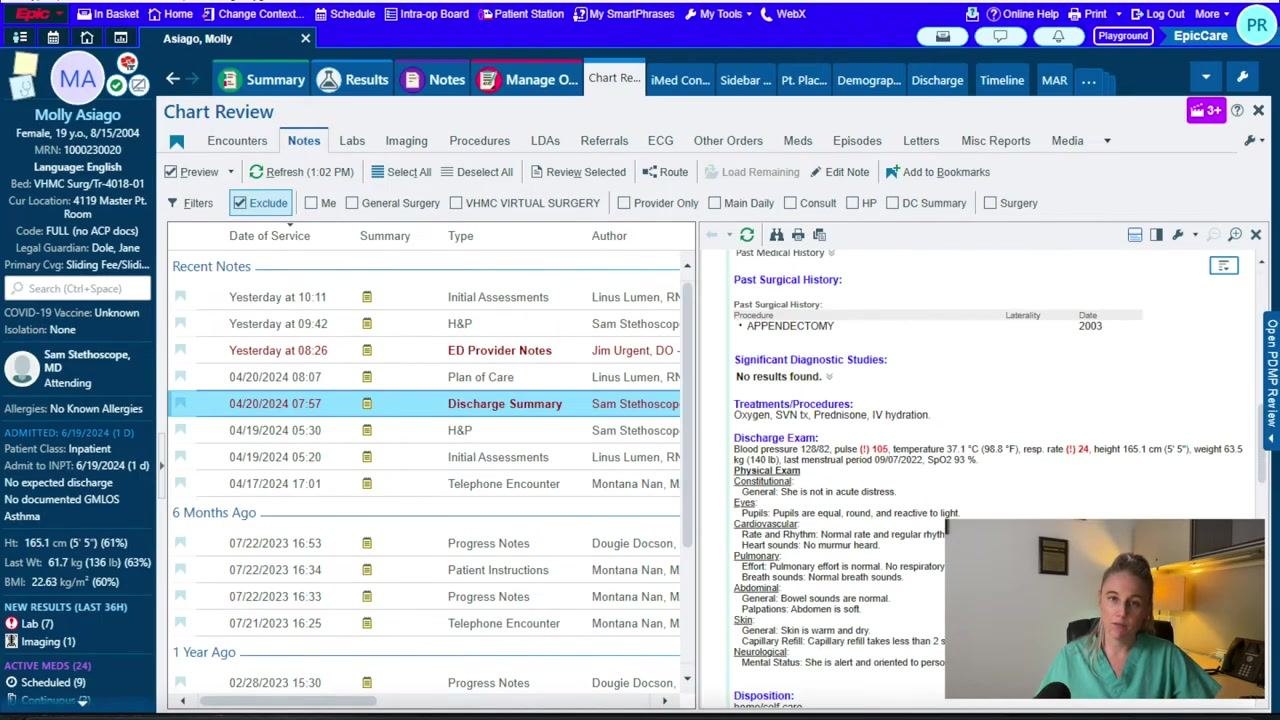
Navigate to the Notes tab and review any nursing notes from overnight for important updates. Look at past History & Physicals (H&Ps) for background, especially if you did not admit the patient, and examine any discharge summaries from previous admissions for additional context.
Read notes thoroughly
Read through the available notes carefully, especially if this is your first time seeing the patient. A discharge summary, for example, can show medications, review of systems, the most recent vital signs, and physical exam findings in one place.
Review intake and output
Return to the Summary tab and click Intake/Output to review all recorded I&O data, including urine output, IV fluid intake, oral intake, and any other relevant fluids or medications. Check for additional sources of intake or output, such as an NG tube, and make sure these are accounted for in your review.
Review medication history
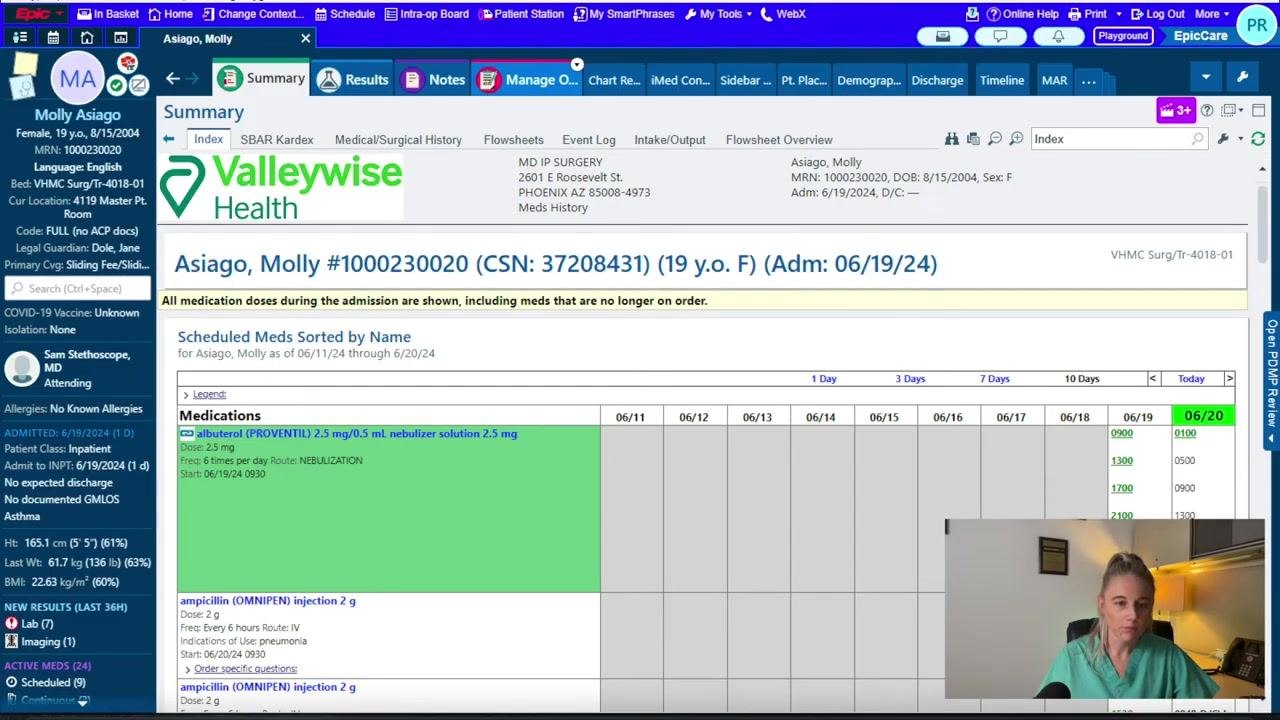
Navigate to the Medication History tab, found under Summary and Index, to examine all medications ordered during the admission. Identify which medications were actually administered and the exact times they were given. Pay attention to medications highlighted in red, which indicate doses that were not given for some reason.
Manage orders
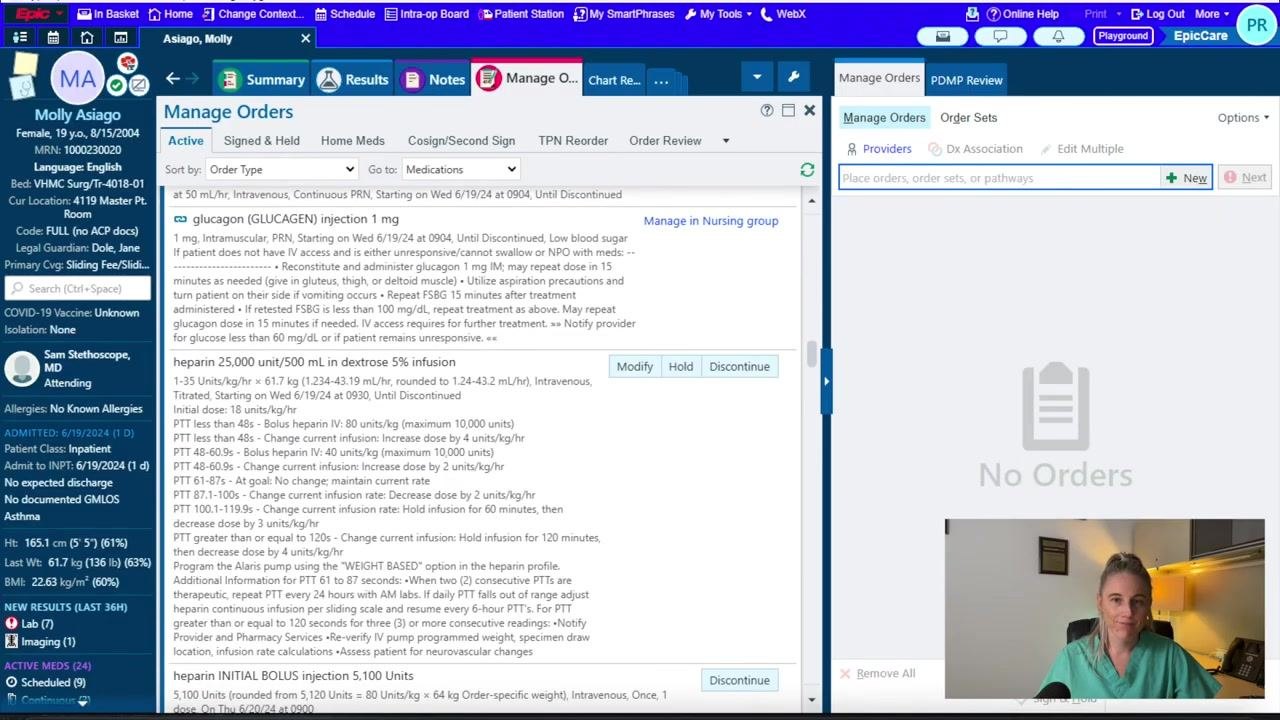
Go to the Manage Orders tab and review all active, held, and discontinued orders for the patient. Remove any extra or outdated orders to keep the chart organized and current, and confirm that all remaining orders are appropriate for the patient's ongoing care.
Key points to remember
- Always compare current data to previous days to spot trends.
- Pay close attention to supplemental oxygen, new lab abnormalities, and new imaging findings.
- Nursing notes and discharge summaries often contain critical information not found elsewhere in the chart.
- Be especially thorough when reviewing a patient for the first time.
Summary
By searching for your patient in Epic and working through the Summary, Labs, Imaging, Notes, Intake/Output, Medication History, and Manage Orders sections, you complete a comprehensive and efficient chart review. Following these steps each morning helps ensure that all critical aspects of your patient's care are reviewed and documented.
Generation details: cost, quality tiers
Docsie billed 1,500 credits ($1.05) to analyze this 3-minute video at standard quality. The rewrite, template fill and Word/PDF exports were included. The same video at each quality tier:
| Quality | Frames sampled | Credits | Approx. cost |
|---|---|---|---|
| Draft | every 16-30 s | 750 | $0.52 |
| Standard (this guide) | every 8-15 s | 1,500 | $1.05 |
| Detailed | every 4-7 s | 3,000 | $2.10 |
| Ultra | every 1-3 s | 6,000 | $4.20 |
Credits priced at $0.70 per 1,000; plans include a monthly allowance. Enterprise customers on on-premise or bring-your-own-model deployments run this on their own inference and pay no per-video credits.
Generated by Docsie Video-to-Docs on 2026-10-06 from a 2-minute video. Screenshots are frames from the source video and belong to their creator, Paul Del Prado MD, whose original is embedded above. If you own this video and want the guide removed or credited differently, contact us and we will act within one business day.