
How to Make a BOM in CATIA
If you need to know how to make a BOM in CATIA V5, you can generate a Bill of Materials directly from your assembly. This guide walks you through opening the assembly, creating the BOM from the Analyze menu, customizing its format, saving it to a file, and checking the exported result.
Video: Catia Powerful Tricks #152|Generate BOM Bill of Materials by howENGINEERSdoit! (2017). All credit for the demonstration goes to the creator; watch the original on YouTube. The written guide below was generated from this video by Docsie. Creator? Request a change or removal.
If you need to know how to make a BOM in CATIA V5, you can generate a Bill of Materials directly from your assembly. This guide walks you through opening the assembly, creating the BOM from the Analyze menu, customizing its format, saving it to a file, and checking the exported result.
Prerequisites
Before you begin, make sure you have the following:
- CATIA V5 installed and running.
- An assembly file, such as
Foldable Table.CATProduct. - Access to the Assembly Design Workbench, or to Product Structure within the Infrastructure Workbench.
- A text editor, such as Notepad, to open the exported file.
Open your assembly to make a BOM in CATIA
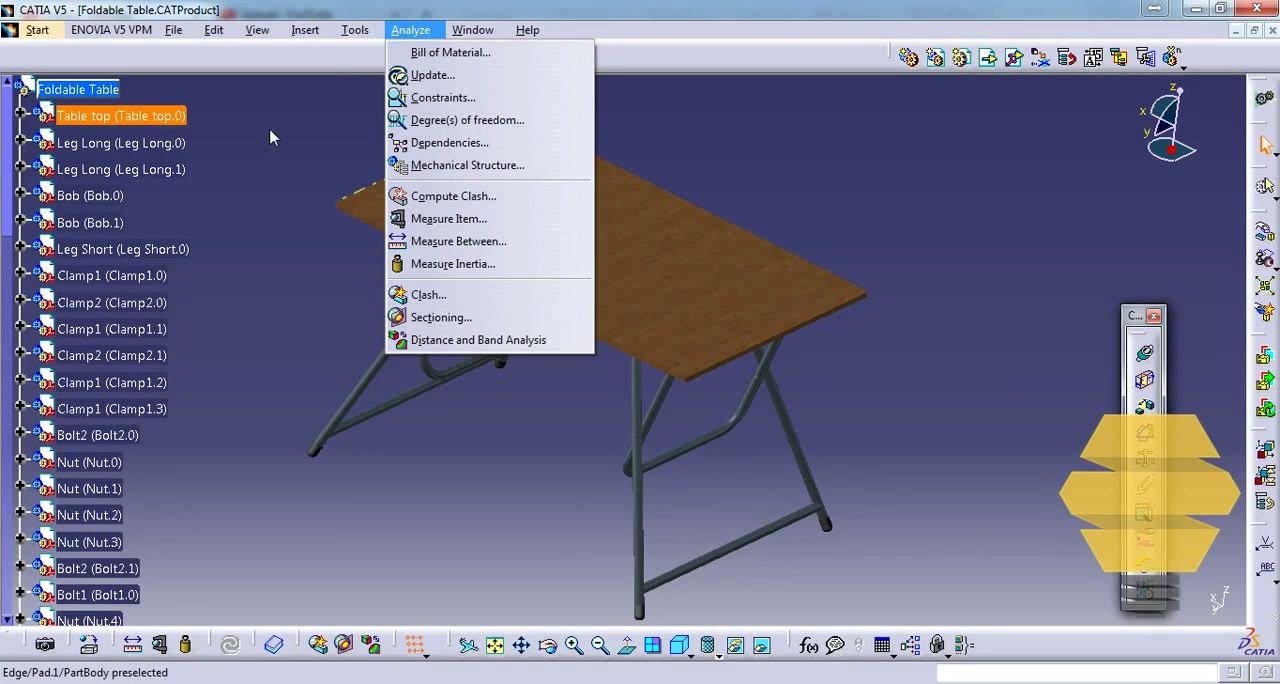
Launch CATIA V5 and load your assembly file, for example Foldable Table.CATProduct. Make sure you are in the Assembly Design Workbench or in Product Structure within the Infrastructure Workbench.
The assembly tree appears on the left and the 3D model appears in the center.
Open the Bill of Material dialog from the Analyze menu
In the top menu bar, click Analyze. In the dropdown, select Bill of Material... to open the BOM dialog.
Review the Bill of Materials
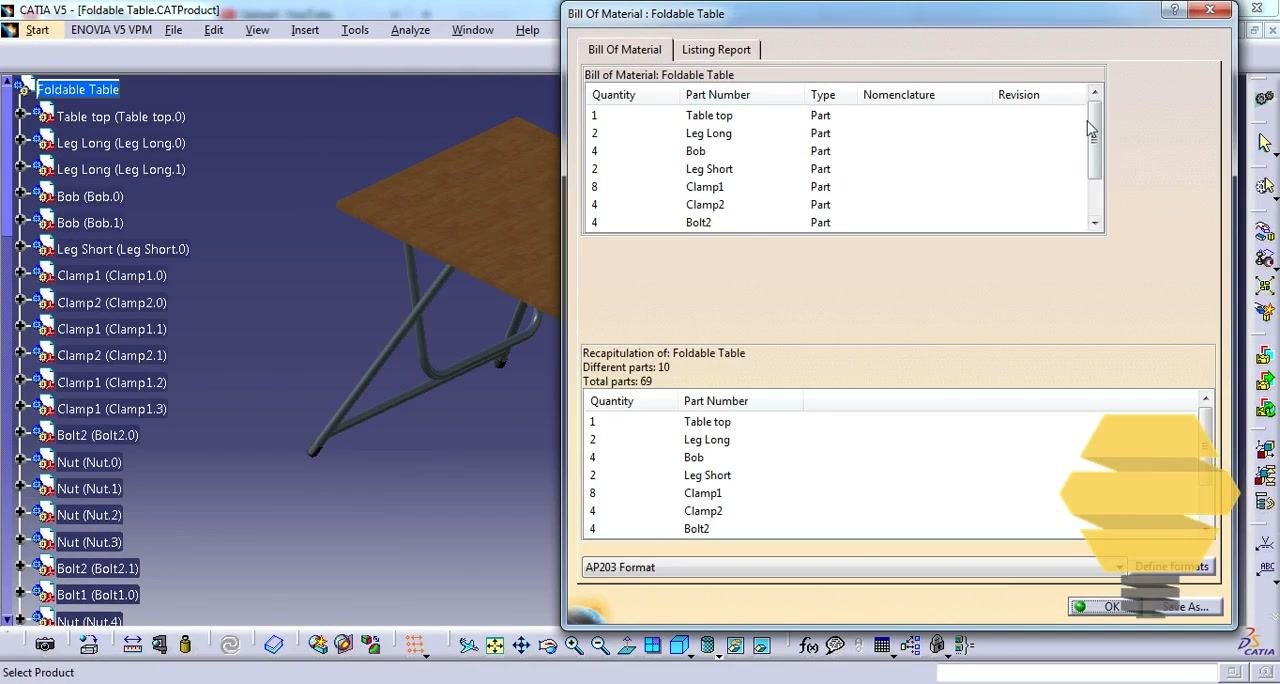
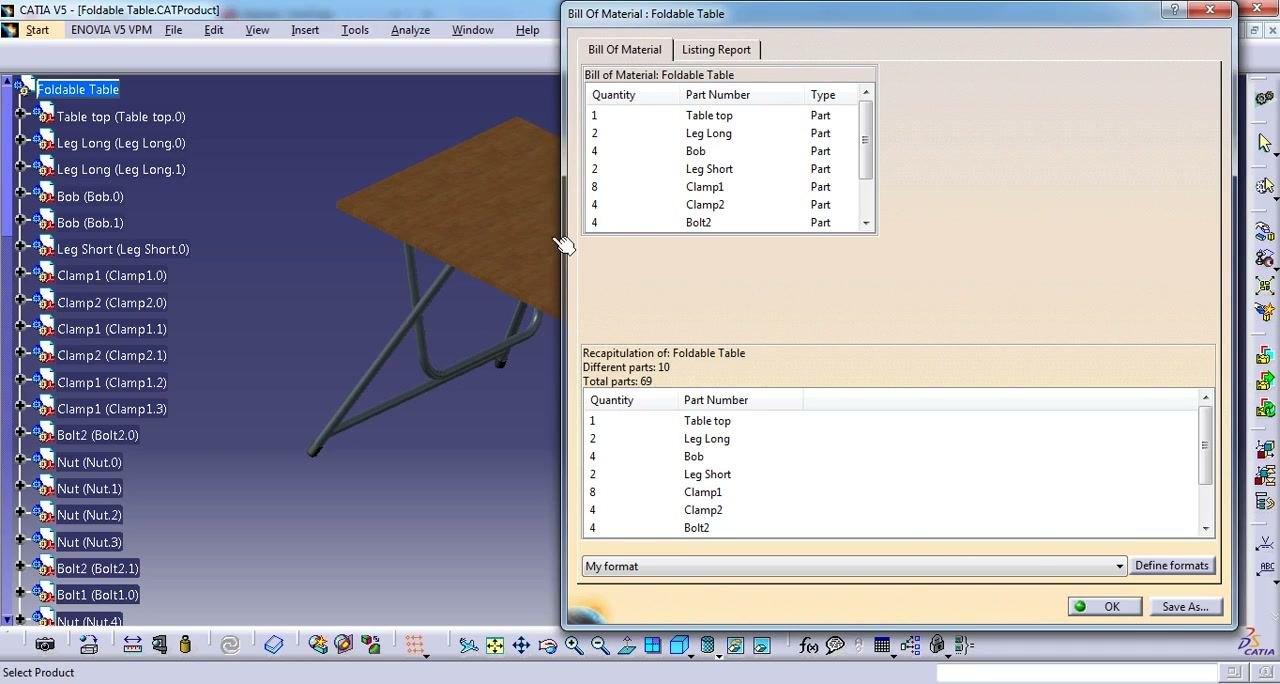
The Bill of Material: Foldable Table window appears. Review the details listed for each component:
- Quantity
- Part Number
- Type
- Nomenclature
- Revision
The lower section of the window shows a recap. In this example, it reads "Different parts: 10, Total parts: 69".
Customize the BOM format (optional)
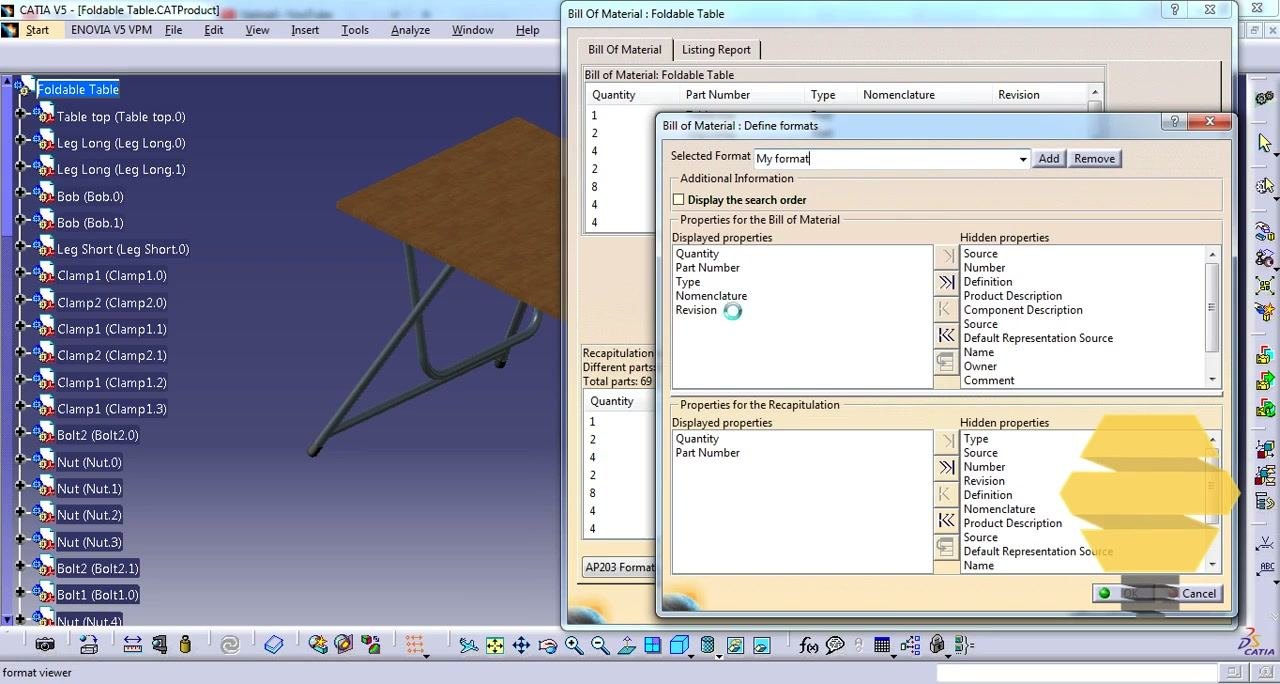
To change the displayed columns or the format, click Define Formats. Then follow these steps:
- In the Define formats dialog, enter a name for your format, for example
My format, and click Add. - Select the properties you want to display, such as Quantity, Part Number, Type, Nomenclature, and Revision.
- Move any unwanted properties to the hidden list.
- Click OK to apply your custom format.
Save the BOM to a file
With your desired format selected, click Save As in the BOM dialog. Choose the file type, for example .txt, and enter a filename such as bill of material.txt. Click Save to export the BOM.
Check the structure of the exported BOM file
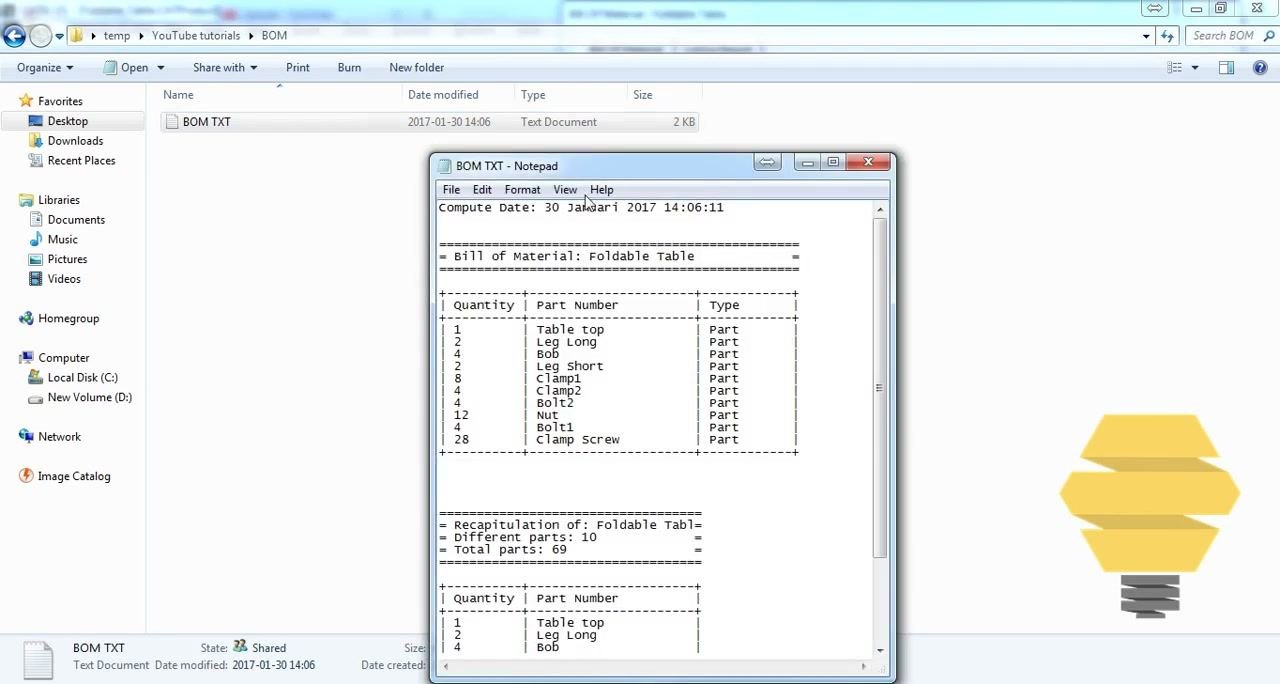
Open the exported BOM file with a text editor such as Notepad. Review the following parts of the file.
At the top, find the Compute Date, for example 30 Januari 2017 14:06:11. CATIA generates this timestamp automatically. It shows when the BOM was created, which is useful for version control if you have multiple BOMs.
The main BOM table lists these columns:
- Quantity: the number of each part required.
- Part Number: the name or identifier of each part, such as Table top, Leg Long, BoB, Leg Short, Clamp1, Clamp2, Bolt2, Nut, Bolt1, and Clamp Screw.
- Type: whether the item is a "Part". If the item were an assembly, it would show "Assembly".
Confirm that all parts and their quantities match your assembly structure.
At the bottom, the Recapitulation section summarizes the BOM:
- Different parts: the total number of unique parts, for example 10.
- Total parts: the sum of all quantities, for example 69.
Use this summary to quickly verify that your BOM is complete and accurate.
Cross-check the recapitulation totals
In the Recapitulation section, verify the number of different parts (for example, 10) and the total number of parts (for example, 69). Then add up the quantities in the main BOM table to confirm that the total matches the recapitulation value.
Summary
You now know how to make a BOM in CATIA V5. You opened your assembly, generated the Bill of Material from the Analyze menu, optionally customized the format, saved the BOM as a text file, and verified its contents and totals against the recapitulation.
What's next
- Create additional BOMs with different formats using Define Formats.
- Use the Compute Date to track versions when you keep multiple BOM files.
Generation details: cost, quality tiers
Docsie billed 2,000 credits ($1.40) to analyze this 4-minute video at standard quality. The rewrite, template fill and Word/PDF exports were included. The same video at each quality tier:
| Quality | Frames sampled | Credits | Approx. cost |
|---|---|---|---|
| Draft | every 16-30 s | 1,000 | $0.70 |
| Standard (this guide) | every 8-15 s | 2,000 | $1.40 |
| Detailed | every 4-7 s | 4,000 | $2.80 |
| Ultra | every 1-3 s | 8,000 | $5.60 |
Credits priced at $0.70 per 1,000; plans include a monthly allowance. Enterprise customers on on-premise or bring-your-own-model deployments run this on their own inference and pay no per-video credits.
Generated by Docsie Video-to-Docs on 2026-11-15 from a 3-minute video. Screenshots are frames from the source video and belong to their creator, howENGINEERSdoit!, whose original is embedded above. If you own this video and want the guide removed or credited differently, contact us and we will act within one business day.