
How to Reset Your Password in ADP
As an administrator, you can reset an employee's password directly in ADP Workforce Now when they are unable to log in and receive an error message instructing them to contact their administrator. This guide walks you through locating the employee's account, verifying their identity, and sending password reset instructions to their preferred email or phone.
Video: Resetting Passwords in ADP by Highlander Center LMS. All credit for the demonstration goes to the creator; watch the original on YouTube. The written guide below was generated from this video by Docsie. Creator? Request a change or removal.
As an administrator, you can reset an employee's password directly in ADP Workforce Now when they are unable to log in and receive an error message instructing them to contact their administrator. This guide walks you through locating the employee's account, verifying their identity, and sending password reset instructions to their preferred email or phone.
Prerequisites
- Administrator credentials for ADP Workforce Now.
- The employee's name or identifying details to locate their account.
Steps to reset an employee's password
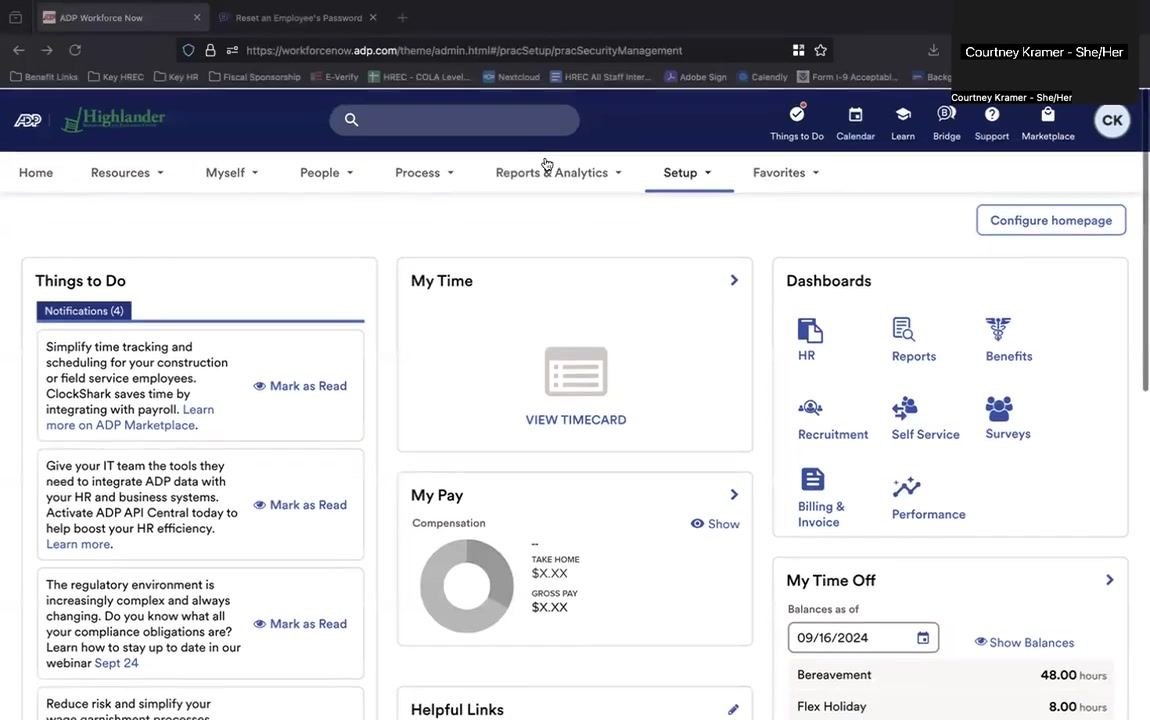
Log in to ADP Workforce Now
Open your web browser, navigate to the ADP Workforce Now login page, and enter your administrator credentials to log in.
Open Password & Admin Access
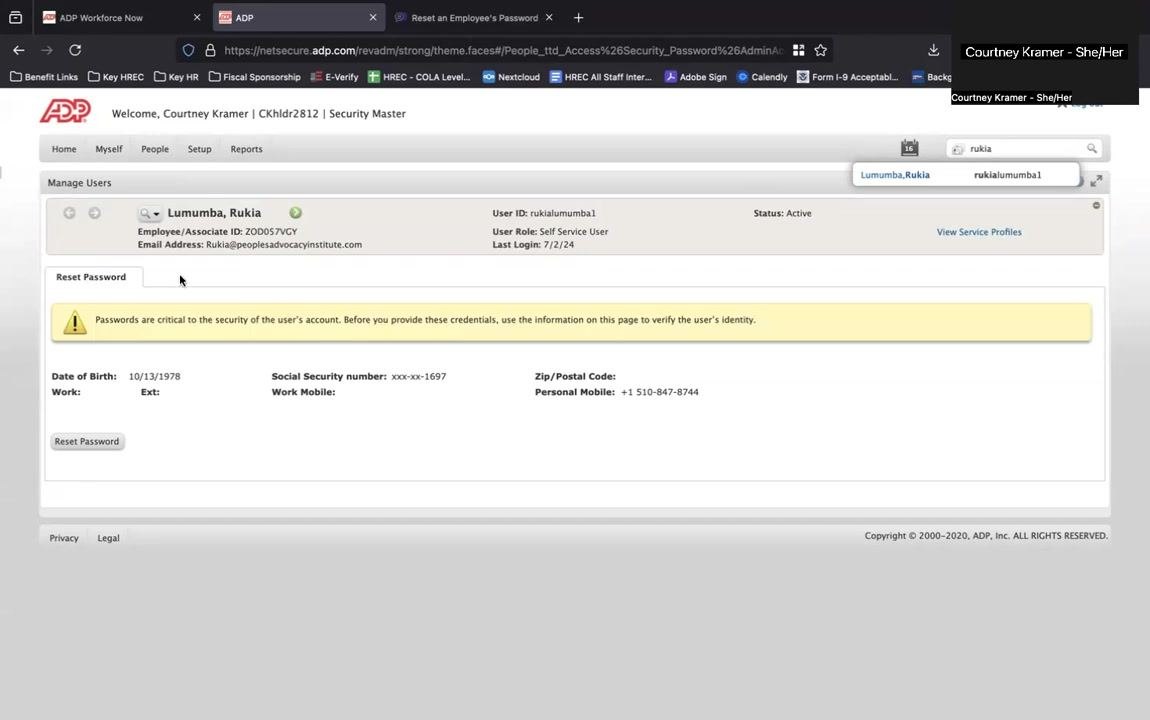
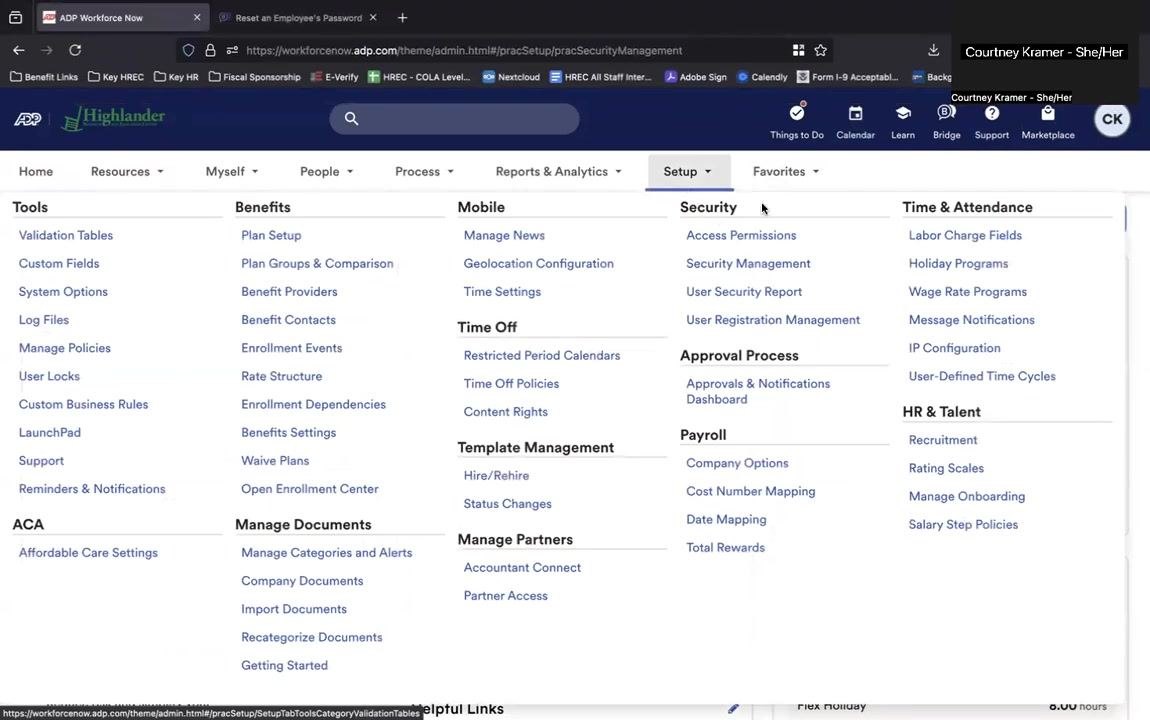
A new window opens for Security Management. Hover over the People menu at the top left, then select Password & Admin Access from the dropdown.
Search for the employee
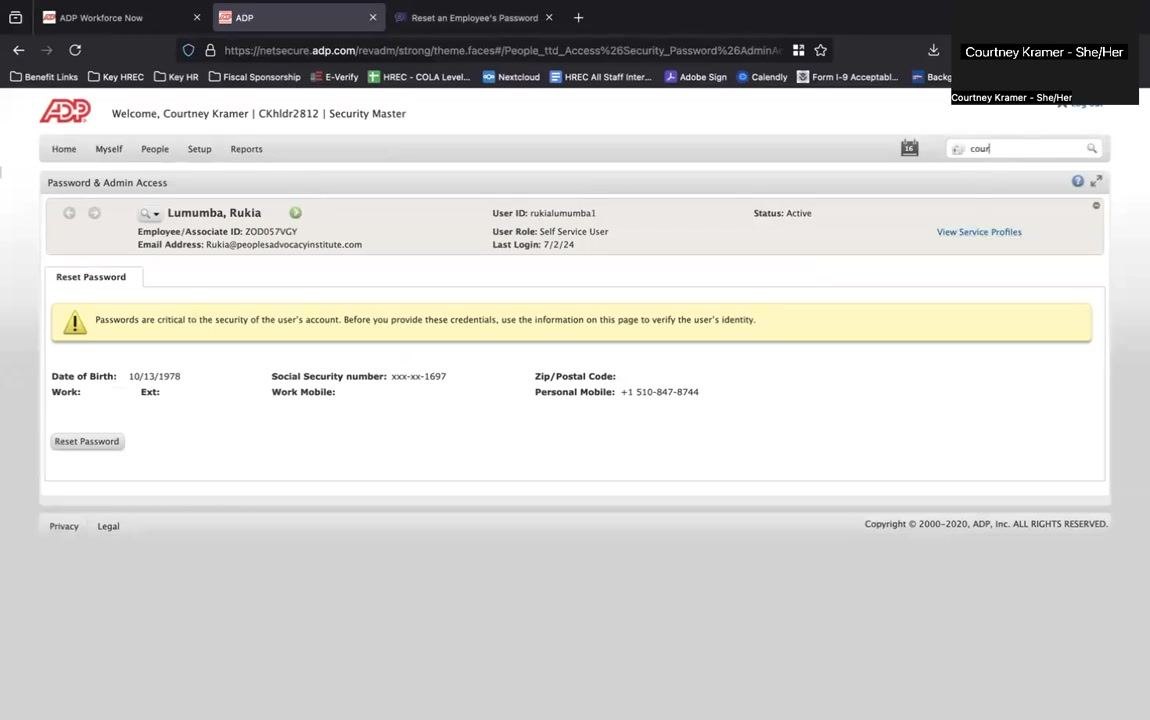
In the Password & Admin Access window, use the search bar on the right to find the employee. Enter the employee's name (for example, "Rukia") and select the correct user from the results.
Verify the employee's information
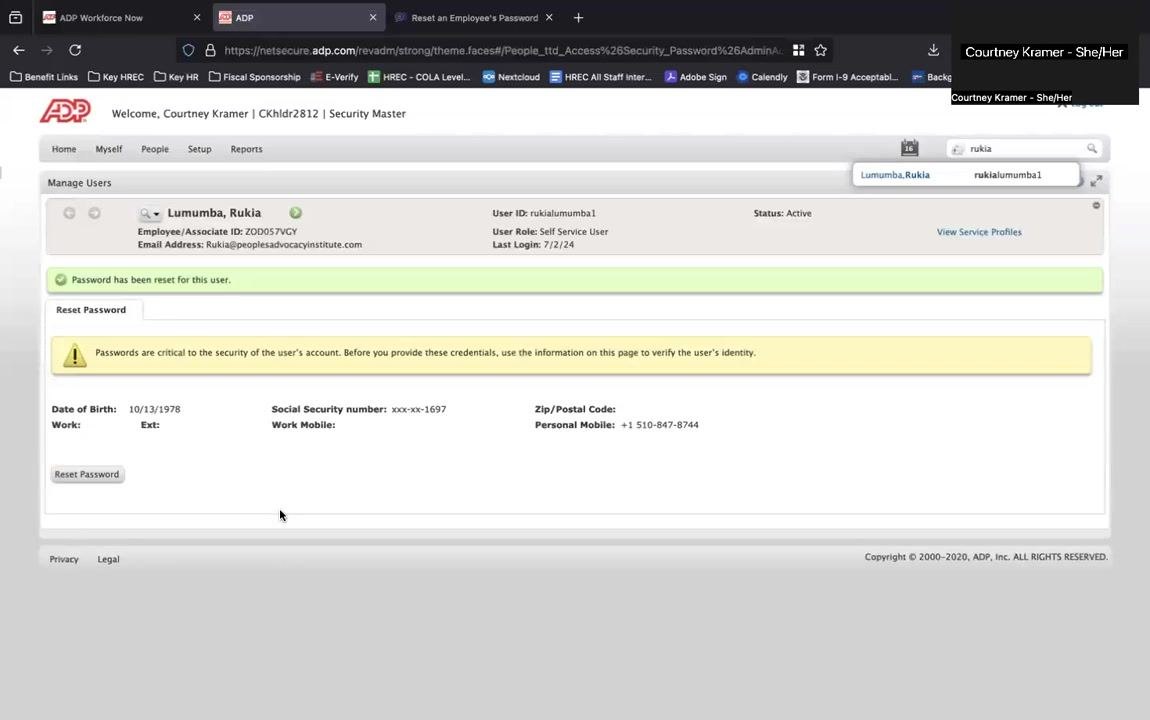
Review the employee's details before proceeding, including their name, Employee/Associate ID, email address, User ID, status, user role, last login date, date of birth, last four digits of their Social Security Number, and personal mobile number. Always confirm the employee's identity using this information before continuing.
Initiate the password reset
Click the Reset Password button at the bottom left of the employee details section.
Select a password delivery method
In the Reset Password dialog, choose where to send the reset instructions. Available options may include:
- Send to Work Email Address
- Send to Personal Email Address
- Send to Work Mobile Phone (if available)
- Send to Personal Mobile Phone
On the right side of the dialog, under Use for Notifications, confirm the employee's preferred notification method and make sure the correct option is selected.
Complete the password reset
Click Continue to send the password reset instructions to the selected destination. Let the employee know to check their email or phone for the reset instructions and follow the provided steps to set a new password.
Confirm that the reset is complete
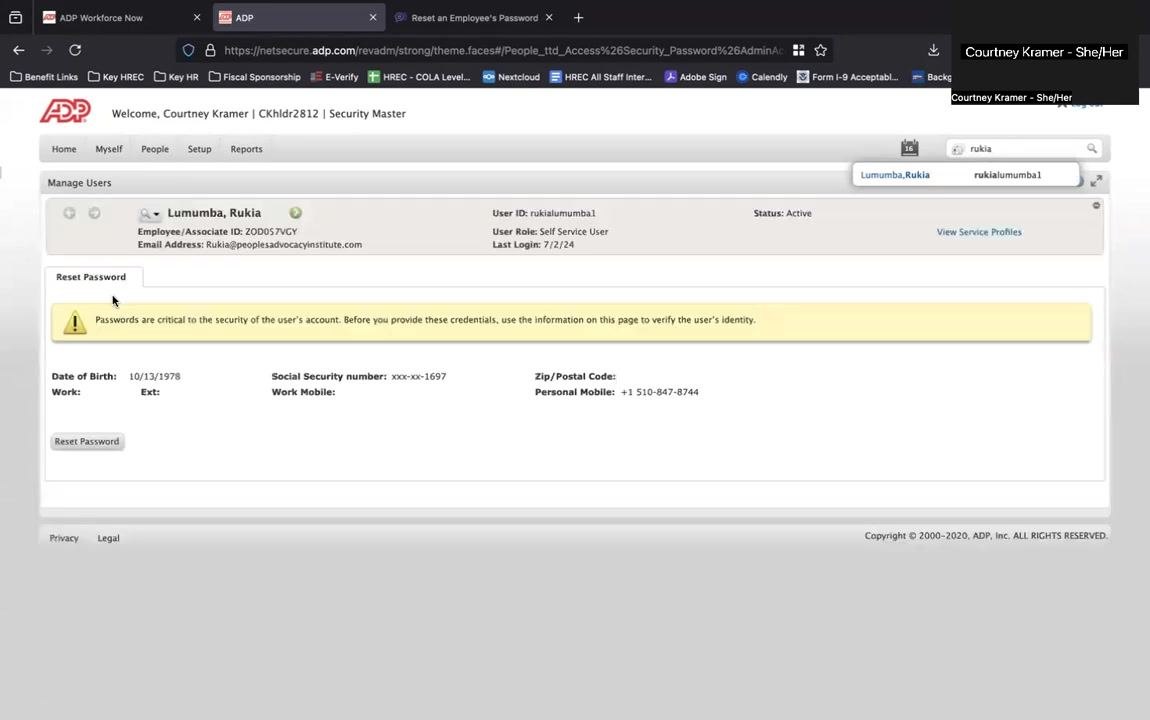
After clicking Continue, check for a green confirmation message stating "Password has been reset for this user." The employee's details remain visible for final verification, along with a yellow security reminder stating that passwords are critical to account security and that you should verify the user's identity before providing credentials. Let the employee know their password has been reset and that they can log in using the instructions sent to their selected email or phone.
End the session
Once the password reset is confirmed, close the employee's details window or log out of ADP Workforce Now if you have completed all necessary tasks. Maintain confidentiality and avoid leaving sensitive information visible on your screen.
Summary
By following these steps, you can securely reset an employee's password in ADP Workforce Now and ensure they regain access to their account. Always verify the employee's identity using the information on screen before resetting a password, and follow your organization's security best practices throughout the process.
What's next
If you have further questions or need additional assistance, refer to your organization's IT or HR support resources.
Generation details: cost, quality tiers
Docsie billed 1,500 credits ($1.05) to analyze this 3-minute video at standard quality. The rewrite, template fill and Word/PDF exports were included. The same video at each quality tier:
| Quality | Frames sampled | Credits | Approx. cost |
|---|---|---|---|
| Draft | every 16-30 s | 750 | $0.52 |
| Standard (this guide) | every 8-15 s | 1,500 | $1.05 |
| Detailed | every 4-7 s | 3,000 | $2.10 |
| Ultra | every 1-3 s | 6,000 | $4.20 |
Credits priced at $0.70 per 1,000; plans include a monthly allowance. Enterprise customers on on-premise or bring-your-own-model deployments run this on their own inference and pay no per-video credits.
Generated by Docsie Video-to-Docs on 2026-10-06 from a 2-minute video. Screenshots are frames from the source video and belong to their creator, Highlander Center LMS, whose original is embedded above. If you own this video and want the guide removed or credited differently, contact us and we will act within one business day.