
How to Make Benefit Elections in ADP
This guide walks you through how to make benefit elections in ADP, from logging into your account to confirming your final selections. Whether you're enrolling for the first time or reviewing your choices during open enrollment, these steps cover the entire process so you can complete your enrollment accurately and on time.
Video: Enrolling in Benefits is Easy with MyADP by ADP. All credit for the demonstration goes to the creator; watch the original on YouTube. The written guide below was generated from this video by Docsie. Creator? Request a change or removal.
This guide walks you through how to make benefit elections in ADP, from logging into your account to confirming your final selections. Whether you're enrolling for the first time or reviewing your choices during open enrollment, these steps cover the entire process so you can complete your enrollment accurately and on time.
Prerequisites
- An active ADP account with valid login credentials.
- Access to your employer's benefits documents (if provided).
- Awareness of your open enrollment deadline, as shown on your dashboard.
Step-by-step instructions
Log in to the ADP platform
Enter your credentials to access your ADP account and reach your personal dashboard.
Navigate to the Benefits section
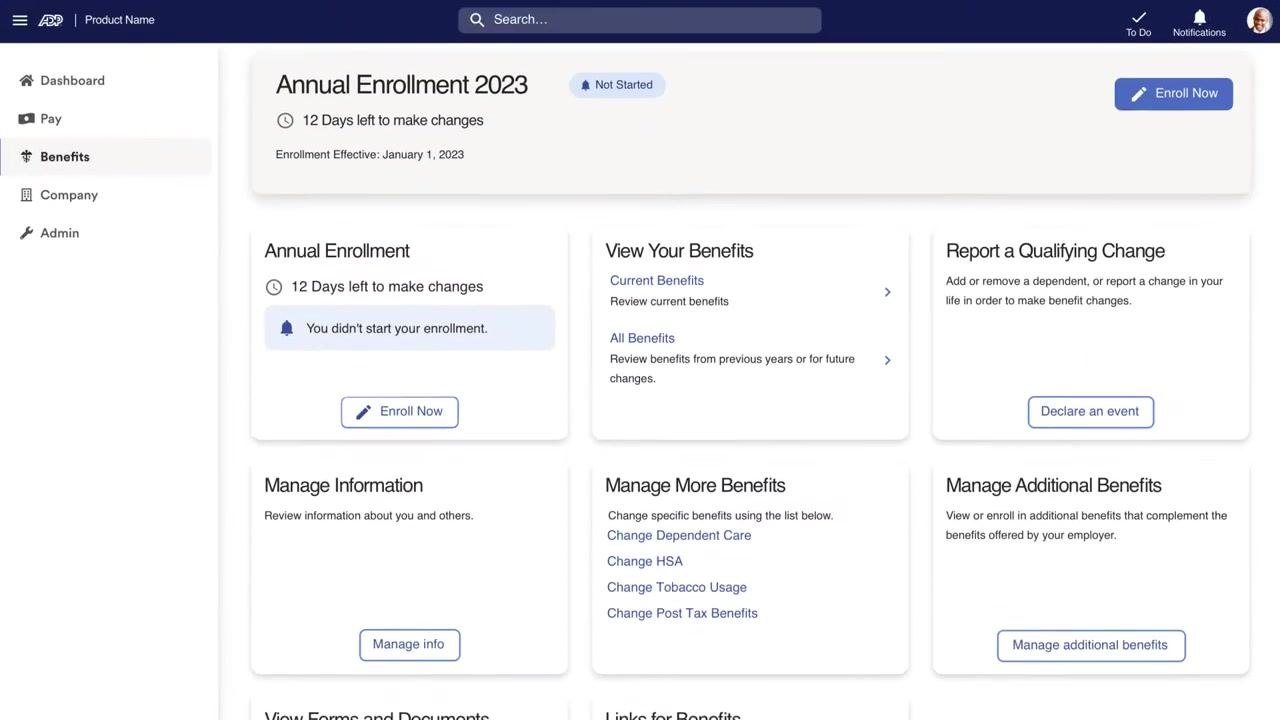
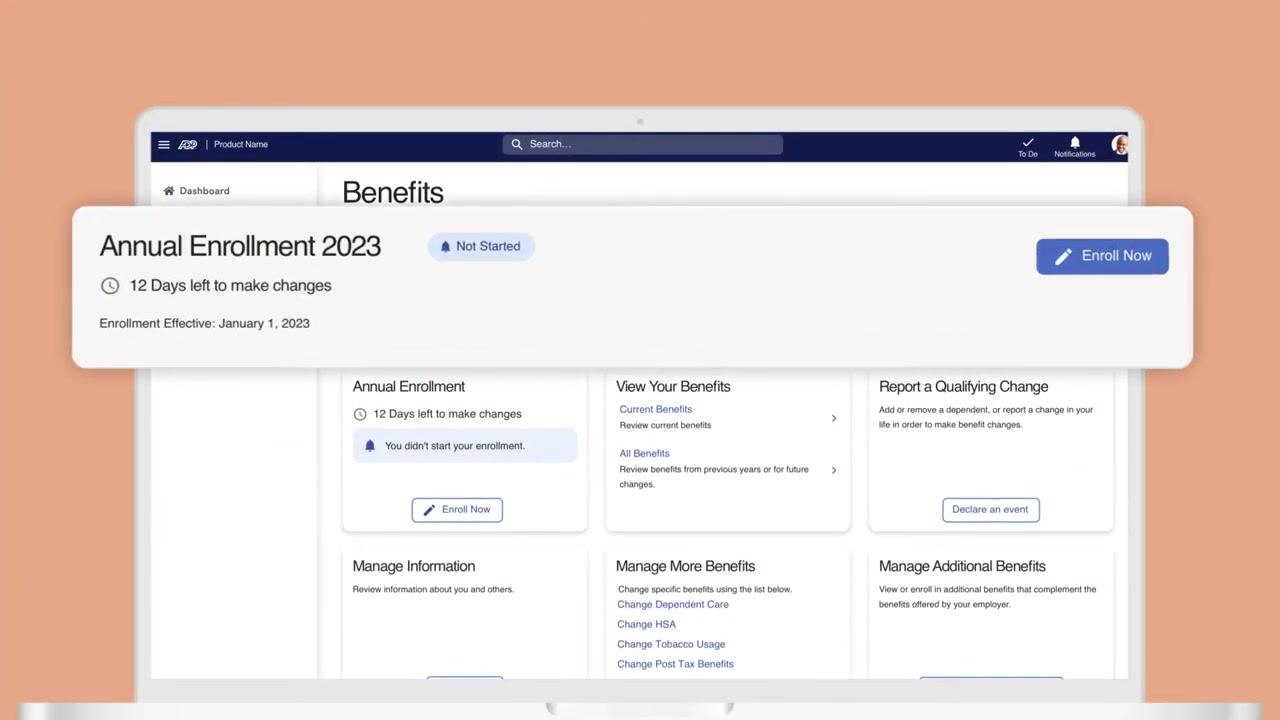
On your dashboard, locate the Benefits tab in the left-hand menu and click it. The screen displays a summary of your enrollment status along with the number of days remaining to make changes, for example: "Annual Enrollment 2023 – 1 Day left to make changes. Enrollment Effective: January 1, 2022."
Check your enrollment deadline
Your dashboard also shows how many days remain before the enrollment window closes, along with your current enrollment status, such as "Not Started." A prominent Enroll Now button lets you begin the process directly from this screen.

Review your enrollment documents
Before making any elections, review the documents your employer has uploaded for you, such as the Annual Benefits Enrollment Guide, a Dental Brochure, and medical plan details. Download and read each document relevant to your coverage options.
Begin your enrollment
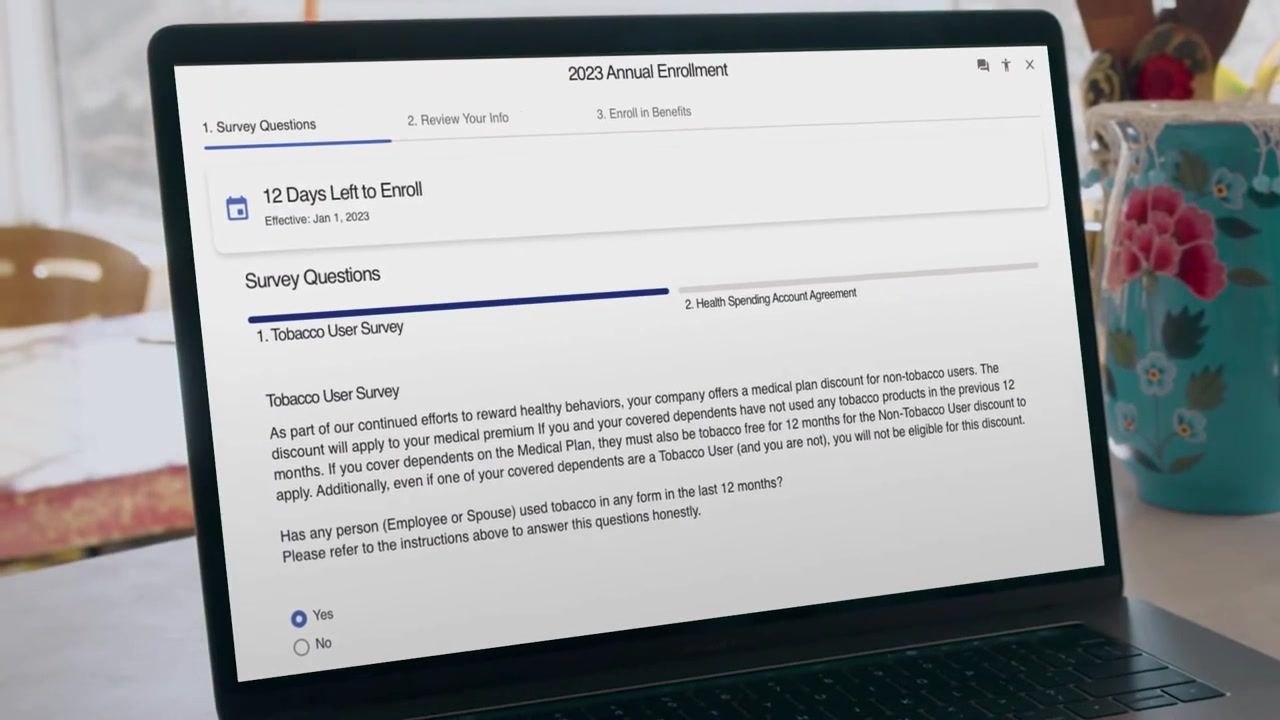
Click Enroll Now on the dashboard to start the enrollment process. You may be prompted to answer eligibility or cost-related questions, such as a Tobacco User Survey asking whether you or your spouse have used tobacco in the last 12 months. Select Yes or No as appropriate.
Review and update your personal information
Confirm your personal details and coverage information for yourself, your dependents, and any beneficiaries. If needed, click Add Dependent or Add Beneficiary to include additional people in your plan. Click Next once your information is accurate.
Select your benefits
Review your assigned benefits, optional benefits, and any items requiring action. For each benefit—such as Basic Life, Pet Health Care Illness, or Group Critical Illness—you can view coverage details, see who is covered, and make changes using the Change plan or Make change buttons.
Compare and choose from available plans
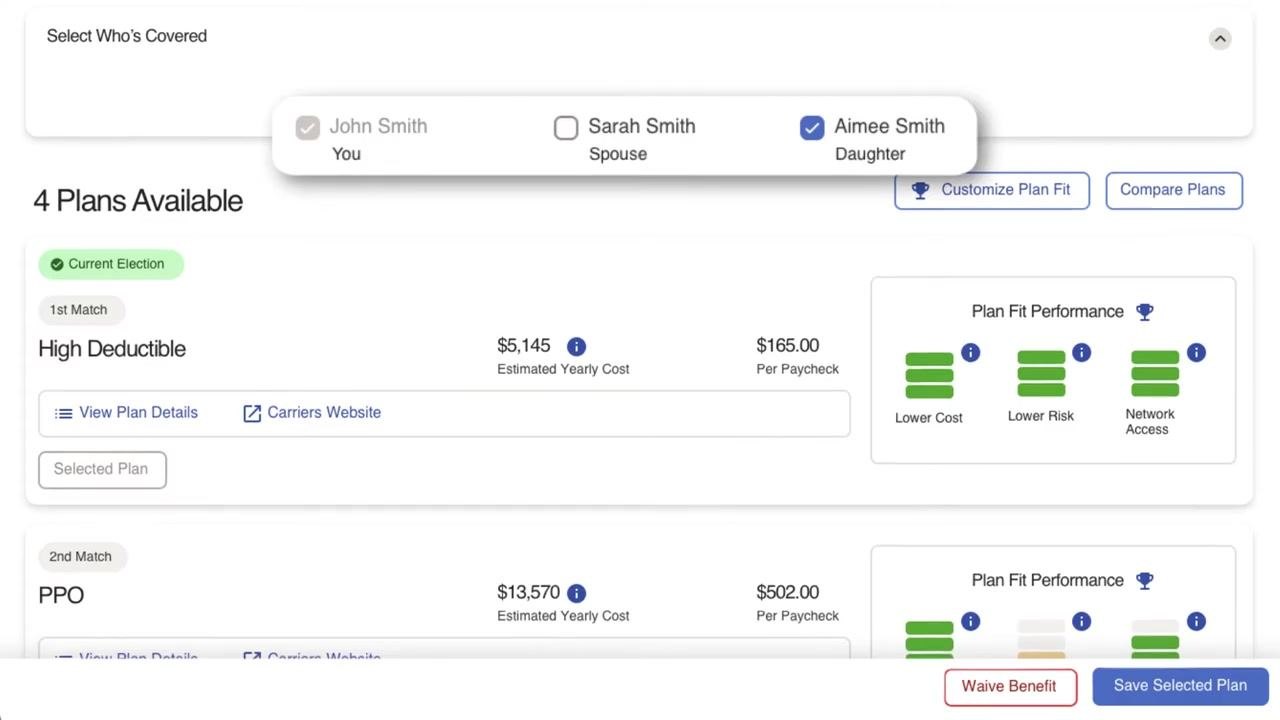
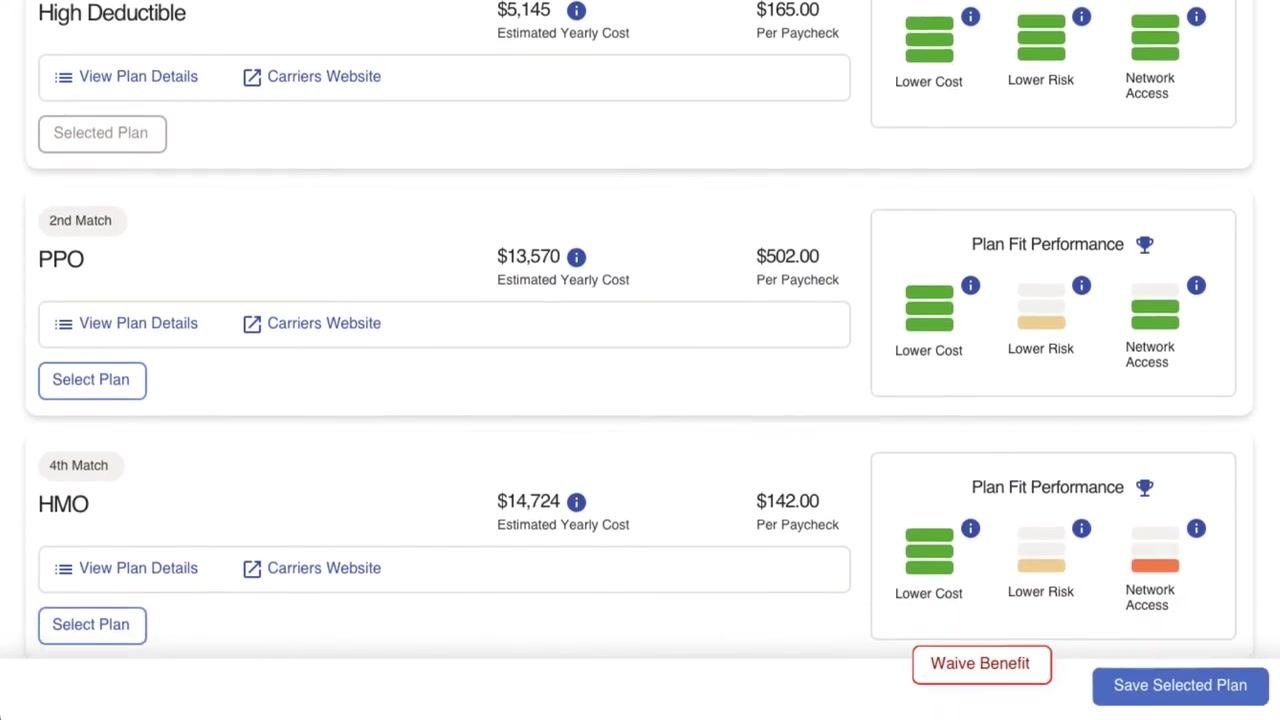
When selecting medical coverage, compare available plans such as High Deductible, PPO, and HMO. Review each plan's estimated yearly cost, per-paycheck cost, and fit based on factors like lower cost, lower risk, or network access. Choose who will be covered—yourself, a spouse, or dependents—and use View Plan Details, Carriers Website, Select Plan, Waive Benefit, or Save Selected Plan as needed.
Remove or decline coverage if desired
If you want to decline a specific benefit, click the Waive Benefit button next to that plan and confirm your choice if prompted.
Save your progress if you need a break
If you need to pause before completing your enrollment, click Finish Later. Your progress is saved so you can return at any time before the deadline. If you do not confirm your choices in time, your selections may default based on your plan's requirements.

Resume enrollment on the ADP mobile app
You can also complete your enrollment using the ADP mobile app. Log in, select Benefits from the dashboard, and choose Annual Enrollment to continue where you left off.
Review and update your Health Savings Account (HSA)
If prompted, review your HSA contribution and choose one of the following options:
- Keep last year's contribution (e.g., $0.00)
- Increase to the maximum yearly goal (e.g., $4,500.00)
- Enter a different amount (e.g., $3,500.00)
Review the summary, which includes your contribution amount, your employer's contribution (e.g., $1,000.00), and the total combined contribution. Click Select to confirm your choice.
Confirm your enrollment
Once you have made all your selections, tap Confirm Enrollment. A confirmation number appears, indicating that your elections have been saved. You can download this confirmation for your records.
Making changes after confirming
Make changes before open enrollment ends
You can still adjust your benefit selections up until the last day of the open enrollment period. Return to the Benefits dashboard and click Make changes if you need to update anything.
Complete any time-sensitive activities
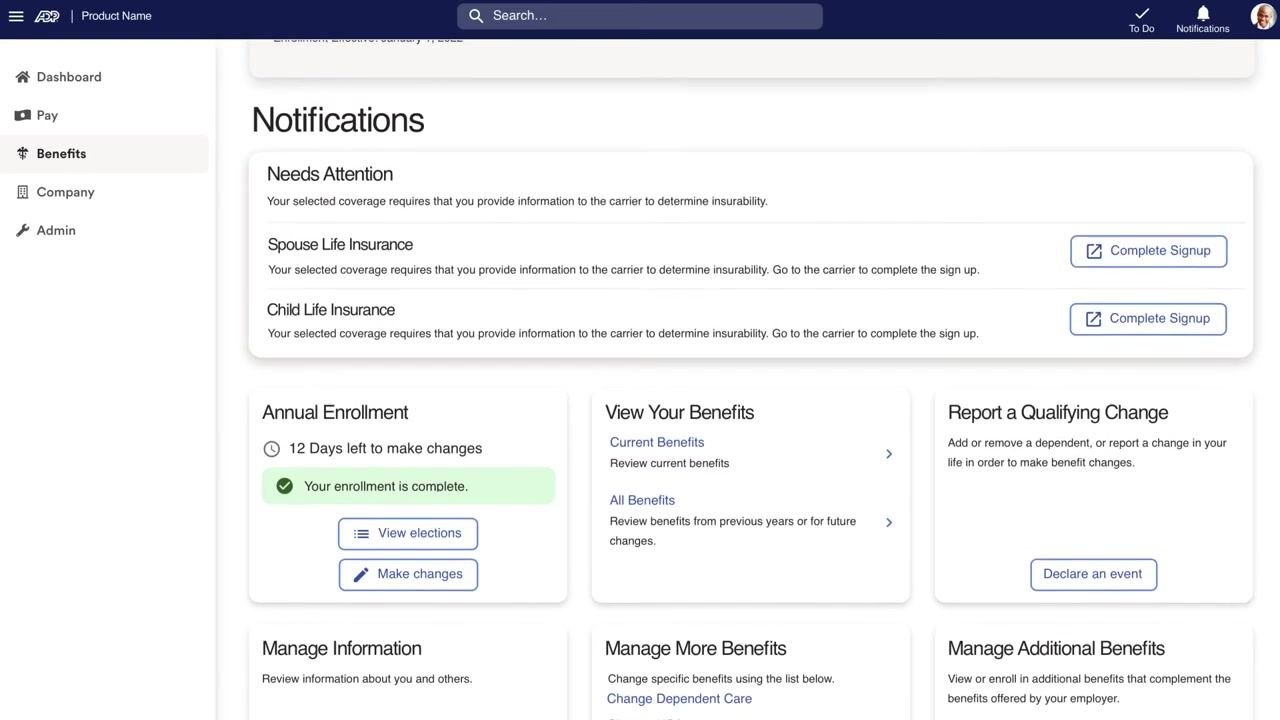
After confirming your enrollment, check the Notifications or Needs Attention section for any outstanding tasks. You may need to upload documents to verify dependents, or provide information directly to an insurance carrier for certain benefits, such as Spouse Life Insurance or Child Life Insurance, by clicking Complete Signup.
Verify your enrollment status
Once all required steps are finished, your Benefits dashboard displays your status as complete. From here, you can review your elections, make further changes, or manage additional benefit information.
Summary
By following these steps, you can log in, review your documents, answer required questions, select or waive benefits, manage your HSA contribution, and confirm your elections in ADP. You can save your progress at any time and continue on either desktop or the ADP mobile app. Remember that changes remain possible until the open enrollment period closes, and any outstanding items flagged under Needs Attention should be completed to finalize your benefits.
Generation details: cost, quality tiers
Docsie billed 2,000 credits ($1.40) to analyze this 4-minute video at standard quality. The rewrite, template fill and Word/PDF exports were included. The same video at each quality tier:
| Quality | Frames sampled | Credits | Approx. cost |
|---|---|---|---|
| Draft | every 16-30 s | 1,000 | $0.70 |
| Standard (this guide) | every 8-15 s | 2,000 | $1.40 |
| Detailed | every 4-7 s | 4,000 | $2.80 |
| Ultra | every 1-3 s | 8,000 | $5.60 |
Credits priced at $0.70 per 1,000; plans include a monthly allowance. Enterprise customers on on-premise or bring-your-own-model deployments run this on their own inference and pay no per-video credits.
Generated by Docsie Video-to-Docs on 2026-10-06 from a 3-minute video. Screenshots are frames from the source video and belong to their creator, ADP, whose original is embedded above. If you own this video and want the guide removed or credited differently, contact us and we will act within one business day.