
How to Check Your PTO Balance in ADP
This guide walks you through how to check your PTO balance in ADP Workforce Now and how to submit, adjust, or cancel a time off request. You'll learn how to sign in, locate your time off balances and history, fill out a request for single or multiple days, and manage requests after they've been submitted.
Video: ADP Requesting Time Off Instructions by HR MSK MSO. All credit for the demonstration goes to the creator; watch the original on YouTube. The written guide below was generated from this video by Docsie. Creator? Request a change or removal.
This guide walks you through how to check your PTO balance in ADP Workforce Now and how to submit, adjust, or cancel a time off request. You'll learn how to sign in, locate your time off balances and history, fill out a request for single or multiple days, and manage requests after they've been submitted.
Prerequisites
- An active ADP Workforce Now account with a User ID and password
- Access to a web browser and the ADP sign in page at online.adp.com
Sign in to ADP Workforce Now
Open your web browser and go to the ADP sign in page at online.adp.com. On the Welcome to ADP login screen, enter your User ID and Password, then click the blue Sign In button.
If you're a new user, click Create account to register. If you've forgotten your password, click Forgot your password? to reset it.
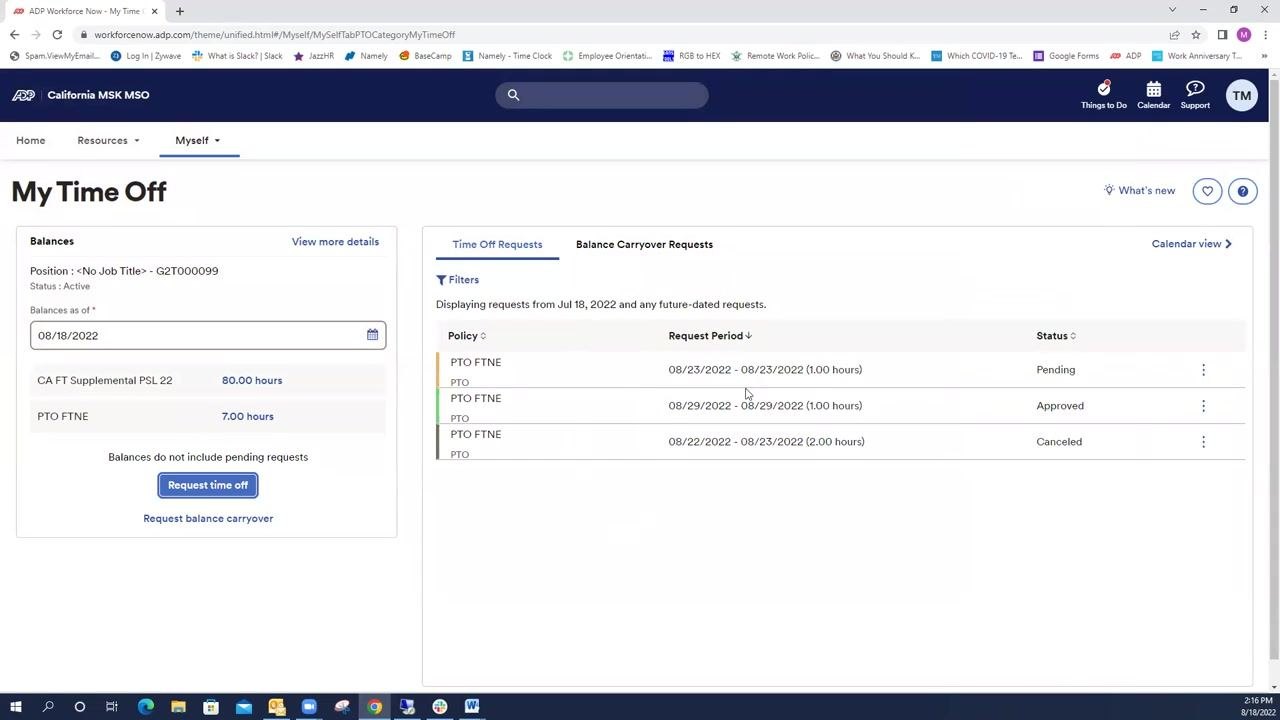
Open the home page and locate My Time Off
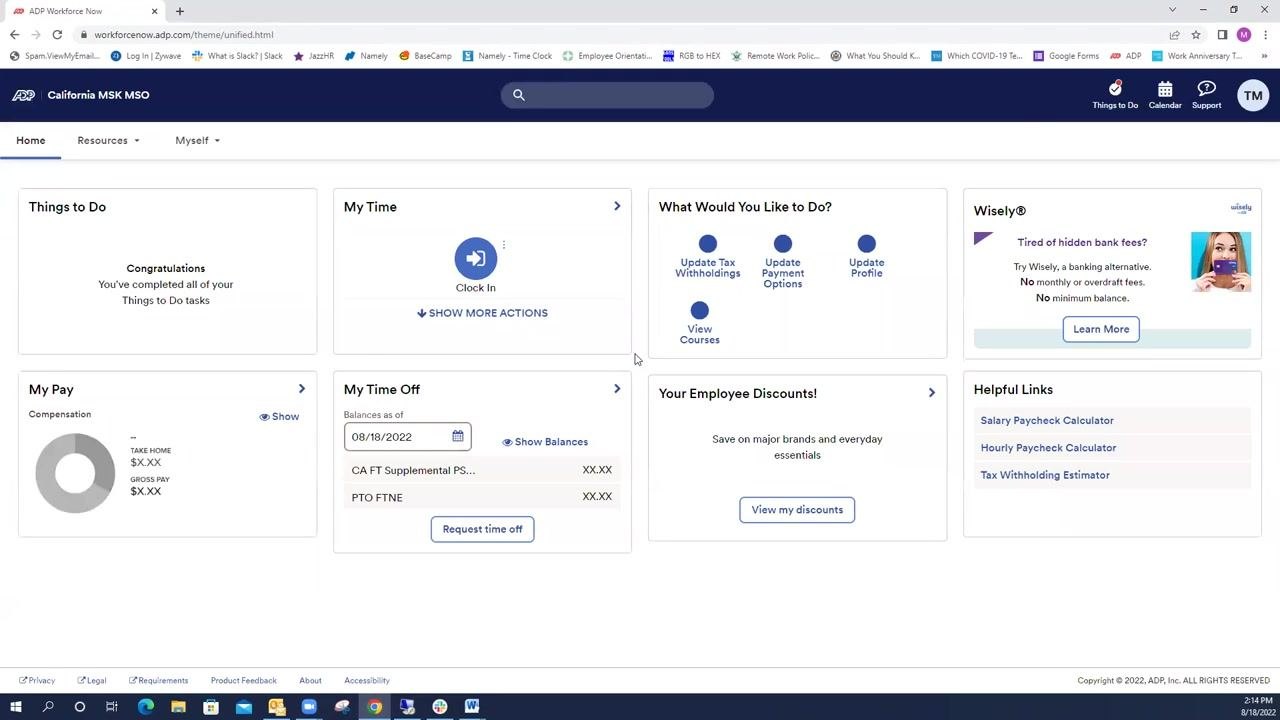
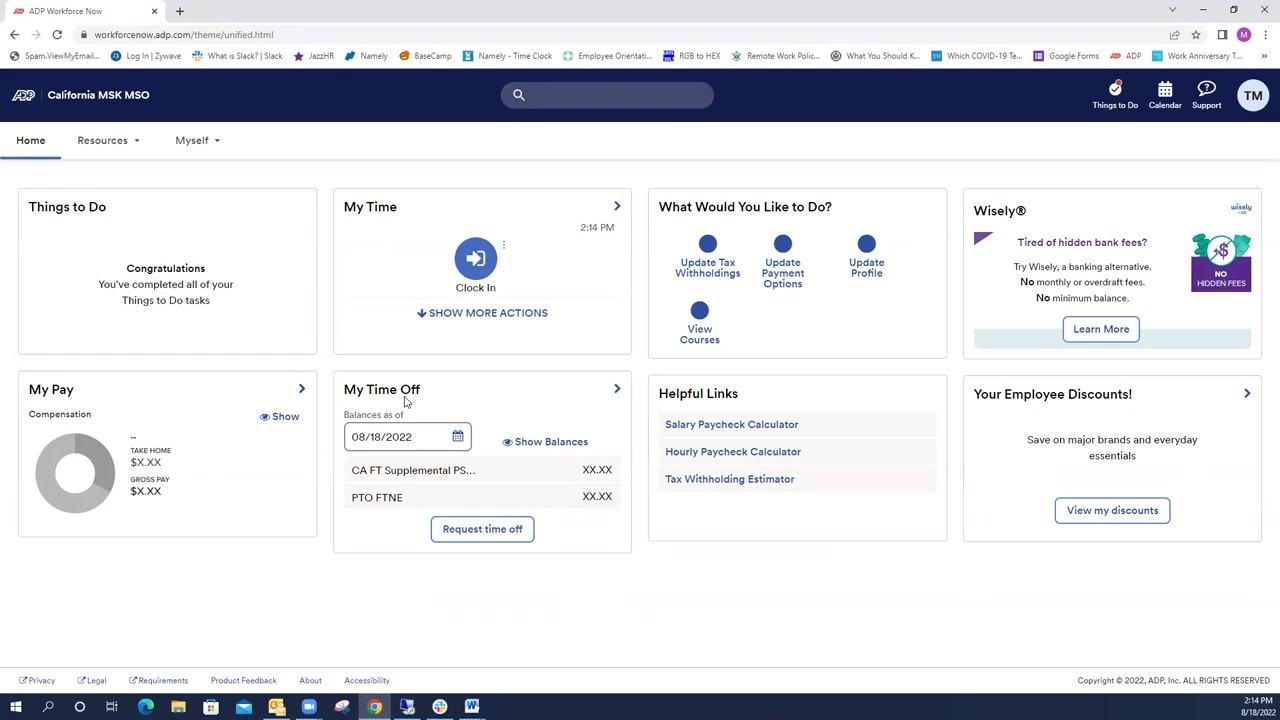
After signing in, wait for the ADP home page to load. The home page displays several tiles, including My Time, My Pay, My Time Off, Your Employee Discounts, and Helpful Links.
Locate the My Time Off tile. This tile shows your current time off balances and includes a Request time off button. If this tile is visible, click Request time off directly from it to begin a new request.
Use alternative navigation if the My Time Off tile is missing
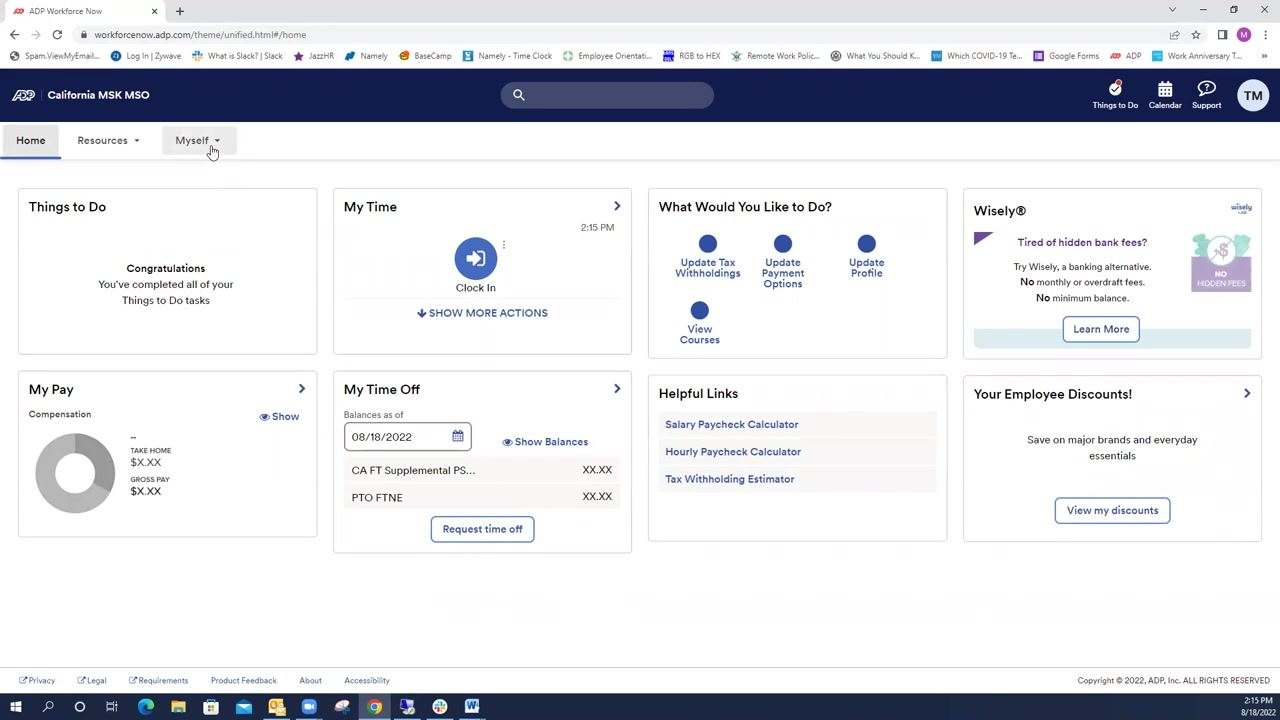
If you don't see the My Time Off tile on your home page, click the Myself menu at the top of the page and select My Time Off from the dropdown. This takes you to the same request page.
Check your PTO balance in ADP
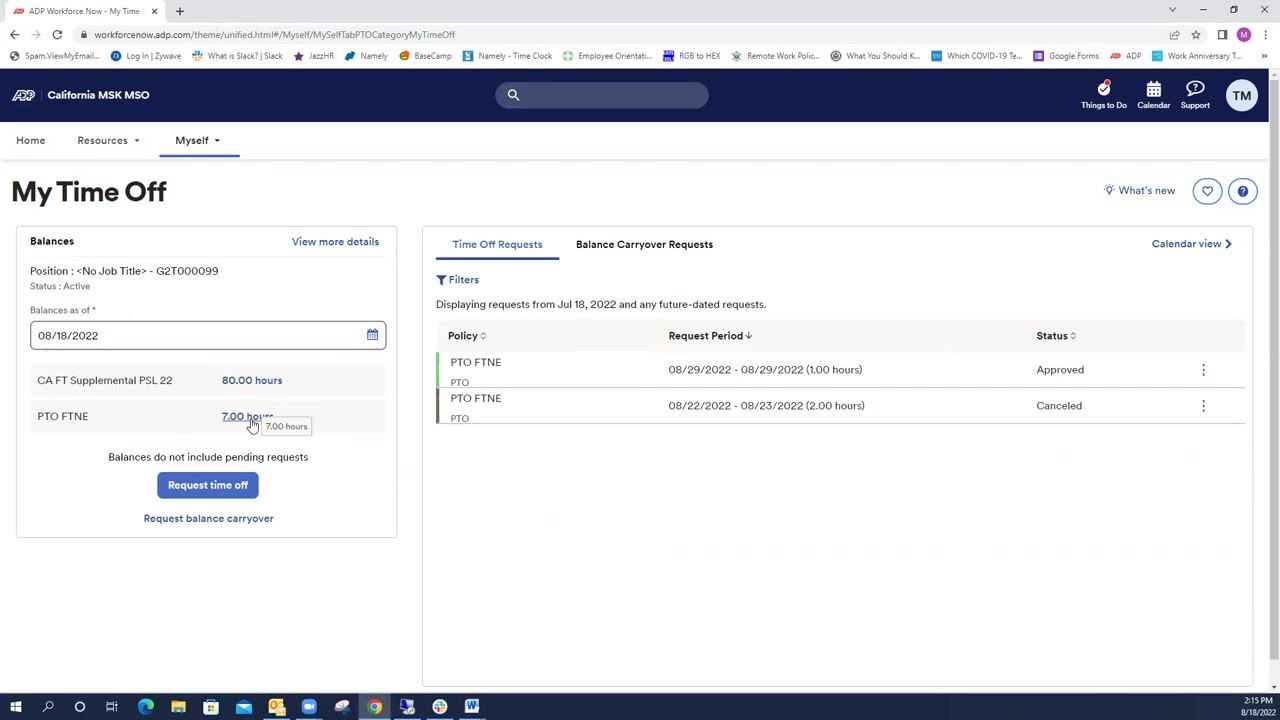
On the My Time Off page, review your current balances for each policy. For example, you might see CA FT Supplemental PSL 22: 80.00 hours or PTO FTNE: 7.00 hours.
The right side of the page lists your previous and pending time off requests along with their status, such as Approved or Canceled. Approved requests have already been deducted from your balance — for example, if you previously had 8.00 hours of PTO and now have 7.00 hours, 1.00 hour has been approved and deducted.
Fill out the time off request form
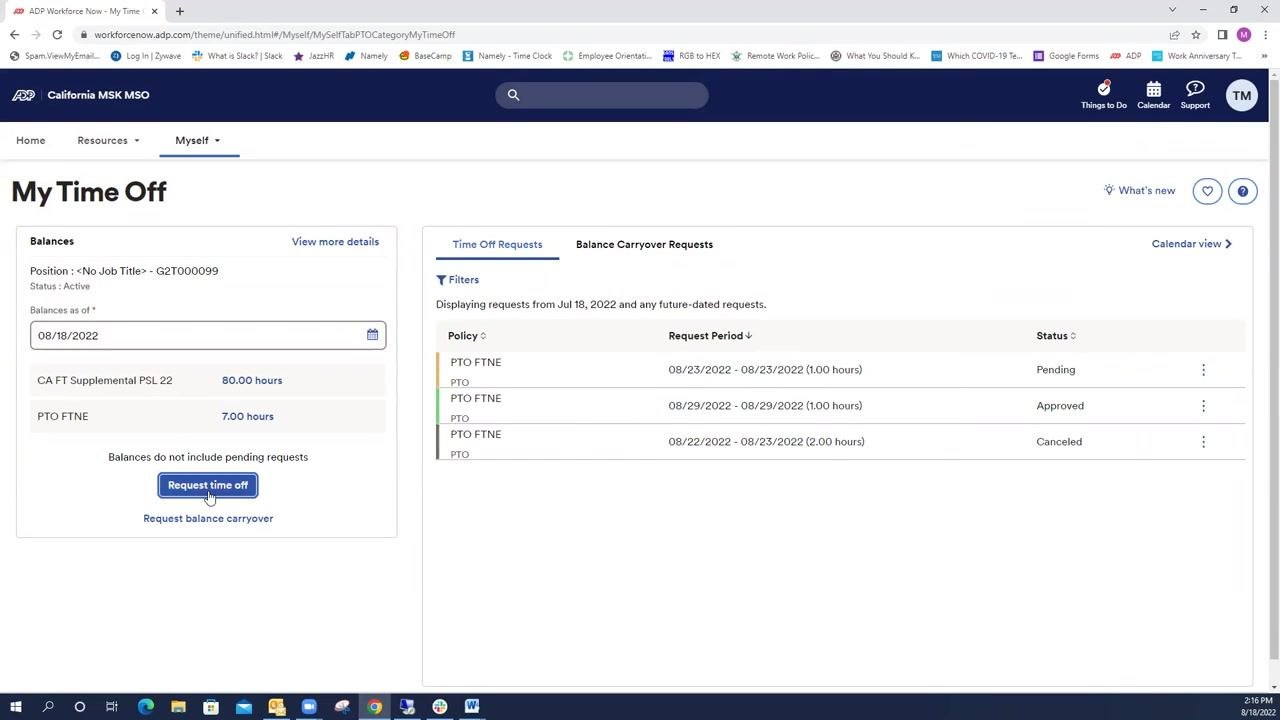
Click the Request time off button on the left side of the My Time Off page to open a new request. In the Time Off Request form, enter the following details:
- Start Date: select the first day of your time off (e.g., 08/23/2022)
- End Date: select the last day of your time off (e.g., 08/23/2022 for a single day)
- Time Off Policy: choose the appropriate policy, such as PTO FTNE for paid time off (shows available hours, e.g., 7.00 hours) or CA FT Supplemental PSL 22 for COVID-related leave (shows available hours, e.g., 80.00 hours)
- Start Time: enter the start time (e.g., 8:00 AM)
- Hours Per Day: enter the number of hours requested (e.g., 1)
If you want this to be a recurring request, check the Make Recurring box. Click Review to proceed.
Set an approval deadline and add comments (optional)
In the Time Off Request form, locate the Approve By Date field and click the calendar icon next to it. Select the date by which you want your supervisor to approve your request (e.g., August 26, 2022).
Optionally, enter a comment in the text box provided to give your supervisor additional context about your request.
Submit your time off request
After filling in all required fields and any optional information, click the Submit button at the bottom of the form. A confirmation appears, and your request is added to the list of time off requests with a status of Pending.
Request time off for multiple consecutive days
To request more than one day, click Request time off again. Set the Start Date to the first day you need off (e.g., 08/23/2022) and the End Date to the last day (e.g., 08/24/2022 for two days).
Select the Time Off Policy (e.g., PTO FTNE), then enter the Start Time (e.g., 8:00 AM) and Hours Per Day (e.g., 1). Click Review to proceed.
Resolve overlapping request warnings
If you attempt to submit a request that overlaps with an existing one, a red warning message appears at the top of the form, for example: "This request overlaps with an existing request on Aug 23, 2022 at start time 8:00 A.M."
Adjust your dates to avoid the overlap, or modify or cancel the conflicting request as needed.
Request time off for a range of days
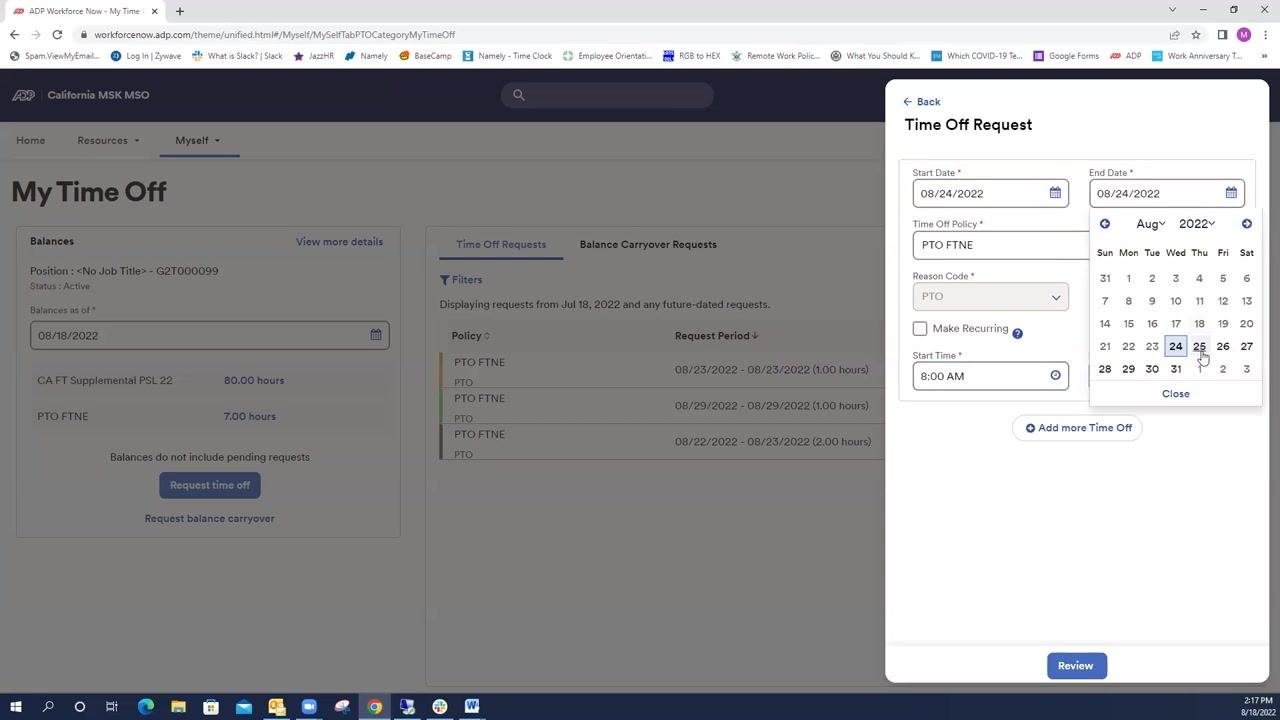
To request a continuous range of days (e.g., three days), set the Start Date (e.g., 08/24/2022) and End Date (e.g., 08/26/2022). Enter the Time Off Policy, Reason Code, Start Time, and Hours Per Day (e.g., 2 hours per day).
The system calculates the total hours automatically — for example, 3 days × 2 hours equals 6.00 hours. Click Review to proceed.
Add additional non-consecutive time off
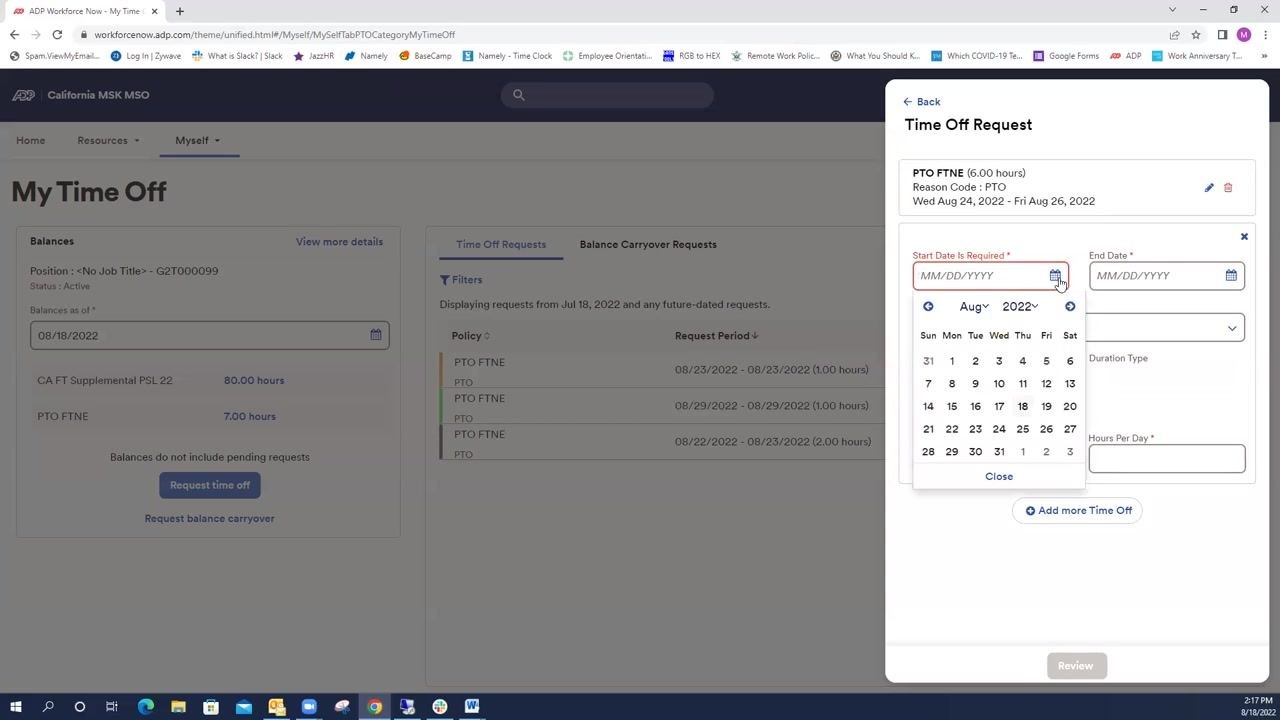
If you need to request additional, non-consecutive days — for example, Monday, Tuesday, and then Thursday — use the Add more Time Off button. For each additional period, enter the Start Date, End Date, Time Off Policy, Reason Code, Start Time, and Hours Per Day.
Each segment is listed separately in your request summary.
Cancel a submitted time off request
To make changes to a request you've already submitted, locate it in the Time Off Requests list on the My Time Off page. The list displays each request's Policy, Request Period, and Status (Pending, Approved, or Canceled).
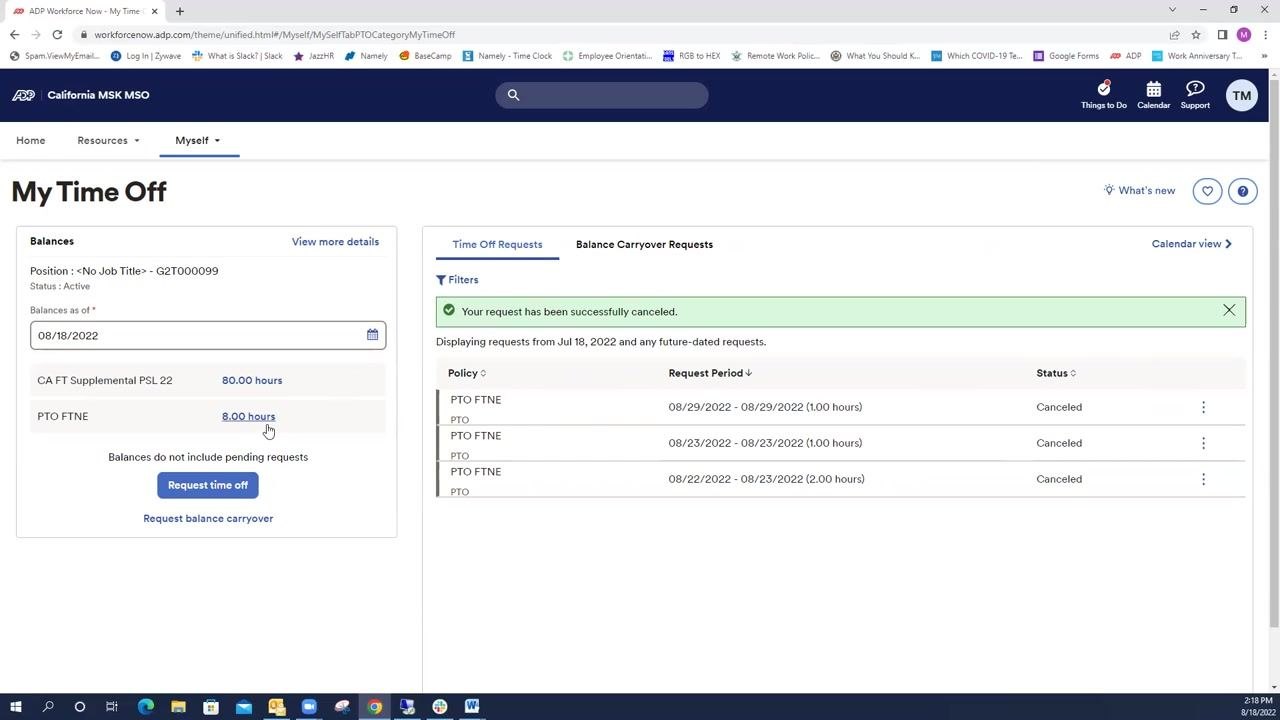
Click the three-dot menu (⋮) next to the request you want to cancel, then select Cancel from the dropdown menu. A green confirmation message appears: "Your request has been successfully canceled."
The status updates to Canceled in the list, and the hours are returned to your available balance (for example, your PTO FTNE balance increases accordingly). Your supervisor automatically receives an email notification of the cancellation, and you also receive an email confirmation.
Cancel an approved time off request
You can cancel a request even after your supervisor has approved it. Locate the approved request in the Time Off Requests list, click the three-dot menu (⋮) next to it, and select Cancel from the dropdown menu.
The status changes to Canceled, and the hours are credited back to your balance. A green confirmation message appears at the top of the page, and both you and your supervisor receive email notifications regarding the cancellation.
What's next
With these steps, you now know how to check your PTO balance in ADP, submit single-day, multi-day, or non-consecutive time off requests, set supervisor approval deadlines, and add comments for clarity. The system alerts you to any overlapping requests and allows you to cancel pending or approved requests at any time, keeping your balance and your supervisor automatically updated.
Generation details: cost, quality tiers
Docsie billed 2,500 credits ($1.75) to analyze this 5-minute video at standard quality. The rewrite, template fill and Word/PDF exports were included. The same video at each quality tier:
| Quality | Frames sampled | Credits | Approx. cost |
|---|---|---|---|
| Draft | every 16-30 s | 1,250 | $0.88 |
| Standard (this guide) | every 8-15 s | 2,500 | $1.75 |
| Detailed | every 4-7 s | 5,000 | $3.50 |
| Ultra | every 1-3 s | 10,000 | $7.00 |
Credits priced at $0.70 per 1,000; plans include a monthly allowance. Enterprise customers on on-premise or bring-your-own-model deployments run this on their own inference and pay no per-video credits.
Generated by Docsie Video-to-Docs on 2026-10-06 from a 4-minute video. Screenshots are frames from the source video and belong to their creator, HR MSK MSO, whose original is embedded above. If you own this video and want the guide removed or credited differently, contact us and we will act within one business day.