
How to Install Panel Images in TIA Portal
If a download to a Siemens HMI fails because of a missing panel image, you can fix it by downloading the image files from Siemens and copying them into the TIA Portal directory. This guide shows you how to install panel images in TIA Portal, from finding the files on the Siemens website to letting TIA Portal upgrade the image. The method applies to devices such as the Comfort 700 and to cases where images are missing or the version doesn't match.
Video: Installation of Siemens Panel Images TIA Portal V18 | UzTecho by UzTecho Pakistan. All credit for the demonstration goes to the creator; watch the original on YouTube. The written guide below was generated from this video by Docsie. Creator? Request a change or removal.
If a download to a Siemens HMI fails because of a missing panel image, you can fix it by downloading the image files from Siemens and copying them into the TIA Portal directory. This guide shows you how to install panel images in TIA Portal, from finding the files on the Siemens website to letting TIA Portal upgrade the image. The method applies to devices such as the Comfort 700 and to cases where images are missing or the version doesn't match.
Prerequisites
Before you start, make sure you have the following:
- A registered Siemens account (email and password). You must log in to download the files.
- TIA Portal installed on your computer. The paths in this guide use
Portal V18. - The model of your HMI panel (for example, TP700) and your TIA Portal version.
- A tool that can extract ZIP files.
Steps
Recognize the missing panel image error
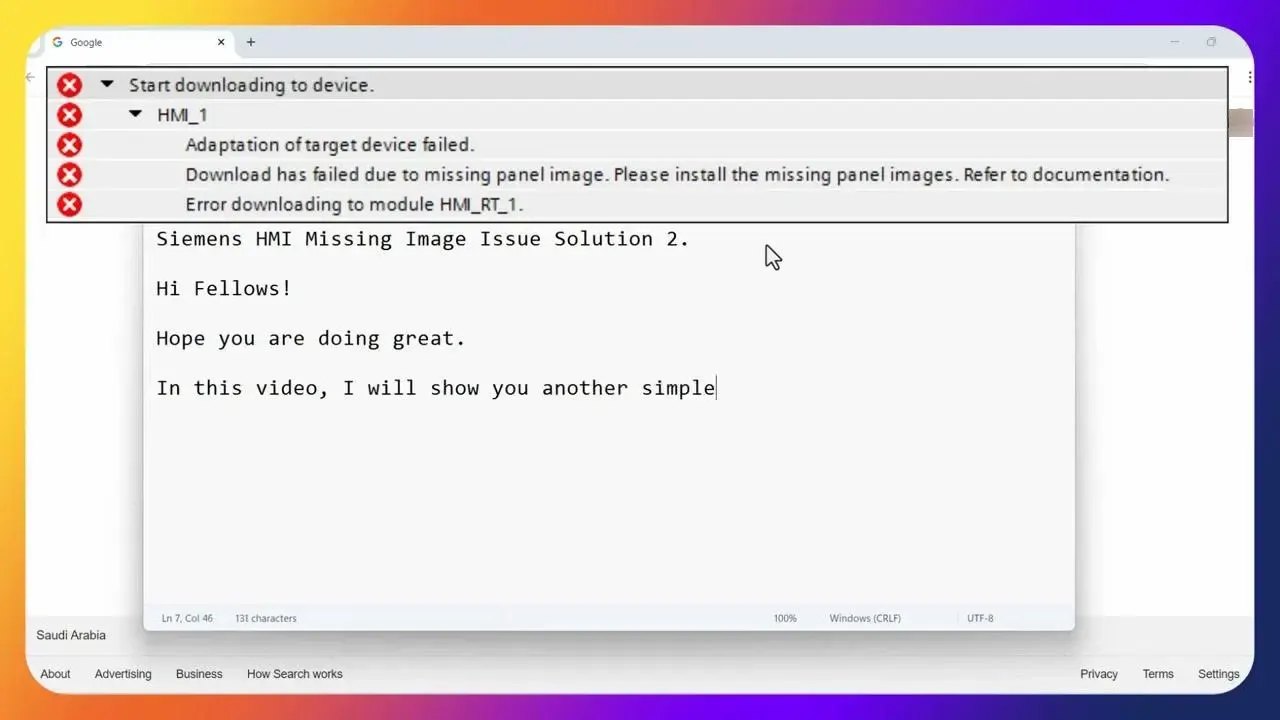
When you download to the HMI device, messages like these appear at the top of the screen:
- "Start downloading to device."
- "Adaptation of target device failed."
- "Download has failed due to missing panel image. Please install the missing panel images. Refer to documentation."
- "Error downloading to module HMI_RT_1."
Understand the solution
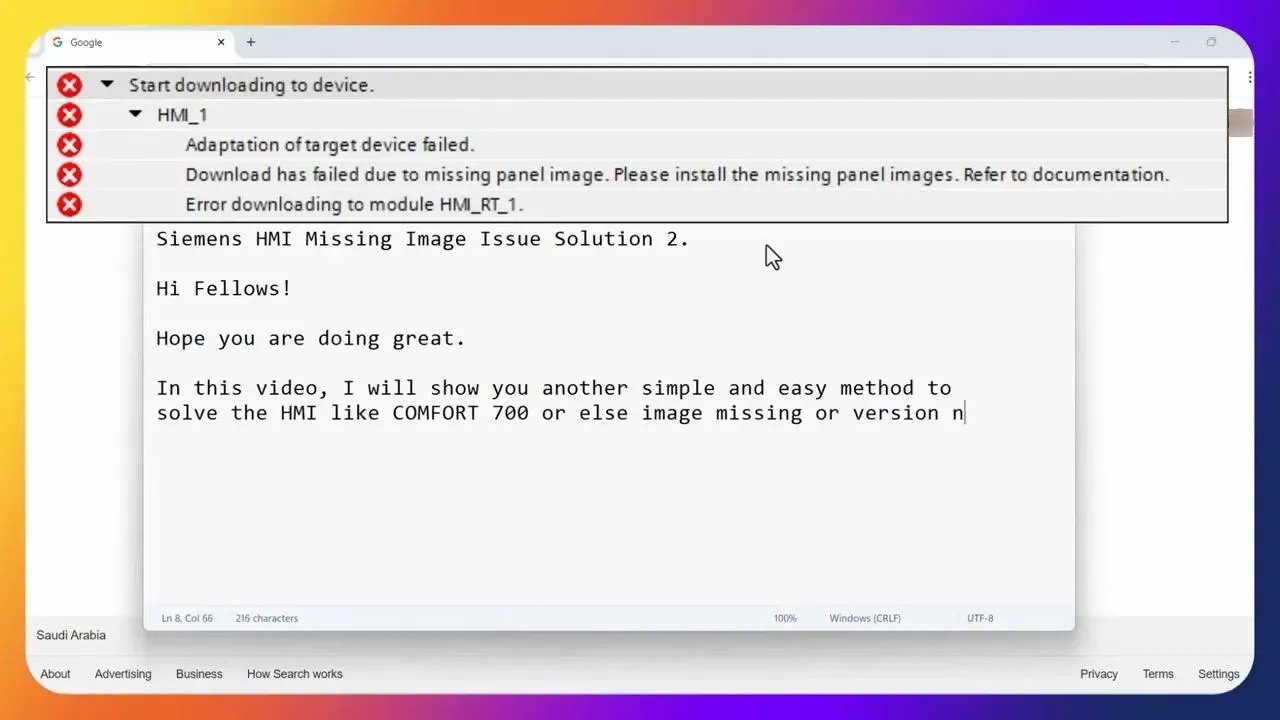
This problem affects models such as the Comfort 700, and it occurs when images are missing or the version doesn't match.
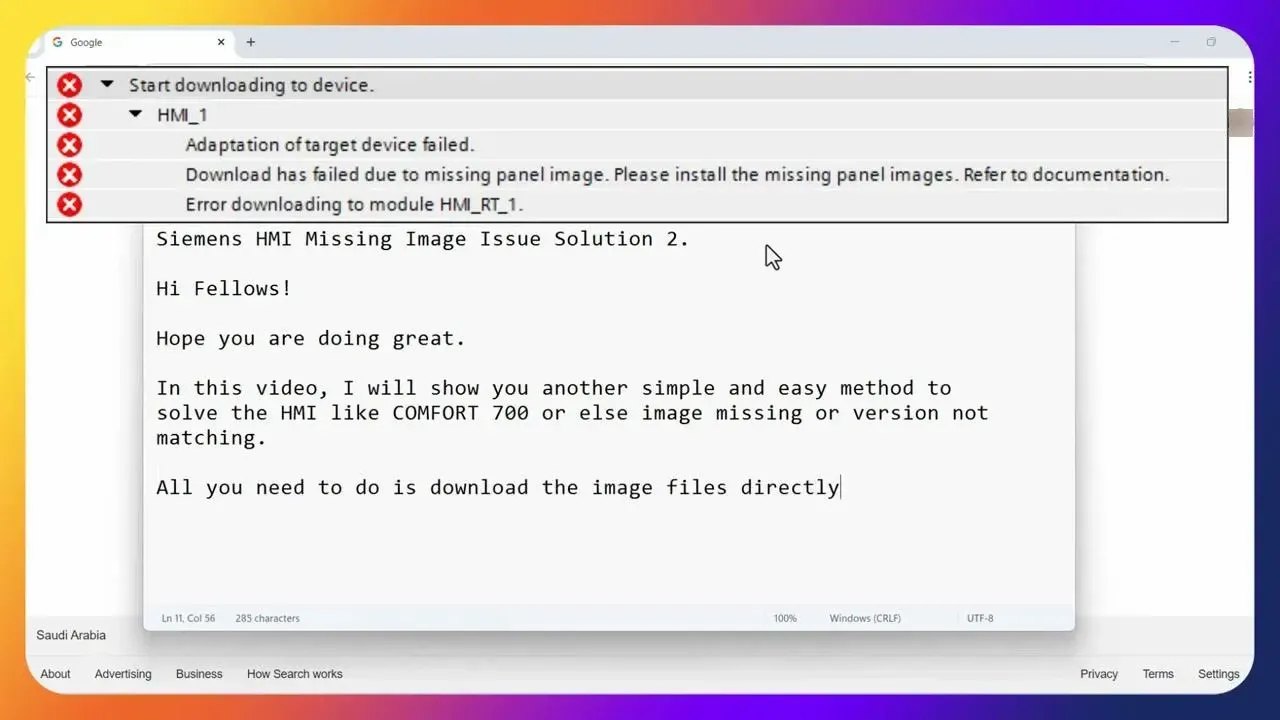
To resolve it, download the image files directly from the Siemens website.
Search for the Siemens HMI images
- Open a web browser and go to Google.
- Click the search bar and enter the full query, for example
siemens hmi tp700 images. - Press Enter.
Open the official Siemens support link
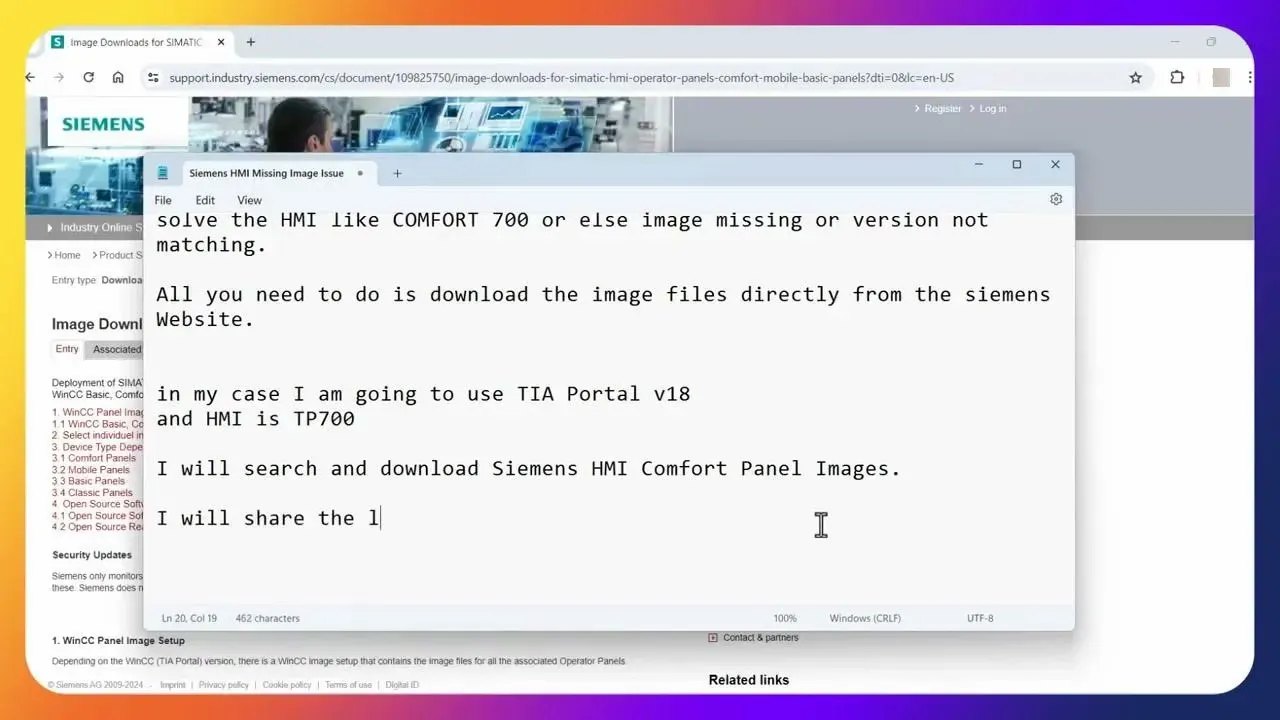
The results include images of Siemens TP700 panels, tutorials, and official Siemens support links. Look for the link titled "Image Downloads for SIMATIC HMI Operator Panels" from the official Siemens website, and click it. It opens the Siemens support page where you can download the image files.
Choose the section for your device
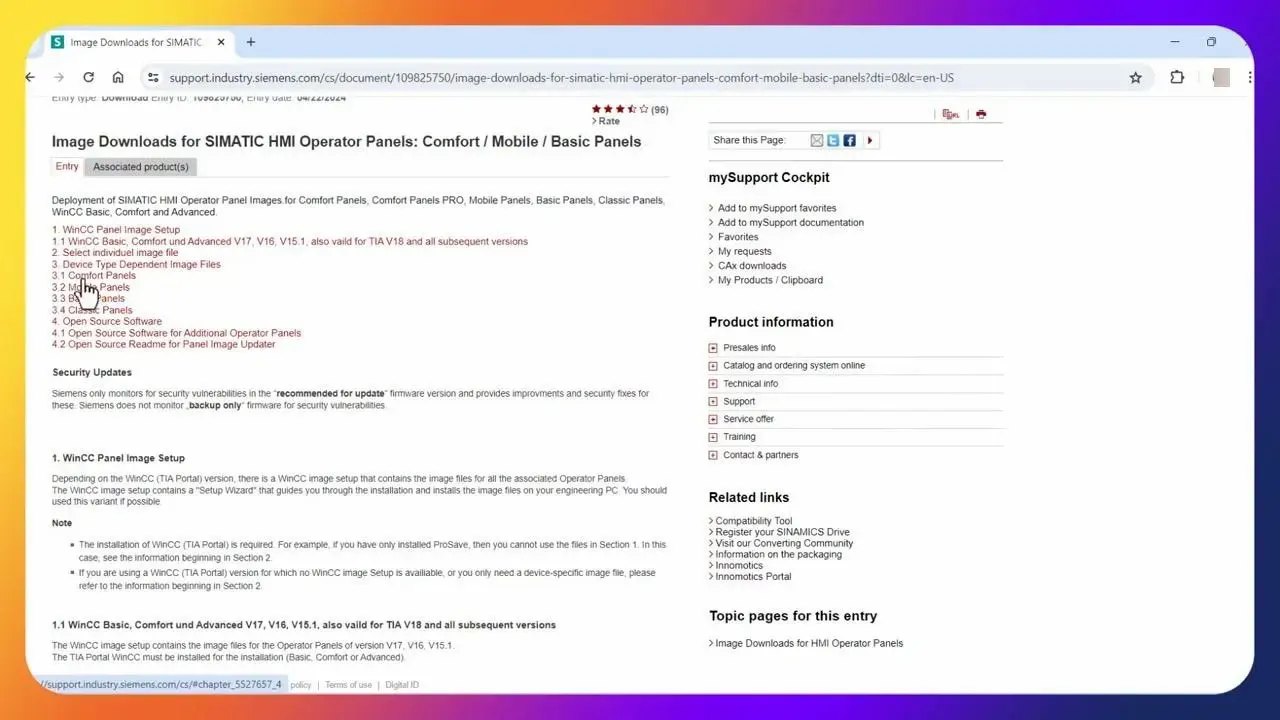
The page is titled "Image Downloads for SIMATIC HMI Operator Panels: Comfort / Mobile / Basic Panels." It contains these key sections:
- WinCC Panel Image Setup
- WinCC Basic, Comfort and Advanced V17, V16, V15.1 (also valid for TIA V18 and all subsequent versions)
- Select individual image file
- Device Type Dependent Image Files, with subsections for Comfort Panels, Mobile Panels, Basic Panels, and Classic Panels
Click the section for your device, such as 3.1 Comfort Panels.
Find the image files for your model and TIA Portal version
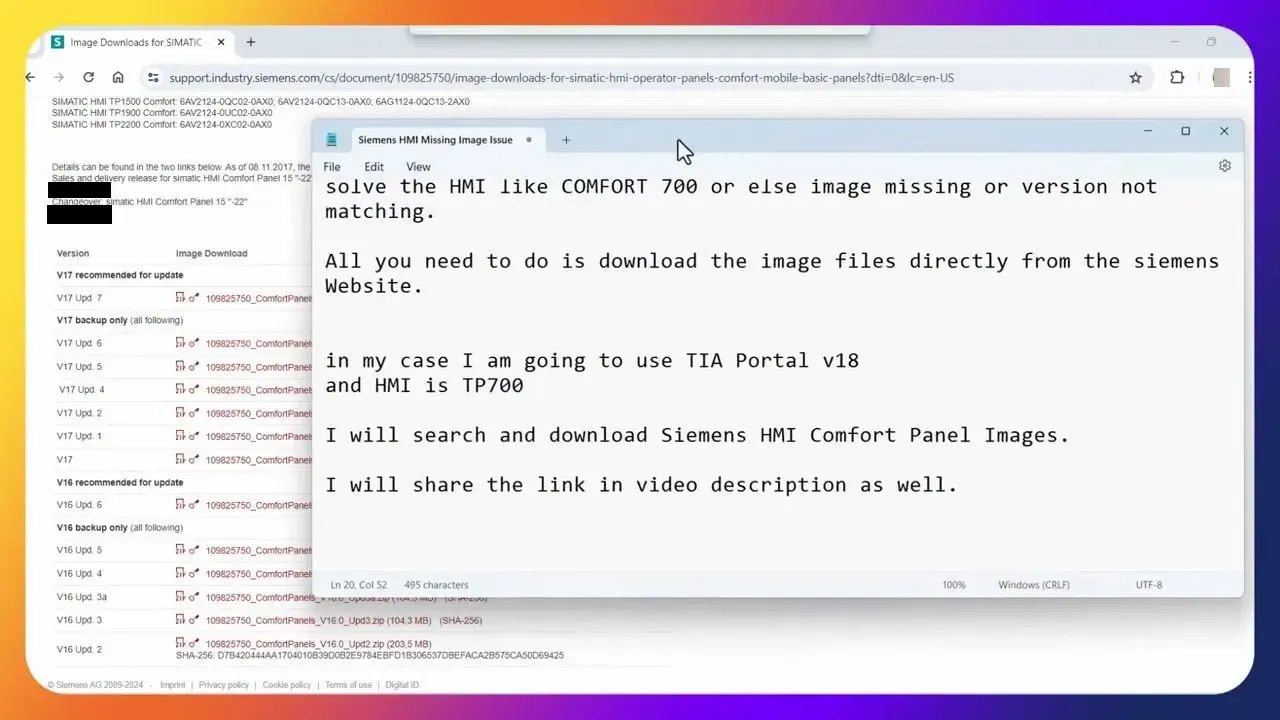
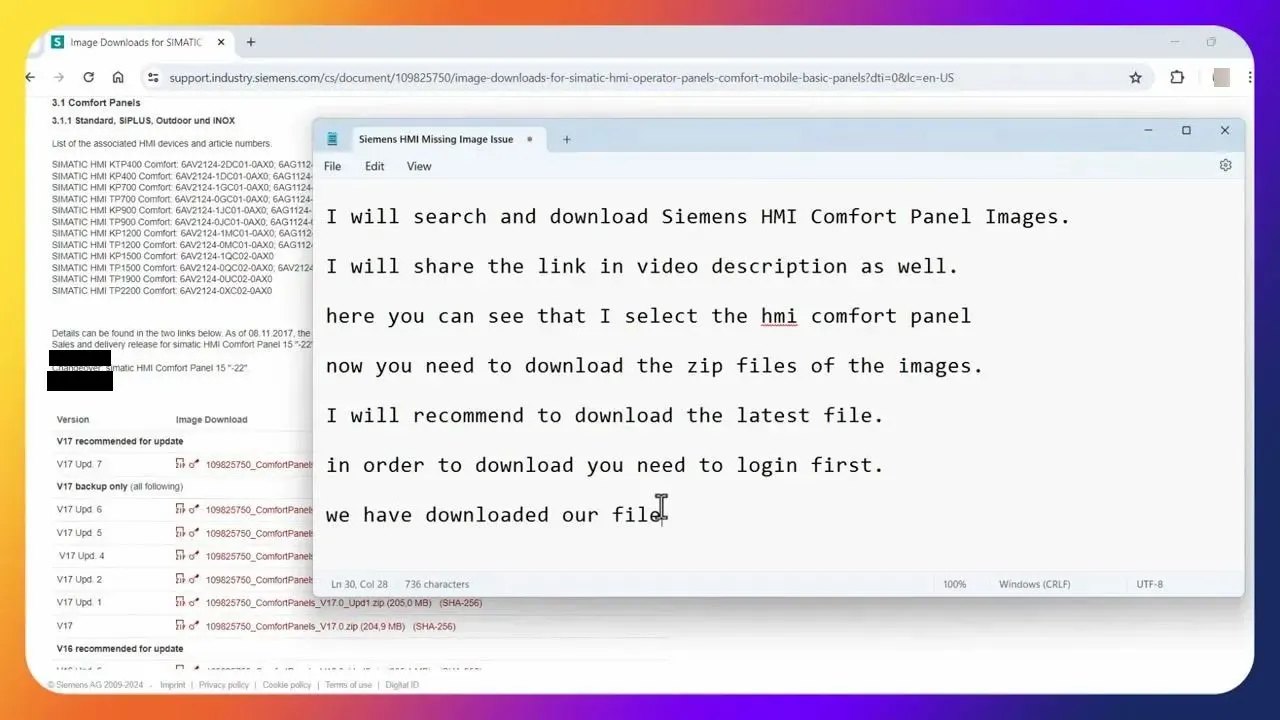
Scroll down to the list of image downloads, which is organized by version (for example, V17 and V16) and update level. Each entry shows a download link and a file size. For a TP700 and TIA Portal V18, select the latest available version that is compatible with your setup.
Log in to the Siemens Industry Online Support portal
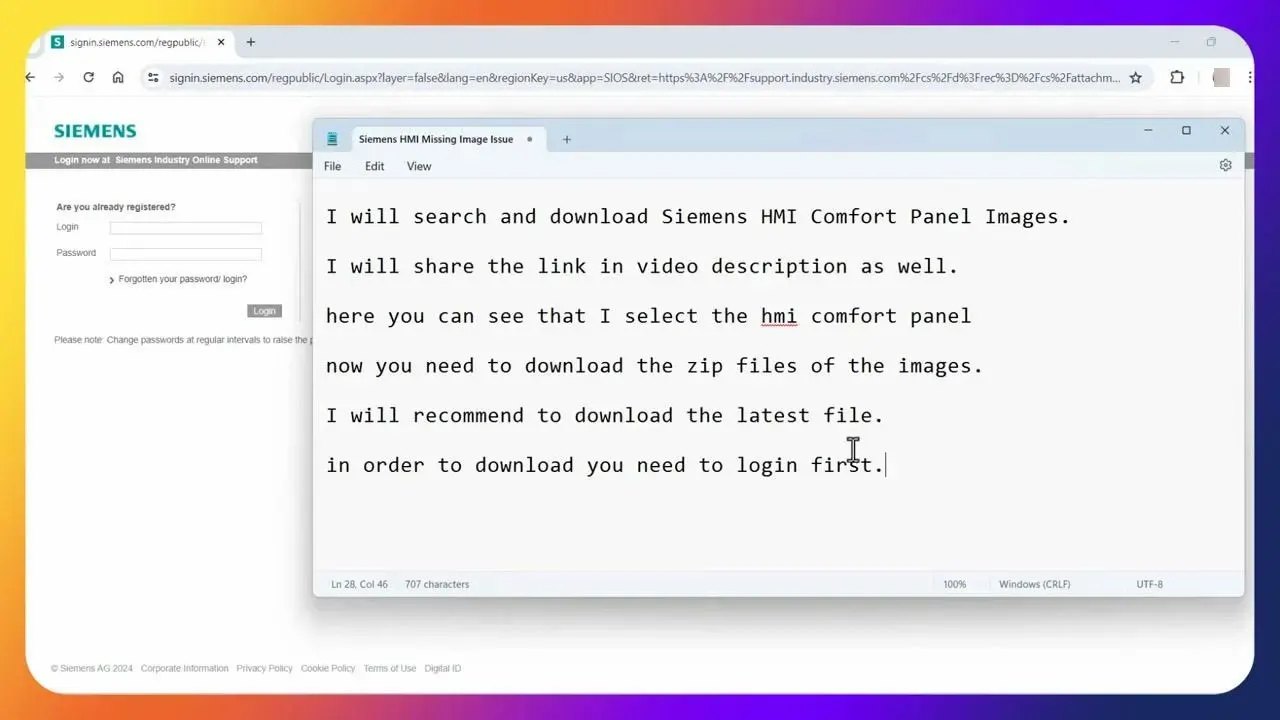
You need to log in before you can download. When you try to download a file, the Siemens login page appears and asks for your registered email and password.
- Enter your registered Siemens account email and password.
- Click Login.
- If you don't have an account, select Yes, I would like to register now to create one.
Wait for authentication to finish. After you log in, you can download the ZIP files for your HMI Comfort Panel. If the screen goes black or changes, wait for the next screen or the download confirmation.
Download the latest ZIP file
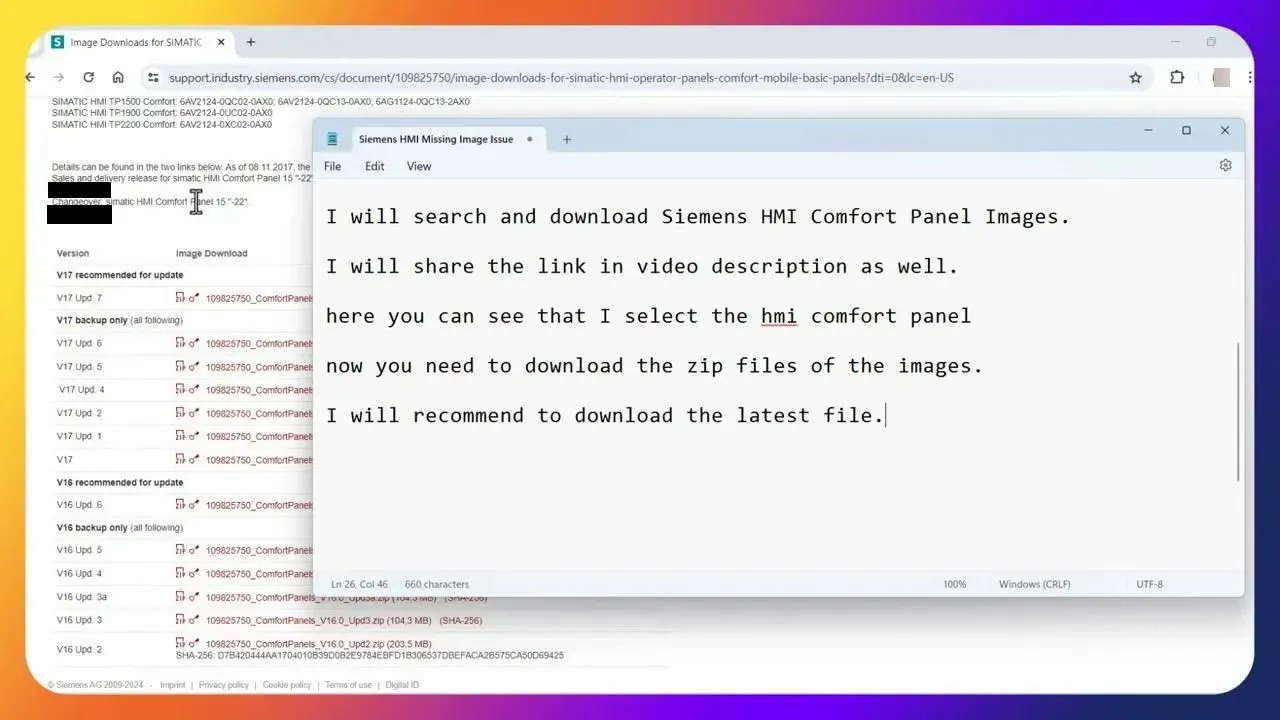
The image files are provided as ZIP archives, and the Siemens support page lists multiple ZIP files by version and update number. Download the latest file to get the most up-to-date image that is compatible with your HMI panel and TIA Portal version.
Click the download link for the Comfort Panel image file you need, for example 109825750_ComfortPanels_V17.0_Upd7.zip. If a "Duplicate download link" dialog appears:
- Select Add the duplicate and overwrite the existing file.
- Make sure If existing file is complete, show download complete dialog; otherwise resume it is checked.
- Click OK.
Verify that the download is complete
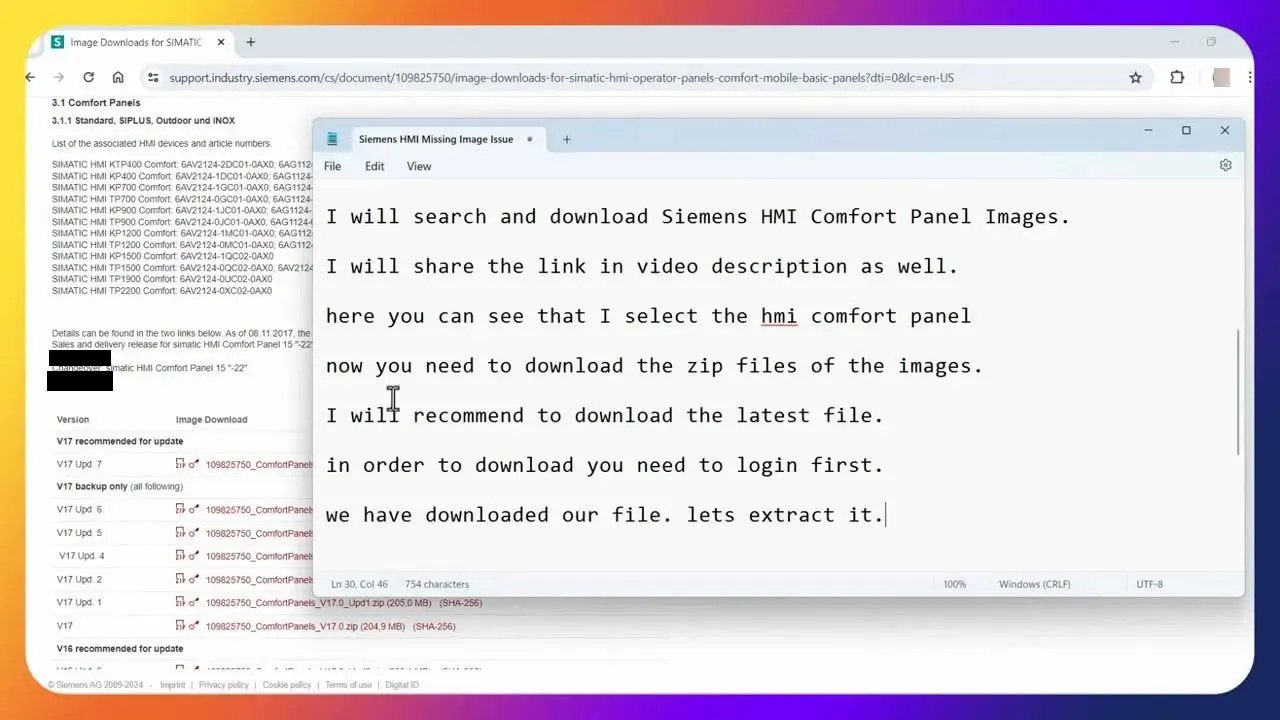
Confirm that the file downloaded successfully to your designated folder, for example Downloads\Compressed.
Extract the downloaded ZIP file
- Locate the ZIP file (for example,
109825750_ComfortPanels_V17.0_Upd7.zip) in File Explorer. - Right-click it and select Extract All, or use your preferred extraction tool.
- If a "Confirm file replace" dialog appears because files already exist in the destination, click Yes to All.
Wait for the extraction to finish. A progress window shows the file being extracted, the elapsed time, and the percentage completed.
Locate the extracted folder
After extraction, check that a new folder (for example, 17.0) appears in your destination directory, such as Downloads\Compressed\Comfort.
Open the HMI Transfer folder in the TIA Portal directory
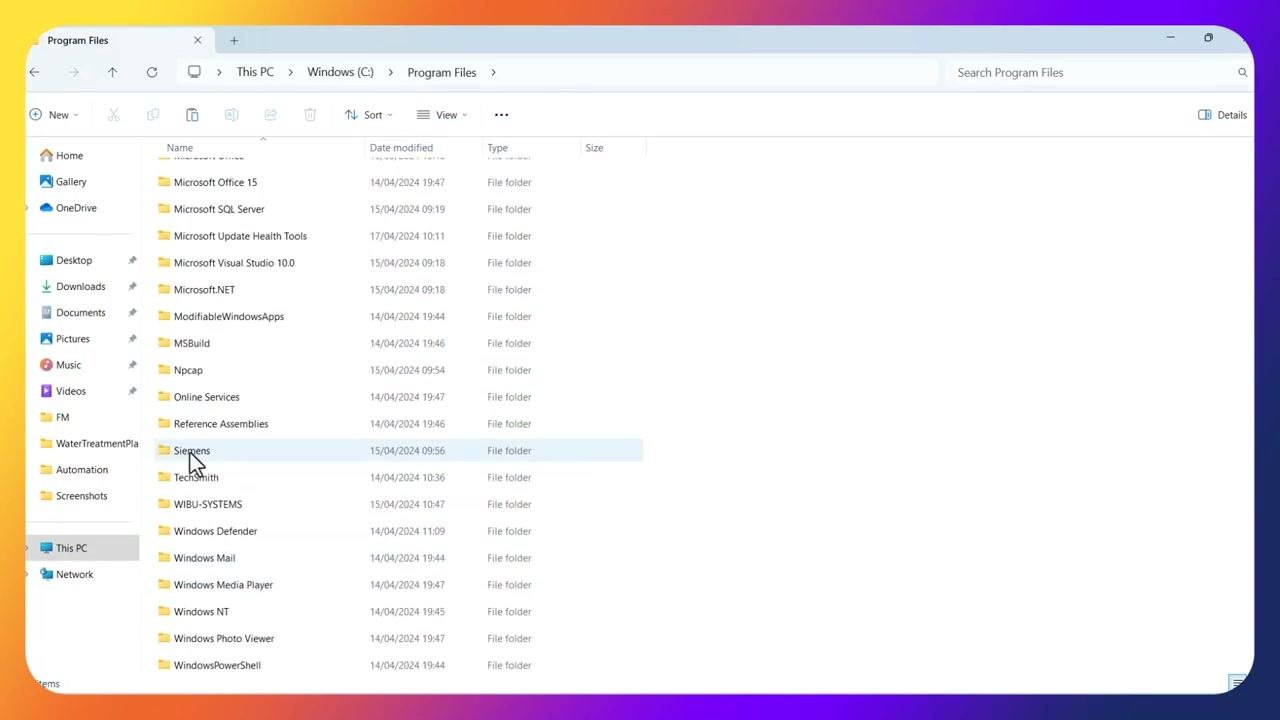
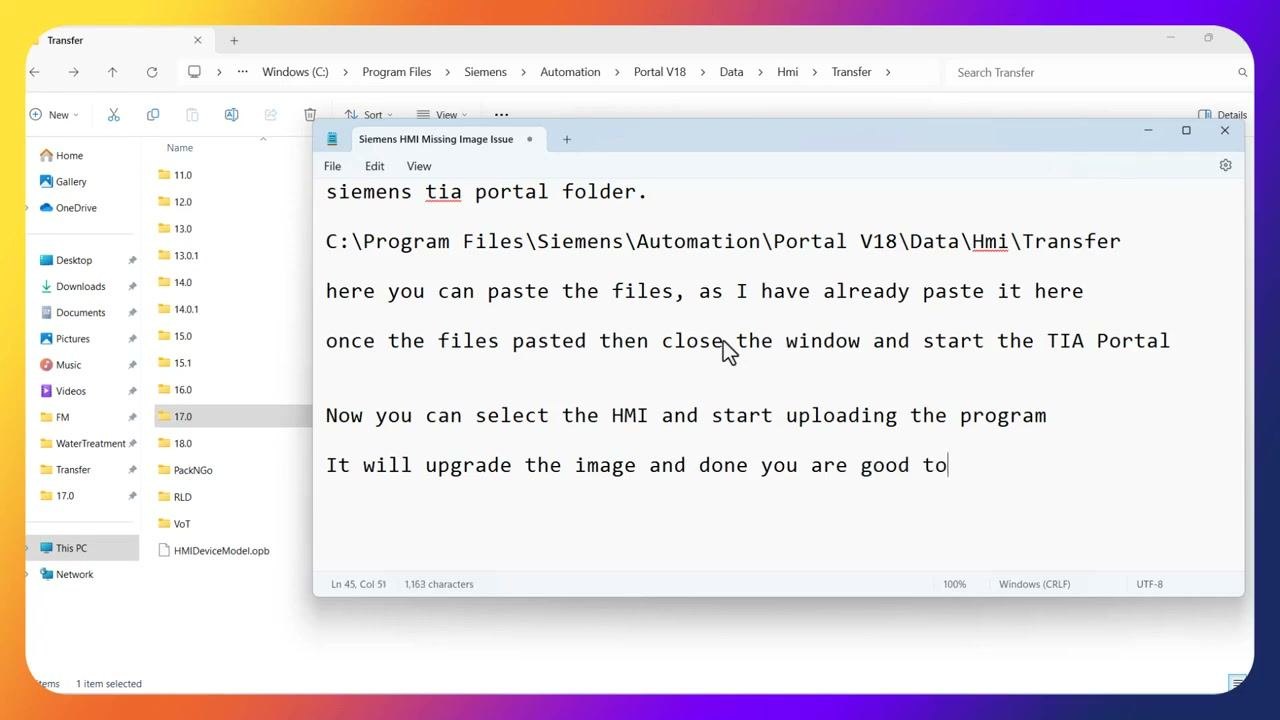
Open File Explorer, go to C:\Program Files\, and open the Siemens folder.
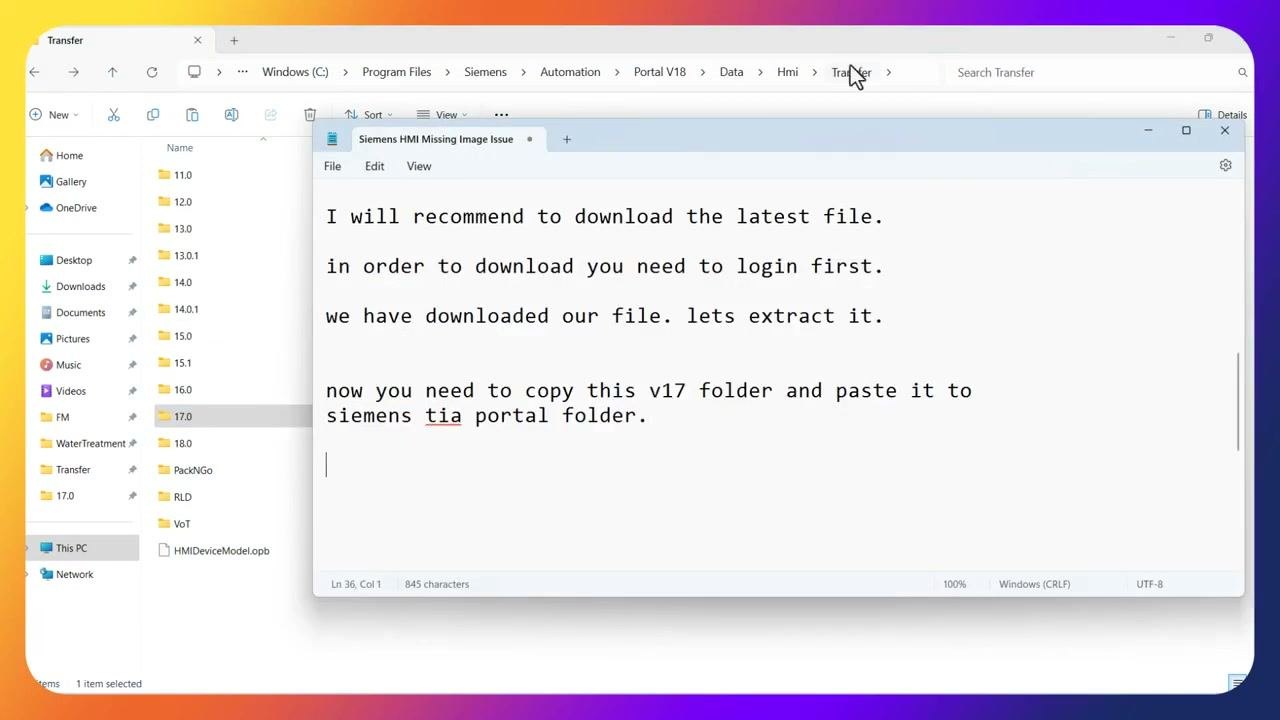
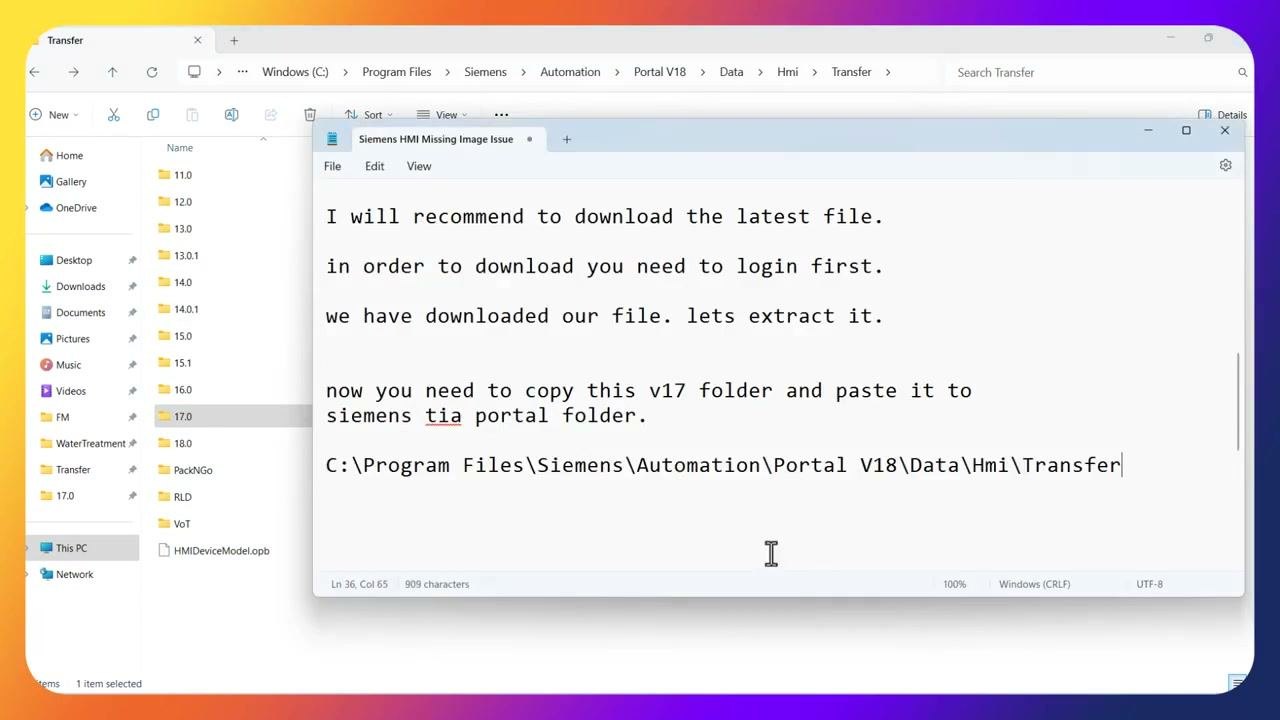
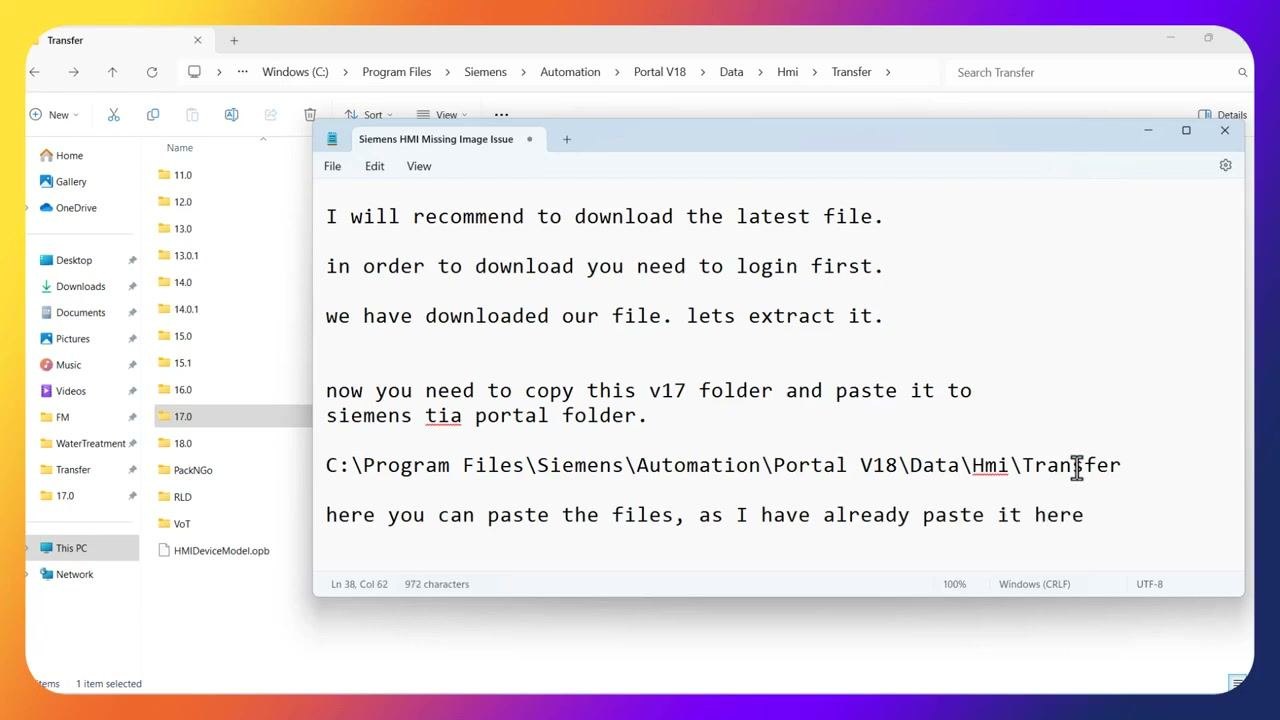
Continue through this path: Siemens > Automation > Portal V18 > Data > Hmi. Then open the Transfer folder.
Paste the extracted version folder
Copy the extracted version folder (for example, 17.0) and paste it into the Transfer directory. If a "Replace or Skip Files" dialog appears, select Replace the files in the destination to overwrite files with the same names.
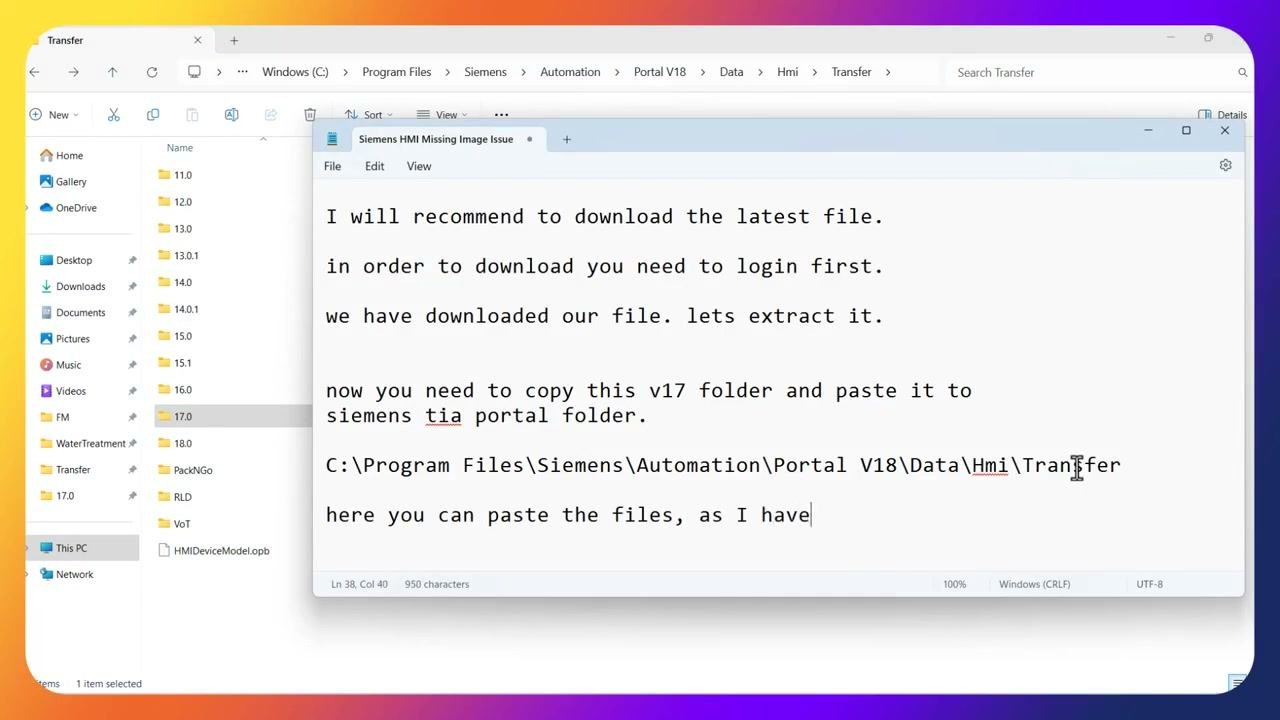
Make sure you paste into this exact directory: C:\Program Files\Siemens\Automation\Portal V18\Data\Hmi\Transfer
Finish the file transfer
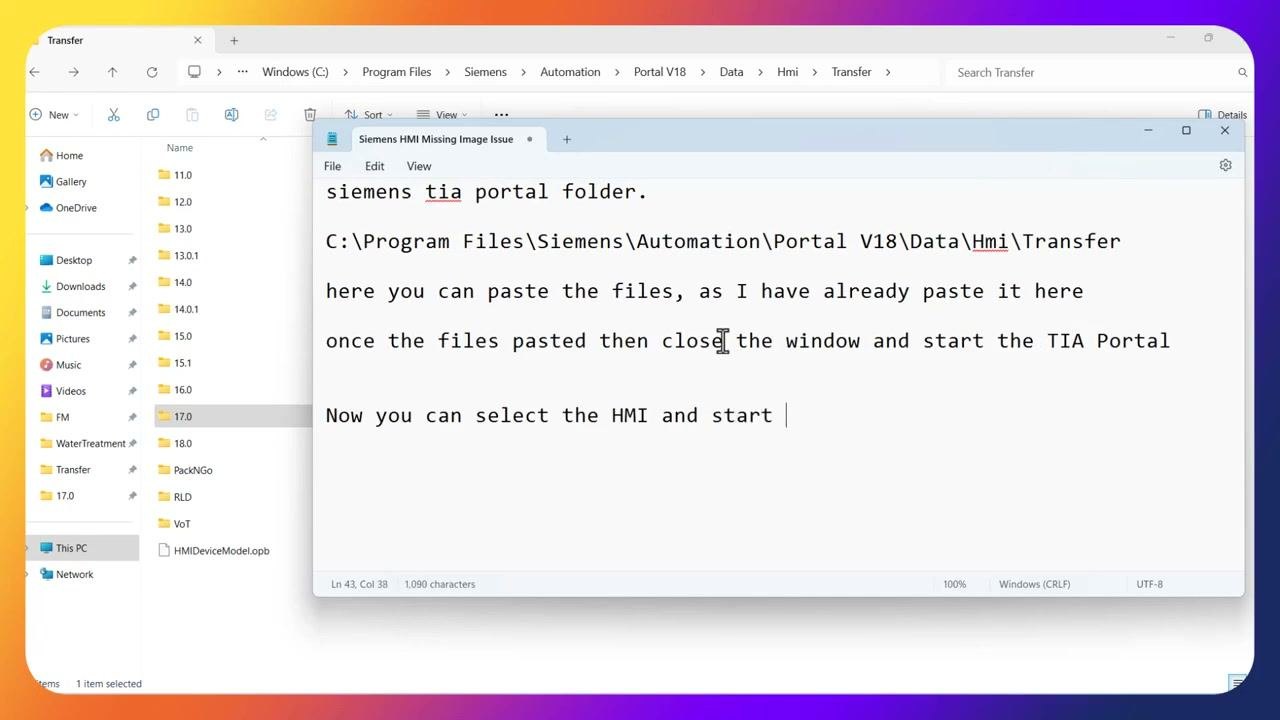
Wait for the transfer to finish. When the files are pasted, close the File Explorer window.
Start TIA Portal
After you close File Explorer, start TIA Portal.
Select the HMI
When TIA Portal is open, select the HMI device and begin your configuration or project work.
Let TIA Portal upgrade the image
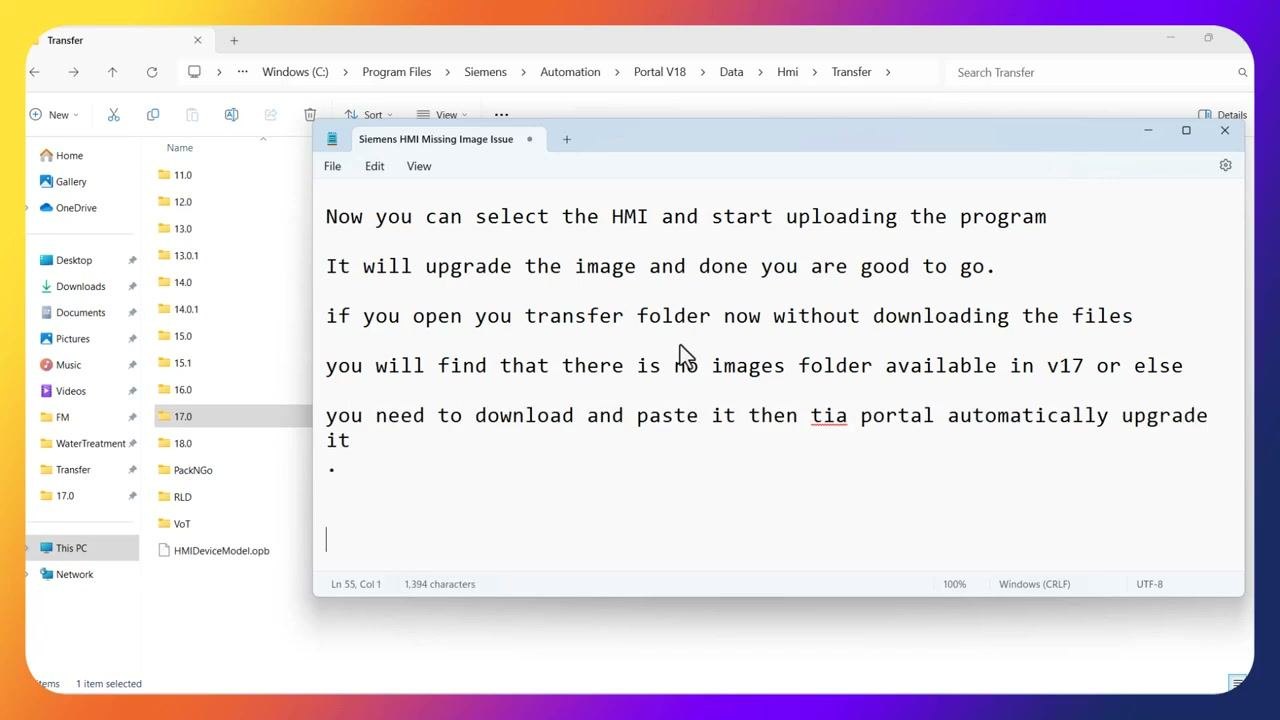
After you paste the files, select the HMI and start uploading the program. TIA Portal upgrades the image automatically. When it finishes, you are ready to go.
Troubleshoot a missing images folder
If you open the Transfer folder before you download and copy the required files, there is no "images" folder in the v17.0 directory. Without it, the HMI can't operate or upgrade properly.
If the "images" folder is missing from C:\Program Files\Siemens\Automation\Portal V18\Data\Hmi\Transfer\17.0, do the following:
- Download the correct files as described in steps 3 to 9.
- Paste the downloaded "images" folder into the matching version directory (for example,
17.0). - TIA Portal then upgrades the image automatically.
Summary
To install panel images in TIA Portal, you:
- Search for the Siemens HMI Comfort Panel images and open the official "Image Downloads for SIMATIC HMI Operator Panels" page.
- Choose the section and version that match your HMI model and TIA Portal version, and log in to download the latest ZIP file.
- Extract the ZIP file and copy the version folder (for example,
17.0) intoC:\Program Files\Siemens\Automation\Portal V18\Data\Hmi\Transfer. - Start TIA Portal, select the HMI, and let TIA Portal upgrade the image.
What's next
You can now select your HMI in TIA Portal and continue with your configuration and download. If the error returns, check that the "images" folder exists in the version directory under Transfer.
Generation details: cost, quality tiers
Docsie billed 6,000 credits ($4.20) to analyze this 12-minute video at standard quality. The rewrite, template fill and Word/PDF exports were included. The same video at each quality tier:
| Quality | Frames sampled | Credits | Approx. cost |
|---|---|---|---|
| Draft | every 16-30 s | 3,000 | $2.10 |
| Standard (this guide) | every 8-15 s | 6,000 | $4.20 |
| Detailed | every 4-7 s | 12,000 | $8.40 |
| Ultra | every 1-3 s | 24,000 | $16.80 |
Credits priced at $0.70 per 1,000; plans include a monthly allowance. Enterprise customers on on-premise or bring-your-own-model deployments run this on their own inference and pay no per-video credits.
Generated by Docsie Video-to-Docs on 2026-11-24 from a 11-minute video. Screenshots are frames from the source video and belong to their creator, UzTecho Pakistan, whose original is embedded above. If you own this video and want the guide removed or credited differently, contact us and we will act within one business day.