
How to Change the Language in TIA Portal
This guide shows you how to change the language in TIA Portal from the Options menu. It also explains what changes and what stays the same in your project after you switch. You then learn how to change the mnemonics, the symbols used for PLC inputs and outputs, such as "Q 0.5" or "A 0.5".
Video: Cambiar idioma TIA Portal y trabajar las herramientas en inglés o español by tecnoplc. All credit for the demonstration goes to the creator; watch the original on YouTube. The written guide below was generated from this video by Docsie. Creator? Request a change or removal.
This guide shows you how to change the language in TIA Portal from the Options menu. It also explains what changes and what stays the same in your project after you switch. You then learn how to change the mnemonics, the symbols used for PLC inputs and outputs, such as "Q 0.5" or "A 0.5".
Prerequisites
- TIA Portal is installed with a project open.
- The language you want is installed. The available languages depend on those selected during installation. To add more, modify your TIA Portal installation and select the additional languages.
Review the current interface language
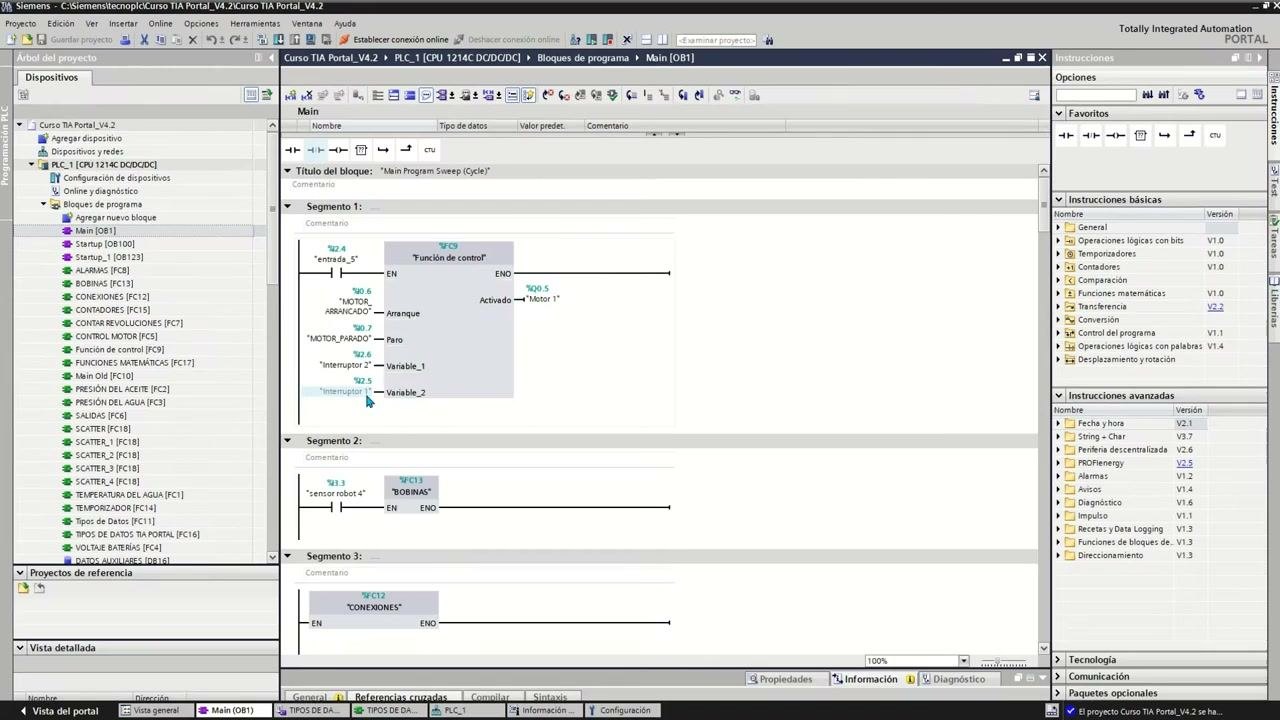
Before you change the language in TIA Portal, note how the workspace looks now. In this example, all menus, toolbars, and function blocks are in Spanish.
- The main workspace shows a PLC program with segments labeled "Segmento 1", "Segmento 2", and "Segmento 3".
- The project tree on the left lists devices and program blocks.
- The right panel displays the basic and advanced instruction sets.
Open the Options menu
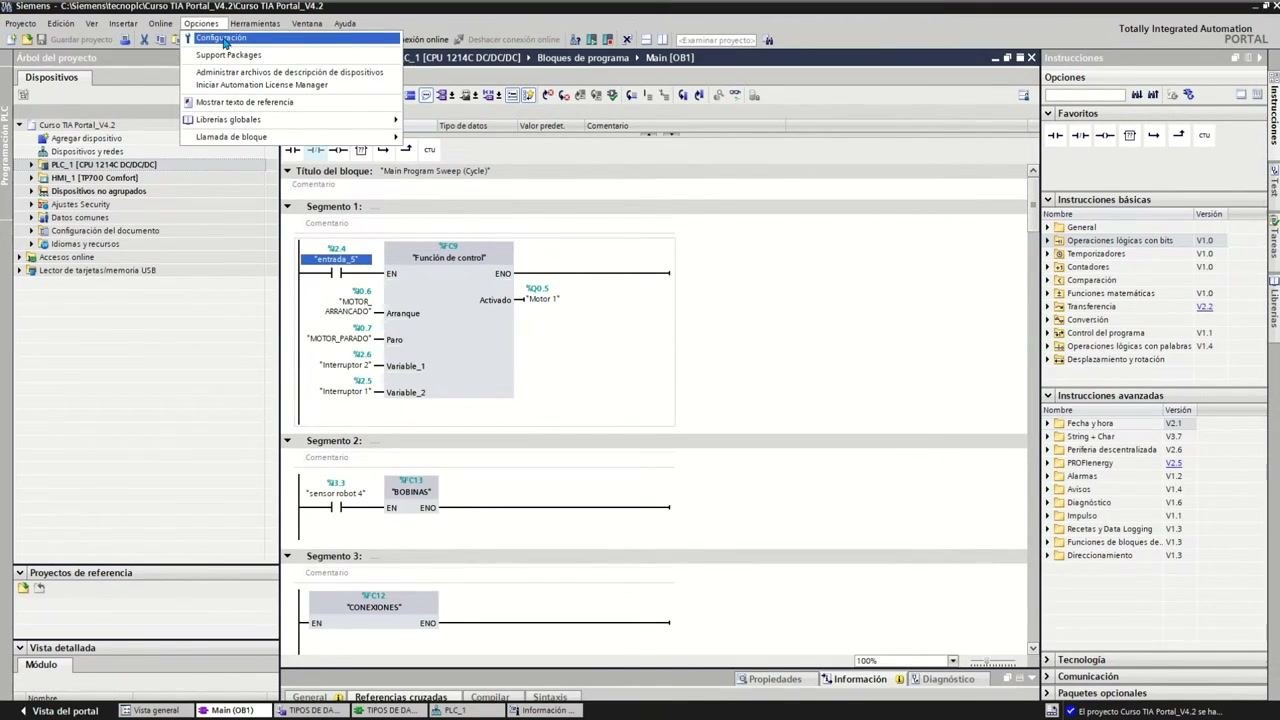
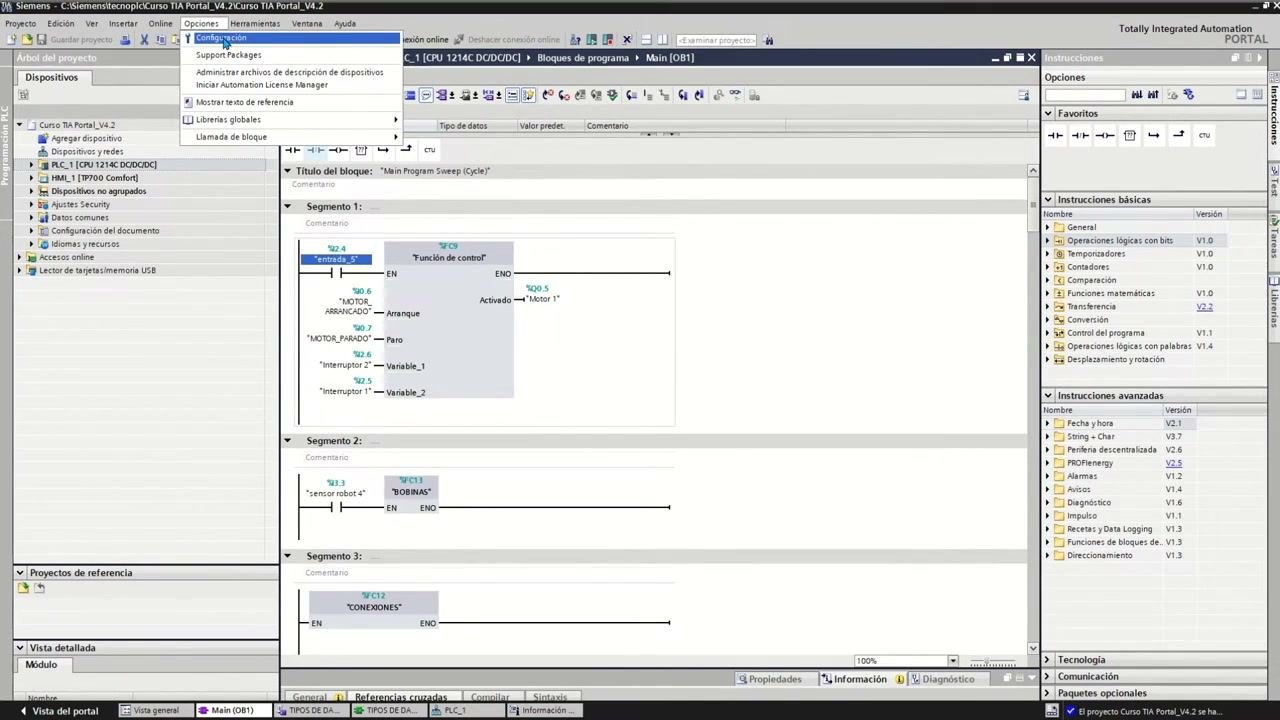
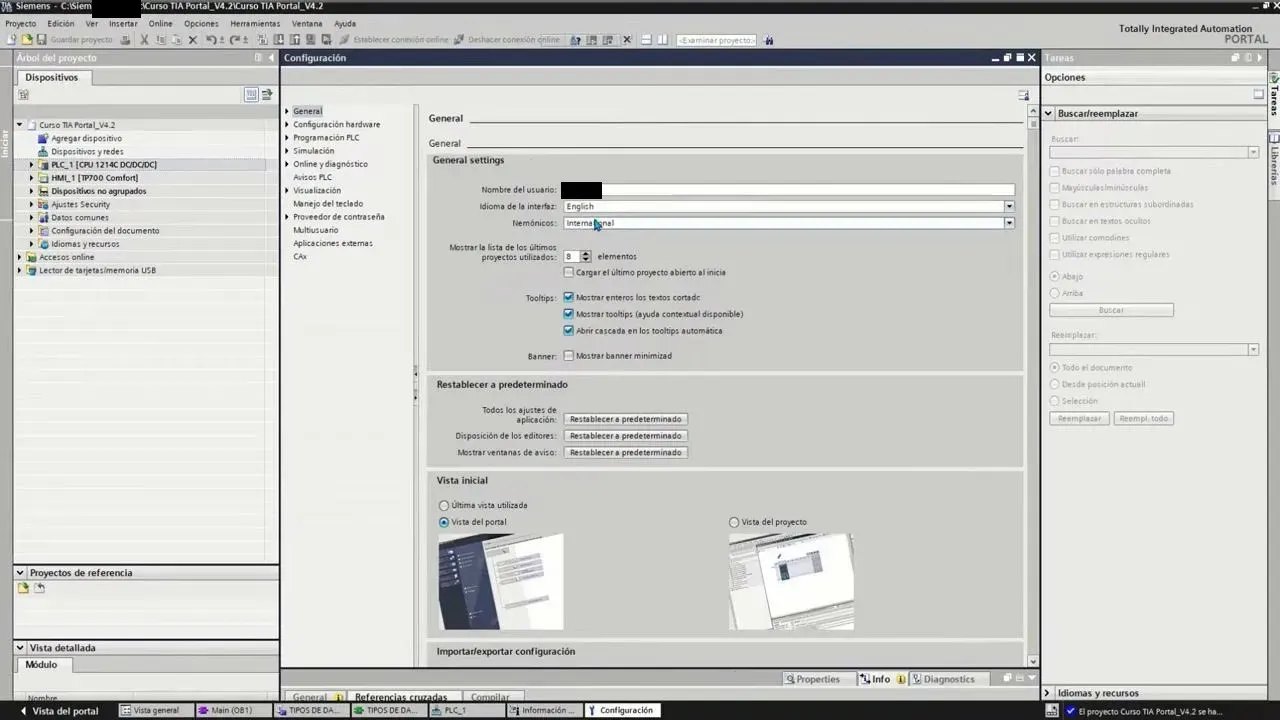
Click the Opciones (Options) menu in the top menu bar. In the dropdown, select Configuración (Configuration).
Go to the General tab
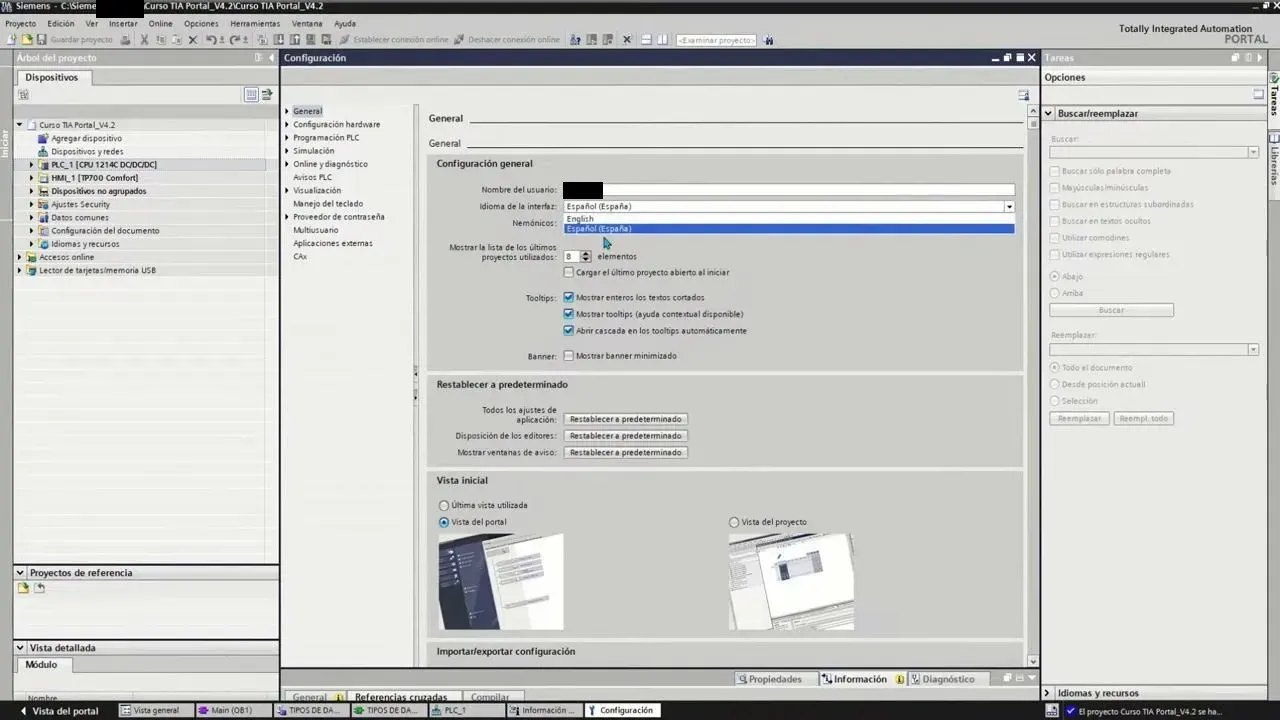
A configuration window opens. Tabs on the left include General, Hardware configuration, PLC programming, and Simulation. The main panel shows parameters for hardware configuration, PLC programming, and simulation.
Select the General tab, because this is where you set the interface language.
Locate the interface language setting
You can switch the interface language from Spanish to English, from English to Spanish, or to another supported language. The change affects all menu texts and functions.
In the General tab, find these two settings:
- Idioma de la interfaz (User interface language), currently set to Español (España).
- Mnemonics, currently set to Internacional (International).
This section also includes settings for user name, tooltips, and initial view.
Open the language dropdown
Click the Idioma de la interfaz dropdown menu to display the available languages. The list shows at least English and Español (España).
If the language you need is missing, modify your TIA Portal installation and select additional languages.
Select the language
Select English from the dropdown menu. The interface language changes immediately throughout the TIA Portal environment. All menu items, tabs, and tool parameters now appear in English.
Verify the language change in the project tree
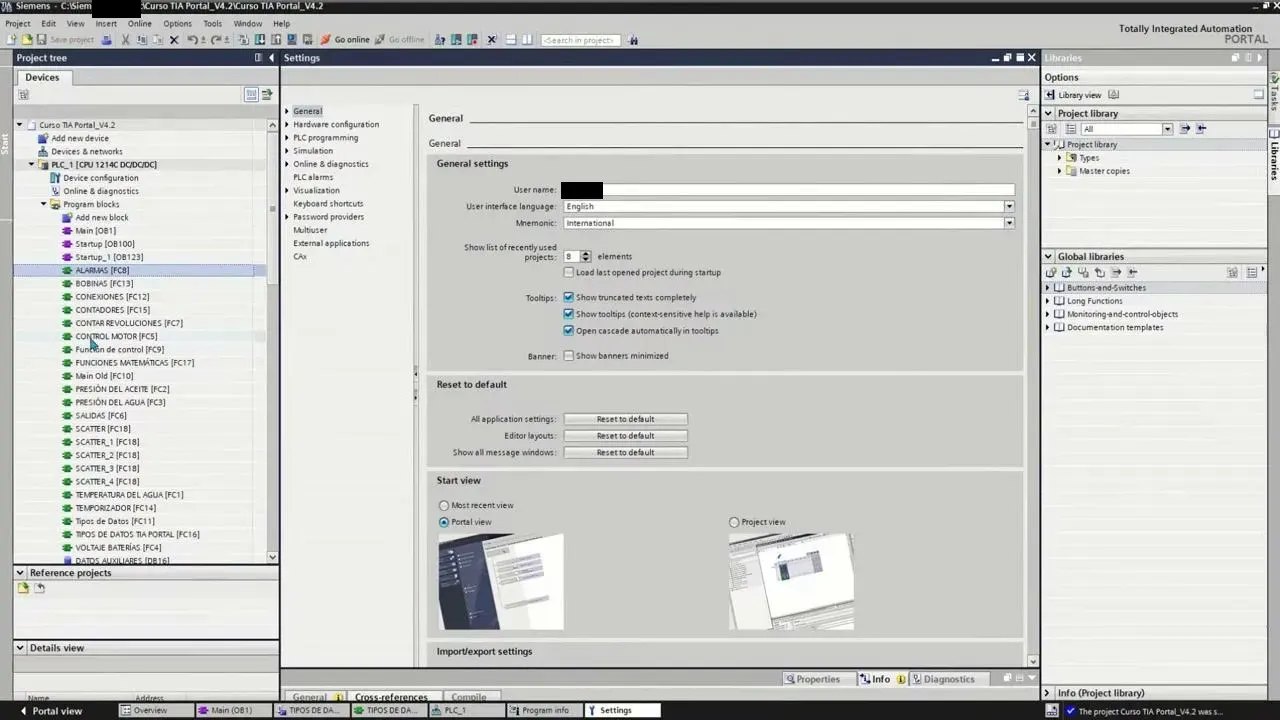
Check the right panel, tabs, and libraries to confirm that they are in English. Then expand the PLC device in the Project tree, for example "PLC_1 [CPU 1214C DC/DC/DC]".
- System-generated folders and texts are now in English, such as "Program blocks", "Technology objects", and "Online & diagnostics".
- User-created program blocks keep their original names, because the language change doesn't affect custom names.
Expand the Program blocks folder to confirm this. Blocks such as "ALARMAS", "BOBINAS", "CONEXIONES", and "CONTROL MOTOR" remain in Spanish because you named them. The interface language setting translates only system-generated texts and folders.
Check symbolic names and comments in tag tables
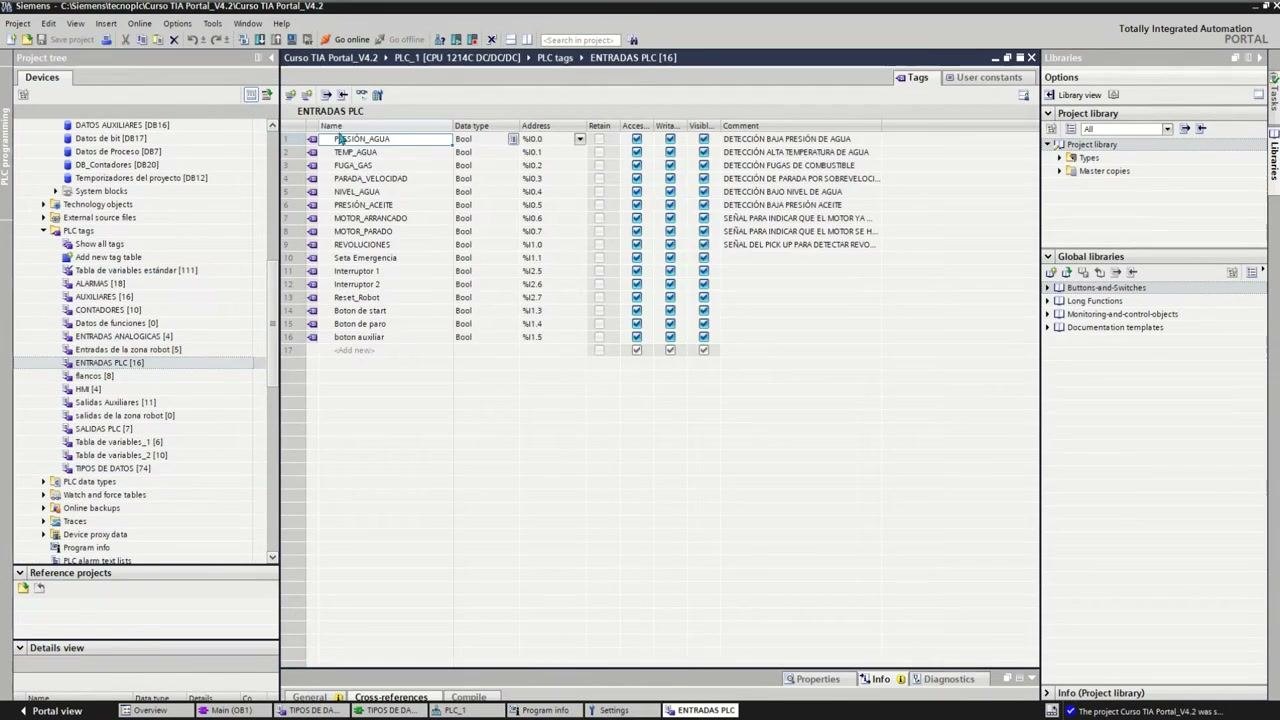
Open a PLC tag table, for example ENTRADAS PLC. Review the symbolic names (such as PRESION_AGUA and FUGA_AGUA) and the comments (such as DETECCIÓN BAJA PRESIÓN DE AGUA).
Both stay in the language in which you originally wrote them, because users create them manually.
Check instruction sets and function symbology
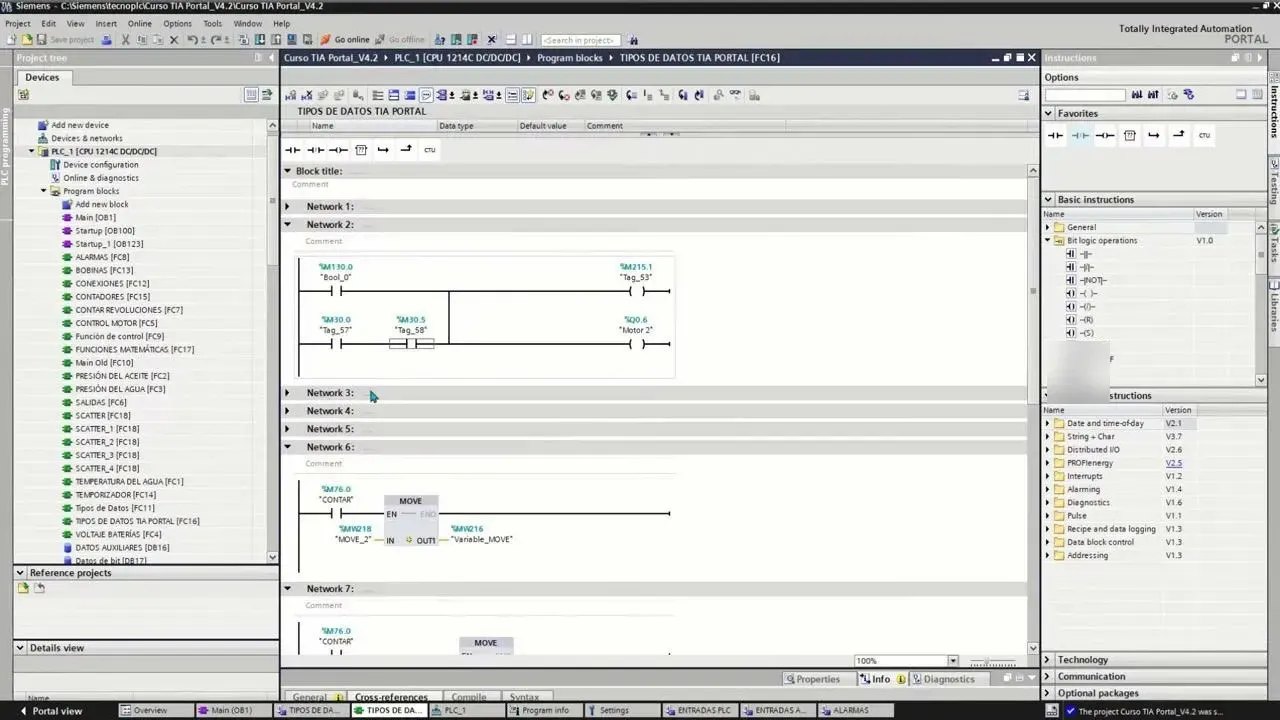
Open a program block, for example TIPOS DE DATOS TIA PORTAL [FC16]. The networks (ladder logic sections) and the instruction folders in the right panel are now in English.
The symbology of functions such as MOVE and CTU stays the same. These are standardized and typically generated in English, regardless of the interface language.
Review the current mnemonic setting
Mnemonics are the symbols used for PLC inputs and outputs. You can set them to German, International, or other symbology standards.
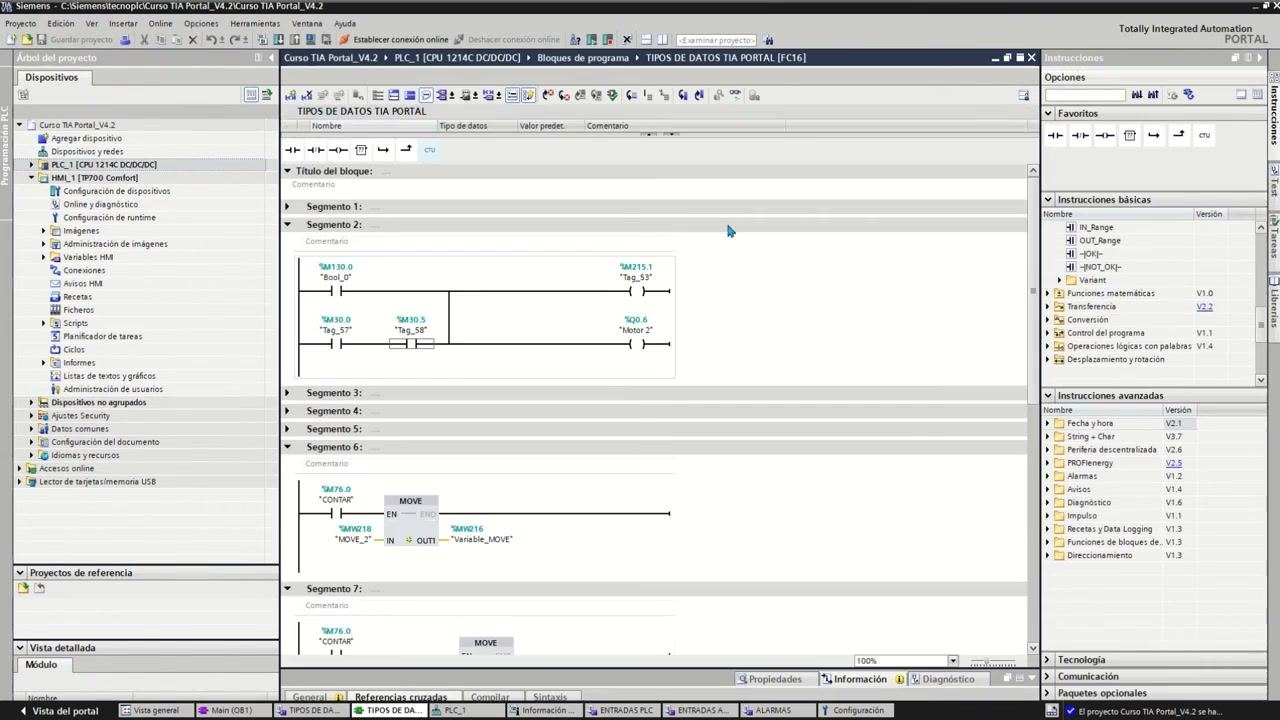
In the Settings window, under the General section, locate the Mnemonics drop-down menu. It shows the current setting, for example "Internacional". A tooltip may appear that explains the selected standard; in this example it appears in Spanish.
Select a different mnemonic standard
Return to the Settings window under the General section and click the Mnemonics drop-down menu. Select the standard you want:
- Internacional: uses international mnemonics, such as I 0.0 for inputs and Q 0.0 for outputs.
- Alemán: uses German mnemonics, such as E 1.0 for inputs and A 1.0 for outputs.
The change takes effect immediately, and all ladder logic diagrams update to the new symbology.
Check the ladder logic with German mnemonics
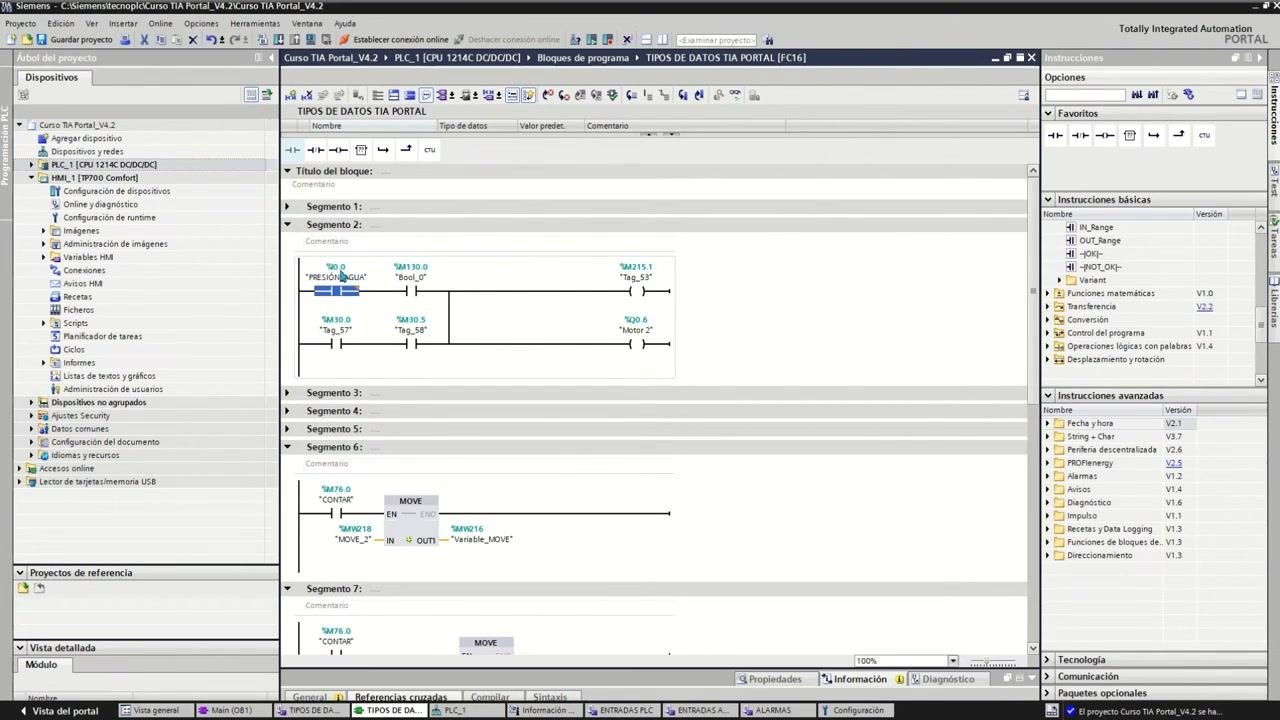
Open a program block or ladder diagram to see the effect. With German mnemonics selected:
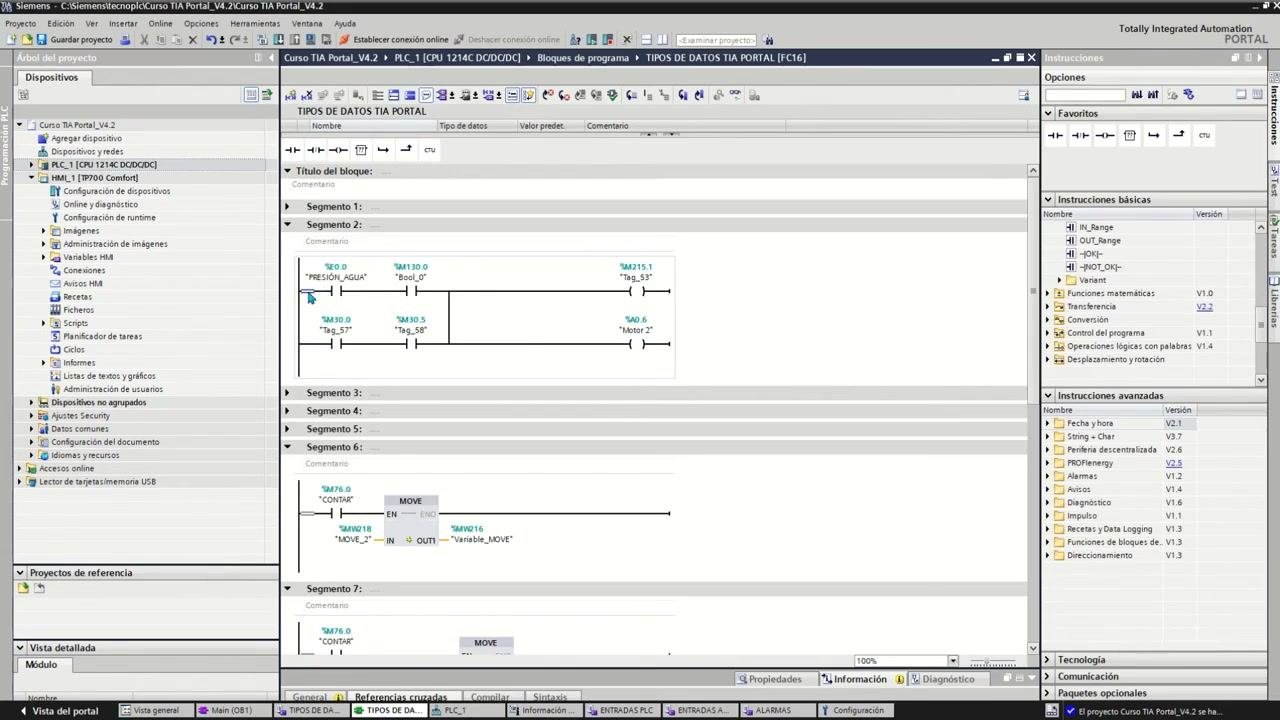
- Inputs use "E", for example %E0.0 for "PRESIÓN_AGUA".
- Outputs use "A", for example %A0.6 for "Motor 2".
- Memory bits and other variables use "M", for example %M130.0 and %M215.1.
The ladder diagram shows segments with contacts and coils using these German mnemonics. The project tree, instruction list, and editor layout remain unchanged.
Summary
To change the language in TIA Portal, follow these steps:
- Open the configuration window from the Options menu.
- In the General tab, open the interface language dropdown.
- Select the language you want, such as English.
- Verify that system menus, folders, and tabs updated, and that your own block names, symbolic names, and comments did not change.
- Optionally, change the Mnemonics setting to switch between International and German symbology.
Generation details: cost, quality tiers
Docsie billed 6,000 credits ($4.20) to analyze this 12-minute video at standard quality. The rewrite, template fill and Word/PDF exports were included. The same video at each quality tier:
| Quality | Frames sampled | Credits | Approx. cost |
|---|---|---|---|
| Draft | every 16-30 s | 3,000 | $2.10 |
| Standard (this guide) | every 8-15 s | 6,000 | $4.20 |
| Detailed | every 4-7 s | 12,000 | $8.40 |
| Ultra | every 1-3 s | 24,000 | $16.80 |
Credits priced at $0.70 per 1,000; plans include a monthly allowance. Enterprise customers on on-premise or bring-your-own-model deployments run this on their own inference and pay no per-video credits.
Generated by Docsie Video-to-Docs on 2026-11-24 from a 11-minute video. Screenshots are frames from the source video and belong to their creator, tecnoplc, whose original is embedded above. If you own this video and want the guide removed or credited differently, contact us and we will act within one business day.