
How to Install an HSP File in TIA Portal
This guide shows you how to install an HSP file in TIA Portal V15/V15.1. A hardware support package (HSP) adds hardware to the TIA Portal hardware catalog. You download the support packages from the Siemens Industry Online Support page, add them from your file system, install them, and then verify the result.
Video: Installing Hardware Support Packages (HSPs) into TIA Portal | Authorized Siemens Support | AWC, Inc. by AWC, Inc. (2019). All credit for the demonstration goes to the creator; watch the original on YouTube. The written guide below was generated from this video by Docsie. Creator? Request a change or removal.
This guide shows you how to install an HSP file in TIA Portal V15/V15.1. A hardware support package (HSP) adds hardware to the TIA Portal hardware catalog. You download the support packages from the Siemens Industry Online Support page, add them from your file system, install them, and then verify the result.
Prerequisites
Before you begin, make sure you have the following:
- TIA Portal version 15.1 installed on your computer
- A project to open, or the option to create a new one
- Access to the Siemens Industry Online Support page for TIA Portal hardware support packages
- A dedicated folder on your desktop for the downloaded files
Download the support packages
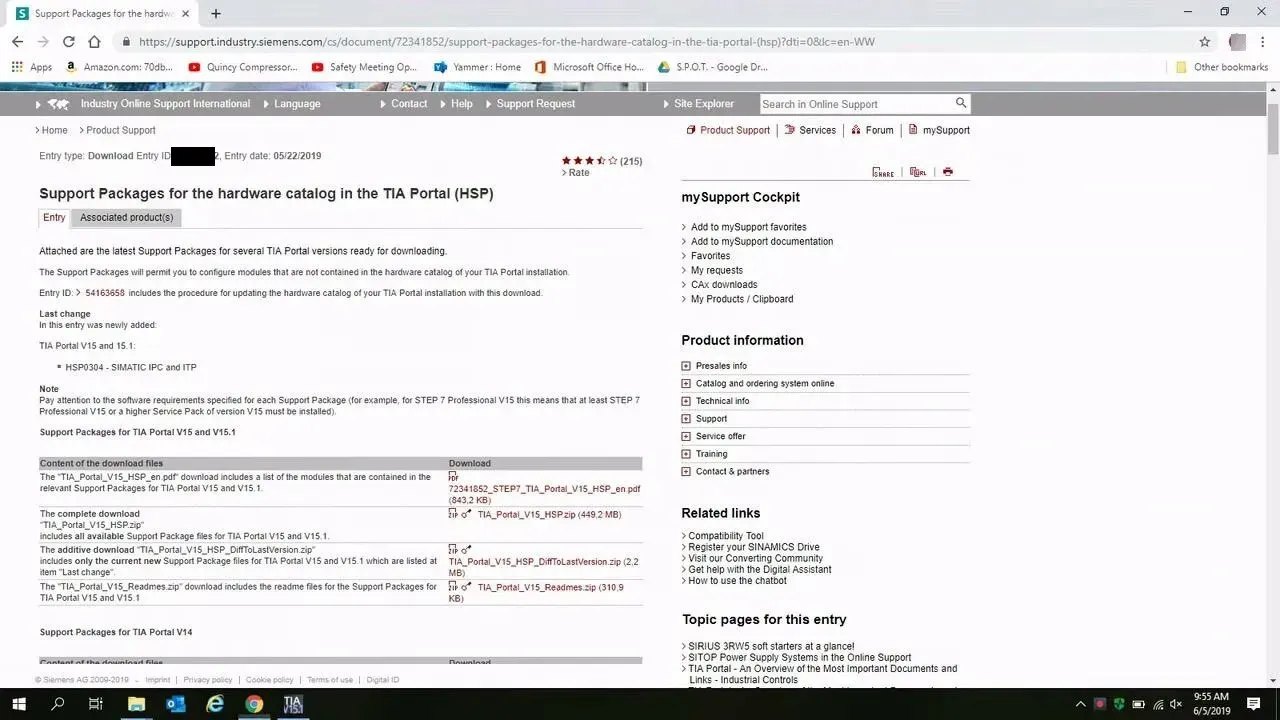
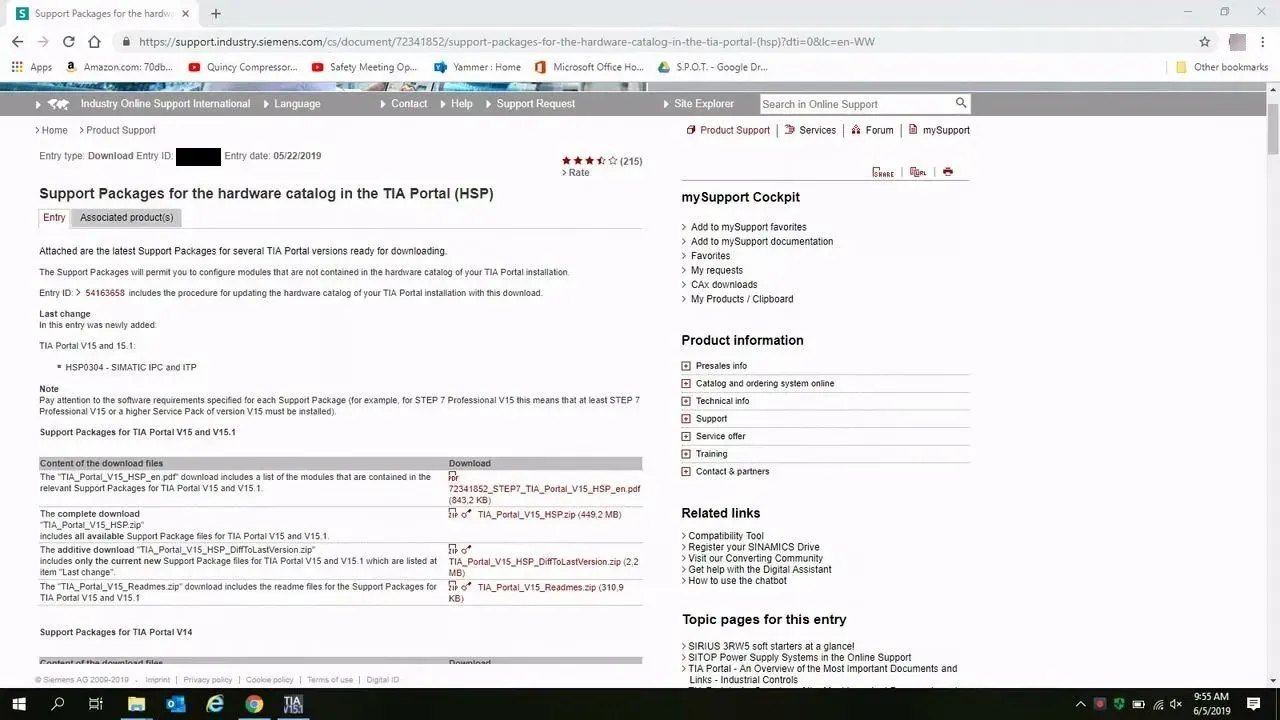
- Open your web browser and go to the Siemens Industry Online Support page for TIA Portal hardware support packages.
- Locate the section Support Packages for the hardware catalog in the TIA Portal (HSP).
- Download the complete package file indicated on the page, for example
TIA_Portal_V15_HSP.zip. - Save the file to a dedicated folder on your desktop for easy access.
Open the Support Packages window
- Launch TIA Portal version 15.1.
- Open your project or create a new one.
- Switch to the Project View.
- In the TIA Portal menu, click Options, and then select Support Packages.
- In the Support Packages window, make sure you are on the Installation of support packages tab.
Add the HSP files from the file system
To install an HSP file in TIA Portal, first add it to your local list.
- Click Add from file system at the bottom of the Support Packages window.
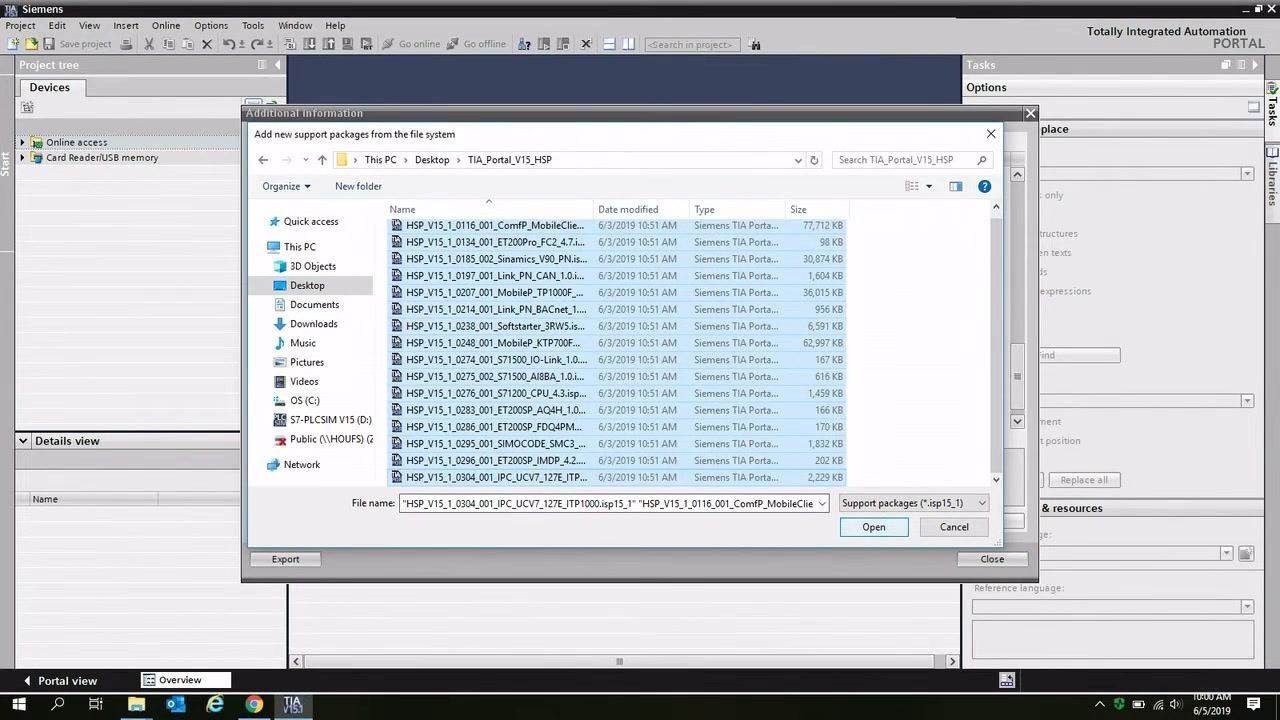
- In the file browser dialog, go to the folder on your desktop where you saved the downloaded support packages.
Select all support packages
- In the file browser, select the first support package file in the list.
- Hold down the Shift key and select the last file in the list to highlight all files.
- Click Open to add all selected support packages to your local list.
Mark the packages for installation
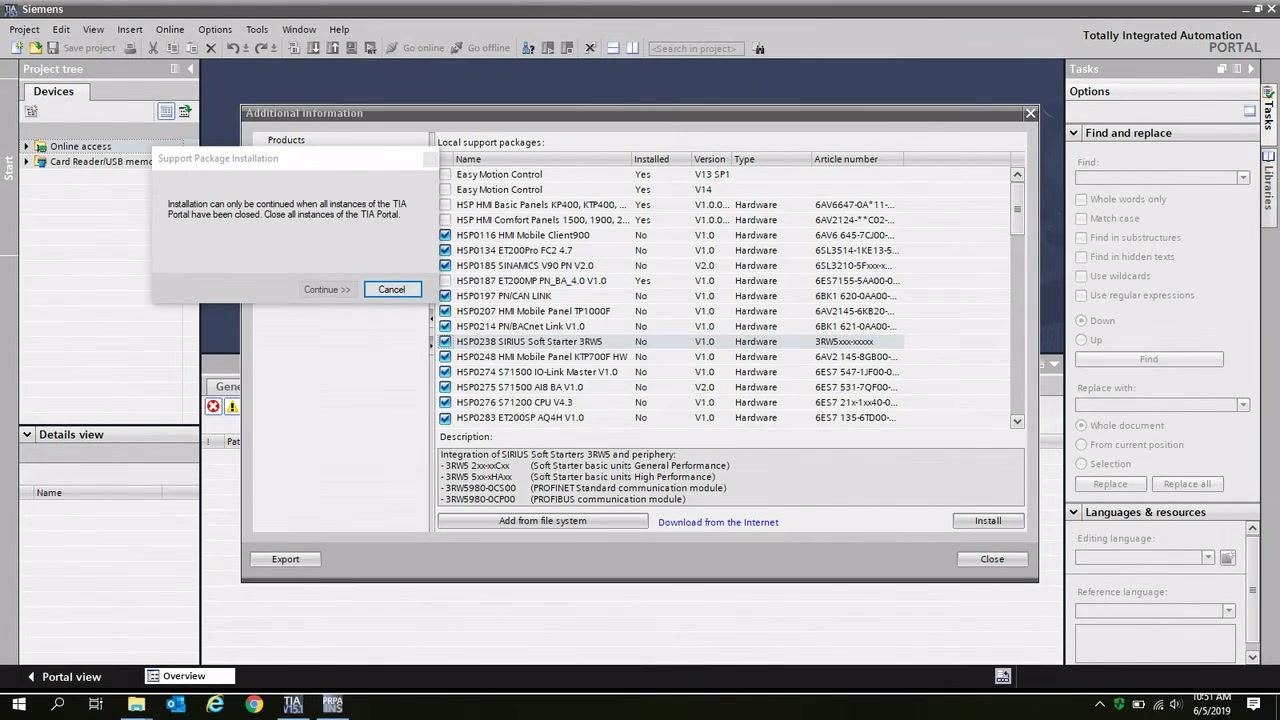
The selected hardware support packages now appear in the Local support packages list. Packages that are not yet installed show "No" under the Installed column.
Select the check boxes next to all packages that show "No" in the Installed column.
Start the installation
- Click Install at the bottom right of the Support Packages window.
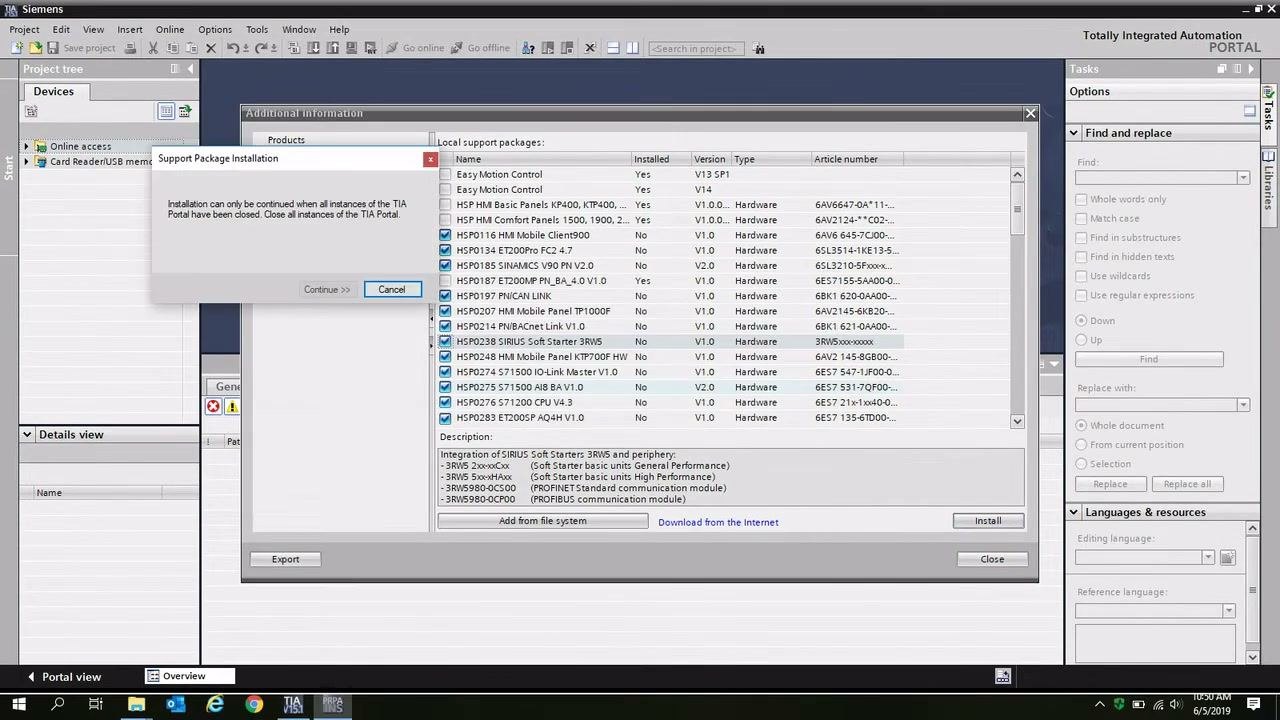
- Read the pop-up message: "Installation can only be continued when all instances of the TIA Portal have been closed. Close all instances of the TIA Portal."
Close TIA Portal and complete the installation
When the "Support Package Installation" window appears, the Continue button is grayed out. Do not click Cancel.
- Close the Additional Information window.
- Close all open instances of TIA Portal. You must do this before you can proceed.
- Return to the "Support Package Installation" dialog on your desktop. The Continue button is now enabled.
- Click Continue to start the installation.
Wait for the installation to finish. A pop-up confirms that the installation is complete and that you can restart TIA Portal.
Verify the installation
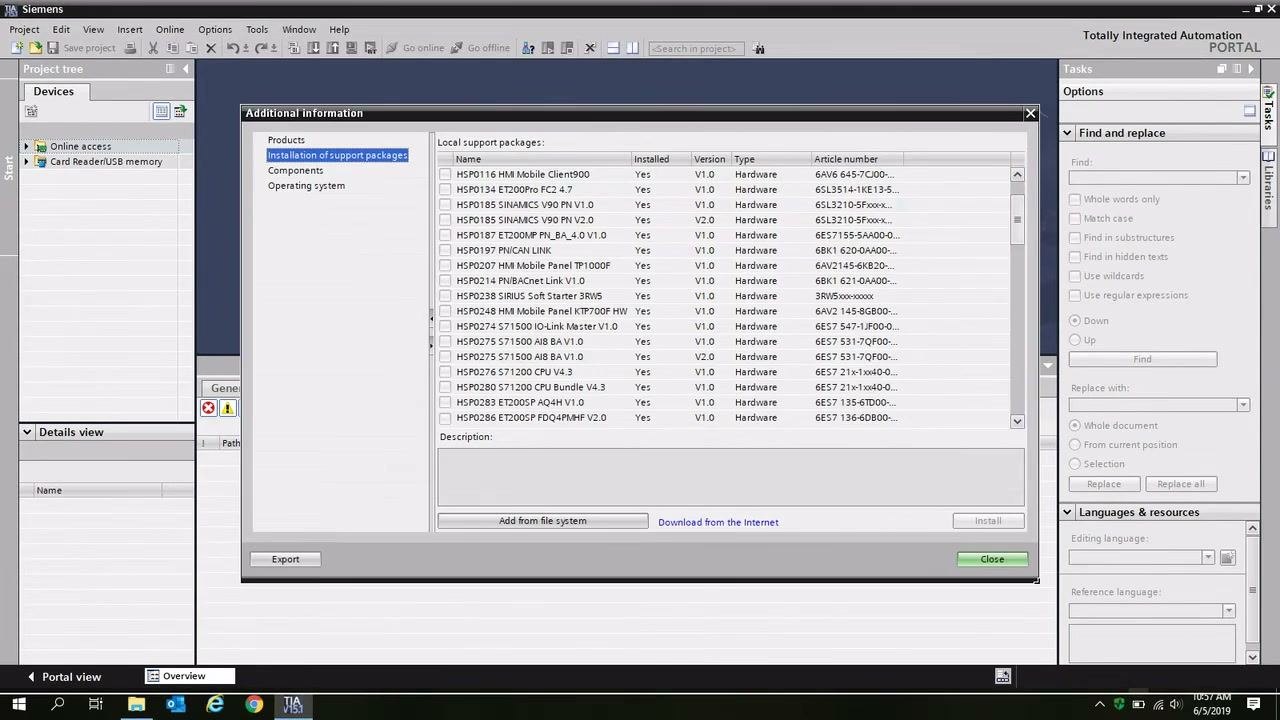
- Reopen TIA Portal.
- Go to Options > Support Packages.
- In the Local support packages list, check that all the packages you installed show "Yes" under the Installed column.
If all packages are marked as installed, the process is complete.
Summary
You now know how to install an HSP file in TIA Portal V15/V15.1. You downloaded the support packages, added them with Add from file system, and marked the packages showing "No" for installation. You then closed all TIA Portal instances, continued the installation, and confirmed that every package shows "Yes" under Installed.
Generation details: cost, quality tiers
Docsie billed 1,500 credits ($1.05) to analyze this 3-minute video at standard quality. The rewrite, template fill and Word/PDF exports were included. The same video at each quality tier:
| Quality | Frames sampled | Credits | Approx. cost |
|---|---|---|---|
| Draft | every 16-30 s | 750 | $0.52 |
| Standard (this guide) | every 8-15 s | 1,500 | $1.05 |
| Detailed | every 4-7 s | 3,000 | $2.10 |
| Ultra | every 1-3 s | 6,000 | $4.20 |
Credits priced at $0.70 per 1,000; plans include a monthly allowance. Enterprise customers on on-premise or bring-your-own-model deployments run this on their own inference and pay no per-video credits.
Generated by Docsie Video-to-Docs on 2026-11-24 from a 2-minute video. Screenshots are frames from the source video and belong to their creator, AWC, Inc., whose original is embedded above. If you own this video and want the guide removed or credited differently, contact us and we will act within one business day.