
How to Upload PLC Program in Studio 5000
This guide shows you how to upload a PLC program in Studio 5000 when you don't have a copy of the project file. You connect to the controller, check whether a project file you have matches it, and avoid an accidental download that overwrites the PLC's logic. If the file doesn't match, you cancel and save the program from the PLC to your computer.
Video: Studio 5000 RsLogix 5000 Upload, Download, and Online by Tim Wilborne (2021). All credit for the demonstration goes to the creator; watch the original on YouTube. The written guide below was generated from this video by Docsie. Creator? Request a change or removal.
This guide shows you how to upload a PLC program in Studio 5000 when you don't have a copy of the project file. You connect to the controller, check whether a project file you have matches it, and avoid an accidental download that overwrites the PLC's logic. If the file doesn't match, you cancel and save the program from the PLC to your computer.
Prerequisites
- A PC with Studio 5000 and FactoryTalk Linx (or similar communication software).
- A connection to the PLC, such as USB or Ethernet.
- A folder on your PC where you can save the uploaded project, for example Documents.
Upload and download in PLC programming
In everyday use, "download" means moving files from the cloud to your device, and "upload" means sending files from your device to the cloud. In PLC programming, the terms are reversed:
- Download: Transfers a program from your PC to the PLC and overwrites the program currently in the PLC. There is no undo for this action.
- Upload: Retrieves the program from the PLC to your PC. Use it when you don't have a copy of the program file.
Check the state of your programming software
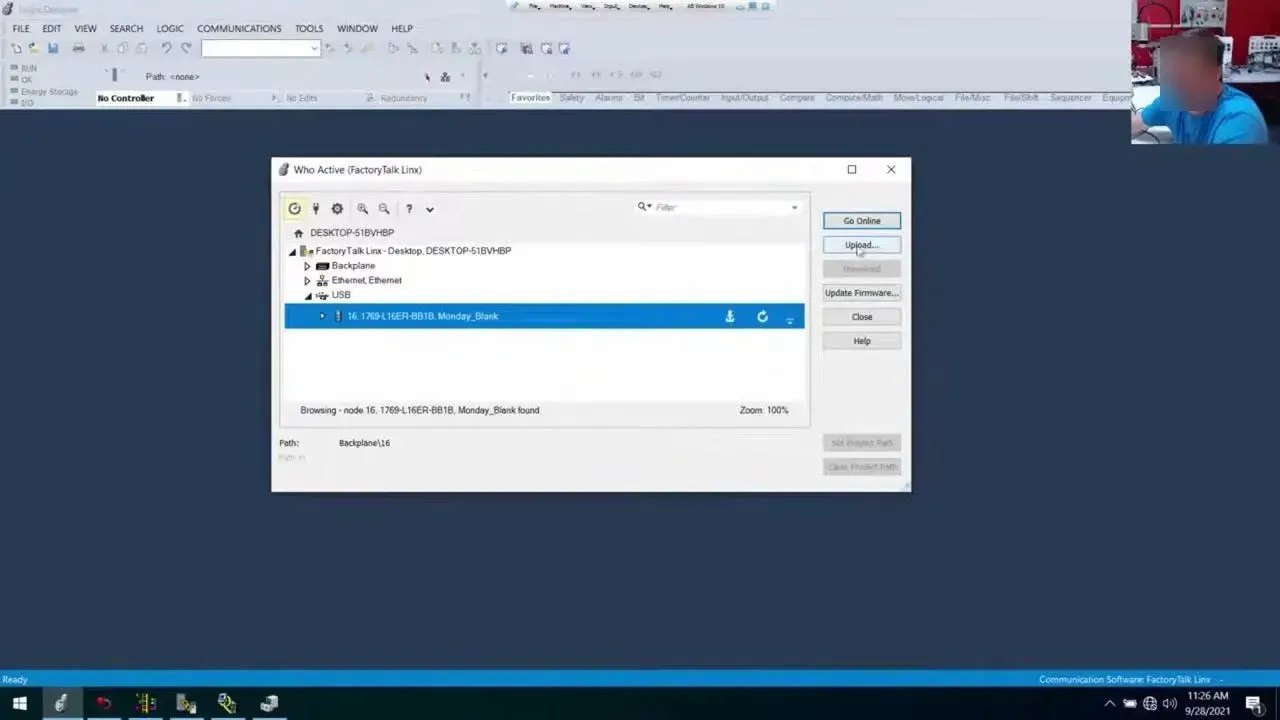
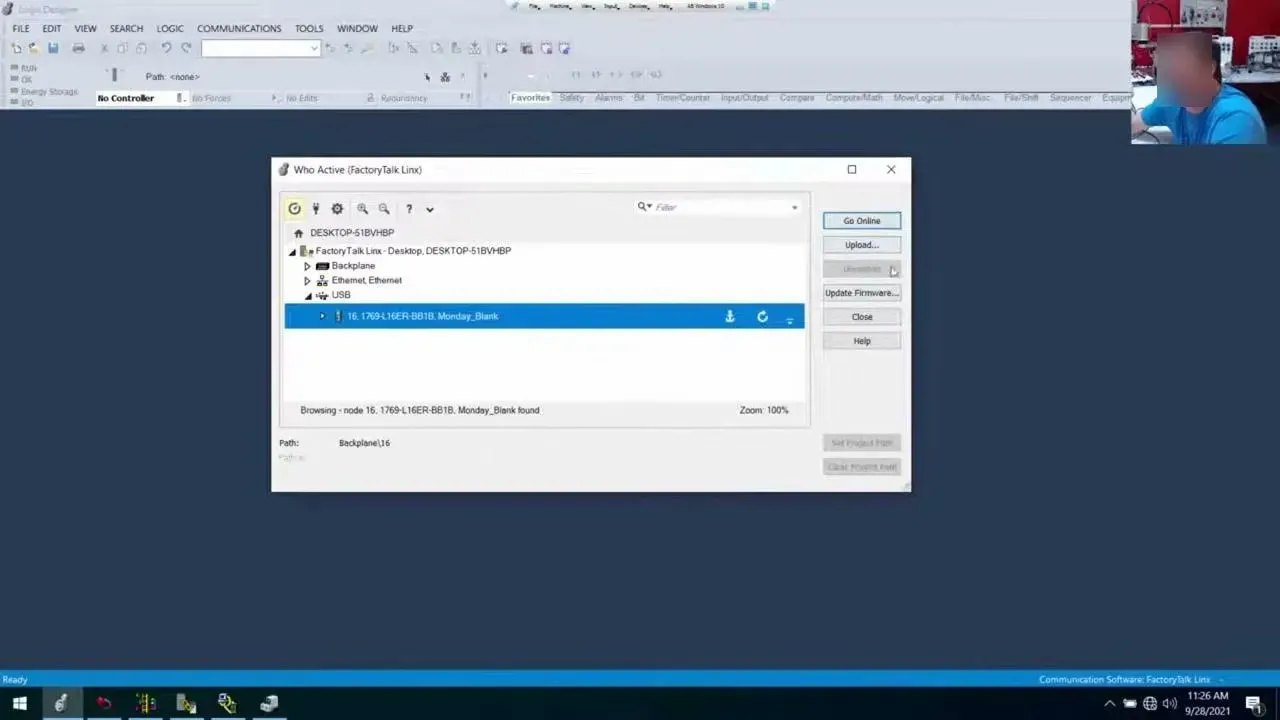
If no file is open in your PLC programming software, the Download button may still be enabled. The available actions may be Upload, Go Online, and Update Firmware.
The software may not hide the Download button even when you shouldn't use it. Don't click it unless you are certain.
Select your PLC in the Who Active dialog
- Open the Who Active dialog in FactoryTalk Linx (or similar software).
- Locate your PLC under the appropriate communication path, such as USB or Ethernet.
- Select the PLC node, for example "16.1769-L16ER-BB1B, Monday_Blank".
- Choose the action that fits your situation.
The actions are:
- Go Online: Use this if you have the correct file and want to monitor or edit the program.
- Upload: Use this if you need to retrieve the program from the PLC.
- Update Firmware: Use this only if you intend to update the PLC's firmware.
Click Go Online to test your project file
If you believe you have the correct project file for the controller, click Go Online in the Who Active dialog. The software then tries to match your project file with the program running on the PLC.
Review the Connected To Go Online dialog
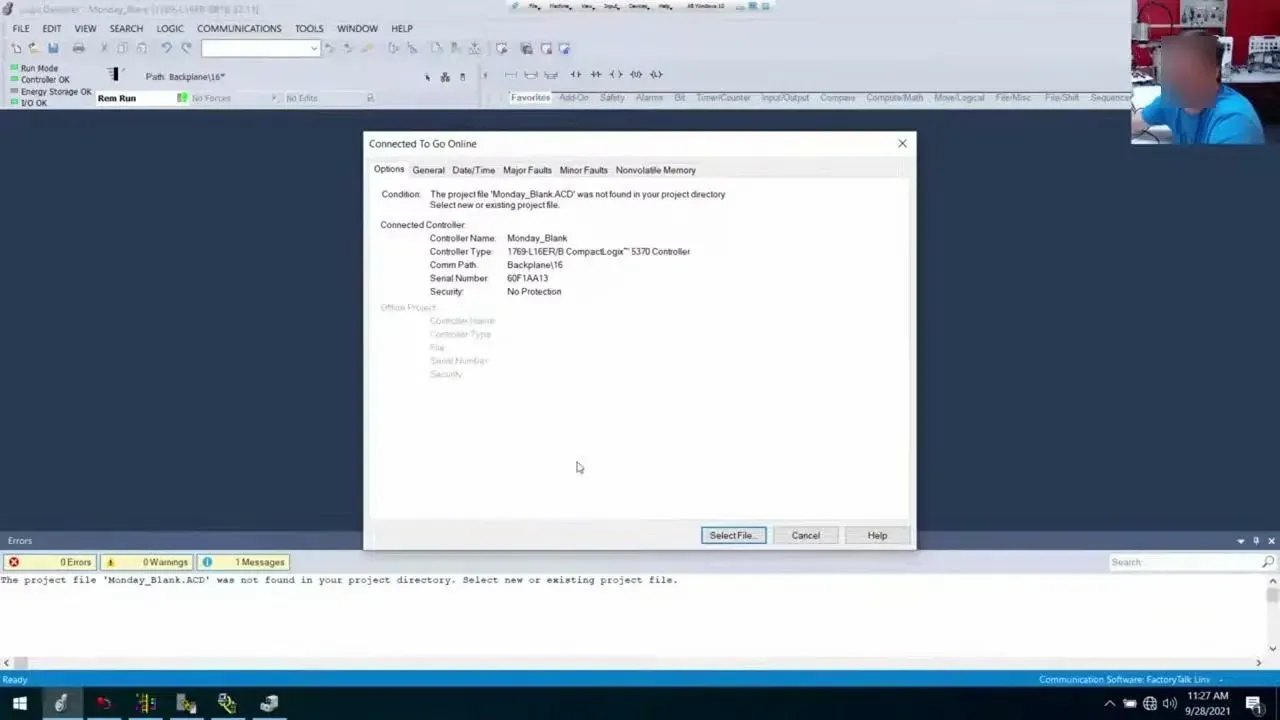
If the correct project file isn't open, the Connected To Go Online dialog shows this message: "The project file 'Monday_Blank.ACD' was not found in your project directory. Select new or existing project file."
The Select File... button is enabled, and the Go Online option isn't available. The dialog also lists the connected controller's details:
- Controller Name: Monday_Blank
- Controller Type: 1769-L16ER-BB1B CompactLogix 5370 Controller
- Comm Path: Backplane\16
- Serial Number: 60F1AA13
- Security: No Protection
Browse for a project file
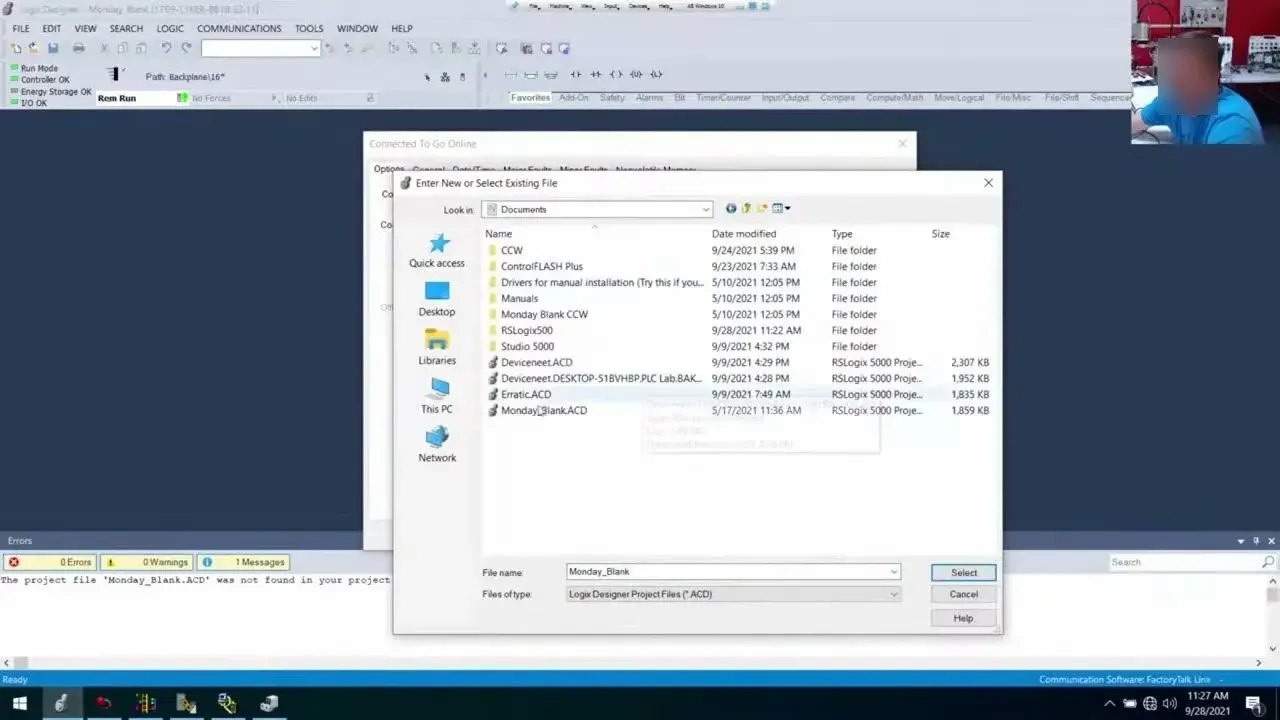
Click Select File... to open a file browser. Navigate to your project files and look for a file that matches the controller or project you are working with.
In this example, the file "Devicenet.ACD" (the name is misspelled) is the one being considered.
Select the file you think matches
Select the project file you believe matches the controller, then click Select. The software tries to open the file and match it to the controller.
Check whether the project matches the controller
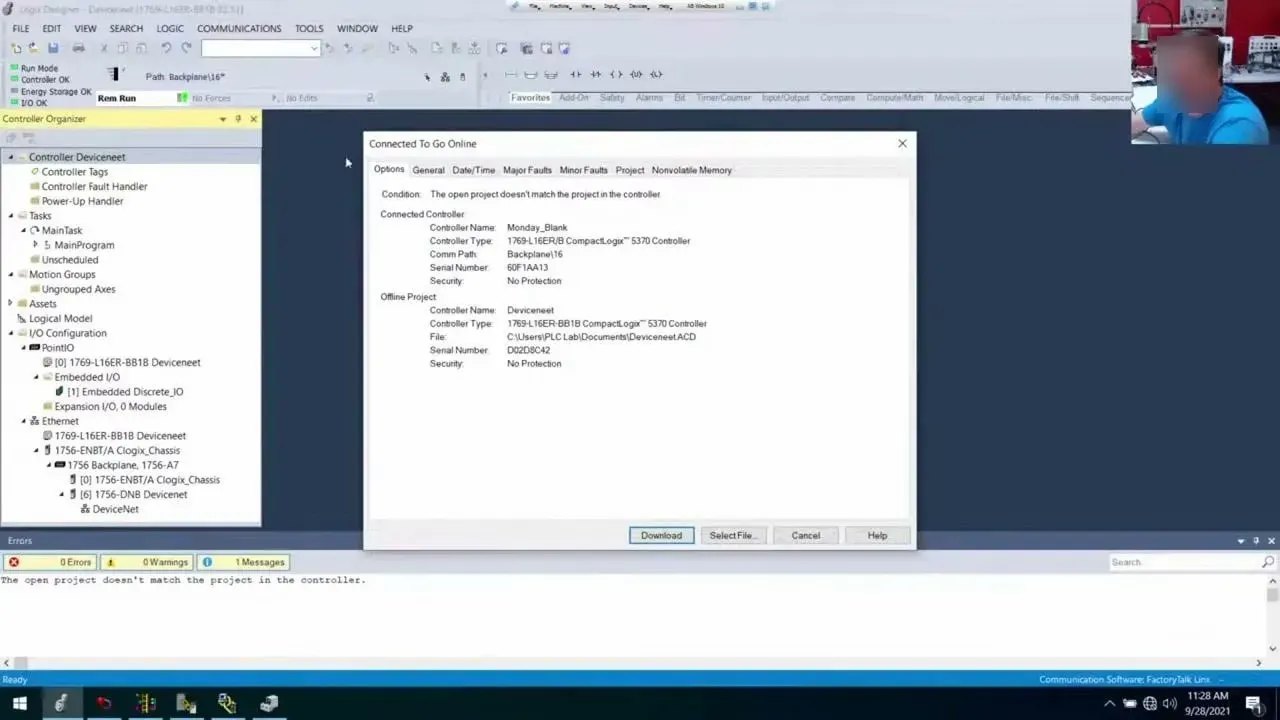
If the selected file doesn't match the program in the controller, the dialog shows this warning: "The open project doesn't match the project in the controller."
The dialog compares the connected controller with the offline project:
- Connected controller: Name Monday_Blank, Type 1769-L16ER-BB1B CompactLogix 5370 Controller, Serial Number 60F1AA13.
- Offline project: Name Devicenet, Type 1769-L16ER-BB1B CompactLogix 5370 Controller, Serial Number D02D8242.
The only prominent action now is the Download button.
Read the download warning
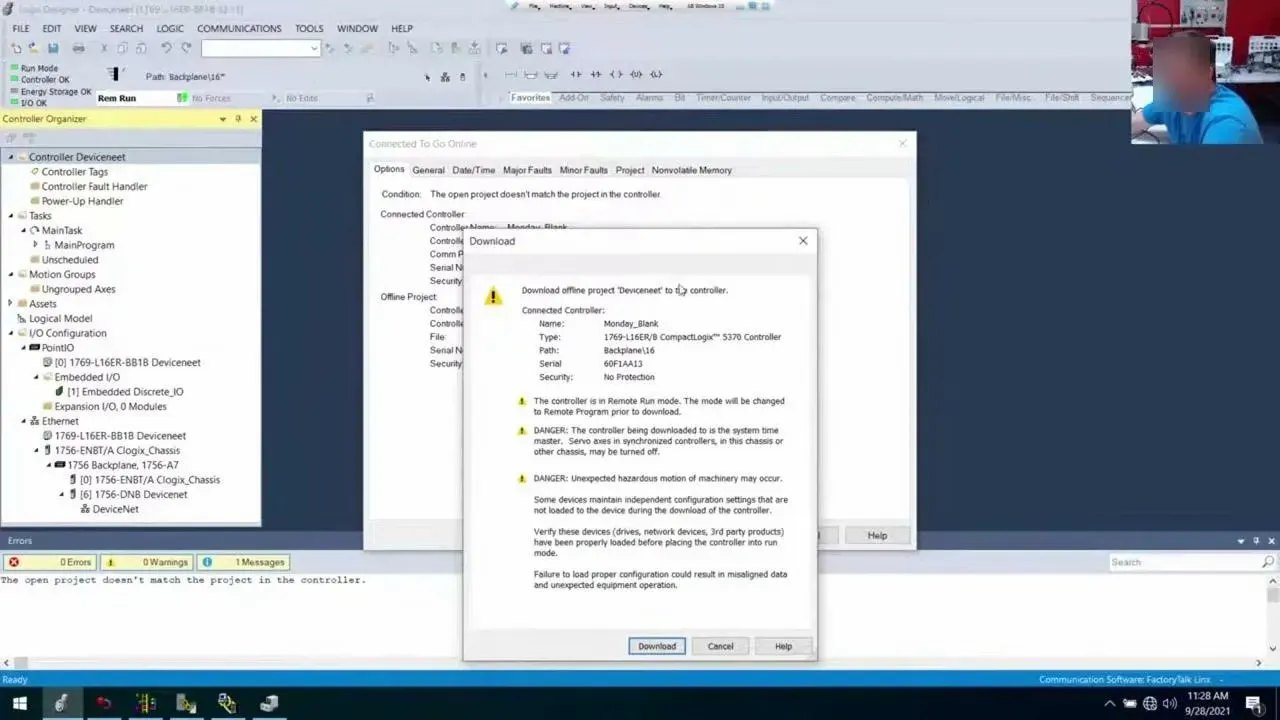
If the Download dialog appears, you are about to write a project to the controller. It shows a prominent warning: "Download offline project 'Devicenet' to controller."
Review every warning in the dialog. The warnings may include:
- The controller is in Remote Run mode and will be changed to Remote Program mode before the download.
- The controller is the system time master, and servo axes may be turned off.
- Unexpected hazardous motion of machinery may occur.
- Some devices keep independent configurations that the download doesn't load.
- Failing to load the proper configuration could cause misaligned data and unexpected equipment operation.
Don't proceed unless you fully understand the consequences.
Compare the serial numbers
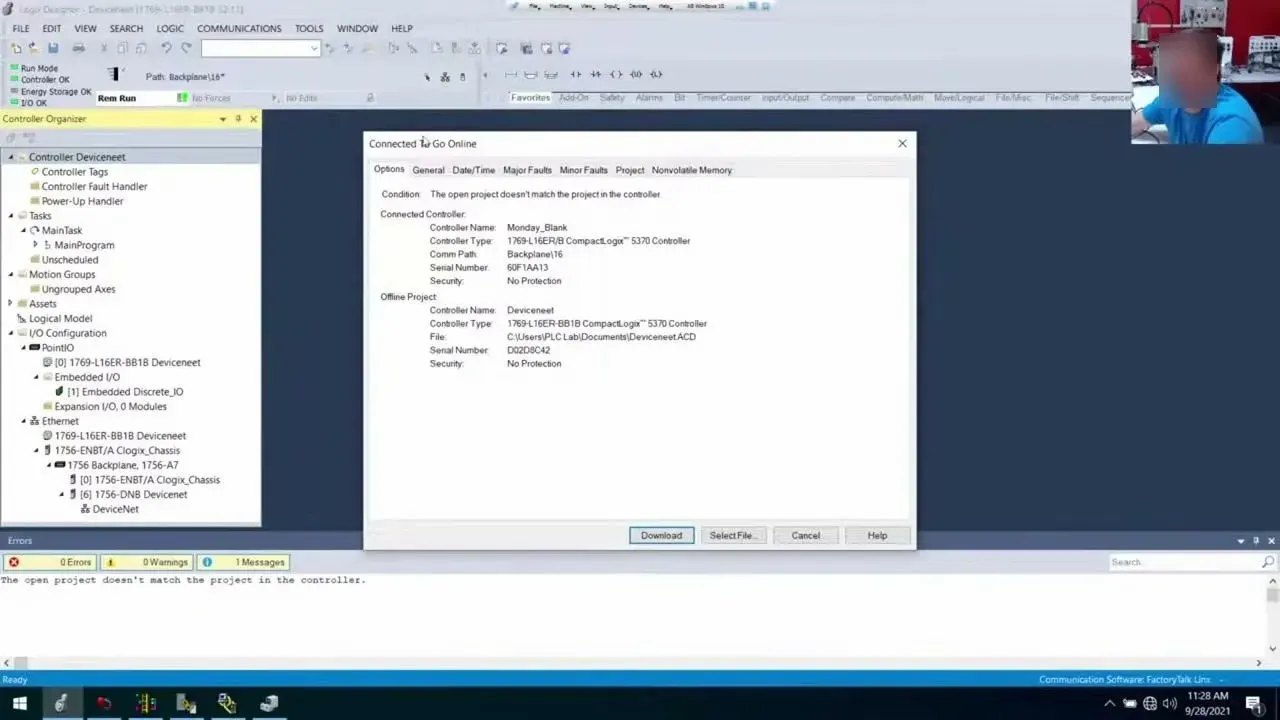
Every controller has a unique serial number. Compare the Serial Number of the connected controller (for example, 60F1AA13) with the Serial Number of the offline project (for example, D02D8242).
If they don't match, you have the wrong file. You can't safely download or go online with it, so don't proceed.
Cancel instead of downloading
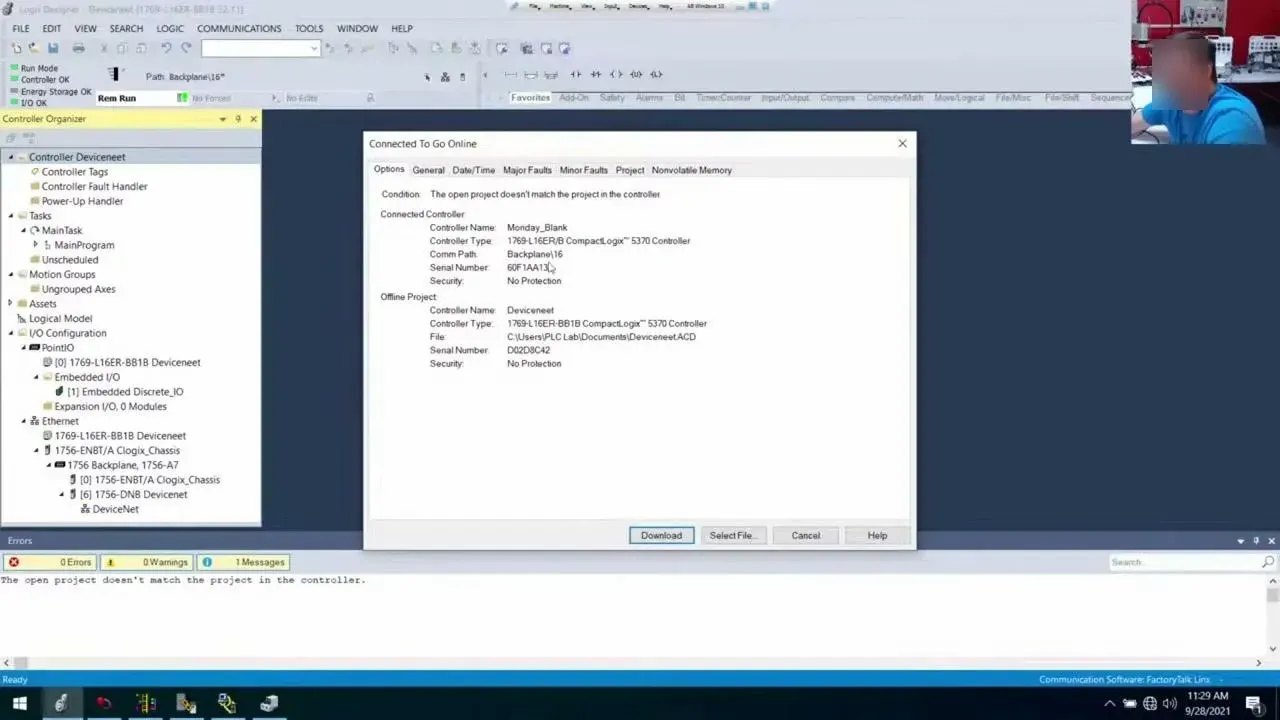
When the project file doesn't match, Studio 5000 enables only the Download button. Clicking it overwrites the program running in the PLC with the selected offline project file. There is no undo.
This dialog has no Upload button. This is a limitation in Studio 5000, unlike RSLogix 500, which offered the option. Don't click Download if you are unsure about the project file.
If you can't find the correct file, or the details don't match, click Cancel. Then use the Upload function from the main menu to retrieve the current program from the controller before you make any changes.
Choose where to save the uploaded program
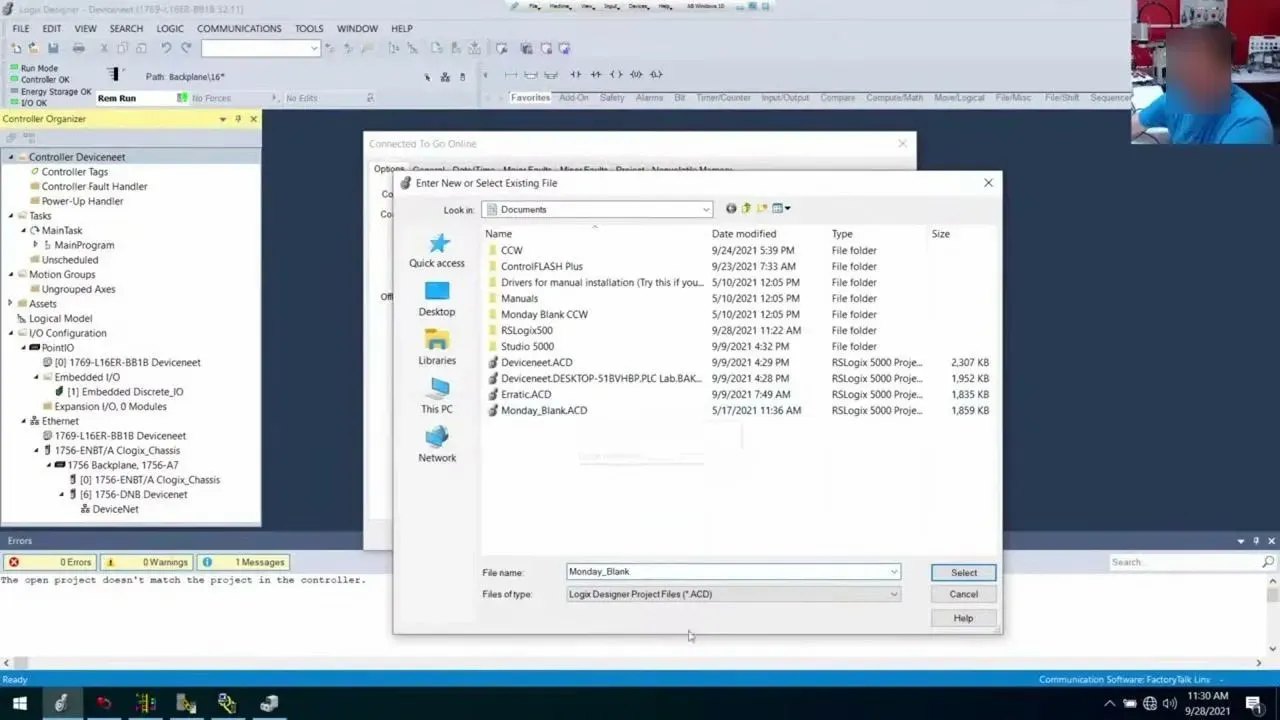
To upload the program from the PLC, select Select File to specify where to save the uploaded project. The Enter New or Select Existing File dialog opens.
- Navigate to the folder you want, for example Documents.
- Enter a file name that doesn't already exist, for example "Monday_Blank".
- Make sure the file type is Logix Designer Project Files (*.ACD).
Avoid overwriting an existing file
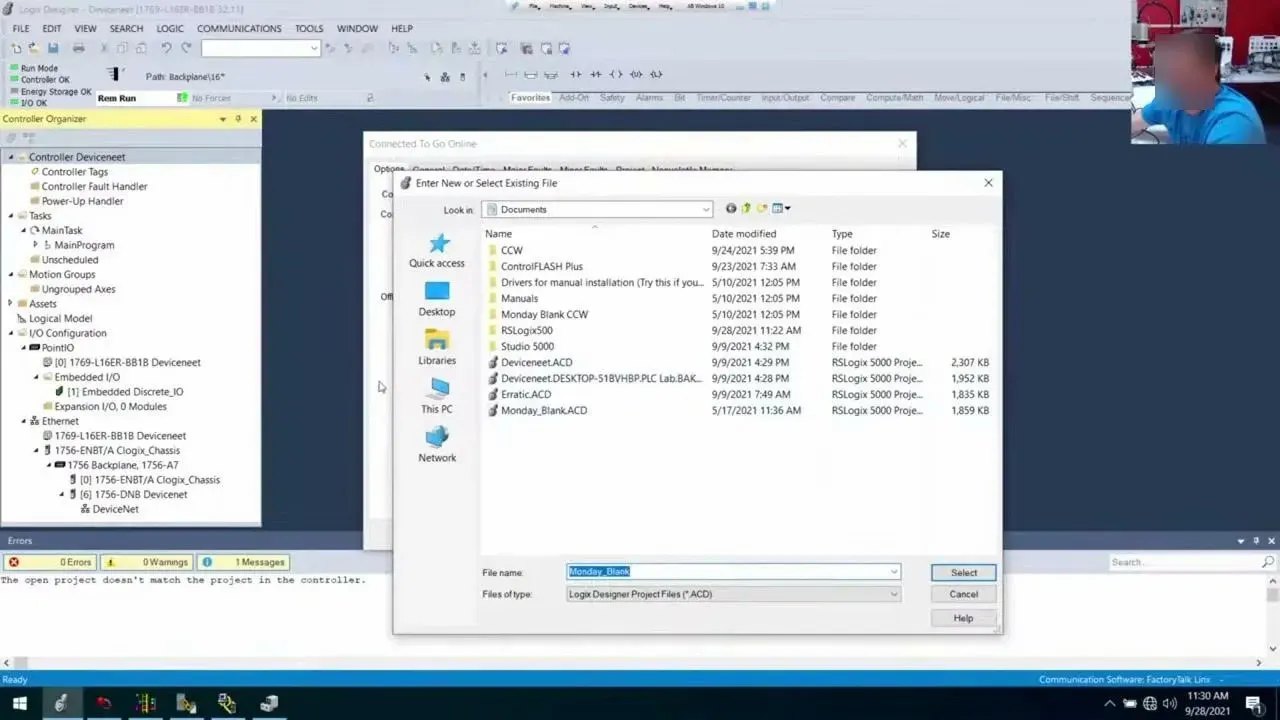
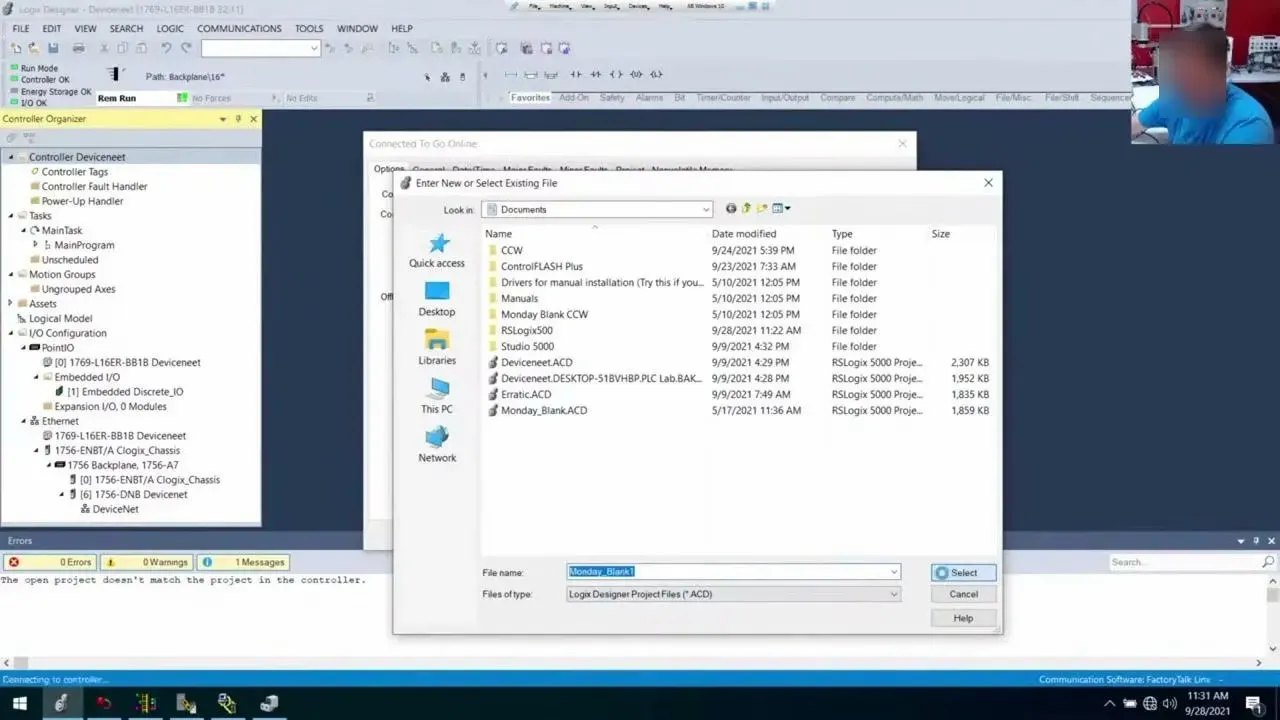
If a file with the same name already exists, change the name so you don't overwrite it. For example, if "Monday_Blank" already exists, you might use "Monday_Blank1" or another unique name. Confirm the file name in the dialog before you continue.
Click Select to upload the program
Click Select to confirm your file name and location. The software begins uploading the project from the PLC to your file. A progress indicator or a brief delay may appear while the upload completes.
Confirm the upload is finished
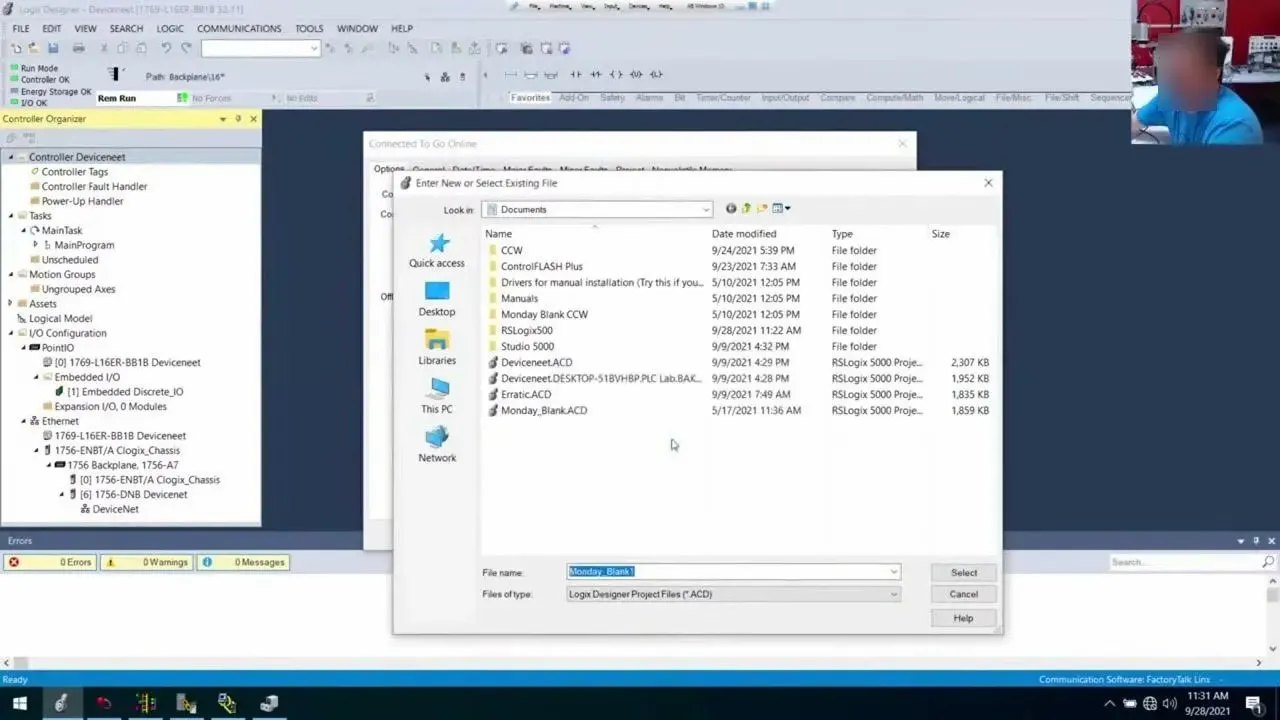
When the upload completes, the project file is saved in the location you chose. You now have a copy of the PLC program on your computer for editing or backup.
Summary
- Verify that your offline project file matches the controller before you go online.
- Check the file name, controller type, and serial number when the software prompts you to select a file.
- Make sure the serial numbers are identical.
- Read and understand every warning before you download.
- If only Download is offered after a mismatch, stop and reassess. An accidental download can erase the current PLC program.
- If you are unsure or don't have the correct project file, cancel and upload the program from the PLC.
What's next
If you are not certain about your project file, cancel the operation and use the Upload function to retrieve the current program from the PLC before you make any changes. After the upload, you can open the saved .ACD file for editing or keep it as a backup.
Generation details: cost, quality tiers
Docsie billed 3,500 credits ($2.45) to analyze this 7-minute video at standard quality. The rewrite, template fill and Word/PDF exports were included. The same video at each quality tier:
| Quality | Frames sampled | Credits | Approx. cost |
|---|---|---|---|
| Draft | every 16-30 s | 1,750 | $1.22 |
| Standard (this guide) | every 8-15 s | 3,500 | $2.45 |
| Detailed | every 4-7 s | 7,000 | $4.90 |
| Ultra | every 1-3 s | 14,000 | $9.80 |
Credits priced at $0.70 per 1,000; plans include a monthly allowance. Enterprise customers on on-premise or bring-your-own-model deployments run this on their own inference and pay no per-video credits.
Generated by Docsie Video-to-Docs on 2026-11-24 from a 6-minute video. Screenshots are frames from the source video and belong to their creator, Tim Wilborne, whose original is embedded above. If you own this video and want the guide removed or credited differently, contact us and we will act within one business day.