
How to Sync Your Calendar with Google Calendar in SimplePractice
This guide shows you how to sync your calendar with Google Calendar in SimplePractice. You connect your Google account from the Calendar settings, grant access, and save the connection. Your SimplePractice appointments then appear in a "Simple Practice" calendar in Google Calendar. The guide also covers how to verify the sync and what to check if appointments don't appear.
Video: How to Sync Google Calendar with SimplePractice [2026 Full Guide] by Behind Tools (2025). All credit for the demonstration goes to the creator; watch the original on YouTube. The written guide below was generated from this video by Docsie. Creator? Request a change or removal.
This guide shows you how to sync your calendar with Google Calendar in SimplePractice. You connect your Google account from the Calendar settings, grant access, and save the connection. Your SimplePractice appointments then appear in a "Simple Practice" calendar in Google Calendar. The guide also covers how to verify the sync and what to check if appointments don't appear.
Prerequisites
Before you start, make sure you have:
- Your SimplePractice login credentials
- The Google account you want to connect
- A web browser that allows the Google sign-in pop-up for SimplePractice
Open the Calendar settings in SimplePractice
Log in to your SimplePractice account
Open your web browser and go to the SimplePractice login page. Enter your credentials and sign in.
After you log in, the main dashboard shows a calendar view of your appointments. The left sidebar includes Calendar, Clients, Billing, Insurance, Analytics, Activity, and Settings.
Go to Settings, then Calendar
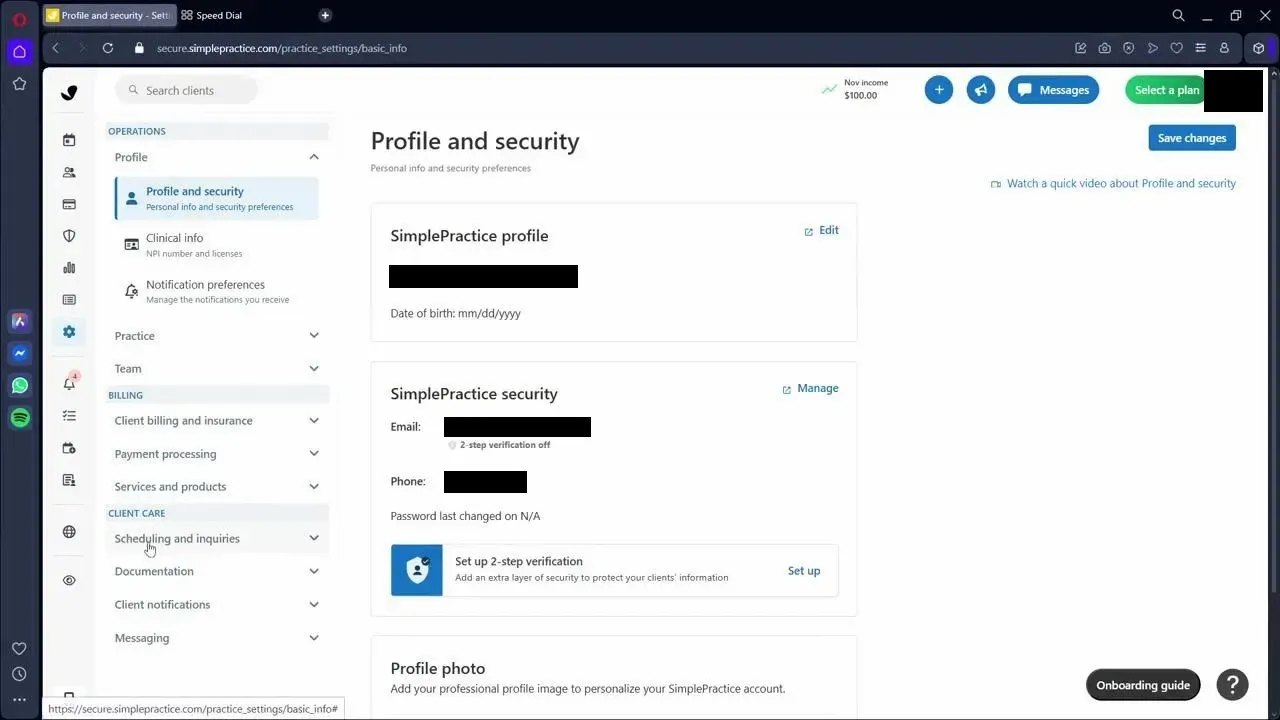
In the left sidebar, click Settings (the gear icon).
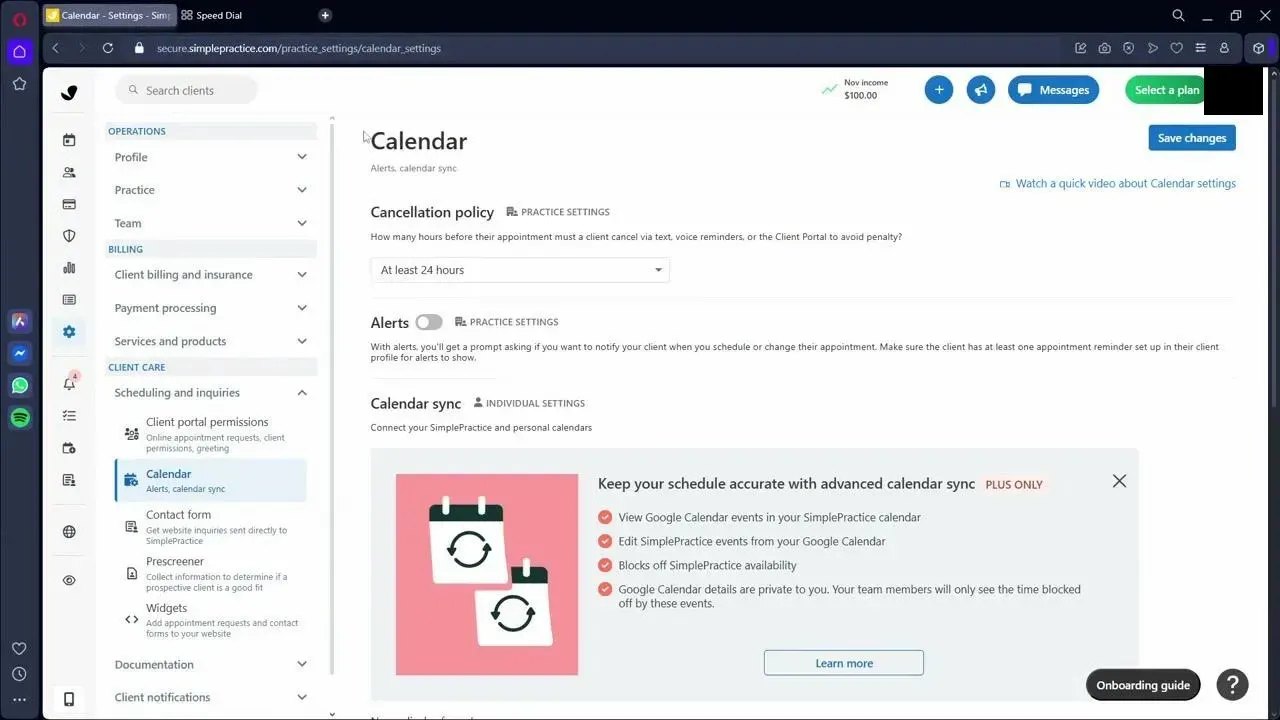
In the Settings menu, find the Client Care section and expand Scheduling and Inquiries. Then select Calendar. This section manages connections to external calendars, including Google Calendar.
Find the Google Calendar integration
On the Calendar settings page, scroll to the Google Calendar option. Click Connect next to Google Calendar to start the integration.
Connect your Google account
Sign in to your Google account
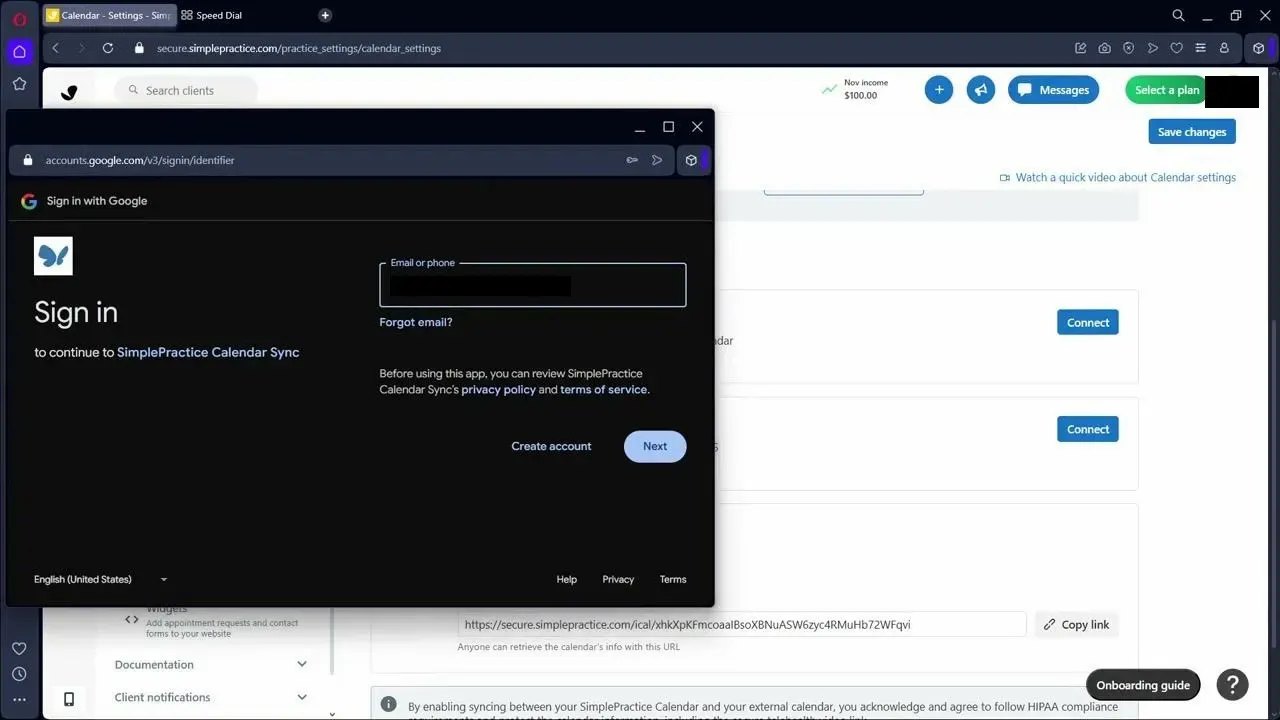
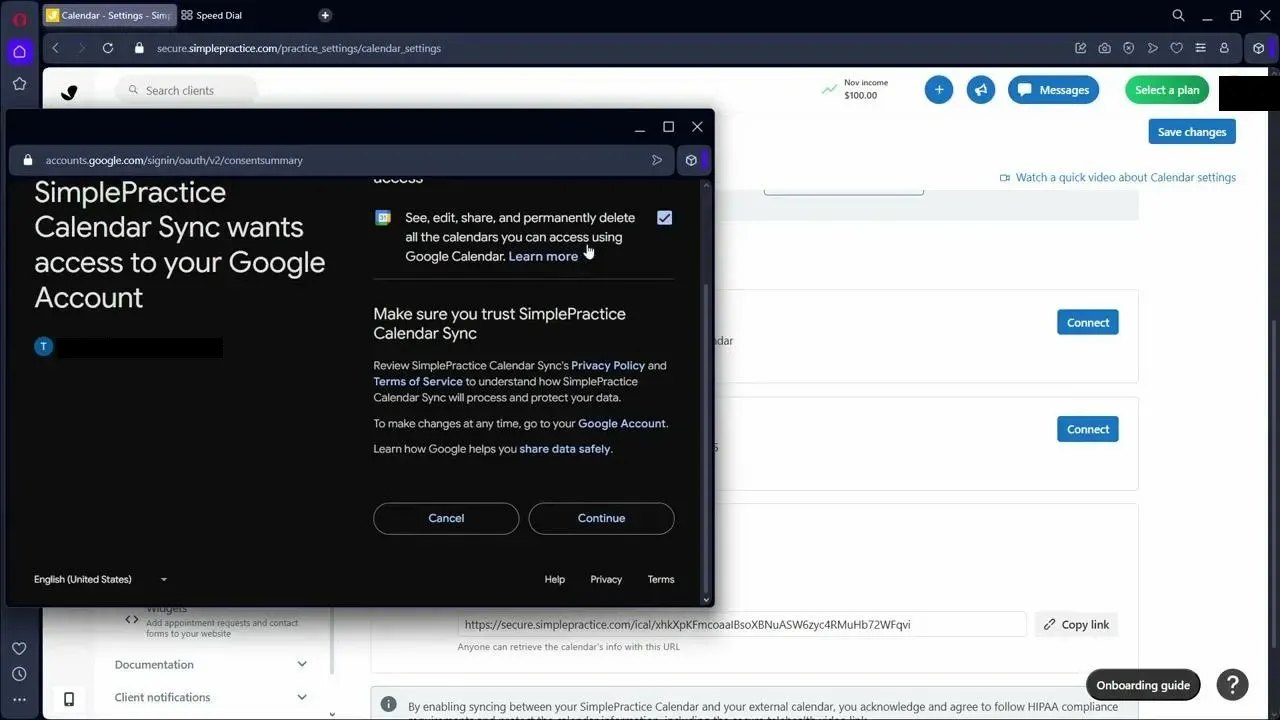
A Google login pop-up appears. Choose the Google account you want to connect, or click Use another account to sign in with a different one.
If prompted, enter your email address and click Next. Then enter your password and click Next again.
Grant SimplePractice access to your Google Calendar
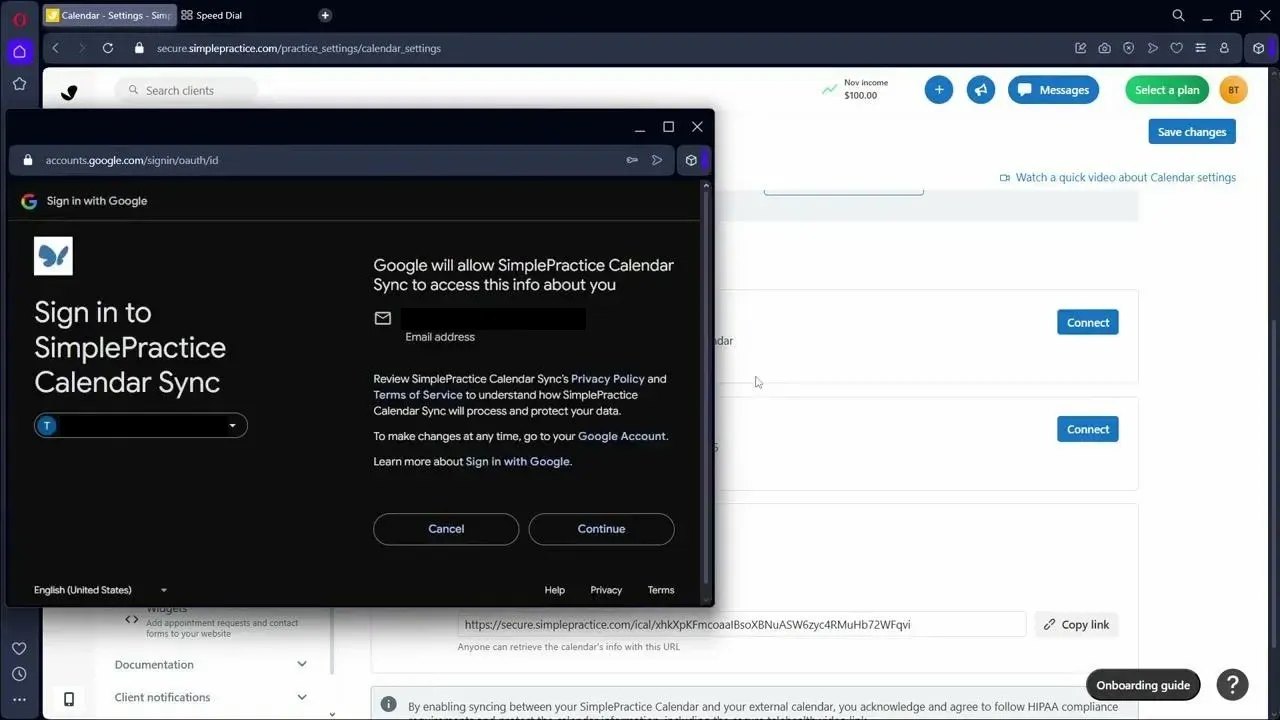
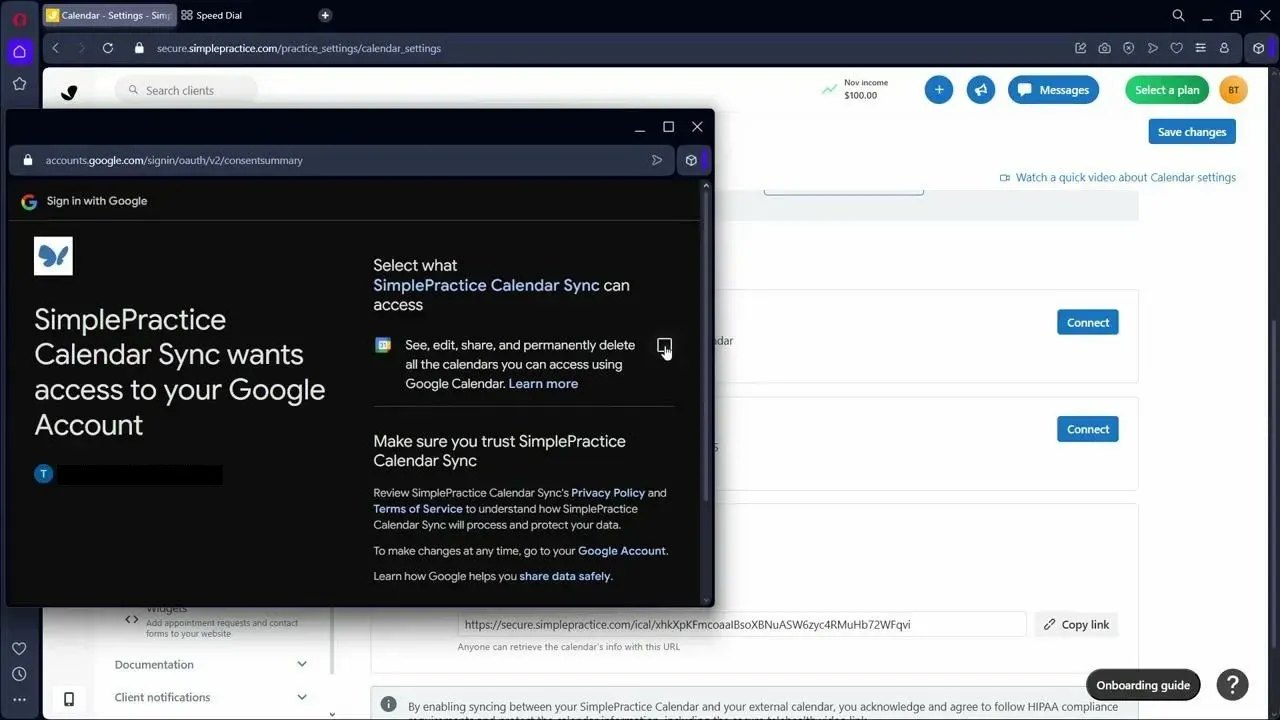
Review the permissions that SimplePractice requests. Click Allow or Continue to give SimplePractice the access it needs to sync your schedule.
This step uses Google's secure authorization flow. You can revoke this access later from your Google account settings if needed.
Save the connection in SimplePractice
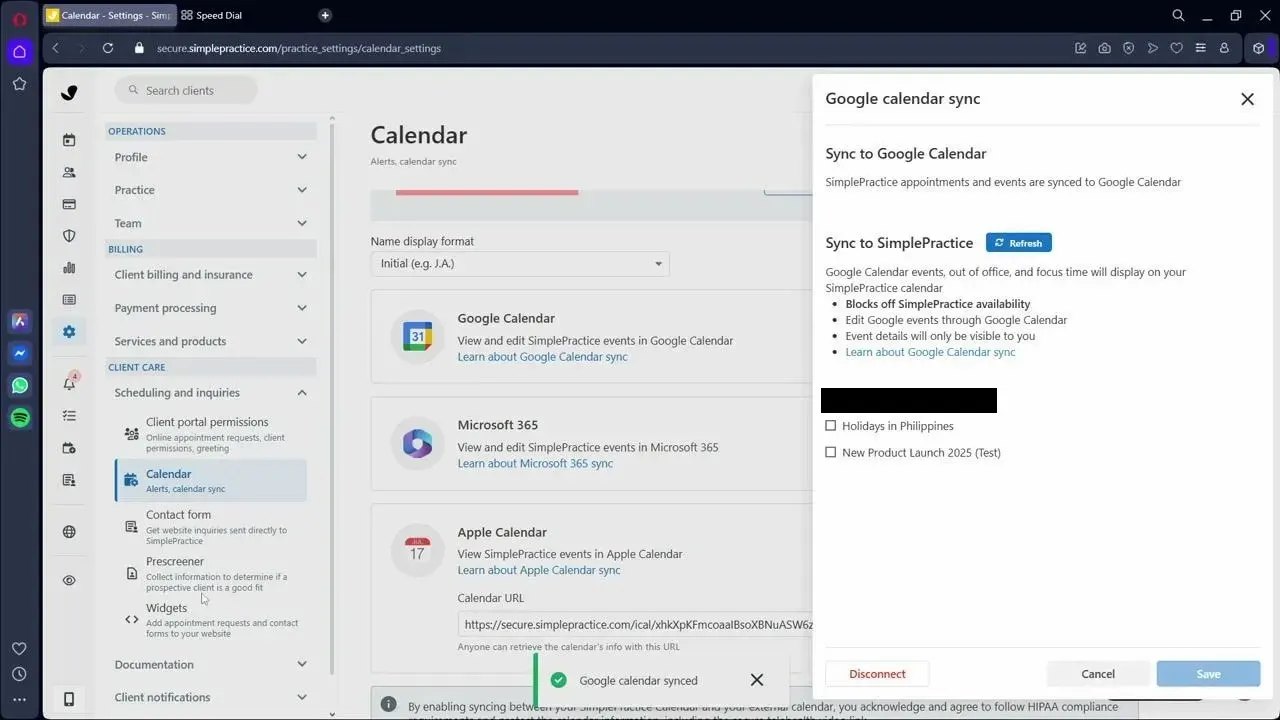
After you approve access, return to the SimplePractice Calendar settings page. Click Save to complete the integration. This finalizes the connection between SimplePractice and your Google Calendar.
Verify the sync
Find the "Simple Practice" calendar in Google Calendar
Look for the "Simple Practice" calendar in Google Calendar:
- On the web: Find My Calendars in the left sidebar of Google Calendar.
- On mobile: Look for the "Simple Practice" calendar in your calendar list or in the app's settings.
Wait for the initial sync
Your SimplePractice appointments begin to appear in the "Simple Practice" calendar. The first sync may take a minute, especially if you have many events.
Make sure the calendar is visible
In Google Calendar, check that the checkbox next to "Simple Practice" is selected. Events appear only when this box is checked.
Troubleshoot your SimplePractice Google Calendar sync
Refresh Google Calendar
If appointments don't appear right away, refresh Google Calendar:
- On the web: Click the refresh button in your browser or within Google Calendar.
- On mobile: Pull down to refresh, or restart the app.
Check that you're viewing the correct Google account
Confirm that you're logged in to the Google account you connected to SimplePractice. If you have multiple Google accounts, switch to the correct one in Google Calendar.
Check for browser pop-up blockers
Confirm that your browser didn't block the Google sign-in pop-up during setup. If it did, allow pop-ups for SimplePractice and repeat the connection process.
Monitor sync progress
If syncing is still in progress, SimplePractice displays the message "Syncing in progress... This may take several minutes." You can close the message and keep using SimplePractice while the sync completes.
Review and manage your sync settings
To adjust the connection or manage which calendars sync, return to the Calendar section in SimplePractice Settings. You can disconnect or refresh the sync as needed.
Summary
When you sync your calendar with Google Calendar in SimplePractice, your appointments appear in the "Simple Practice" calendar in Google Calendar. If you need to adjust or troubleshoot the connection, return to the Calendar section in SimplePractice Settings at any time.
What's next
- Check that the "Simple Practice" calendar is visible in Google Calendar on both web and mobile.
- Return to Settings > Calendar to manage or disconnect the sync when you need to.
Generation details: cost, quality tiers
Docsie billed 1,500 credits ($1.05) to analyze this 3-minute video at standard quality. The rewrite, template fill and Word/PDF exports were included. The same video at each quality tier:
| Quality | Frames sampled | Credits | Approx. cost |
|---|---|---|---|
| Draft | every 16-30 s | 750 | $0.52 |
| Standard (this guide) | every 8-15 s | 1,500 | $1.05 |
| Detailed | every 4-7 s | 3,000 | $2.10 |
| Ultra | every 1-3 s | 6,000 | $4.20 |
Credits priced at $0.70 per 1,000; plans include a monthly allowance. Enterprise customers on on-premise or bring-your-own-model deployments run this on their own inference and pay no per-video credits.
Generated by Docsie Video-to-Docs on 2026-11-24 from a 2-minute video. Screenshots are frames from the source video and belong to their creator, Behind Tools, whose original is embedded above. If you own this video and want the guide removed or credited differently, contact us and we will act within one business day.