
How to Add a Clinician in SimplePractice
If you want to know how to add a clinician in SimplePractice, you do it from the Team Members page in Settings. You enter the person's basic details, choose their role and permissions, add clinician details such as the NPI, and send an invitation by email. This guide walks you through each step.
Video: How to Add a New Clinician in SimplePractice [2026 Full Guide] by Shortcut Academy (2025). All credit for the demonstration goes to the creator; watch the original on YouTube. The written guide below was generated from this video by Docsie. Creator? Request a change or removal.
If you want to know how to add a clinician in SimplePractice, you do it from the Team Members page in Settings. You enter the person's basic details, choose their role and permissions, add clinician details such as the NPI, and send an invitation by email. This guide walks you through each step.
Prerequisites
Before you start, gather the following information. Having it ready speeds up onboarding and helps prevent errors in billing or insurance submissions.
- The new team member's NPI (National Provider Identifier).
- An email address for the new team member that is unique and not used in any other SimplePractice account.
Steps
Log in and open Settings
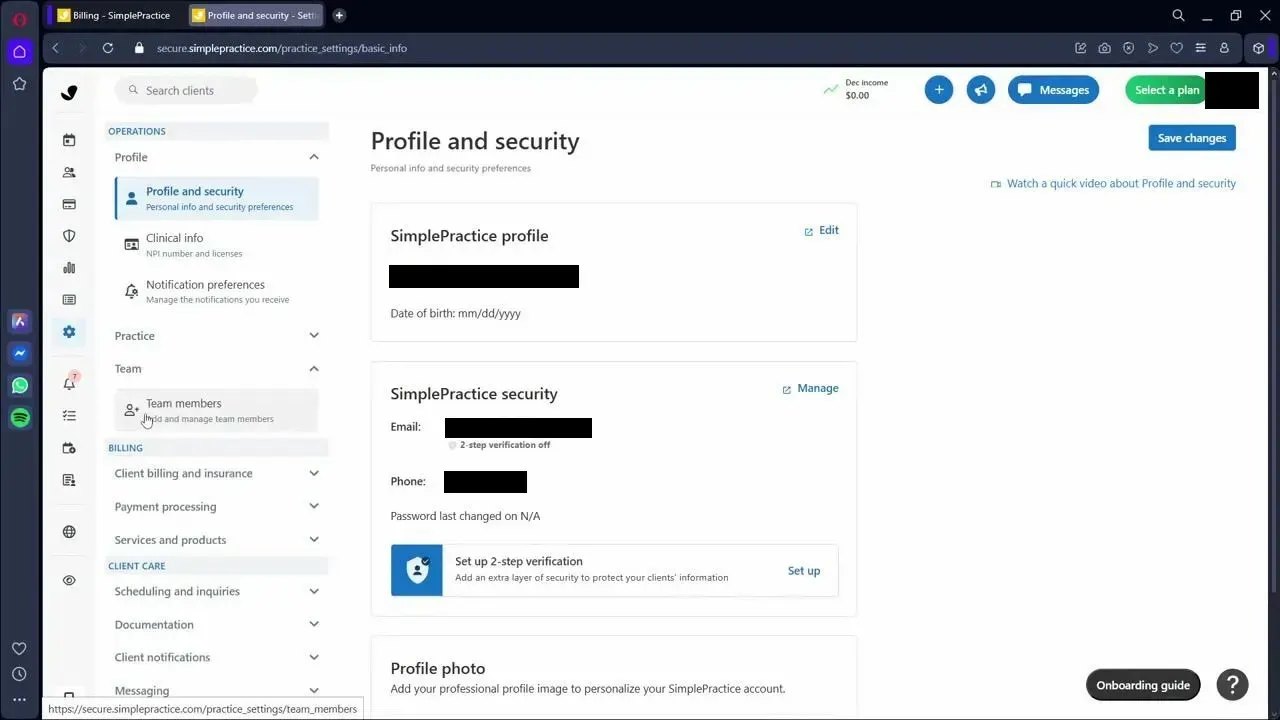
Log in to your SimplePractice account. Make sure you are on the main dashboard or calendar view. Then select Settings from the left sidebar. The sidebar includes Calendar, Clients, Billing, Insurance, Analytics, Activity, and Settings.
Go to Team Members
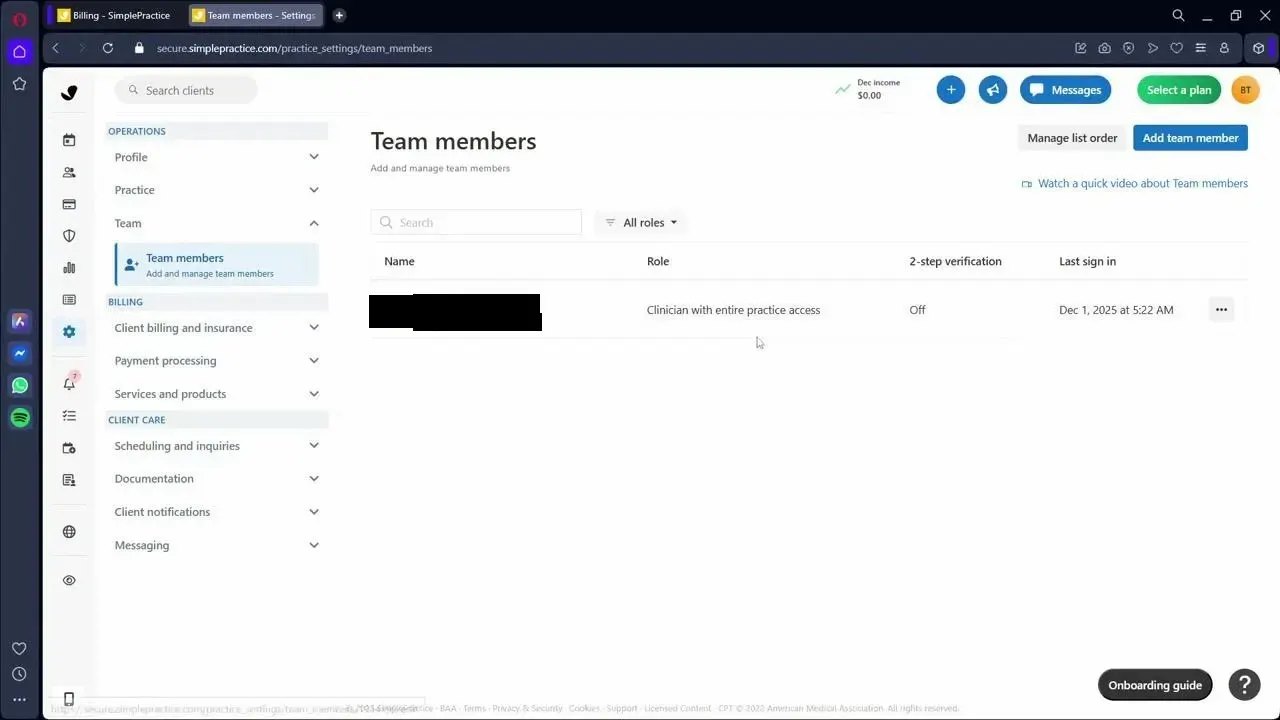
In the Settings menu, go to Team and select Team Members. This section lets you add and manage team members.
Select Add team member
Click Add team member in the upper right corner of the Team Members page. The page also lists your current team members, their roles, and their 2-step verification status.
Enter the basic information
Fill in the new team member's details:
- First name: Enter the first name (for example, GabSample).
- Last name: Enter the last name (for example, Tech).
- Email: Enter a unique email address that isn't used in any other SimplePractice account (for example, test4tech.neutron@gmail.com).
Double-check the spelling of the name and email so the invitation doesn't go to the wrong person. Then click Continue.
Choose a role for the clinician
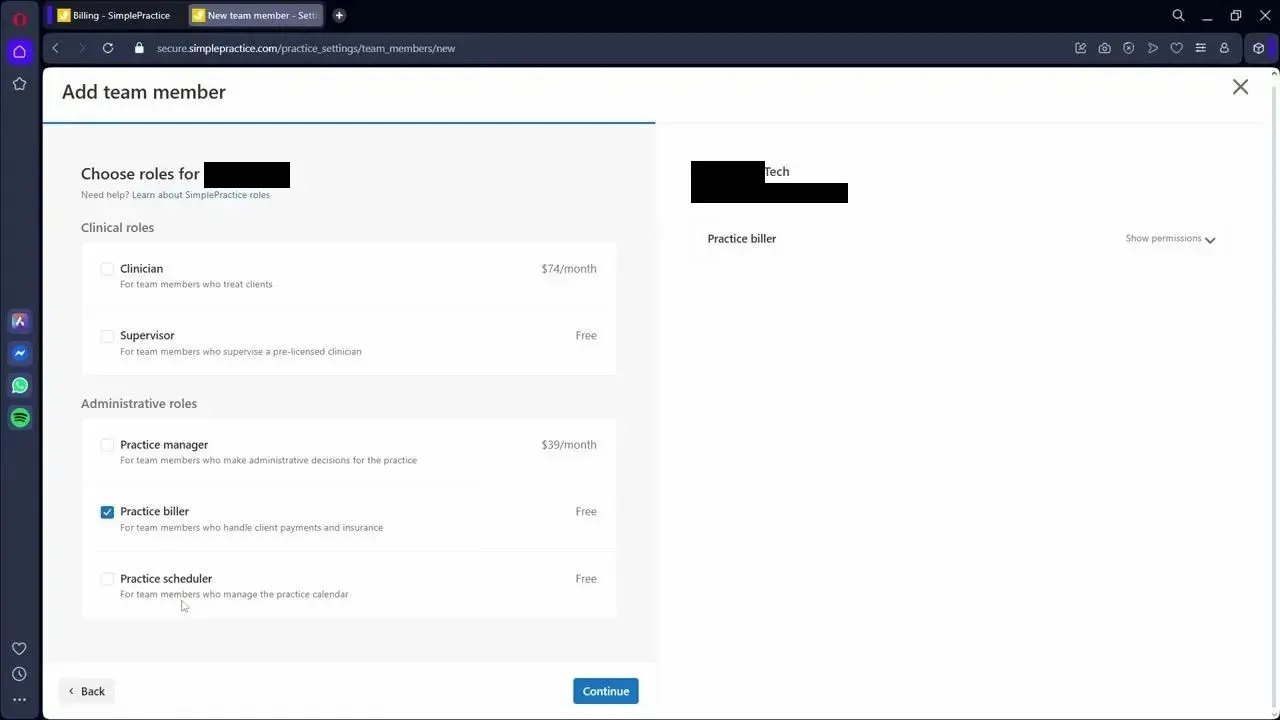
Select the role or roles that fit the new team member. To add a clinician, choose Clinician. The available roles are:
- Clinician ($74/month): For team members who treat clients.
- Supervisor (Free): For team members who supervise a pre-licensed clinician.
- Practice manager ($39/month): For team members who make administrative decisions.
- Practice biller (Free): For team members who handle client payments and insurance.
- Practice scheduler (Free): For team members who manage the practice calendar.
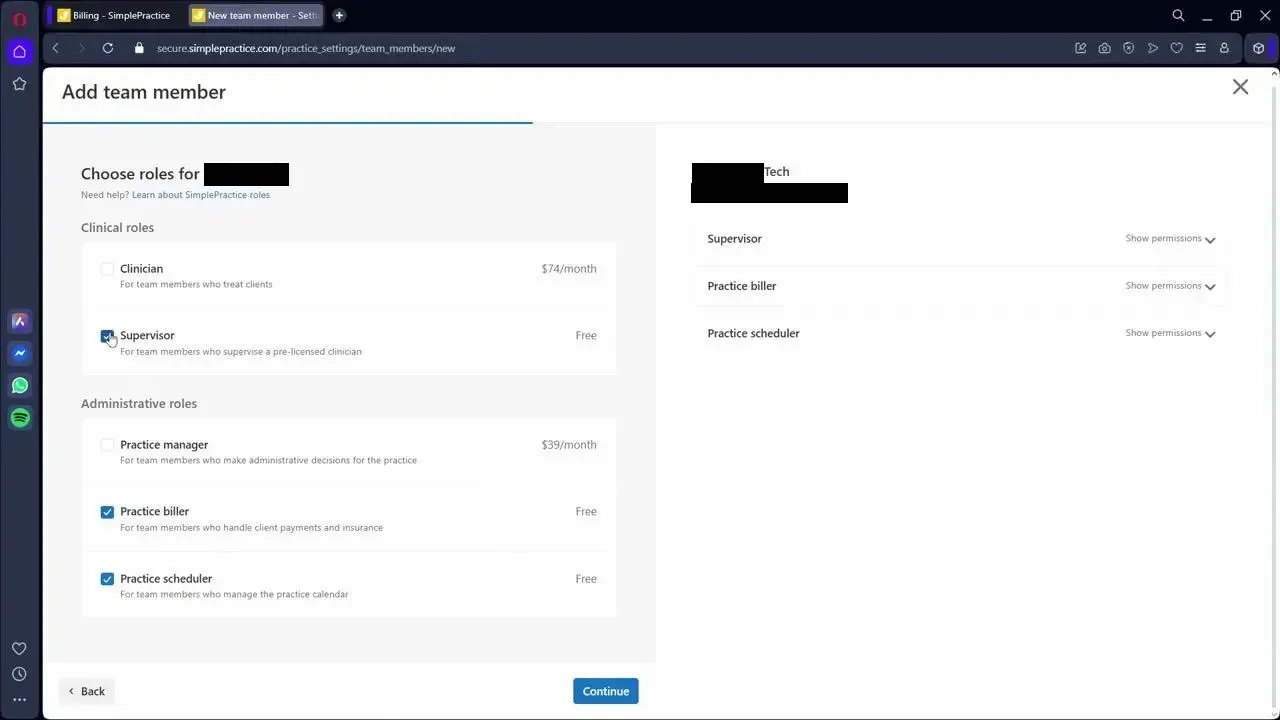
You can select multiple roles if the team member supports more than one function. You can also adjust roles later if their responsibilities change.
Review the selected roles and permissions
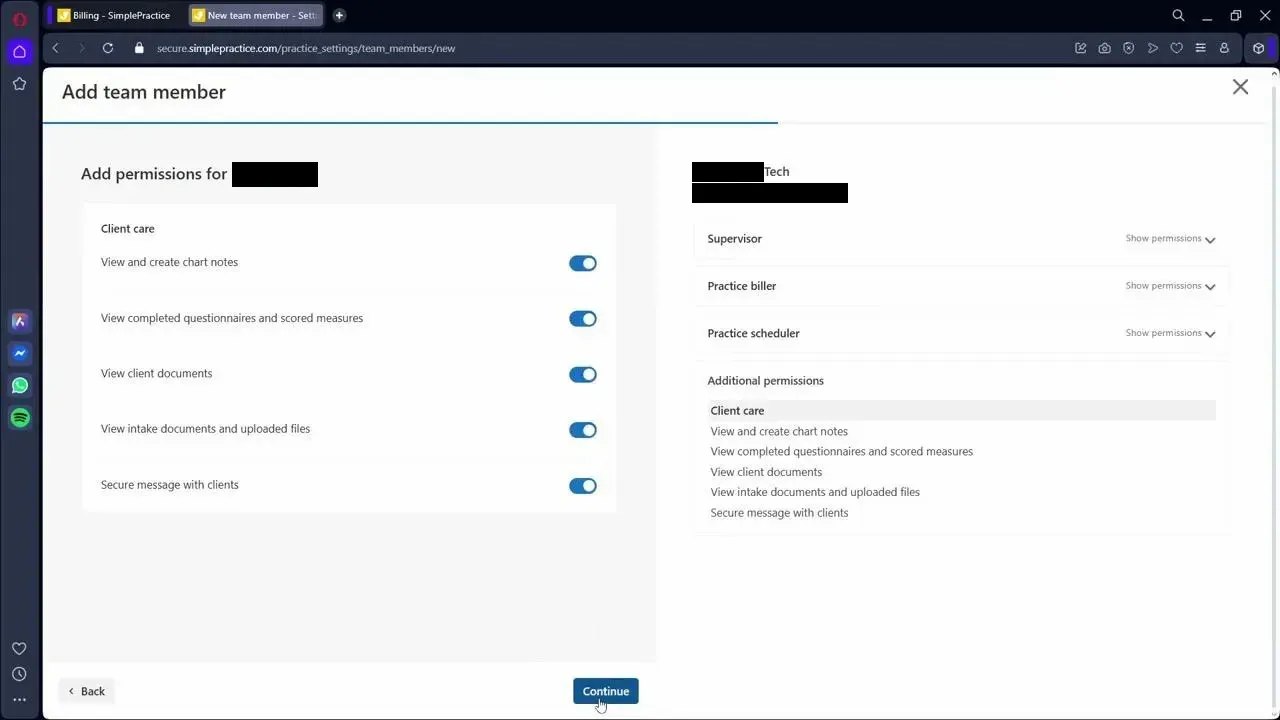
Double-check the roles you selected (for example, Supervisor, Practice biller, and Practice scheduler) and any additional permissions assigned.
Adding a clinician may affect your subscription plan or incur per-clinician charges. Read any notes about plan or pricing impacts carefully to avoid unexpected billing changes.
Assign Client care permissions
Under Client care, turn on the permissions the team member needs:
- View and create chart notes
- View completed questionnaires and scored measures
- View client documents
- View intake documents and uploaded files
- Secure message with clients
Enable only the permissions the team member's responsibilities require, following the principle of least privilege.
Enter the clinician details
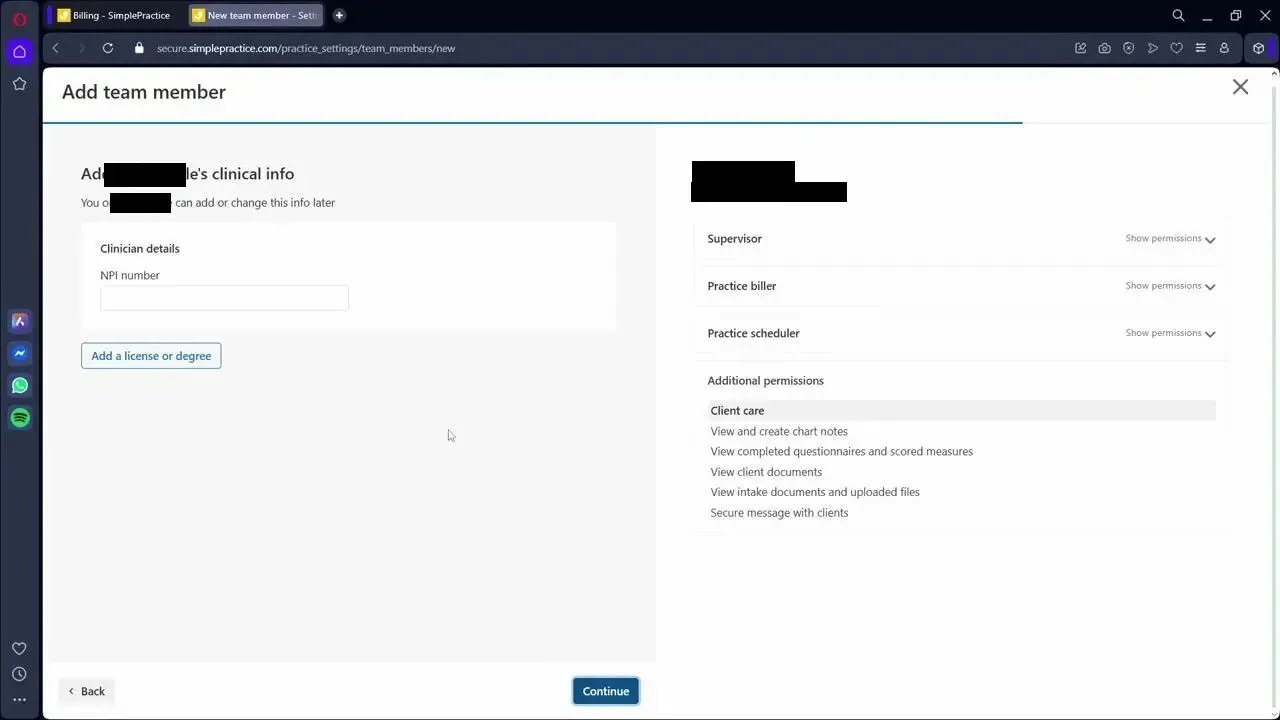
If you selected Clinician, you are prompted for additional required details in the Clinician details section:
- NPI (National Provider Identifier): Enter the NPI, making sure it matches the official registry.
- Specialty: Choose the specialty that best reflects their practice, so claims and documentation align correctly.
Complete any other required fields. You can also add a license or degree if the role requires it. After you confirm that all permissions and roles are correct, click Continue.
Review and send the invitation
Review everything one final time. Make sure the name, email, roles, permissions, and clinical info (if applicable) are accurate. Then click Send Invitation.
SimplePractice emails the invitation to the address you entered. The new team member must open the email, follow the link, and create their password. For security, only the new team member can complete this step, not an administrator.
Once the invitation is accepted and the password is set, the new team member is added to your practice with the assigned access.
Troubleshoot a missing invitation
If the new team member doesn't receive the invitation email, ask them to check their spam or promotions folder.
What's next
After the clinician accepts the invitation and sets a password, they have access to your practice based on the roles and permissions you assigned. If their responsibilities change, you can adjust their roles later from the Team Members page.
Generation details: cost, quality tiers
Docsie billed 1,500 credits ($1.05) to analyze this 3-minute video at standard quality. The rewrite, template fill and Word/PDF exports were included. The same video at each quality tier:
| Quality | Frames sampled | Credits | Approx. cost |
|---|---|---|---|
| Draft | every 16-30 s | 750 | $0.52 |
| Standard (this guide) | every 8-15 s | 1,500 | $1.05 |
| Detailed | every 4-7 s | 3,000 | $2.10 |
| Ultra | every 1-3 s | 6,000 | $4.20 |
Credits priced at $0.70 per 1,000; plans include a monthly allowance. Enterprise customers on on-premise or bring-your-own-model deployments run this on their own inference and pay no per-video credits.
Generated by Docsie Video-to-Docs on 2026-11-24 from a 2-minute video. Screenshots are frames from the source video and belong to their creator, Shortcut Academy, whose original is embedded above. If you own this video and want the guide removed or credited differently, contact us and we will act within one business day.