
How to Add a Diagnosis in SimplePractice
This guide shows you how to add a diagnosis in SimplePractice, from opening a client's profile to saving a treatment plan. You will search for an ICD-10 code, set the diagnosis date and time, and enter treatment plan details. Following these steps keeps your client documentation accurate, organized, and ready for billing and treatment planning.
Video: How to Add a Diagnosis in SimplePractice [2026 Full Guide] by Shortcut Academy (2025). All credit for the demonstration goes to the creator; watch the original on YouTube. The written guide below was generated from this video by Docsie. Creator? Request a change or removal.
This guide shows you how to add a diagnosis in SimplePractice, from opening a client's profile to saving a treatment plan. You will search for an ICD-10 code, set the diagnosis date and time, and enter treatment plan details. Following these steps keeps your client documentation accurate, organized, and ready for billing and treatment planning.
Prerequisites
- A SimplePractice account that you can log in to from your web browser.
- A client in your Clients list whose record you want to update.
Open SimplePractice and go to the Clients tab
- Launch your web browser and log in to your SimplePractice account.
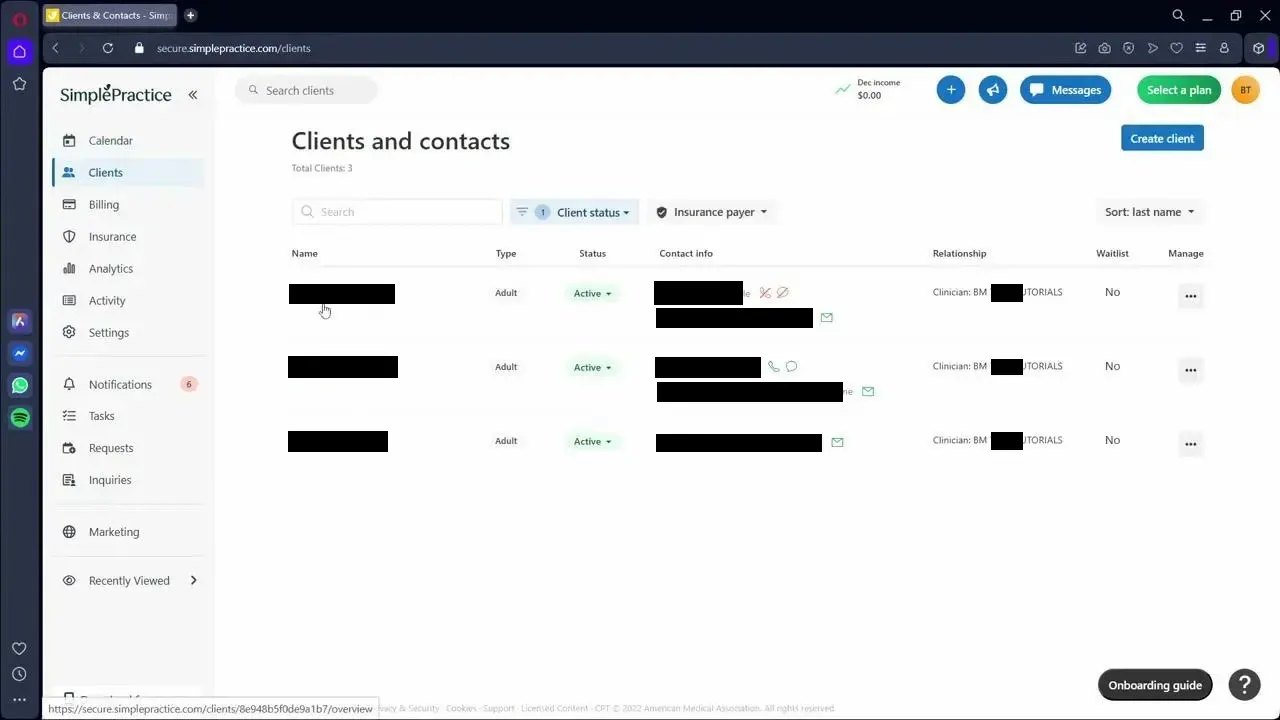
- In the left sidebar, click the Clients tab to view your client list.
Select the client
- In the Clients tab, locate the client you want to work with.
- Click the client's name (for example, "Jamie D. Appleseed" or "Ed Doe") to open their profile overview.
Go to the Overview page
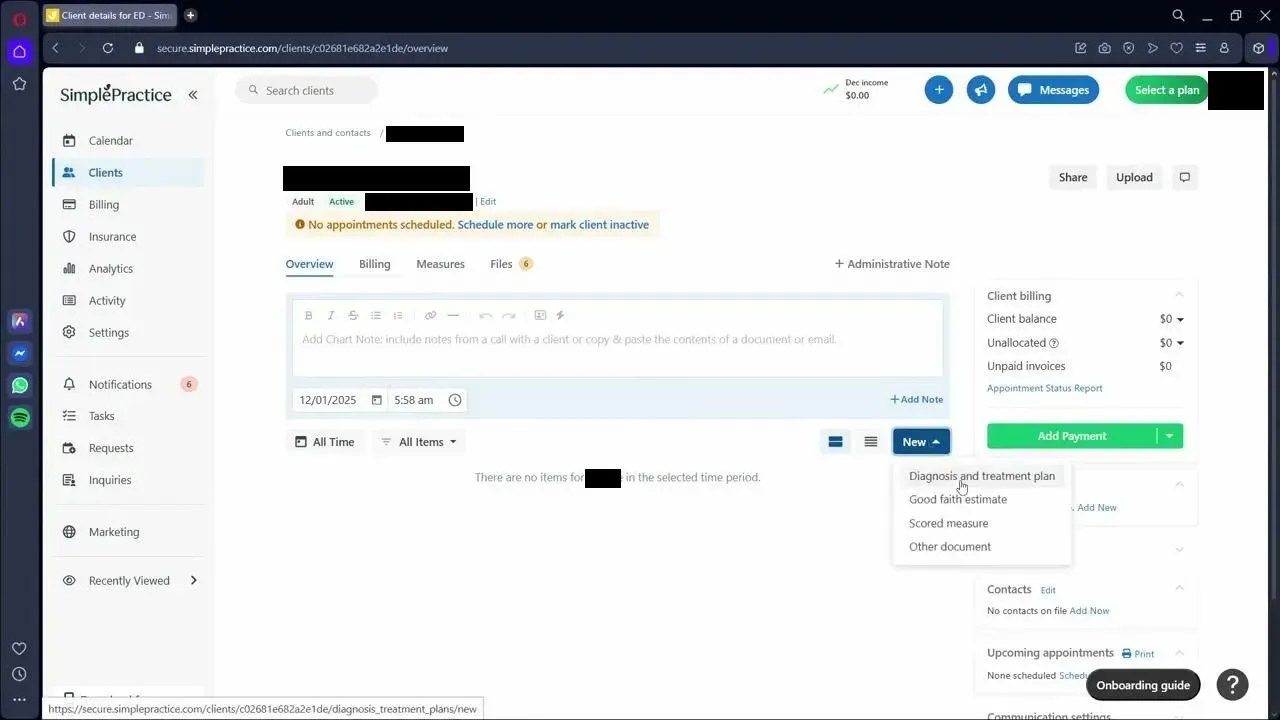
Make sure you are on the Overview tab of the client's profile. This is the central hub for managing clinical documentation.
Start a new diagnosis and treatment plan
- On the Overview page, find the New button. It is usually to the right of the chart note area.
- Click New, then select Diagnosis and Treatment Plan from the dropdown menu.
Search for and select the diagnosis code
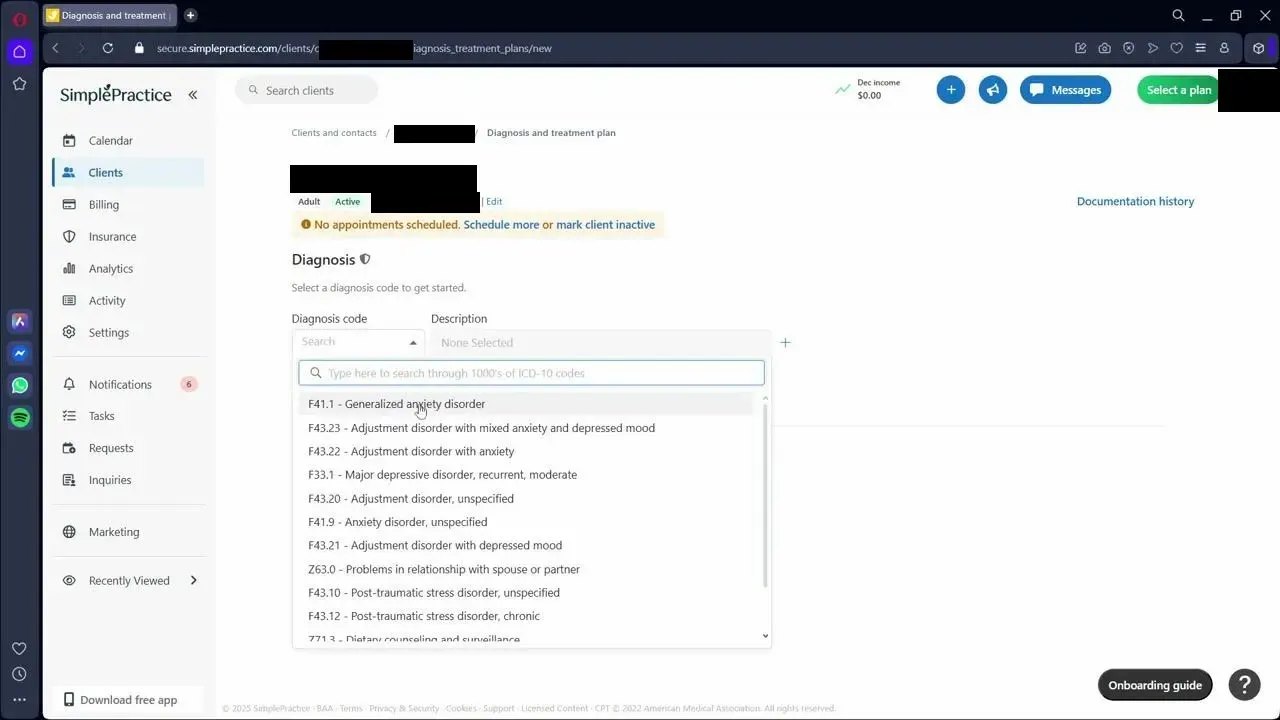
You are taken to the Diagnosis and Treatment Plan entry area. This is where you add a diagnosis in SimplePractice.
- In the Diagnosis code field, start typing either the ICD-10 code (for example, "F41.1") or the diagnosis name (for example, "generalized anxiety disorder").
- As you type, a dropdown list shows matching options.
- Select the code that best fits your clinical assessment.
If you are unsure of the exact code, type a few keywords to narrow the options.
Prioritize and review your diagnoses
Identify the main reason for treatment, or the condition that best explains the client's current presentation. List this primary diagnosis at the top of the diagnoses list.
Order any additional diagnoses to reflect your clinical priorities. This ordering ensures your notes, treatment plan, and claims accurately represent your clinical assessment.
Confirm and save the diagnosis
- After you select the diagnosis, check that the Description field fills in automatically (for example, "Generalized anxiety disorder").
- Enter the Date and time of diagnosis (for example, "12/01/2025" and "5:58 am").
- Click Save to record the diagnosis.
Review the saved diagnosis
After you save, the diagnosis appears in the list along with its date and time. The Treatment Plan section is now available for you to complete.
Enter the treatment plan
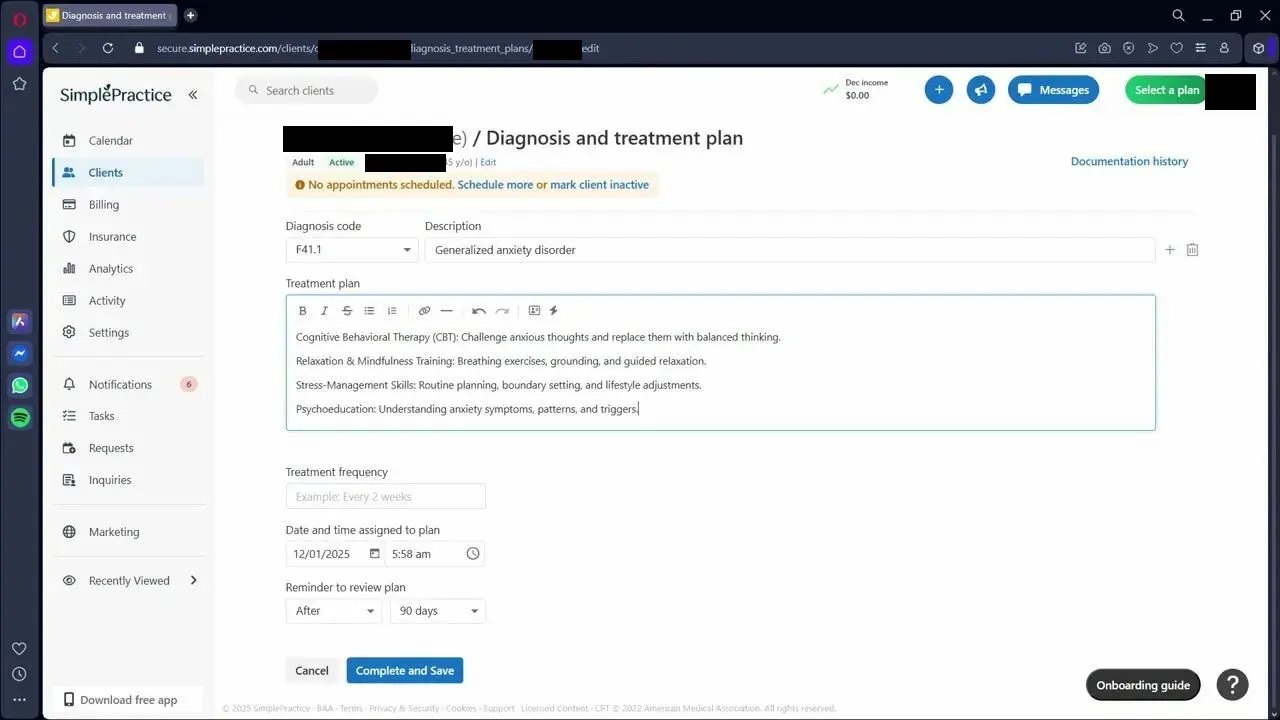
- In the Treatment plan text area, enter detailed interventions and goals.
- Optionally, fill in Treatment frequency (for example, "Every 2 weeks").
- Set the Date and time assigned to plan (for example, "12/01/2025" and "5:58 am").
- Set a Reminder to review plan (for example, "After 90 days").
- Click Complete and Save to finalize the treatment plan.
For example, a plan for generalized anxiety disorder could include the following:
- Cognitive Behavioral Therapy (CBT): Challenge anxious thoughts and replace them with balanced thinking.
- Relaxation & Mindfulness Training: Breathing exercises, grounding, and guided relaxation.
- Stress-Management Skills: Routine planning, boundary setting, and lifestyle adjustments.
- Psychoeducation: Understanding anxiety symptoms, patterns, and triggers.
Tips
- Verify the spelling of diagnosis names, and make sure the primary diagnosis is listed first.
- The order of diagnoses matters for documentation and billing.
- Use the plus (+) icon to add more diagnoses if needed.
- Make sure your selections align with clinical documentation and payer requirements.
What's next
Now that you know how to add a diagnosis in SimplePractice and save a treatment plan, you can repeat these steps for other clients. When the reminder you set comes due, review the plan and update it as needed.
Generation details: cost, quality tiers
Docsie billed 1,500 credits ($1.05) to analyze this 3-minute video at standard quality. The rewrite, template fill and Word/PDF exports were included. The same video at each quality tier:
| Quality | Frames sampled | Credits | Approx. cost |
|---|---|---|---|
| Draft | every 16-30 s | 750 | $0.52 |
| Standard (this guide) | every 8-15 s | 1,500 | $1.05 |
| Detailed | every 4-7 s | 3,000 | $2.10 |
| Ultra | every 1-3 s | 6,000 | $4.20 |
Credits priced at $0.70 per 1,000; plans include a monthly allowance. Enterprise customers on on-premise or bring-your-own-model deployments run this on their own inference and pay no per-video credits.
Generated by Docsie Video-to-Docs on 2026-11-24 from a 2-minute video. Screenshots are frames from the source video and belong to their creator, Shortcut Academy, whose original is embedded above. If you own this video and want the guide removed or credited differently, contact us and we will act within one business day.