
How to Export Client Data from SimplePractice
This guide shows you how to export client data from SimplePractice. You can export data for every client in your practice or for one client, and you can choose between a complete export, a sessions-only export, or a contacts-only export. Follow the steps below to start an export, wait for it to finish, and download your file.
Video: How to Export Client Data from SimplePractice [2026 Full Guide] by Shortcut Academy (2025). All credit for the demonstration goes to the creator; watch the original on YouTube. The written guide below was generated from this video by Docsie. Creator? Request a change or removal.
This guide shows you how to export client data from SimplePractice. You can export data for every client in your practice or for one client, and you can choose between a complete export, a sessions-only export, or a contacts-only export. Follow the steps below to start an export, wait for it to finish, and download your file.
Prerequisites
- A SimplePractice account that you can log in to from a web browser.
Plan your export before you start
Decide exactly who and what you need to export. Choose the right combination of scope and type on your first try so you avoid unnecessary exports.
Limiting an export to only what you need reduces processing time and keeps your records more manageable.
Steps
Open your SimplePractice dashboard
Open your web browser and log in to your SimplePractice account. The main dashboard appears with a calendar view and a sidebar menu.
The sidebar includes Calendar, Clients, Billing, Insurance, Analytics, Activity, and Settings.
Go to Settings and open Data export
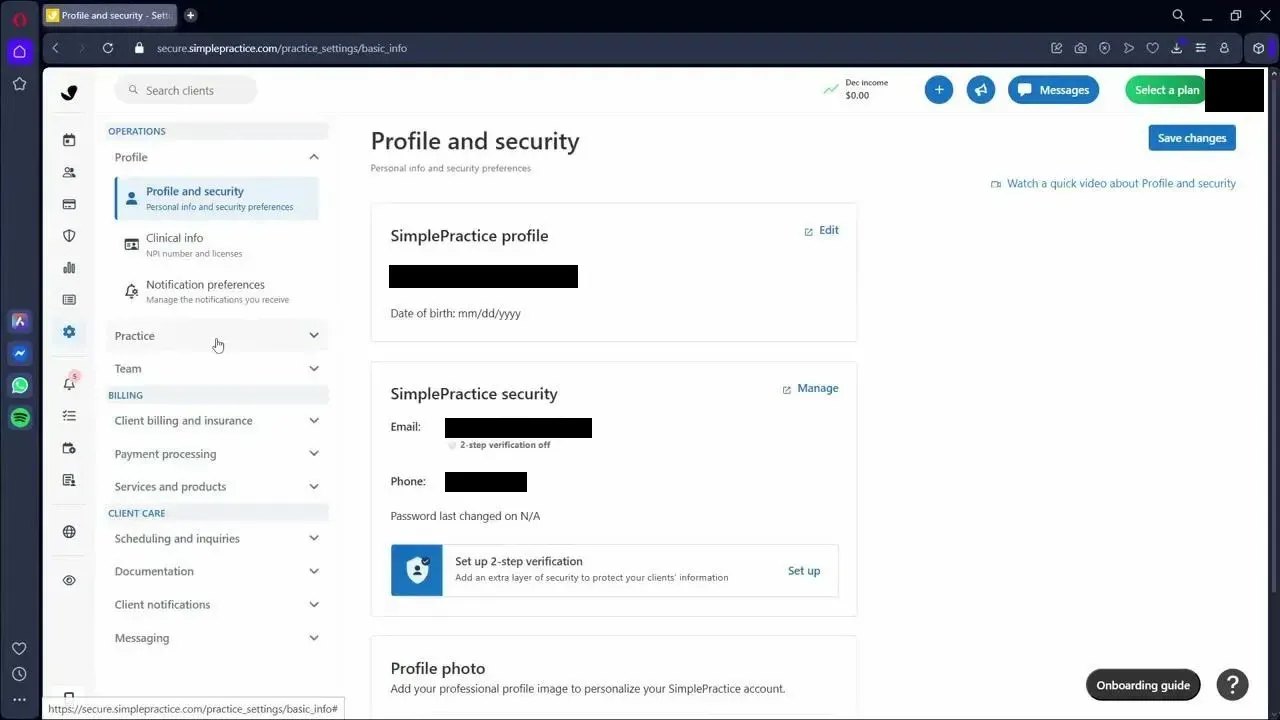
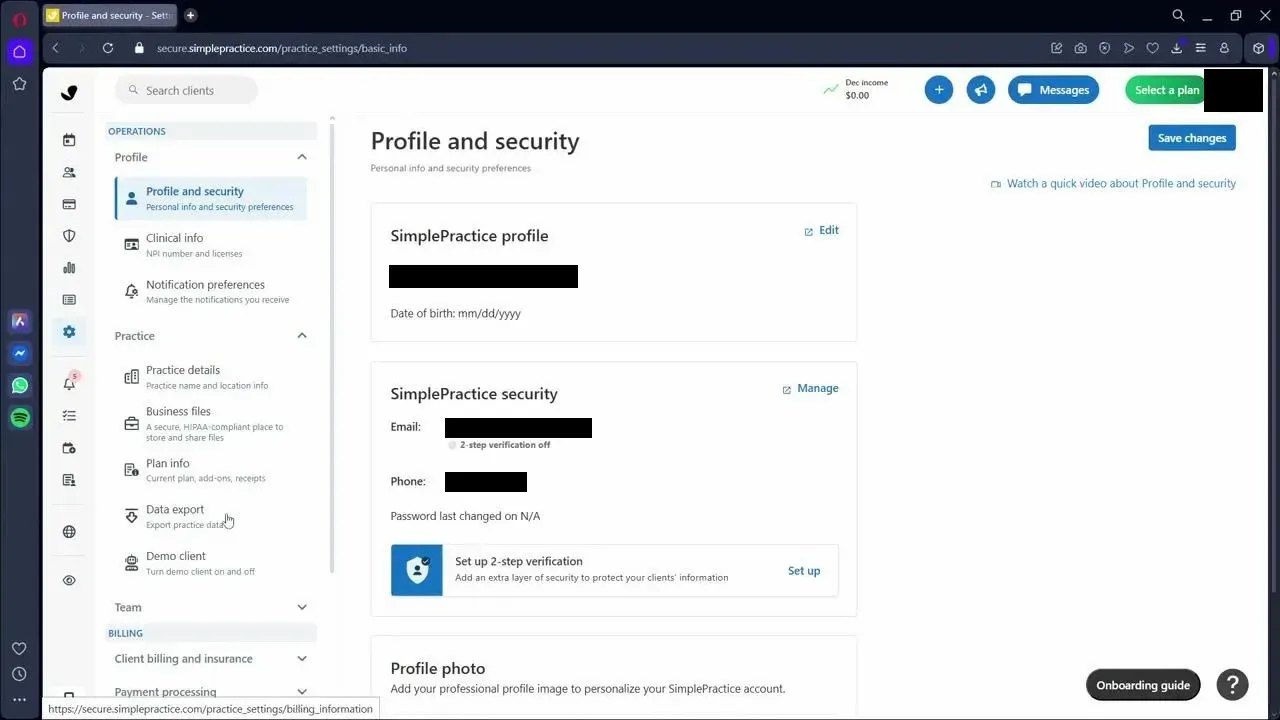
In the sidebar, click Settings. Under Settings, expand the Practice menu, then click Data export to access the export options.
Start a new client data export
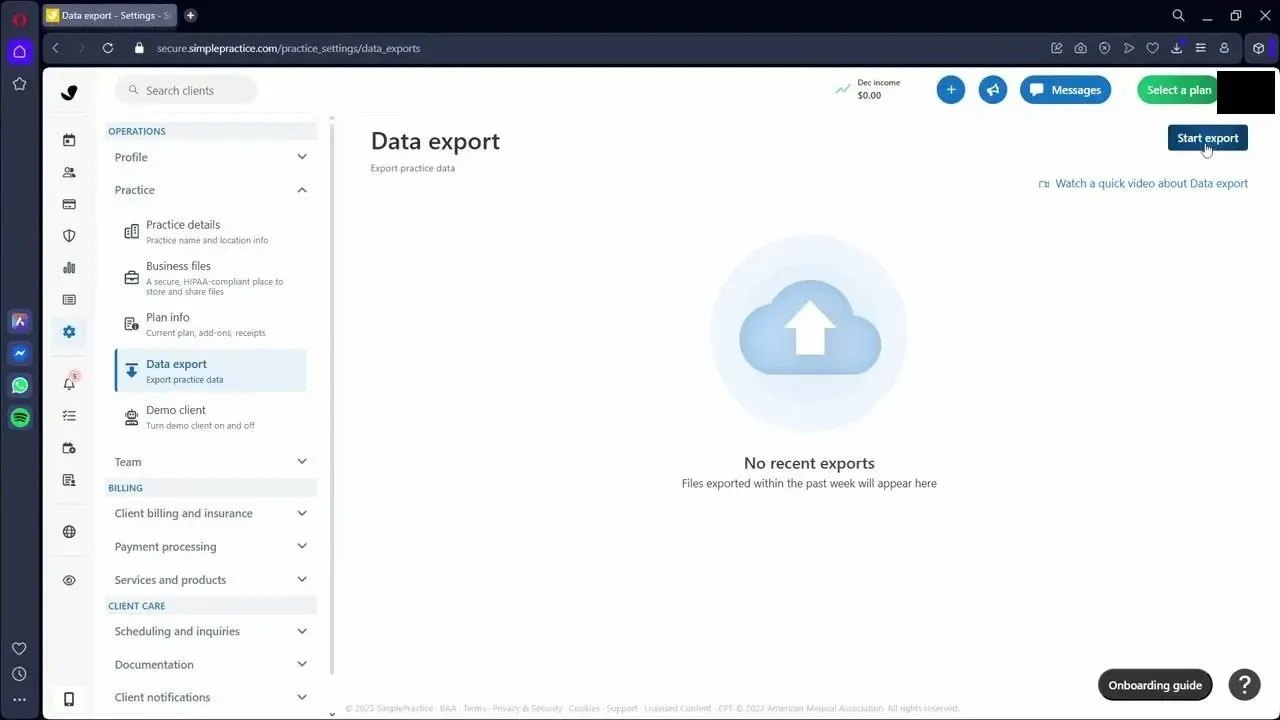
The Data export page appears. If you haven't exported data recently, it shows "No recent exports."
Click Start export in the upper right corner.
Choose whose data to export
The Export client data dialog box appears. Select the scope of your export:
- Click All clients in the practice to export data for every client.
- Click One client to export data for a specific individual.
If you choose One client, select the client from the dropdown list.
Select the type of export
In the next dialog, choose the type of data to export:
- Complete: Includes client contact information and all documentation. This covers contact details, billing documents, invoices, claims, superbills, clinical items, progress notes, therapy notes, charts, treatment plans, stored documents, secure messages, and more.
- Sessions: Includes only clinical documentation (notes, charts, and treatment plans) and omits contact information.
- Contacts: Includes only client contact information.
Make sure the Require a password to open file (recommended) box is checked for security.
Understand the export types and file formats
Use the Sessions option when you need to review clinical documentation without exposing personal contact data.
Use the Contacts option when you need only client contact information. This export generates a file in vCard (.vcf) format. You can import the .vcf file into address book applications for quick reference. It does not include any clinical or billing details.
Confirm your selections and start the export
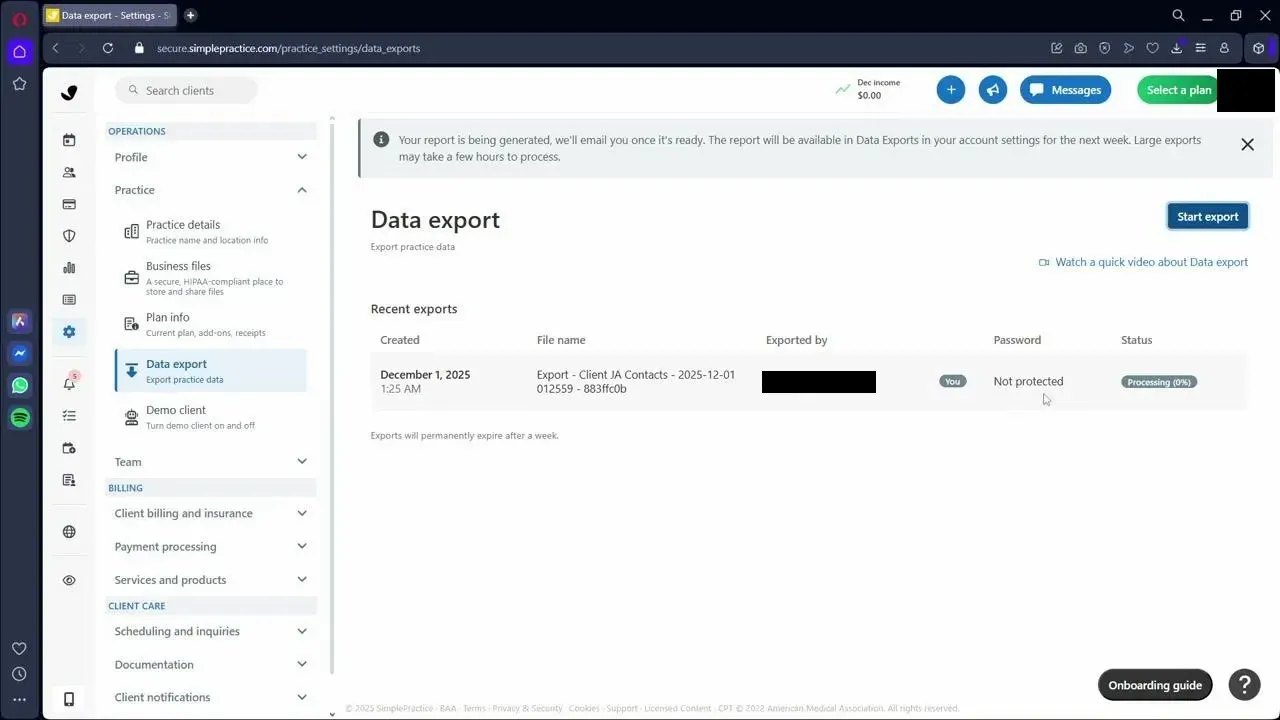
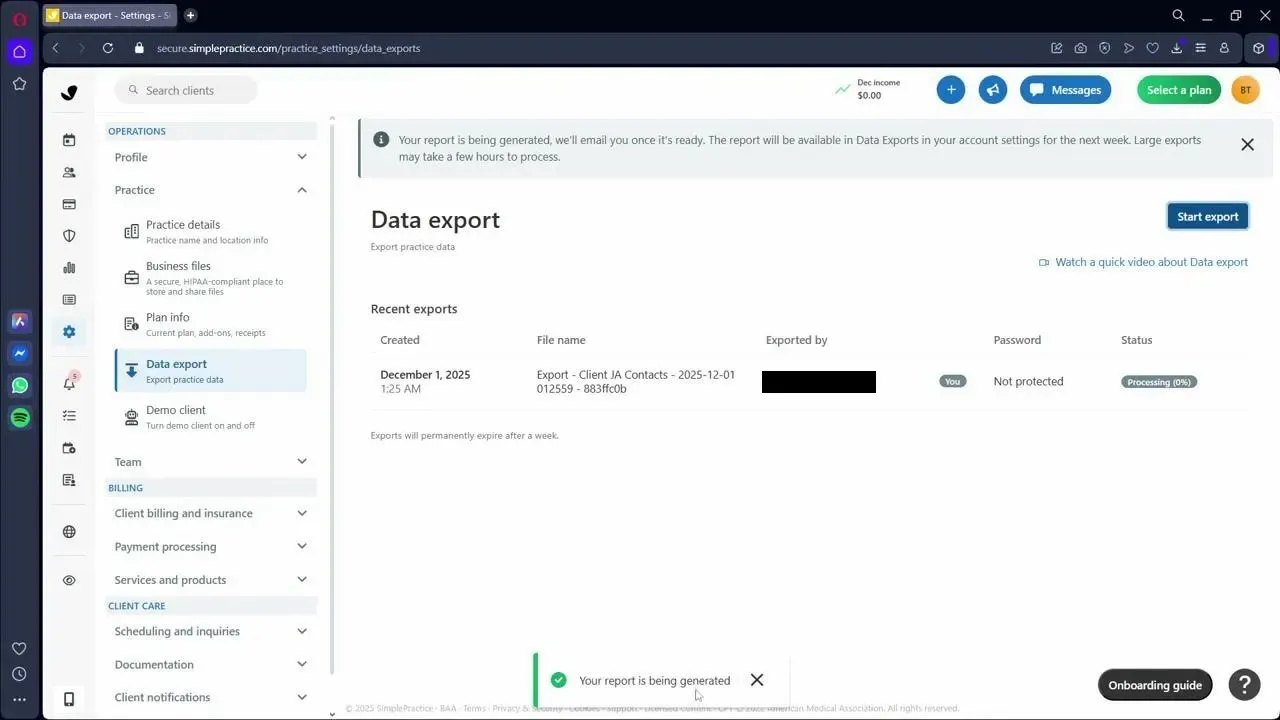
After you confirm both the scope (which clients) and the type (Complete, Sessions, or Contacts), click Export. The system begins processing your request.
Processing time varies. Small exports may finish in a few minutes, while large, practice-wide exports may take longer. You don't need to do anything while the export runs.
Download your export when it's ready
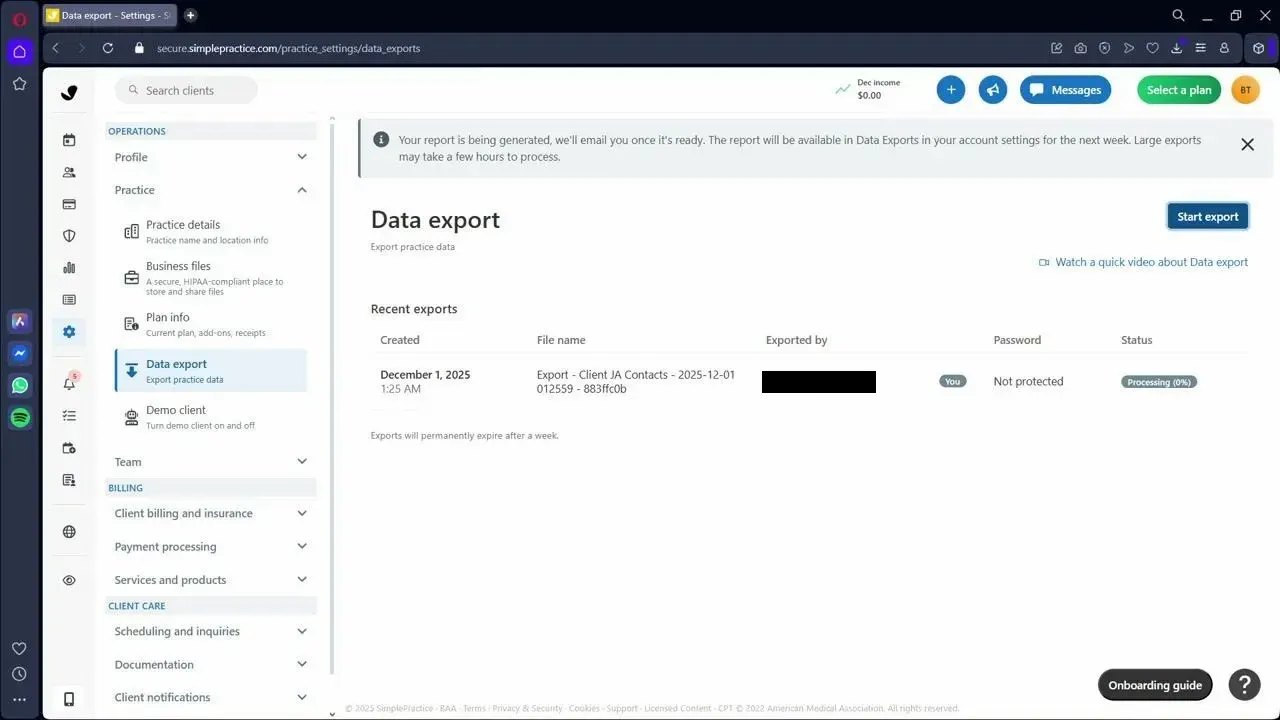
When the export finishes, you receive an email notification that your file is ready to download.
The export is available in the Data export section of your account settings for one week. It expires permanently after that, so download your file promptly.
Summary
You have now completed the full process to export client data from SimplePractice.
- Review your export needs before you start to keep the process efficient and your data secure.
- Choose the scope (all clients or one client) and the type (Complete, Sessions, or Contacts) that fit your needs.
- Keep the password requirement turned on for security.
- Download your export within a week of completion, because it expires after that.
Generation details: cost, quality tiers
Docsie billed 1,500 credits ($1.05) to analyze this 3-minute video at standard quality. The rewrite, template fill and Word/PDF exports were included. The same video at each quality tier:
| Quality | Frames sampled | Credits | Approx. cost |
|---|---|---|---|
| Draft | every 16-30 s | 750 | $0.52 |
| Standard (this guide) | every 8-15 s | 1,500 | $1.05 |
| Detailed | every 4-7 s | 3,000 | $2.10 |
| Ultra | every 1-3 s | 6,000 | $4.20 |
Credits priced at $0.70 per 1,000; plans include a monthly allowance. Enterprise customers on on-premise or bring-your-own-model deployments run this on their own inference and pay no per-video credits.
Generated by Docsie Video-to-Docs on 2026-11-25 from a 2-minute video. Screenshots are frames from the source video and belong to their creator, Shortcut Academy, whose original is embedded above. If you own this video and want the guide removed or credited differently, contact us and we will act within one business day.