
How to Delete a Client in SimplePractice
If you need to remove a client record, this guide shows you how to delete a client in SimplePractice permanently. Deleting a client removes the profile and all associated data from your account, so review the considerations below before you start.
Video: How to Delete a Client in SimplePractice [2026 Full Guide] by Shortcut Academy (2025). All credit for the demonstration goes to the creator; watch the original on YouTube. The written guide below was generated from this video by Docsie. Creator? Request a change or removal.
If you need to remove a client record, this guide shows you how to delete a client in SimplePractice permanently. Deleting a client removes the profile and all associated data from your account, so review the considerations below before you start.
Prerequisites
Before you delete a client, confirm the following:
- You understand that deleting a client is permanent and cannot be undone.
- You are authorized to delete the record.
- Deleting the record complies with your practice's data retention policies and any regulatory requirements.
Steps to delete a client in SimplePractice
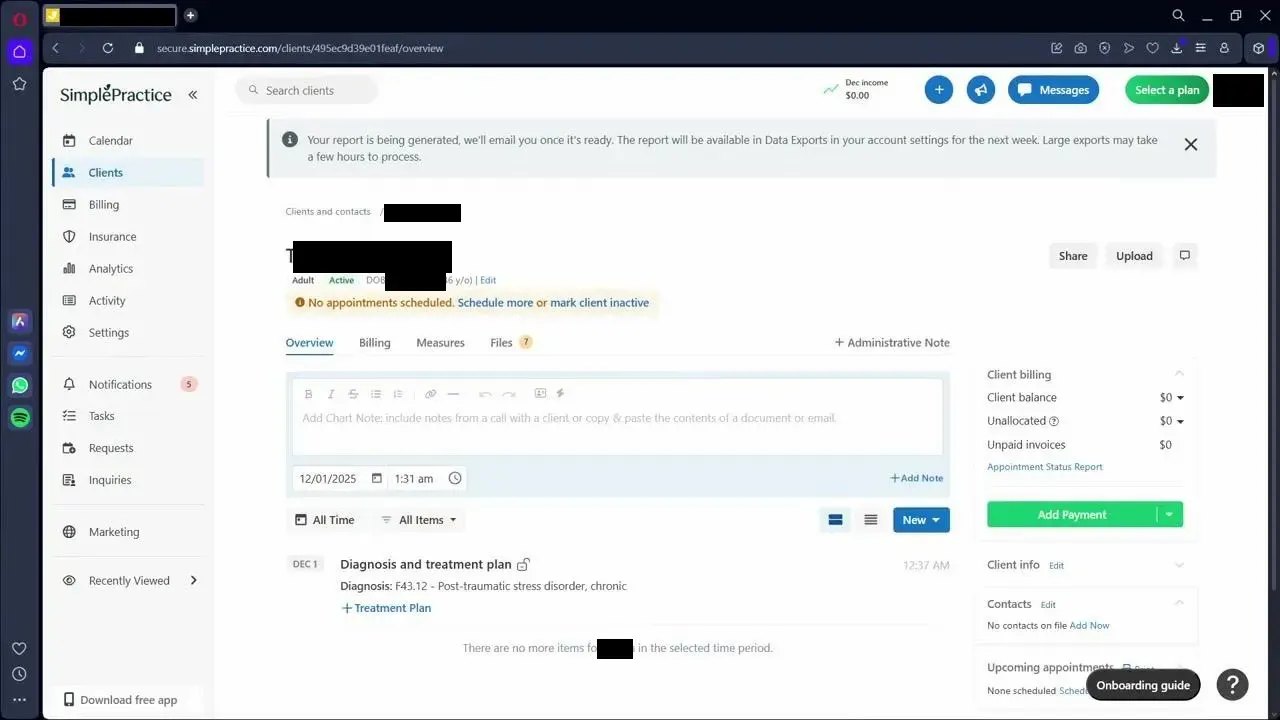
Open the client's overview page
- Go to the SimplePractice dashboard.
- Click the Clients tab in the left sidebar.
- Find the client you want to delete in the list and select the client.
Verify that you have the correct client
Check the client's name, date of birth, and other identifying details to make sure you have the right record. Every action that follows affects this specific client, so this check is critical.
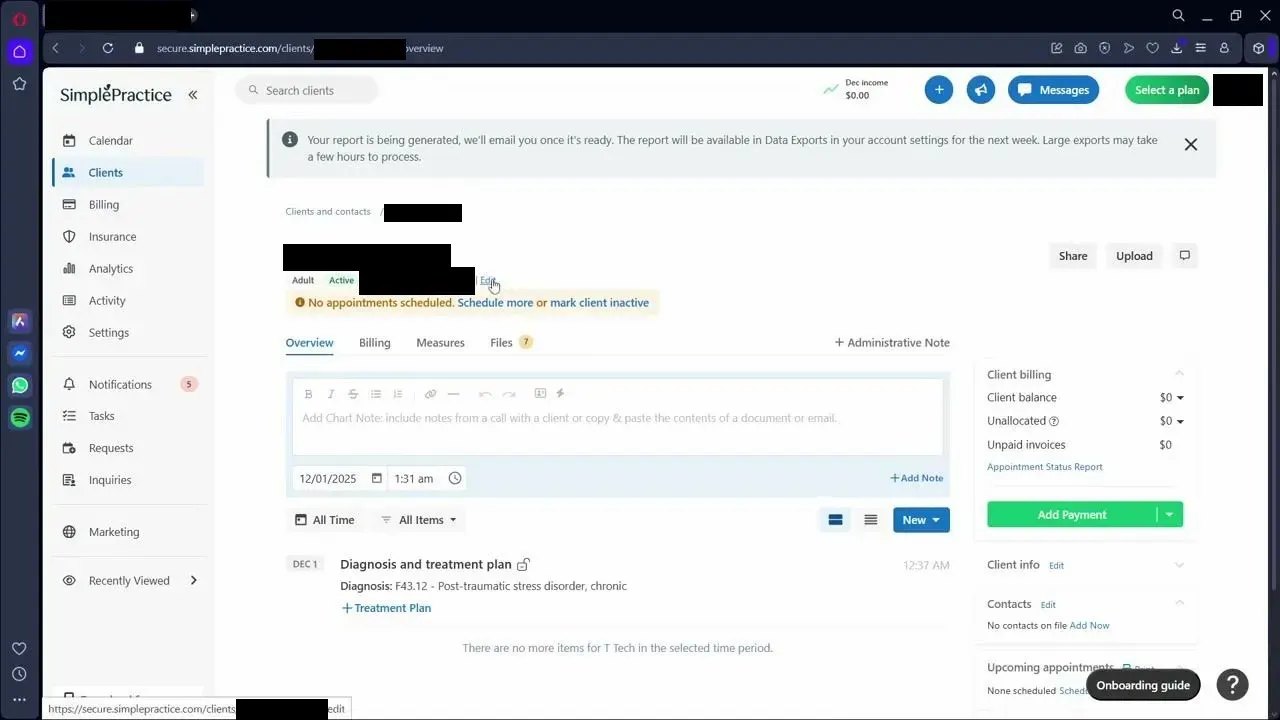
Enter Edit mode
- On the client's overview page, find the client's name at the top.
- Click the Edit link next to the name to switch the profile into Edit mode.
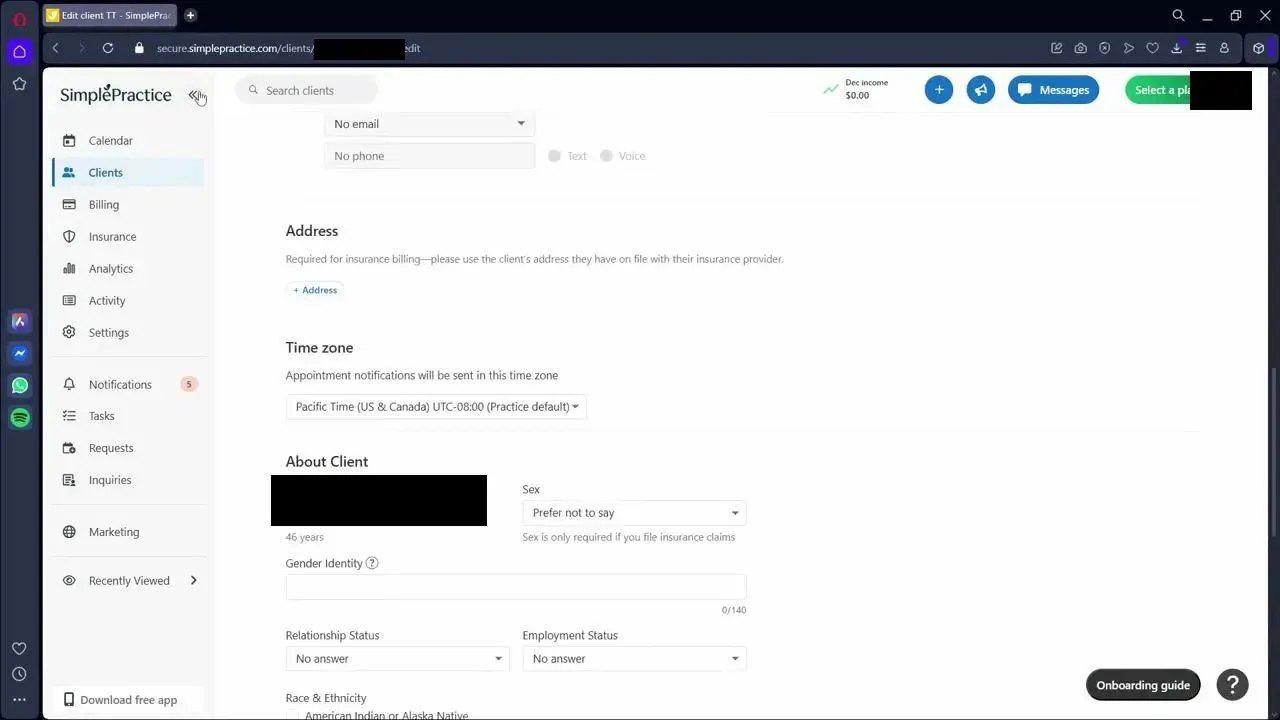
Scroll to the Delete this client button
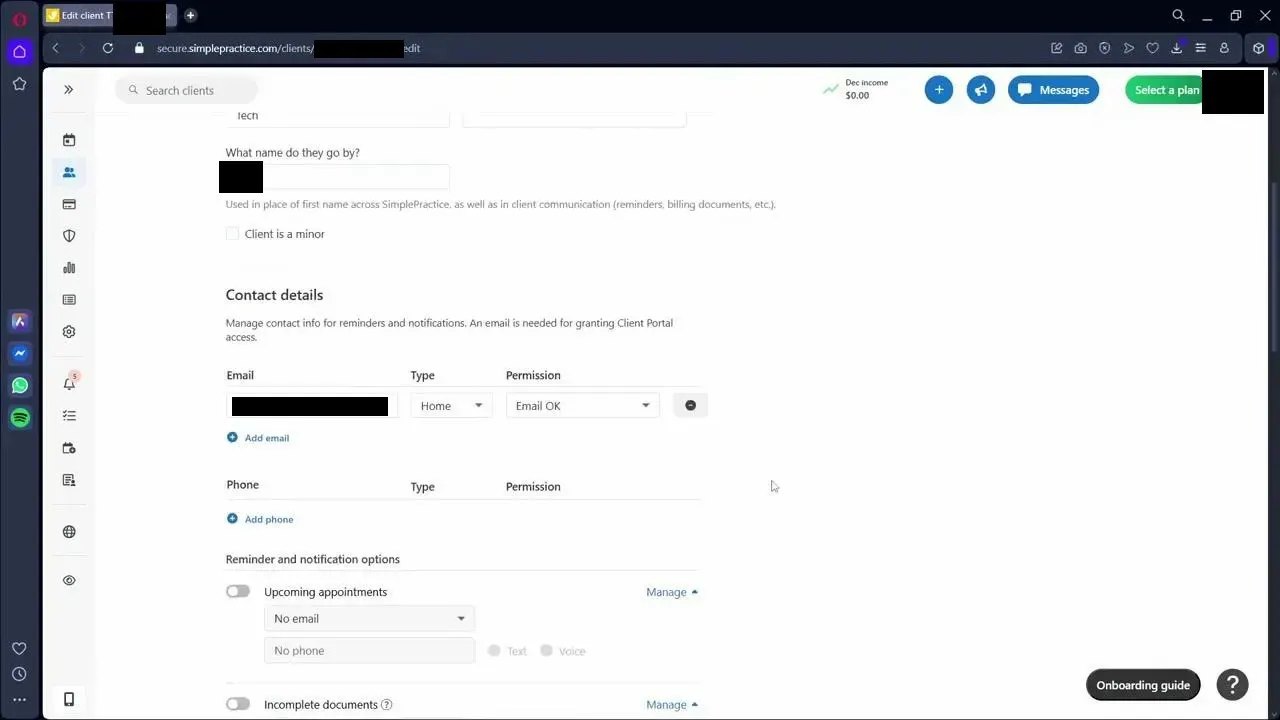
Scroll down through the client's editable information, such as address, time zone, and contact details. At the very bottom, find the red Delete this client button.
Start the deletion and read the warning
Click Delete this client. A confirmation window asks whether you are sure you want to delete the client.
The dialog warns that deleting an active client permanently removes all documentation and appointment history. If you want to keep the client's file instead, consider changing the client's status to Inactive.
Continue to delete
If you are certain you want to delete the client, click Continue to delete.
Type the client's name
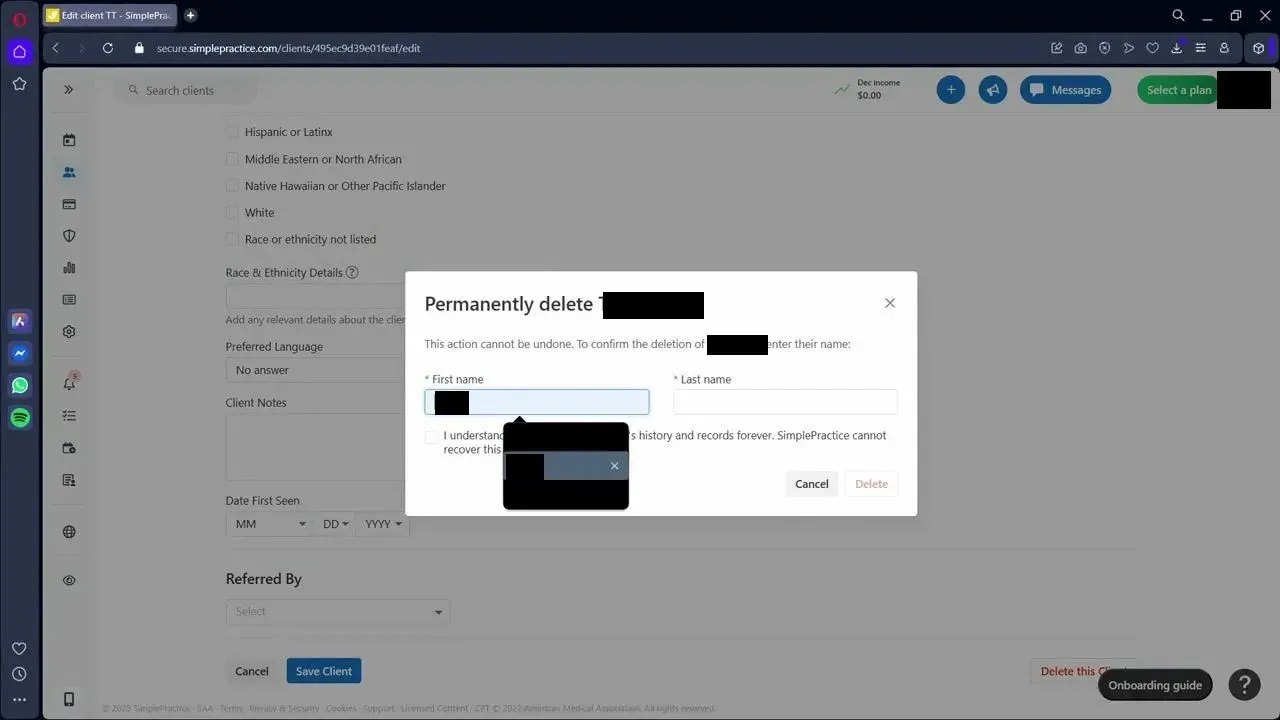
SimplePractice prompts you to type the client's first and last name exactly as displayed. Match the capitalization, spacing, punctuation, hyphens, accents, and middle initials. This step is case-sensitive, and the name must match precisely.
Acknowledge the permanent data loss
If prompted, check the box to acknowledge that deleting the client permanently removes all history and records. This includes all notes, documentation, billing information, and uploaded files associated with the client.
If you must retain certain records for compliance, pause here. Export or otherwise handle those records before you continue.
Finalize the deletion
After you enter the client's name and acknowledge the warning, click Delete or Permanently Delete Client to confirm. The system processes your request, which may take a moment.
When it finishes, the client profile and all associated data are permanently removed from your account. The client no longer appears in your client list.
Verify the deletion
Confirm that the client no longer appears in your client list. If the client still appears, refresh your browser and check for any error messages.
Final reminders
- This action cannot be undone. Double-check the client's identity and confirm any data retention requirements before you start.
- Use the Inactive status if you may need to retain records for compliance or future reference.
Summary
By following these steps, you make sure that only intentional deletions occur and that you stay compliant with your organization's data retention policies. You now know how to delete a client in SimplePractice safely and permanently.
What's next
- Review your practice's data retention policies before your next deletion.
- Change a client's status to Inactive when you want to keep their file instead of deleting it.
Generation details: cost, quality tiers
Docsie billed 1,500 credits ($1.05) to analyze this 3-minute video at standard quality. The rewrite, template fill and Word/PDF exports were included. The same video at each quality tier:
| Quality | Frames sampled | Credits | Approx. cost |
|---|---|---|---|
| Draft | every 16-30 s | 750 | $0.52 |
| Standard (this guide) | every 8-15 s | 1,500 | $1.05 |
| Detailed | every 4-7 s | 3,000 | $2.10 |
| Ultra | every 1-3 s | 6,000 | $4.20 |
Credits priced at $0.70 per 1,000; plans include a monthly allowance. Enterprise customers on on-premise or bring-your-own-model deployments run this on their own inference and pay no per-video credits.
Generated by Docsie Video-to-Docs on 2026-11-24 from a 2-minute video. Screenshots are frames from the source video and belong to their creator, Shortcut Academy, whose original is embedded above. If you own this video and want the guide removed or credited differently, contact us and we will act within one business day.