
How to Create a Superbill in SimplePractice
If a client needs documentation to submit for insurance reimbursement, you can create a superbill directly from their profile in SimplePractice. This guide walks you through locating the client, reviewing billing details, generating the superbill, and sharing it with your client.
Video: How to Generate a Superbill in SimplePractice [2026 Full Guide] by Shortcut Academy (2025). All credit for the demonstration goes to the creator; watch the original on YouTube. The written guide below was generated from this video by Docsie. Creator? Request a change or removal.
If a client needs documentation to submit for insurance reimbursement, you can create a superbill directly from their profile in SimplePractice. This guide walks you through locating the client, reviewing billing details, generating the superbill, and sharing it with your client.
Prerequisites
- An active client profile in SimplePractice with recorded appointments and billing information.
- Session details (dates, service codes, and fees) that are accurate and up to date.
Navigate to the Clients section
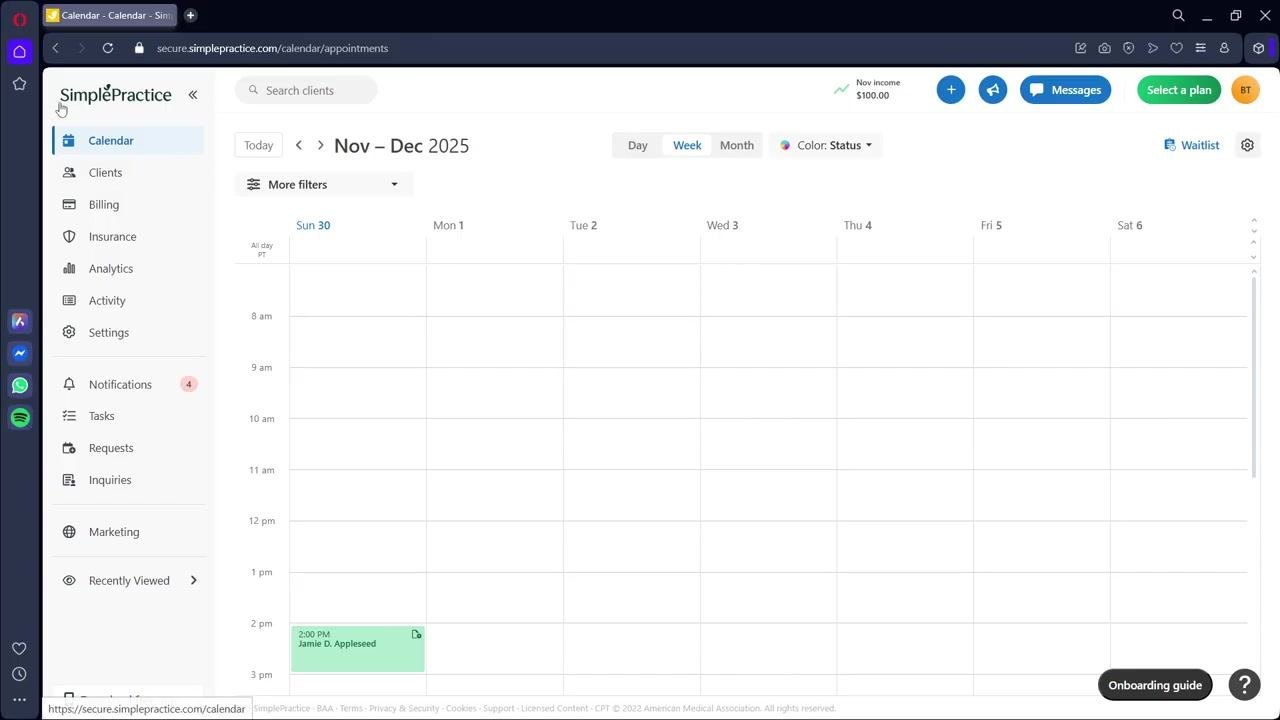
From the SimplePractice dashboard, locate the left sidebar. Click Clients to access your client list.
Open the client's profile
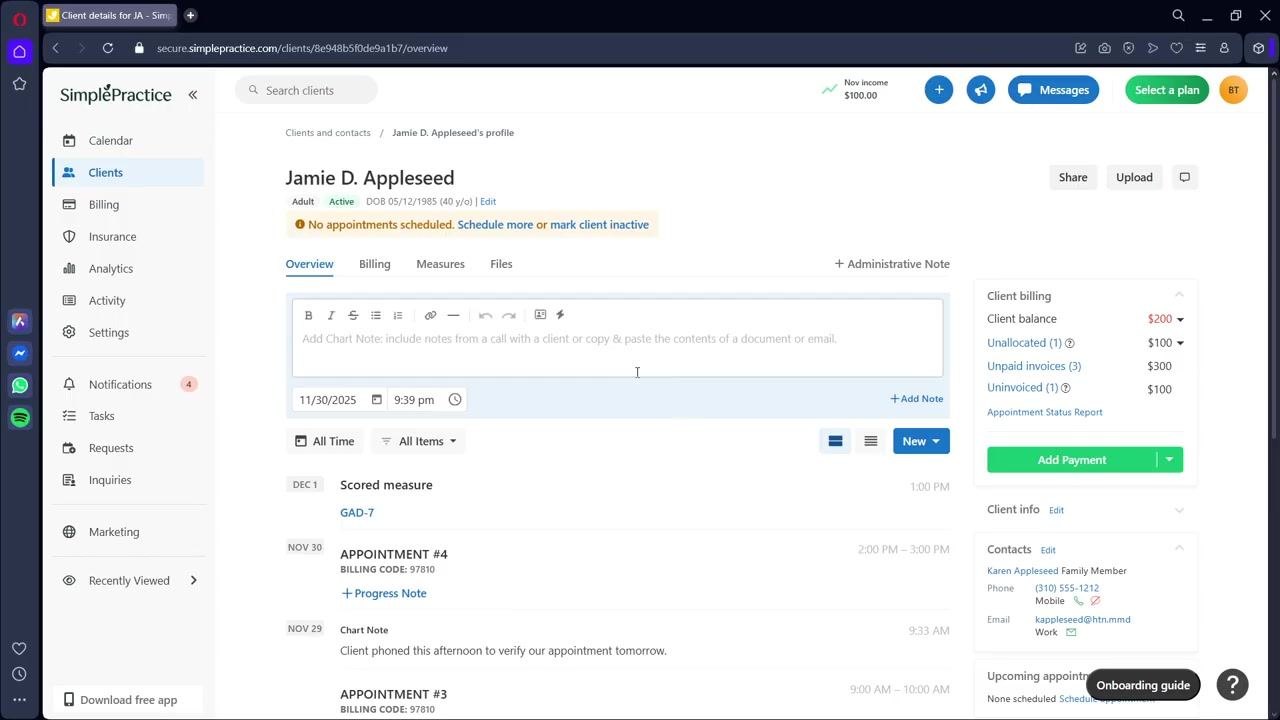
In the Clients section, find and select the client for whom you want to create a superbill. Cross-check basic details such as the client's initials, contact information, or recent appointment history to confirm you have the correct profile.
Access the Billing tab
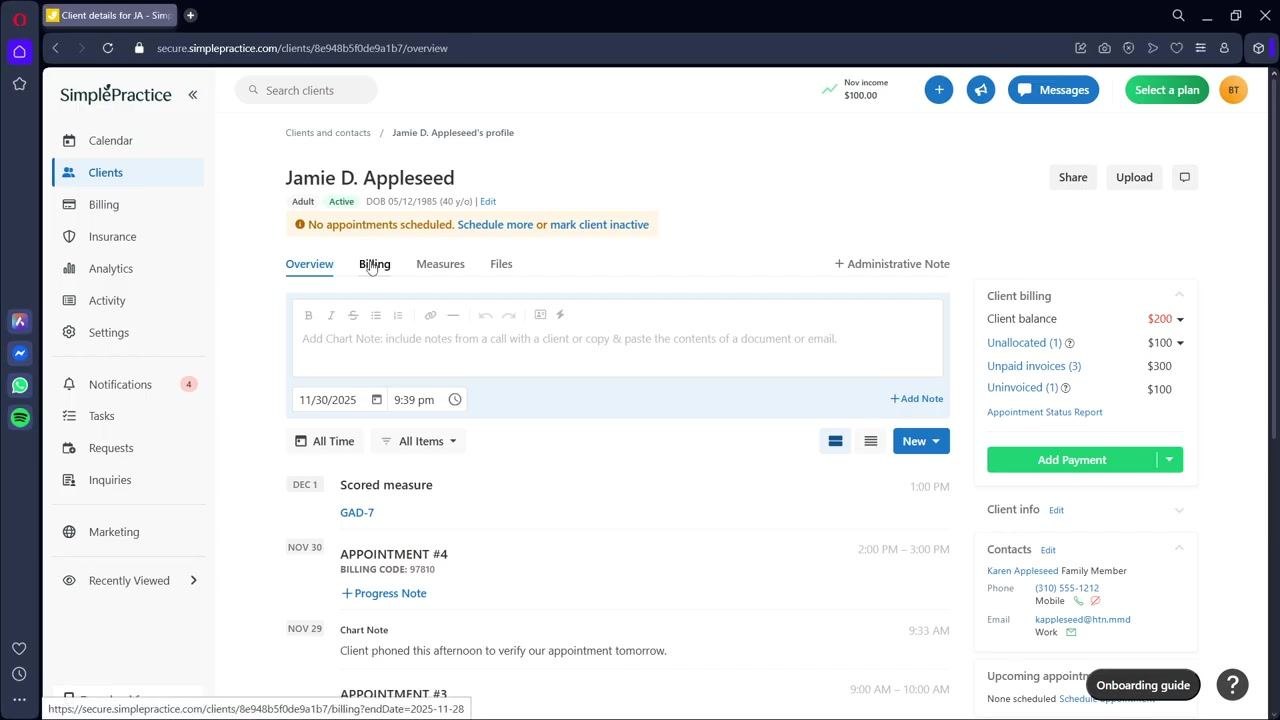
Once inside the client's profile, click the Billing tab at the top of the profile page. This tab displays all financial activity tied to the client, including appointments, invoices, and payments.
Review the list of sessions
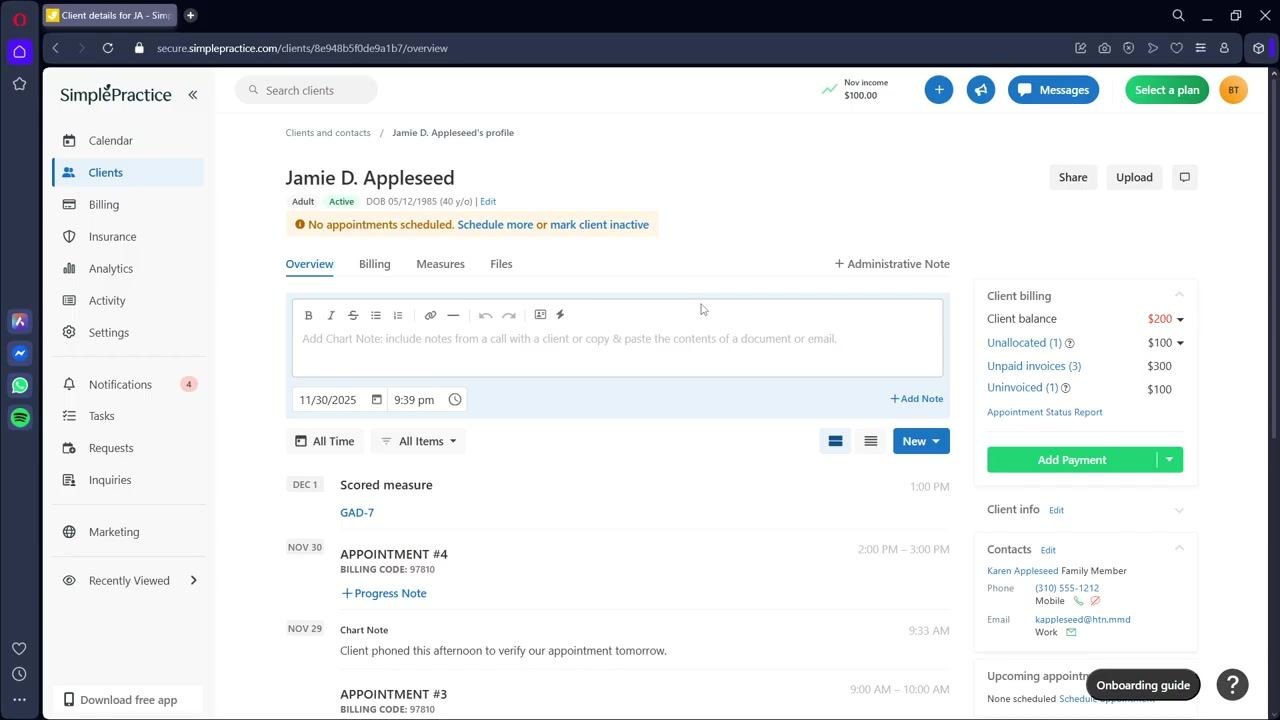
In the Billing tab, review the list of sessions and their dates, since this information is required for the superbill. Confirm the session list matches the services you intend to include.
Select the date(s) of service
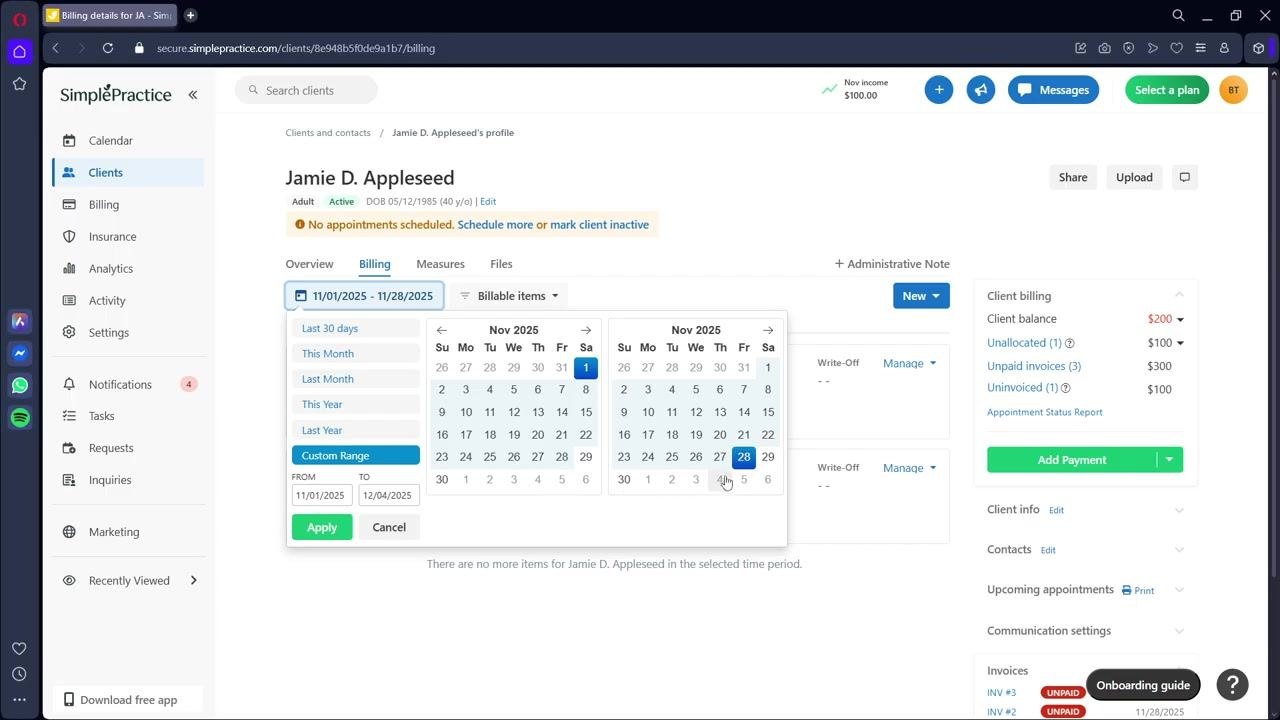
Choose the date or range of dates for the sessions you want to include in the superbill. Use the date picker to select a custom range if needed, making sure it accurately reflects the services provided within the same time period.
Verify appointment status and fees
Double-check that the status of each appointment is accurate, such as completed or canceled. Confirm that the session fees are correct before proceeding.
Create the superbill
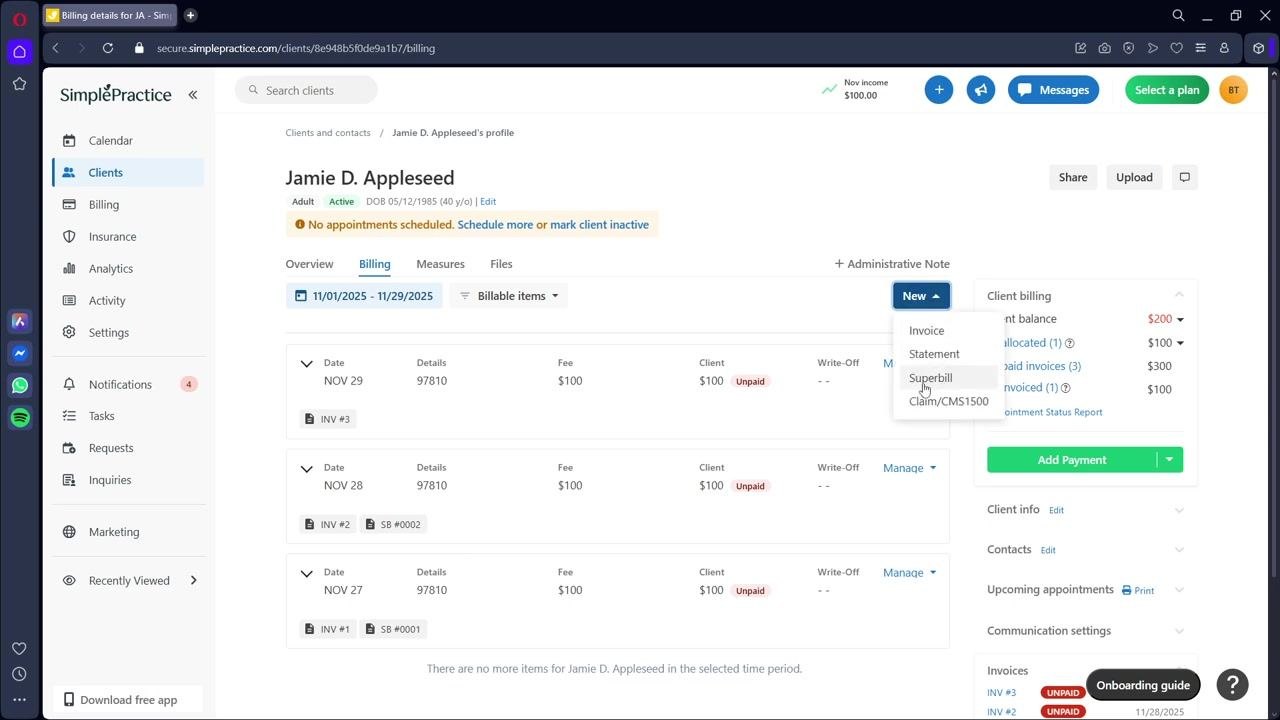
At the top right of the Billing tab, click the New button, then select Superbill from the dropdown menu. This opens the Superbill Builder for the sessions you selected.
Thoroughly review the superbill before finalizing
Before completing the superbill, check the following details carefully:
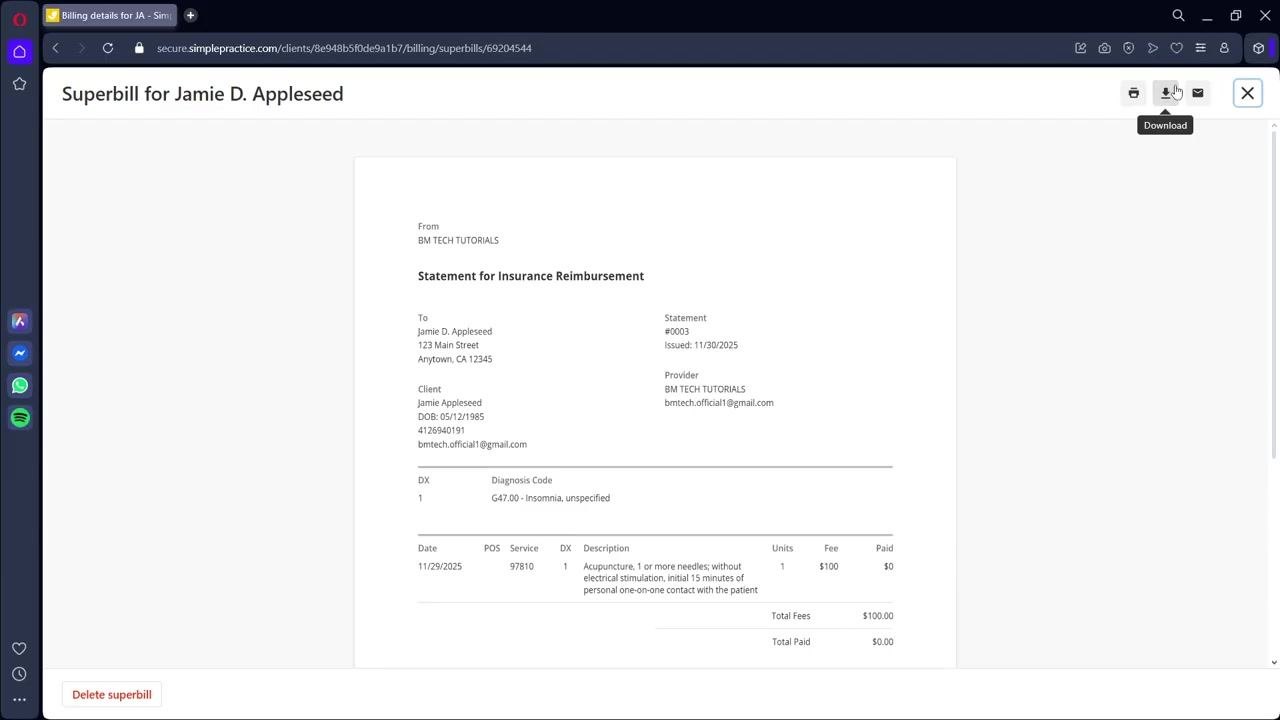
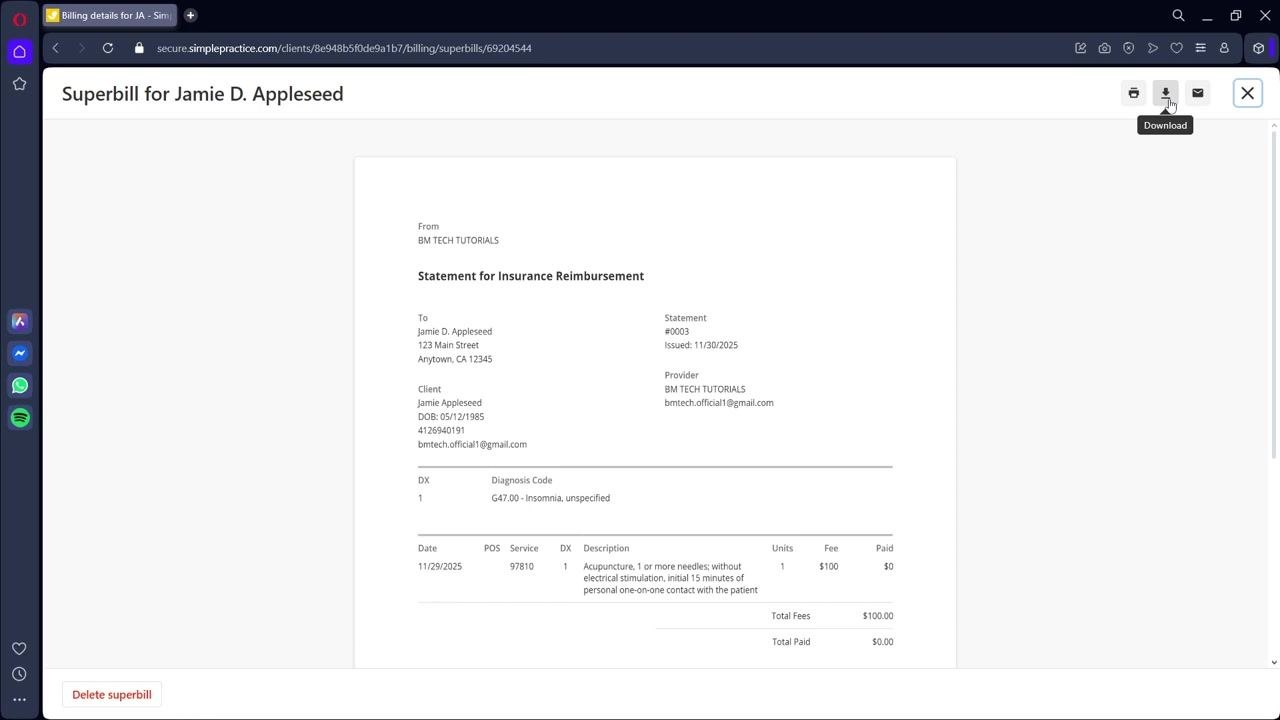
- The CPT code matches the service performed. For example, confirm that "97810" corresponds to "Acupuncture, 1 or more needles; without electrical stimulation, initial 15 minutes of personal one-on-one contact with the patient."
- The diagnosis code (for example, "G47.00 – Insomnia, unspecified") is accurate and aligns with your clinical documentation.
- The session fee (for example, $100) is correct and current.
- All required information is present and spelled correctly, including client name, provider details, and service descriptions.
Address any inconsistencies before proceeding, since small errors can lead to claim denials or additional back-and-forth for your client.
Finalize the superbill
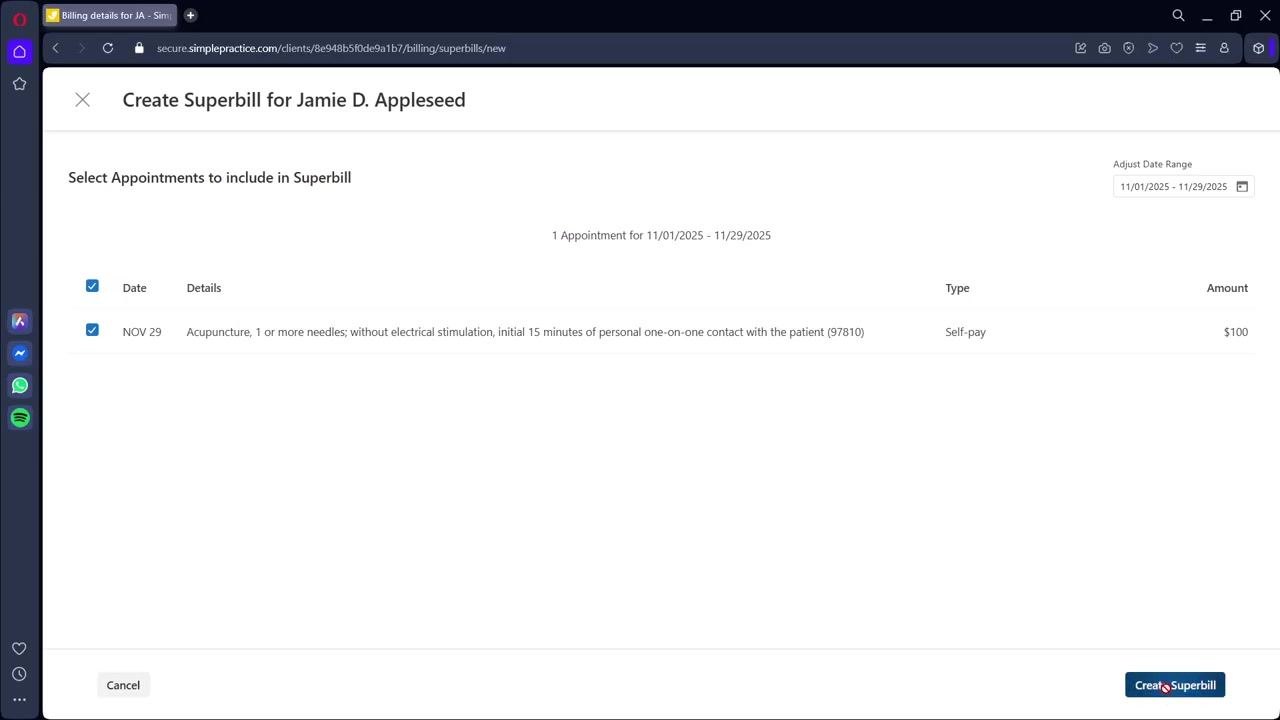
Once all details are verified and accurate, click the Create Superbill button at the bottom right of the screen. SimplePractice generates a finalized superbill document based on your selections and the information in the client's record.
Download the superbill
Once the superbill is generated, locate the download icon (downward arrow) at the top right of the superbill preview screen. Click Download to save the superbill as a PDF.
Save the file in a secure location using a clear, descriptive file name, such as "SB_0003_JamieAppleseed_2025-11-29.pdf," so it is easy to find later.
Provide the superbill to your client
After downloading, provide the superbill to your client for their records or for submission to their insurer. Follow your practice's policies and any applicable privacy requirements when sharing the document.
Summary
By following these steps, you can confidently generate, review, and distribute a clean, accurate superbill in SimplePractice whenever your clients need one.
Generation details: cost, quality tiers
Docsie billed 1,500 credits ($1.05) to analyze this 3-minute video at standard quality. The rewrite, template fill and Word/PDF exports were included. The same video at each quality tier:
| Quality | Frames sampled | Credits | Approx. cost |
|---|---|---|---|
| Draft | every 16-30 s | 750 | $0.52 |
| Standard (this guide) | every 8-15 s | 1,500 | $1.05 |
| Detailed | every 4-7 s | 3,000 | $2.10 |
| Ultra | every 1-3 s | 6,000 | $4.20 |
Credits priced at $0.70 per 1,000; plans include a monthly allowance. Enterprise customers on on-premise or bring-your-own-model deployments run this on their own inference and pay no per-video credits.
Generated by Docsie Video-to-Docs on 2026-10-11 from a 2-minute video. Screenshots are frames from the source video and belong to their creator, Shortcut Academy, whose original is embedded above. If you own this video and want the guide removed or credited differently, contact us and we will act within one business day.