
How to Set Up Bar Tabs in Square POS
Bar tabs preauthorization lets you secure a guest's card before you open a tab. This guide explains how to set up bar tabs in Square POS, from enabling preauthorization in your Square Dashboard to starting, managing, and closing a tab on the Point of Sale.
Video: Set Up Bar Tabs with Square by Square (2025). All credit for the demonstration goes to the creator; watch the original on YouTube. The written guide below was generated from this video by Docsie. Creator? Request a change or removal.
Bar tabs preauthorization lets you secure a guest's card before you open a tab. This guide explains how to set up bar tabs in Square POS, from enabling preauthorization in your Square Dashboard to starting, managing, and closing a tab on the Point of Sale.
Preauthorizing cards up front offers several benefits:
- Reduces walkouts by securing cards up front
- Speeds up service during peak hours
- Minimizes errors in tab management
- Creates a smoother guest experience
Prerequisites
- Access to your online Square Dashboard
- The Square Point of Sale (POS) app on your device
- A card reader for preauthorizing guest cards
- A list of the business locations you want to configure, because preauthorization is enabled at the location level and you can set it up differently for each one
Enable bar tabs preauthorization in the Square Dashboard
Step 1: Open Service Settings
- Go to your online Square Dashboard.
- Select Device Management from the main menu.
- In the left-hand menu, click Service Settings.
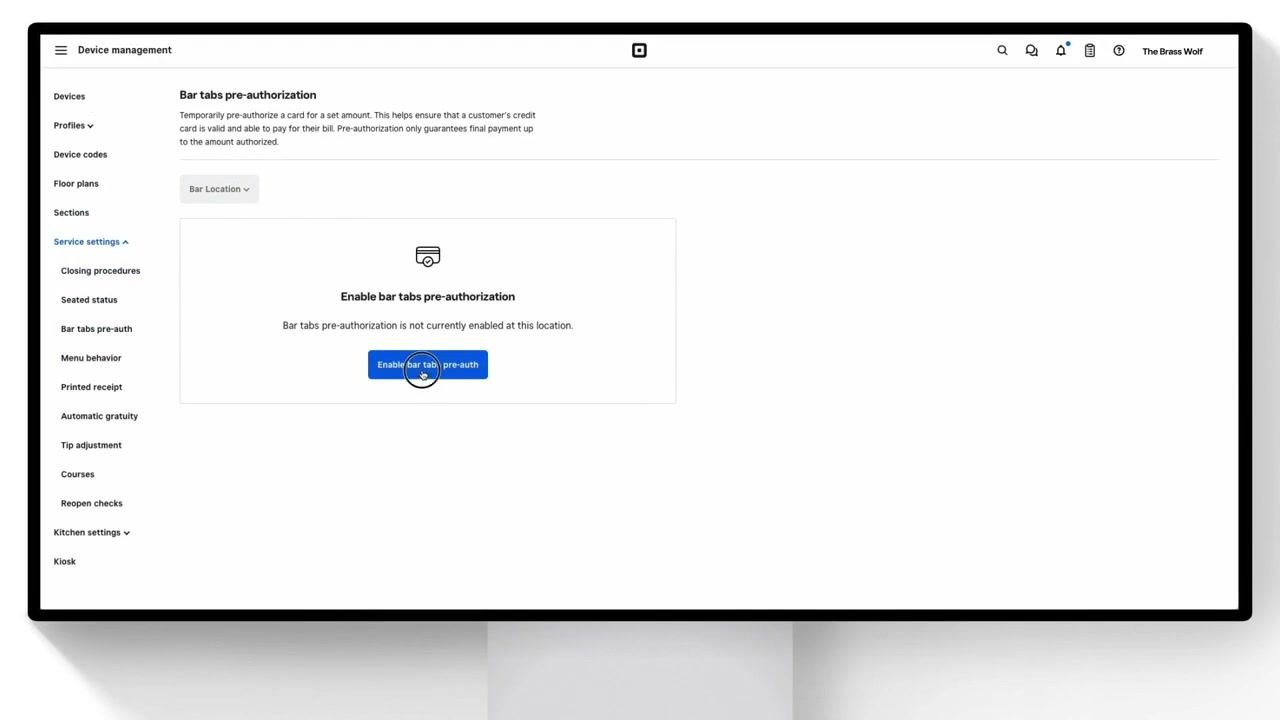
Step 2: Select Bar tabs pre-auth and choose a location
In Service Settings, click Bar tabs pre-auth. A drop-down menu lists all your locations. Select the location you want to configure.
Step 3: Enable bar tabs preauthorization
Click the blue Enable bar tabs pre-auth button.
Step 4: Set a minimum preauthorization amount
A dialog prompts you to set a minimum preauthorization amount. Enter the amount you want, for example $12.00. Square recommends an amount close to your average tab value, so standard orders are covered.
Click Enable to confirm.
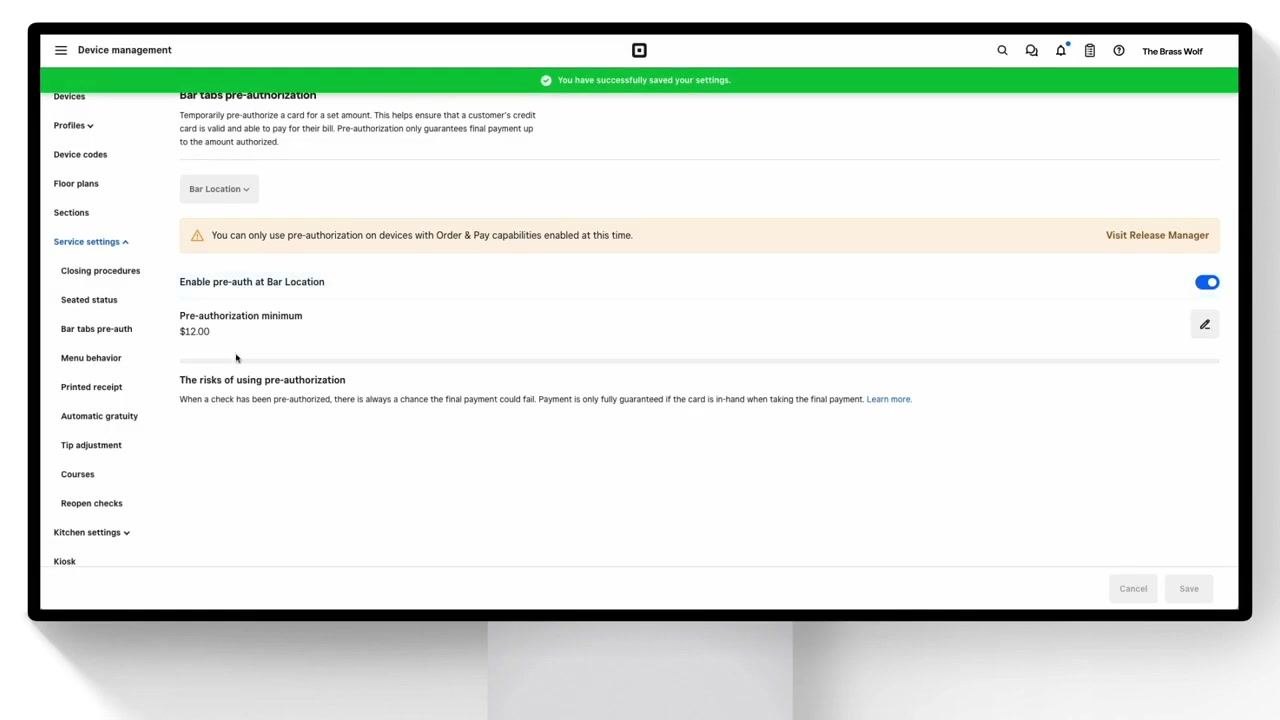
Step 5: Review your settings and the disclosed risks
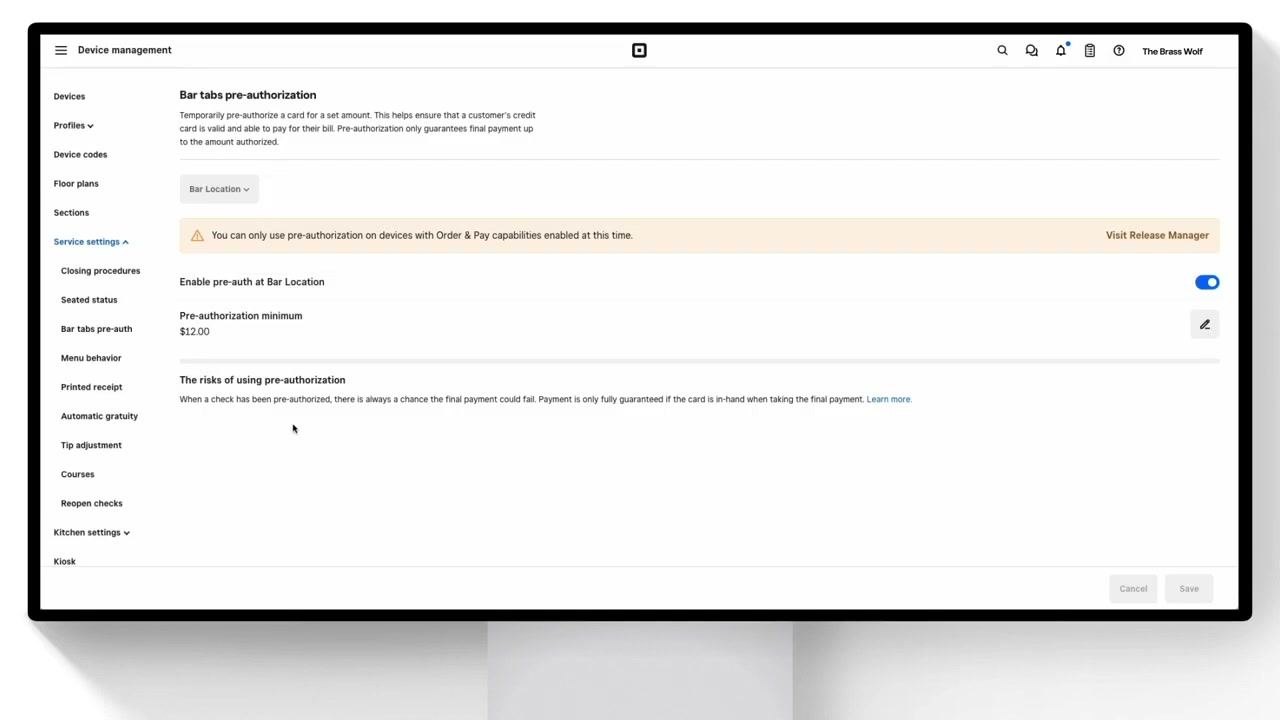
After you enable the feature, the page shows the details for that location. These include the preauthorization minimum (for example, $12.00) and the risks of using preauthorization.
To change the minimum, click the Edit (pencil) icon next to the amount, update the value, and save.
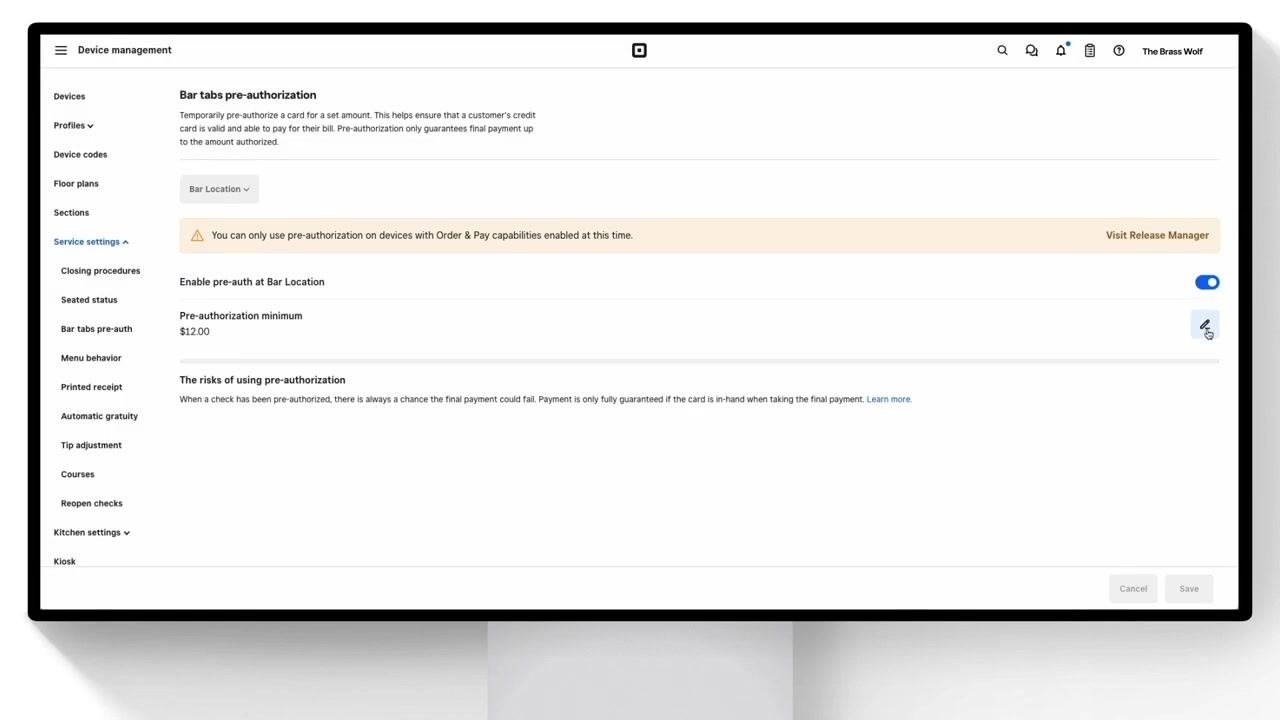
Read the risks listed below the settings:
- The final payment can still fail after preauthorization.
- The final payment is only fully guaranteed if the card is in hand when you take payment.
Step 6: Repeat for other locations
If your business has multiple locations, repeat steps 1 through 5 for each location.
Start a bar tab on the Point of Sale
Step 7: Begin a new sale
- Open the Square Point of Sale app on your device.
- Go to the Bar Menu screen.
- Make sure you are logged in as the correct user (for example, "Erin H" in the top left).
Step 8: Add items to the cart
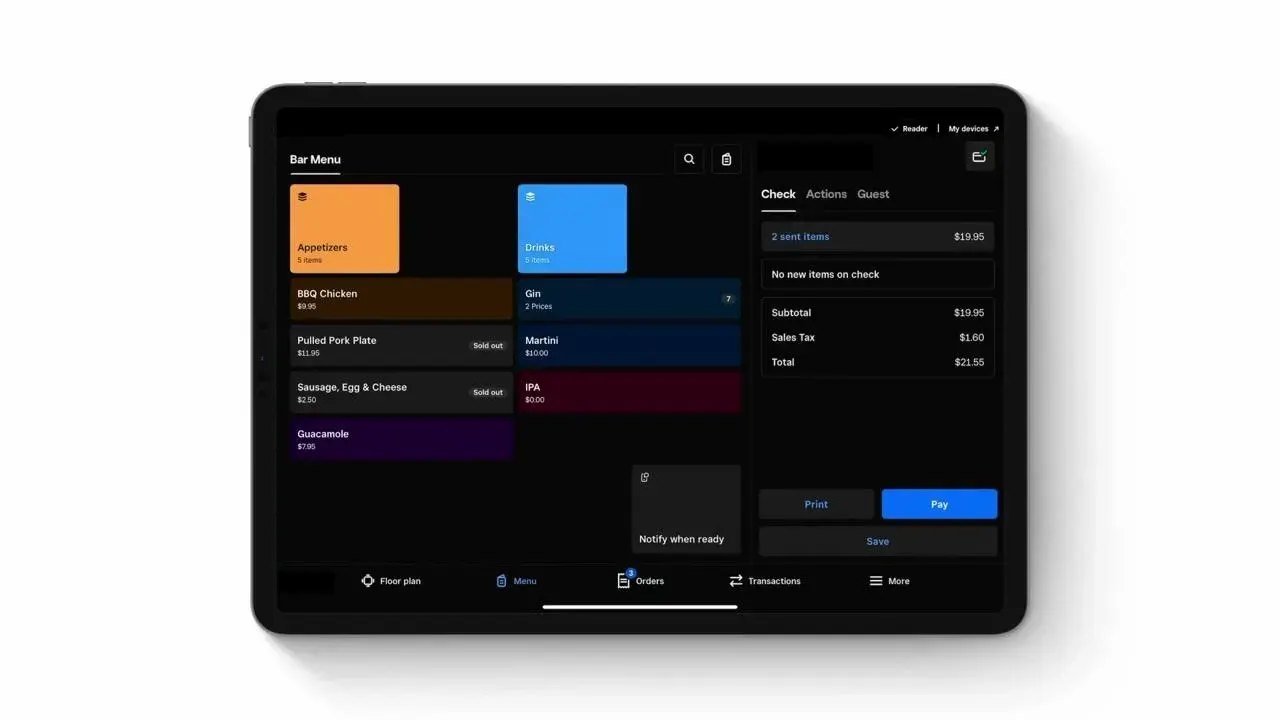
Select the items the guest wants. For example, tap Martini ($10.00) and BBQ Chicken ($9.95).
Confirm that the items appear in the New Sale panel with the subtotal, sales tax, and total calculated. In this example, the subtotal is $19.95, sales tax is $1.60, and the total is $21.55.
Step 9: Choose to start a tab
Ask the guest whether they want to pay now or start a tab. To start a tab, you have two options:
- While in the cart, dip, swipe, or tap the guest's card to start the tab.
- Tap the Pre-auth button in the top right corner of the cart area.
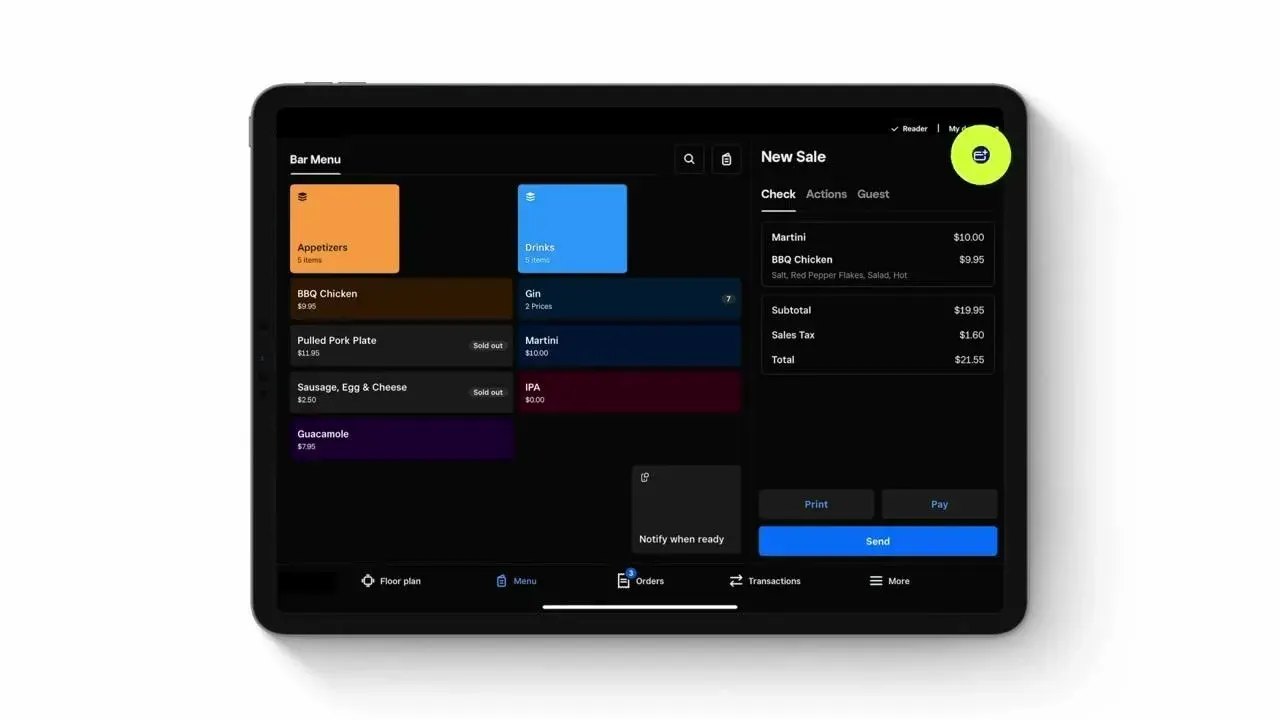
Step 10: Preauthorize the guest's card
The POS prompts you to preauthorize the card. Swipe, tap, or insert the card in the reader as instructed on the screen, then wait for the system to process the preauthorization.
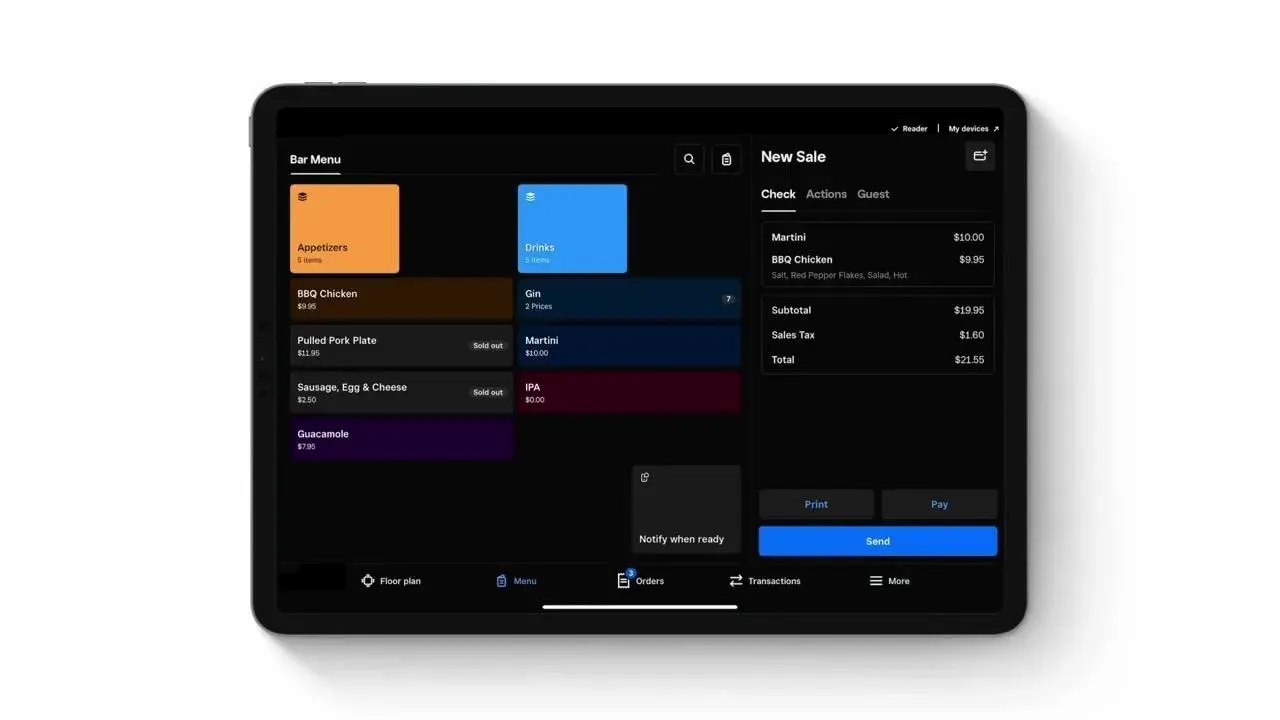
Step 11: Assign the tab to a check
After preauthorization, choose whether to assign the tab to a predefined check, such as "Bar 3" or "Bar 4". To create a custom check instead, tap Custom check.
Step 12: Enter the cardholder's information for a custom check
- In the Check name or swipe field, enter the cardholder's name in the format "Last name, First name" (for example, "Boozan, Hadley").
- Optionally, add a note. Customers can't see it.
- If you have sections set up (for example, "Bar"), select the right one. Otherwise, leave it as "None".
- Tap Save & send to finalize the check.
Review and manage open tabs
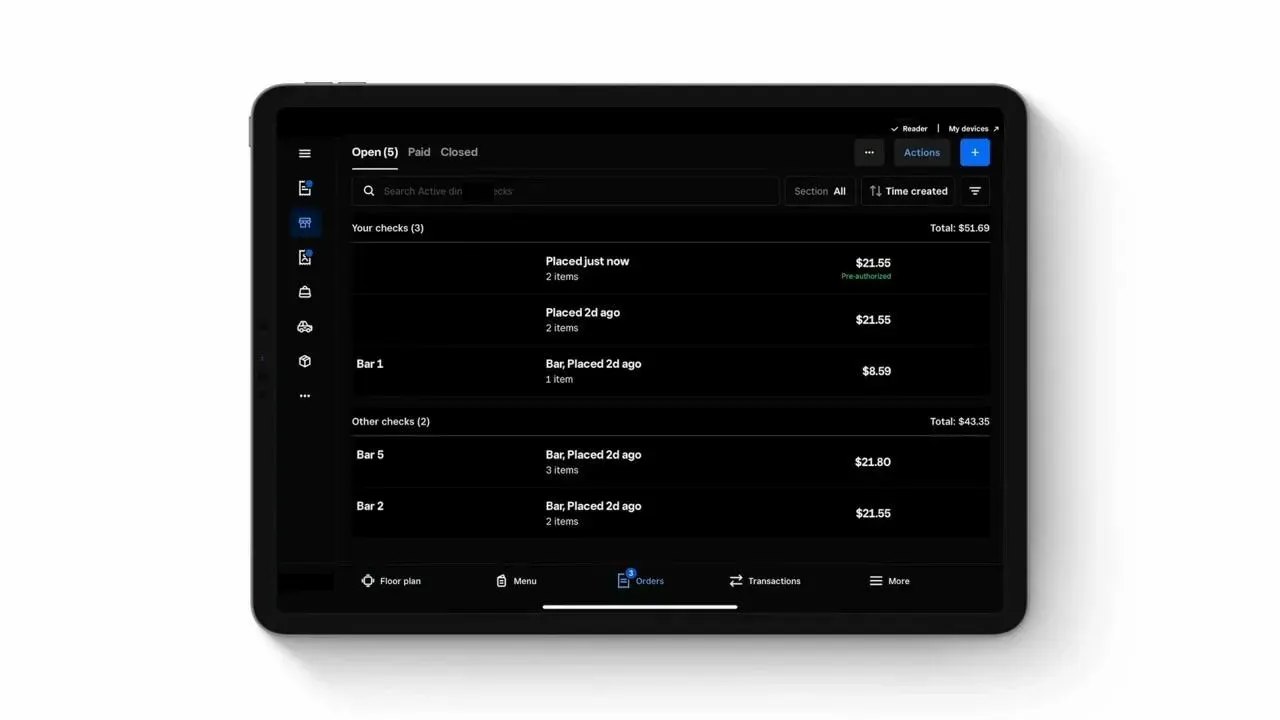
Step 13: Review open tabs in Order Manager
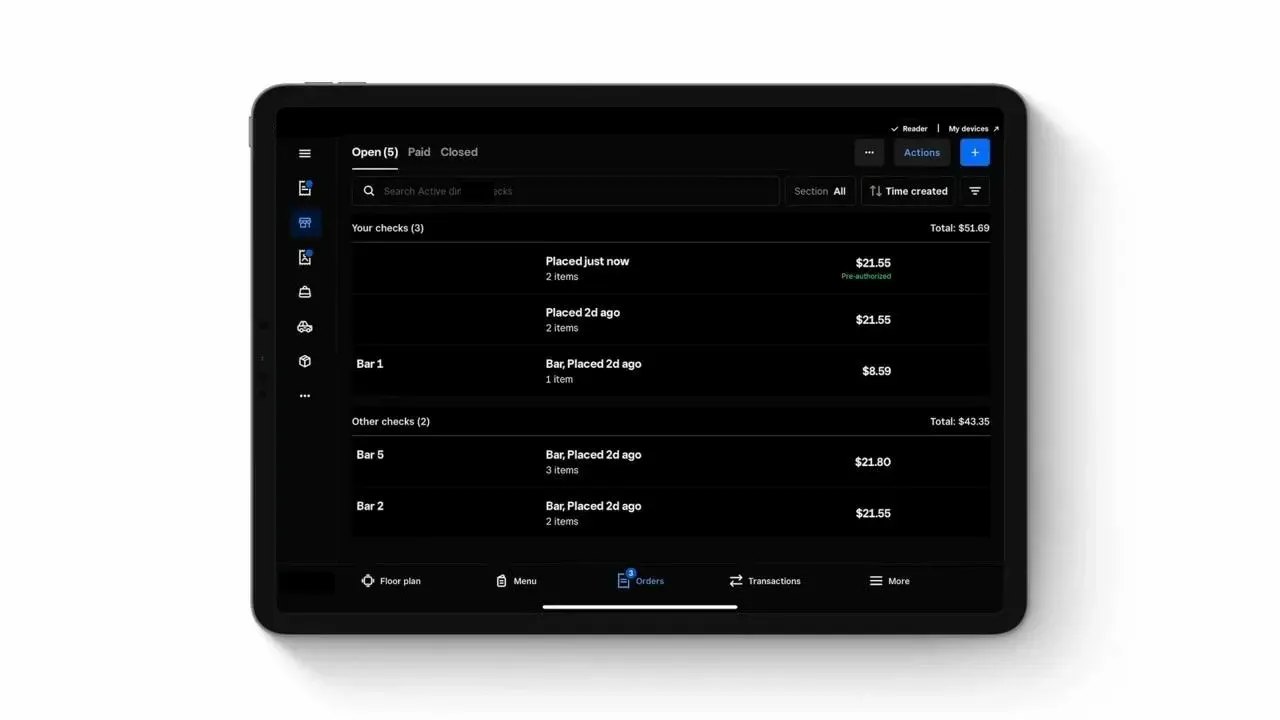
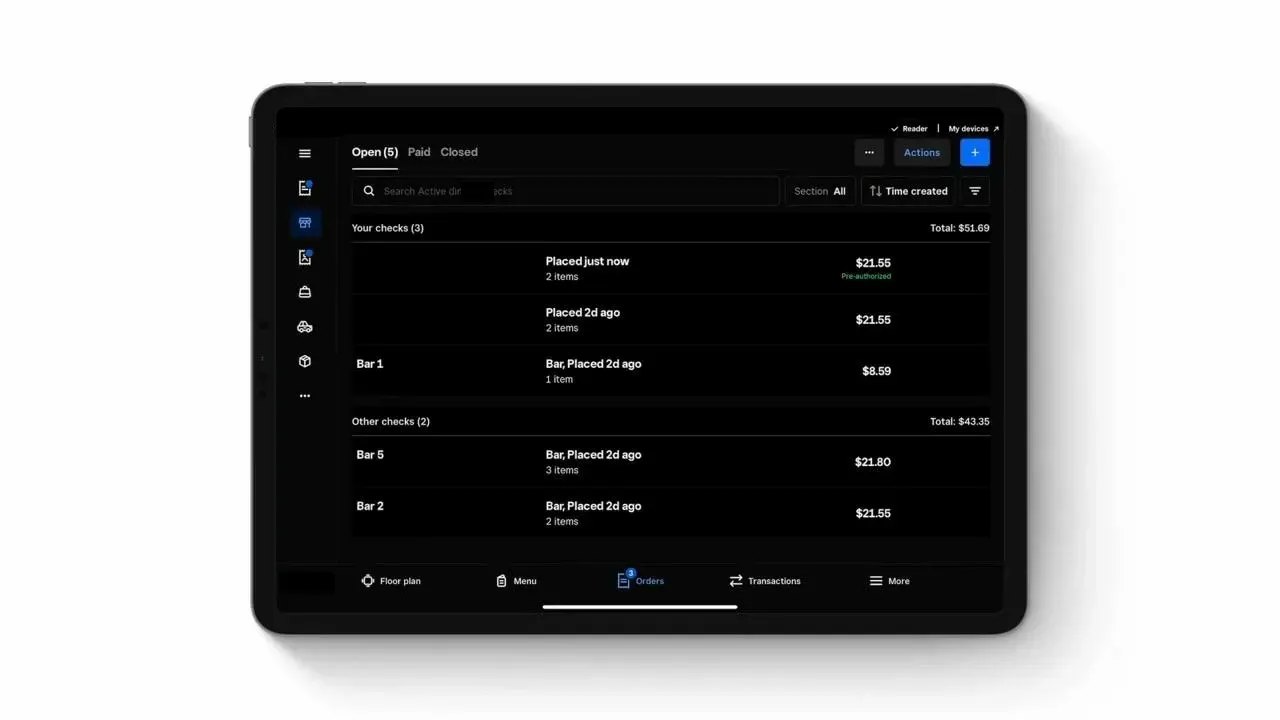
Go to the Orders section in the POS. Open tabs are listed by "Last name, First name" so you can identify them easily. Each tab shows:
- Who the check is assigned to (for example, "Erin Hills")
- When the check was last sent (for example, "Placed just now")
- The amount (for example, $21.55)
- The preauthorization status ("Pre-authorized" in green text)
You can use filters and views to manage open, paid, and closed checks.
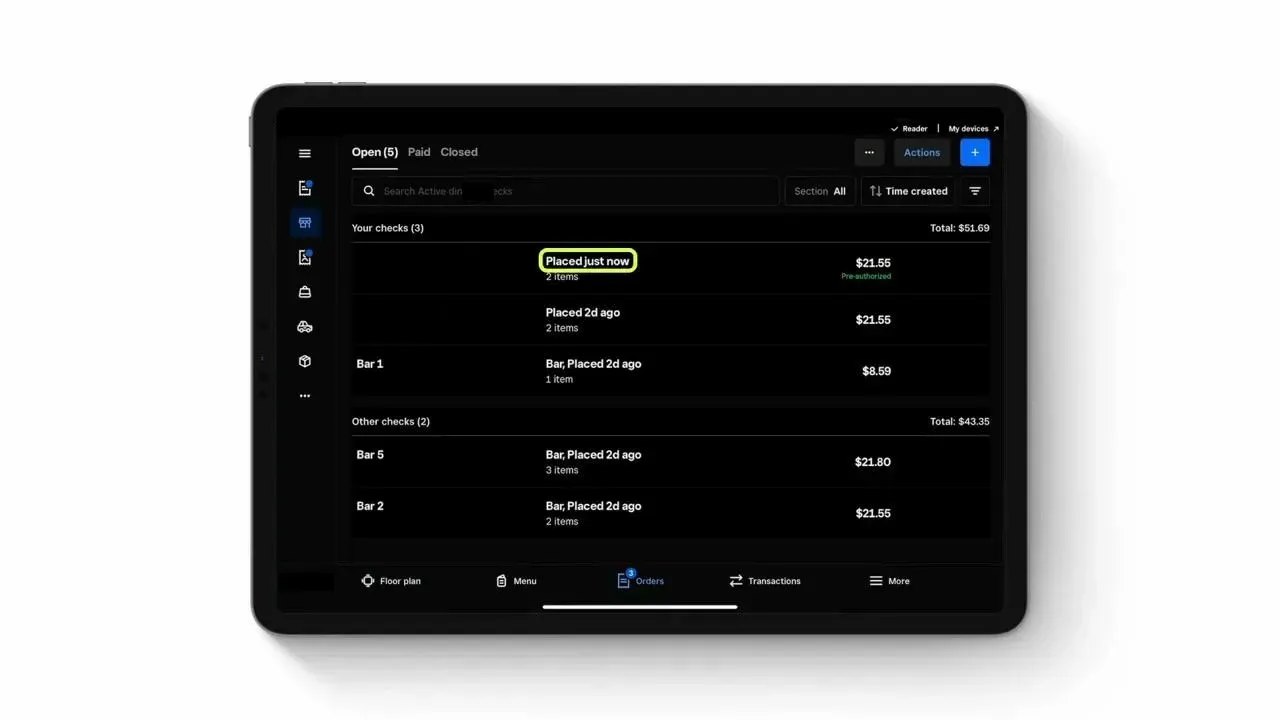
Step 14: Filter and manage orders
In the Orders section, you can:
- Filter checks by section (for example, "Bar" or "All")
- Sort orders using options such as "Time created"
- Select multiple checks and comp, void, or print them in bulk
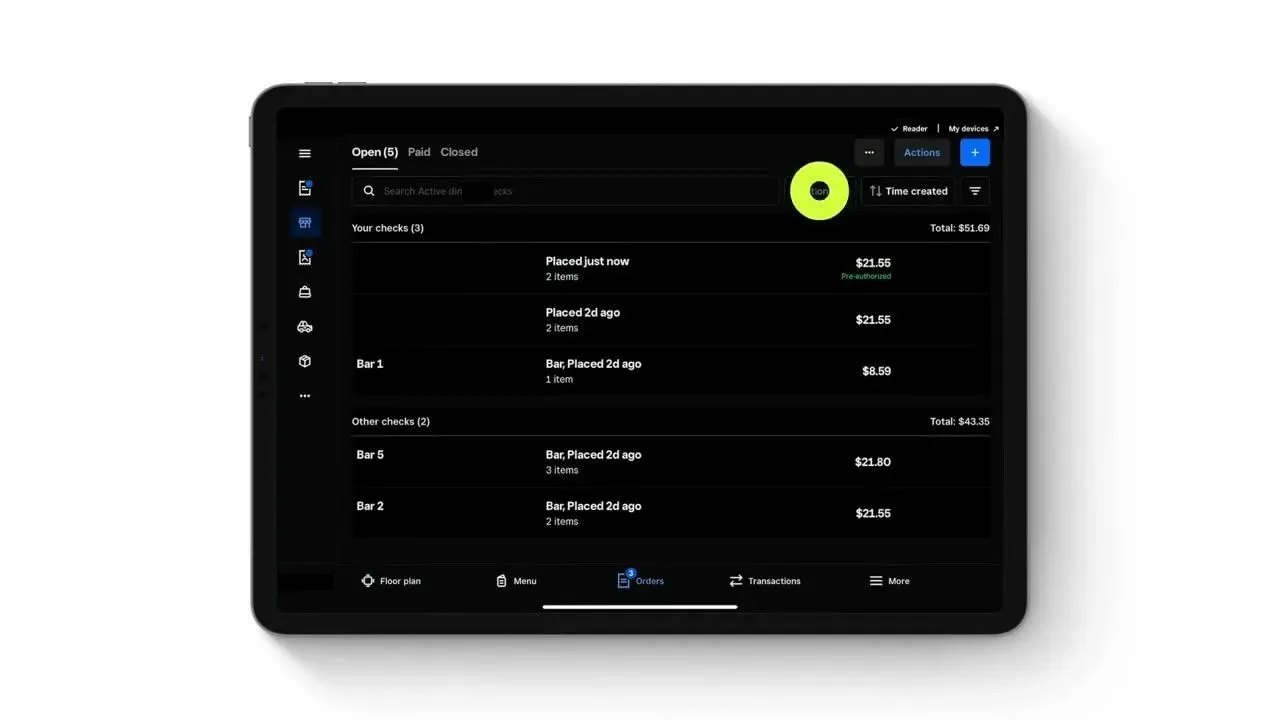
Step 15: Open and modify an existing tab
Tap the order you want (for example, "Boozan, Hadley") in the Orders list. The order reopens in the cart view, where you can review or modify items.
In the top right corner, look for the green check mark. It confirms the tab is preauthorized.
Close the tab
Step 16: Check out with the preauthorized card
When you finish serving the guest, tap Pay in the cart view. The payment screen shows the preauthorized card as the first payment option. Select it to complete the transaction.
If prompted, confirm the transaction without a tip or signature. The system processes the payment and closes the tab.
Step 17: Return to the main screen or offer a promotion
After the transaction, the POS may show a promotional offer, such as "Get a coupon: $5 off for signing up to receive text message offers & updates." Choose No thanks or Sign up, depending on the guest's choice. The system is then ready for the next sale.
Summary
You now know how to set up bar tabs in Square POS. You enabled preauthorization for each location in the Square Dashboard and set a minimum amount. You then started a preauthorized tab on the Point of Sale and assigned it to a check. Finally, you managed open tabs in Order Manager and closed them with the preauthorized card.
Generation details: cost, quality tiers
Docsie billed 2,500 credits ($1.75) to analyze this 5-minute video at standard quality. The rewrite, template fill and Word/PDF exports were included. The same video at each quality tier:
| Quality | Frames sampled | Credits | Approx. cost |
|---|---|---|---|
| Draft | every 16-30 s | 1,250 | $0.88 |
| Standard (this guide) | every 8-15 s | 2,500 | $1.75 |
| Detailed | every 4-7 s | 5,000 | $3.50 |
| Ultra | every 1-3 s | 10,000 | $7.00 |
Credits priced at $0.70 per 1,000; plans include a monthly allowance. Enterprise customers on on-premise or bring-your-own-model deployments run this on their own inference and pay no per-video credits.
Generated by Docsie Video-to-Docs on 2026-11-24 from a 4-minute video. Screenshots are frames from the source video and belong to their creator, Square, whose original is embedded above. If you own this video and want the guide removed or credited differently, contact us and we will act within one business day.