
How to Change Prices in Square POS
This guide explains how to change prices in Square POS for both items and services. You update each price from the Square Dashboard, in the Item Library or the Service Library, and save each change individually. You then confirm your updates and return to the Dashboard home screen.
Video: How To Change Prices on Square by How To Support (2025). All credit for the demonstration goes to the creator; watch the original on YouTube. The written guide below was generated from this video by Docsie. Creator? Request a change or removal.
This guide explains how to change prices in Square POS for both items and services. You update each price from the Square Dashboard, in the Item Library or the Service Library, and save each change individually. You then confirm your updates and return to the Dashboard home screen.
Prerequisites
- A Square account that you can sign in to
- A web browser
Change item prices
Sign in to your Square account
Open your web browser and go to https://squareup.com. Enter your login credentials and sign in.
Review the Square Dashboard
After you sign in, the Square Dashboard home screen appears. Your store name (for example, "Jack Store") is at the top left. The left sidebar lists options such as Orders & payments, Online, Customers, Reports, Staff, Banking, and Settings. The main area shows performance metrics like net sales and quick actions.
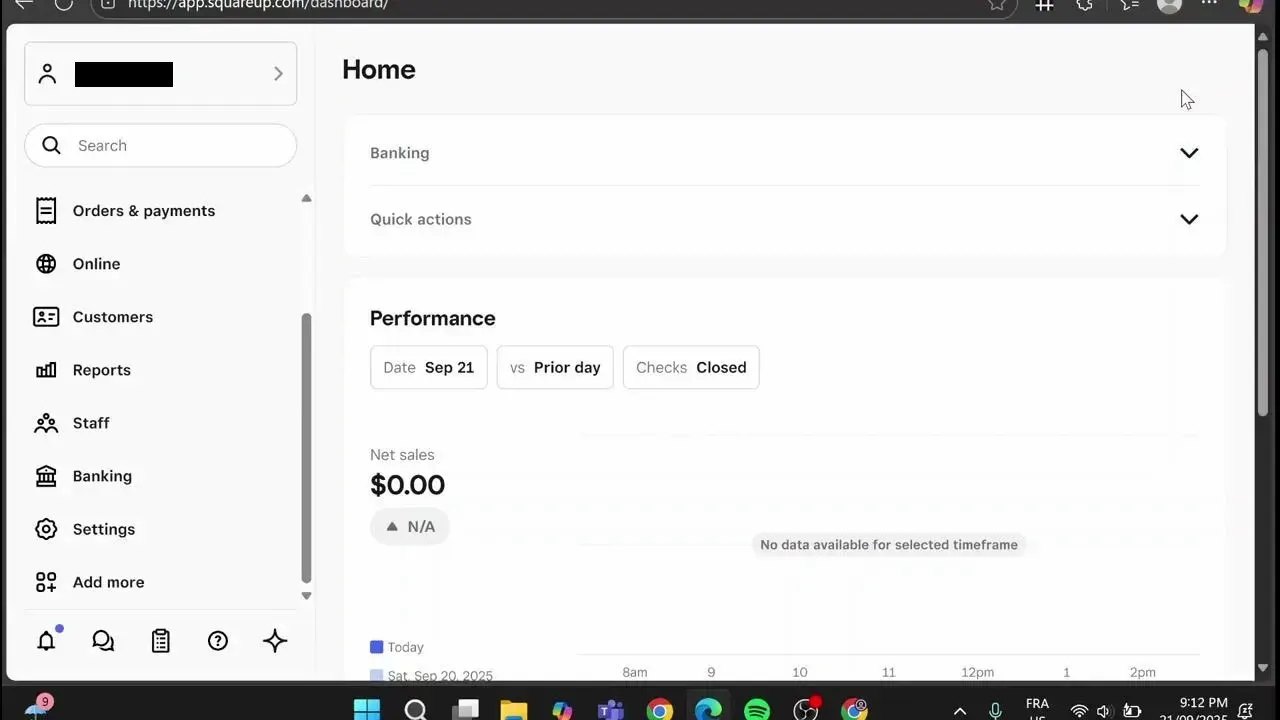
Expand Items & inventory
In the left sidebar, scroll down and find Items & inventory. Click it to expand its submenu.
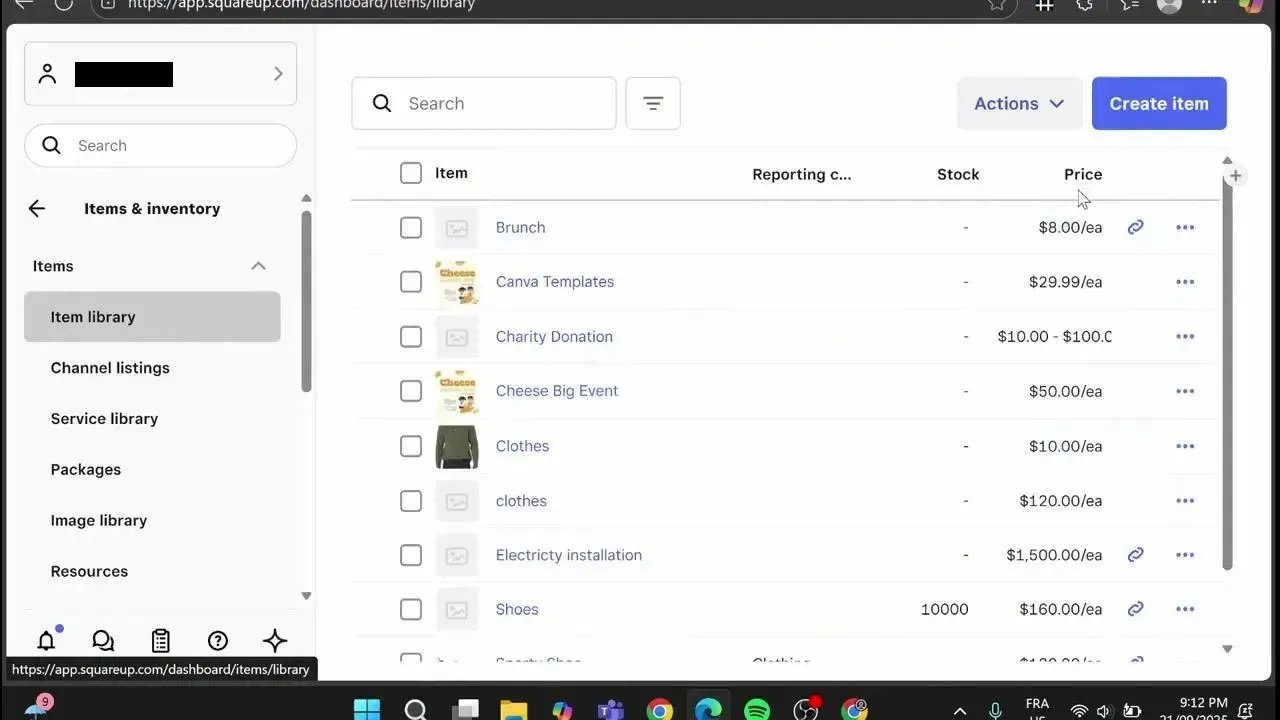
Open the Item Library and find the item
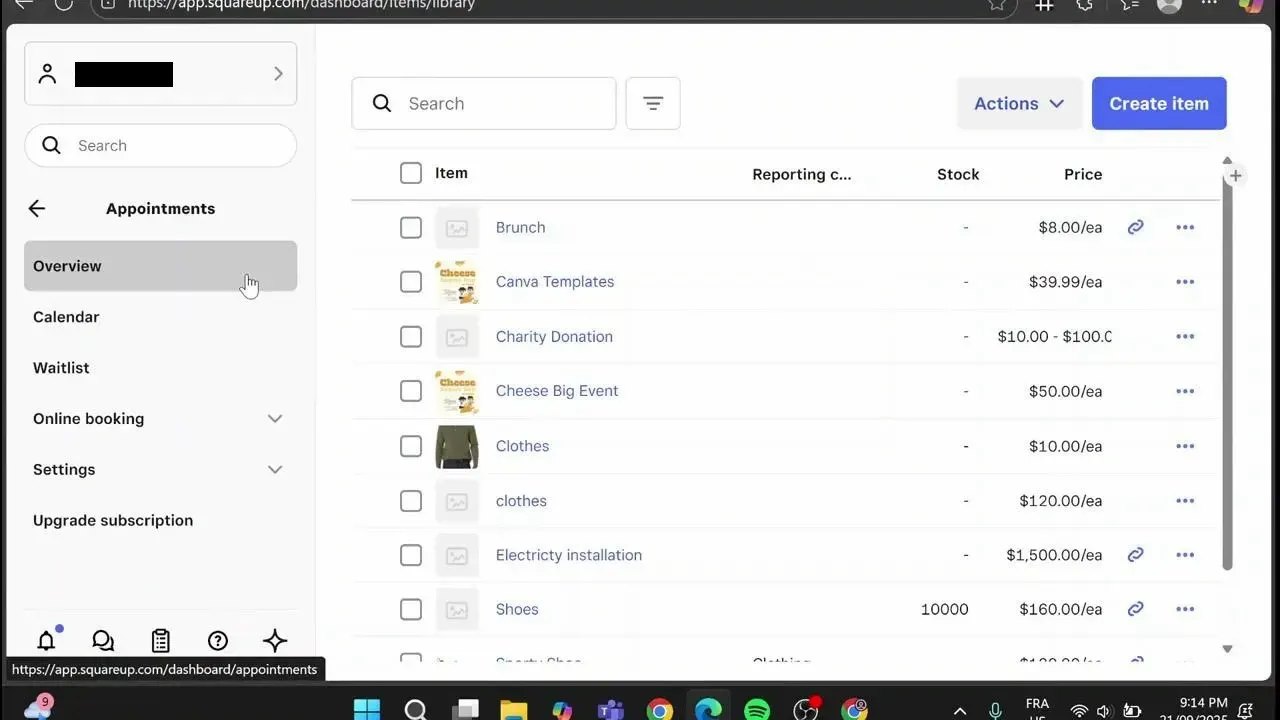
In the expanded menu, click Item library. The page lists all your items with their names, stock, and prices. Browse the list or use the search bar to find the item whose price you want to change.
To the right of each item, three vertical dots (More actions) give you additional options.
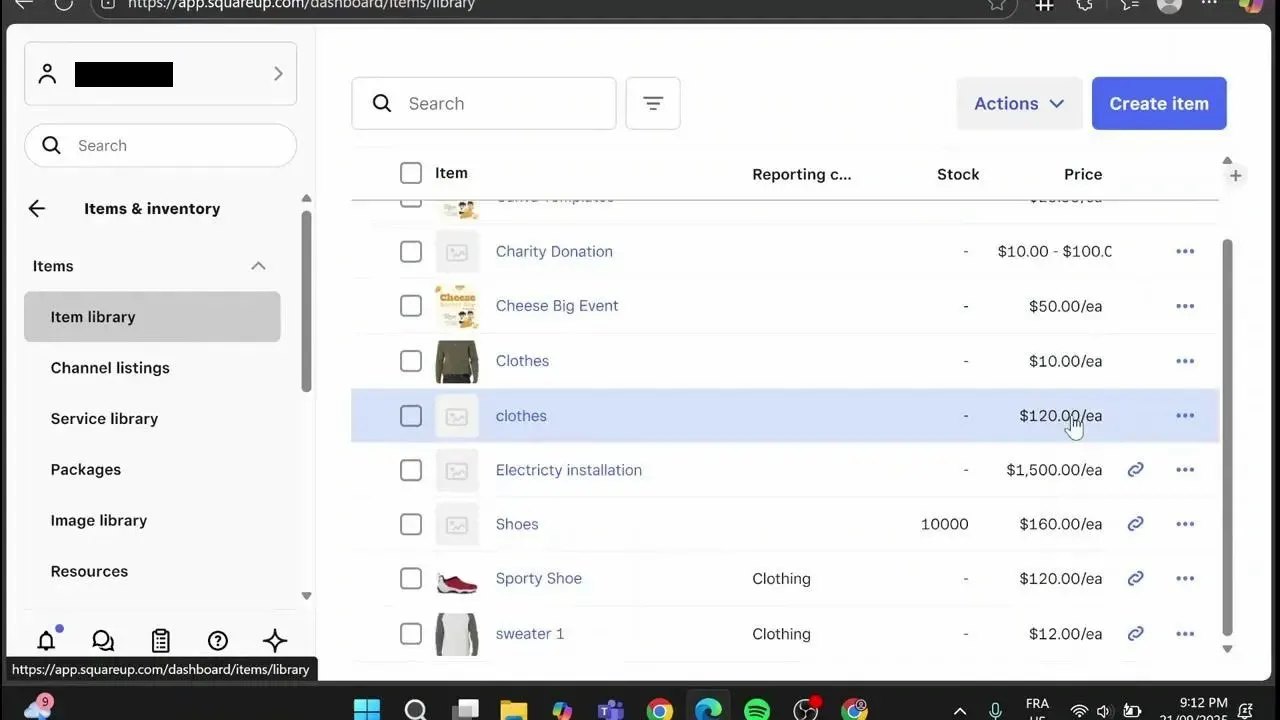
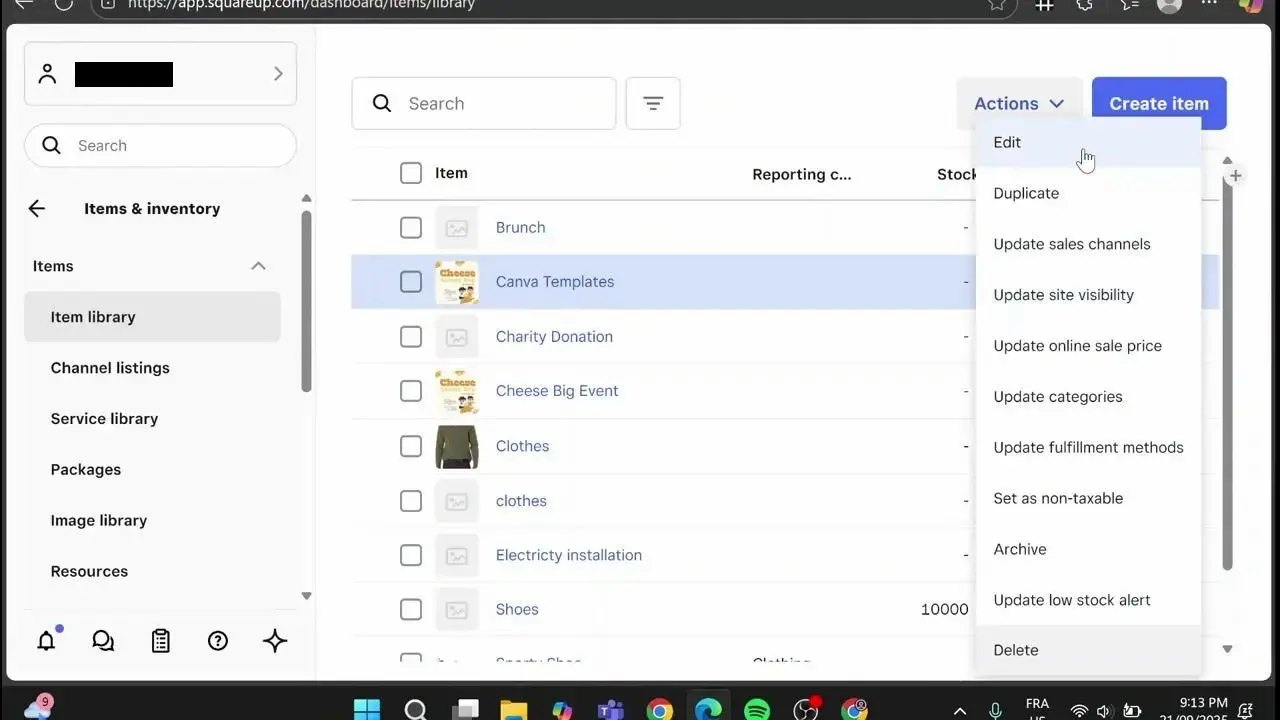
Open the edit menu for the item
Click the three vertical dots (More actions) next to the item. In the dropdown menu that appears, select Edit.
Review the item details
The item details page opens. It includes fields for the item name, categorization (menu organization and categories), and options. Scroll down to find the price field.
Enter the new item price
In the price field, enter the new price for the item. Make sure it is correct and formatted appropriately (for example, $12.00/ea).
Save the item price change
Click Save at the top right of the Edit Item page. A Successfully Saved confirmation banner appears at the top of the Item Library screen.
Change service prices
Open the Service Library
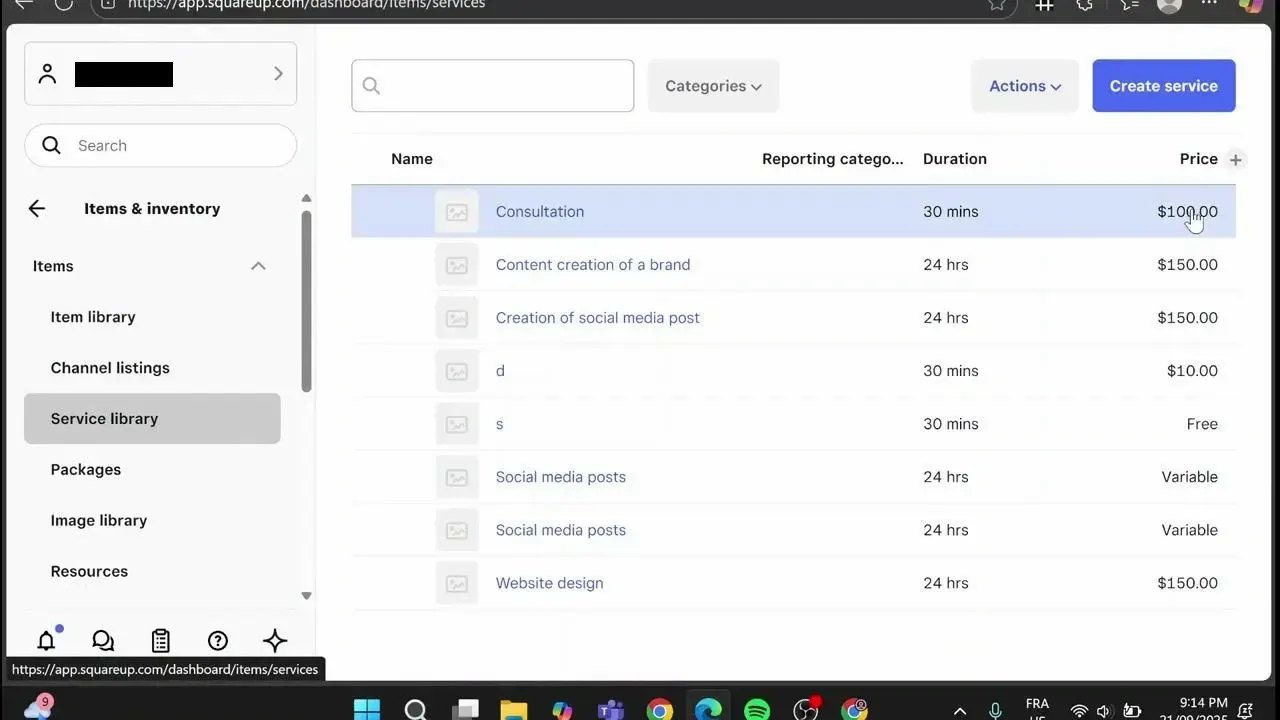
In the left sidebar, under Items & inventory, click Service library. The Service Library lists all your services with their names, durations, and prices.
Select the service to edit
Browse the list or use the search bar to find the service you want to update. Click the service name (for example, "Consultation") to open its details. The selected service is highlighted.
Change the service price
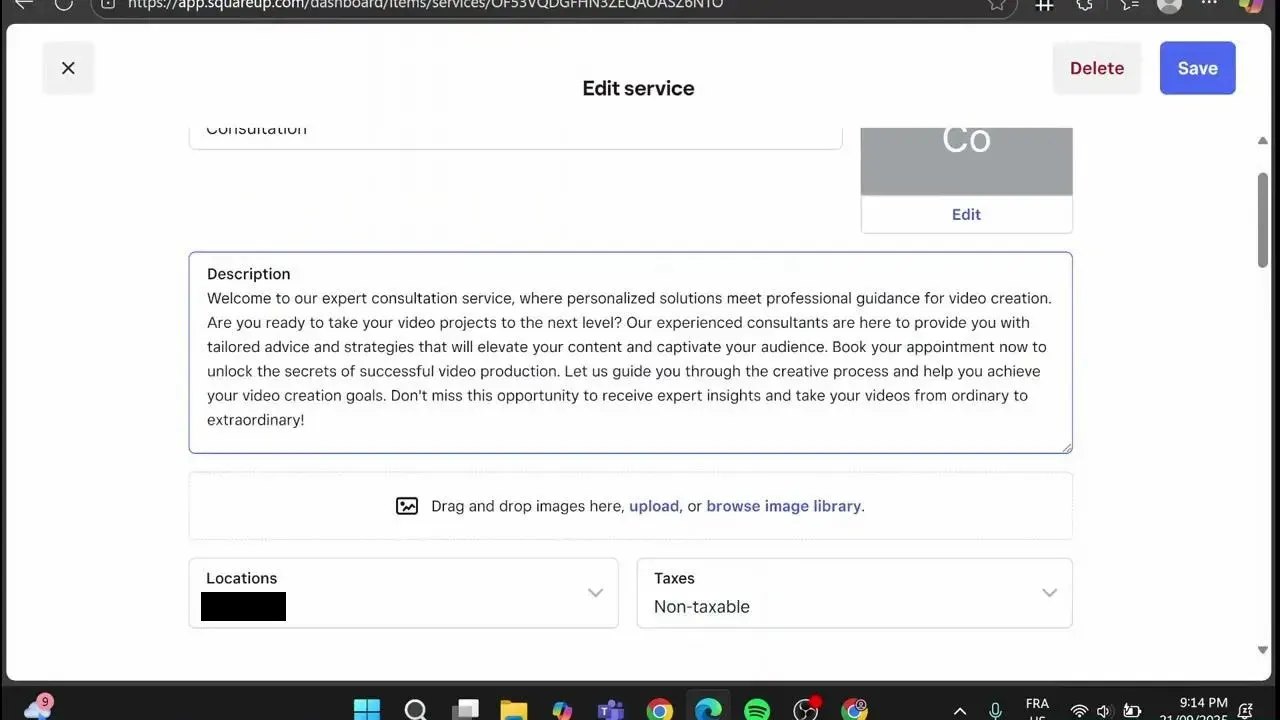
The Edit Service page opens. You can view and edit the service name, description, categories, and price. The description field may contain detailed information about the service.
Locate the price field and enter the new price. For example, change $100.00 to $150.00. Double-check that the new price is correct and formatted properly.
Save the updated service price
Click Save at the top right of the Edit Service page. You return to the Service Library, where the updated price appears in the list.
Repeat for other services and verify your changes
You must edit and save each service individually. The same process applies to all services, bookings, and consultations in your Service Library.
When you finish, review the Service Library to confirm that all prices are updated as intended. You can use the sidebar to switch between the Item Library and the Service Library to manage both products and services.
Relate services to appointments
Check how services connect to appointments
When you create an appointment, you can relate it to a specific service. The services available for appointments are managed in the Service Library. To manage bookings, use the sidebar to go to Appointments and select Overview.
Return to the Dashboard and finish
Return to the Home Dashboard
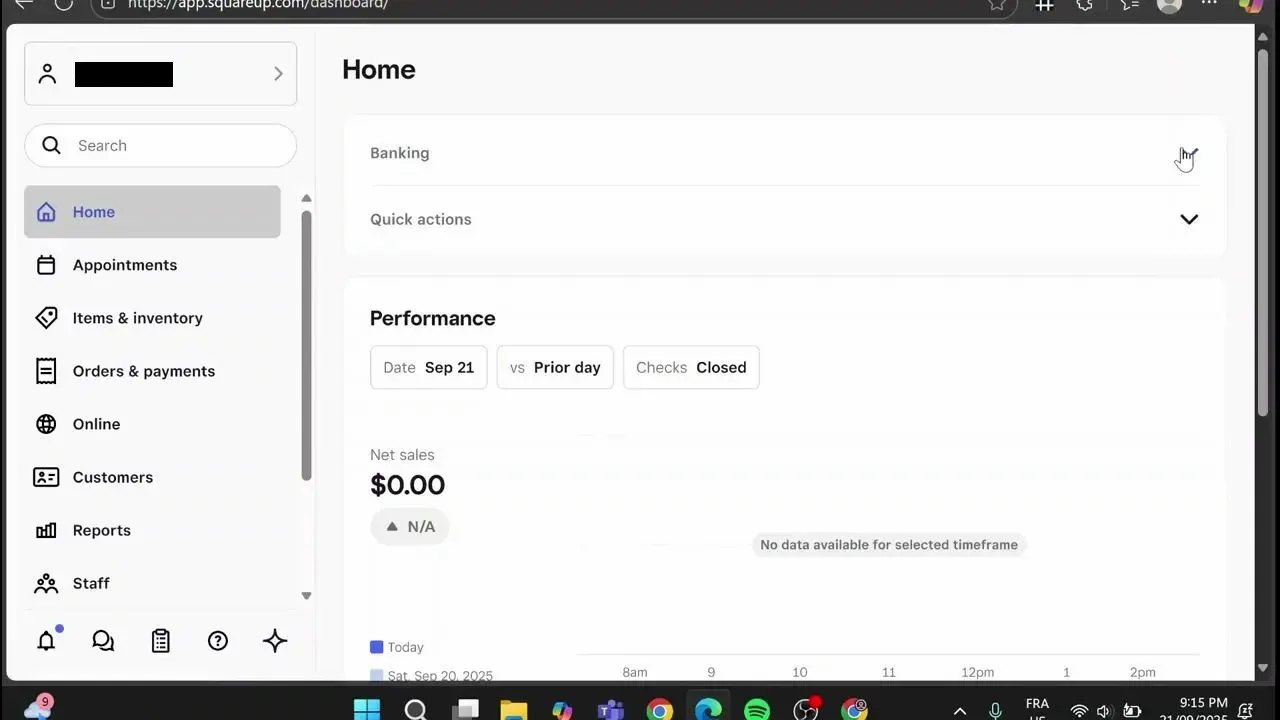
When you finish editing prices, click Home in the left sidebar. The dashboard shows an overview of your business:
- The business name (for example, "Jack Store") at the top left
- A search bar for quick navigation
- Sidebar options: Home, Appointments, Items & inventory, Orders & payments, Online, Customers, Reports, and Staff
- A performance summary with net sales (for example, "$0.00" for the current day)
- A date selector (for example, "Sep 21") with a comparison to the prior day
- The status of checks (for example, "Closed")
- Notification and settings icons at the bottom left
No further action is required unless you want to keep managing other parts of your Square account.
End your session
Review the dashboard to make sure your recent changes are reflected. Then log out or close the browser tab if you have finished your tasks.
Summary
You now know how to change prices in Square POS for both items and services. Each change must be saved individually, which keeps your pricing accurate for sales and appointments. All your changes are saved and visible in your account.
What's next
Use the left sidebar to manage other parts of your Square account as needed, such as Appointments, Orders & payments, Customers, Reports, or Staff.
Generation details: cost, quality tiers
Docsie billed 2,000 credits ($1.40) to analyze this 4-minute video at standard quality. The rewrite, template fill and Word/PDF exports were included. The same video at each quality tier:
| Quality | Frames sampled | Credits | Approx. cost |
|---|---|---|---|
| Draft | every 16-30 s | 1,000 | $0.70 |
| Standard (this guide) | every 8-15 s | 2,000 | $1.40 |
| Detailed | every 4-7 s | 4,000 | $2.80 |
| Ultra | every 1-3 s | 8,000 | $5.60 |
Credits priced at $0.70 per 1,000; plans include a monthly allowance. Enterprise customers on on-premise or bring-your-own-model deployments run this on their own inference and pay no per-video credits.
Generated by Docsie Video-to-Docs on 2026-11-24 from a 3-minute video. Screenshots are frames from the source video and belong to their creator, How To Support, whose original is embedded above. If you own this video and want the guide removed or credited differently, contact us and we will act within one business day.