
How to Change a Reservation in OpenTable
This guide shows you how to change a reservation in OpenTable from the app or the website. You sign in, open your upcoming reservation, and edit the date, time, or party size. Then you find a new table and confirm the change.
Video: How to Change OpenTable Reservation [2026 Full Guide] by Behind Tools (2026). All credit for the demonstration goes to the creator; watch the original on YouTube. The written guide below was generated from this video by Docsie. Creator? Request a change or removal.
This guide shows you how to change a reservation in OpenTable from the app or the website. You sign in, open your upcoming reservation, and edit the date, time, or party size. Then you find a new table and confirm the change.
Prerequisites
- Access to the OpenTable app on your phone, or to opentable.com in a web browser.
- The login credentials for the same account you used to make your reservation.
Steps
Open OpenTable
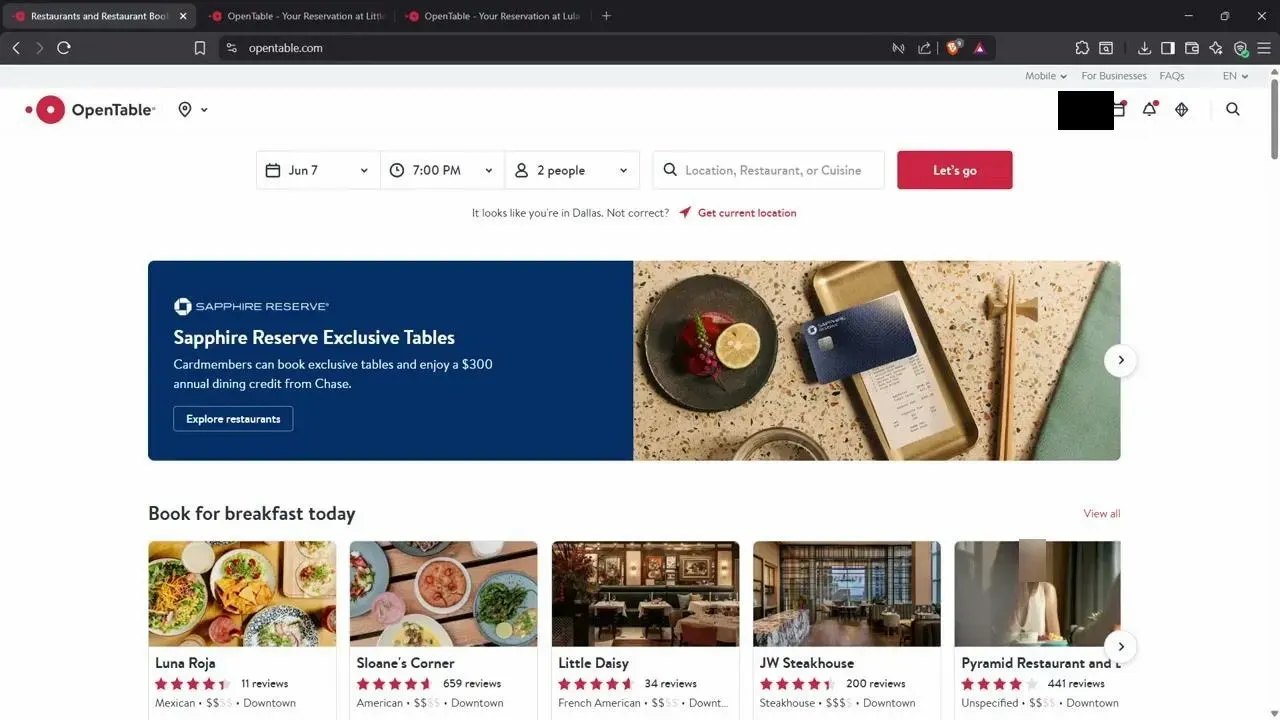
Launch the OpenTable app on your phone, or go to opentable.com in your web browser.
Sign in to your account
Click or tap the profile icon in the top right corner. Enter the login credentials for the account you used to book your reservation.
Make sure you are signed in to the correct account. Otherwise, you can't see your reservation details.
Open your reservations
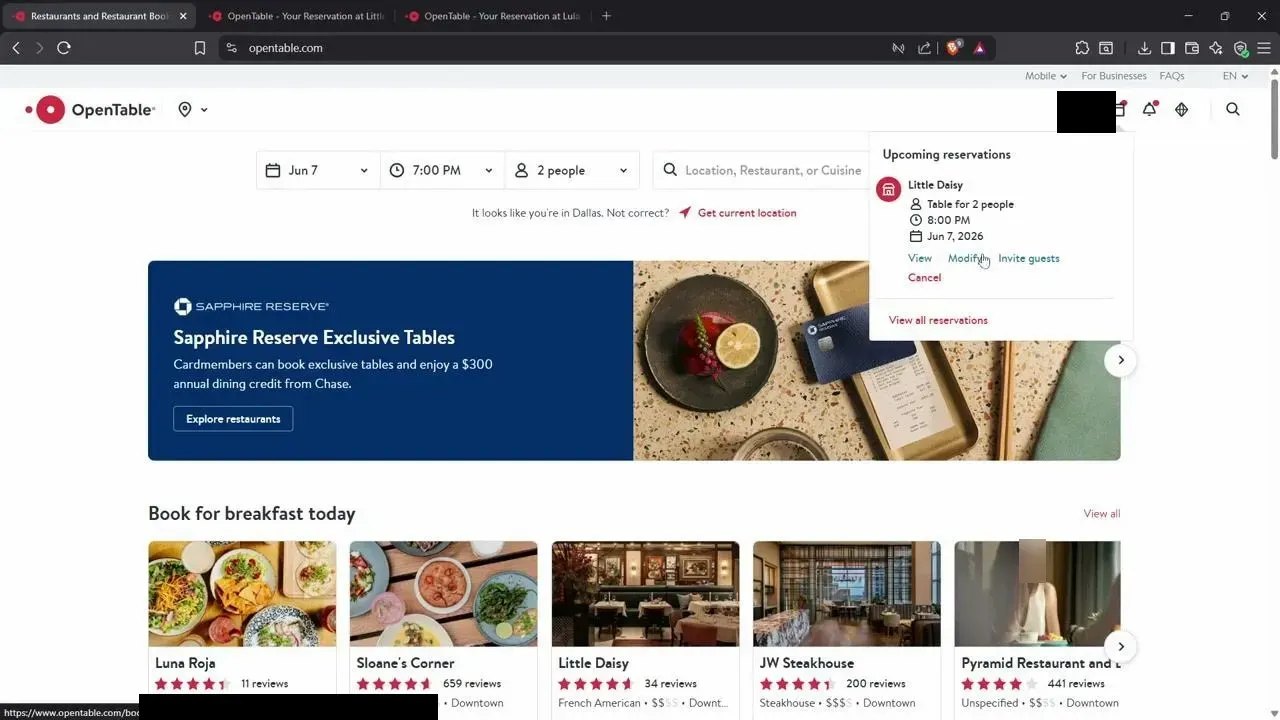
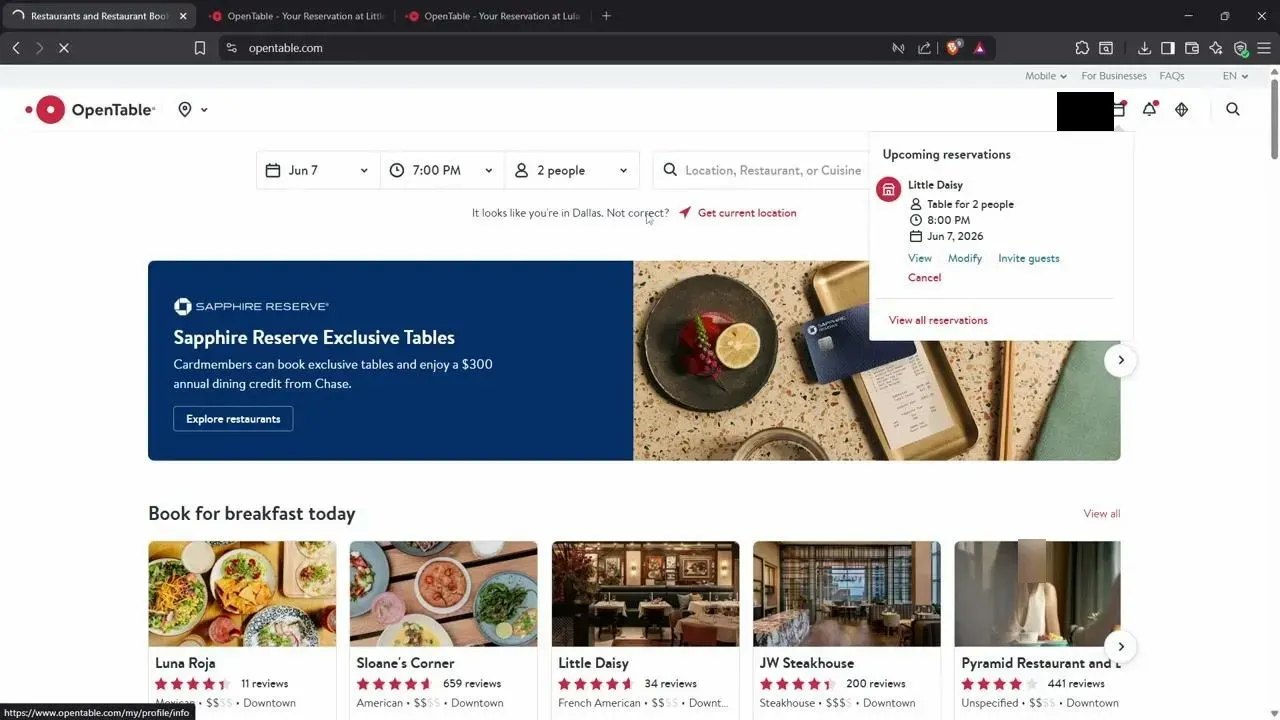
Look for a section labeled Reservations or Upcoming. Click or tap it to view your active bookings.
Find the reservation you want to change
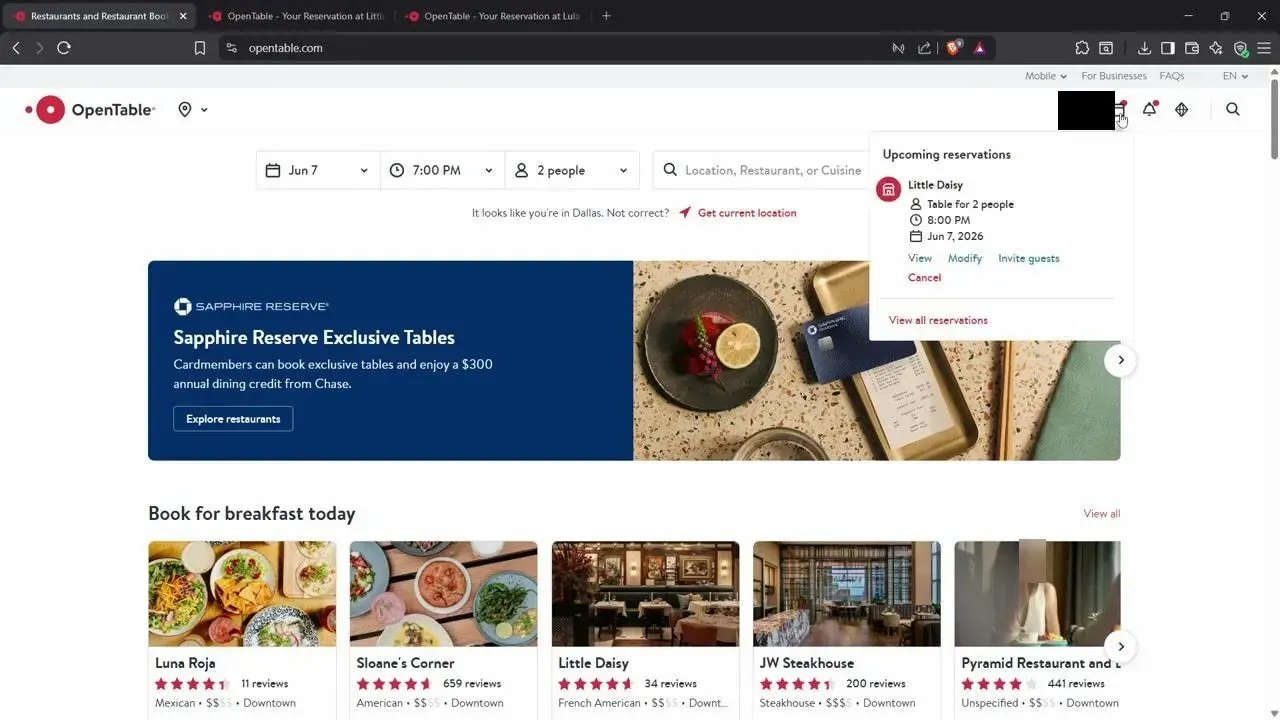
In the list of upcoming reservations, find the one you want to change. In the example, the reservation is for "Little Daisy" for 2 people at 8:00 PM on Jun 7, 2026.
Each reservation offers the options View, Modify, Invite guests, and Cancel. Click or tap the reservation to open its details.
Check restaurant policies if you're changing close to your reservation time
If you're making changes close to your reservation time, review the restaurant's policies. Special timing or availability rules may apply.
Open the reservation details and select Modify
Review your reservation details, including the restaurant name, date, time, and party size. Then click the Modify button to continue.
The details page also offers Cancel and Add to calendar. It includes options to browse the menu, get directions, send a message, and invite your friends.
Edit the date, time, or party size to change your reservation in OpenTable
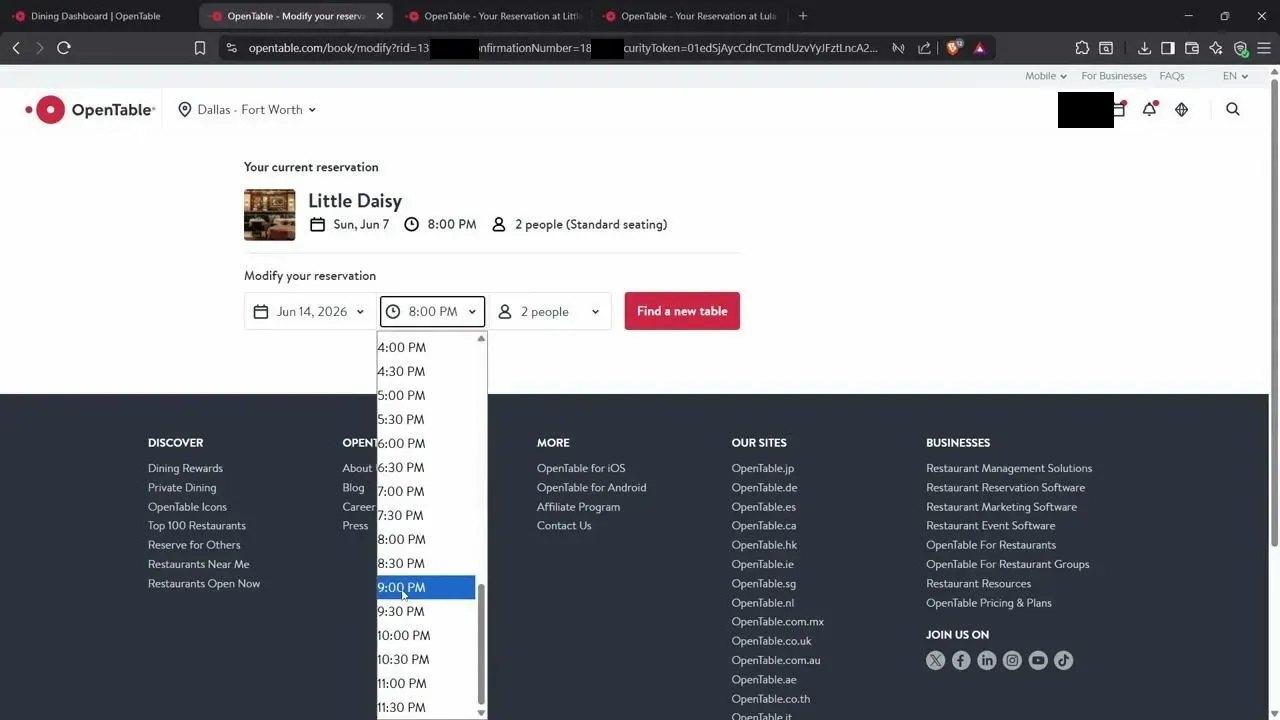
Update the date, time, or number of people as needed. Use the dropdown menus to select the new values.
For example, change the date to Jun 14, 2026, the time to 8:00 PM, and the party size to 2 people. Be as accurate as possible so you see the best available options.
Find a new table
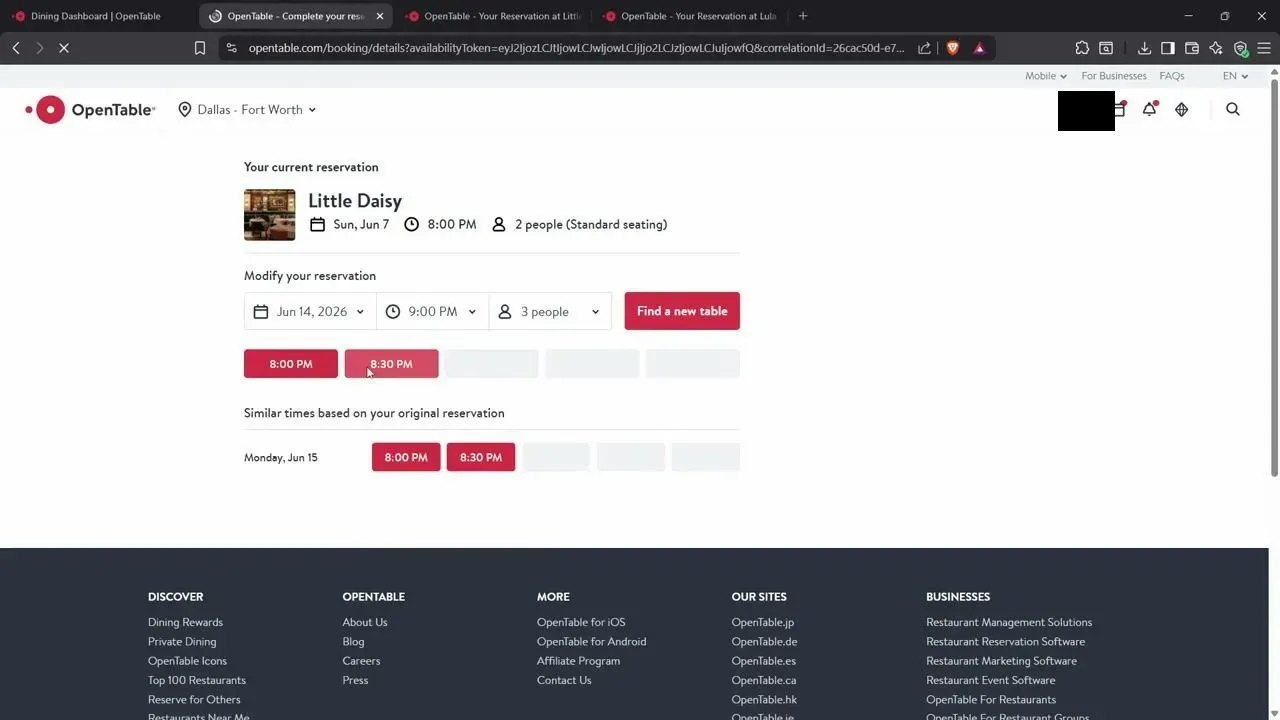
After you update the date, time, and party size, click the Find a new table button. Review the time slots that appear based on your new criteria.
Choose your preferred time slot from the options shown, such as 8:00 PM or 8:30 PM. Double-check the date, time, and party size to make sure they're accurate.
Confirm and complete the reservation change
Review your updated reservation details, including your name, contact information, and any special requests. You can optionally select an occasion or add a special request.
Make sure your contact details, such as your name, phone number, and email address, are correct. Then click the Complete reservation button to finalize your changes.
Check your confirmation
After you complete the change, you should receive an in-app confirmation, an email confirmation, or both. The confirmation reflects your new reservation details.
Summary
To change a reservation in OpenTable, sign in to the account you booked with and open your upcoming reservations. Select Modify, update the date, time, or party size, and click Find a new table. Choose a time slot, check your details, and click Complete reservation to confirm your new dining plans.
Generation details: cost, quality tiers
Docsie billed 1,500 credits ($1.05) to analyze this 3-minute video at standard quality. The rewrite, template fill and Word/PDF exports were included. The same video at each quality tier:
| Quality | Frames sampled | Credits | Approx. cost |
|---|---|---|---|
| Draft | every 16-30 s | 750 | $0.52 |
| Standard (this guide) | every 8-15 s | 1,500 | $1.05 |
| Detailed | every 4-7 s | 3,000 | $2.10 |
| Ultra | every 1-3 s | 6,000 | $4.20 |
Credits priced at $0.70 per 1,000; plans include a monthly allowance. Enterprise customers on on-premise or bring-your-own-model deployments run this on their own inference and pay no per-video credits.
Generated by Docsie Video-to-Docs on 2026-11-24 from a 2-minute video. Screenshots are frames from the source video and belong to their creator, Behind Tools, whose original is embedded above. If you own this video and want the guide removed or credited differently, contact us and we will act within one business day.