
How to Update Procedure Fees in Open Dental
This guide shows you how to update procedure fees in Open Dental. You can copy an existing fee schedule into a new one, edit individual fees, or change all fees by a percentage. You can also apply the updated fees to all patients with the Global Updates tool.
Video: QuickTip: Updating Your Procedure Fees by Open Dental Software (2026). All credit for the demonstration goes to the creator; watch the original on YouTube. The written guide below was generated from this video by Docsie. Creator? Request a change or removal.
This guide shows you how to update procedure fees in Open Dental. You can copy an existing fee schedule into a new one, edit individual fees, or change all fees by a percentage. You can also apply the updated fees to all patients with the Global Updates tool.
Prerequisites
- Access to the Procedure Codes list in Open Dental.
- The name of the existing fee schedule you want to copy from, such as Office Fees.
- The effective date for the fee change.
- If you use fee overrides, the provider or clinic they apply to.
Steps
Open the Procedure Codes window
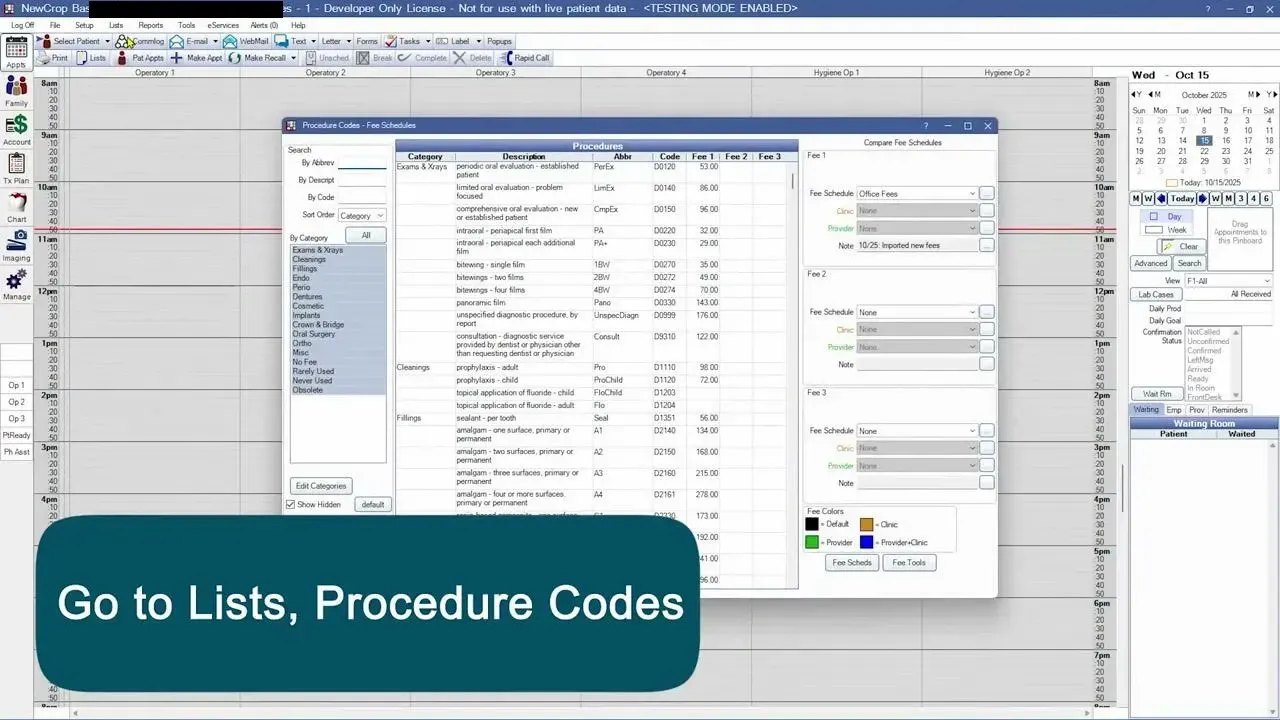
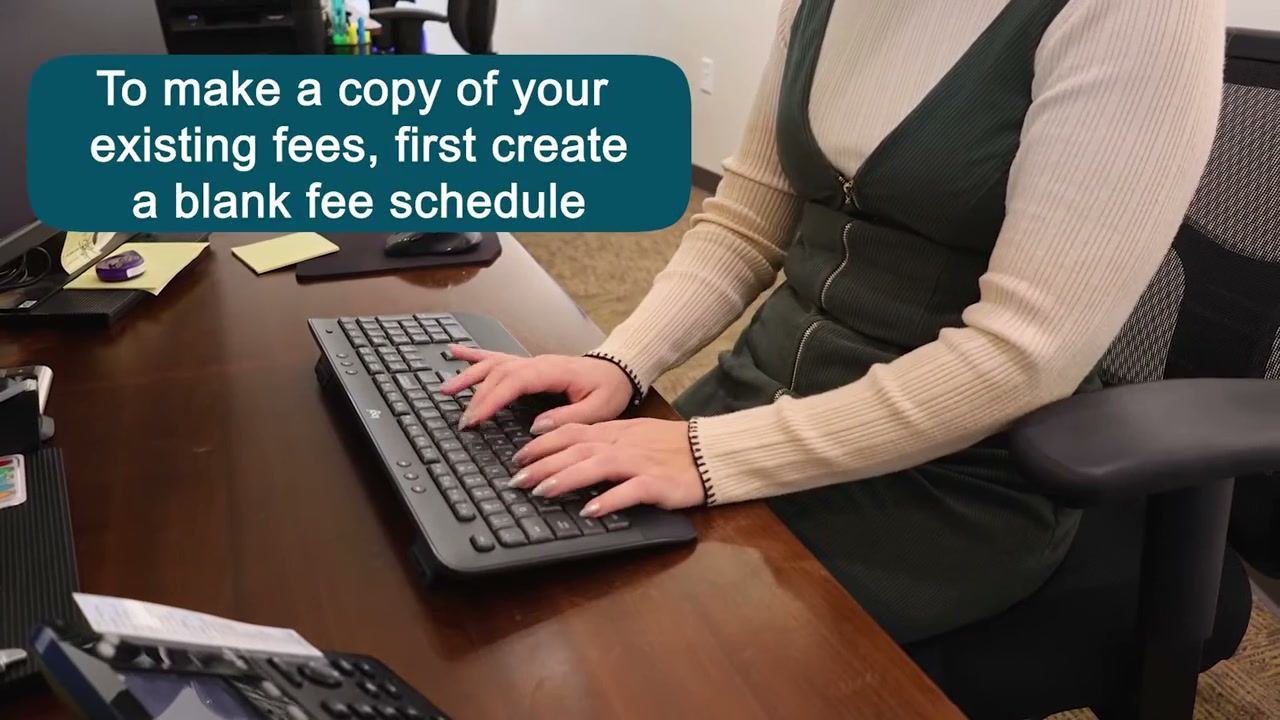
To copy your existing fees, first create a blank fee schedule. Start in the Procedure Codes window.
- In the top menu, select Lists.
- Select Procedure Codes.
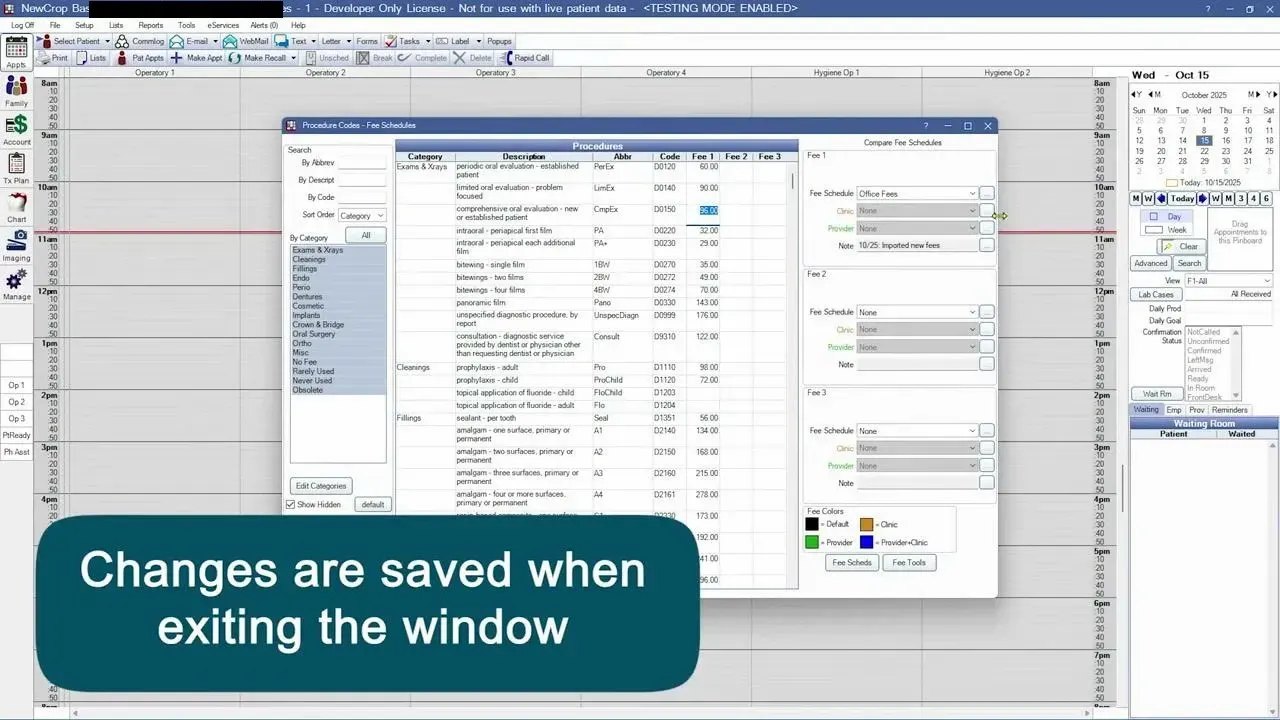
The "Procedure Codes - Fee Schedules" window opens. It shows categories, procedure descriptions, codes, and fee columns.
Create a new fee schedule
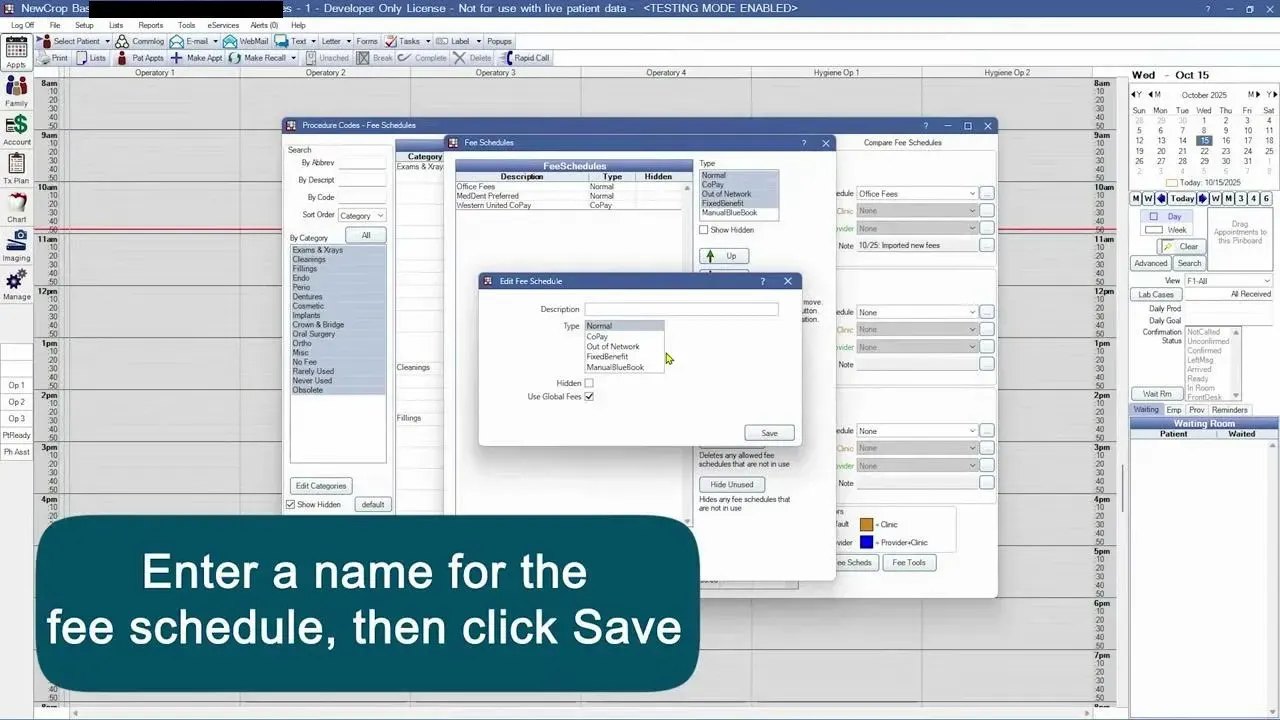
- In the "Fee Schedules" section, click the button to add a new fee schedule. The "Edit Fee Schedule" dialog opens.
- Enter a name in the "Description" field.
- Select a "Type" from the dropdown. The options are Normal, CoPay, Out of Network, FixedBenefit, and ManualBlueBook.
- Check or uncheck "Use Global Fees" as needed.
- Click Save.
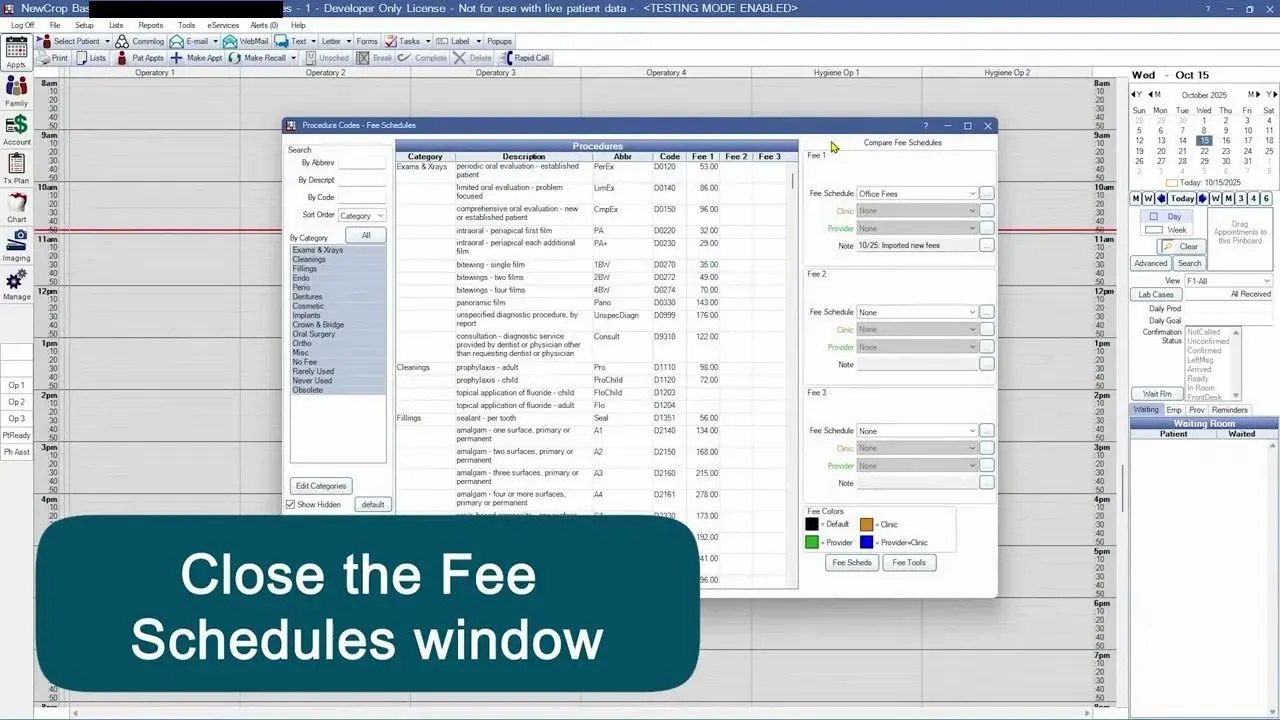
Close the Fee Schedules window
After you save the new fee schedule, close the "Fee Schedules" window. This returns you to the main Procedure Codes screen.
Copy existing fees to the new schedule
- In the main Procedure Codes window, select the fee schedule you want to copy from.
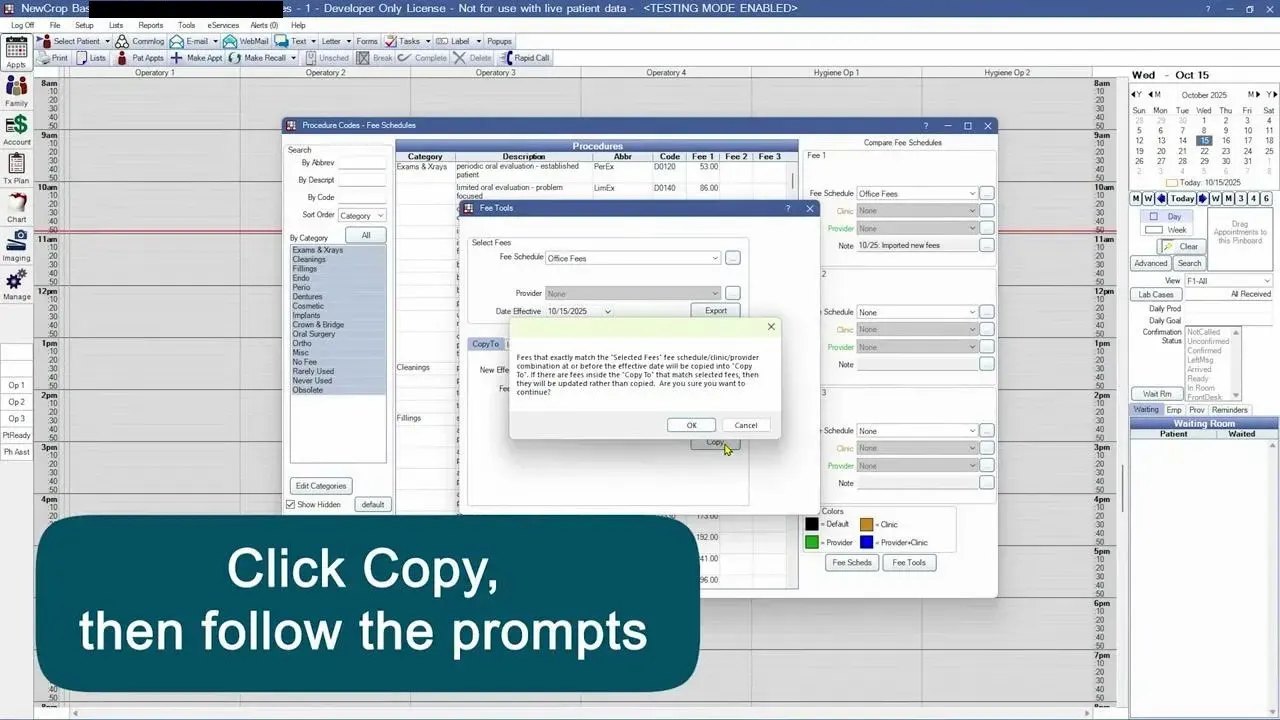
- Click Copy. The "Fee Tools" dialog opens.
- For Fee Schedule, select the source fee schedule, such as Office Fees.
- For Provider, select the provider if applicable.
- For Date Effective, set the effective date, such as 10/15/2025.
- Click Copy.
- A confirmation prompt explains that matching fees will be updated or copied. Click OK to proceed.
Update individual fees
You can update fees for individual procedures, or you can update all your fees by a percentage. This step covers individual procedures.
- In the Procedure Codes window, choose the fee schedule you want in one of the fee columns (Fee 1, Fee 2, or Fee 3).
- Edit the fee values for each procedure as needed.
Save your fee changes
After you edit or update fees in the "Procedure Codes - Fee Schedules" window, exit the window. Open Dental saves all changes to fee schedules automatically when you close it.
Select a provider or clinic for fee overrides (optional)
If you use fee overrides for specific providers or clinics, open the "Fee Tools" dialog. In the "Select Fees" section, choose the applicable Provider or Clinic from the dropdown menus. This ensures the overrides apply to the correct provider or clinic.
Apply a percentage increase or decrease
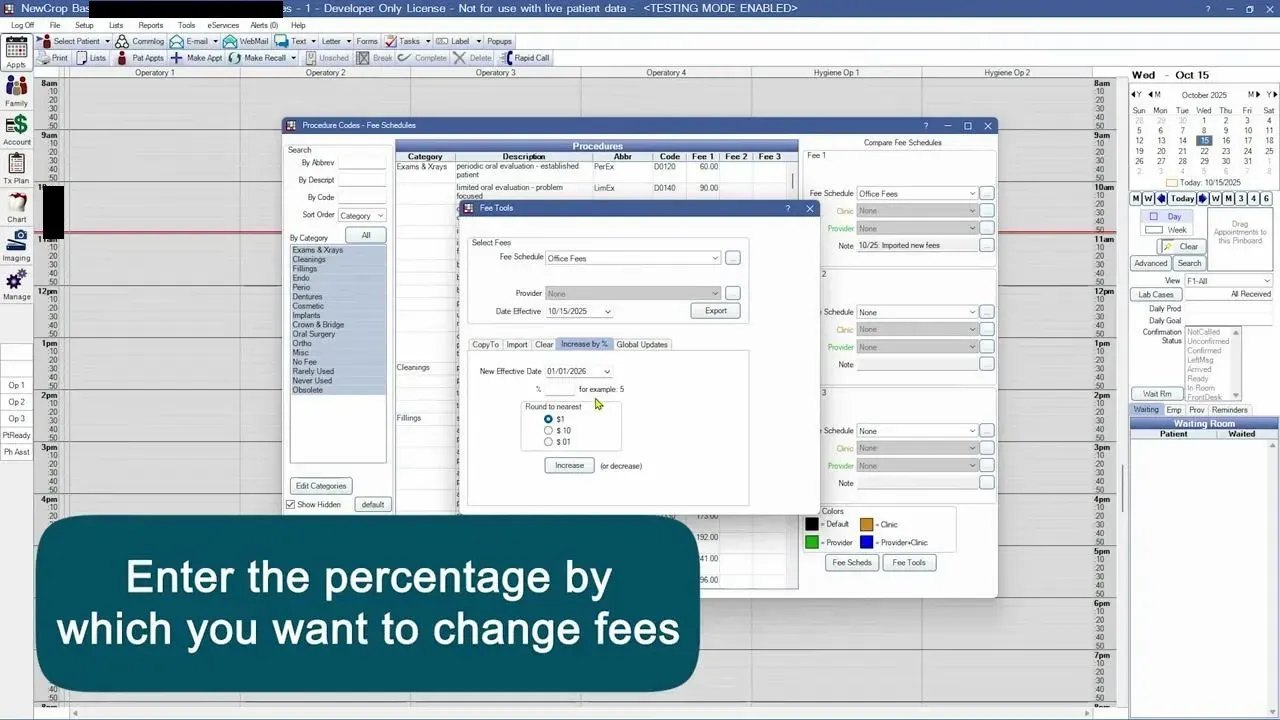
To update procedure fees in Open Dental by a percentage, use the Increase by % tab.
- In the "Fee Tools" window, select the Increase by % tab.
- Enter the new effective date for the fee change.
- Enter the percentage to increase or decrease the fees. For example, enter "5" for a 5% change.
- Choose how to round the updated fees: to the nearest $1, $0.10, or $0.01.
- Click the Increase (or decrease) button.
Confirm the fee update
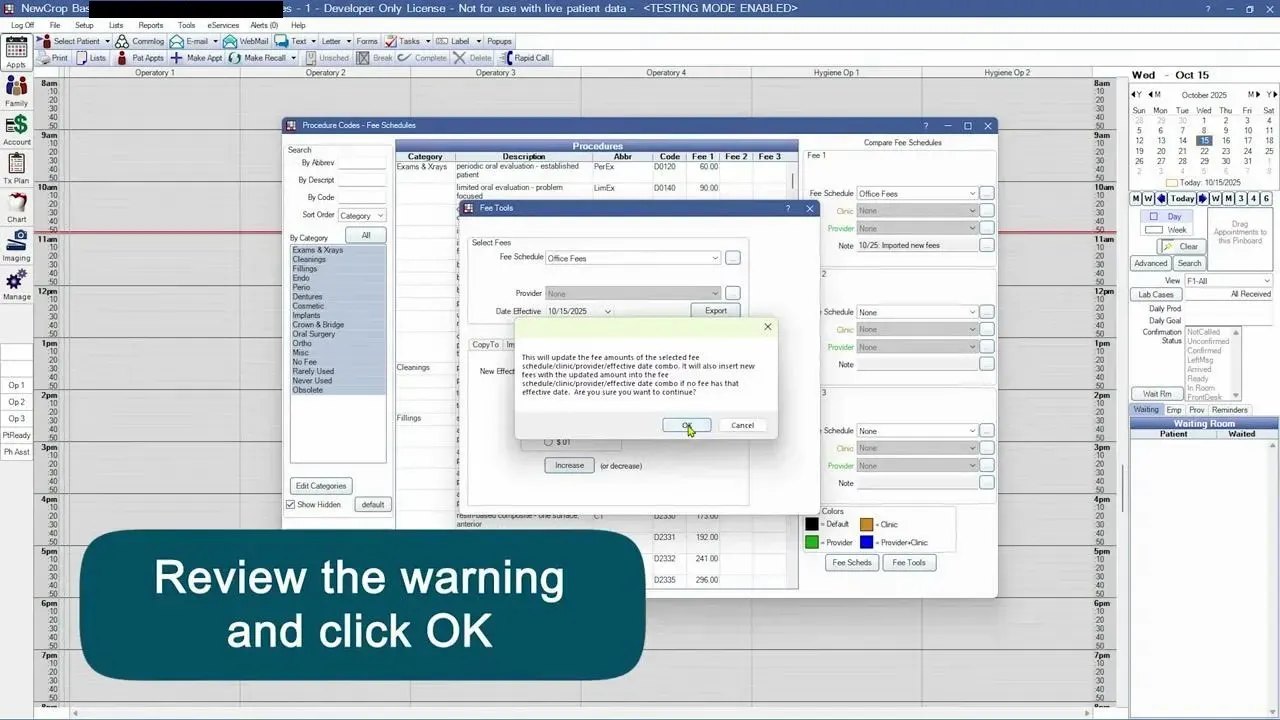
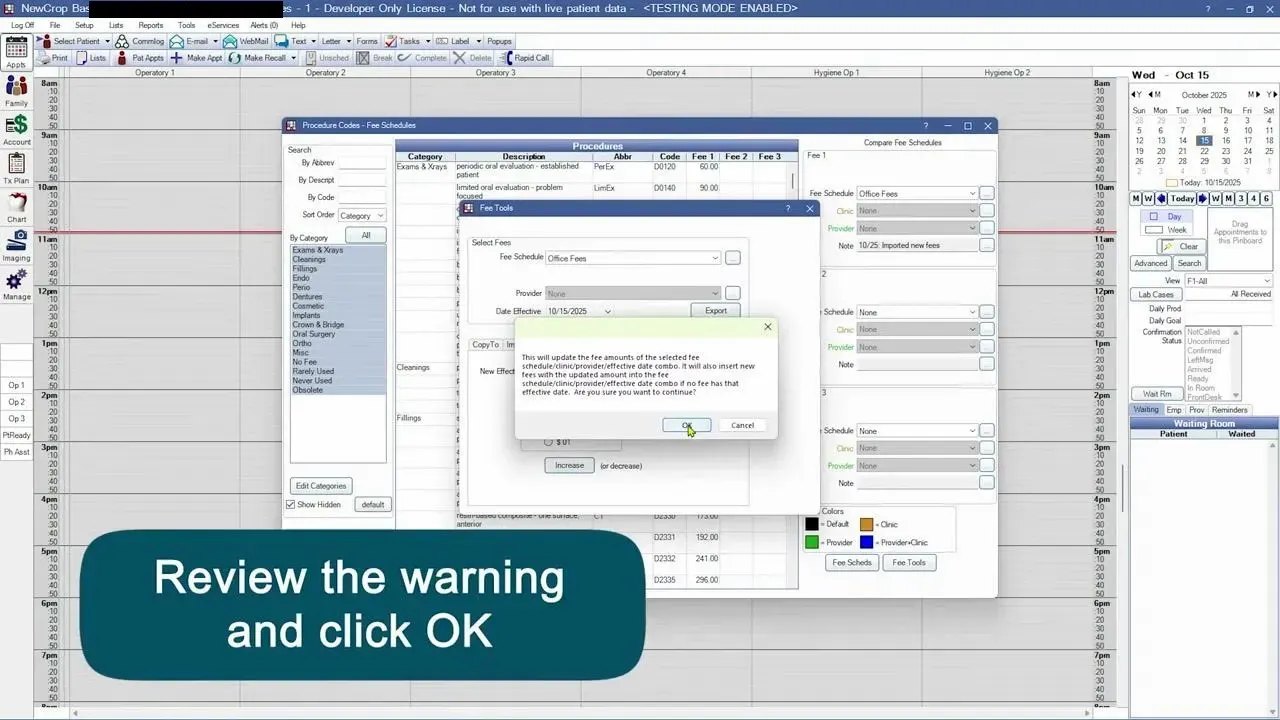
A warning dialog explains that the fee amounts for the selected schedule, clinic, provider, and effective date will be updated or inserted as needed. Review the message carefully, then click OK to proceed.
Update fees for all patients with Global Updates
To apply updated fees to all patients, use the Global Updates tool in the "Fee Tools" window. On the "Global Updates" tab, you have two options:
- Click Update Proc Fees Only to update procedure fees for all patients.
- Click Update Estimates Only to recalculate treatment plan estimates, write-offs, office codes, and discount plan amounts.
Use this feature only after you update your fee schedules and before you select patients.
Summary
- You can update fees for individual procedures, or update all fees by a percentage.
- To copy existing fees, create a blank fee schedule first. Then use Copy and follow the prompts.
- To update individual fees, select the fee schedule column and edit the values directly.
- Changes save automatically when you close the "Procedure Codes - Fee Schedules" window.
- Use Global Updates after updating your fee schedules to apply the new fees to all patients.
What's next
After you update your fee schedules, use Update Proc Fees Only or Update Estimates Only on the Global Updates tab to carry the changes through to patients.
Generation details: cost, quality tiers
Docsie billed 2,000 credits ($1.40) to analyze this 4-minute video at standard quality. The rewrite, template fill and Word/PDF exports were included. The same video at each quality tier:
| Quality | Frames sampled | Credits | Approx. cost |
|---|---|---|---|
| Draft | every 16-30 s | 1,000 | $0.70 |
| Standard (this guide) | every 8-15 s | 2,000 | $1.40 |
| Detailed | every 4-7 s | 4,000 | $2.80 |
| Ultra | every 1-3 s | 8,000 | $5.60 |
Credits priced at $0.70 per 1,000; plans include a monthly allowance. Enterprise customers on on-premise or bring-your-own-model deployments run this on their own inference and pay no per-video credits.
Generated by Docsie Video-to-Docs on 2026-11-24 from a 3-minute video. Screenshots are frames from the source video and belong to their creator, Open Dental Software, whose original is embedded above. If you own this video and want the guide removed or credited differently, contact us and we will act within one business day.