
How to Add a New User in Open Dental
This guide shows you how to add a new user in Open Dental. You create the user in the Security window, assign a user group, and set a temporary password. The new user then creates their own password at first login.
Video: QuickTip: Adding a New User by Open Dental Software (2023). All credit for the demonstration goes to the creator; watch the original on YouTube. The written guide below was generated from this video by Docsie. Creator? Request a change or removal.
This guide shows you how to add a new user in Open Dental. You create the user in the Security window, assign a user group, and set a temporary password. The new user then creates their own password at first login.
Prerequisites
Before you begin, make sure you have the following:
- Administrative privileges in Open Dental.
- A new employee entry under Lists > Employees, if your office uses Time Cards. This step is optional otherwise.
Steps
(Optional) Add the employee for Time Cards
If you use Time Cards in Open Dental, add the new employee before you create the user.
- Go to Lists > Employees.
- Enter the new employee's details as required.
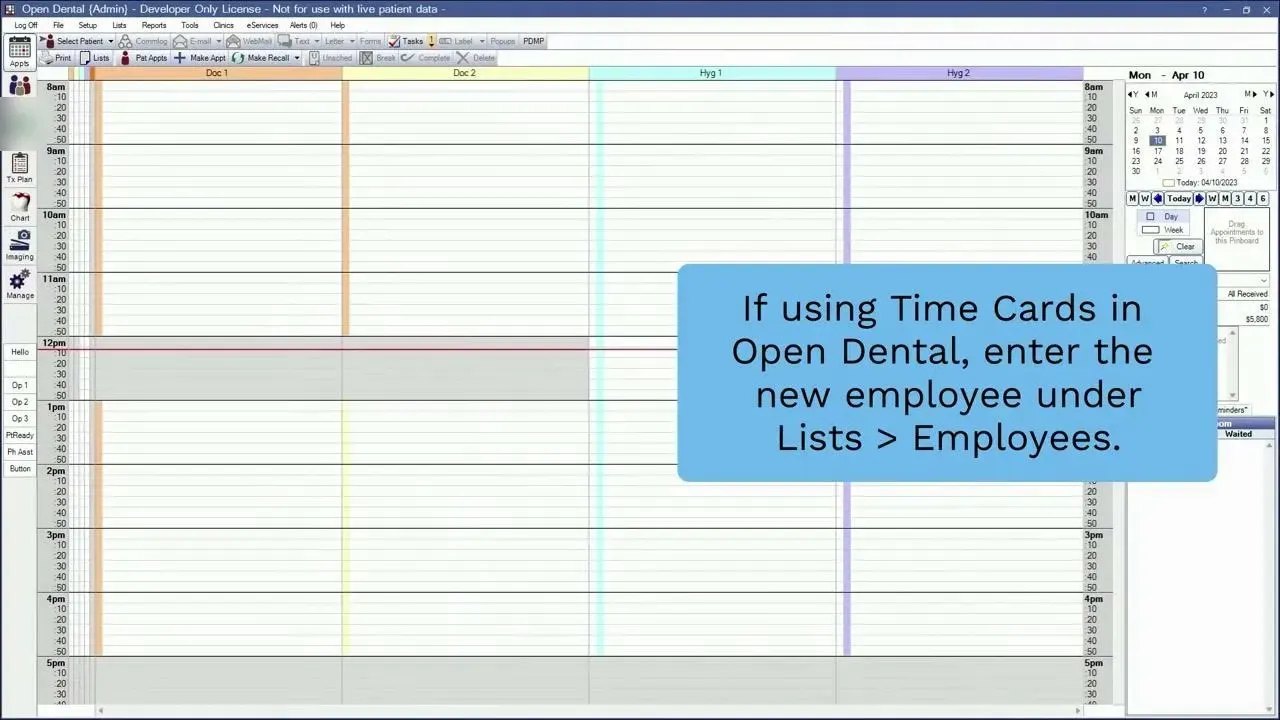
Start the process to add a new user in Open Dental
Open the Open Dental software and make sure you are logged in with administrative privileges.
The main schedule screen appears. It shows columns for providers and hygienists, a calendar, and navigation buttons on the left sidebar.
Open the user security settings
Open the security settings so you can add the new user.
The Security window appears. It shows tabs for User, Clinics, and Alert Subs, along with a list of existing users.
Click Add User to begin entering the new user's information.
Enter the user details
In the User Edit window, enter the following information:
- User Name, for example, Maxwell.
- Employee, selected from the list, if applicable.
- Provider, if applicable.
- User Group(s), for example, Admin Group or Regular Users.
Setting the employee or provider is optional. You must assign a user group, because it determines the user's permissions.
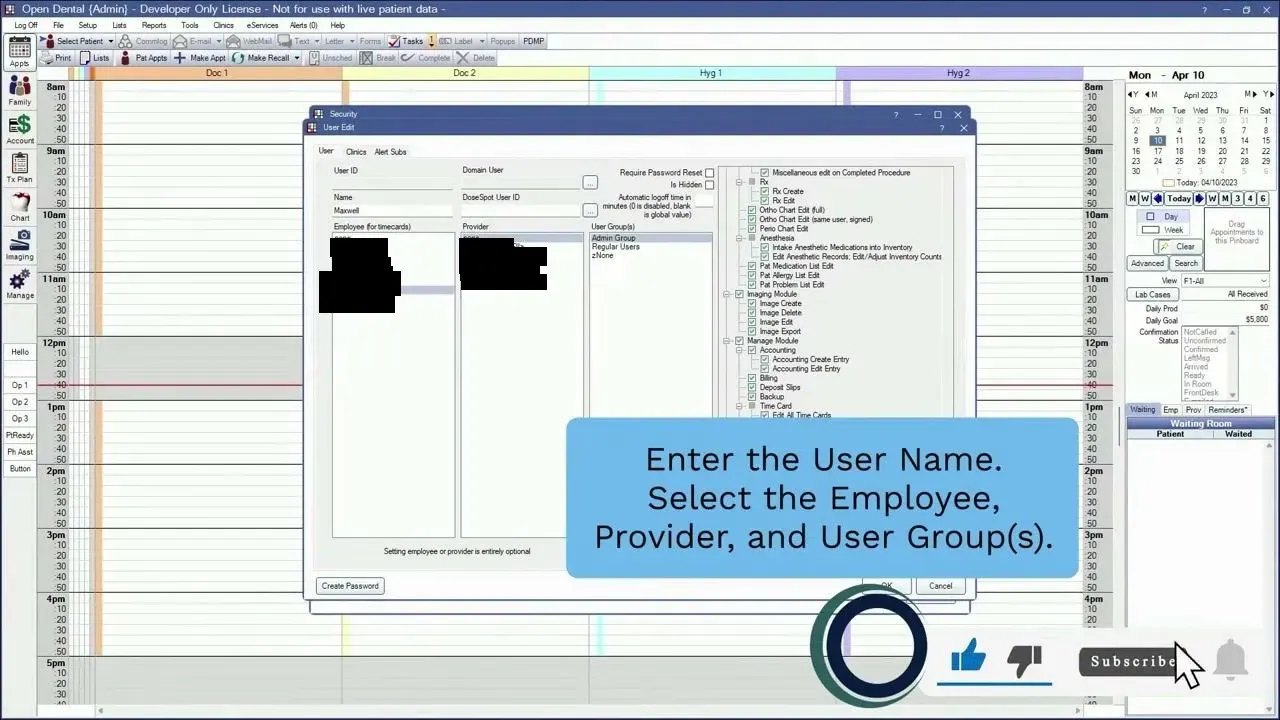
Set the password requirements
Select the Require Password Reset check box. This makes the new user create their own password at first login.
Click Create Password to set a temporary password for the new user.
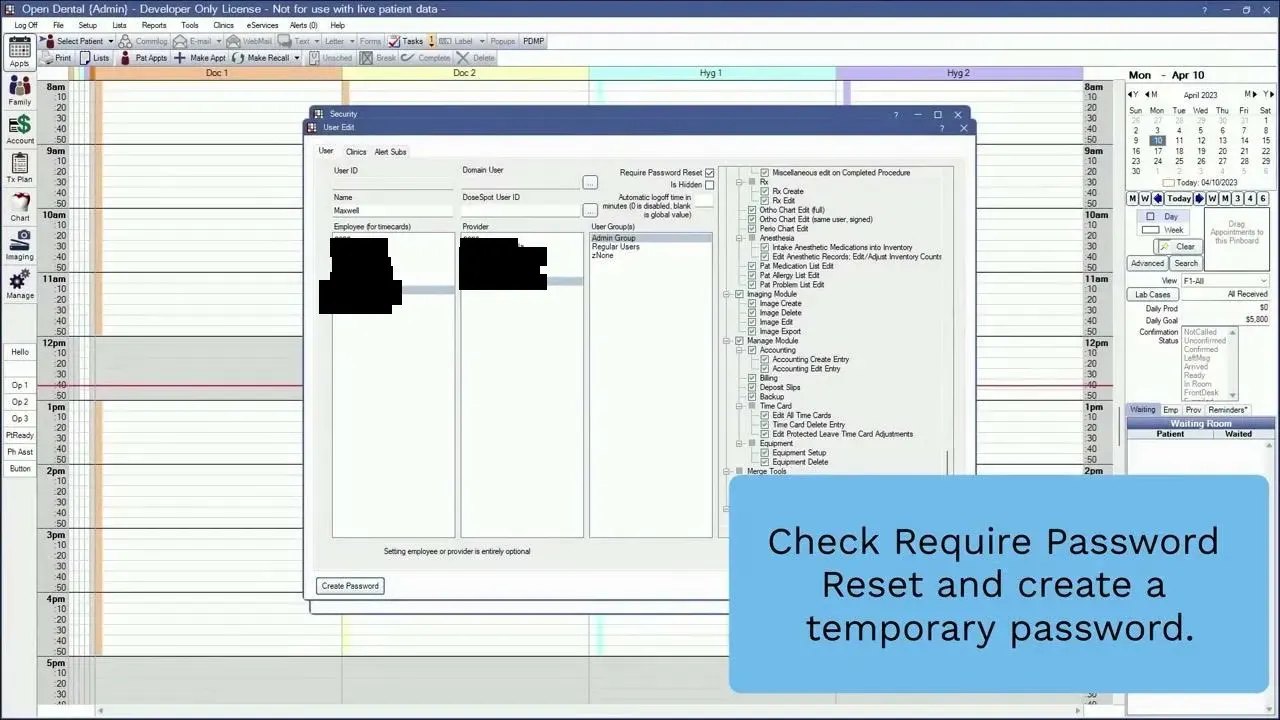
Review and save the new user
Review the information you entered to confirm it is accurate. Then click OK or Save to add the new user to the system.
The new user now appears in the list of users, along with their assigned employee, provider, and user group.
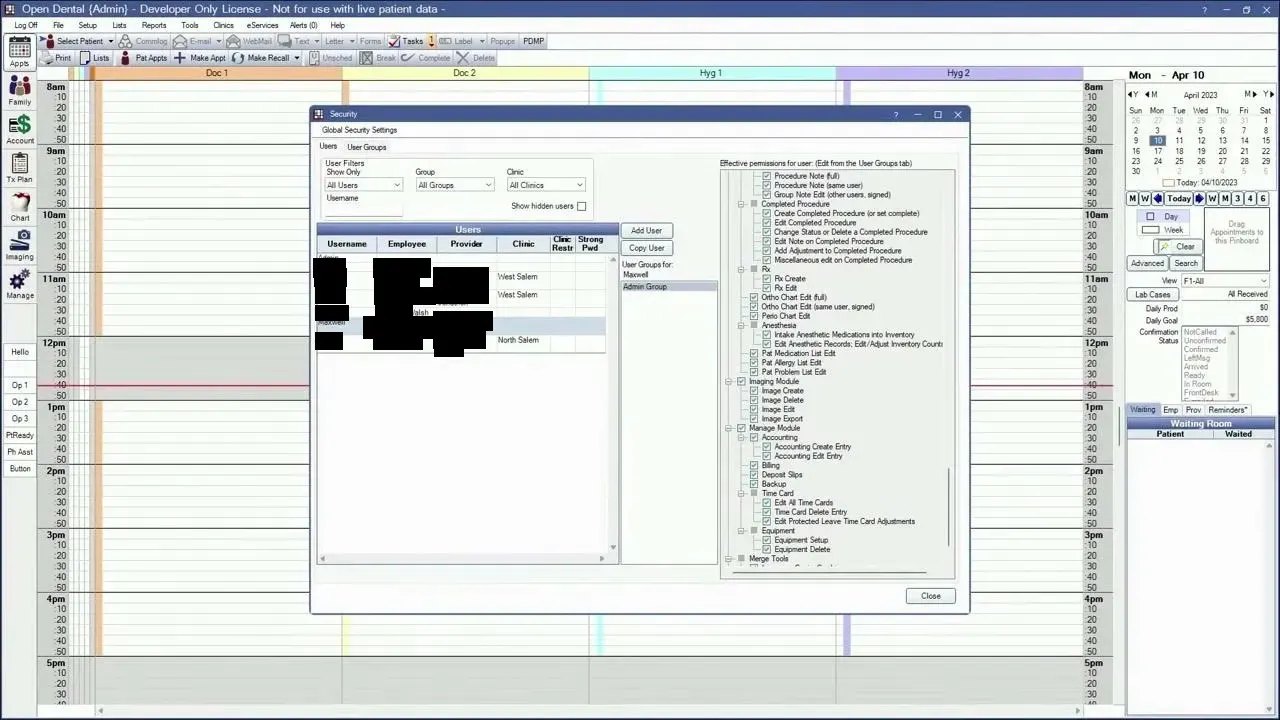
Complete the first login for the new user
When the new user logs on for the first time, Open Dental prompts them to create a new password. The login screen shows a list of users and a password entry field.
The user enters the temporary password. They then follow the prompt to set a new, secure password.
Summary
You now know how to add a new user in Open Dental. If your office uses Time Cards, add the employee first. Then create the user in the Security window, assign a user group, and set a temporary password with Require Password Reset selected. The new user replaces the temporary password with their own at first login.
Generation details: cost, quality tiers
Docsie billed 1,000 credits ($0.70) to analyze this 3-minute video at standard quality. The rewrite, template fill and Word/PDF exports were included. The same video at each quality tier:
| Quality | Frames sampled | Credits | Approx. cost |
|---|---|---|---|
| Draft | every 16-30 s | 750 | $0.52 |
| Standard (this guide) | every 8-15 s | 1,500 | $1.05 |
| Detailed | every 4-7 s | 3,000 | $2.10 |
| Ultra | every 1-3 s | 6,000 | $4.20 |
Credits priced at $0.70 per 1,000; plans include a monthly allowance. Enterprise customers on on-premise or bring-your-own-model deployments run this on their own inference and pay no per-video credits.
Generated by Docsie Video-to-Docs on 2026-11-24 from a 2-minute video. Screenshots are frames from the source video and belong to their creator, Open Dental Software, whose original is embedded above. If you own this video and want the guide removed or credited differently, contact us and we will act within one business day.