
How to Update CDT Codes in Open Dental
Updating CDT codes is an important part of preparing your dental practice for the new year. This guide shows you how to update CDT codes in Open Dental by importing the latest codes and changes with the Procedure Code Tools window. Keeping your CDT codes current is essential for accurate billing and compliance.
Video: QuickTip: How to update CDT codes by Open Dental Software (2025). All credit for the demonstration goes to the creator; watch the original on YouTube. The written guide below was generated from this video by Docsie. Creator? Request a change or removal.
Updating CDT codes is an important part of preparing your dental practice for the new year. This guide shows you how to update CDT codes in Open Dental by importing the latest codes and changes with the Procedure Code Tools window. Keeping your CDT codes current is essential for accurate billing and compliance.
Prerequisites
Before you update CDT codes in Open Dental, confirm the following:
- You have seen your last patient for the year. Import the new CDT codes after this point so that all procedures for the current year are billed with the correct codes.
- Your Open Dental software is up to date. You may need to update Open Dental to have access to the latest codes.
- You have backed up your data before making changes to procedure codes.
Steps to update CDT codes in Open Dental
Step 1: Check for software updates
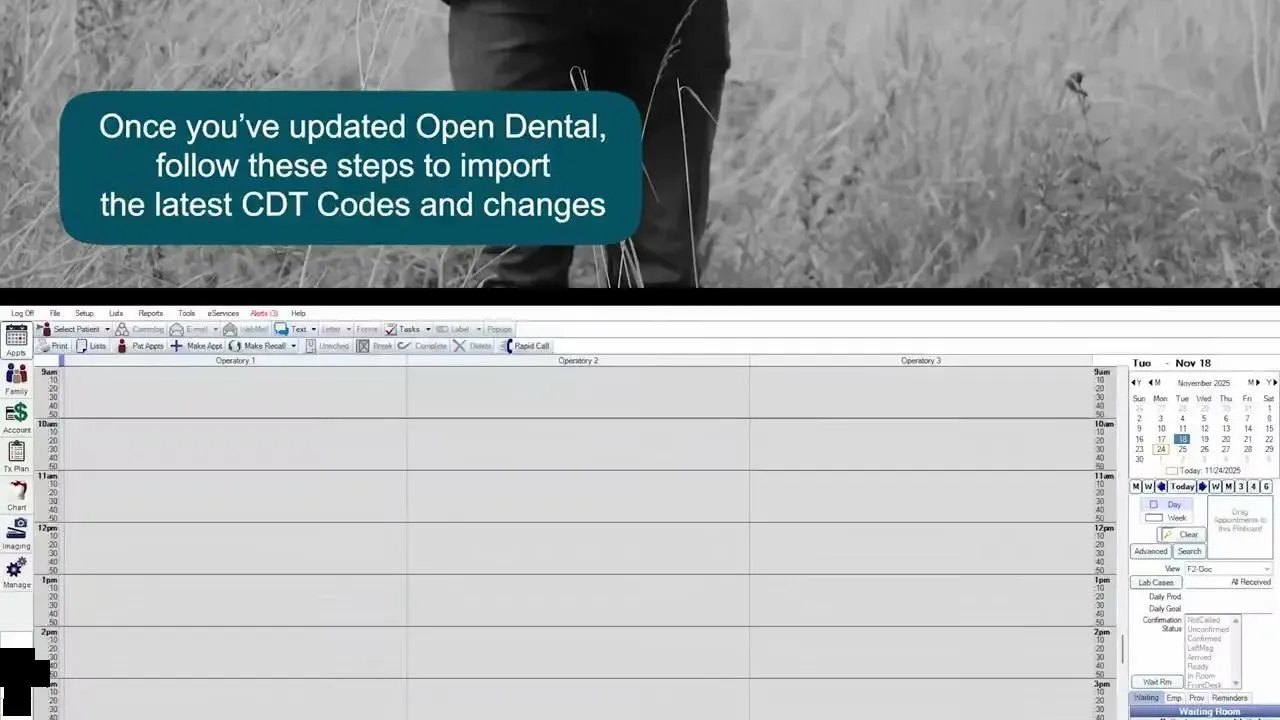
Make sure you are running the latest version of Open Dental. If necessary, perform a software update so that you can access the newest CDT codes.
Step 2: Open the Procedure Code Tools window
After you update Open Dental, start the import of the latest CDT codes and changes.
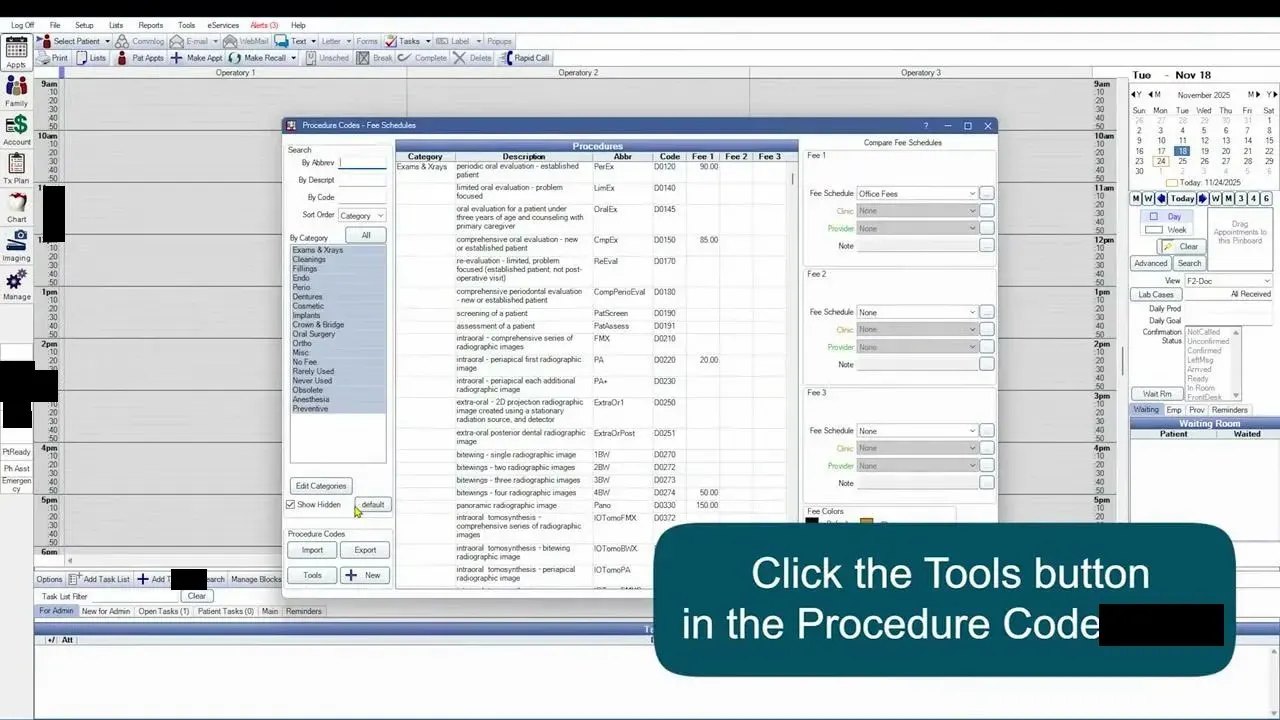
- Open Open Dental and go to the main screen.
- Locate the Procedure Codes - Fee Schedules window.
- In the Procedure Codes area, click Tools.
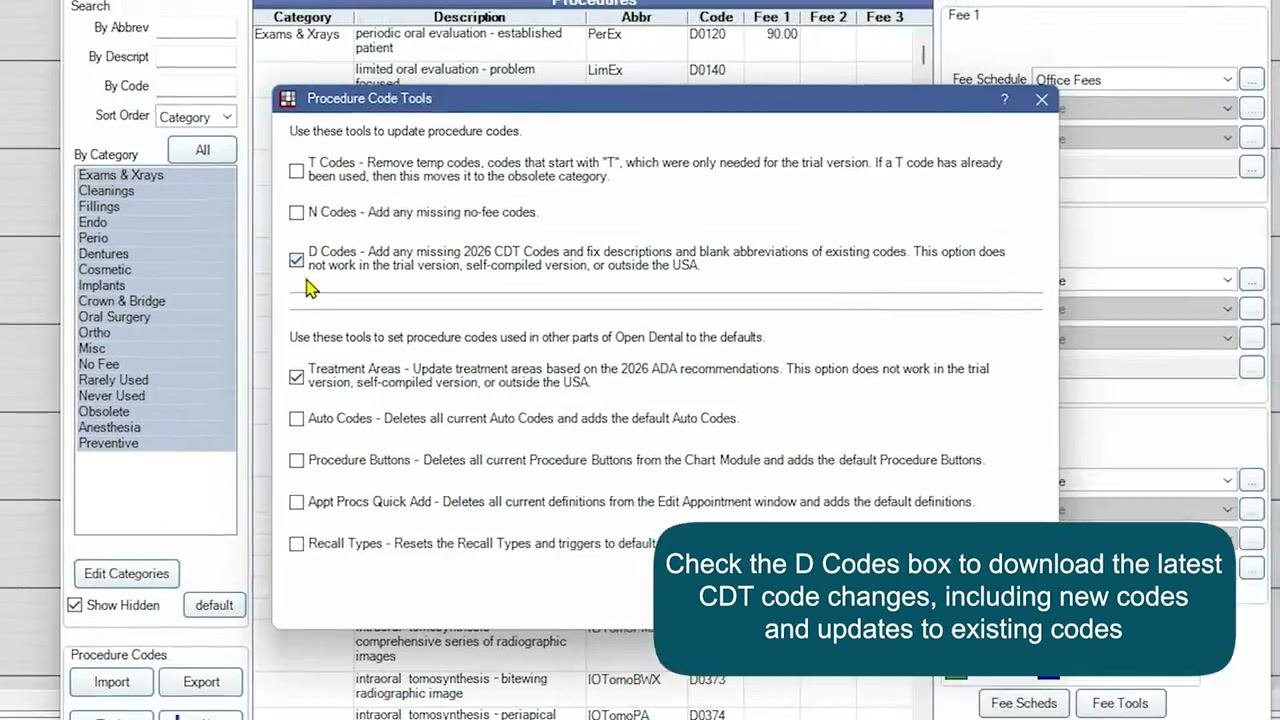
The Procedure Code Tools window opens.
Step 3: Download the latest CDT codes
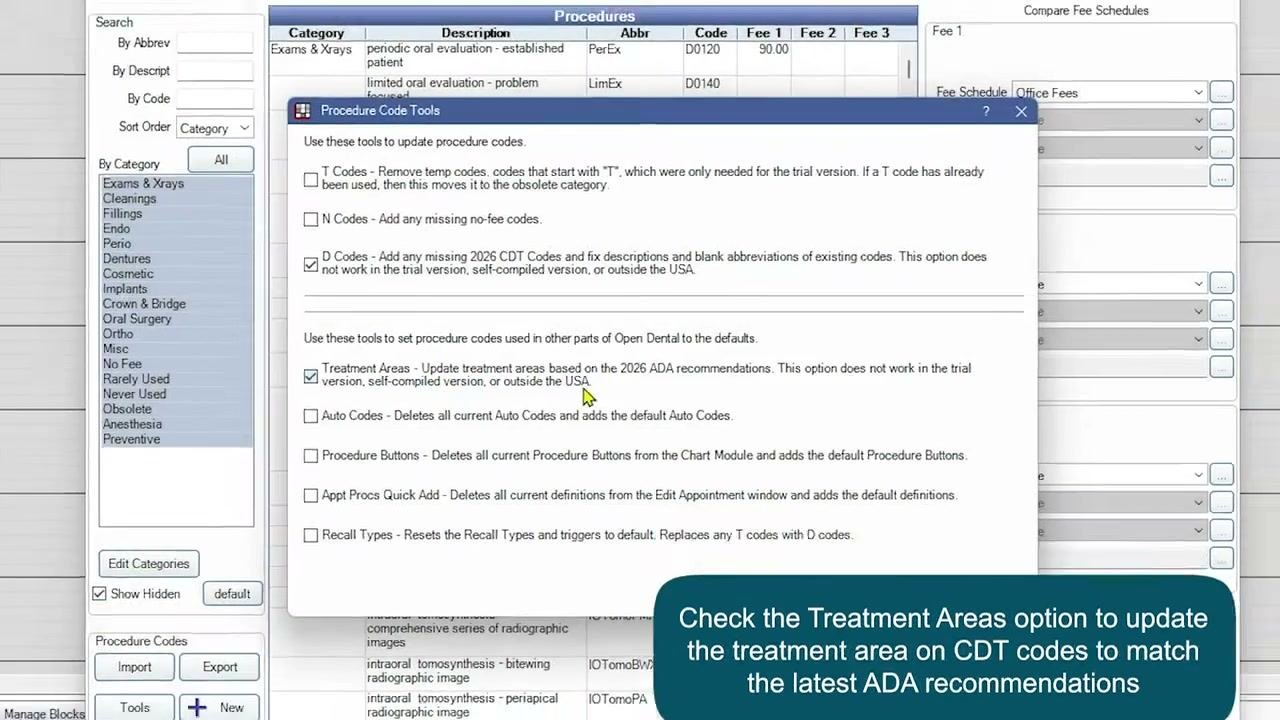
In the Procedure Code Tools window, check the box labeled D Codes – Add any missing 2026 CDT Codes and fix descriptions and blank abbreviations of existing codes.
This downloads the latest CDT code changes, including new codes and updates to existing codes.
Step 4: Update treatment areas
Check the Treatment Areas option. This updates the treatment area on CDT codes to match the latest ADA recommendations.
Step 5: Confirm the import
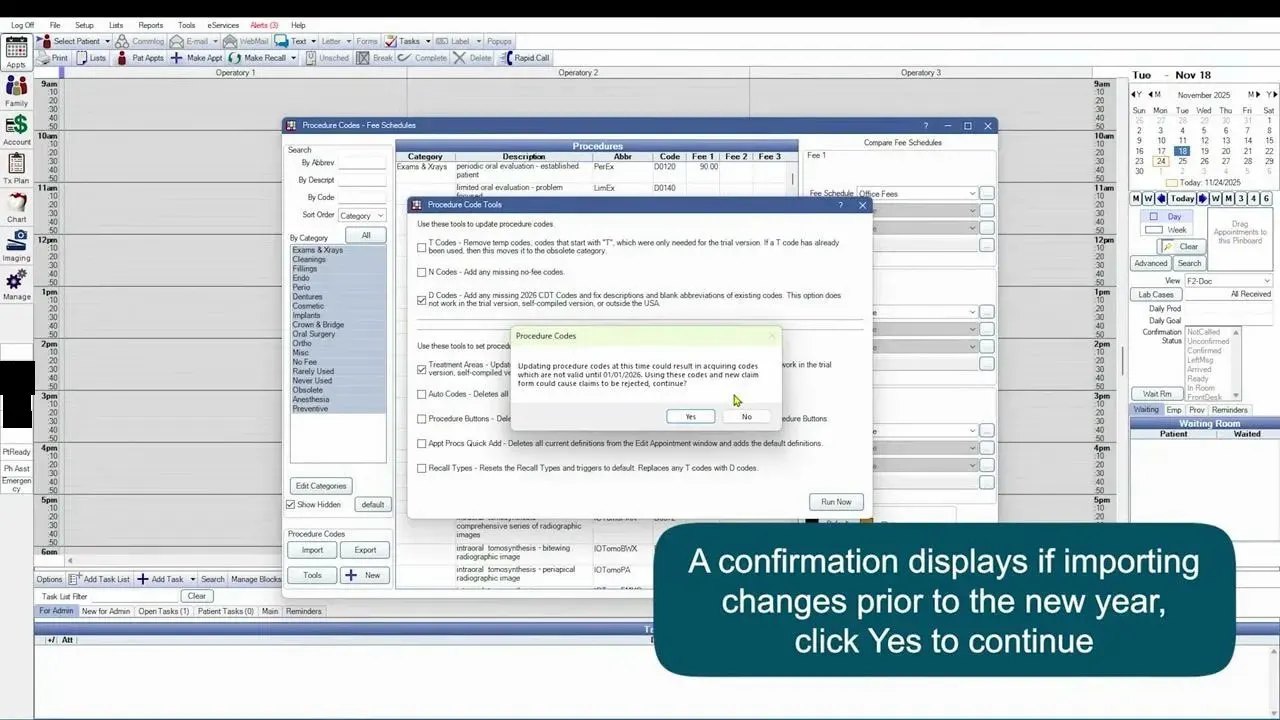
If you import changes before the new year, a confirmation dialog appears with this warning: "Updating procedure codes at this time could result in acquiring codes which are not valid until 01/01/2026. Using these codes and new claim form could cause claims to be rejected, continue?"
Click Yes to continue.
Step 6: Review the import results
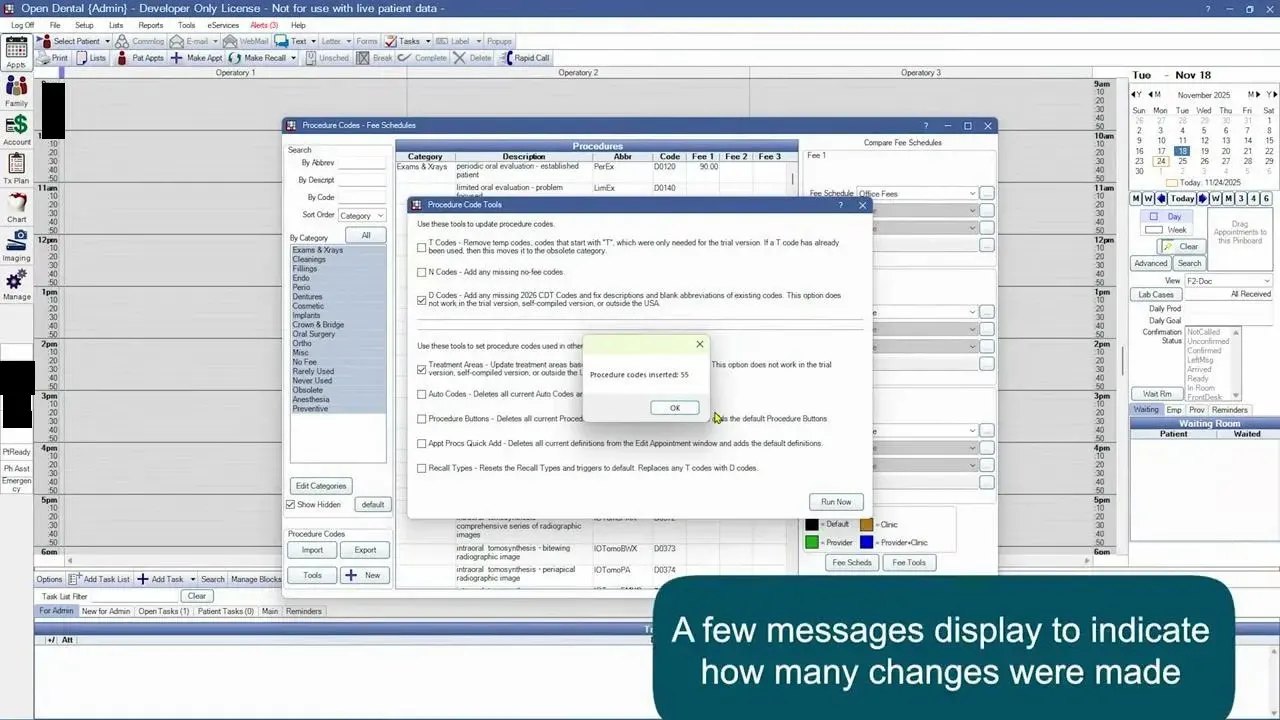
After the import, Open Dental displays messages that show how many changes were made. For example, a message may read "Procedure codes inserted: 55."
Click OK to acknowledge each message.
Step 7: Close the Procedure Code Tools window
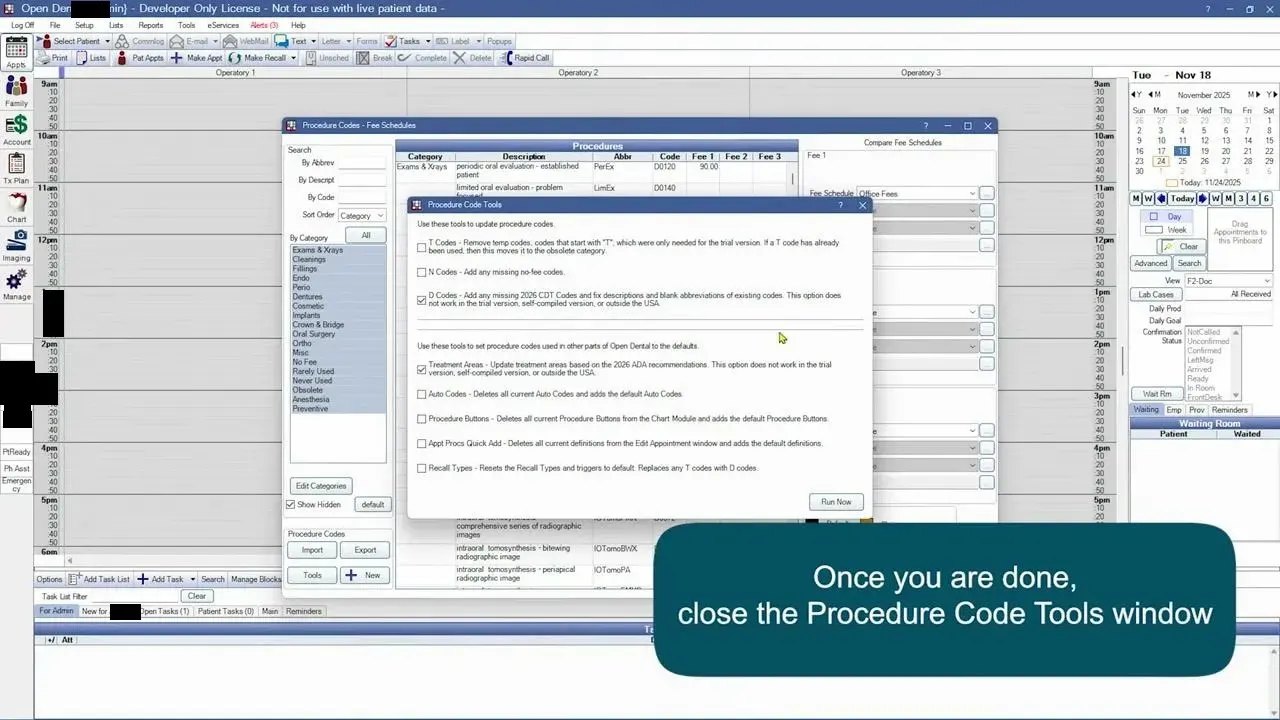
When you are done, close the Procedure Code Tools window. The update process is now complete.
Summary
To update CDT codes in Open Dental, you update the software, open Procedure Code Tools, and select D Codes and Treatment Areas. You then confirm the import and review the results. Always run the latest version of Open Dental and back up your data before you change procedure codes.
After you finish, Open Dental presents information on how to access further support and stay connected with Open Dental Software.
Generation details: cost, quality tiers
Docsie billed 1,000 credits ($0.70) to analyze this 2-minute video at standard quality. The rewrite, template fill and Word/PDF exports were included. The same video at each quality tier:
| Quality | Frames sampled | Credits | Approx. cost |
|---|---|---|---|
| Draft | every 16-30 s | 500 | $0.35 |
| Standard (this guide) | every 8-15 s | 1,000 | $0.70 |
| Detailed | every 4-7 s | 2,000 | $1.40 |
| Ultra | every 1-3 s | 4,000 | $2.80 |
Credits priced at $0.70 per 1,000; plans include a monthly allowance. Enterprise customers on on-premise or bring-your-own-model deployments run this on their own inference and pay no per-video credits.
Generated by Docsie Video-to-Docs on 2026-11-25 from a 1-minute video. Screenshots are frames from the source video and belong to their creator, Open Dental Software, whose original is embedded above. If you own this video and want the guide removed or credited differently, contact us and we will act within one business day.