
How to Reconcile a Bank Account in Odoo
Reconciling a bank account in Odoo is the process of validating your bank transactions by matching them to existing invoices, bills, and payments, or by manually assigning them to an account. This guide walks you through how to reconcile a bank account in Odoo, from reviewing journal entries to matching transactions and correcting reconciliations when needed.
Video: Bank reconciliation | Odoo Accounting by Odoo (2026). All credit for the demonstration goes to the creator; watch the original on YouTube. The written guide below was generated from this video by Docsie. Creator? Request a change or removal.
Reconciling a bank account in Odoo is the process of validating your bank transactions by matching them to existing invoices, bills, and payments, or by manually assigning them to an account. This guide walks you through how to reconcile a bank account in Odoo, from reviewing journal entries to matching transactions and correcting reconciliations when needed.

Prerequisites
Before you begin, make sure you have access to the Odoo Accounting application and that your bank journal contains posted transactions ready to be matched.
Open the Accounting application
From the Odoo dashboard, click the Accounting app icon. The dashboard displays several app icons, including Discuss, Calendar, Appointments, To-do, Knowledge, Contacts, Dashboards, Accounting, Documents, Planning, Employees, Apps, and Settings.
Review journal entries for your bank
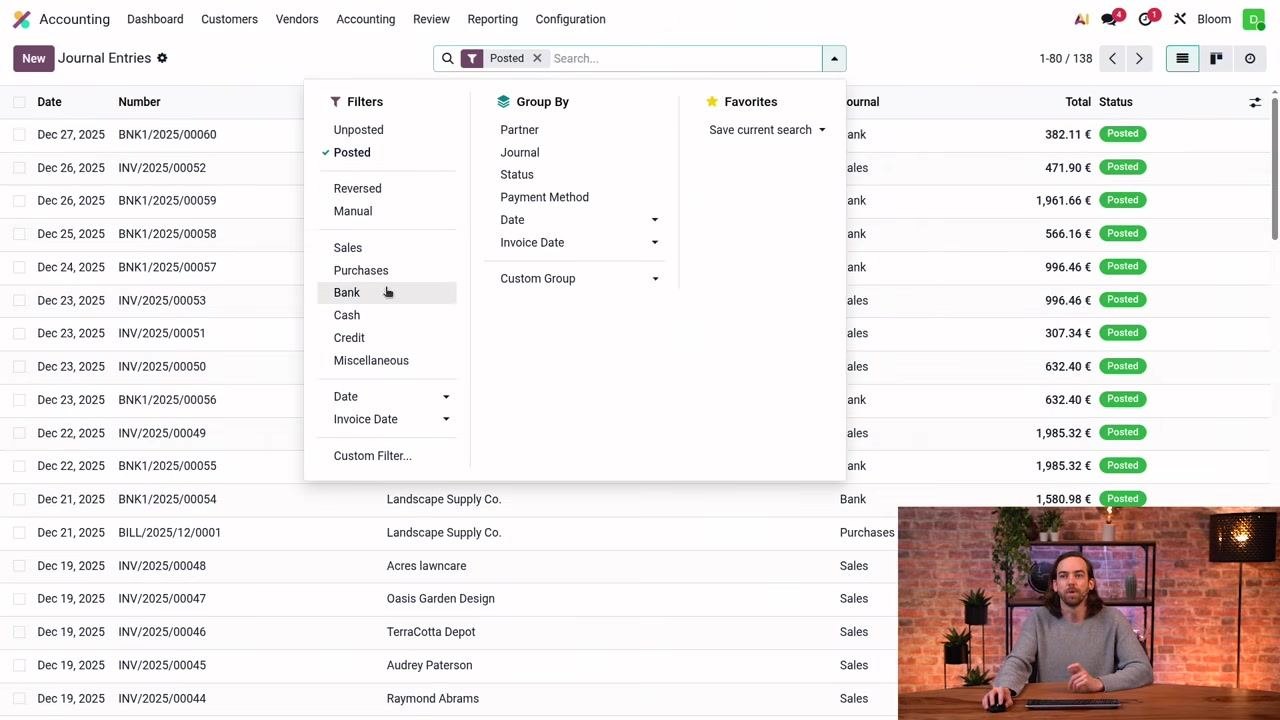
Go to Accounting > Journal Entries. Use the filter options to search for your bank journal, and in the filter dropdown select Posted and Bank to display only posted bank journal entries.
Inspect a journal entry's details
Click into a specific bank journal entry to open its details. The screen shows the entry number (for example, BNK1/2025/00057), accounting date, journal type, and status (Posted). The Journal Items tab lists the accounts involved, partners, labels, debit, and credit amounts.
In the example shown, account 550001 Bank is debited 996.46 €, and account 499000 Suspense Accounts is credited 996.46 €, both linked to partner Floyd Steward.
For incoming transactions, debit is applied to the bank account and credit to the suspense account. For outgoing transactions, the debits and credits are switched. The suspense account acts as a temporary holding account until reconciliation takes place.
See how reconciliation updates a journal entry
After reconciliation, the suspense account is replaced by the account of the counterpart item, such as the accounts receivable for a customer. The journal entry then shows the bank account and the customer account, with the suspense account removed. A Reconciled Items smart button appears, confirming that the transaction has been reconciled.
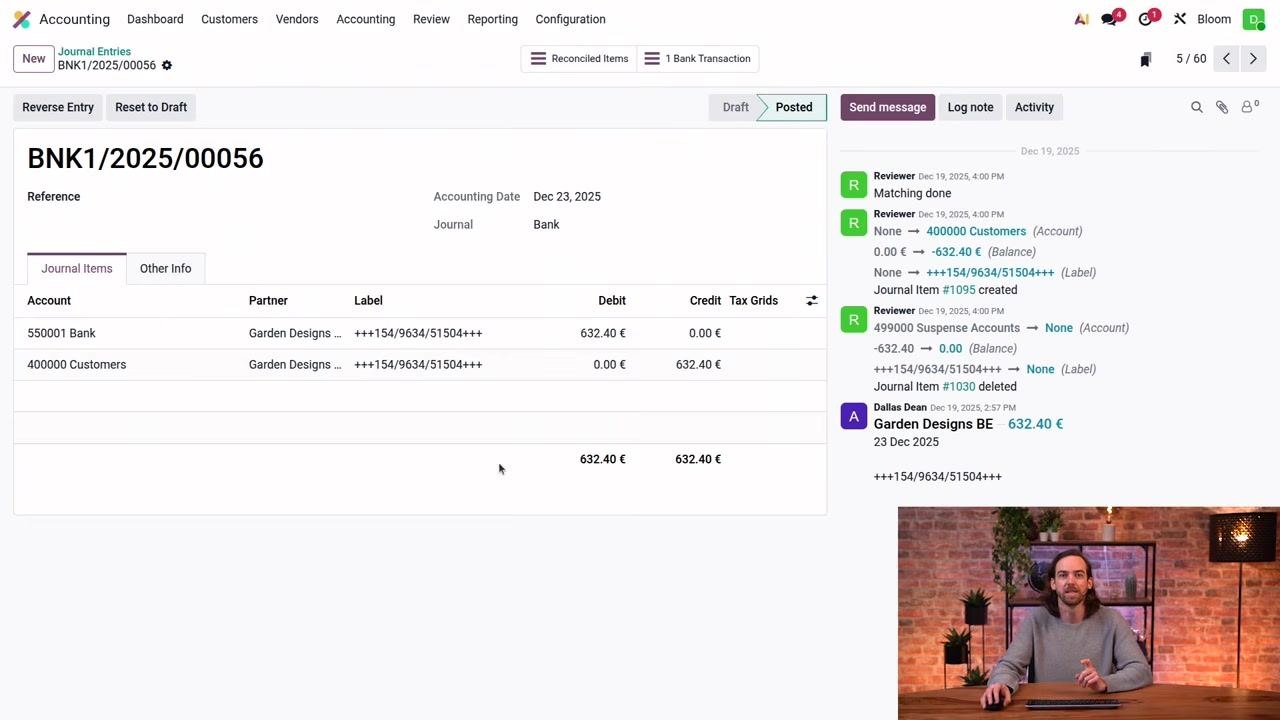
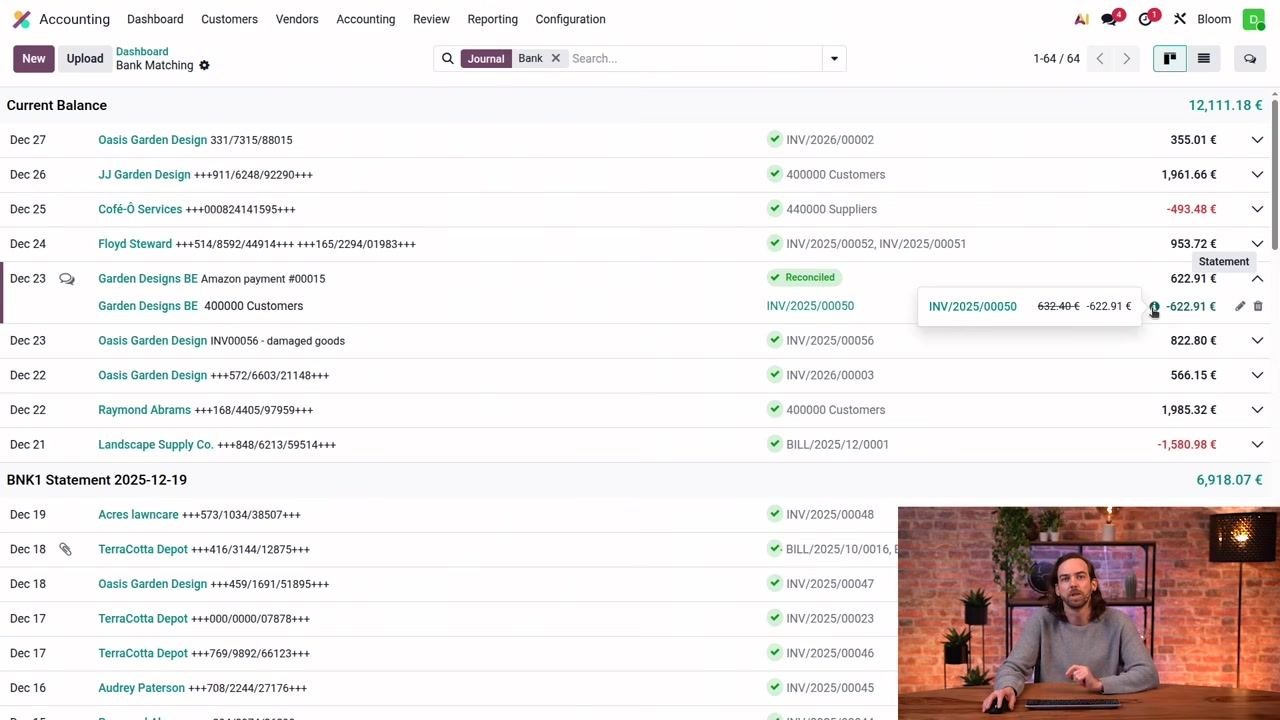
In this example, account 550001 Bank is debited 632.40 €, and account 400000 Customers is credited 632.40 €, both linked to partner Garden Designs.
Access the Bank Matching screen
Return to the Accounting dashboard and locate the Bank section. Here you will find a Transactions button that opens all transactions for the selected bank journal, and a 4 to reconcile button that filters for unreconciled transactions only.
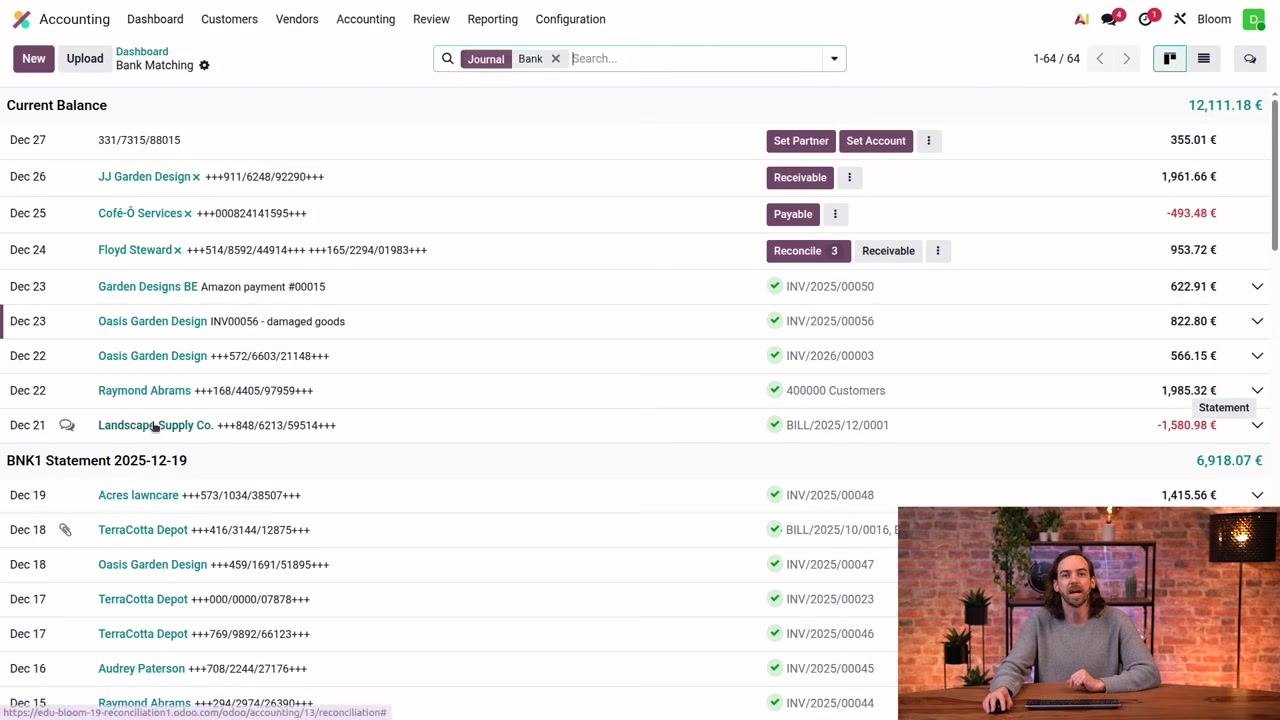
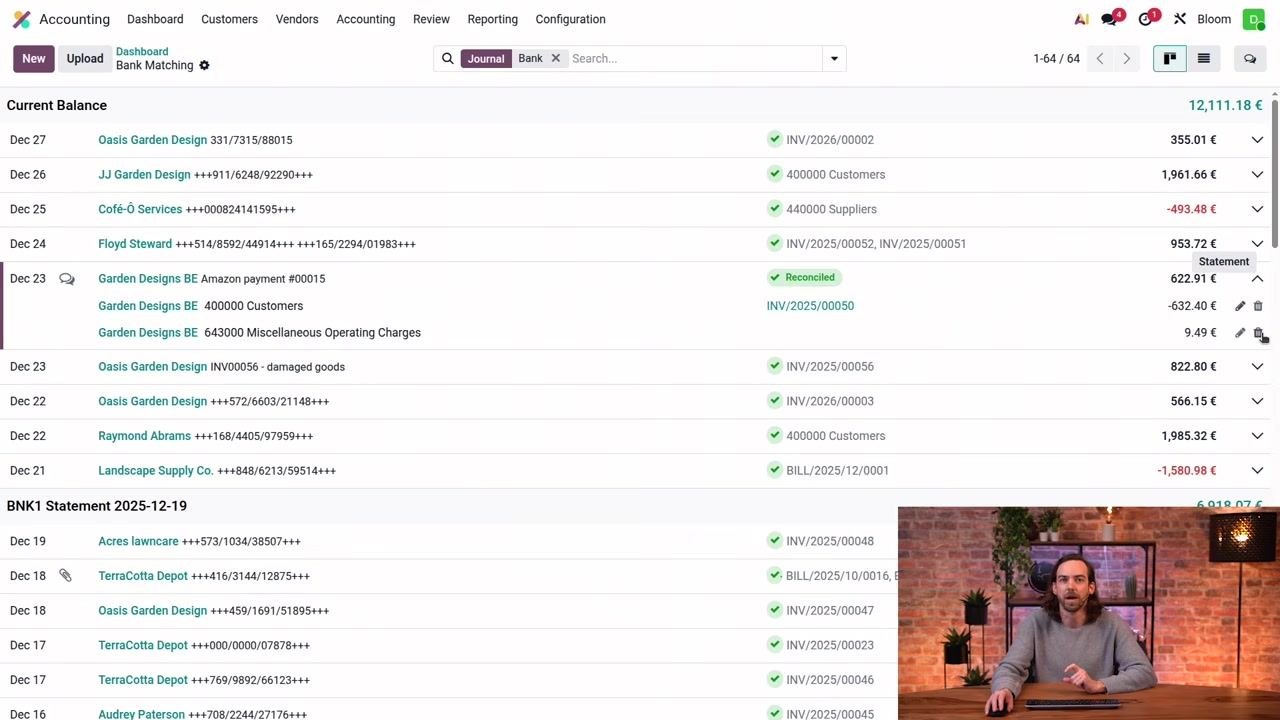
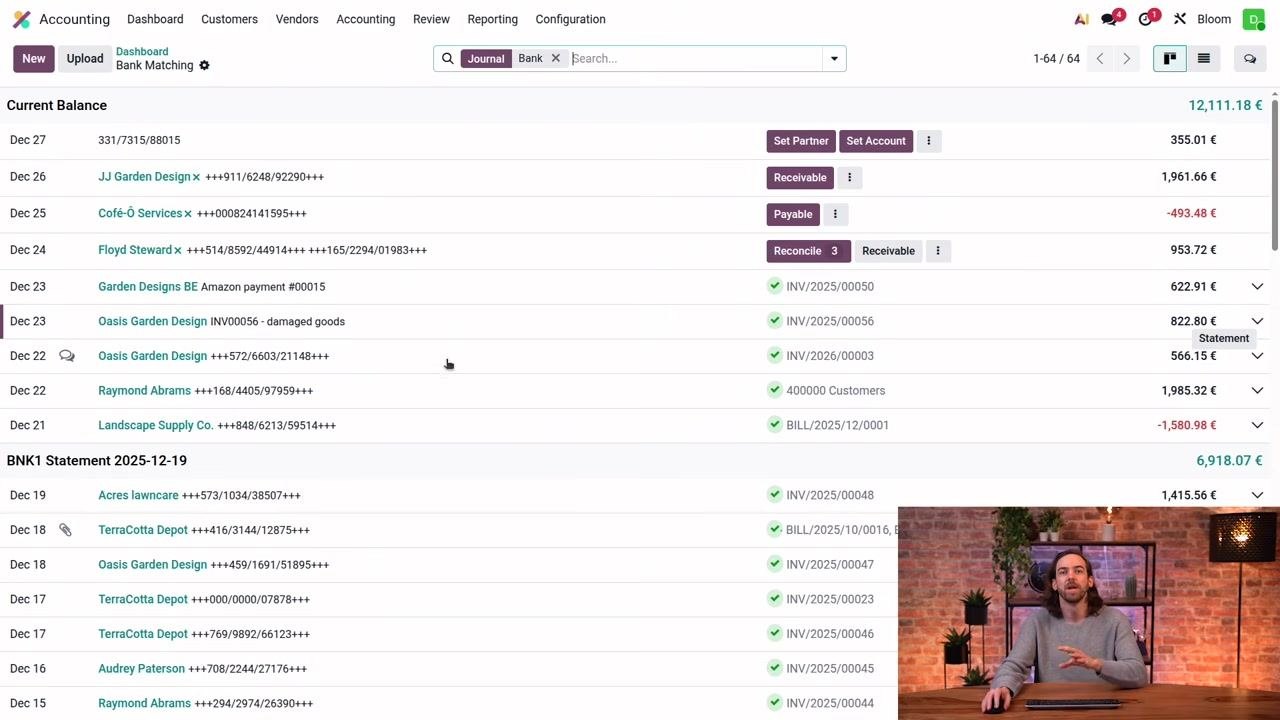
Click Transactions to open the full list. The Bank Matching screen displays transactions grouped by date, with the most recent at the top. Each transaction shows its date, partner, label, and amount, along with action buttons such as Set Partner, Set Account, Receivable, Payable, and Reconcile.
Unreconciled transactions appear at the top of the list with purple suggested-action buttons. The suggested action depends on the transaction's context: Odoo suggests Set Partner when a partner is missing, and Reconcile when open invoices exist for the partner.
Reconcile a transaction using suggested actions
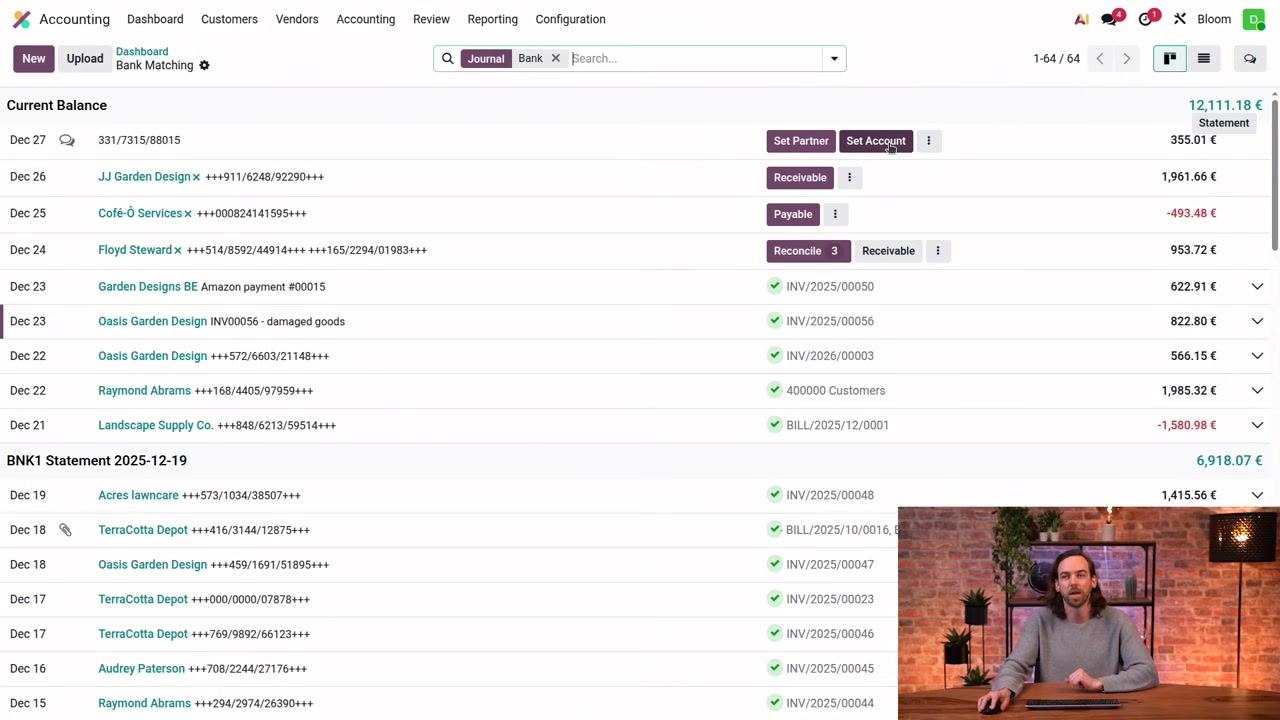
Use the suggested action buttons to process each transaction:
- Click Set Partner if the transaction is missing a partner.
- Click Set Account to write off the transaction directly to a specific account.
- Click Reconcile to match the transaction with open invoices, bills, or payments for the partner.
The purple color of a button indicates Odoo's recommended next step.
If the partner has open invoices, bills, or payments, use Reconcile to match the transaction. If there are no open records, match the transaction directly with the receivable or payable account, depending on whether it is incoming or outgoing.
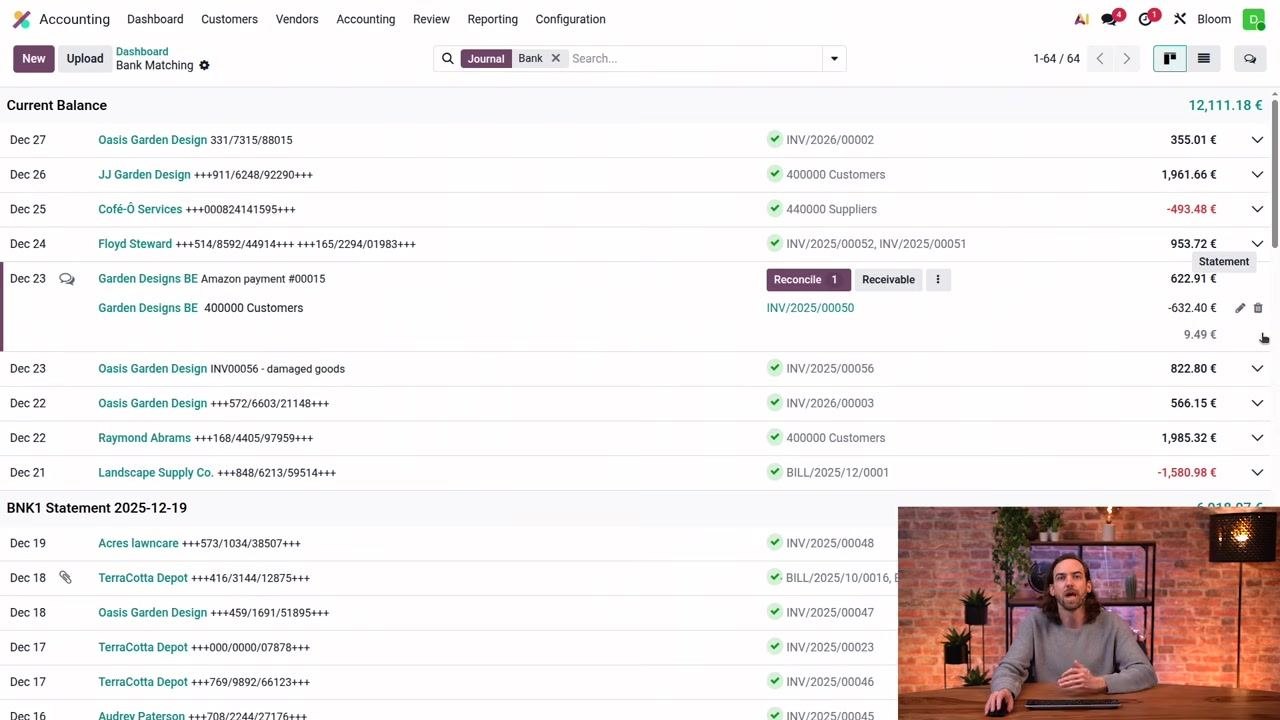
View additional actions
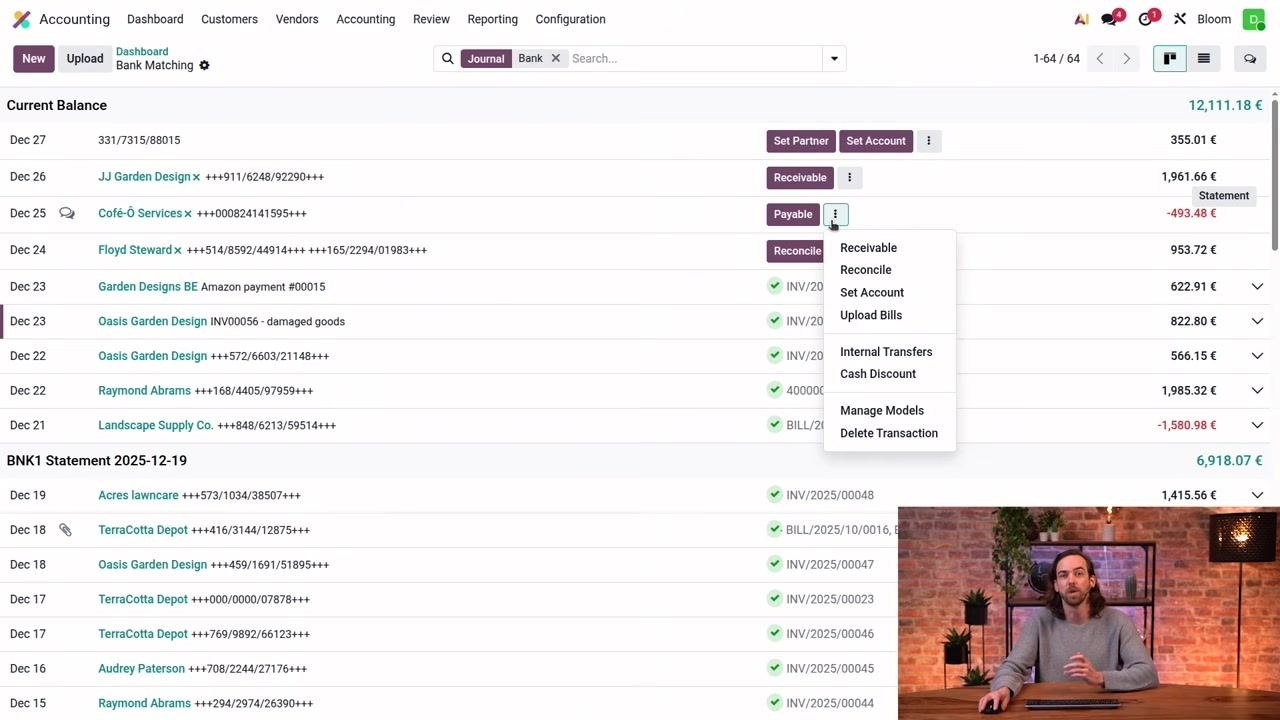
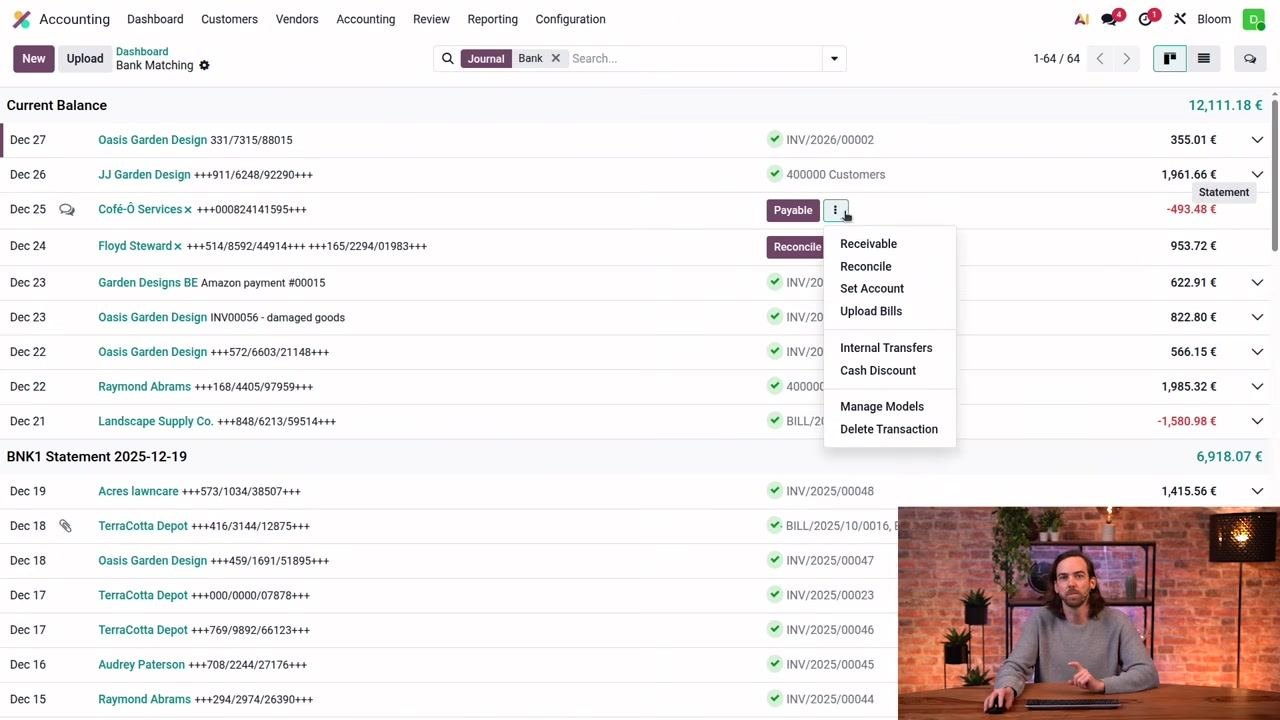
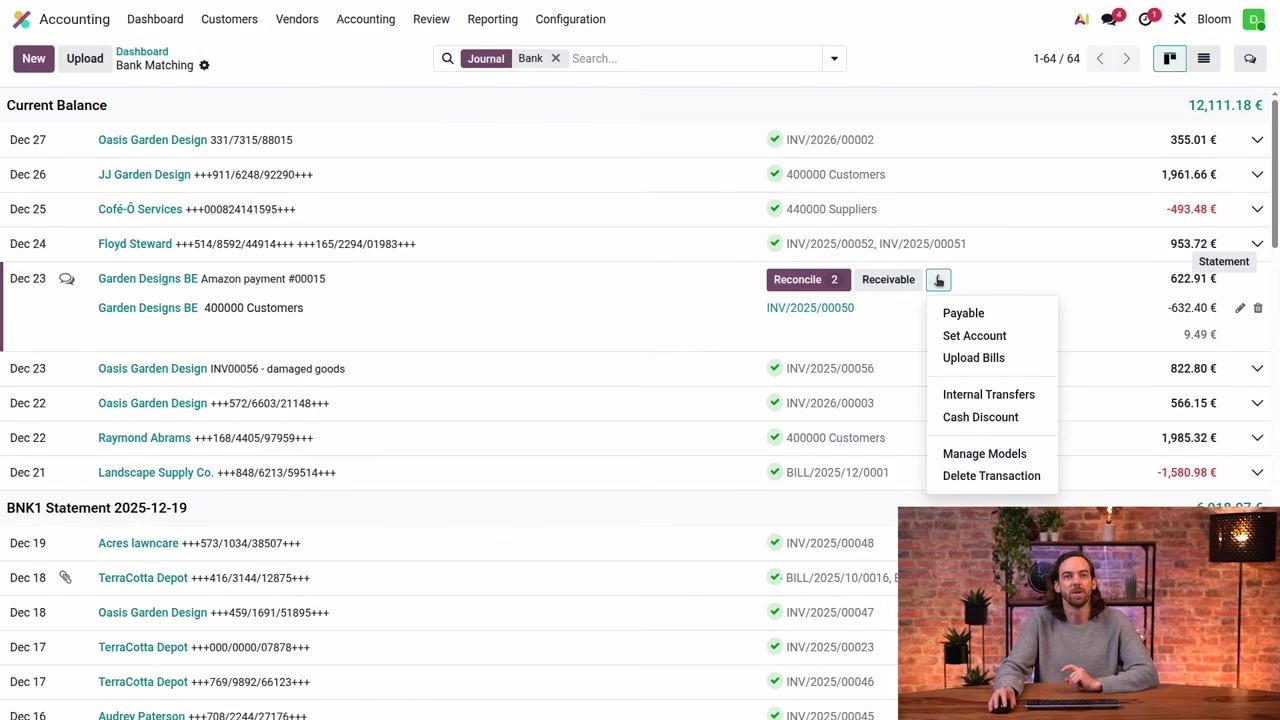
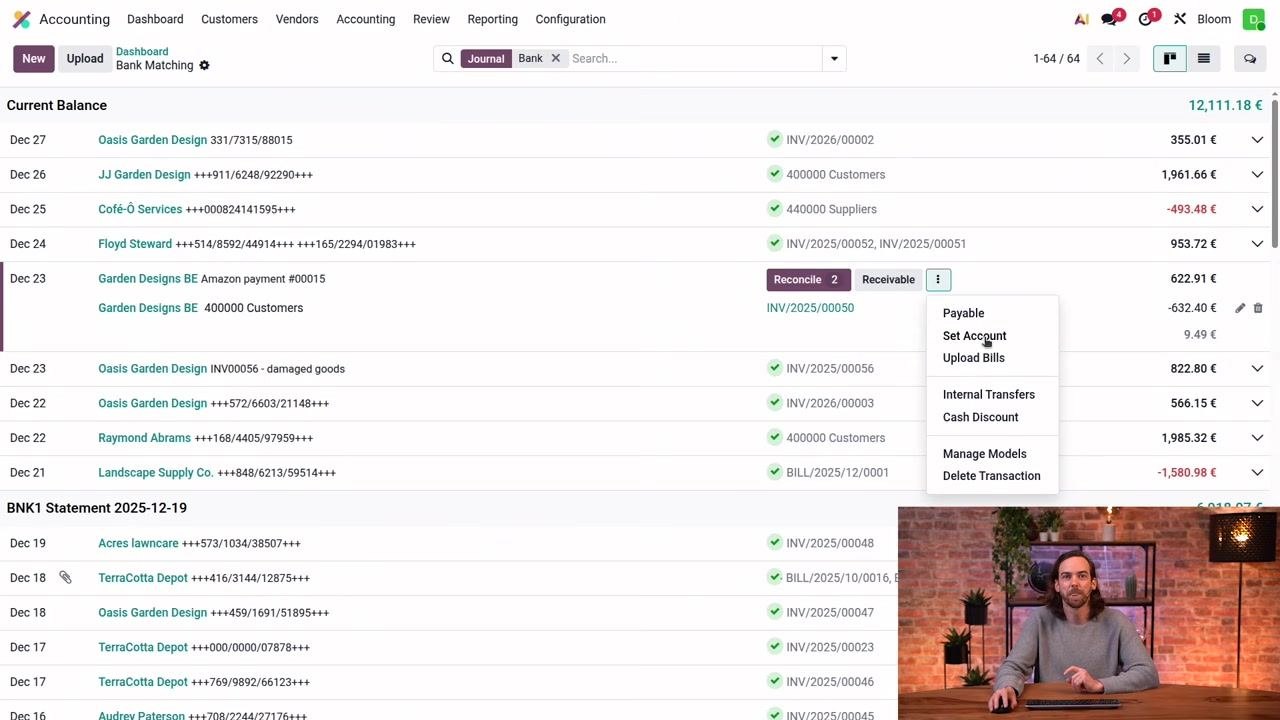
Click the vertical ellipsis (three dots) next to an action button to see the full list of available actions: Receivable, Reconcile, Set Account, Upload Bills, Internal Transfers, Cash Discount, Manage Models, and Delete Transaction. Use Manage Models to access reconciliation models.
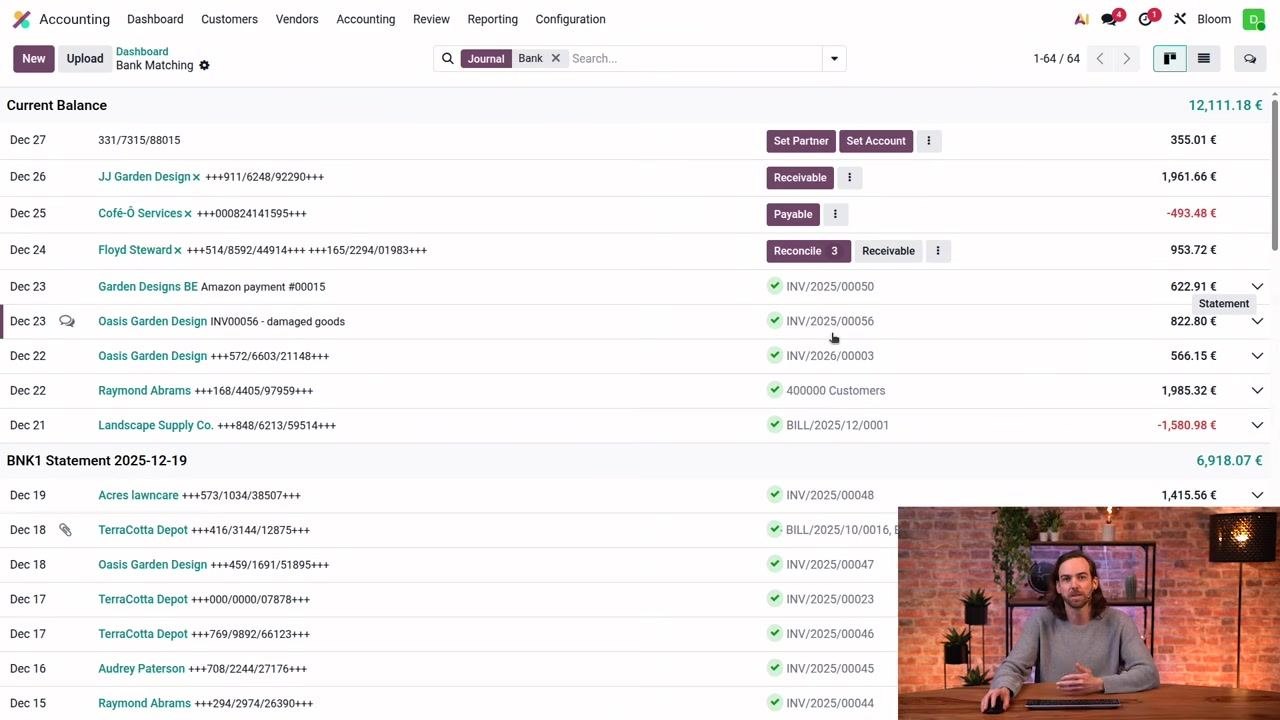
Identify already reconciled transactions
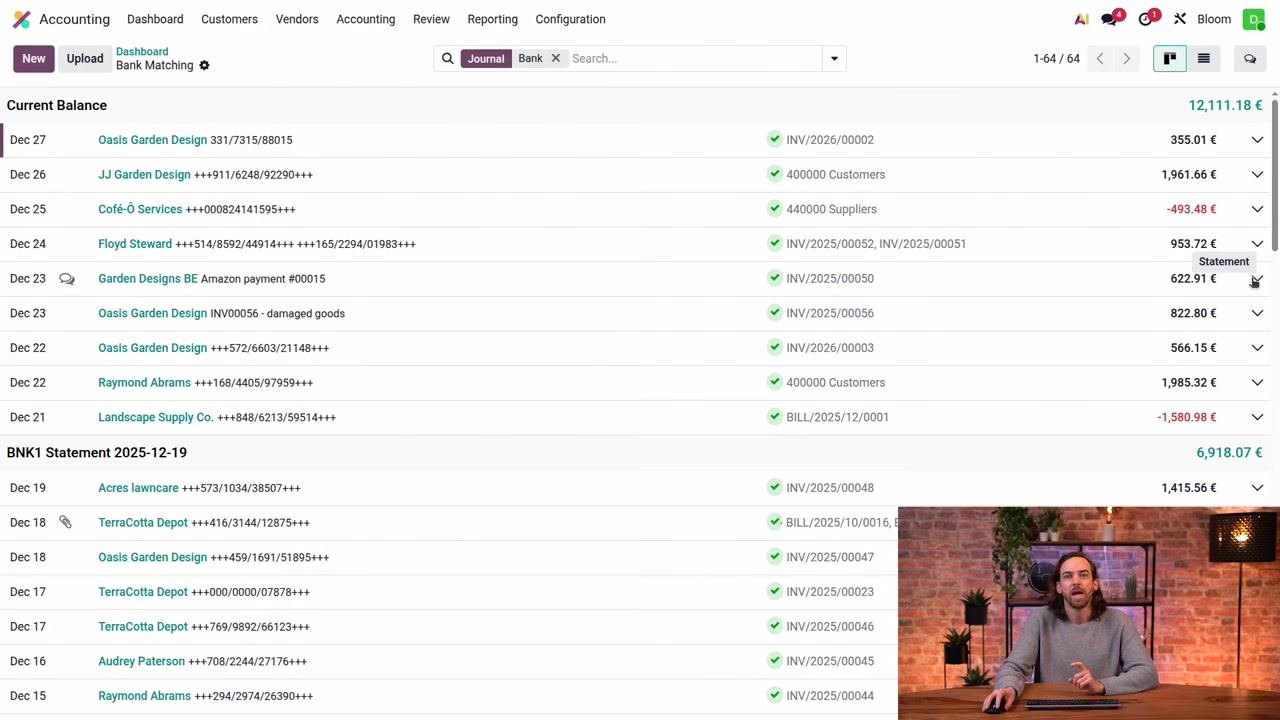
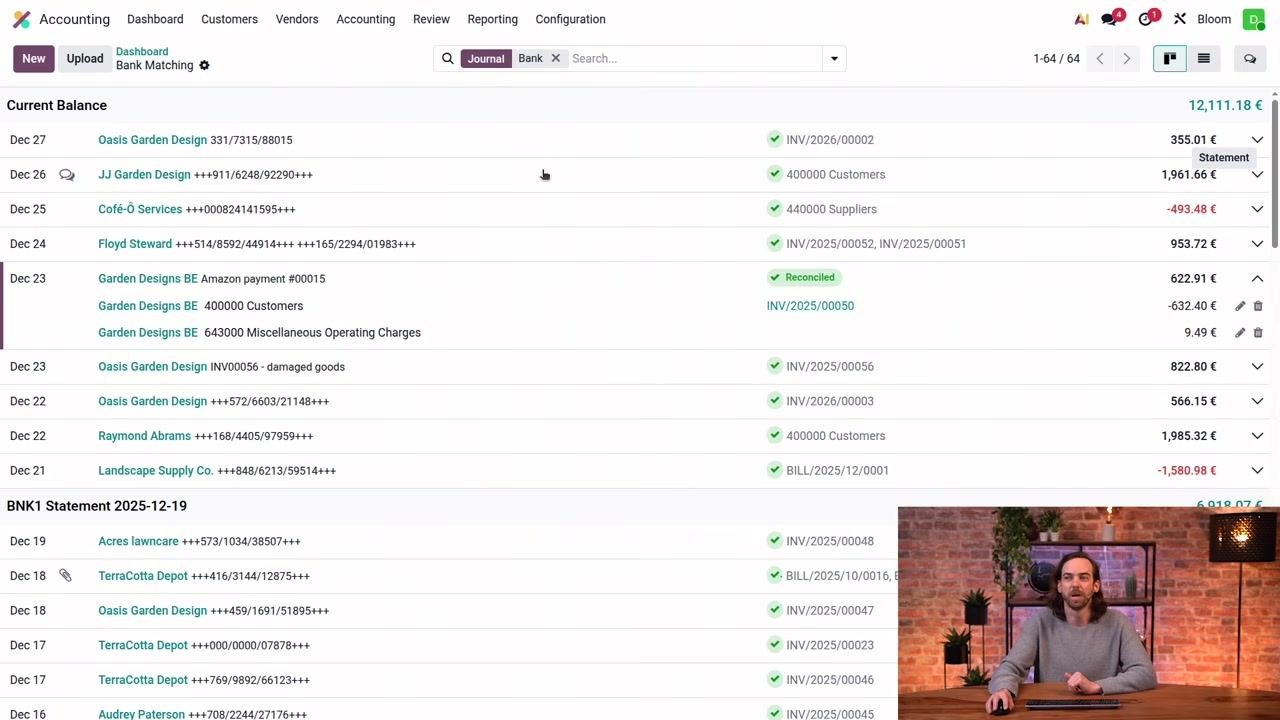
Transactions that have already been reconciled display a green check mark along with the name of the matched record or account, such as "INV/2025/00050" or "400000 Customers," instead of suggested action buttons. These entries no longer show purple action buttons like Set Partner, Receivable, or Payable.
Reconcile a transaction missing a partner
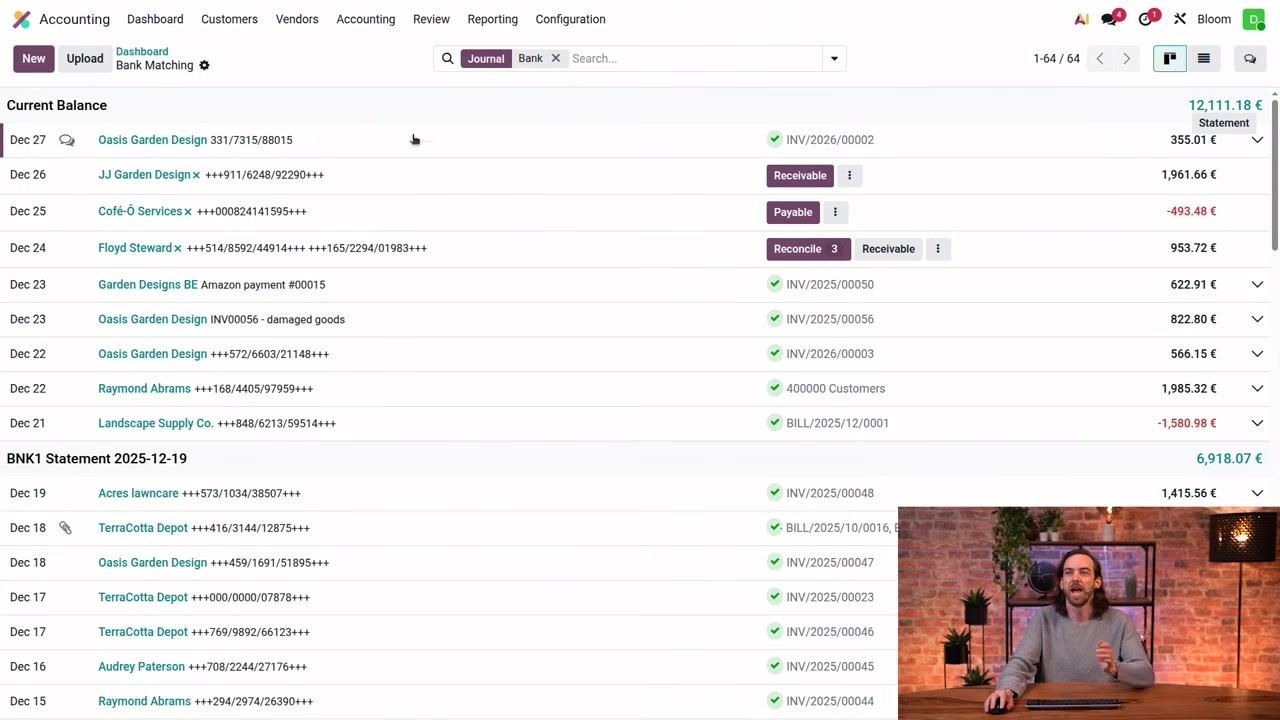
Odoo uses a built-in rule to simplify reconciliation: if two out of three elements (partner, label, amount) match between a transaction and an invoice, bill, or payment, Odoo automatically matches them without manual intervention.
To reconcile a transaction without a partner:
- Locate a transaction at the top of the list with no partner set and a non-structured label.
- Click Set Partner.
- Search for and select the correct partner, for example "Oasis Garden Design."
Odoo automatically matches the transaction with the correct invoice when the partner and amount are perfect matches.
Write off a transaction without open invoices
When a transaction's partner is set but there are no open invoices or bills:
- For incoming transactions, click Receivable to write off directly to the receivable account.
- For outgoing transactions, click Payable to write off directly to the payable account.
If you need additional options, click the vertical ellipsis next to the Payable button.
Reconcile a transaction against multiple invoices
To match a transaction with more than one invoice:
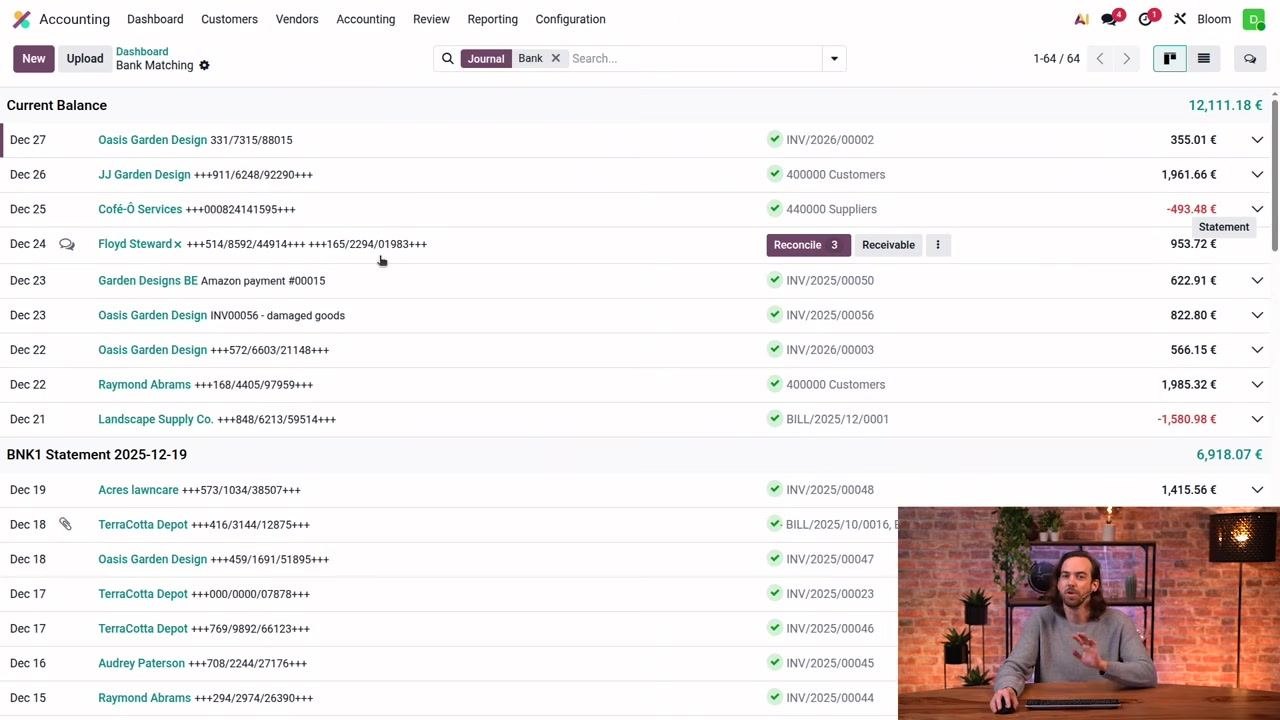
- Locate the transaction in the Current Balance list, for example the entry for "Floyd Steward x" dated Dec 24.
- Click the Reconcile button next to the transaction.
A Search: Journal Items to Match window opens, filtered by the partner. In this example, for Floyd Steward the available invoices are:
- Dec 15, 2025 | INV/2025/00052 | Floyd Steward | +++514/8592/44914+++ | 682.18 €
- Dec 11, 2025 | INV/2025/00051 | Floyd Steward | +++165/2294/01983+++ | 271.54 €
- Nov 3, 2025 | INV/2025/00026 | Floyd Steward | +++000/0000/08181+++ | 562.65 €
Check the boxes for the invoices you want to match. In this example, select the first two invoices.
Verify that the Balance at the top right of the window reads 0.00 €, confirming the amounts match, then click Select at the bottom left to save your selections.
Back on the main transaction list, the reconciled transaction now displays the matched invoice numbers, such as INV/2025/00052 and INV/2025/00051, along with the updated statement amount. Confirm that the transaction shows as reconciled.
If there is a small difference between the payment and the invoices, Odoo automatically reconciles the transaction as long as the difference falls within the permitted tolerance range.
Set a different account for a transaction
To assign a different account, click the vertical ellipsis next to the transaction and select Set Account from the dropdown menu.
In the account selection dialog, search for the appropriate account, such as "Miscellaneous expense account" or "Miscellaneous operating charges," to categorize the transaction correctly.
After selecting the appropriate account, confirm your choice. The transaction is now fully reconciled, with the updated status, invoice numbers, and accounts reflected in the transaction list.
Edit a reconciled match
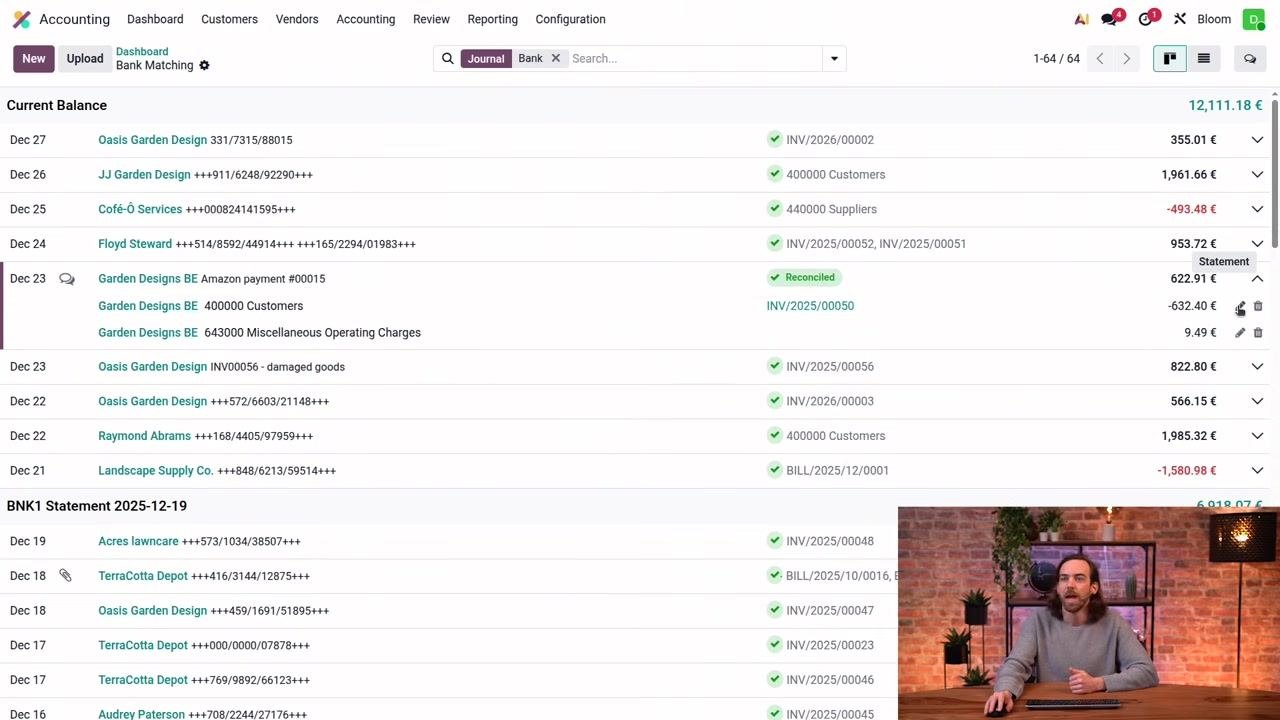
To change a reconciled transaction, expand the transaction line by clicking the arrow or plus icon next to it, then click the pencil (edit) icon to open the Edit Line dialog.
In the Edit Line window, you can:
- Edit the balance amount (for example, change 632.40 € to another value).
- Switch between recording a full payment or a partial payment by clicking the "partial payment" link.
- Review details such as Date (Dec 23, 2025), Account (400000 Customers), Partner (Garden Designs BE), and Label (+++154/9634/51540+++).
Click Save to apply your changes, To Review to flag the entry for further review, or Discard to cancel.
Remove and redo a reconciliation
If you need to undo a reconciliation, click the trash (delete) icon next to the reconciled transaction. This clears the match so you can reconcile the transaction differently or correct an error.
If a balance remains after removing a reconciliation, use the Reconcile button to match the outstanding amount with the correct invoices or accounts. The transaction displays as "Receivable" until it is fully reconciled.
Summary
You now know how to reconcile a bank account in Odoo: reviewing journal entries, filtering bank transactions, using suggested actions like Set Partner, Set Account, Receivable, Payable, and Reconcile, matching transactions against multiple invoices within tolerance, and editing or removing reconciliations when corrections are needed.
What's next
Explore Manage Models in the Bank Matching ellipsis menu to set up reconciliation models that can further automate how transactions are matched in the future.
Generation details: cost, quality tiers
Docsie billed 4,000 credits ($2.80) to analyze this 8-minute video at standard quality. The rewrite, template fill and Word/PDF exports were included. The same video at each quality tier:
| Quality | Frames sampled | Credits | Approx. cost |
|---|---|---|---|
| Draft | every 16-30 s | 2,000 | $1.40 |
| Standard (this guide) | every 8-15 s | 4,000 | $2.80 |
| Detailed | every 4-7 s | 8,000 | $5.60 |
| Ultra | every 1-3 s | 16,000 | $11.20 |
Credits priced at $0.70 per 1,000; plans include a monthly allowance. Enterprise customers on on-premise or bring-your-own-model deployments run this on their own inference and pay no per-video credits.
Generated by Docsie Video-to-Docs on 2026-10-25 from a 7-minute video. Screenshots are frames from the source video and belong to their creator, Odoo, whose original is embedded above. If you own this video and want the guide removed or credited differently, contact us and we will act within one business day.