
How to Set Up an Approval Workflow in Odoo
This guide shows you how to set up an approval workflow in Odoo using the Approvals app. You will learn how to review pending requests, approve or track them as a manager, monitor your own submissions, and audit the full history of approved and refused requests across your organization.
Video: Approvals Management | Odoo Approvals by Odoo (2024). All credit for the demonstration goes to the creator; watch the original on YouTube. The written guide below was generated from this video by Docsie. Creator? Request a change or removal.
This guide shows you how to set up an approval workflow in Odoo using the Approvals app. You will learn how to review pending requests, approve or track them as a manager, monitor your own submissions, and audit the full history of approved and refused requests across your organization.
Prerequisites
- Access to the Odoo Approvals app.
- Approval categories already configured (for example, Business Trip, Contract Approval, Borrow Items, Car Rental Application, General Approval, or Job Referral Award).
- Manager-level access if you need to review and approve requests submitted by others.
Part 1: Reviewing approval categories and pending requests
Step 1: Access the Approvals dashboard
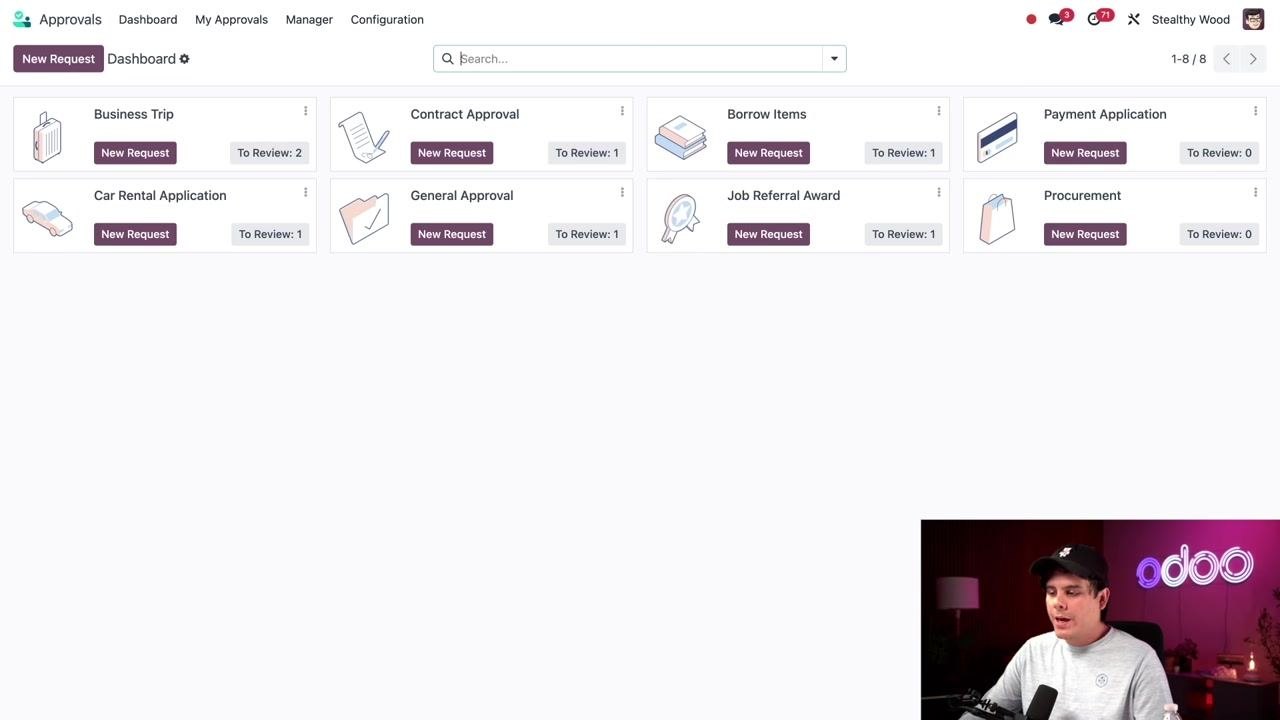
Open the Approvals app to view all the approval categories configured in your system. Each category displays a To Review indicator showing how many requests are currently pending (for example, "Business Trip" shows "To Review: 2" and "Contract Approval" shows "To Review: 1").
Step 2: Open the requests awaiting your action
Click To Review on a specific category, such as "Contract Approval," to see the list of requests waiting to be approved. Each row shows the Approval Subject, Request Owner, Category, Request Start, Request To, and Request Status. In this example, all listed requests are in "Submitted" status, including items such as Amazon Voucher, Borrow Screwdriver, Car Rental - Client Visits, London Furniture Show, New Marketing Partnership, Training Class - Accounting, and Use Lathe Station After Hours.
Step 3: Review a request's details
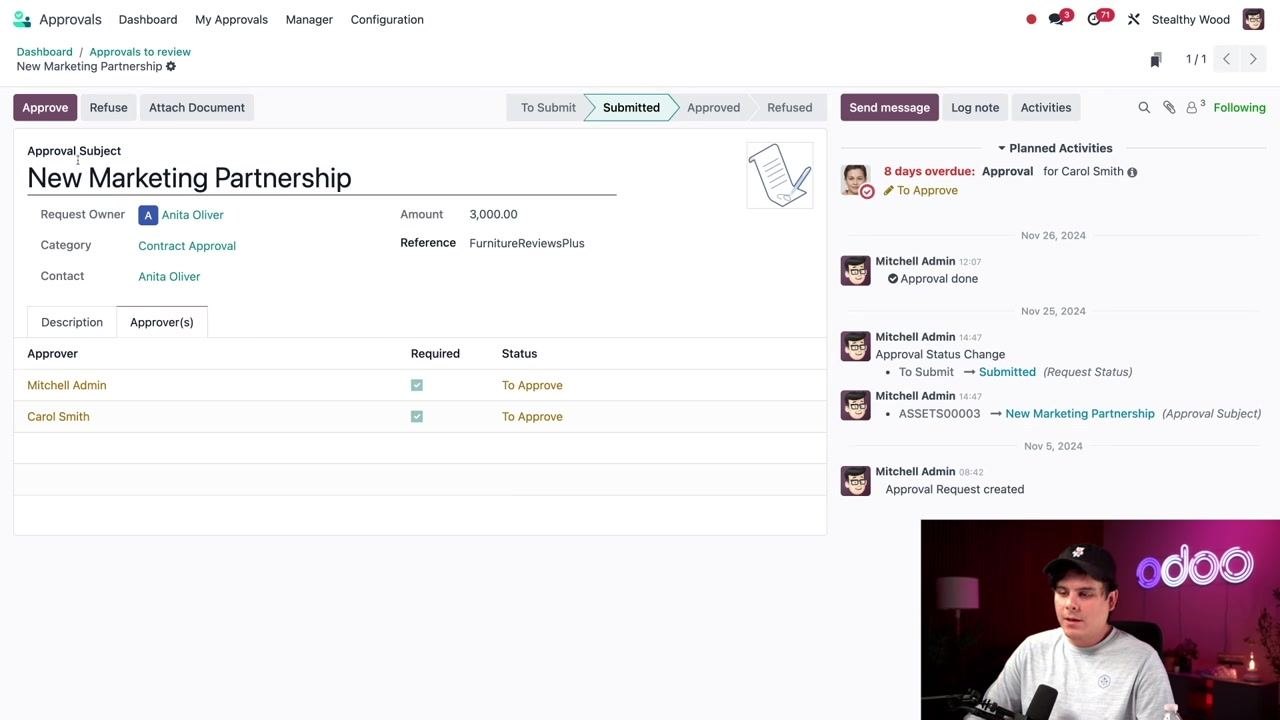
Click on a specific request, such as "New Marketing Partnership" submitted by Anita Oliver, to open its details. You will see the Approval Subject, Request Owner, Category, Contact, Amount (3,000.00), Reference (FurnitureReviewsPlus), Description, and Status ("Submitted").
Step 4: Check the required approvers
Click the Approver(s) tab to see who must approve the request. In this example, both Mitchell Admin and Carol Smith are required approvers, and both currently show the status "To Approve."
Step 5: Approve the request
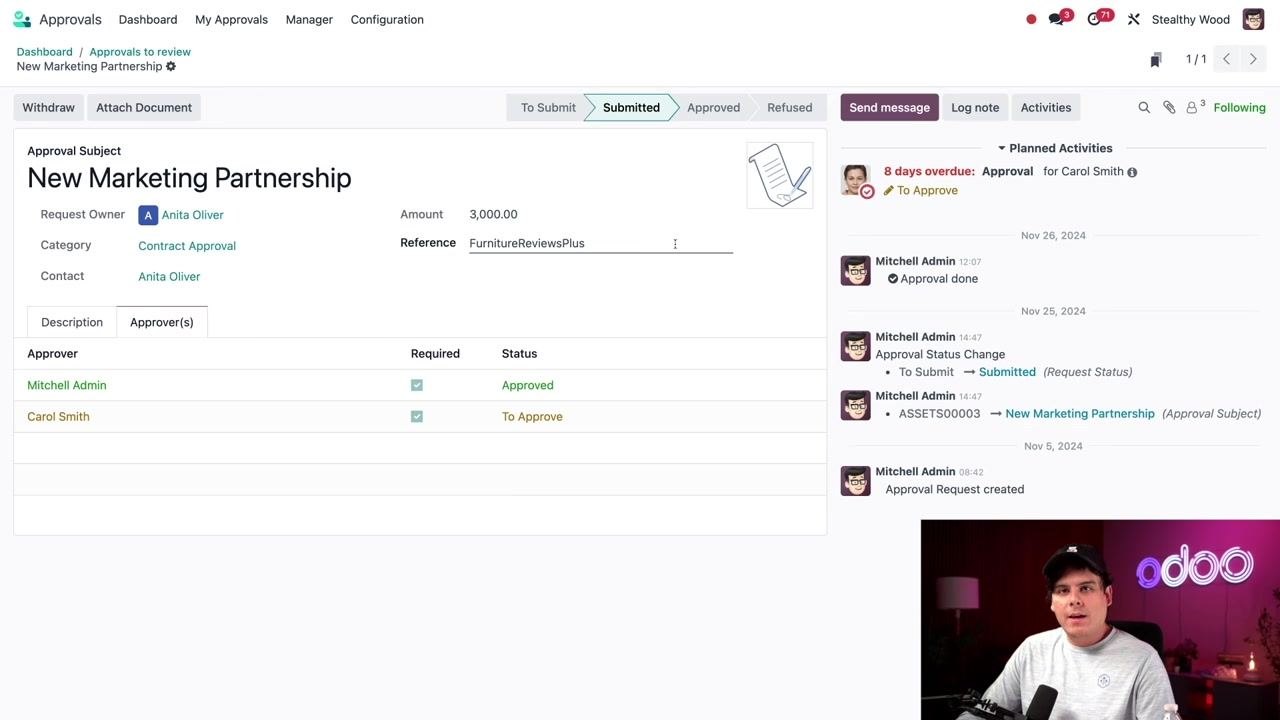
Click Approve in the top left corner to approve the request on your behalf. Your status changes to "Approved," while any other required approver, such as Carol Smith, remains listed as "To Approve" until they act.
Part 2: Tracking your own requests
Step 6: Open My Requests
To check the status of requests you submitted yourself, select My Approvals, then My Requests from the navigation menu.
Step 7: Review your requests in List view
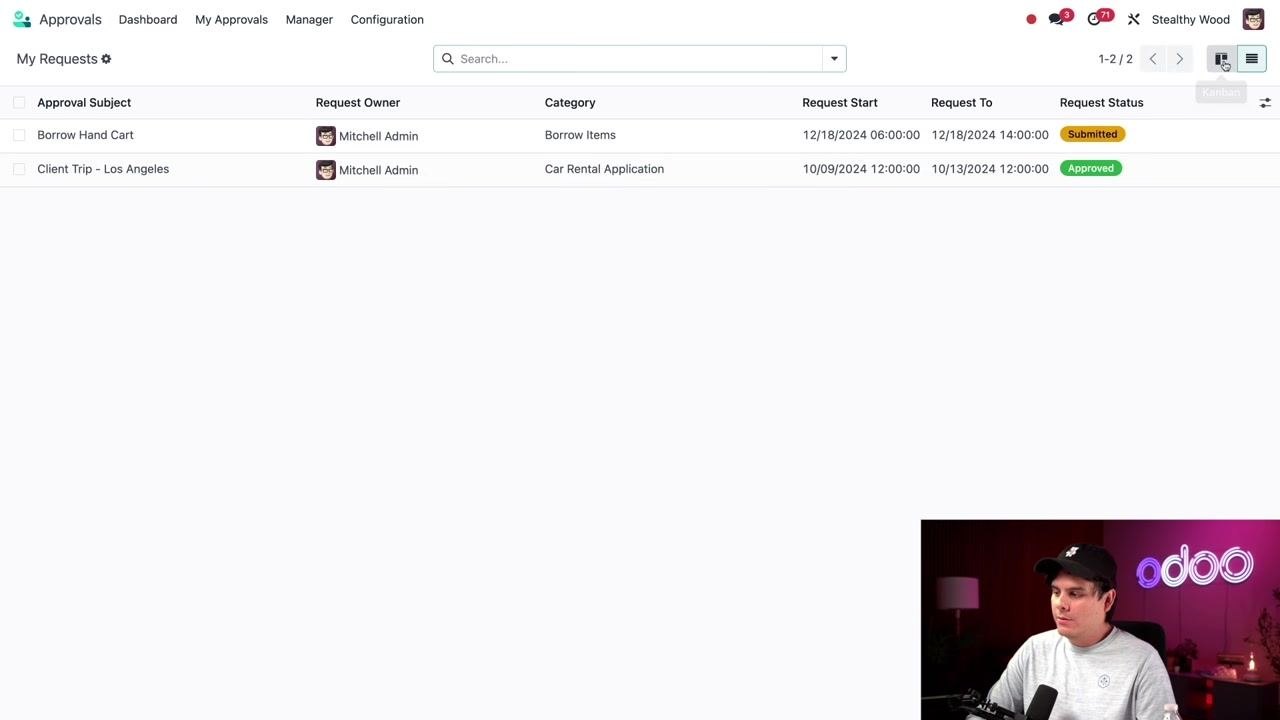
By default, your requests appear in Kanban view. Click the List icon in the top right corner to switch to List view. Each request shows its status clearly, for example "Submitted" in orange or "Approved" in green. Sample entries include "Borrow Hand Cart" (Category: Borrow Items, Status: Submitted, 12/18/2024 06:00:00 to 14:00:00) and "Client Trip - Los Angeles" (Category: Car Rental Application, Status: Approved, 10/09/2024 12:00:00 to 10/13/2024 12:00:00).
Step 8: Review your requests in Kanban view
Switch back to Kanban view to see a visual summary grouped by status: To Submit, Submitted, Approved, Refused, and Canceled. For example, "Borrow Hand Cart" appears under Submitted, while "Client Trip - Los Angeles" appears under Approved. If no action is required on your part, simply wait for further updates.
Part 3: Manager review of approvals
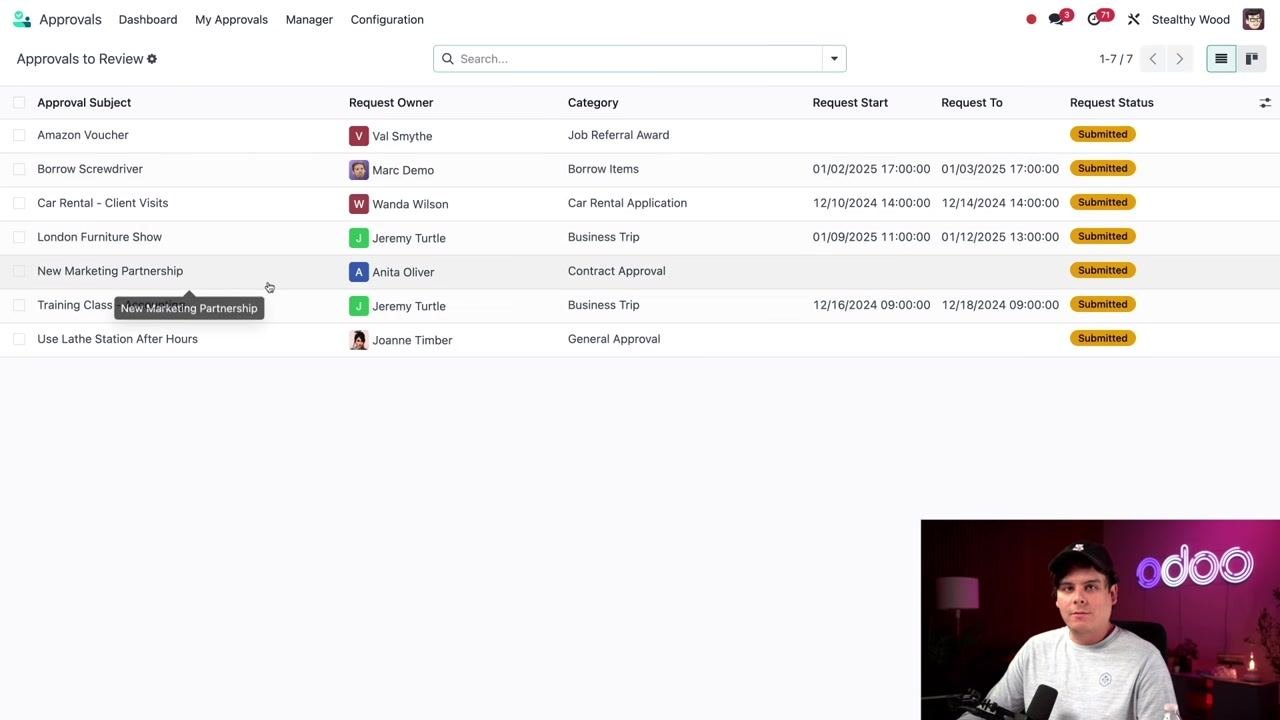
Step 9: Open Approvals to Review
To see all requests waiting for your approval as a manager, select Manager from the top navigation, then click Approvals to Review. Each row in the list displays the Approval Subject, Request Owner, Category, Request Start, Request To, and Request Status. All example requests shown are in "Submitted" status, including Amazon Voucher, Borrow Screwdriver, Car Rental - Client Visits, London Furniture Show, New Marketing Partnership, Training Class - Accounting, and Use Lathe Station After Hours.
Step 10: Review a specific request's details
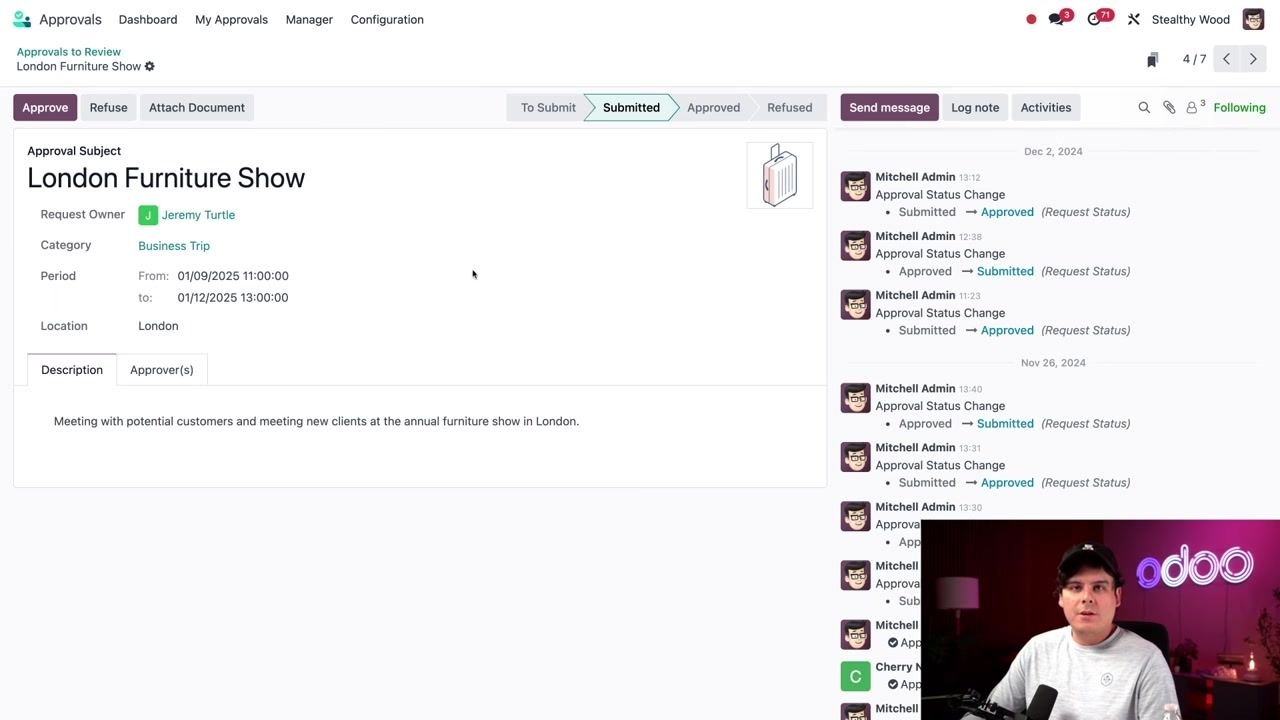
Select a request to review, for example "London Furniture Show" submitted by Jeremy Turtle. The detail view shows the Approval Subject, Request Owner, Category (Business Trip), Period (01/09/2025 11:00:00 to 01/12/2025 13:00:00), Location (London), and a Description explaining the purpose of the trip. Use the Description and Approver(s) tabs for more information.
Step 11: Check approval requirements
Open the Approver(s) tab to see which approvers are required and their current status. In this example, Jerry Nelson has already approved, and only your approval remains pending.
Step 12: Approve or withdraw the request
Click Approve at the top of the request detail view. Once approved, both required approvers—for example, Mitchell Admin and Cherry Nelson—show as "Approved." If you need to reverse your decision, click Withdraw.
Part 4: Reviewing all approvals and refused requests
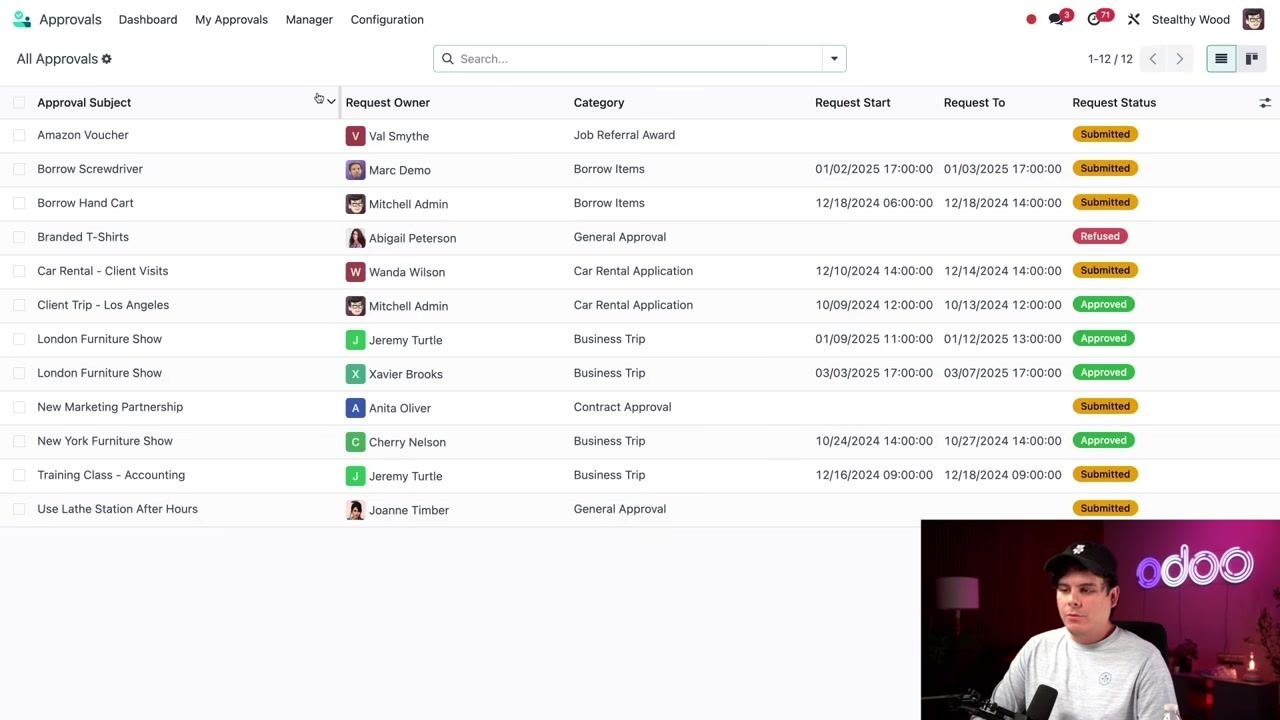
Step 13: Open All Approvals
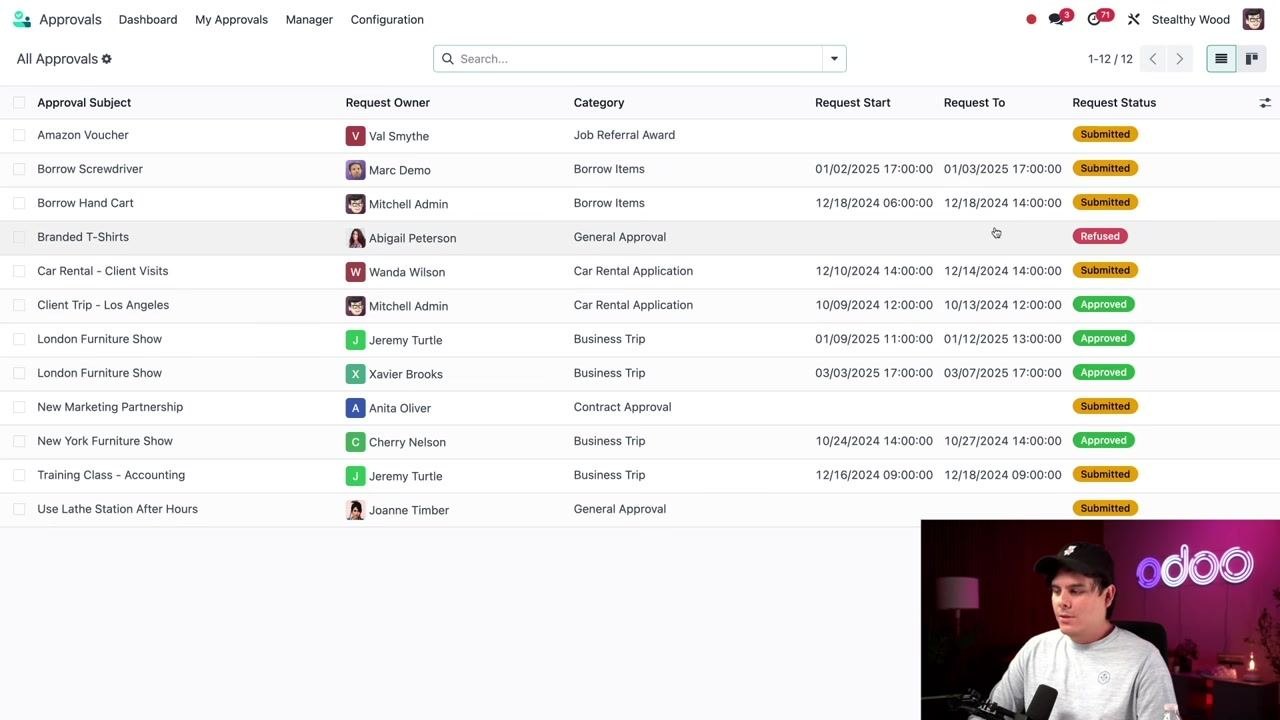
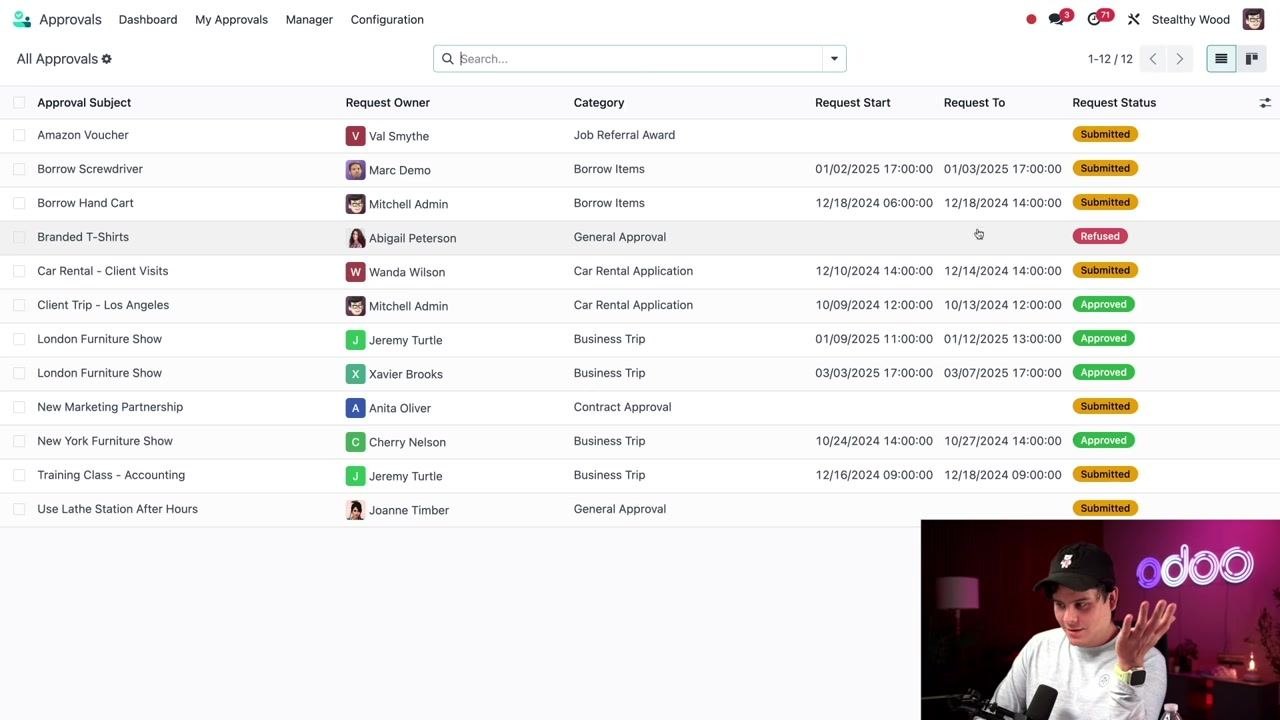
To view every approval request regardless of status, select Manager, then All Approvals from the navigation menu. Each row shows the Approval Subject, Request Owner, Category, Request Start, Request To, and Request Status, including Submitted, Approved, and Refused statuses. Example entries include "Branded T-Shirts" (Abigail Peterson, General Approval, Refused), "London Furniture Show" (Jeremy Turtle, Business Trip, Approved), "New Marketing Partnership" (Anita Oliver, Contract Approval, Submitted), and "Use Lathe Station After Hours" (Joanne Timber, General Approval, Submitted).
Step 14: Locate a refused request
Find the request titled "Branded T-Shirts" with Request Owner Abigail Peterson. Its status appears as "Refused," highlighted in red. Other details include Category: General Approval, Request Start: 12/16/2024 14:00:00, and Location: Anytown, NY. Click the row to open the request's details.
Step 15: Review the refused request's details
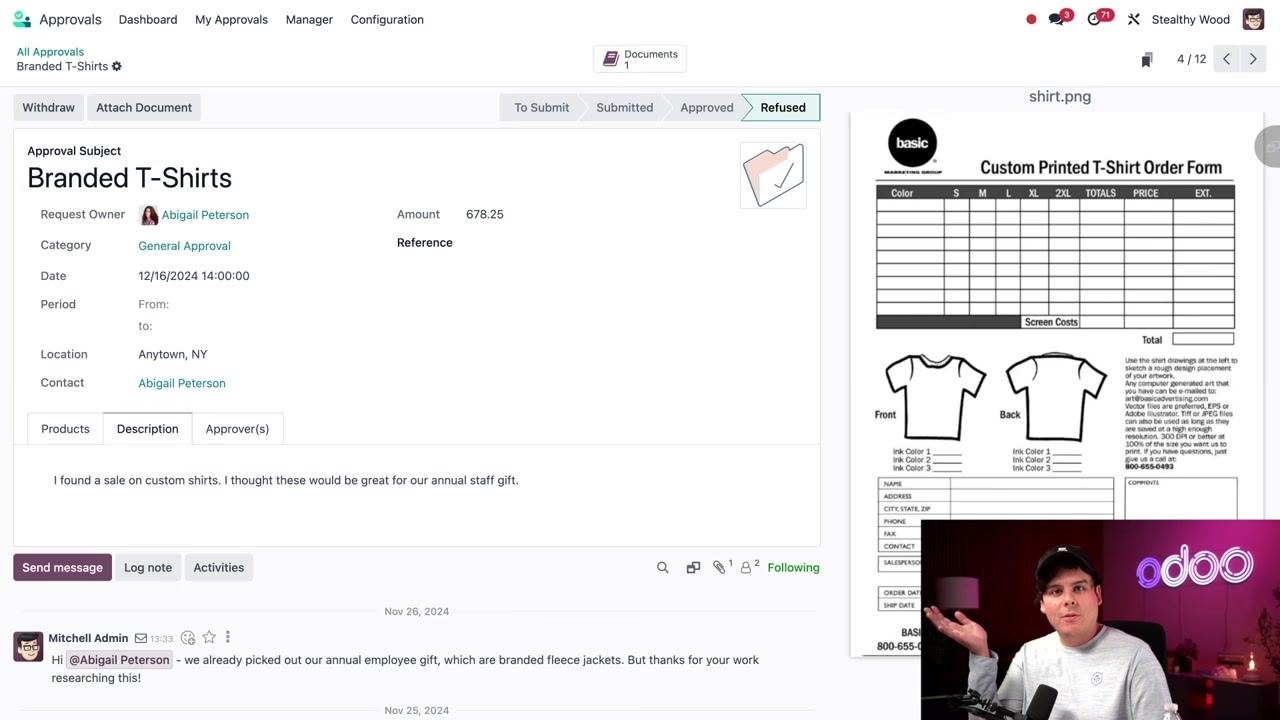
The detail view shows the Approval Subject (Branded T-Shirts), Request Owner (Abigail Peterson), Amount (678.25), Category (General Approval), Date (12/16/2024 14:00:00), and Location (Anytown, NY). The Description tab reads: "I found a sale on custom shirts. I thought these would be great for our annual staff gift." An attached document, shirt.png, shows the Custom Printed T-Shirt Order Form on the right, and the Status tab at the top is highlighted as "Refused."
Step 16: Check the Chatter for the refusal reason
Review the communication history in the Chatter section to understand why the request was refused. In this example, Mitchell Admin left a message on Nov 26, 2024, at 13:33: "Hi @Abigail Peterson - we already picked out our annual employee gift, which are branded fleece jackets. But thanks for your work researching this!" This explains that the company had already decided on a different gift.
All communications and decisions are recorded in the Chatter section, so you can always return to a request to review its decision history and comments. This keeps the approval workflow transparent and accountable.
What's next
By following these steps, you can efficiently manage your own requests, review and approve requests awaiting your action, and monitor all approval activity within the Odoo Approvals app. This workflow ensures transparency and accountability for every business process that requires approval.
Generation details: cost, quality tiers
Docsie billed 2,500 credits ($1.75) to analyze this 5-minute video at standard quality. The rewrite, template fill and Word/PDF exports were included. The same video at each quality tier:
| Quality | Frames sampled | Credits | Approx. cost |
|---|---|---|---|
| Draft | every 16-30 s | 1,250 | $0.88 |
| Standard (this guide) | every 8-15 s | 2,500 | $1.75 |
| Detailed | every 4-7 s | 5,000 | $3.50 |
| Ultra | every 1-3 s | 10,000 | $7.00 |
Credits priced at $0.70 per 1,000; plans include a monthly allowance. Enterprise customers on on-premise or bring-your-own-model deployments run this on their own inference and pay no per-video credits.
Generated by Docsie Video-to-Docs on 2026-10-25 from a 4-minute video. Screenshots are frames from the source video and belong to their creator, Odoo, whose original is embedded above. If you own this video and want the guide removed or credited differently, contact us and we will act within one business day.