
How to Swap Shifts in HotSchedules
Learning how to swap shifts in HotSchedules helps you trade a shift with a coworker while keeping every required approval in place. You start the swap in the HotSchedules app, the other employee accepts it, and a manager approves it. This guide walks you through each stage, using an example swap between a Shift Leader shift and a Cashier shift.
Video: How to Switch Shifts on Hot Schedules by Chik-fil-A The Grove (2017). All credit for the demonstration goes to the creator; watch the original on YouTube. The written guide below was generated from this video by Docsie. Creator? Request a change or removal.
Learning how to swap shifts in HotSchedules helps you trade a shift with a coworker while keeping every required approval in place. You start the swap in the HotSchedules app, the other employee accepts it, and a manager approves it. This guide walks you through each stage, using an example swap between a Shift Leader shift and a Cashier shift.
Prerequisites
Review these requirements before you start:
- Perform all shift trades or swaps through the HotSchedules app.
- Make sure Sabina or Ashley can approve your swap in HotSchedules. All swaps require their approval.
- Plan to swap an entire shift. HotSchedules only supports swapping whole shifts at this time. To switch only part of a shift, contact Ashley directly.
- Check that you and the other employee have the same job code, such as "Shift Leader." Only employees with matching job codes can swap shifts.

Steps
Open the HotSchedules app
- Find the HotSchedules app on your phone.
- Tap the app icon to open it.
The first screen should display your schedule.
Go to My Schedule if your schedule does not appear
- Tap the menu tab, usually shown as three lines or a menu icon.
- Select My Schedule from the menu options.
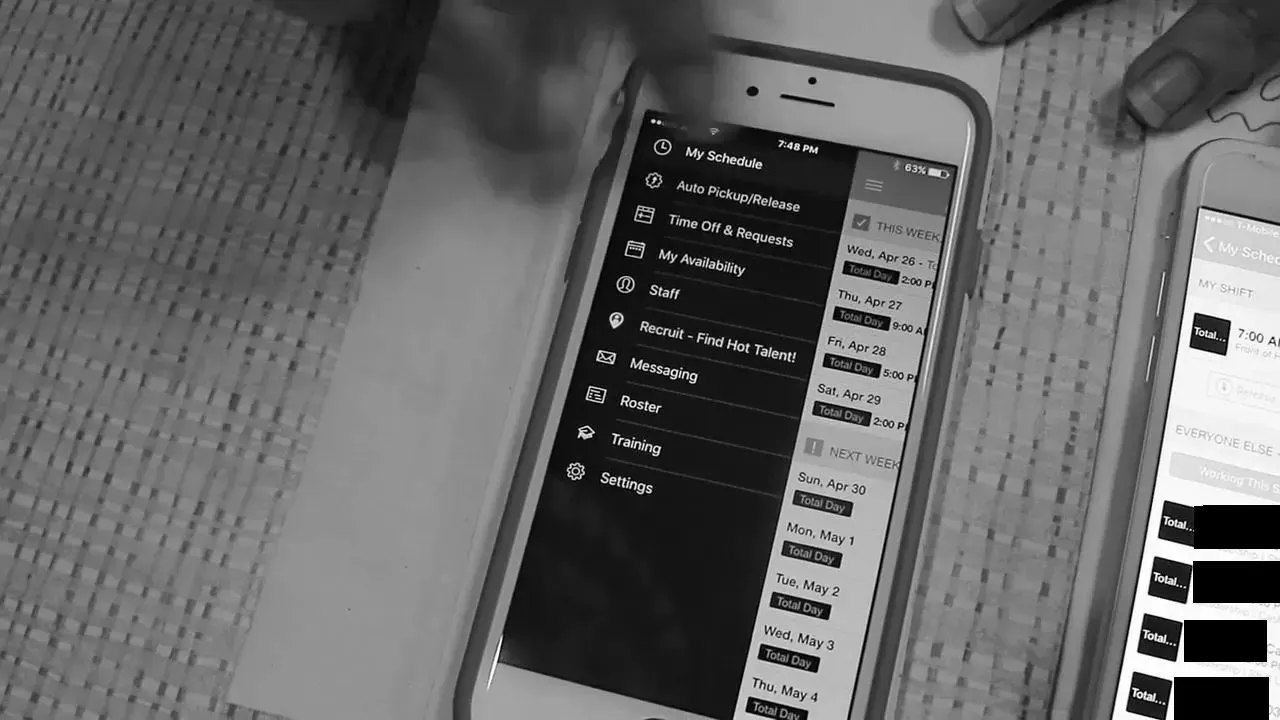
Select the shift you want to swap
Tap the specific shift you want to swap. The app displays the details for that shift, including the time and role. Two options appear: Swap This Shift and Release This Shift.
Understand the Release This Shift option
If you tap Release This Shift, the shift becomes available for other employees to pick up. You remain responsible for the shift until someone else picks it up and the swap is approved.
To trade your shift directly with a coworker, continue with the next step instead.
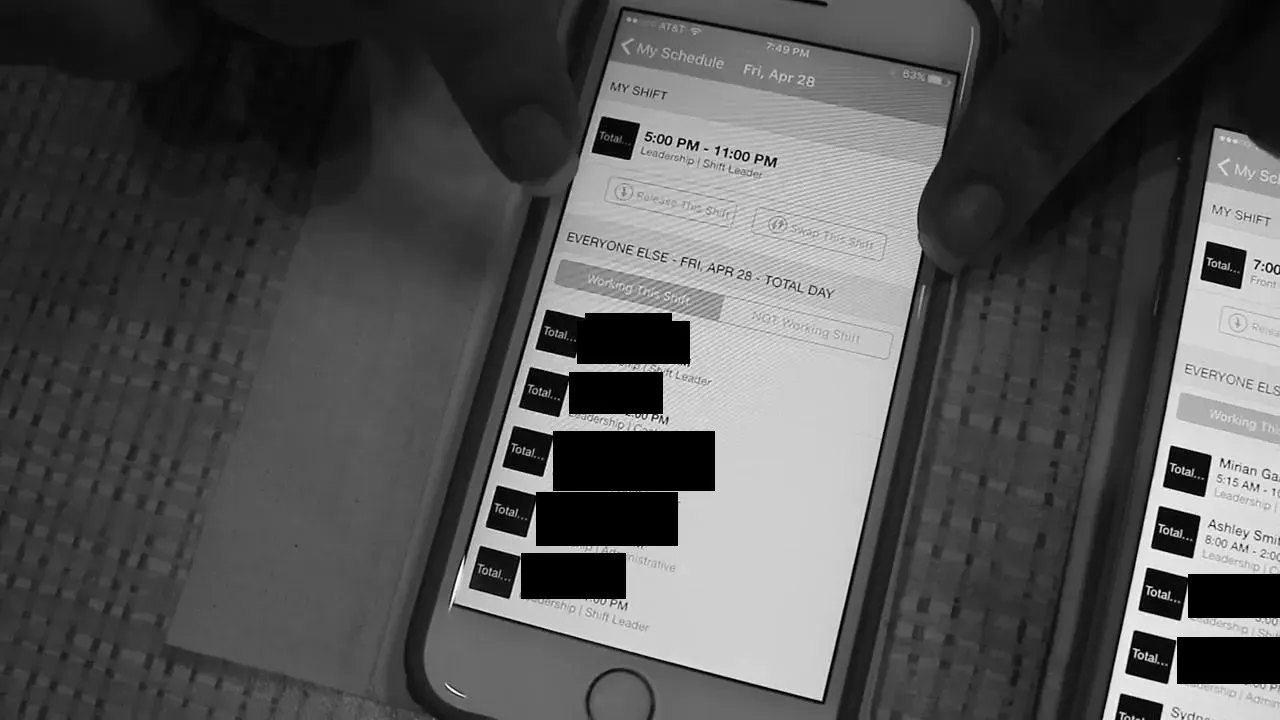
Start the shift swap
- Tap Swap This Shift for the shift you want to trade.
- Review the list of eligible employees and their shifts for the same day.
Only employees with the same job code can swap with you. For example, Sydney can only swap her "Shift Leader" shift with another "Shift Leader" shift. If you are a new hire or do not have the required job code, you cannot swap with certain shifts.
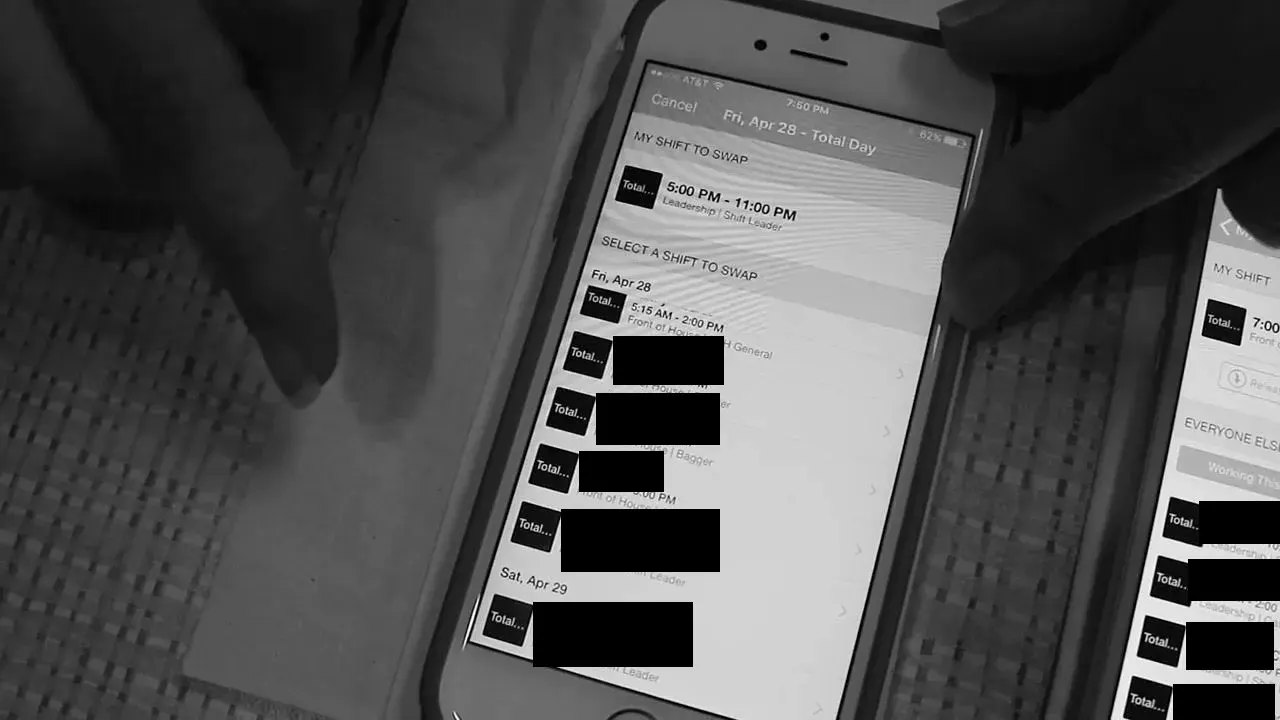
Select the employee to swap with
Tap the name of the employee whose shift you want to take. In this example, Sydney selects Sabina Domingo, who is working a "Cashier" shift from 7:00 AM - 2:00 PM. Remember that the job codes must match for the swap to be allowed.
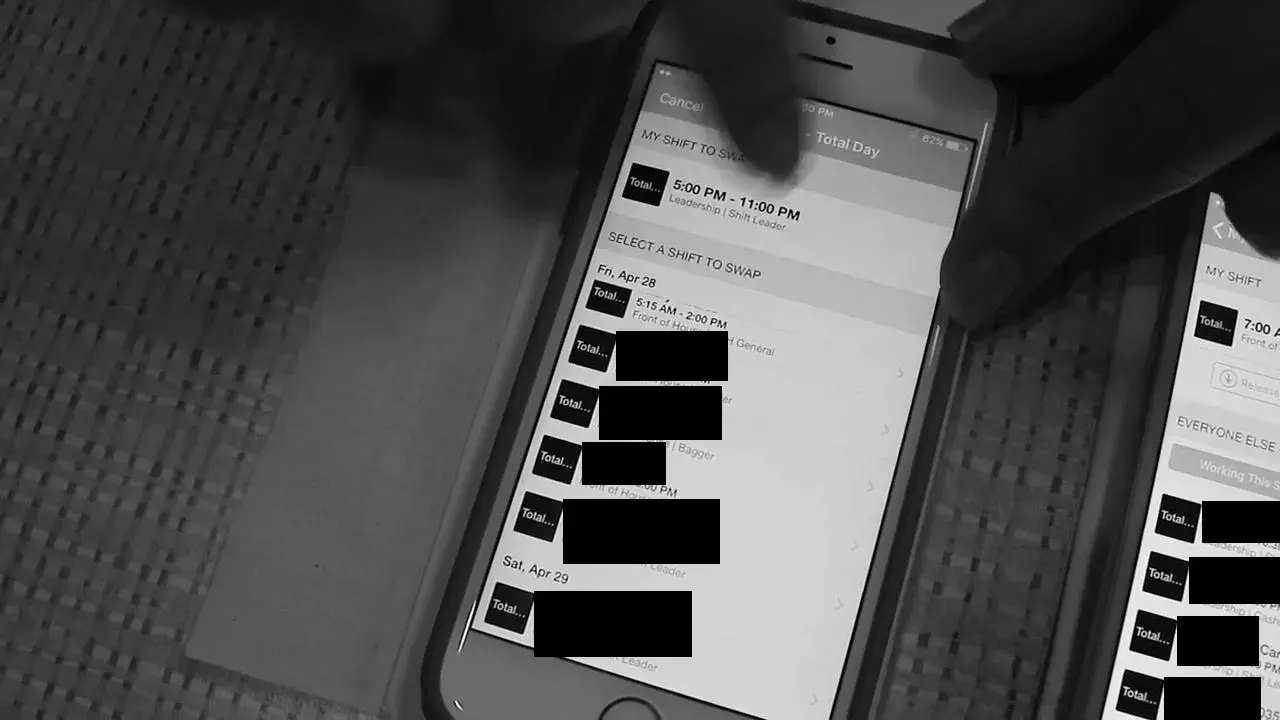
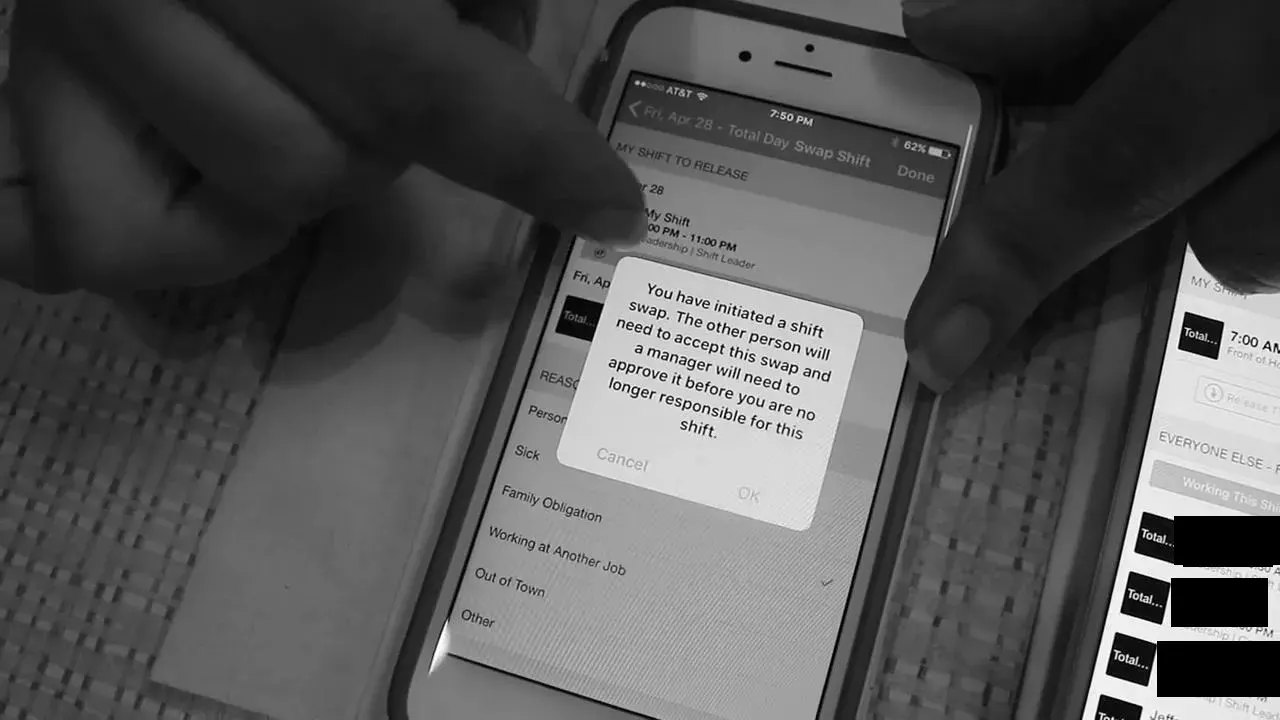
Choose a reason for the swap
After you select the shift, a new screen prompts you to choose a reason. Select the reason that applies to you. In this example, Sydney selects Family Obligation.
The available reasons are:
- Personal
- Sick
- Family Obligation
- Working at Another Job
- Out of Town
- Other
Confirm and send the swap request
- Tap Done in the top right corner after you select your reason.
- Read the confirmation message: "You have initiated a shift swap. The other person will need to accept this swap and a manager will need to approve it before you are no longer responsible for this shift."
- Tap OK to send the swap request.
Ask the other employee to refresh the app
The swap request is now sent to the other employee, Sabina in this example. She must refresh her HotSchedules app to see the pending swap.
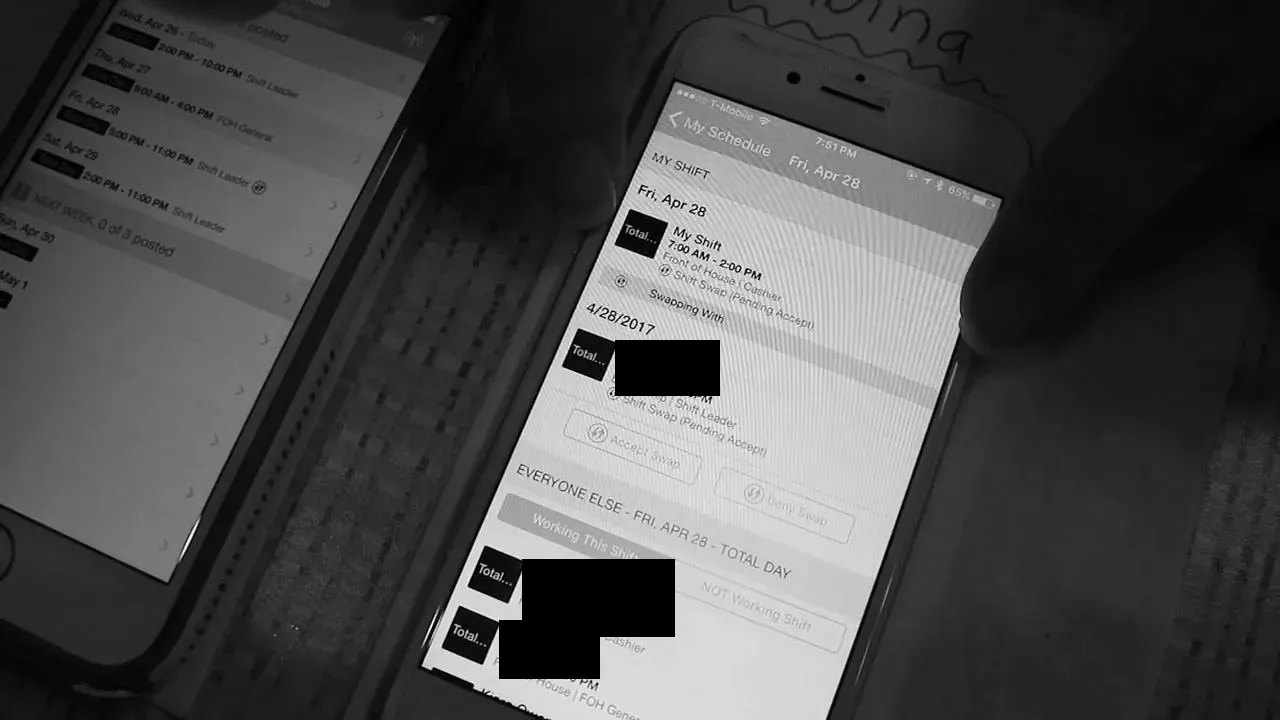
Have the other employee accept the swap
The other employee opens her schedule for the relevant day and sees a notification that Sydney has initiated a swap with her. The screen displays both shifts, each marked Shift Swap (Pending Accept):
- Her own shift: 7:00 AM - 2:00 PM, Cashier
- Sydney's shift: 5:00 PM - 11:00 PM, Shift Leader
Sabina can then choose Accept Swap or Deny Swap.
Get manager approval for the swap
After the other employee accepts, a manager or authorized approver must approve the swap in HotSchedules:
- Open the HotSchedules app on your device.
- Go to the pending shift swap requests.
- Review the swap details. In this example, a 7:00 AM – 2:00 PM Cashier shift is swapped for a 5:00 PM – 11:00 PM Shift Leader shift.
- Approve the swap request to finalize the process.
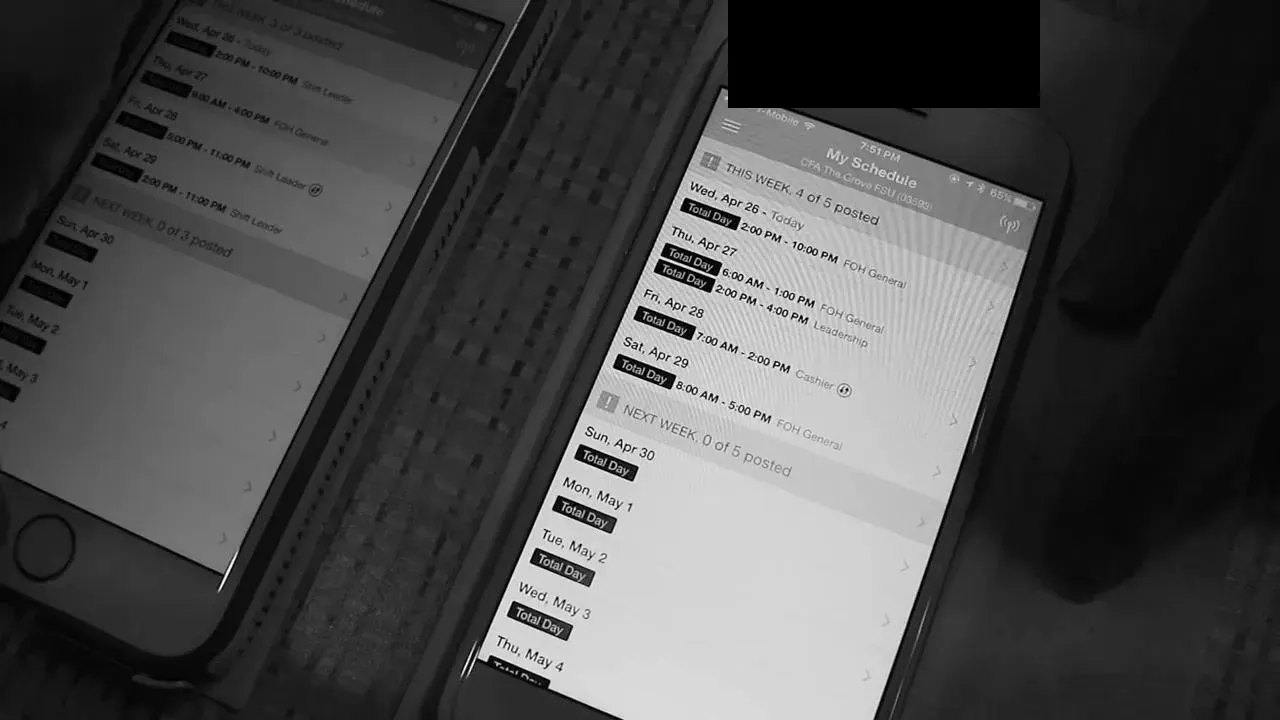
Refresh schedules to confirm the swap
- After the swap is approved, refresh the schedules in both employees' HotSchedules apps.
- Confirm that the shifts have been exchanged. In this example, the employee who had the Friday 5:00 PM – 11:00 PM Shift Leader shift now sees a 7:00 AM – 2:00 PM Cashier shift, and the other employee sees the reverse.
- If the changes do not appear right away, refresh or restart the app.
Summary
When you swap shifts in HotSchedules, keep these points in mind:
- The swap is not complete until the other employee accepts it and a manager approves it.
- You remain responsible for your original shift until both steps are done.
- Only employees with matching job codes can swap certain shifts.
- Always check the app for confirmation, and refresh your schedule, before you assume the swap went through.
What's next
If you have questions or run into issues with the shift swap process, see Ashley or Sabina for assistance. To switch only part of a shift, contact Ashley directly.
Generation details: cost, quality tiers
Docsie billed 2,500 credits ($1.75) to analyze this 5-minute video at standard quality. The rewrite, template fill and Word/PDF exports were included. The same video at each quality tier:
| Quality | Frames sampled | Credits | Approx. cost |
|---|---|---|---|
| Draft | every 16-30 s | 1,250 | $0.88 |
| Standard (this guide) | every 8-15 s | 2,500 | $1.75 |
| Detailed | every 4-7 s | 5,000 | $3.50 |
| Ultra | every 1-3 s | 10,000 | $7.00 |
Credits priced at $0.70 per 1,000; plans include a monthly allowance. Enterprise customers on on-premise or bring-your-own-model deployments run this on their own inference and pay no per-video credits.
Generated by Docsie Video-to-Docs on 2026-11-24 from a 4-minute video. Screenshots are frames from the source video and belong to their creator, Chik-fil-A The Grove, whose original is embedded above. If you own this video and want the guide removed or credited differently, contact us and we will act within one business day.