
How to Create a House Shift in HotSchedules
This guide explains how to create a house shift in HotSchedules, which is also called an open shift. You use a keyboard shortcut to open the Create House Shift dialog, enter the shift details, review the shift in the House Shift Manager, assign it, and post the schedule.
Video: HotSchedules - How to create a Claimable Shift House Shift | TopBizGuides by TopBiz Guides (2023). All credit for the demonstration goes to the creator; watch the original on YouTube. The written guide below was generated from this video by Docsie. Creator? Request a change or removal.
This guide explains how to create a house shift in HotSchedules, which is also called an open shift. You use a keyboard shortcut to open the Create House Shift dialog, enter the shift details, review the shift in the House Shift Manager, assign it, and post the schedule.
Prerequisites
- You have access to the Scheduling section in your HotSchedules account.
- You know the date, start time, end time, job, and schedule for the shift you want to create.
Steps
Open the Scheduling page
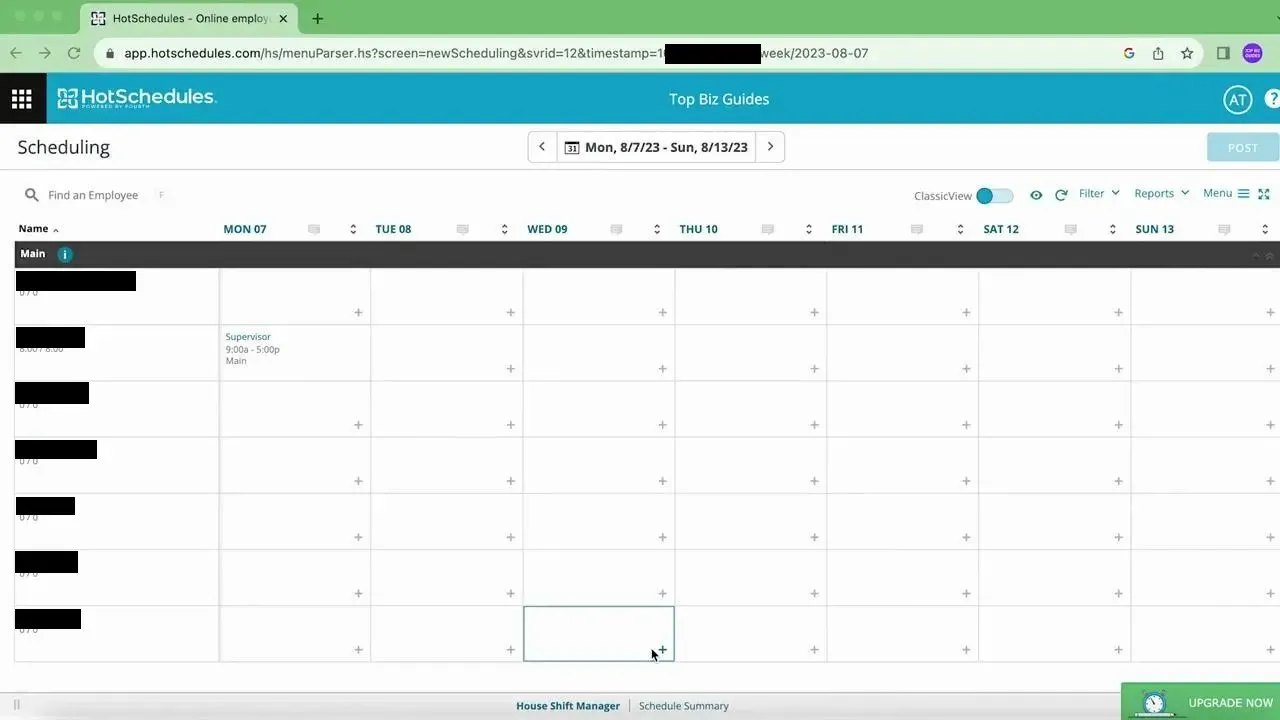
Navigate to the Scheduling section in your HotSchedules account. Make sure you are viewing the correct week and schedule.
The schedule grid displays employee names on the left and days of the week across the top.
Find the shortcut for creating a house shift
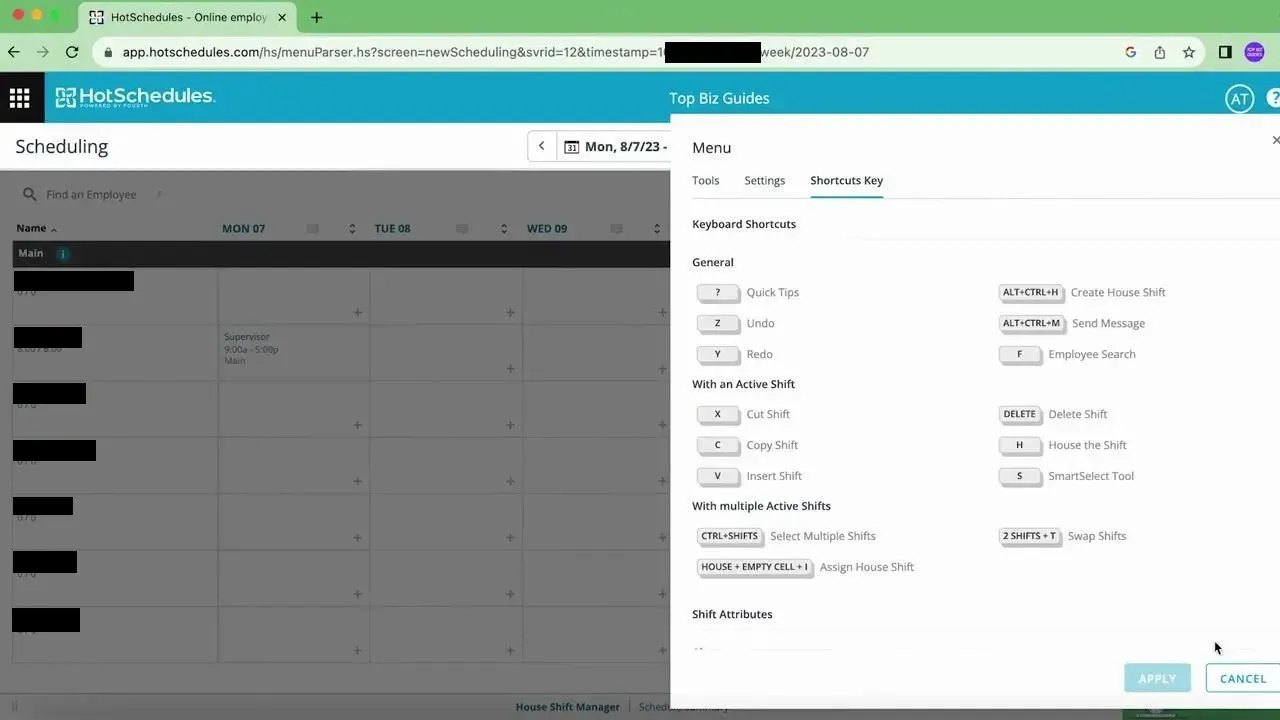
Open the menu and select the Shortcuts Key tab to view the available keyboard shortcuts. The shortcut for Create House Shift is listed:
- On PC:
Alt + Ctrl + H - On Mac:
Option + Control + H
Create a house shift with the shortcut
Press the shortcut for your system, for example Option + Control + H on Mac. The Create House Shift dialog opens.
Enter the shift details
In the Create House Shift dialog, fill in the following fields:
- Date: Select the date, for example Mon, 8/7/23.
- Start: Enter the start time, for example 9:00 AM.
- End: Enter the end time, for example 5:00 PM.
- Job: Select the job role, for example Supervisor.
- Schedule: Choose the schedule, for example Main.
Click Save to create the house shift.
Confirm the house shift was created
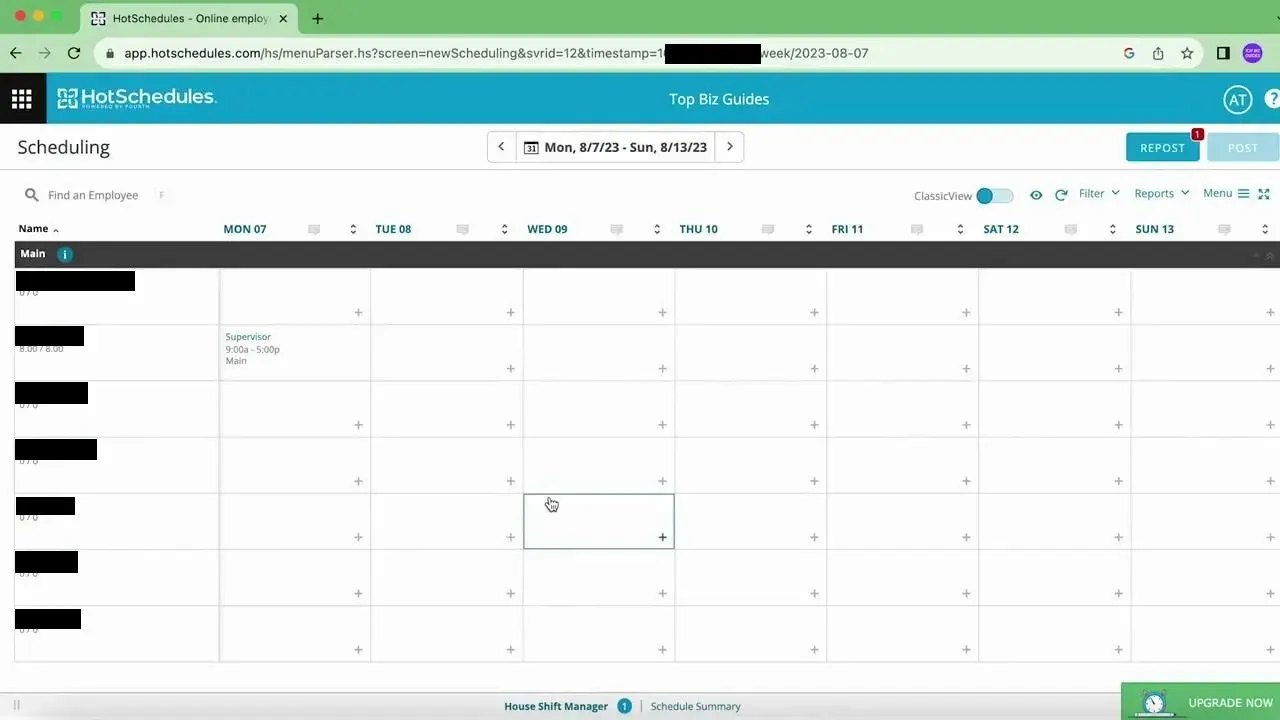
After you save, look at the bottom of the screen for the House Shift Manager indicator. A count, for example 1, confirms that a house shift has been created.
Review the house shift in the House Shift Manager
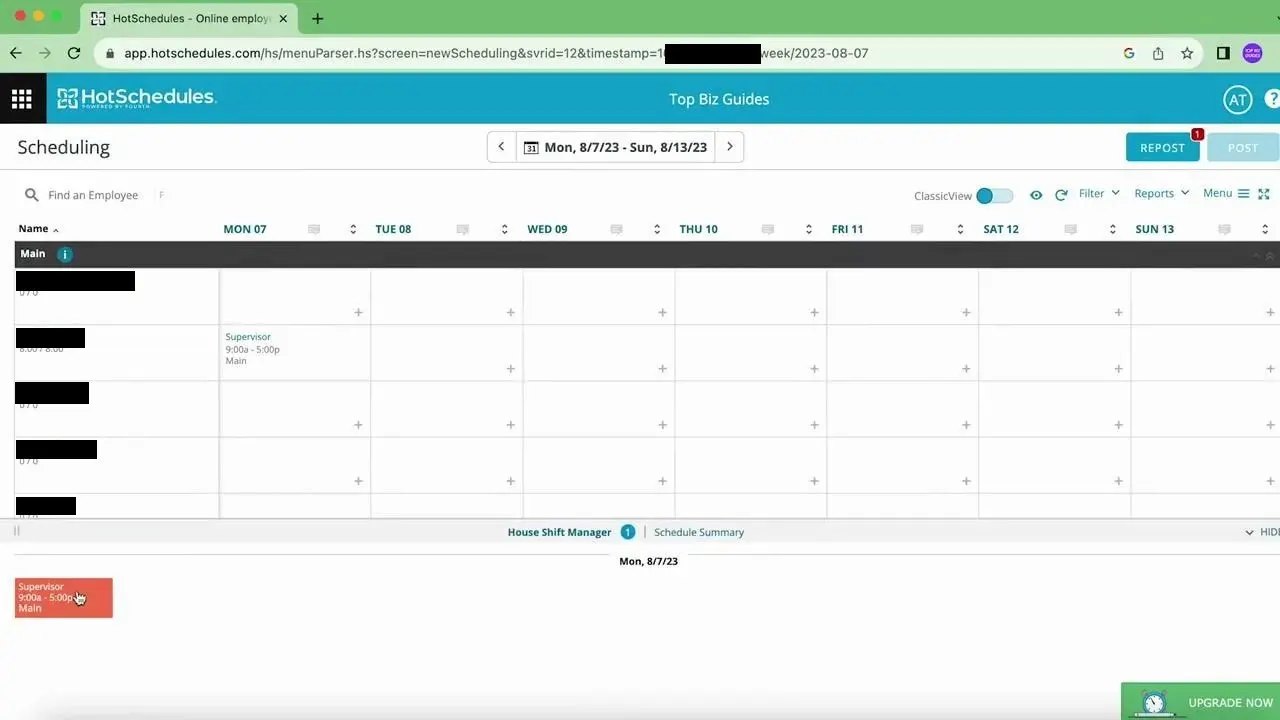
Click House Shift Manager at the bottom of the screen. The unposted house shift appears in orange and shows details such as the job, time, and schedule.
Click the house shift to view the employees who are eligible to be assigned to it.
Assign the house shift
Select a qualified employee. If only one employee is eligible, that employee is highlighted in green. Release the shift to assign it to the employee.
Post the schedule
Once you assign the shift, it appears in the schedule grid under the employee's name and on the correct date, highlighted in orange. Click Post to finalize and post the schedule.
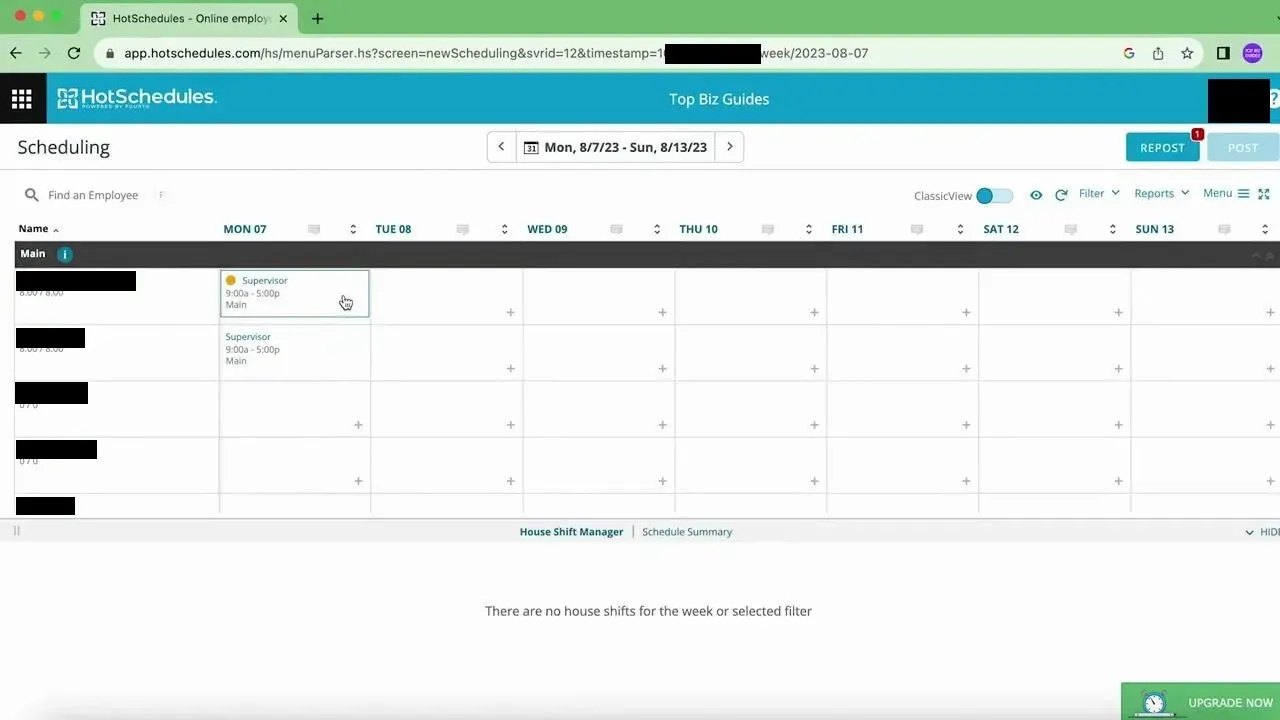
View the scheduled open shift
After you create and assign an open shift, it appears in the schedule grid under the relevant employee and date. The shift details, for example "Supervisor, 9:00a - 5:00p, Main", are visible in the grid.
The House Shift Manager and Schedule Summary links are available at the bottom of the grid. If there are no unassigned house shifts, the message "There are no house shifts for the week or selected filter." appears.
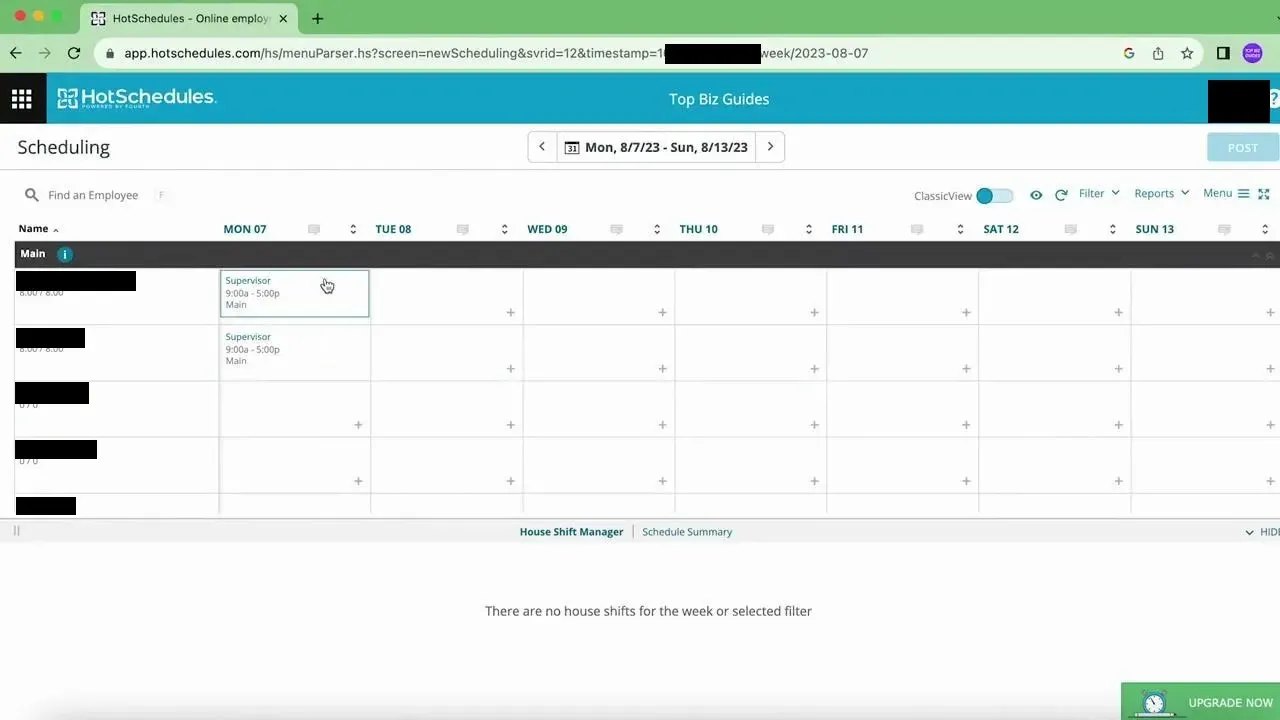
Understand claimable shifts
Any open (house) shifts that are not yet assigned appear in the House Shift Manager section. Eligible employees in the account can claim these shifts.
If there are no claimable house shifts, the House Shift Manager shows the message "There are no house shifts for the week or selected filter."
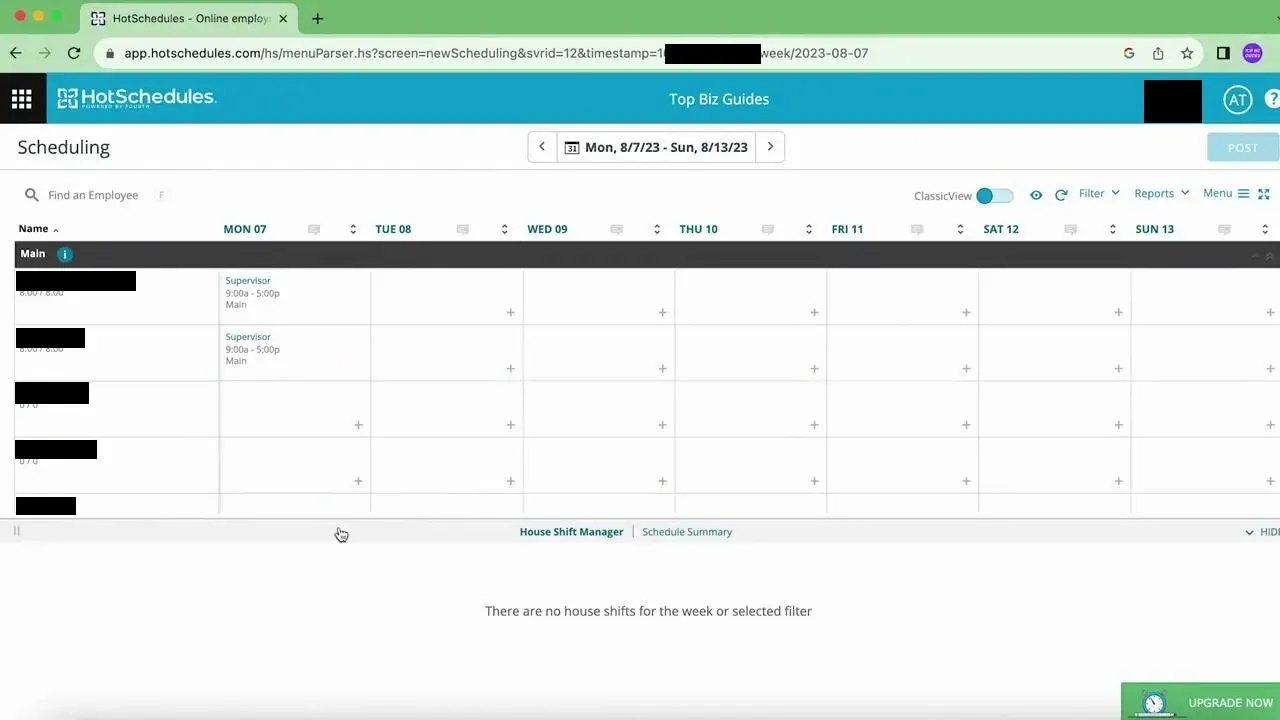
Summary
You can create, assign, and post open (house) shifts in HotSchedules by using the keyboard shortcut and the House Shift Manager. Open the Create House Shift dialog, enter the details, click Save, assign an eligible employee, and click Post.
What's next
- Check the House Shift Manager to see whether any house shifts remain unassigned and claimable.
- Review the schedule grid to confirm the assigned shift appears under the correct employee and date.
Generation details: cost, quality tiers
Docsie billed 1,500 credits ($1.05) to analyze this 3-minute video at standard quality. The rewrite, template fill and Word/PDF exports were included. The same video at each quality tier:
| Quality | Frames sampled | Credits | Approx. cost |
|---|---|---|---|
| Draft | every 16-30 s | 750 | $0.52 |
| Standard (this guide) | every 8-15 s | 1,500 | $1.05 |
| Detailed | every 4-7 s | 3,000 | $2.10 |
| Ultra | every 1-3 s | 6,000 | $4.20 |
Credits priced at $0.70 per 1,000; plans include a monthly allowance. Enterprise customers on on-premise or bring-your-own-model deployments run this on their own inference and pay no per-video credits.
Generated by Docsie Video-to-Docs on 2026-11-24 from a 2-minute video. Screenshots are frames from the source video and belong to their creator, TopBiz Guides, whose original is embedded above. If you own this video and want the guide removed or credited differently, contact us and we will act within one business day.