
How to Request Time Off in HotSchedules
This guide shows you how to request time off in HotSchedules from the mobile app. You can request a full day, a range of days, or a partial day, such as time for a doctor's appointment. After you submit the request, you can track its status in the app.
Video: Submitting time off request by Kayla Maxwell (2020). All credit for the demonstration goes to the creator; watch the original on YouTube. The written guide below was generated from this video by Docsie. Creator? Request a change or removal.
This guide shows you how to request time off in HotSchedules from the mobile app. You can request a full day, a range of days, or a partial day, such as time for a doctor's appointment. After you submit the request, you can track its status in the app.
Prerequisites
- The HotSchedules app on your phone
- The date or dates, and the times if it's a partial day, that you need off
- A reason for your request, because the Comments field is required
Steps to request time off in HotSchedules
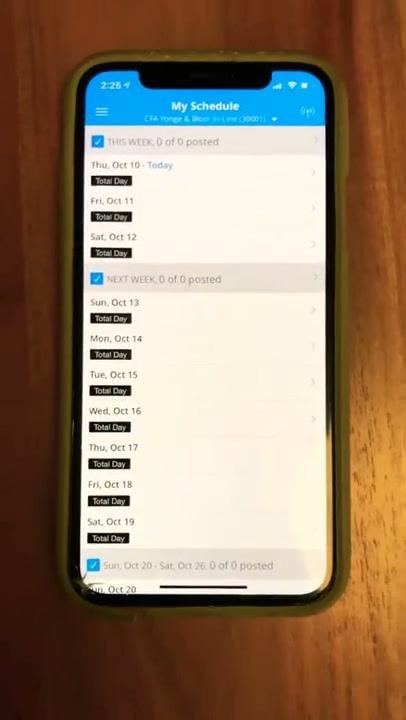
Open the app and view your schedule
Launch the HotSchedules app on your phone. The main screen shows your schedule, with dates and shift details.
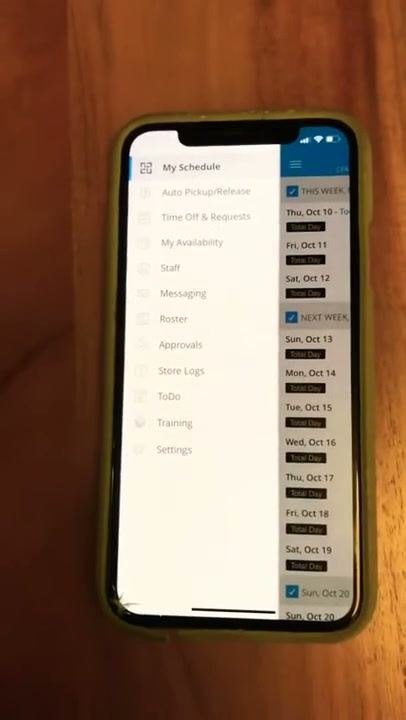
Go to Time Off & Requests
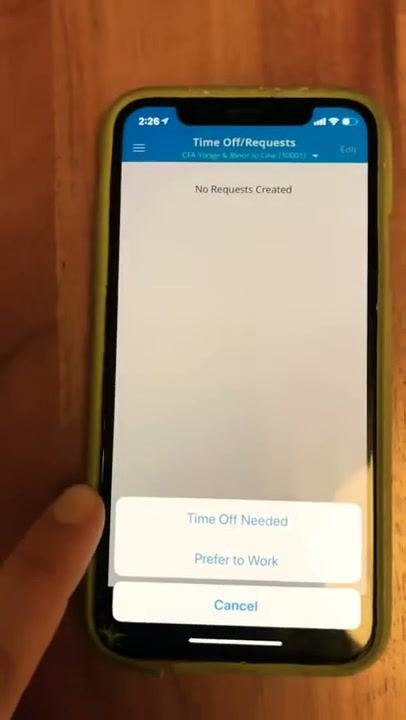
In the menu, tap Time Off & Requests to open the time off request section. On the Time Off/Requests screen, you see "No Requests Created" if you haven't submitted any requests yet.
Tap the plus (+) icon, usually at the bottom or top of the screen, to create a new request.
Choose the type of request
A menu appears with these options:
- Time Off Needed
- Prefer to Work
- Cancel
Tap Time Off Needed to request time off for a specific date or range.
Choose the type that fits your situation:
- Time Off Needed: Use this for days you absolutely need off.
- Prefer to Work: Use this if you are usually unavailable but would like to work on a specific day outside your normal availability.
Select the date for your time off request
A calendar appears, with the earliest available date for requests highlighted (for example, October 31st).
Tap the date you want to request off (for example, November 22nd).

Set the time off details
After you select the date or dates, a form opens with these fields:
- Type: Time Off Needed
- All Day On: A toggle switch, enabled for a full day off
- Starts: The start date (for example, 11/22/19)
- Ends: The end date (for example, 11/22/19 for a single day, or a later date for a range)
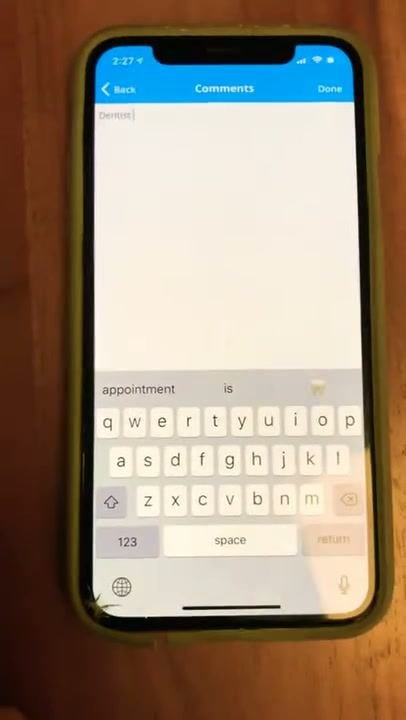
- Comments (Required): A reason or note for your request
To request multiple days off, select a range, such as 11/22/19 to 11/29/19.
Request a partial day off
If you are unavailable for only part of a day, such as for a doctor's appointment, turn off the all-day toggle. Then set the times:
- Set Starts to the beginning of your unavailable period (for example, Fri, Nov 22 @ 4:00 PM).
- Set Ends to when you will be available again (for example, Fri, Nov 22 @ 5:00 PM).
Allow enough time for travel to and from your appointment, not just for the appointment itself.
Tap the Comments (Required) field and enter a clear reason for your request, such as "Dentist."
Submit your time off request
Before you submit, keep these best practices in mind:
- Always give a specific reason in the comments. This helps managers understand your needs and prioritize requests.
- Submit your request as far in advance as possible. Earlier requests are more likely to be approved, especially if several people ask for the same day off.
- Remember that time off is a request, not a guarantee. Approval depends on timing, reason, and staffing needs.
After you fill in all required fields and comments, tap Done in the top right corner to submit your request.
Check the status of your request
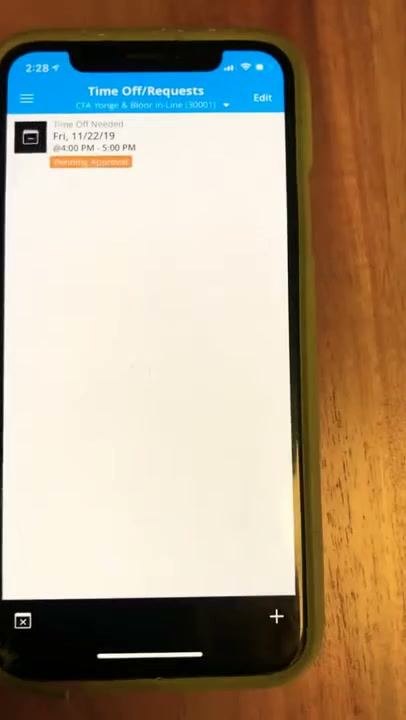
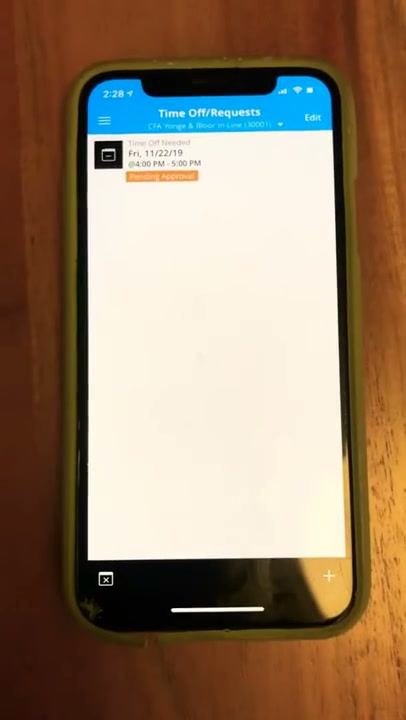
Once you submit, your request appears in the Time Off/Requests section. It shows as "Pending Approval" until management reviews it. You can view its details, including the date, time, and status.
Wait for approval
Managers typically review requests within two weeks. Check the status in the app to see whether your request is approved or denied. If you have questions about your request, contact your manager directly.
Summary
You now know how to request time off in HotSchedules: open Time Off & Requests, tap the plus icon, choose Time Off Needed, pick your dates or times, add a comment, and tap Done. Submit requests as early as possible and include clear comments to give yourself the best chance of approval.
What's next
- Check the Time Off/Requests screen to see whether your request is approved or denied.
- Contact your manager directly if you have questions about a pending request.
Generation details: cost, quality tiers
Docsie billed 2,000 credits ($1.40) to analyze this 4-minute video at standard quality. The rewrite, template fill and Word/PDF exports were included. The same video at each quality tier:
| Quality | Frames sampled | Credits | Approx. cost |
|---|---|---|---|
| Draft | every 16-30 s | 1,000 | $0.70 |
| Standard (this guide) | every 8-15 s | 2,000 | $1.40 |
| Detailed | every 4-7 s | 4,000 | $2.80 |
| Ultra | every 1-3 s | 8,000 | $5.60 |
Credits priced at $0.70 per 1,000; plans include a monthly allowance. Enterprise customers on on-premise or bring-your-own-model deployments run this on their own inference and pay no per-video credits.
Generated by Docsie Video-to-Docs on 2026-11-24 from a 3-minute video. Screenshots are frames from the source video and belong to their creator, Kayla Maxwell, whose original is embedded above. If you own this video and want the guide removed or credited differently, contact us and we will act within one business day.