
How to Pick Up a Shift in HotSchedules
This guide shows you how to pick up a shift in HotSchedules. You find available shifts on your schedule, review the details, check for conflicts with your own shifts, and submit a pickup request. A manager must approve your request before the shift is yours.
Video: How To PICK UP SHIFTS On HotSchedules (FULL GUIDE 2026) by InstantHowTo (2024). All credit for the demonstration goes to the creator; watch the original on YouTube. The written guide below was generated from this video by Docsie. Creator? Request a change or removal.
This guide shows you how to pick up a shift in HotSchedules. You find available shifts on your schedule, review the details, check for conflicts with your own shifts, and submit a pickup request. A manager must approve your request before the shift is yours.
Prerequisites
- A HotSchedules account that you can log in to.
Steps
Step 1: Log in to your HotSchedules account
Log in to your HotSchedules account. You arrive at the main dashboard.
Step 2: Open the navigation panel
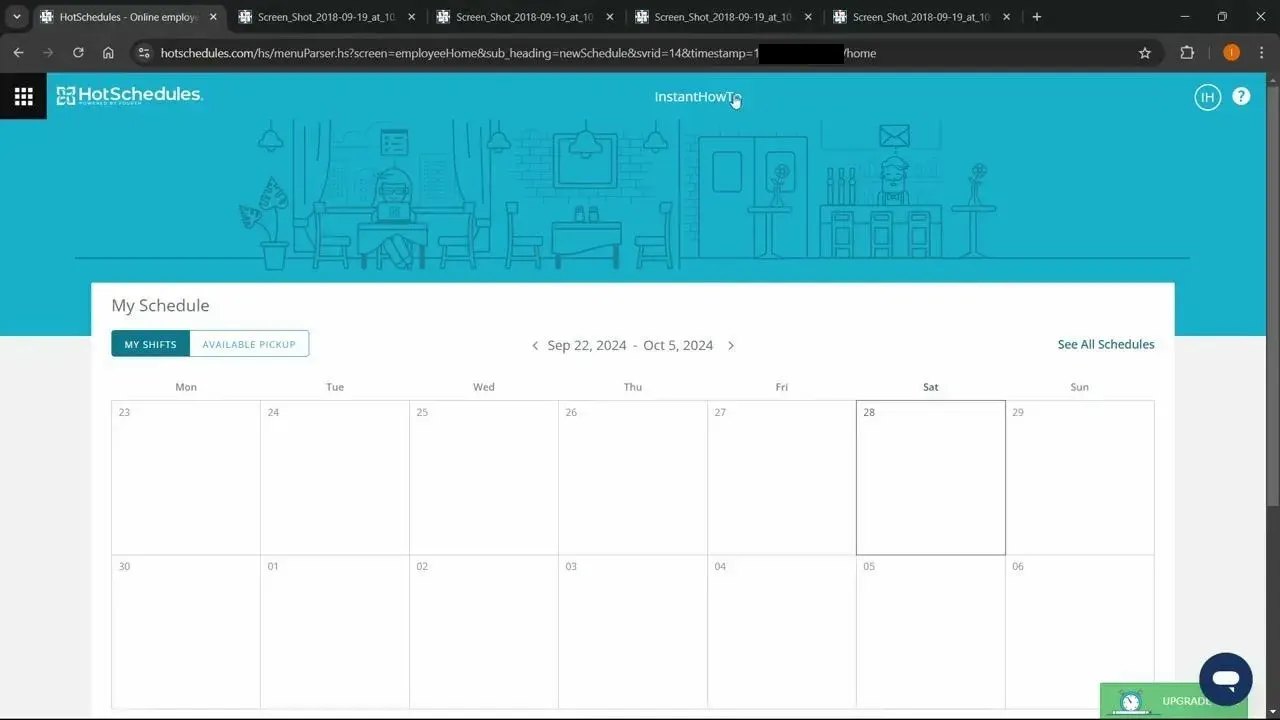
Find the navigation icon (a grid icon) at the very top left of the screen. Click it to open the side menu.
Step 3: Go to My Schedule
In the side menu, hover over the Home section. Then click My Schedule in the dropdown options.
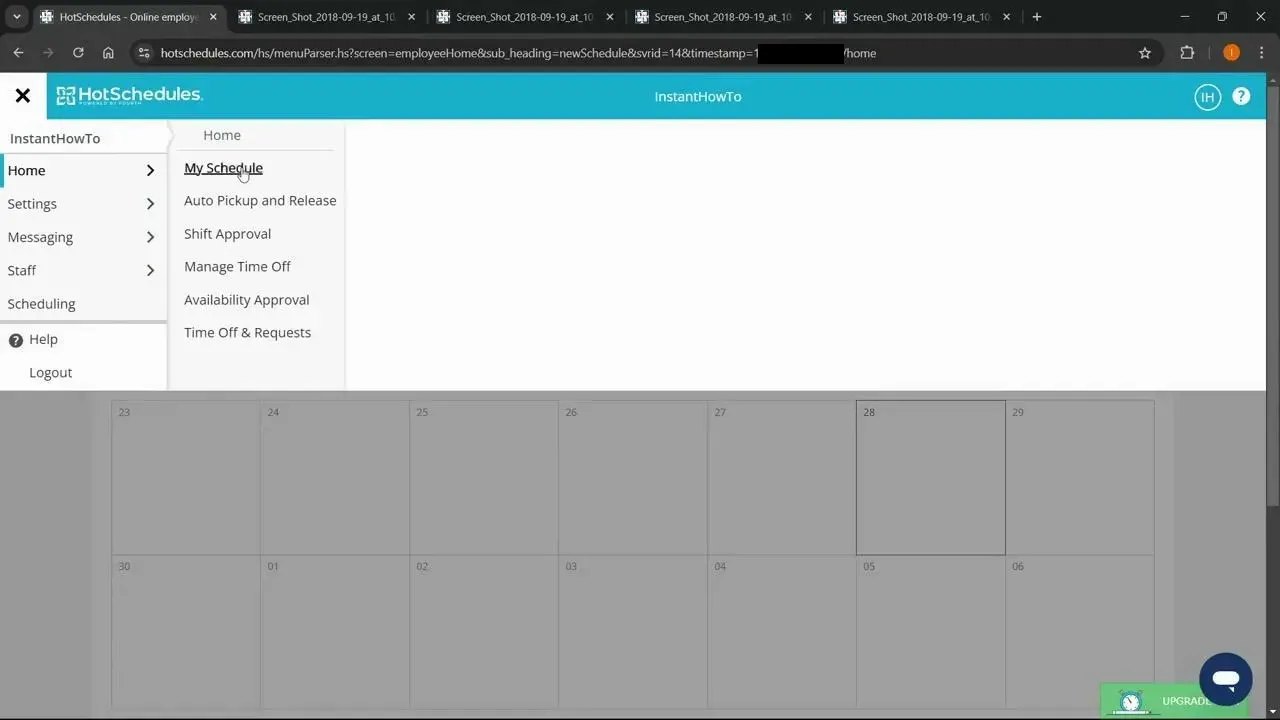
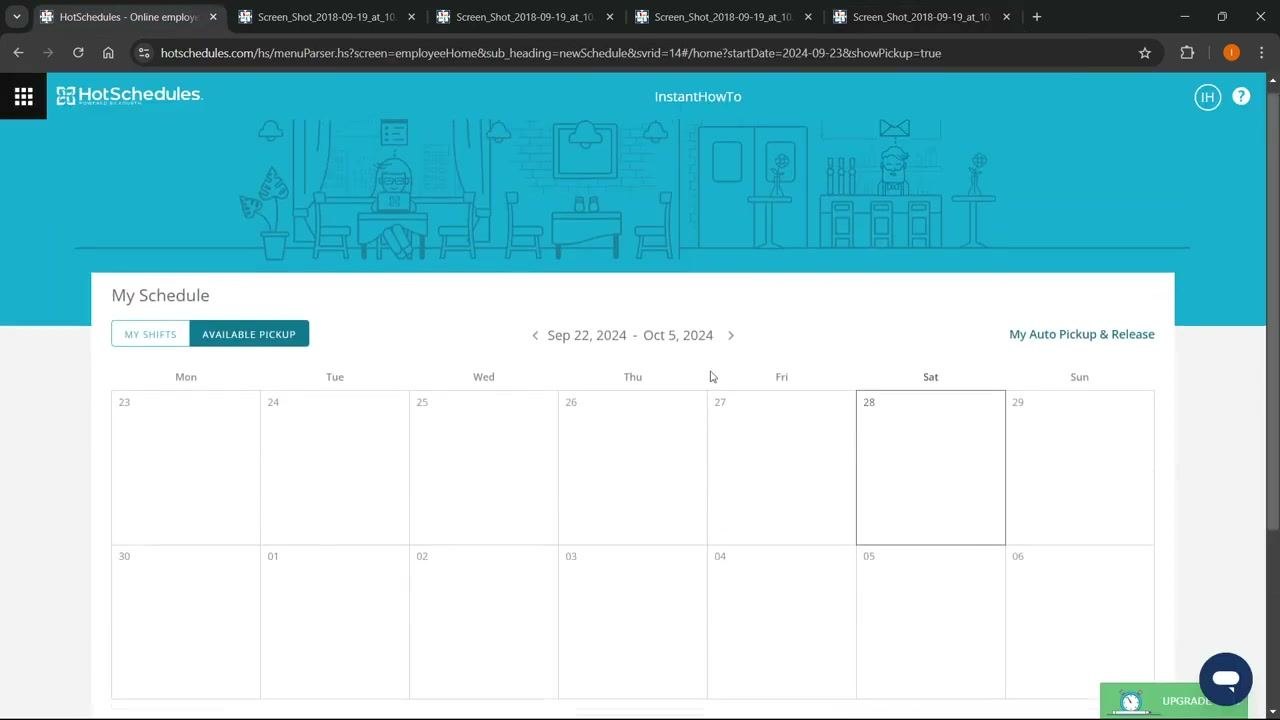
The My Schedule page opens. It shows a calendar for the current and upcoming weeks. Two buttons appear at the top of the calendar: MY SHIFTS and AVAILABLE PICKUP.
Step 4: Check for available shifts to pick up
Click AVAILABLE PICKUP. If shifts are available, a badge (for example, a red circle with a number) appears on the button. The number shows how many shifts have become available to pick up since your last visit.
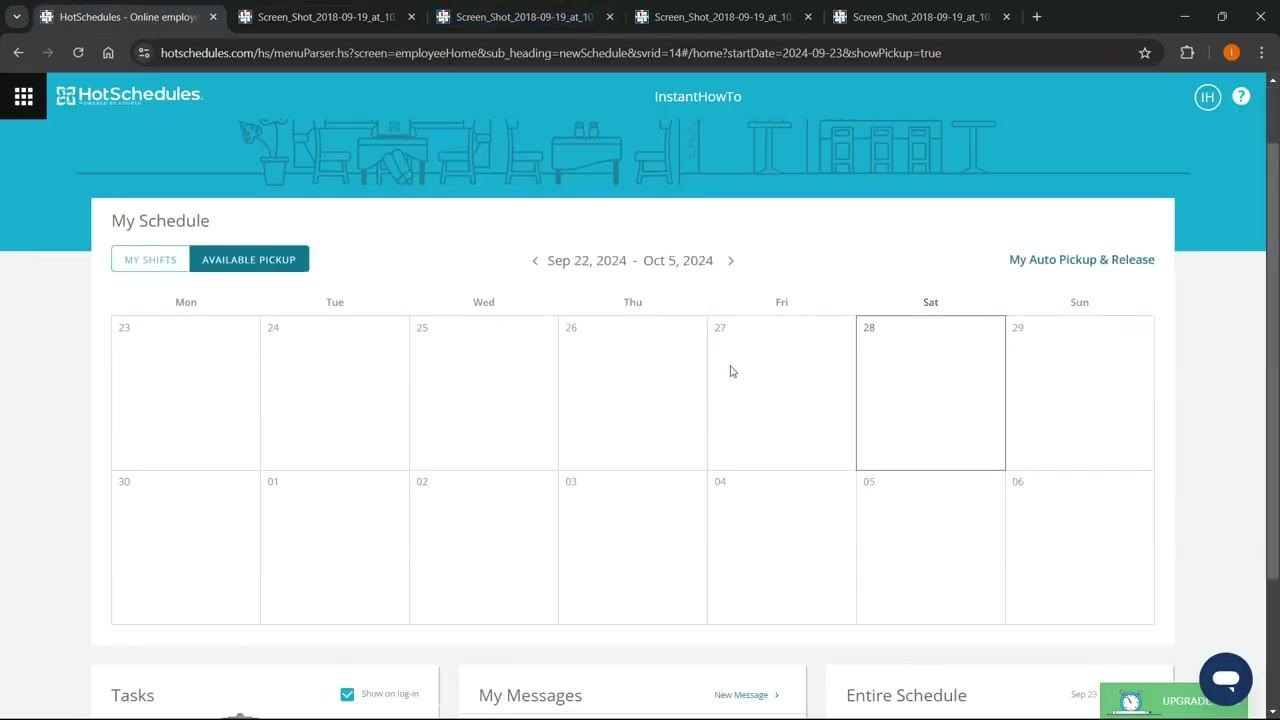
After you click the button, the calendar updates to show which days have available shifts. Each of those days shows a label, such as "Manager Shifts" or "Server Shift", and the number of shifts available that day.
Step 5: Select a day to pick up a shift
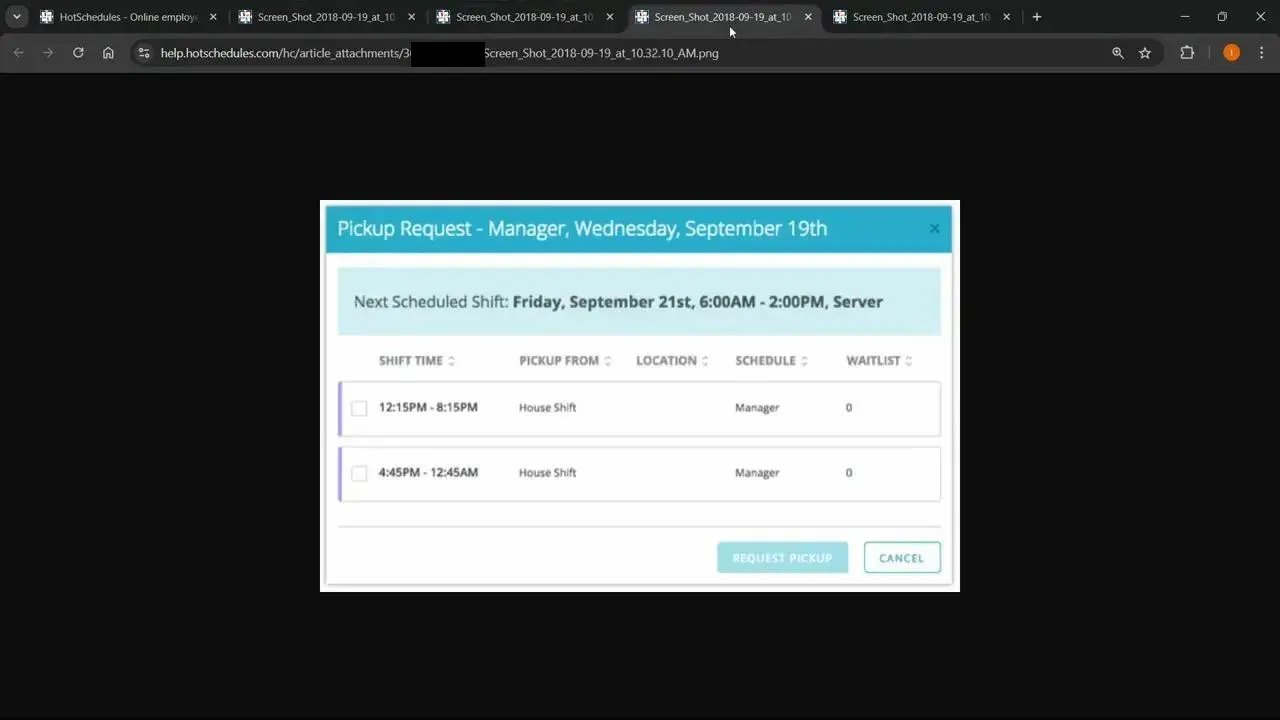
Click the day you are interested in. A popup window opens with details about the available shifts for that date.
Step 6: Review the shift details
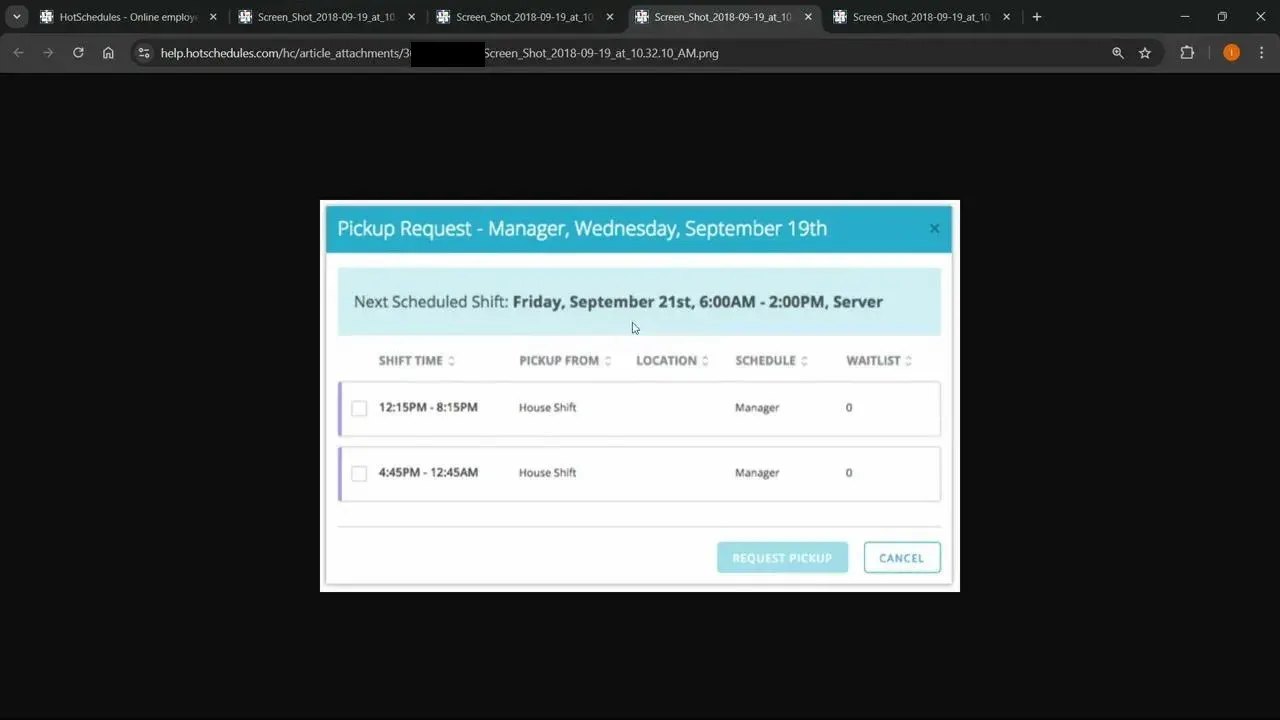
In the popup, review the following information for each available shift:
- Shift Time, for example 12:15PM - 8:15PM
- Pickup From, for example House Shift
- Location
- Schedule, for example Manager
- Waitlist, which is the number of people already requesting the shift
Your next scheduled shift also appears at the top of the popup for reference.
Step 7: Check for schedule conflicts
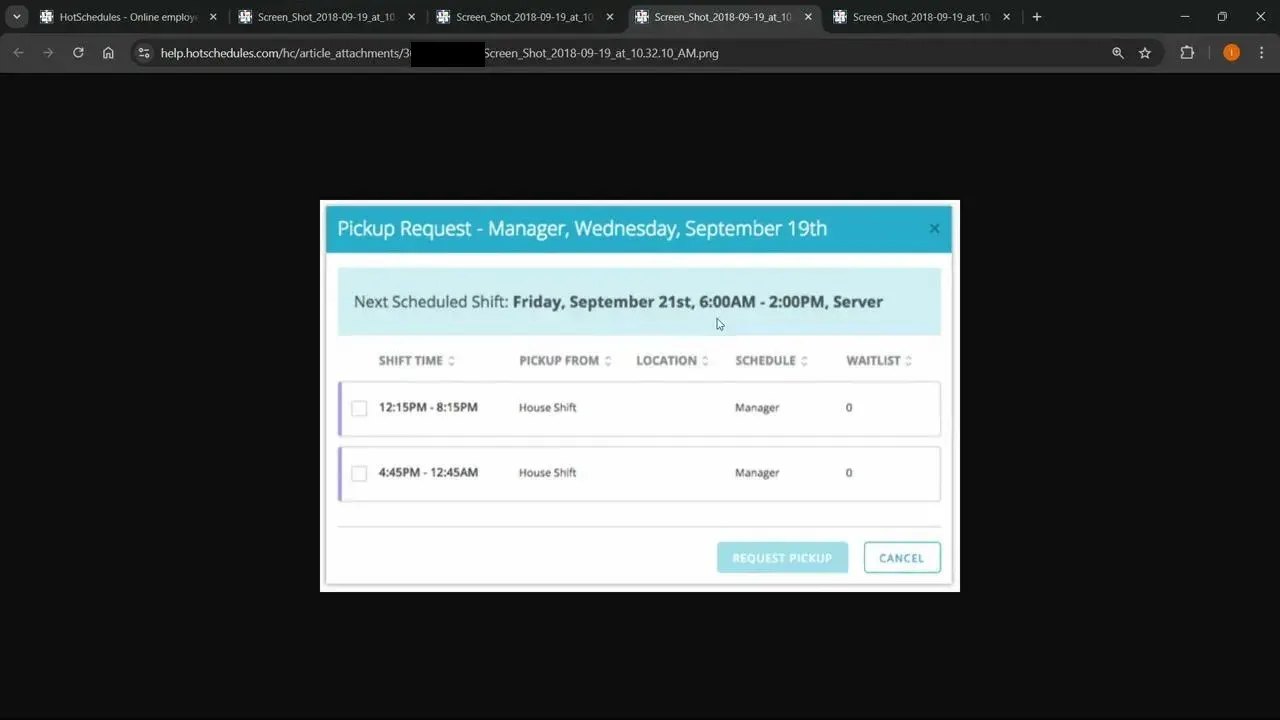
Use the popup to make sure the shift doesn't overlap with your existing schedule. In this example, the popup is labeled "Pickup Request - Manager, Wednesday, September 19th".
- Your next scheduled shift appears at the top, for example "Friday, September 21st, 6:00AM - 2:00PM, Server".
- The available shifts are 12:15PM - 8:15PM and 4:45PM - 12:45AM.
- Both shifts are picked up from a House Shift and are on the Manager schedule.
- The waitlist is 0, which means no one else has requested these shifts yet.
Step 8: Select the shift you want to pick up
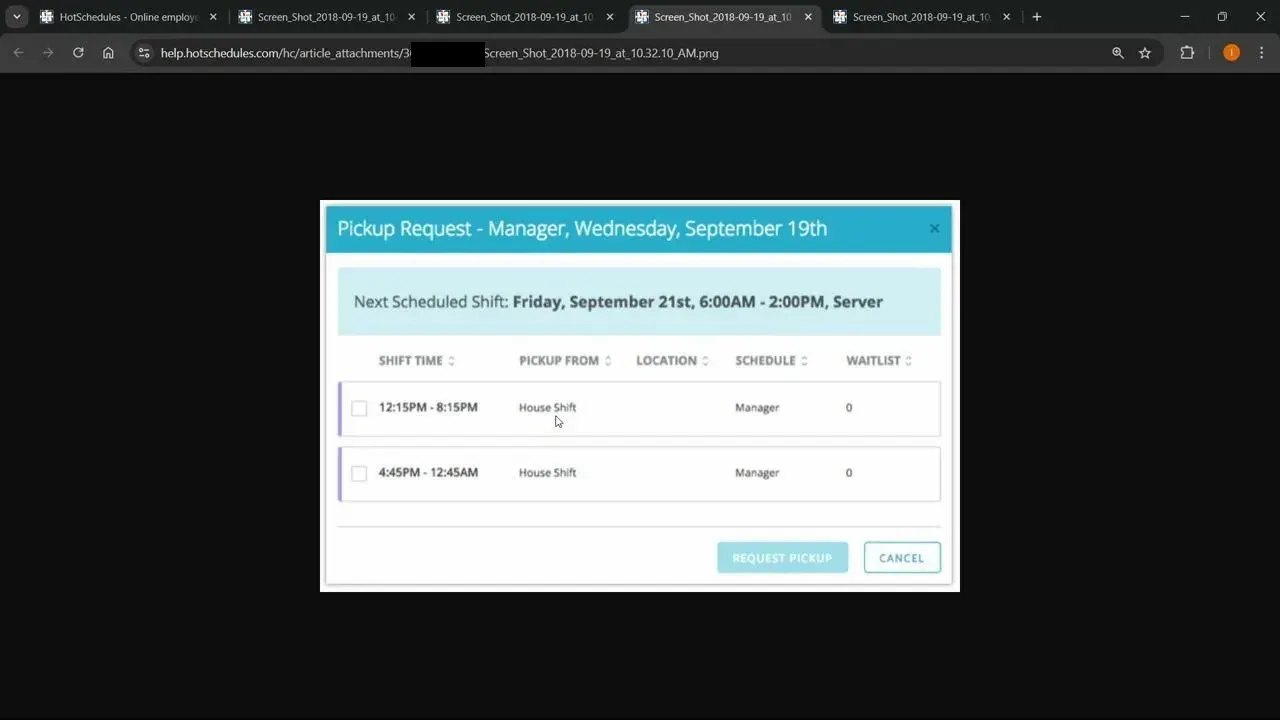
Click the checkbox next to the shift you want. For example, select the box next to "12:15PM - 8:15PM". You can select more than one shift if you want.
Step 9: Submit your pickup request
Click REQUEST PICKUP at the bottom of the popup to submit your request for the selected shift or shifts. If you decide not to continue, click CANCEL to close the popup without submitting a request.
After you submit, a notification appears at the top of your screen: "REQUESTED: Your pickup must be approved by a manager before it is yours." Your request is pending, and the shift is not yet assigned to you.
Step 10: Return to your schedule
After you submit the request, HotSchedules returns you to the My Schedule calendar view. Watch your schedule for updates once your manager approves or denies the request.
Summary
You now know how to pick up a shift in HotSchedules. You open My Schedule, select AVAILABLE PICKUP, choose a day, review the shift details, select a shift, and click REQUEST PICKUP. Your request isn't final until a manager approves it.
What's next
Check your schedule regularly for updates and confirmation of your request.
Generation details: cost, quality tiers
Docsie billed 1,500 credits ($1.05) to analyze this 3-minute video at standard quality. The rewrite, template fill and Word/PDF exports were included. The same video at each quality tier:
| Quality | Frames sampled | Credits | Approx. cost |
|---|---|---|---|
| Draft | every 16-30 s | 750 | $0.52 |
| Standard (this guide) | every 8-15 s | 1,500 | $1.05 |
| Detailed | every 4-7 s | 3,000 | $2.10 |
| Ultra | every 1-3 s | 6,000 | $4.20 |
Credits priced at $0.70 per 1,000; plans include a monthly allowance. Enterprise customers on on-premise or bring-your-own-model deployments run this on their own inference and pay no per-video credits.
Generated by Docsie Video-to-Docs on 2026-11-24 from a 2-minute video. Screenshots are frames from the source video and belong to their creator, InstantHowTo, whose original is embedded above. If you own this video and want the guide removed or credited differently, contact us and we will act within one business day.