
How to Create a Wdata Query in Workiva
This guide walks you through how to create a Wdata query in Workiva, from reviewing your source tables to building joins, customizing the display of your results, applying parameters and filters, and configuring a Crosstab for pivoted reporting. By the end, you will know how to assemble a query that combines data from multiple tables and exports the results in the format you need.
Video: Creating Queries with @Workiva Wdata by Villani Analytics (2023). All credit for the demonstration goes to the creator; watch the original on YouTube. The written guide below was generated from this video by Docsie. Creator? Request a change or removal.
This guide walks you through how to create a Wdata query in Workiva, from reviewing your source tables to building joins, customizing the display of your results, applying parameters and filters, and configuring a Crosstab for pivoted reporting. By the end, you will know how to assemble a query that combines data from multiple tables and exports the results in the format you need.
Prerequisites
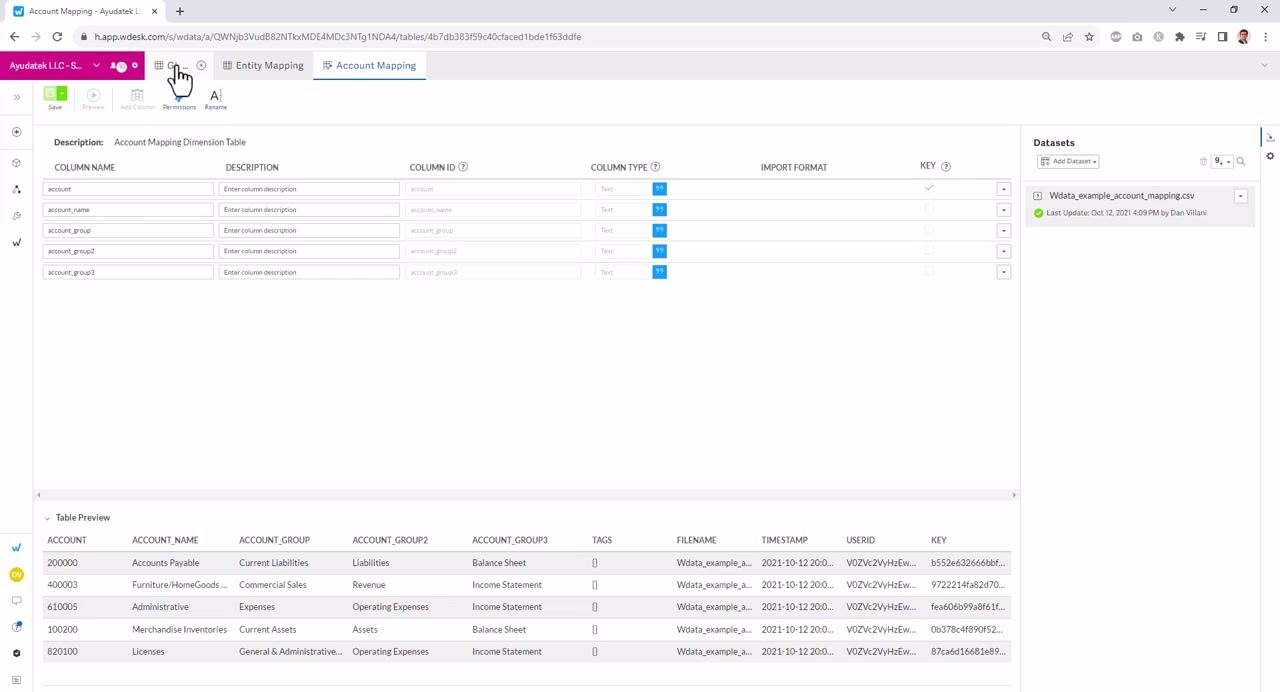
Before you begin, make sure you have access to the tables you plan to query. In this guide, the example uses a fact table (GL Data) containing numerical data, and two dimension tables (Account Mapping and Entity Mapping) containing descriptive attributes.
Review the available tables
Open your tables and confirm their structure before building a query. The fact table (GL Data) includes columns such as Company Code, Period, Account, and Amount. The dimension table (Account Mapping) includes columns such as Account, Account Name, Account Group, Account Group2, and Account Group3.
Preview the data in each table to confirm the structure and contents match what you expect to use in your query.
Creating a query
Initiate query creation
Click the plus (+) button labeled Create in the top menu. From the dropdown, select Query to start building a new query.
Add table data as a source
In the new query window, locate the Sources panel on the left. Click Add Source to Use and select Add table data from the dropdown. You can also choose to add spreadsheet data or query data if needed.
Select the tables you want to use in your query. In this example, select the three tables: GL Data, Account Mapping, and Entity Mapping. Click Add to include them as sources. The selected tables now appear in the Sources panel on the left.
Expand tables and add fields
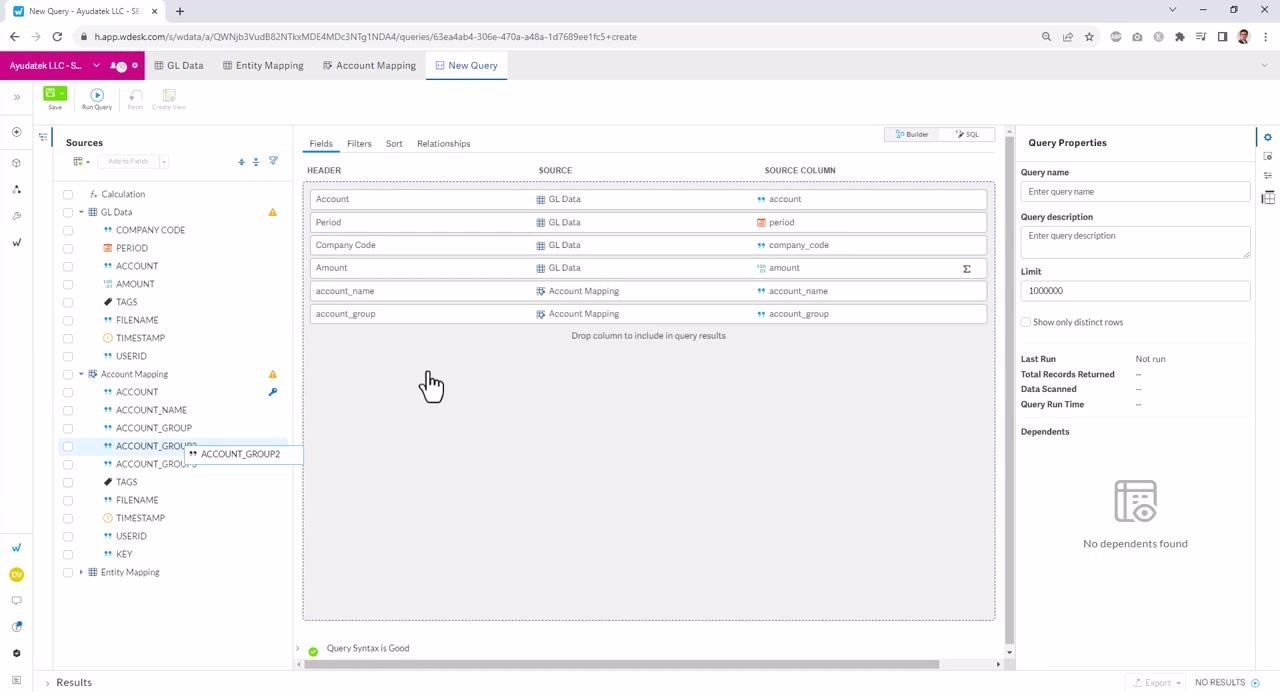
Expand each table in the Sources panel to view its available columns. Drag and drop the columns you need into the query builder area in any order you prefer.
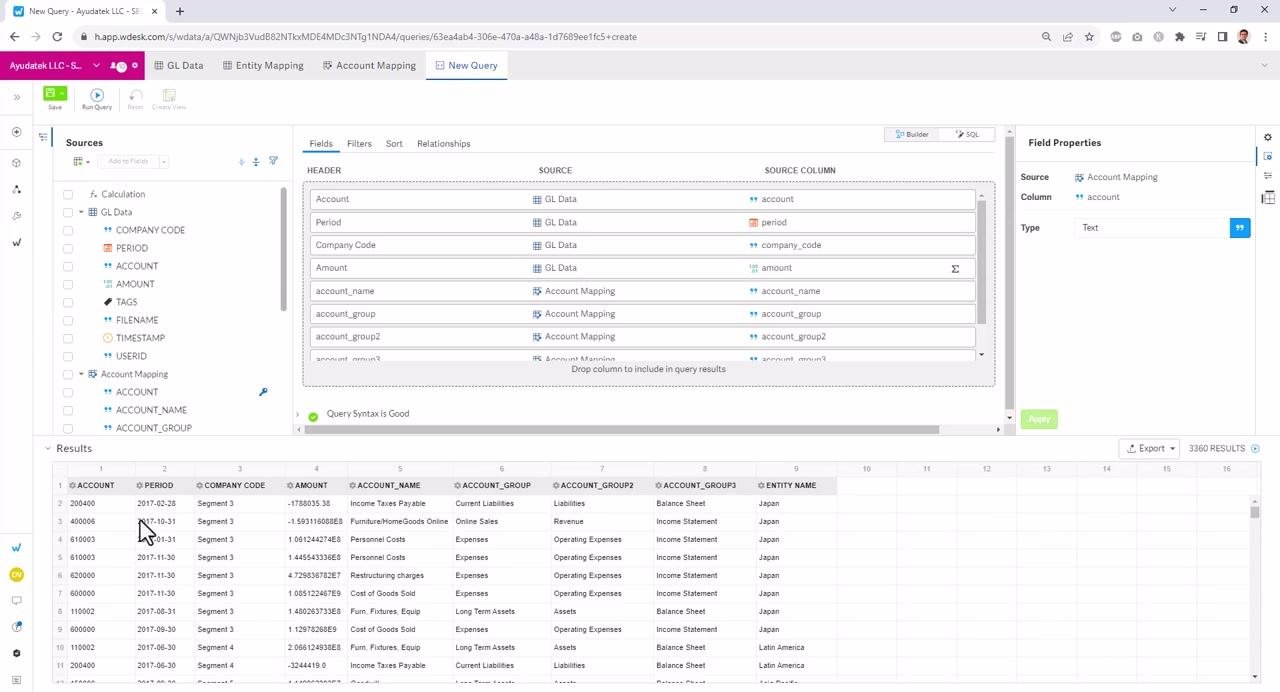
For example, drag in Account, Period, Company Code, and Amount from the GL Data table. You can also add fields from the dimension tables, such as Account Name and Account Group from Account Mapping.
Arrange and review selected fields
Ensure the fields are listed in the order you want in the query builder. The builder displays the source table and source column for each field. You can continue to add or rearrange fields as needed to match your reporting requirements.
With these steps complete, you have a query that combines data from your fact and dimension tables, ready for you to define how the tables relate to one another.
Building relationships between tables
Understand when a join is needed
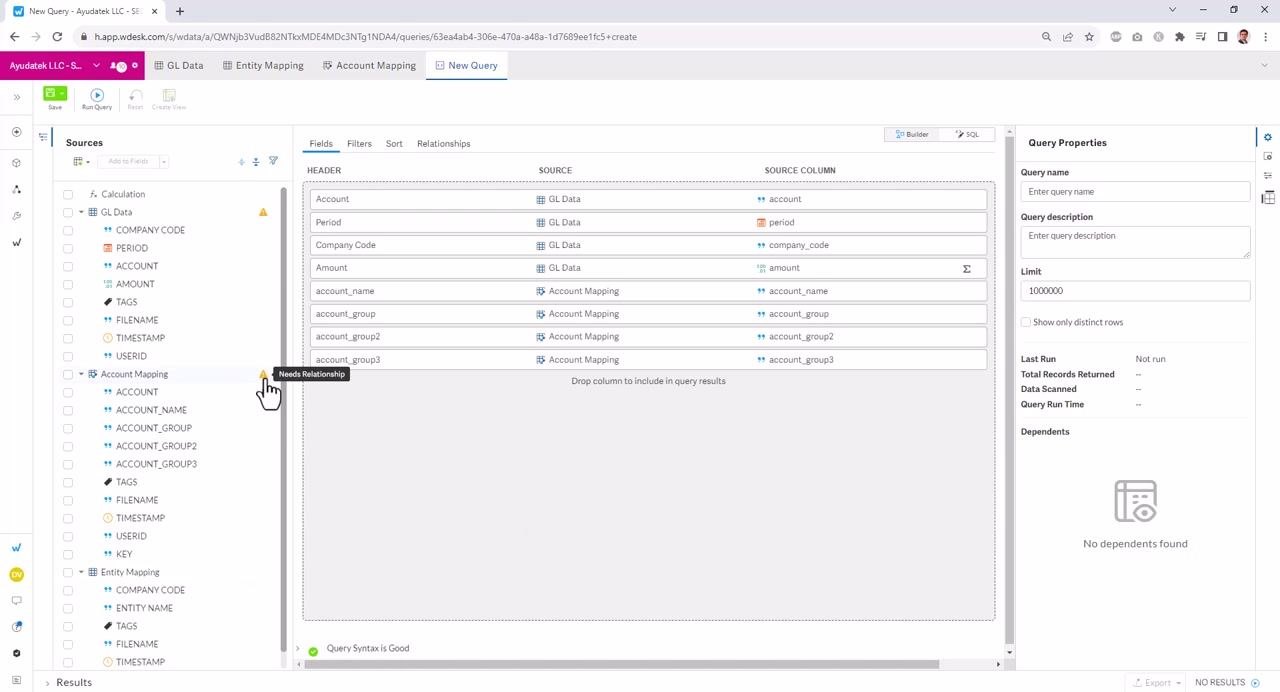
When your query includes fields from multiple tables, you must join those tables together to create a unified dataset. If you see a warning such as "Needs Relationship," it means a join is required between the tables involved.
Click the Relationships tab at the top of the query builder to define how your tables are joined.
Create the first join
Set up a join between the GL Data table and the Entity Mapping table. Select company_code from the GL Data table, choose the join type (for example, LEFT JOIN), and set the join condition to match company_code from GL Data to company_code from Entity Mapping.
You can select the join type from options such as LEFT JOIN, RIGHT JOIN, INNER JOIN, or FULL JOIN.
Add additional joins as needed
For queries involving more than two tables, click Add another join. For the second join, select fields from the result of the first join (Join 1). Drag and drop the appropriate source field (for example, account from GL Data) and set it equal to the corresponding field in the Account Mapping table (for example, account).
Repeat this process for any additional tables you need to join.
Verify your join configuration
Confirm that all necessary joins are defined so that every table is connected through the appropriate fields. The query builder displays "Query Syntax is Good" when all joins are valid.
Preview the query results
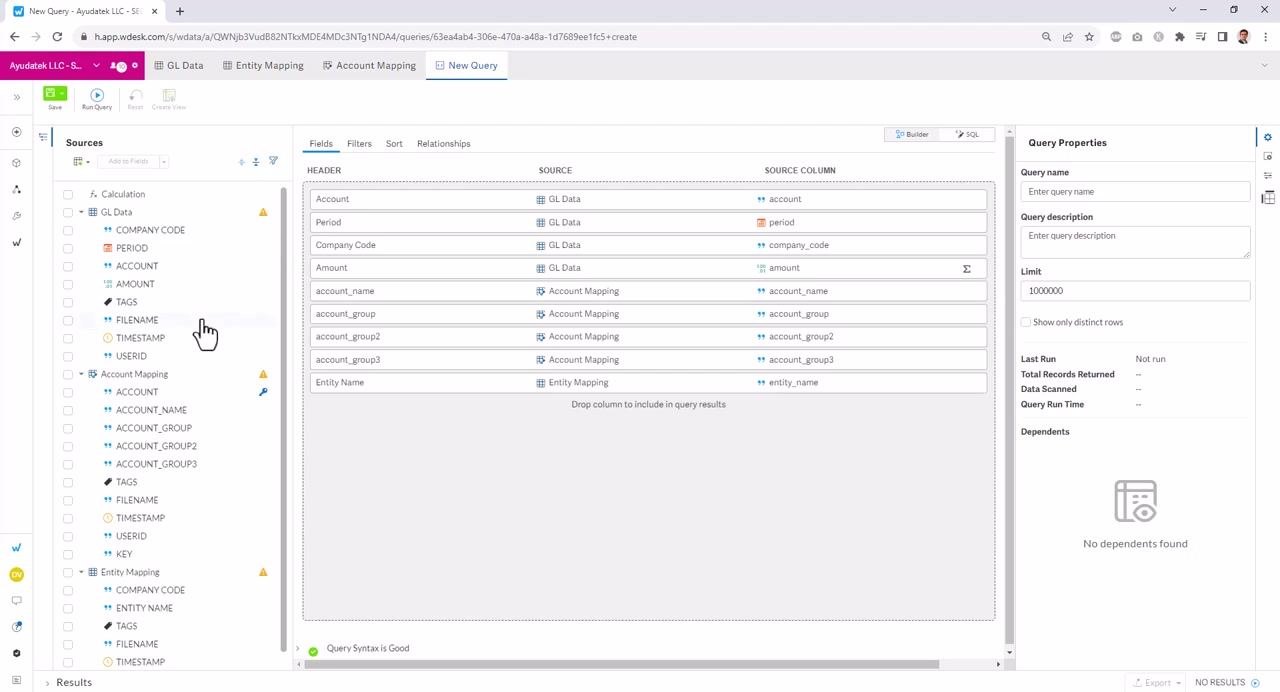
Return to the Fields tab to review your selected columns, then click Run Query to preview the data. The results grid at the bottom displays the combined data from all joined tables, showing columns such as Account, Period, Company Code, Amount, Account Name, Account Group, Account Group2, Account Group3, and Entity Name.
Review the preview to confirm that the data matches your expectations.
Iterate as needed
If the results are not what you expect, revisit your joins or selected fields and make adjustments. Periodically preview the data to confirm accuracy as you refine your query.
With these steps, you have joined multiple tables in Workiva and previewed the resulting dataset, ensuring your query returns the information you need for analysis and reporting.
Customizing the display of your query results
Reorder columns in the query output
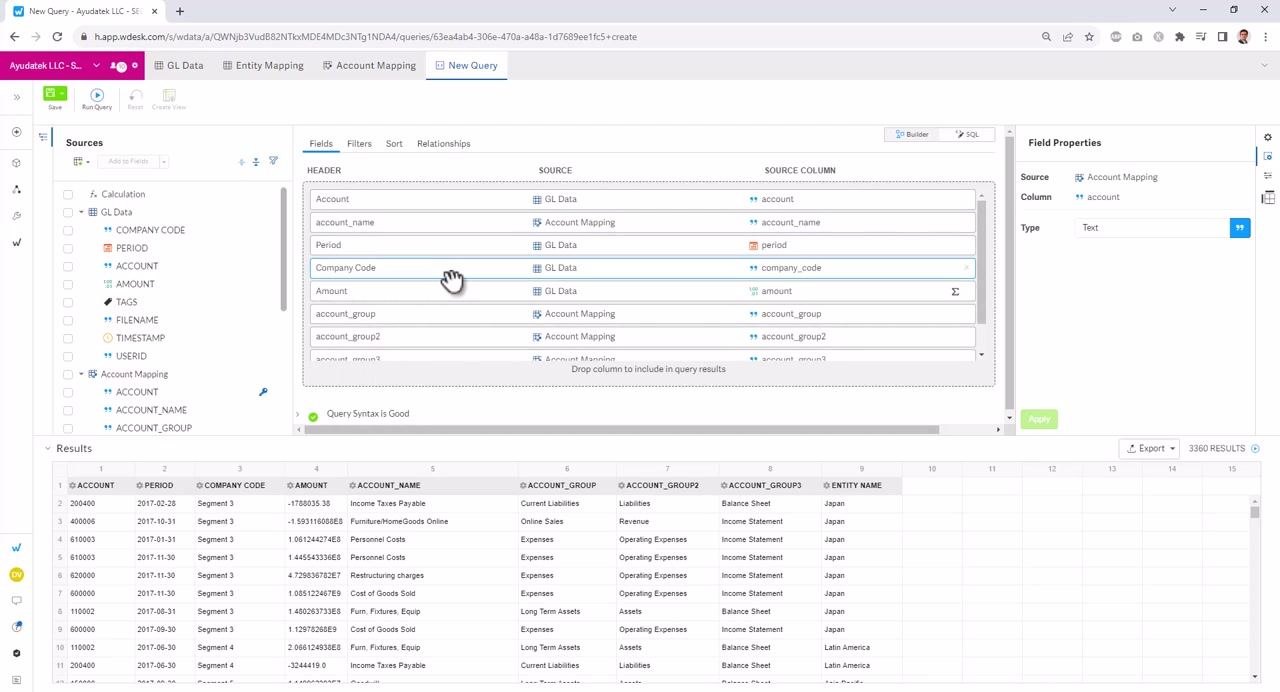
Drag and drop columns in the Fields tab to change their order in the results grid. For example, to move Account Name immediately after Account, click and drag the account_name field below account. To move Entity Name after Company Code, drag the entity_name field to the desired position.
The order of columns in the Fields list determines their order in the results grid. After reordering, click Run Query to update the results and see the new column arrangement.
Apply sorting to query results
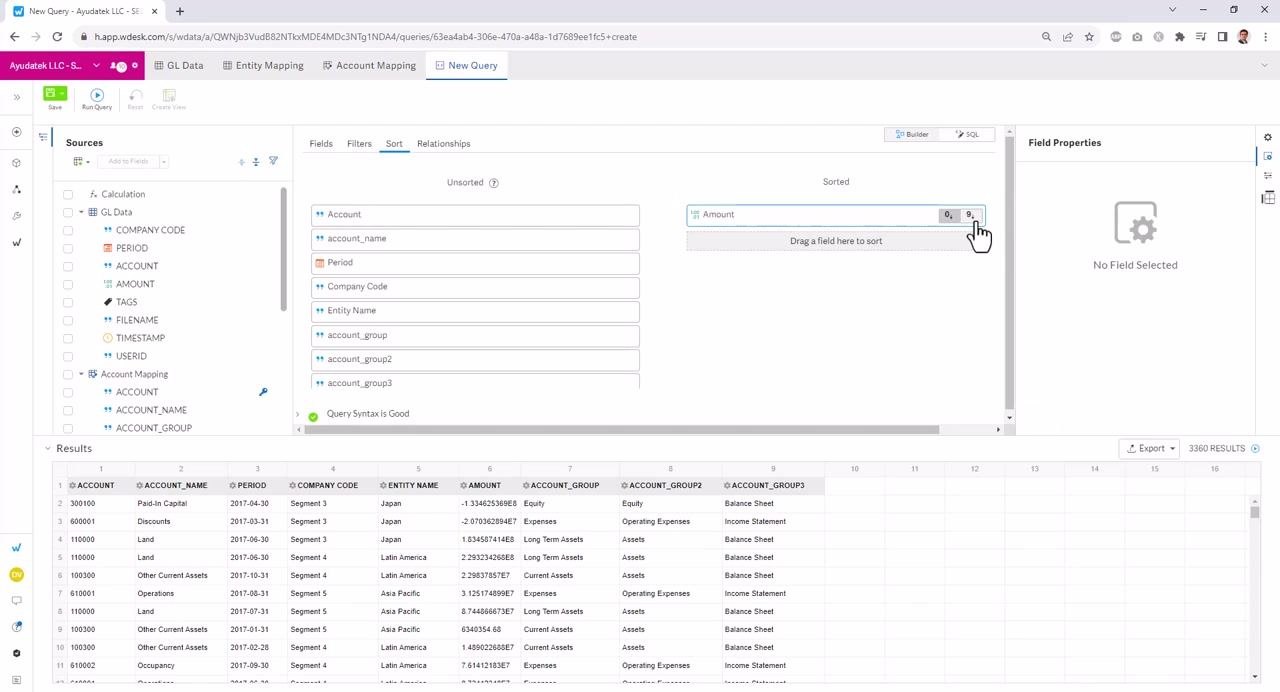
Click the Sort tab to define how your results should be ordered. Drag a field (for example, Amount) from the list of available fields to the Sorted section.
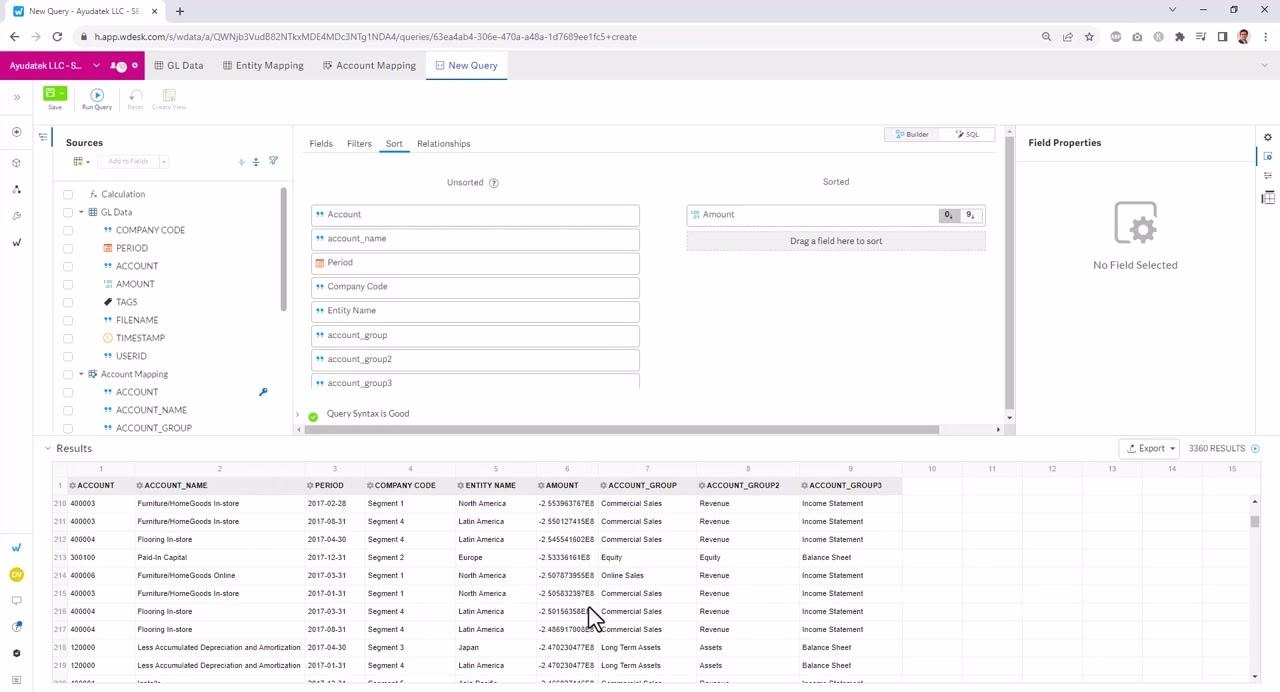
Choose the sort direction by clicking the ascending (A→Z) or descending (Z→A) icon next to the field to toggle the order. For example, select descending order to show the largest amounts first. The results grid updates to reflect the new sorting after you run the query.
Add filters to limit query results
Click the Filters tab to add conditions that restrict which rows appear in your results. Drag a field (for example, Account) from the Sources panel to the filter area labeled "Drop column to filter query results by."
Set the filter condition (for example, "Equal To") and enter a value or use a parameter. To filter by a specific account, enter the account number in the value field.
Using parameters for dynamic filtering
Select a parameter for your filter
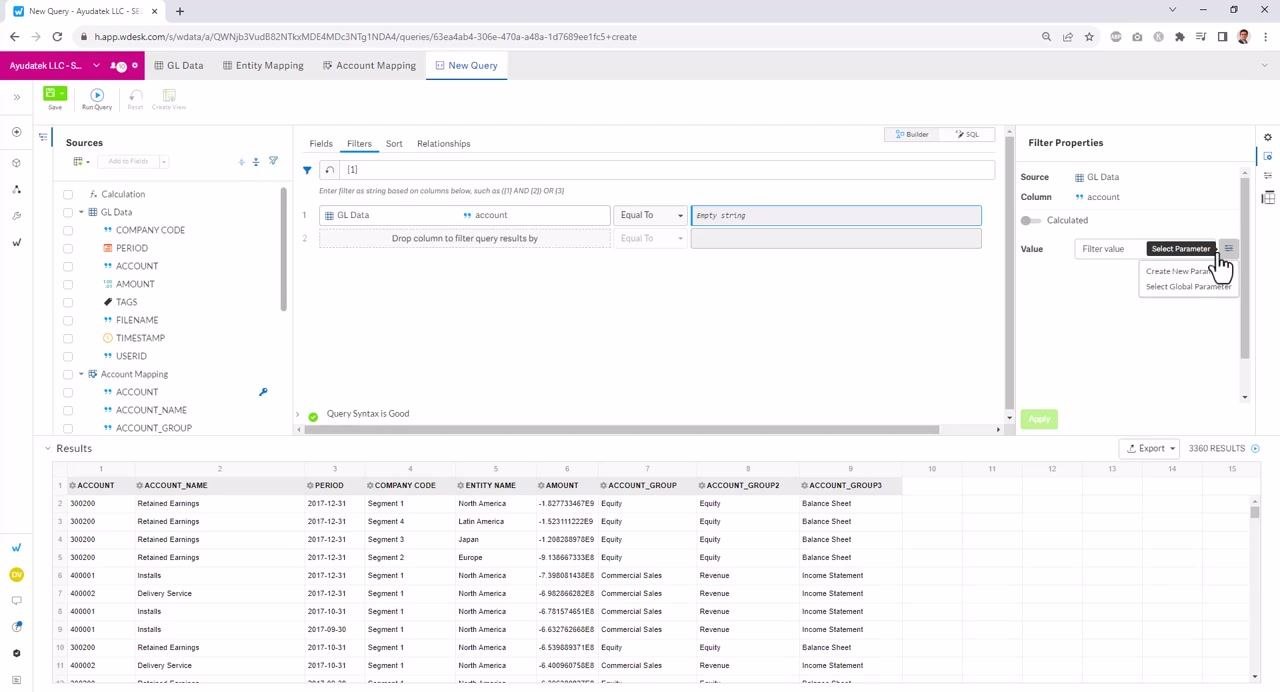
In the Filter Properties panel on the right, you can choose to enter a static value or use a parameter for dynamic filtering. Click Select Parameter to use a parameter as a prompt. You can create a new parameter or select a global parameter.
Name your parameter (for example, "account prompt") to make it clear for users running the query. Parameters allow users to enter filter values each time they run the query, making the report interactive.
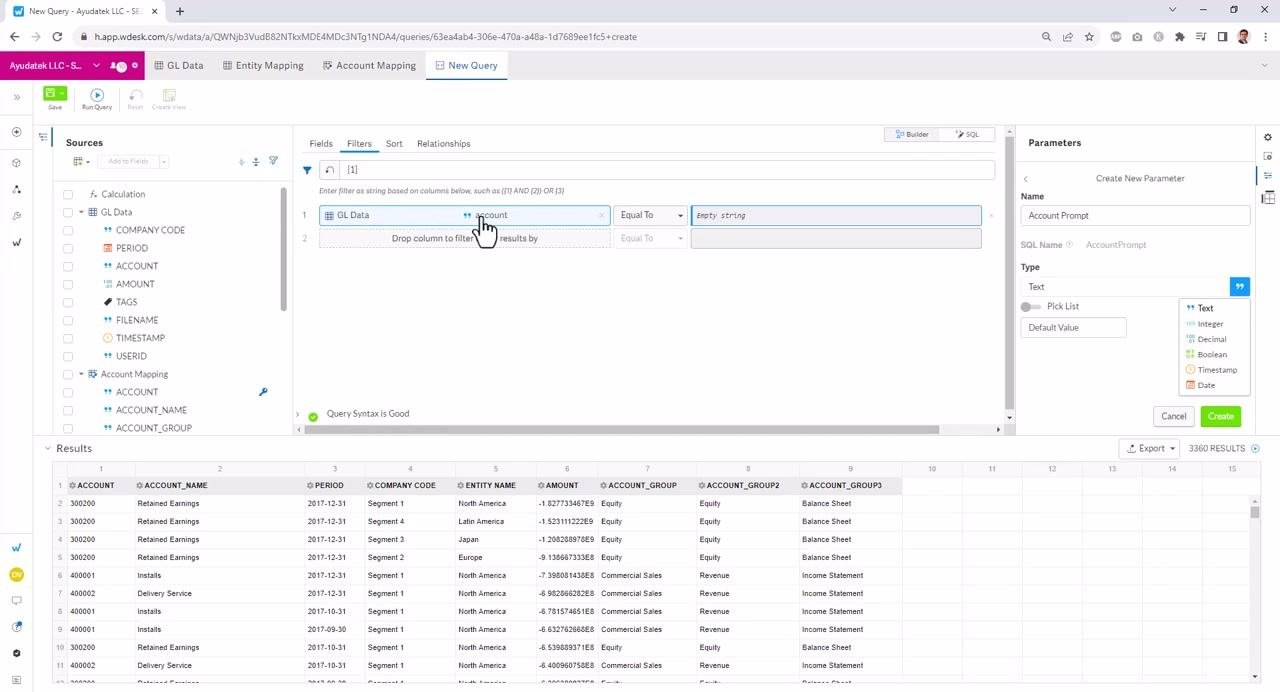
Match the parameter's data type to the field
Ensure the data type of your parameter matches the field you intend to filter. In this example, the field being filtered is account, which is a text field. The parameter is named Account Prompt in the "Create New Parameter" panel, and the "Type" is set to Text to match the data type of the account field.
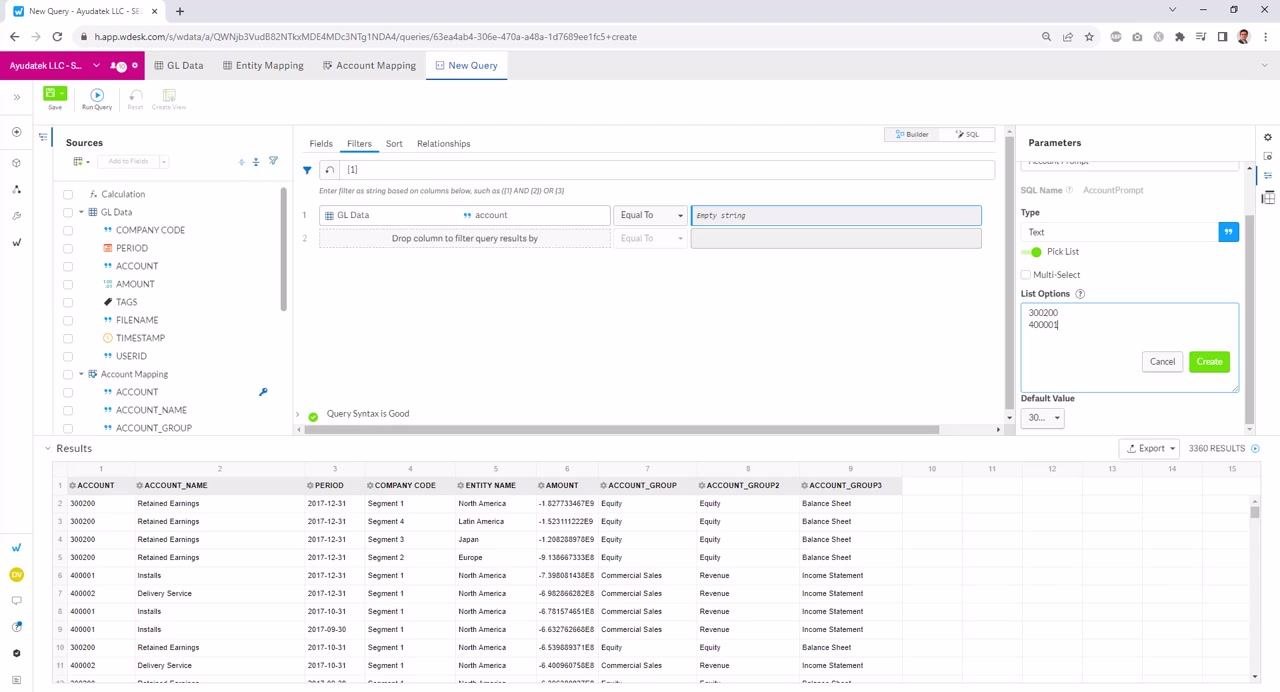
Enable a pick list for predefined values
Enable the "Pick List" option if you want users to select from predefined values. Toggle the "Pick List" switch to ON. The "List Options" box appears, allowing you to enter valid account values. Enter each account value on a separate line (for example, 300200, 400001).
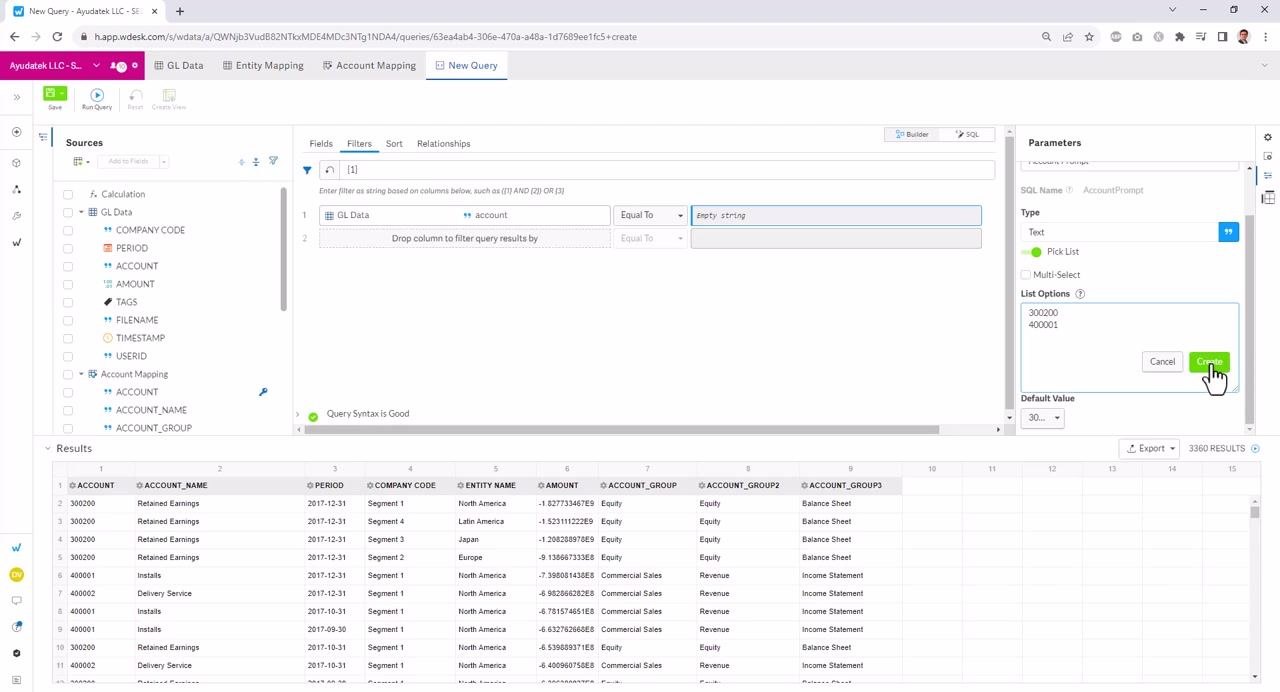
Create the parameter
Click the Create button to finalize the parameter. The parameter is now available for use in your query filter.
Apply the parameter to your query filter
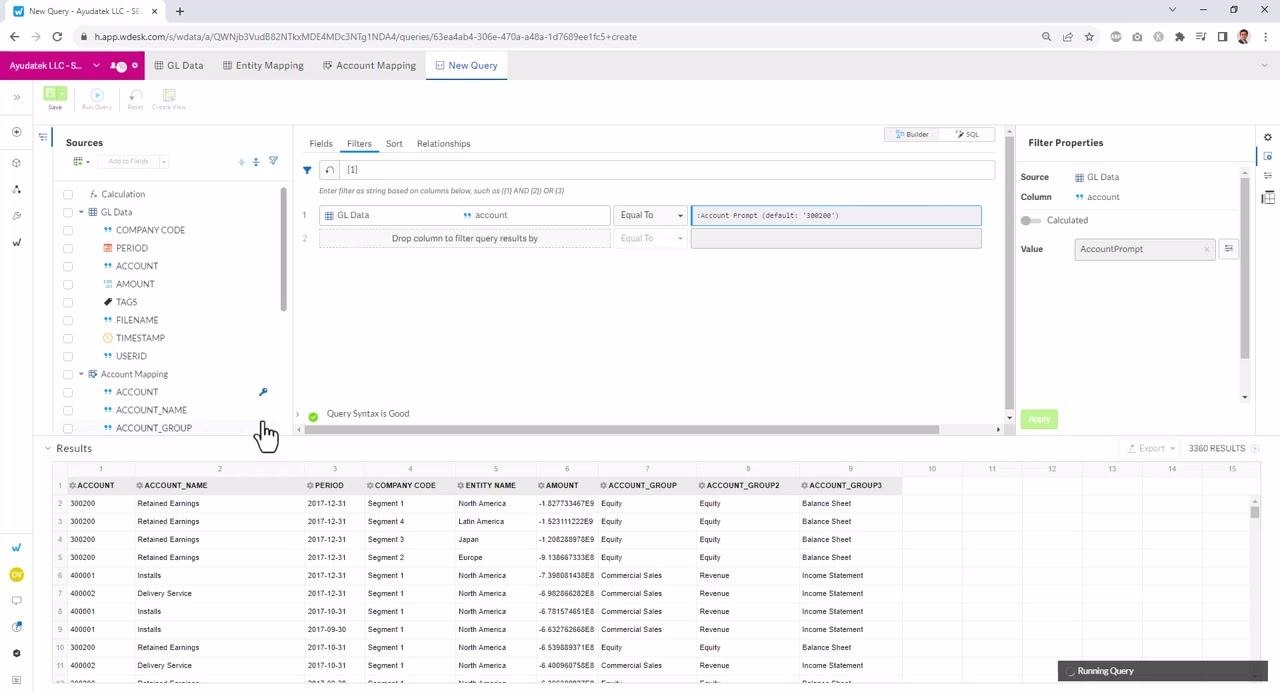
In the filter section, set the account field to use the new parameter (AccountPrompt). The filter now uses the selected account value from the prompt, and the query results update to show only records matching the selected account (for example, 300200).
Add additional filters as needed
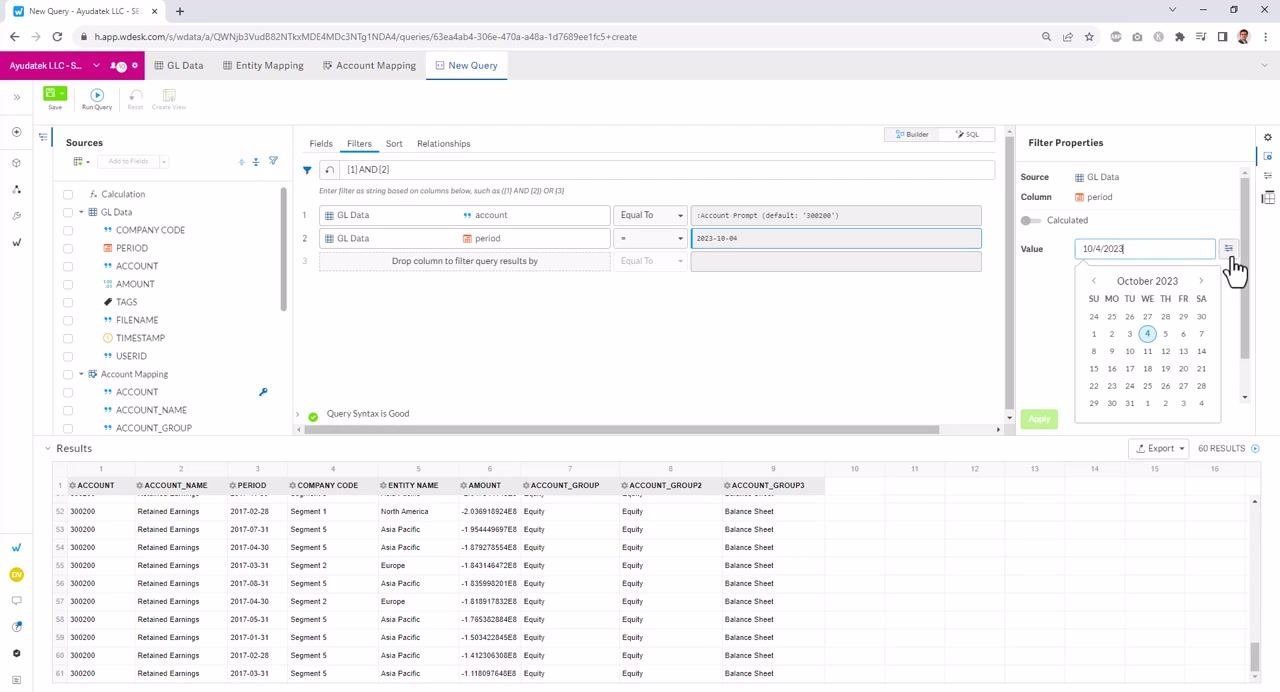
Add a filter for the period field, for example. Enter a date value (such as 2023-10-04) or use the calendar picker to select a date.
Link the period filter to a parameter
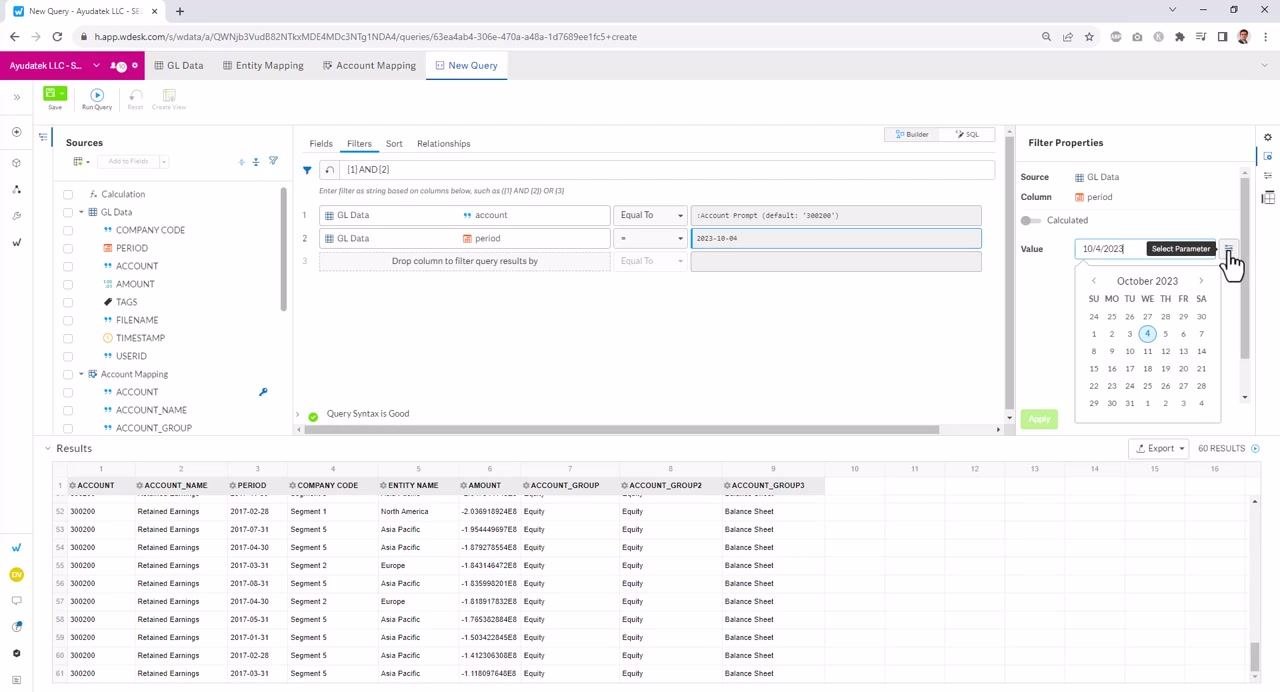
Use the Select Parameter button to link the filter value to a parameter if desired. This allows dynamic filtering based on user input for the period as well.
Create a parameter matching the period field's data type
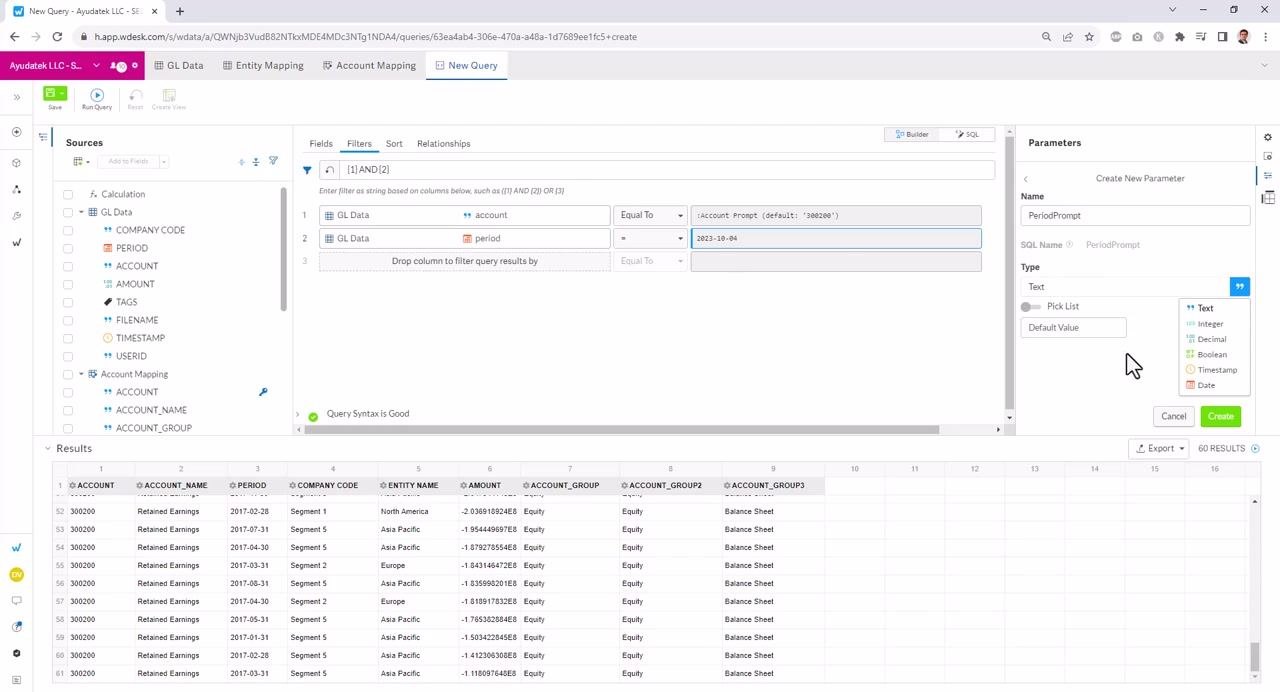
In the "Create New Parameter" panel on the right, enter PeriodPrompt as the Name. Set the "Type" to Date to match the period field, which expects date values. The "Type" dropdown shows options including Text, Integer, Decimal, Boolean, Timestamp, and Date. Do not enter a default value at this stage.
Review the parameter applied to the filter
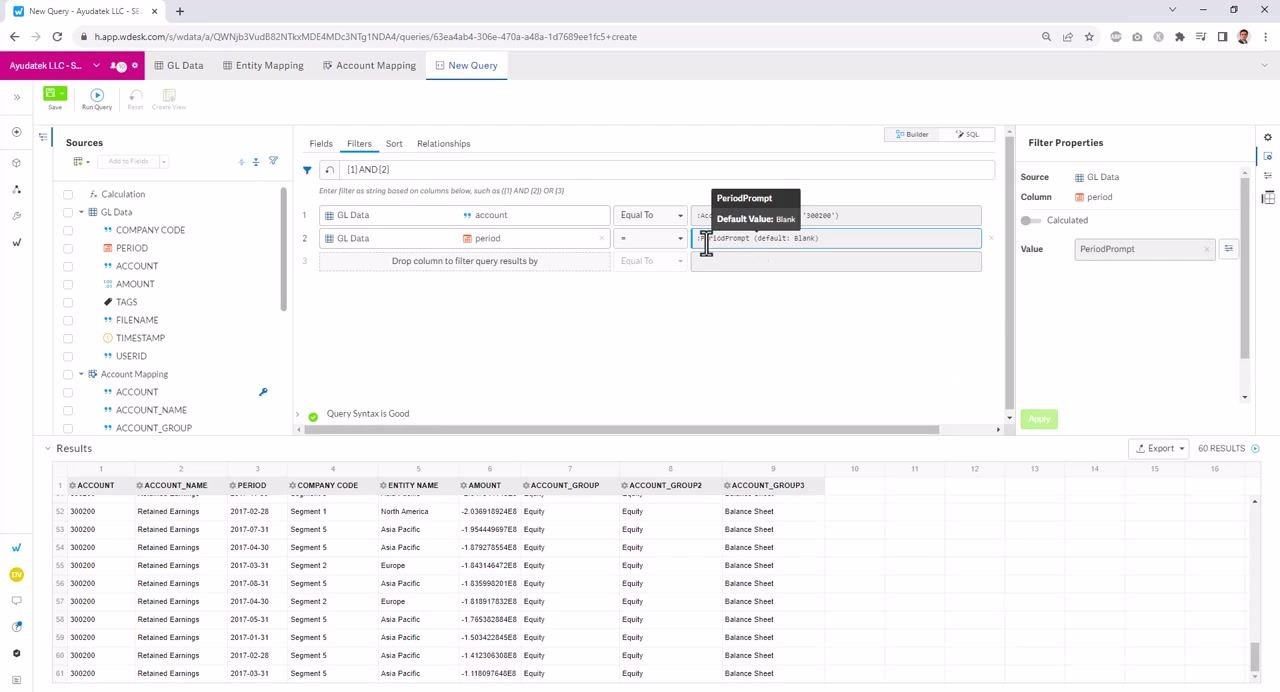
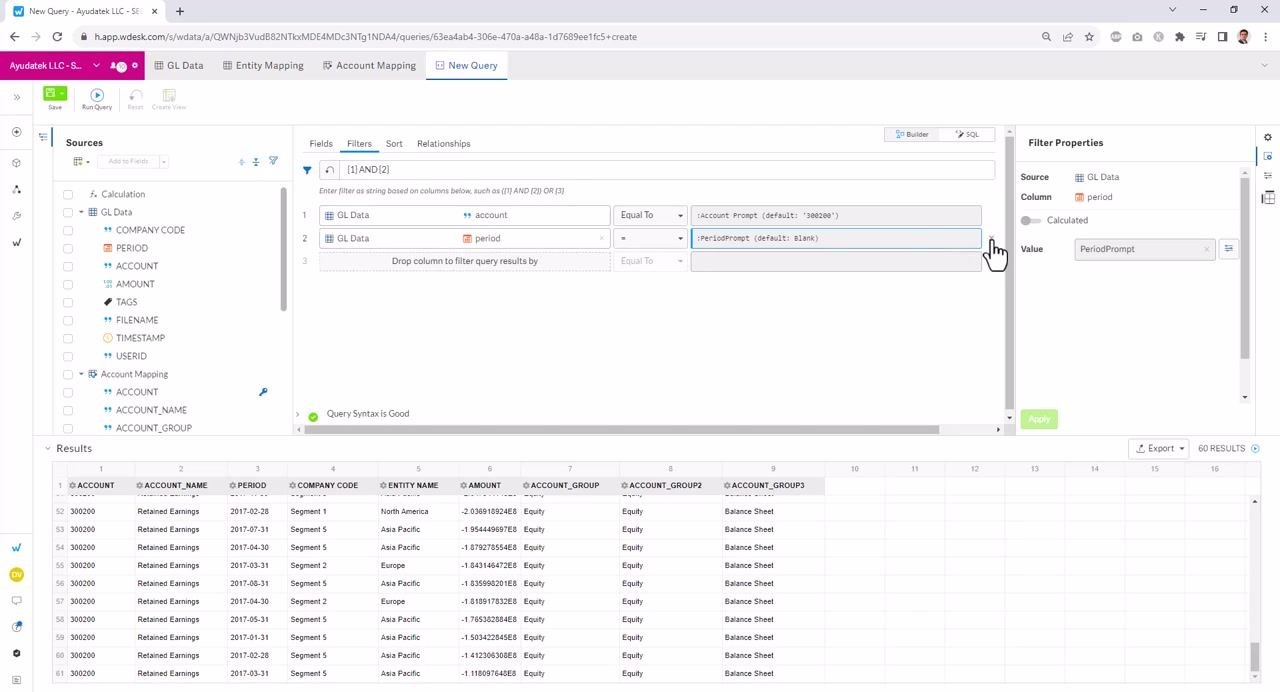
After setting the type to Date, the parameter becomes available for use in the filter. In the filter section, the period field is set to use the new parameter (PeriodPrompt), which currently has a default value of Blank. A tooltip appears showing "PeriodPrompt, Default Value: Blank".
Review how filters are combined
The filter logic at the top shows (1) AND (2), indicating both filters (account and period) are active. You can click on the filter logic to modify how filters are combined (for example, AND or OR). The filter for account uses :Account Prompt (default: '302200'), and the filter for period uses :PeriodPrompt (default: Blank).
Select a filter operator
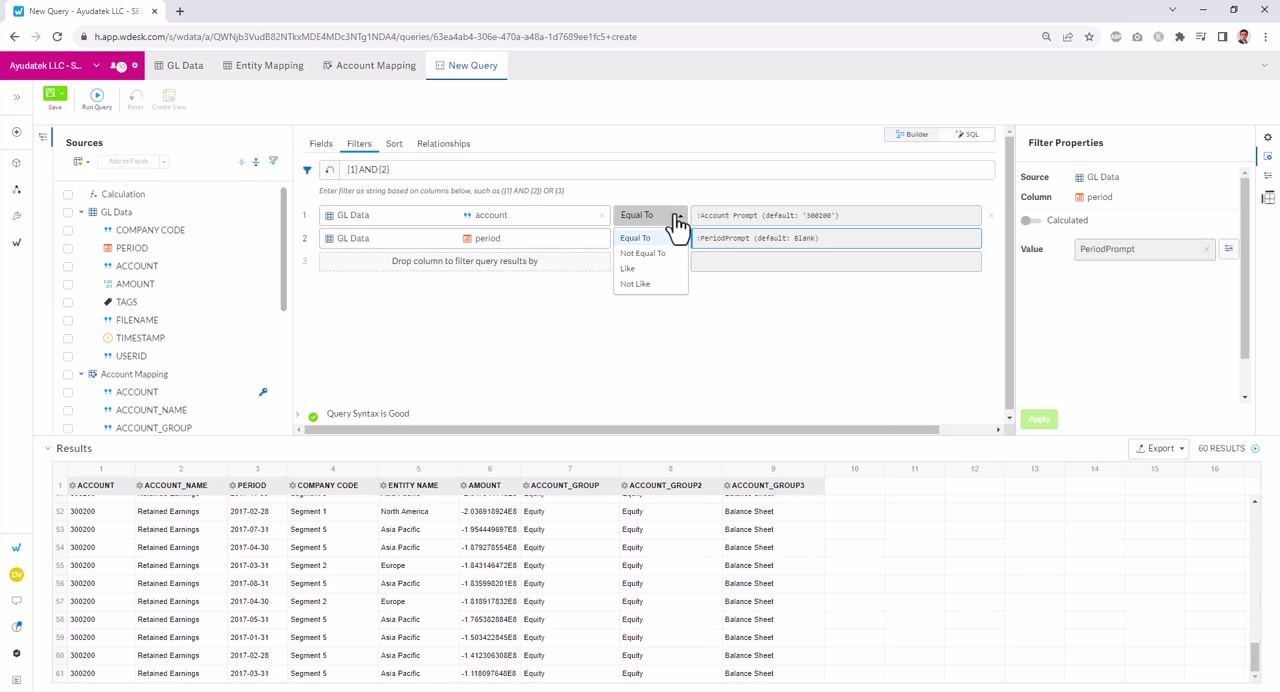
Click the operator dropdown (default is "Equal To") to choose from options: Equal To, Not Equal To, Like, Not Like. This allows you to customize how the filter matches values.
Correct invalid filter logic
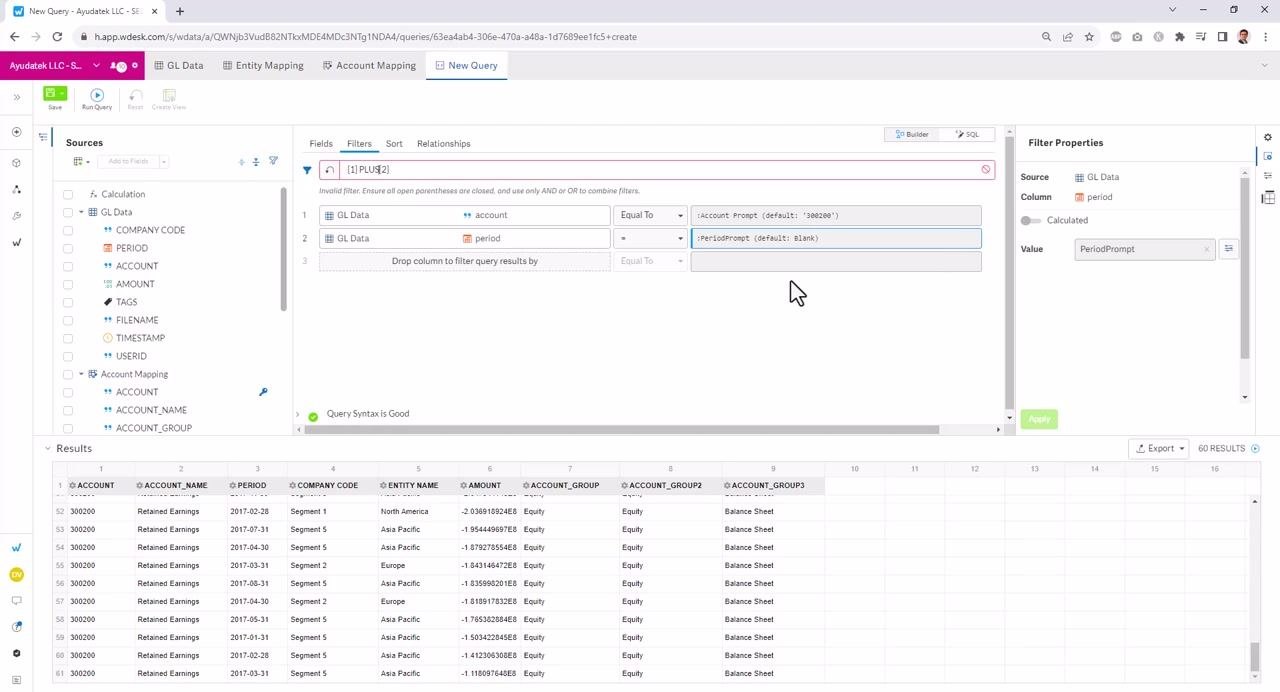
The system automatically validates your filter logic. If you enter an invalid operator (for example, typing "PLUS" instead of "AND" or "OR"), an error message appears: "Invalid filter. Ensure all open parentheses are closed, and use only AND or OR to combine filters." The filter logic at the top updates to reflect the invalid entry (for example, "(1) PLUS (2)").
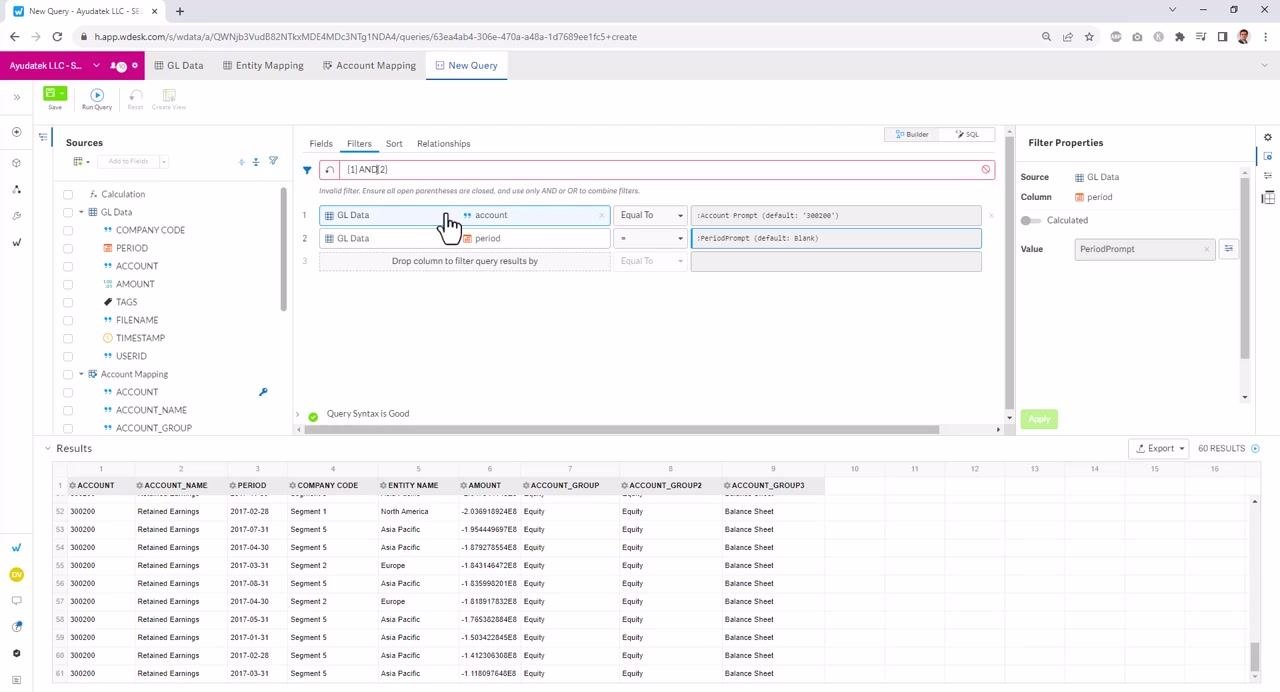
Change the filter logic back to a valid operator, such as "AND." The error message disappears, and the query syntax validates as good.
Remove filters for clarity
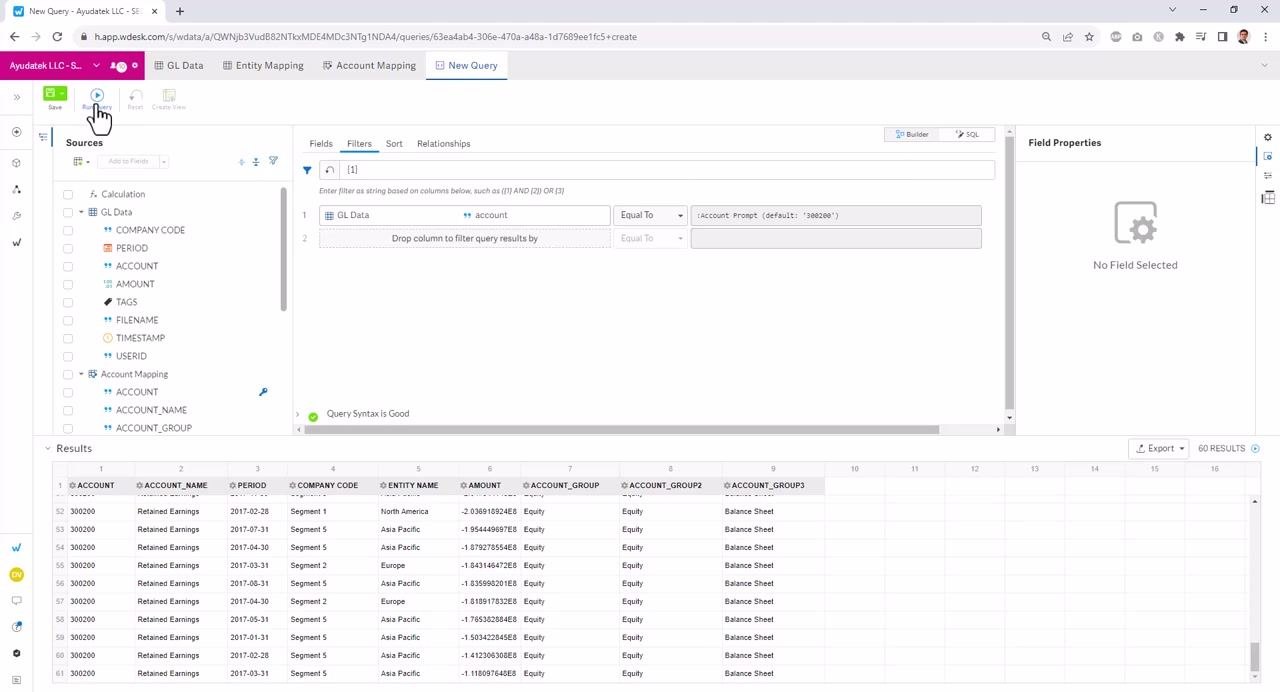
To simplify the view, remove one of the filters (for example, the period filter) by clicking the "X" next to it. This leaves only the account filter active, making it easier to visualize the effect of a single filter.
Save and run the query after filter changes
After removing the period filter, ensure your query is updated. Click the Save button (green, top left) to save your changes. The filter section now shows only the account filter: GL Data > account Equal To :Account Prompt (default: '302200'). Confirm that the "Query Syntax is Good" message appears, and that the results table below reflects the current filter.
Configuring Crosstab for pivoted reporting
Access the Crosstab feature
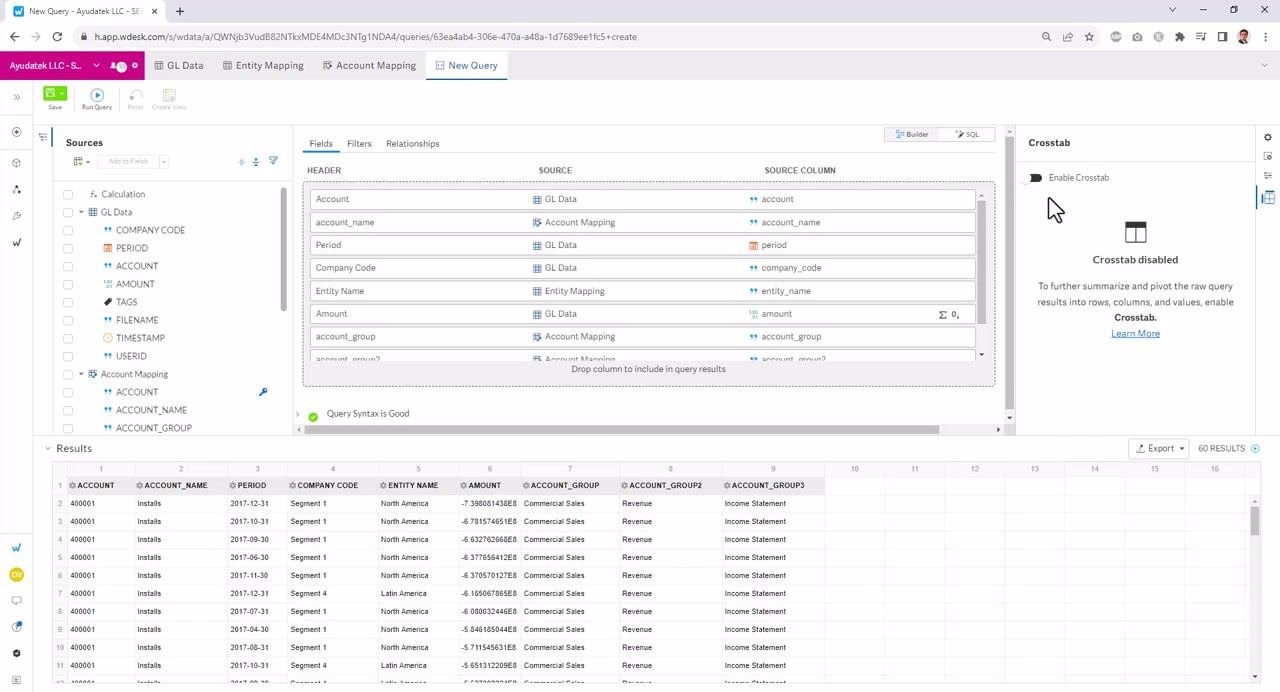
Locate the Crosstab panel on the right side of the screen and click the Crosstab icon (grid/table symbol) to open the Crosstab configuration. The panel displays "Crosstab disabled" with an option to enable it, along with the description: "To further summarize and pivot the raw query results into rows, columns, and values, enable Crosstab."
Enable Crosstab and configure pivot fields
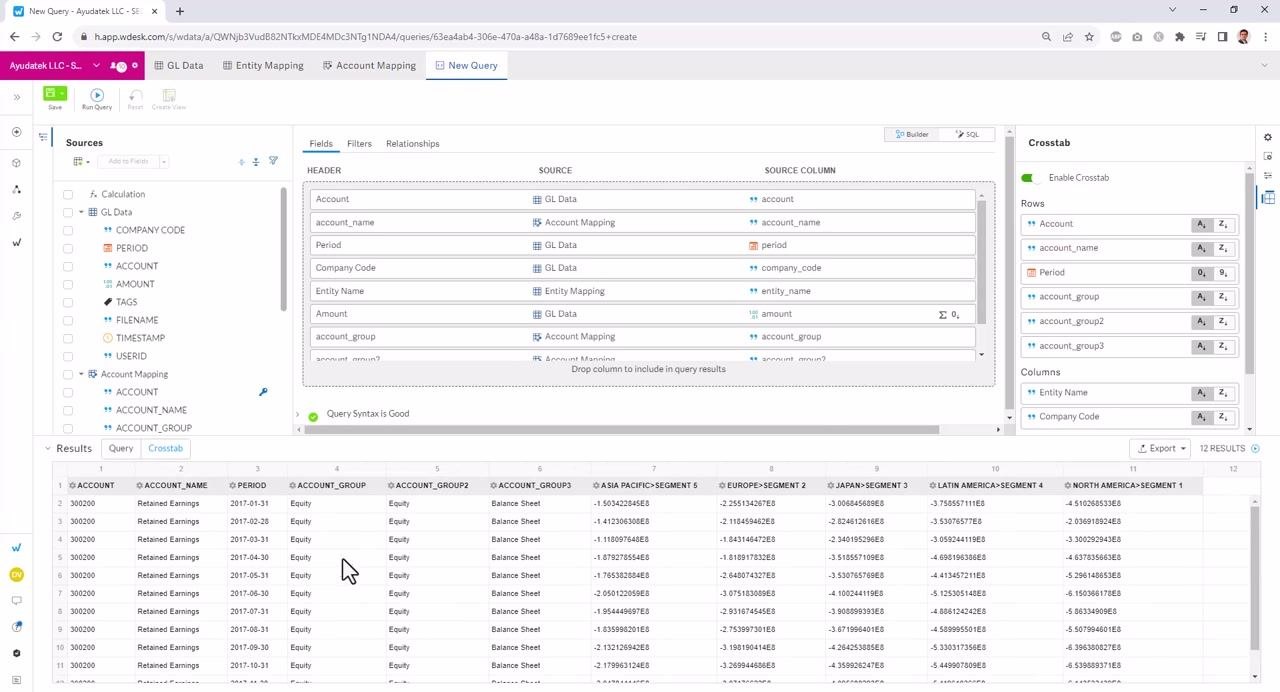
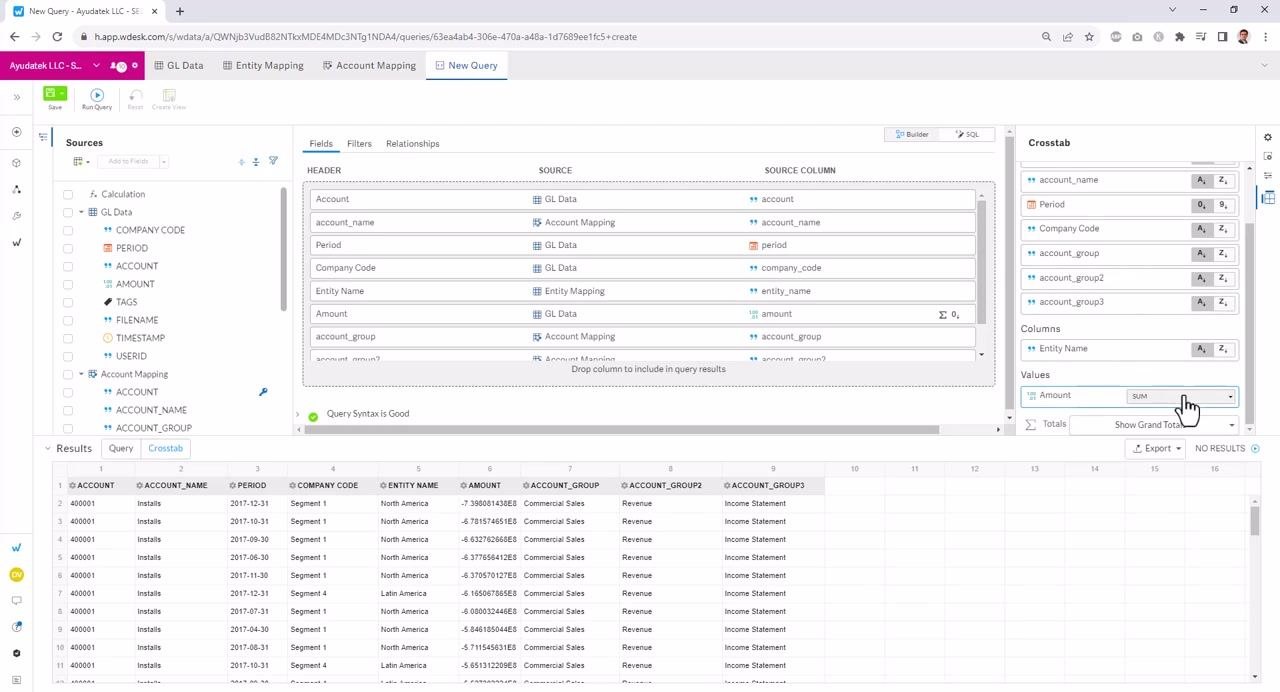
Toggle the Enable Crosstab switch to activate the feature. The Crosstab panel now allows you to assign fields to Rows, Columns, and Values. Drag and drop or select fields for each section:
- Rows: Account, account_name, Period, account_group, account_group2, account_group3
- Columns: Entity Name, Company Code
- Values: Amount (default aggregation: SUM)
The main query builder area updates to show the new Crosstab configuration.
Choose an aggregation operator for values
In the Crosstab panel, under Values, select the aggregation operator for the Amount field. Available options include SUM, COUNT, DISTINCT COUNT, MIN, MAX, and more. For this example, ensure SUM is selected for Amount.
You can add more fields to the Rows or Columns sections by dragging them from the list. For example, add Company Code to Columns to further break down the data. The Crosstab configuration updates dynamically as you add or remove fields.
Run the Crosstab query and view results
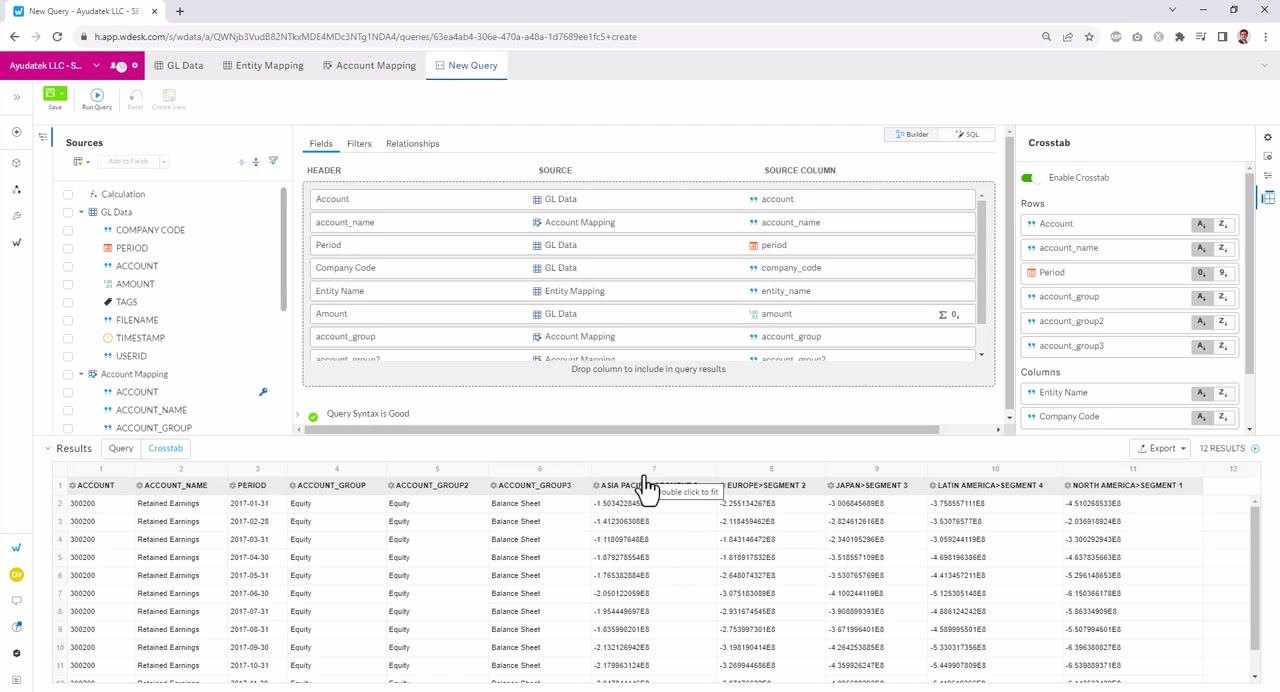
Once your Crosstab configuration is set, the query runs automatically, or you may need to click Run Query. The Results section now displays a pivoted table: rows are grouped by Account, account_name, Period, account_group, account_group2, and account_group3; columns represent combinations of Entity Name and Company Code; and each cell shows the SUM of Amount for the corresponding row/column intersection.
Confirm that the "Query Syntax is Good" message remains.
Adjust column widths and explore results
You can double-click column headers (for example, "ASIA PACIFIC-SEGMENT 5") to auto-fit the width for better readability. Scroll horizontally to view all pivoted columns. The Crosstab tab in the Results section is active, showing the transformed data.
With Crosstab enabled and configured, you can summarize and analyze your data by multiple dimensions, choosing which fields appear as rows, columns, and aggregated values for flexible, dynamic reporting directly within your query builder.
Exporting Crosstab results
Export your Crosstab results
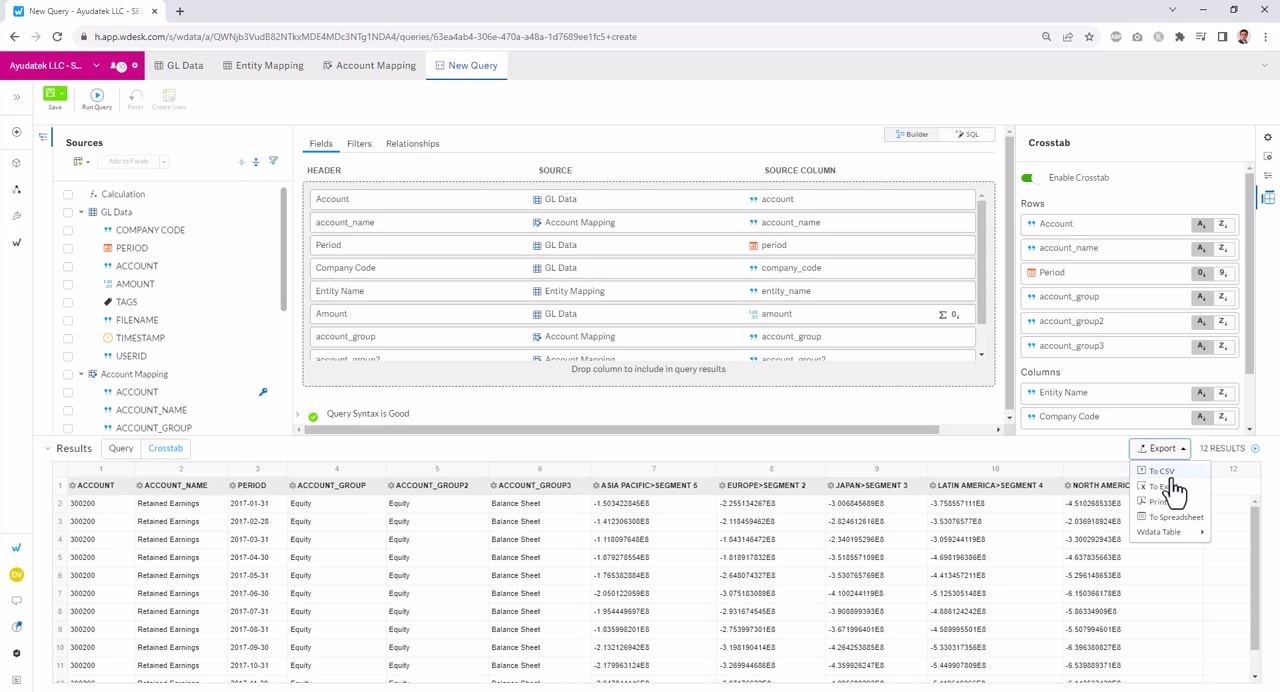
To export the results, click the Export button located above the results table. Choose your preferred export format from the dropdown menu:
- To CSV
- To Excel
- To Spreadsheet
- Wdata Table
Click the desired option to download or send the results as needed.
What's next
Now that you know how to create a Wdata query in Workiva, you can apply these same steps to build queries against your own fact and dimension tables. Use relationships to join tables, parameters and filters to make your queries interactive, and Crosstab to pivot your results for summarized reporting before exporting to the format that fits your workflow.
Generation details: cost, quality tiers
Docsie billed 5,500 credits ($3.85) to analyze this 11-minute video at standard quality. The rewrite, template fill and Word/PDF exports were included. The same video at each quality tier:
| Quality | Frames sampled | Credits | Approx. cost |
|---|---|---|---|
| Draft | every 16-30 s | 2,750 | $1.92 |
| Standard (this guide) | every 8-15 s | 5,500 | $3.85 |
| Detailed | every 4-7 s | 11,000 | $7.70 |
| Ultra | every 1-3 s | 22,000 | $15.40 |
Credits priced at $0.70 per 1,000; plans include a monthly allowance. Enterprise customers on on-premise or bring-your-own-model deployments run this on their own inference and pay no per-video credits.
Generated by Docsie Video-to-Docs on 2026-10-25 from a 10-minute video. Screenshots are frames from the source video and belong to their creator, Villani Analytics, whose original is embedded above. If you own this video and want the guide removed or credited differently, contact us and we will act within one business day.