
How to Build a Chain in Workiva
This guide walks you through how to build a chain in Workiva WData that downloads a file over SFTP, creates it within Workiva, and imports it into an existing table. By the end, you will have a working chain that you can publish, execute, and monitor.
Video: Workiva WData Simple Chain in 5 minutes by Villani Analytics (2022). All credit for the demonstration goes to the creator; watch the original on YouTube. The written guide below was generated from this video by Docsie. Creator? Request a change or removal.
This guide walks you through how to build a chain in Workiva WData that downloads a file over SFTP, creates it within Workiva, and imports it into an existing table. By the end, you will have a working chain that you can publish, execute, and monitor.
Prerequisites
- Access to your Workiva workspace.
- A pre-configured SFTP connector (for example, an AWS-based connector).
- An existing Workiva table where the imported data will land.
- The Table ID of that existing table, available from its URL.
Log in to the Workiva workspace
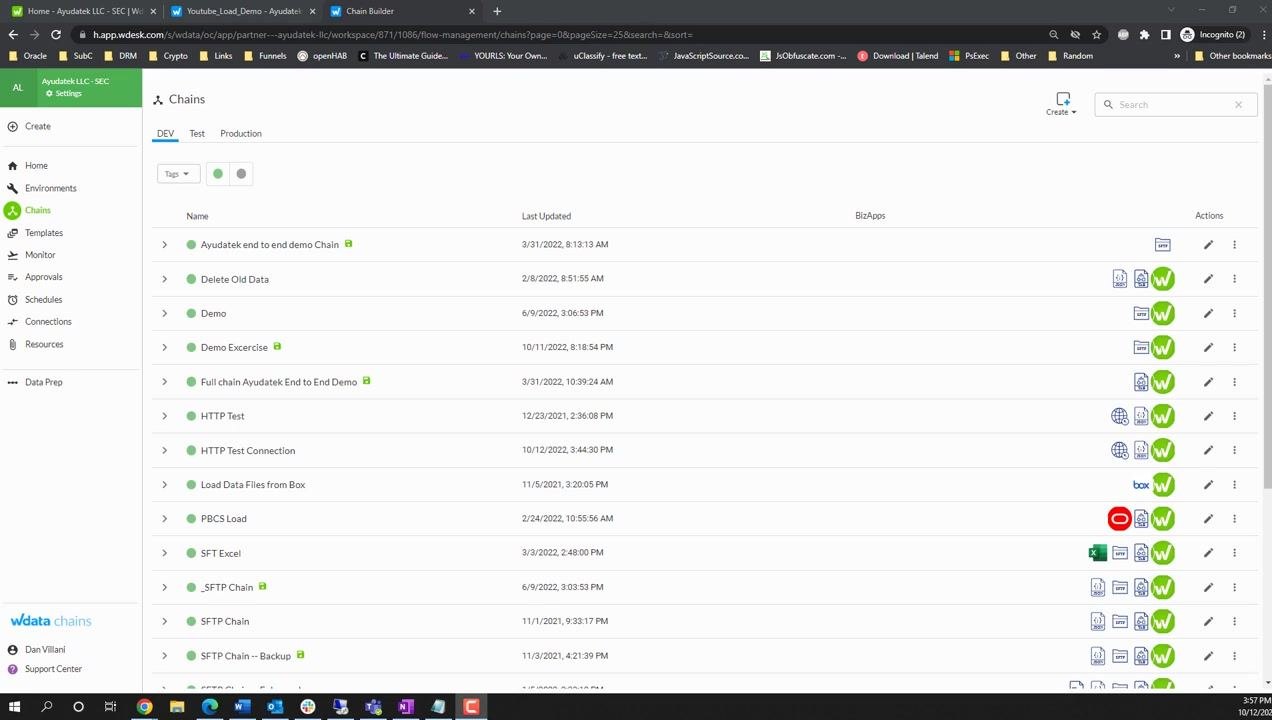
Open your browser and navigate to your Workiva workspace. Make sure you are on the Chains interface, which lists all available chains in your environment.
The interface displays columns such as Name, Last Updated, BizApps, and Actions. You may see example chains already listed, such as "Ayudatek end to end demo Chain," "Delete Old Data," "Demo," or "SFTP Chain."
Initiate a new chain
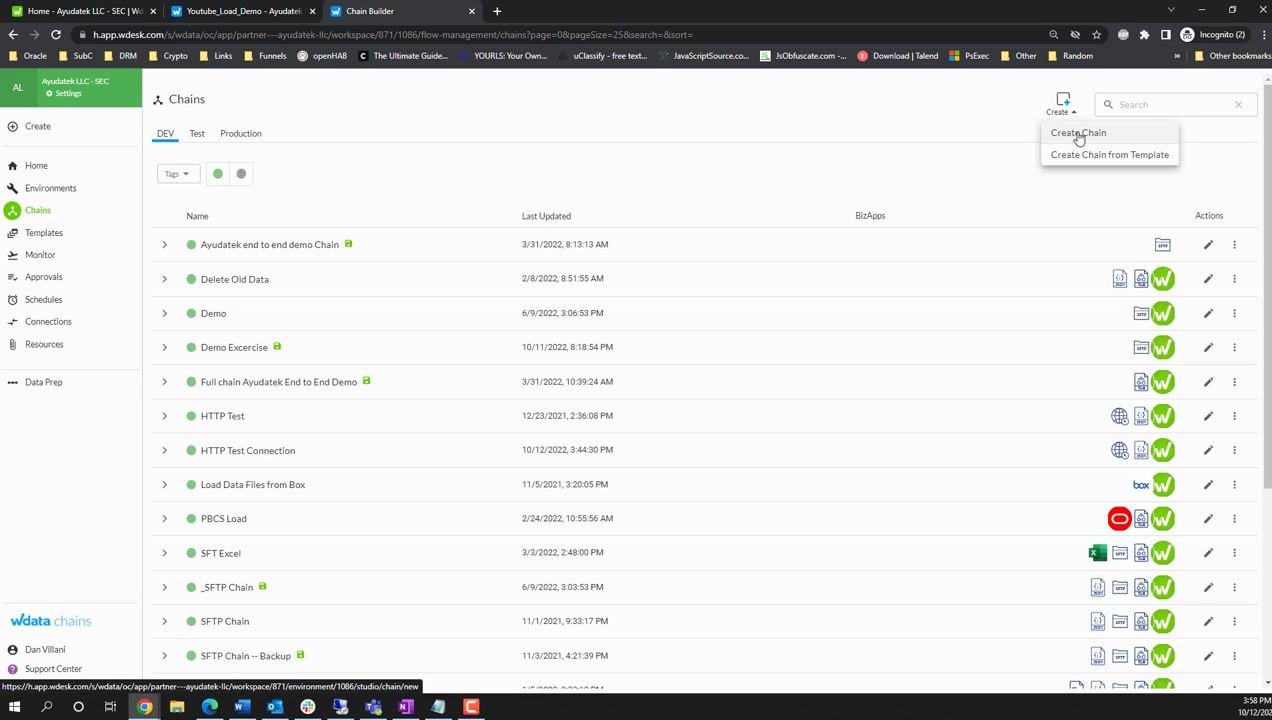
Click the Create button at the top right of the Chains interface, then select Create Chain from the dropdown menu.
Name the new chain
In the Edit Chain window, enter a name for your new chain in the Name field—for example, Youtube Demo SFTP. You can optionally add a description.
You may also configure options such as Allow concurrent runs or Disable execution if your workflow requires them. Click SAVE at the top right to create the chain.
After saving, you are redirected to the chain editor. The workspace displays a blank chain with a START node and a prompt to use the menu to drag a node into the chain start. The left panel lists available BizApps, such as Box, Data Prep, Email, and SFTP Connector.
Add the SFTP connector to download a file
In the BizApps panel, locate and select the SFTP Connector. Under Operations, drag the Download File operation onto the chain canvas and connect it to the START node.
It's good practice to use List Directory first when troubleshooting, but for this basic chain, you can proceed directly with Download File.
Configure the Download File operation
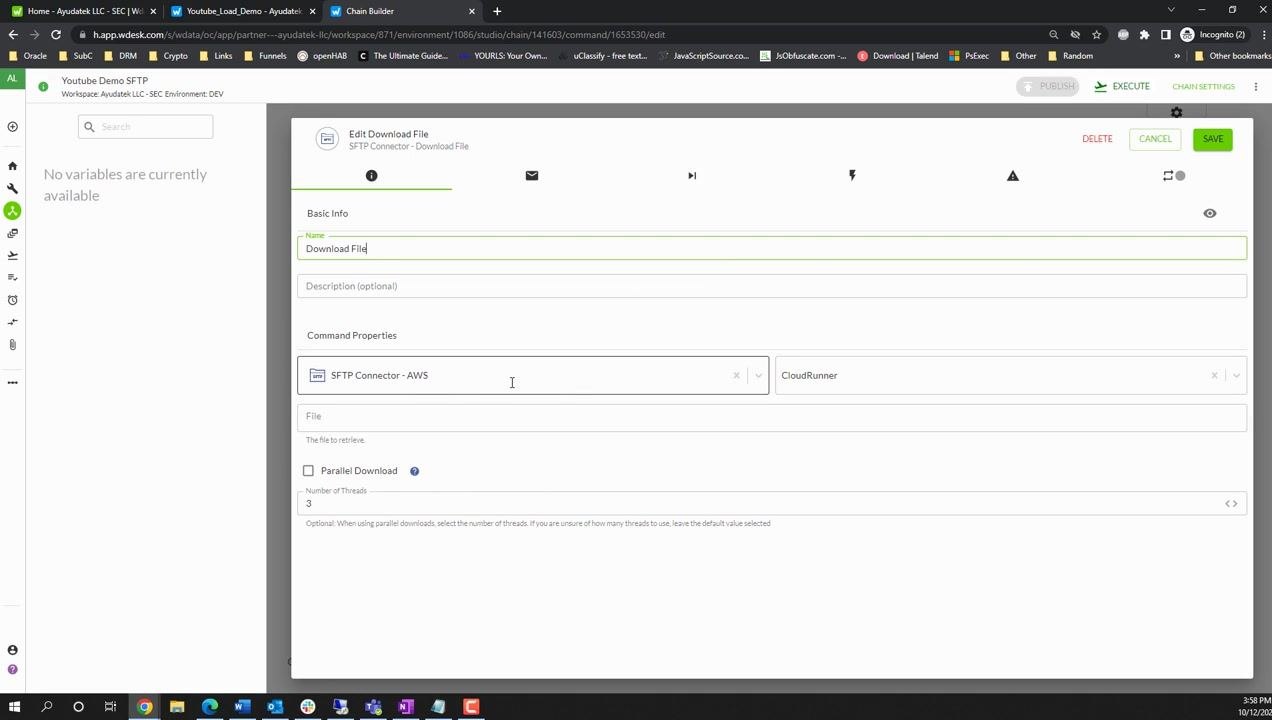
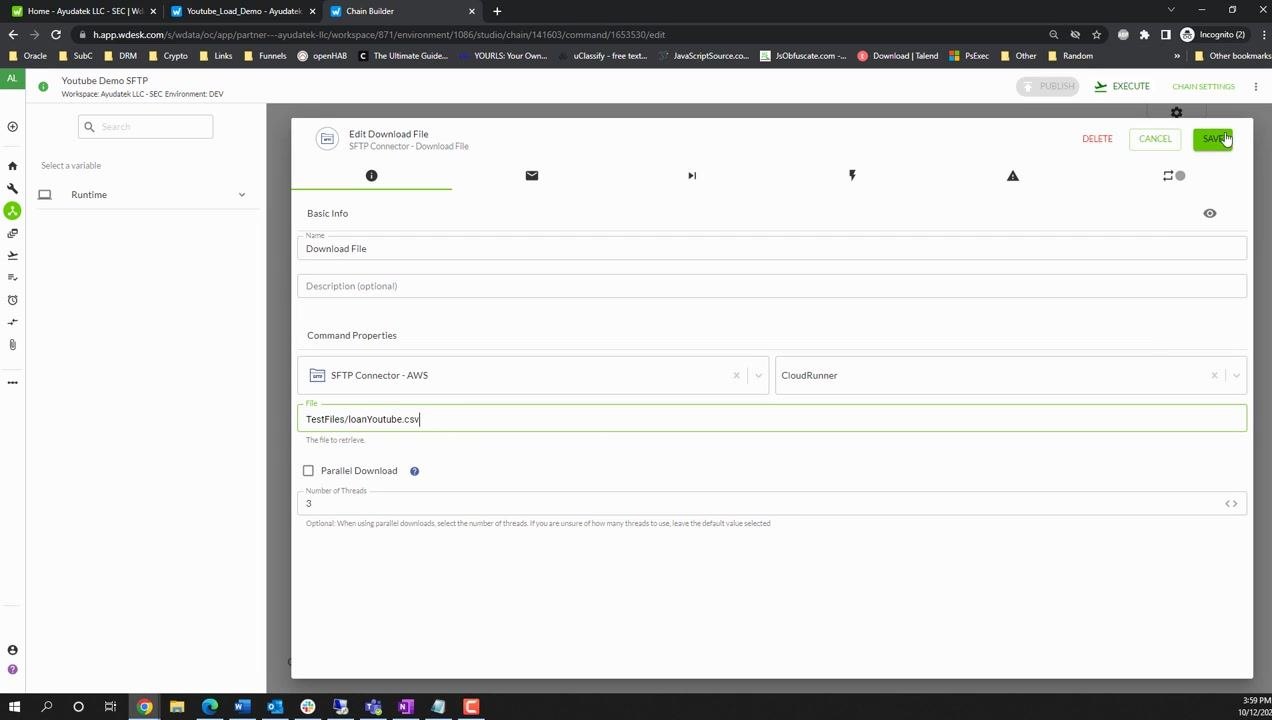
Click the Download File node to open its properties. In the Edit Download File window, set the Name field to Download File.
Configure the following:
- SFTP Connector: Select your pre-configured connector (for example,
SFTP Connector - AWS). - CloudRunner: Select the appropriate runner if required.
- File: Enter the path of the file you want to download.
- Parallel Download: Optionally enable this and set the number of threads (default is 3).
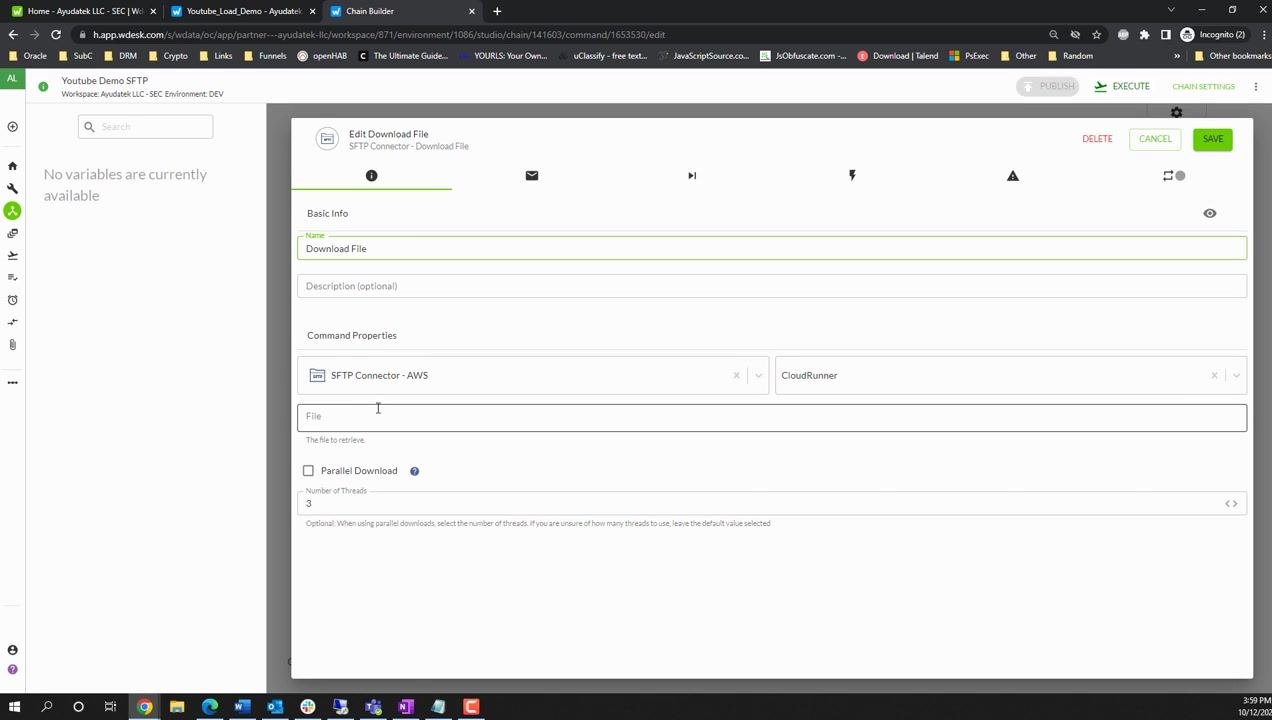
Double-check that the File field contains the correct path for your test file. For example, update it to TestFiles/loanYoutube.csv if needed, then click SAVE at the top right to confirm your changes.
Add the Create File step
This guide assumes a table already exists in Workiva for this workflow, so you don't need to create or configure a new one.
In the chain editor, locate the Create File operation under the Workiva BizApp in the left panel. Drag it onto the canvas and connect it after the Download File node, so the chain reads: START → Download File → Create File.
Configure the Create File operation
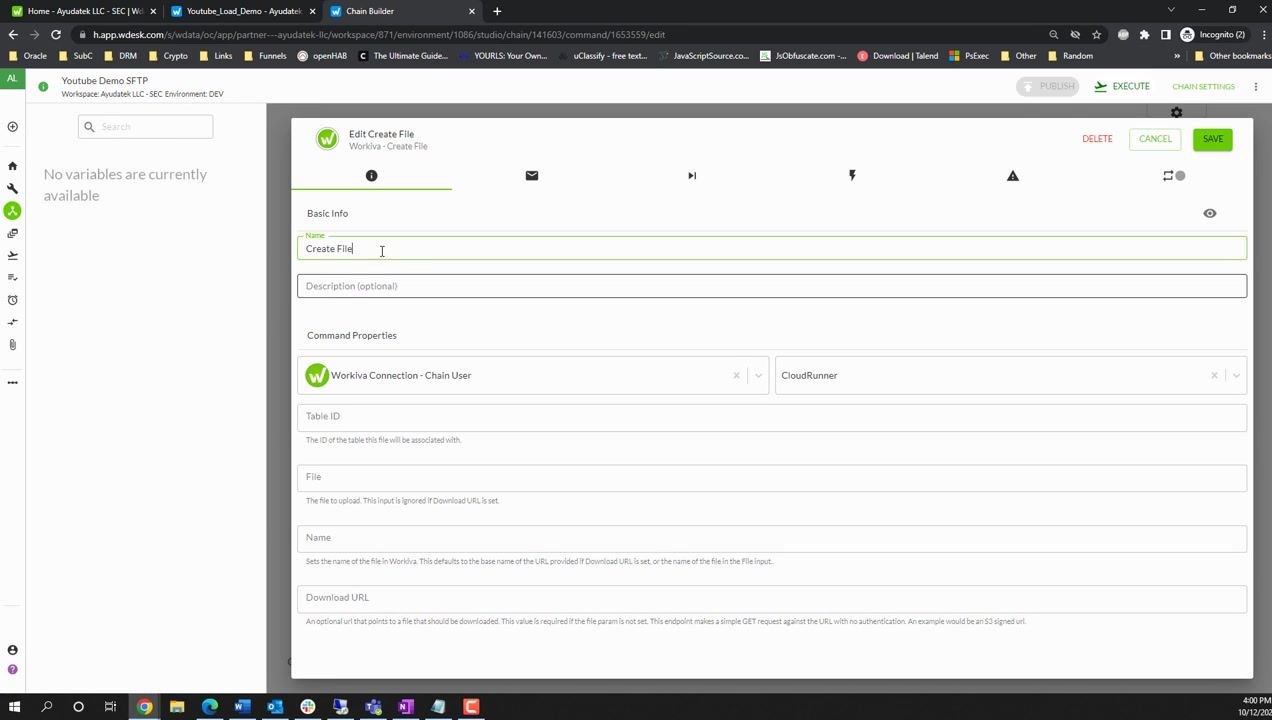
Click the Create File node to open its configuration dialog, then fill out the following fields:
- Name: Enter
Create File. - Workiva Connection: Select the appropriate connection (for example,
Chain User). - CloudRunner: Select the runner if required.
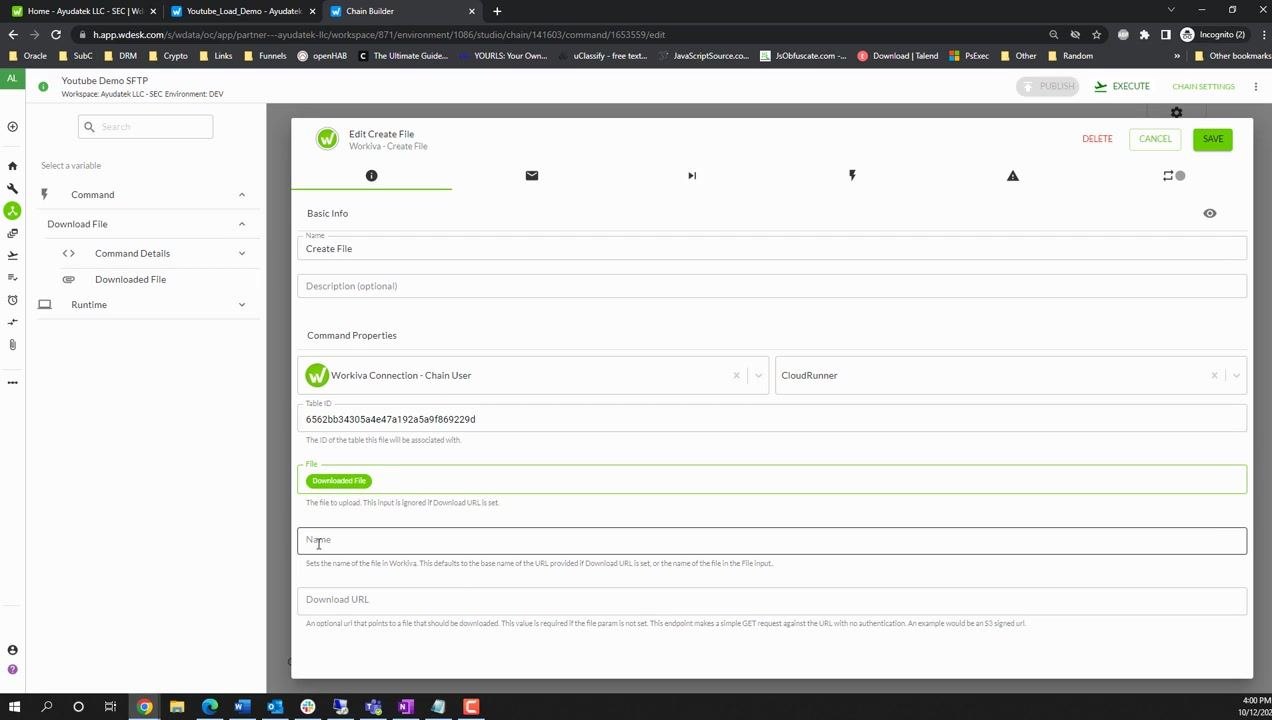
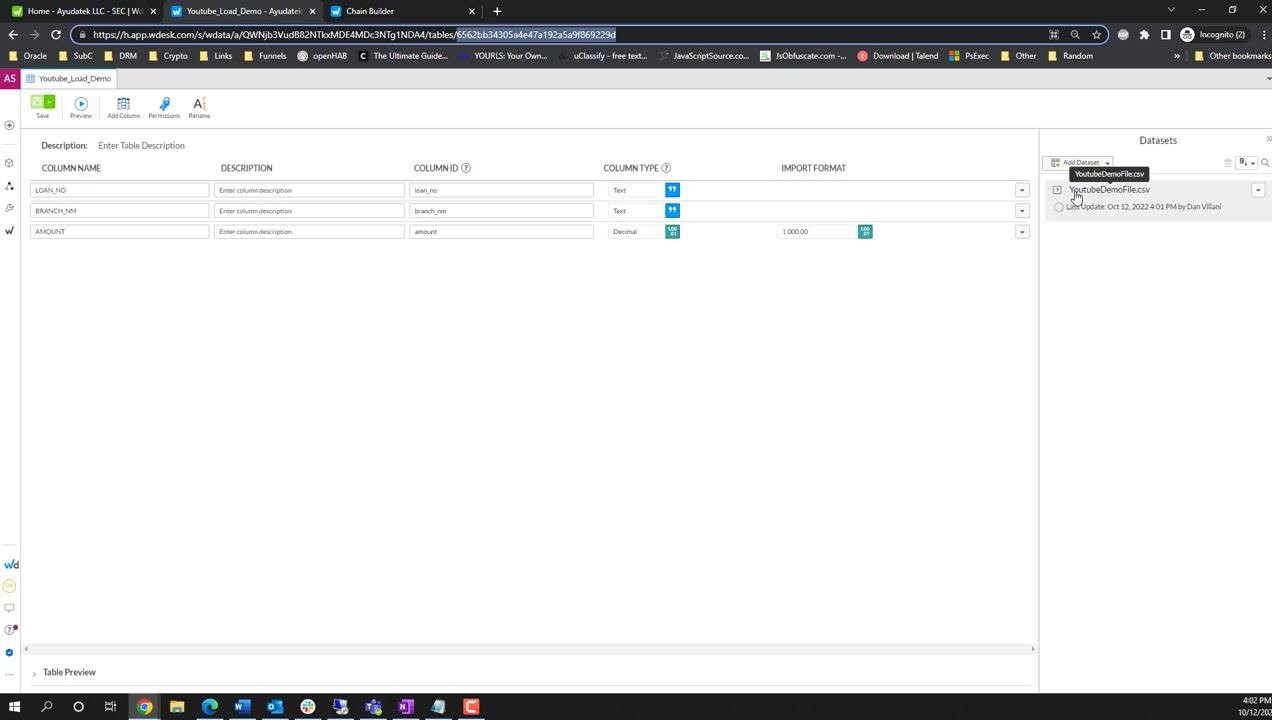
- Table ID: Open your table in Workiva and copy the string that follows
/tables/in the URL (for example,6562bb34305ae47a192a5a9f869229d). - File: Select the output from the previous Download File step (for example,
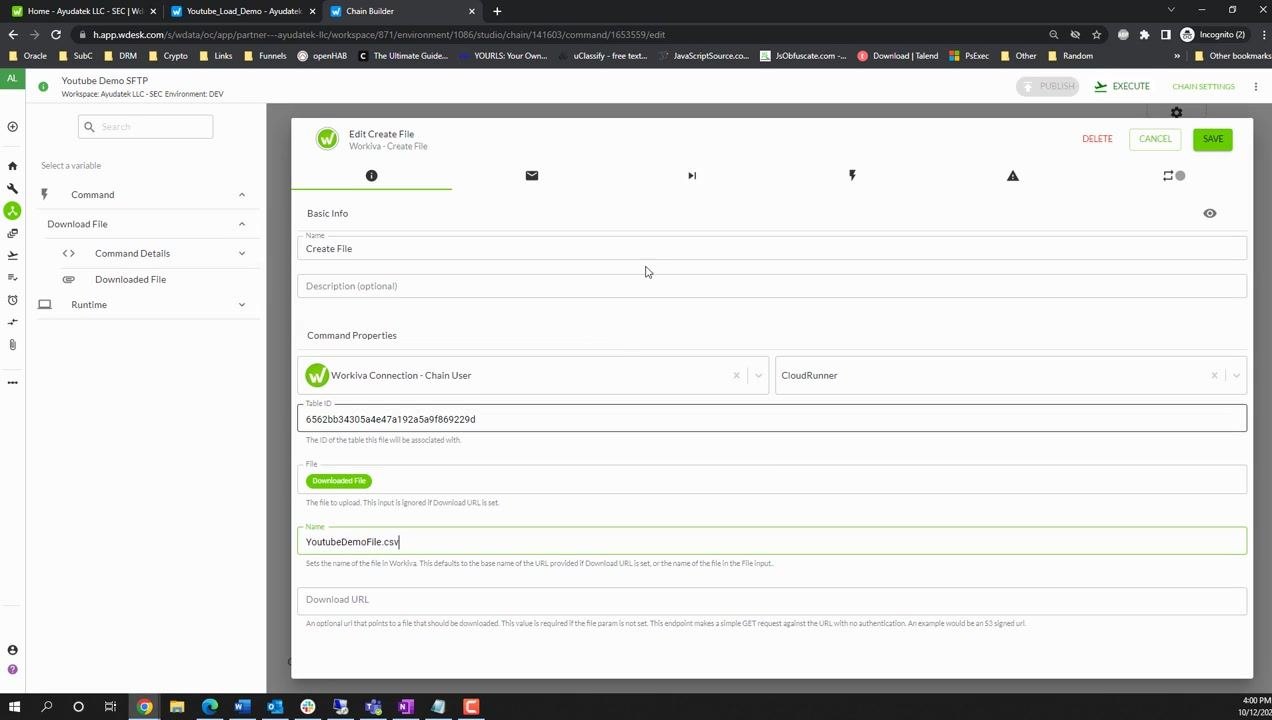
Downloaded File). - Name: Enter the desired file name for upload, such as
YouTubeDemoFile.csv.
Review all fields before saving:
- Name:
Create File - Workiva Connection:
Chain User - CloudRunner: selected as needed
- Table ID:
6562bb34305ae47a192a5a9f869229d - File:
Downloaded File - Name:
YoutubeDemoFile.csv
Click SAVE at the top right to confirm your configuration.
Add and configure the Import File into Table step
Importing a file into a Workiva table is a two-step process: first you create the file in Workiva, then you import that created file into the table.
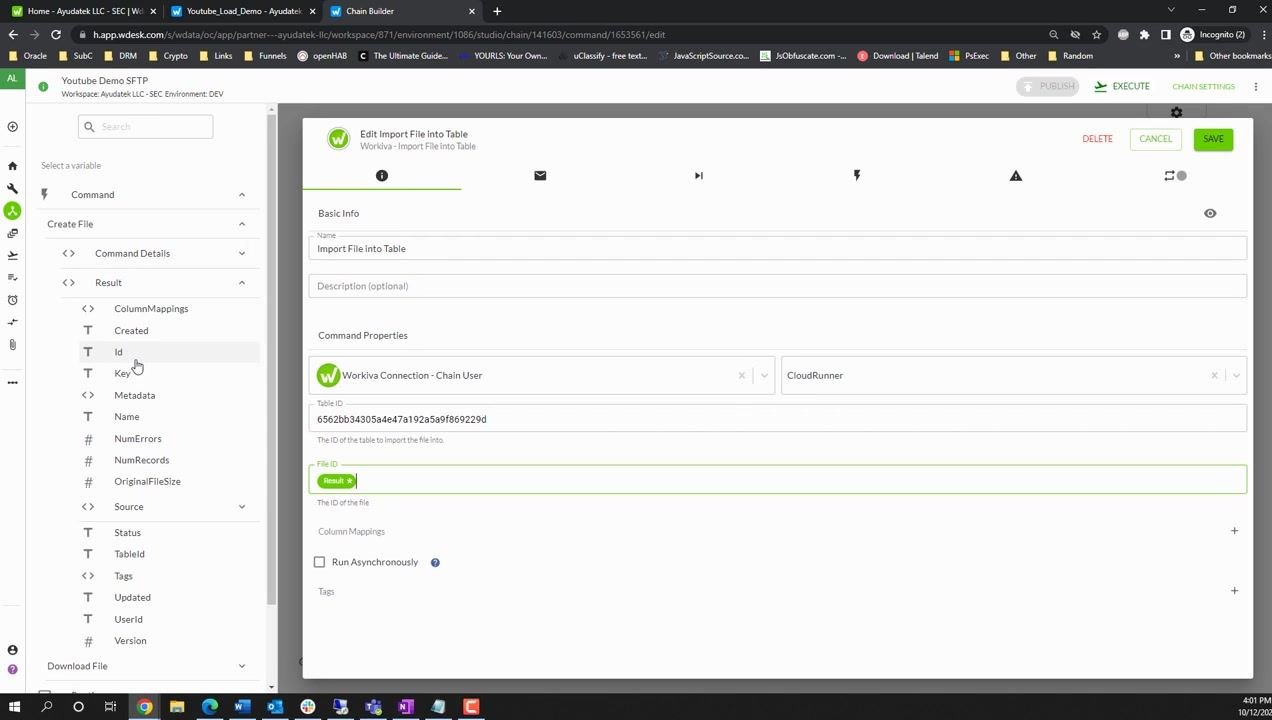
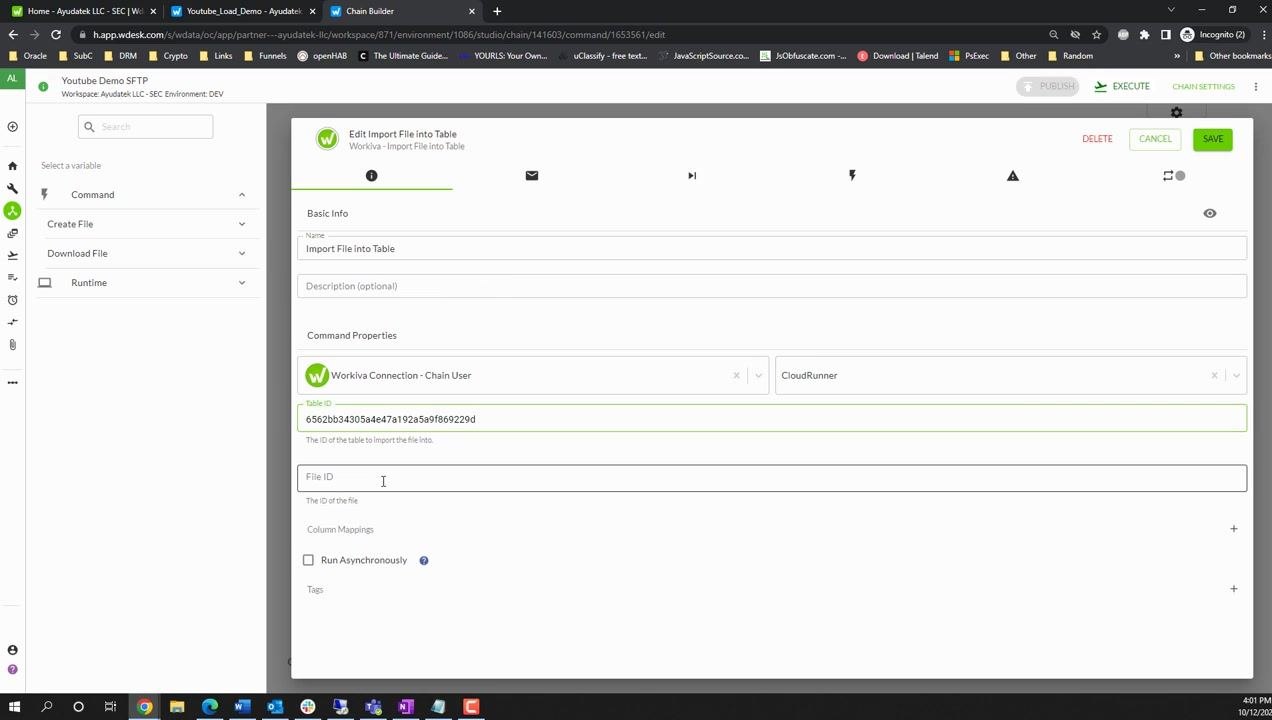
In the chain editor, drag the Import File into Table operation from the Workiva BizApp panel onto the canvas and connect it after the Create File node. Click the new node to open its configuration dialog and fill out the following fields:
- Name: Enter
Import File into Table. - Workiva Connection: Select
Chain User. - CloudRunner: Select as needed.
- Table ID: Paste
6562bb34305ae47a192a5a9f869229d. - File ID: Set this to the output from the Create File step. Expand the Create File step in the variable selector, then under Result, select Id to use the file ID generated by the previous step.
Click SAVE at the top right of the dialog to confirm your settings.
Publish and execute the chain
Confirm your chain now shows the full sequence: START → Download File → Create File → Import File into Table. Click PUBLISH at the top right to publish your chain, then click EXECUTE to run it.
Monitor chain execution status
Return to the Chain Monitor screen in Workiva and confirm that each step in your chain has completed successfully, indicated by a green checkmark next to Download File, Create File, and Import File into Table.
The run details show the chain name (Youtube Demo SFTP), who ran it, the start and end times, and the total duration of the run.
Verify the file import in the table
Open your Workiva table and check the Datasets panel on the right. Confirm that YoutubeDemoFile.csv appears as a dataset and shows as loaded and available for use in the table.
Preview the imported data
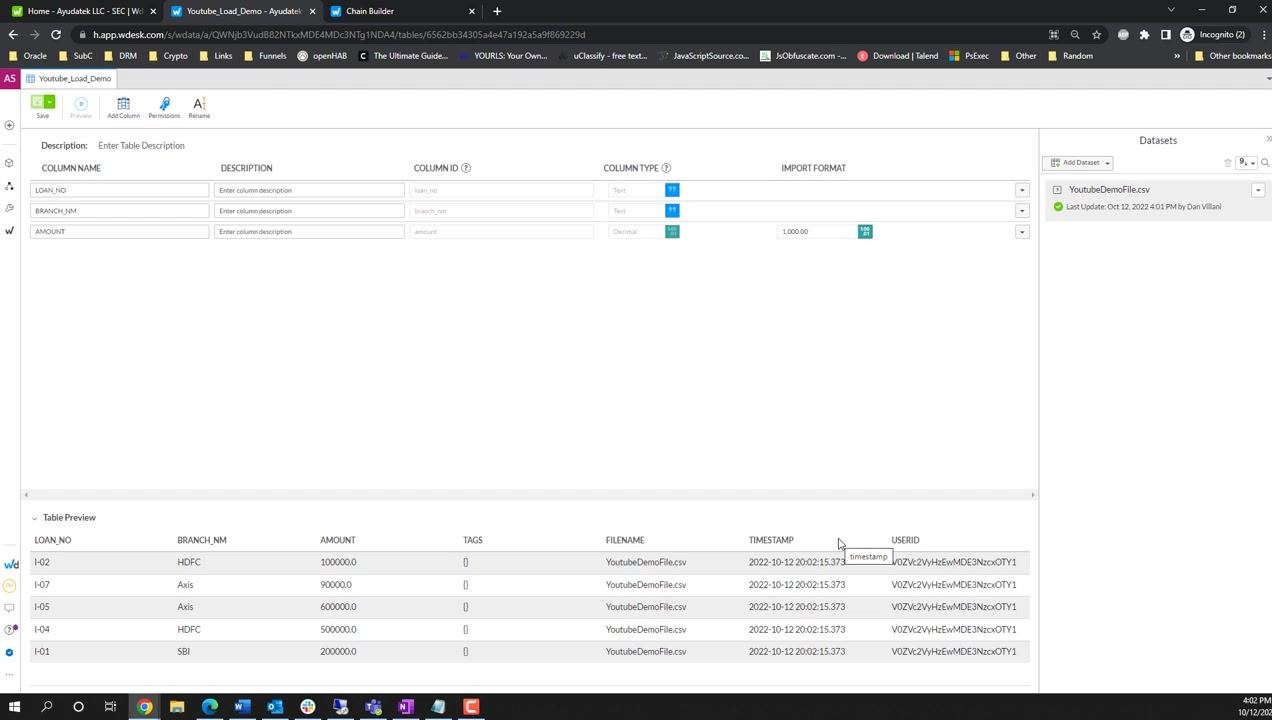
Navigate to your Workiva table where the file was imported, and in the Datasets panel, locate YoutubeDemoFile.csv. Click the dataset to preview its contents.
You should see columns such as LOAN_NO, BRANCH_NM, and AMOUNT, with LOAN_NO and BRANCH_NM set as Text and AMOUNT set as Decimal, formatted as 1,000.00.
Expand the Table Preview section at the bottom of the screen to review the first few records and confirm the data imported correctly. Example records include:
- LOAN_NO: I-02, BRANCH_NM: HDFC, AMOUNT: 100000.0
- LOAN_NO: I-07, BRANCH_NM: Axis, AMOUNT: 90000.0
- LOAN_NO: I-05, BRANCH_NM: Axis, AMOUNT: 600000.0
- LOAN_NO: I-04, BRANCH_NM: HDFC, AMOUNT: 500000.0
- LOAN_NO: I-01, BRANCH_NM: SBI, AMOUNT: 200000.0
Additional metadata columns, such as TAGS, FILENAME, TIMESTAMP, and USERID, are also shown in the preview.
Best practices for production environments
- Before importing, check whether a file with the same name already exists in the table.
- If it exists, delete the old file before importing the new one.
- This ensures that daily or repeated imports always bring in the latest data.
- Consider implementing advanced features such as file existence checks and automated deletions for more robust production workflows.
Summary
You have now learned how to build a chain in Workiva WData from start to finish: downloading a file over SFTP, creating it in Workiva, and importing it into an existing table. Monitor your results after each run, and consider adding the production safeguards described above before relying on this chain for regular, repeated imports.
Generation details: cost, quality tiers
Docsie billed 3,000 credits ($2.10) to analyze this 6-minute video at standard quality. The rewrite, template fill and Word/PDF exports were included. The same video at each quality tier:
| Quality | Frames sampled | Credits | Approx. cost |
|---|---|---|---|
| Draft | every 16-30 s | 1,500 | $1.05 |
| Standard (this guide) | every 8-15 s | 3,000 | $2.10 |
| Detailed | every 4-7 s | 6,000 | $4.20 |
| Ultra | every 1-3 s | 12,000 | $8.40 |
Credits priced at $0.70 per 1,000; plans include a monthly allowance. Enterprise customers on on-premise or bring-your-own-model deployments run this on their own inference and pay no per-video credits.
Generated by Docsie Video-to-Docs on 2026-10-25 from a 5-minute video. Screenshots are frames from the source video and belong to their creator, Villani Analytics, whose original is embedded above. If you own this video and want the guide removed or credited differently, contact us and we will act within one business day.