
How to Create a Document Version in Veeva Vault
Learn how to create a document version in Veeva Vault when you need to correct an error or update content in an existing released document. This guide walks you through the full process—from understanding how versioning works, to creating a draft, editing the document, and releasing the new version—using the Veeva Vault interface.
Video: Documents - Uploading a New Version of an Existing Document to Veeva by Envu's Guide Through Veeva Vault (2022). All credit for the demonstration goes to the creator; watch the original on YouTube. The written guide below was generated from this video by Docsie. Creator? Request a change or removal.
Learn how to create a document version in Veeva Vault when you need to correct an error or update content in an existing released document. This guide walks you through the full process—from understanding how versioning works, to creating a draft, editing the document, and releasing the new version—using the Veeva Vault interface.
Prerequisites
- You need access to the document you want to update in Veeva Vault, with permissions to create a draft and release a new version.
- Identify the document's current document number, version, and status before you begin.
- If you plan to upload a corrected file instead of editing in place, have that file ready on your computer.
Understanding document versioning
Know when to create a draft
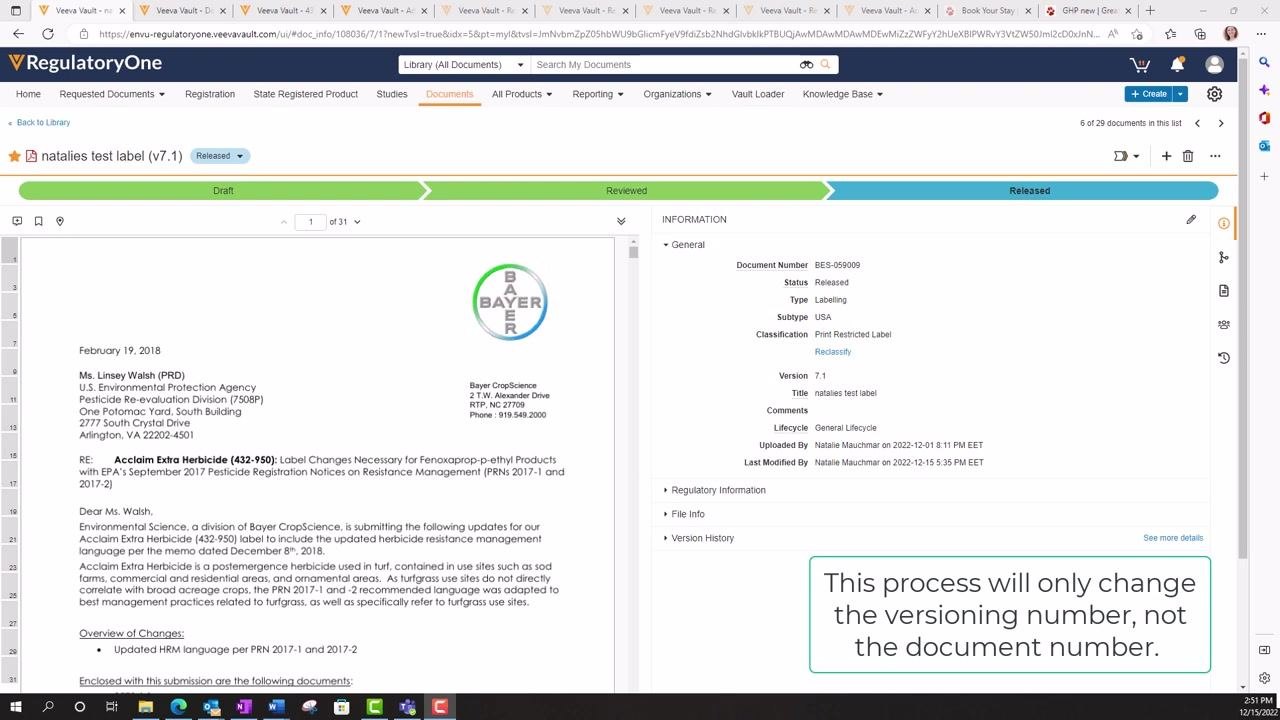
Use the draft creation process whenever you need to make the current uploaded version obsolete because of errors or required corrections. This process changes only the version number—the document number stays the same.
For standard version updates, always use the Create Draft option. Creating a draft:
- Maintains the same document number.
- Increments the version number (for example, from 8.0 to 8.1, then to 9.0 upon release).
- Preserves the document's history and audit trail.
This is the recommended approach for updating or revising existing documents within the same document lifecycle.
Distinguish "Create Draft" from "Make a Copy"
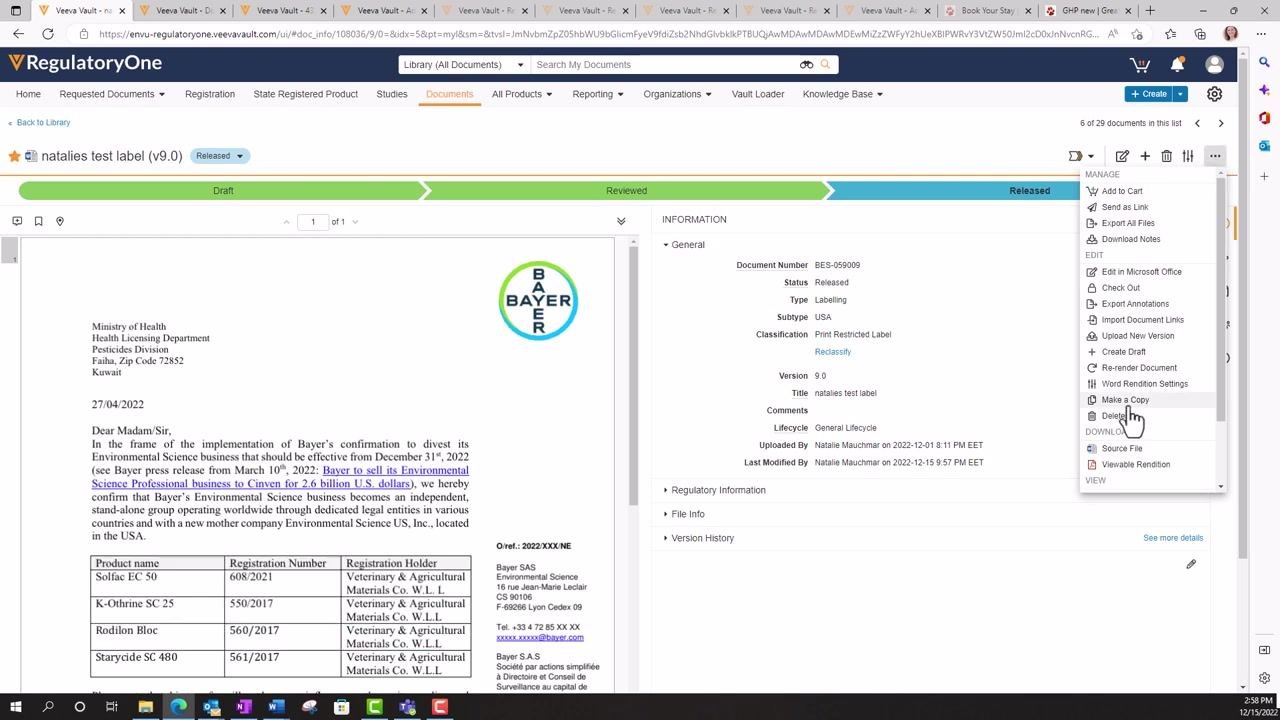
The Make a Copy option is different from creating a draft, and it's important not to confuse the two. You can find it in the action menu (three vertical dots) next to the document title or in the INFORMATION panel, listed below Create Draft and above Delete.
Selecting Make a Copy will:
- Create an entirely new document in Vault.
- Assign a new, unique document number.
- Reset the version number to 0.0 for the new document.
- Start a new document lifecycle, separate from the original.
Use Make a Copy only when you need a completely independent document, not a new version of the current one.
Identify the document to update
Locate the document you want to update in Vault. For example, you might find a cover letter titled "natalies test label (v7.1)" with document number BES-095009, status Released, and version 7.1.
Confirm the document details in the INFORMATION panel, including type, subtype, classification, and lifecycle, before making any changes.
Create a draft
Open the document actions menu
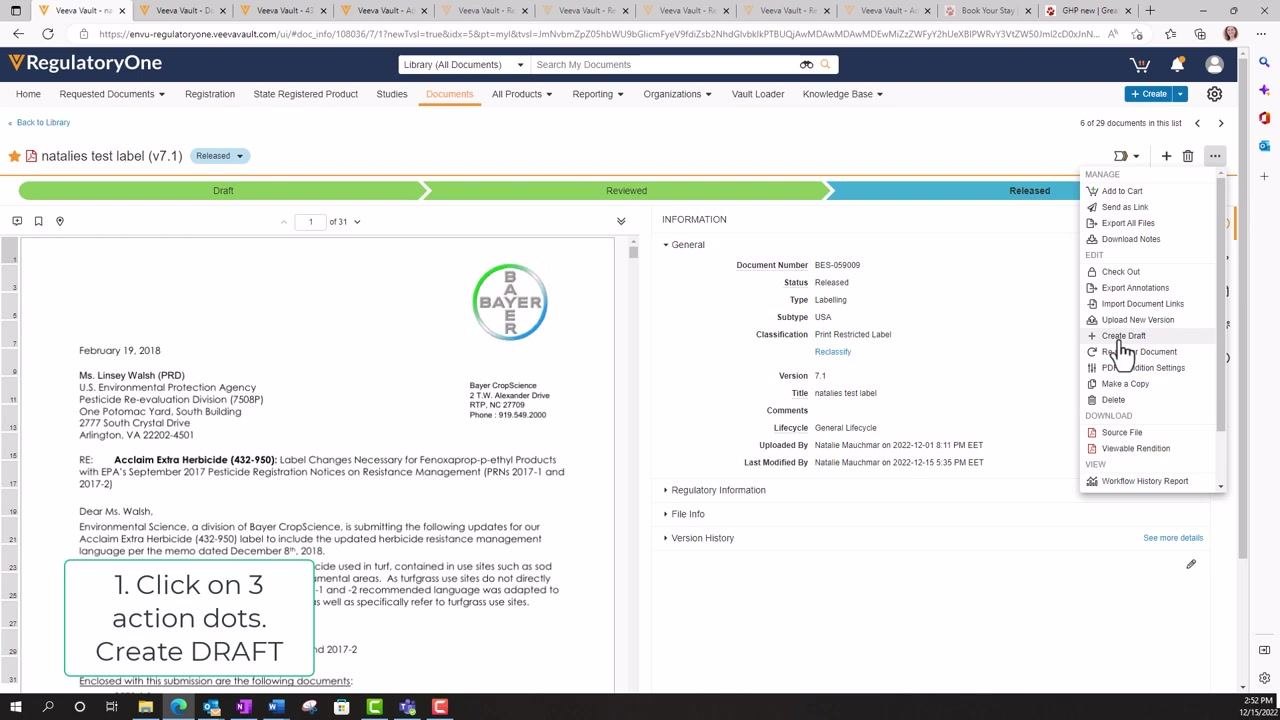
Click the three vertical dots (action menu) in the upper right corner of the document information panel. A dropdown menu appears with several options.
Select Create Draft
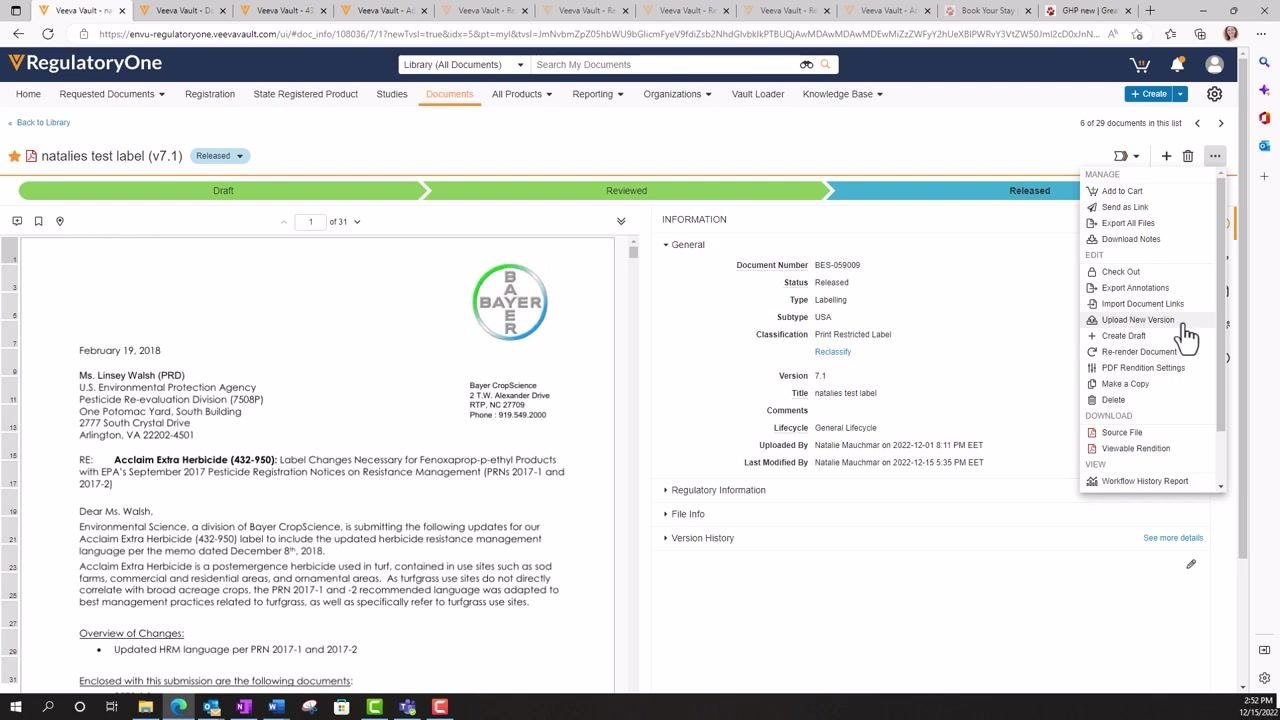
Select Create Draft from the dropdown menu. Ignore the Upload New Version option directly above it, as it does not function as required for this process. Clicking Create Draft initiates the versioning process without changing the document number.
Choose how to update the draft document
In the Create Draft dialog, decide whether to edit the existing document directly in the system or upload a new corrected file:
- To edit the current version, click Create. This lets you make changes to the document already stored in Vault.
- To upload a new file, click the file icon in the dialog, browse your computer, and select the corrected document (for example, "Notification Letter VAMCO.docx"), then click Open to attach it.
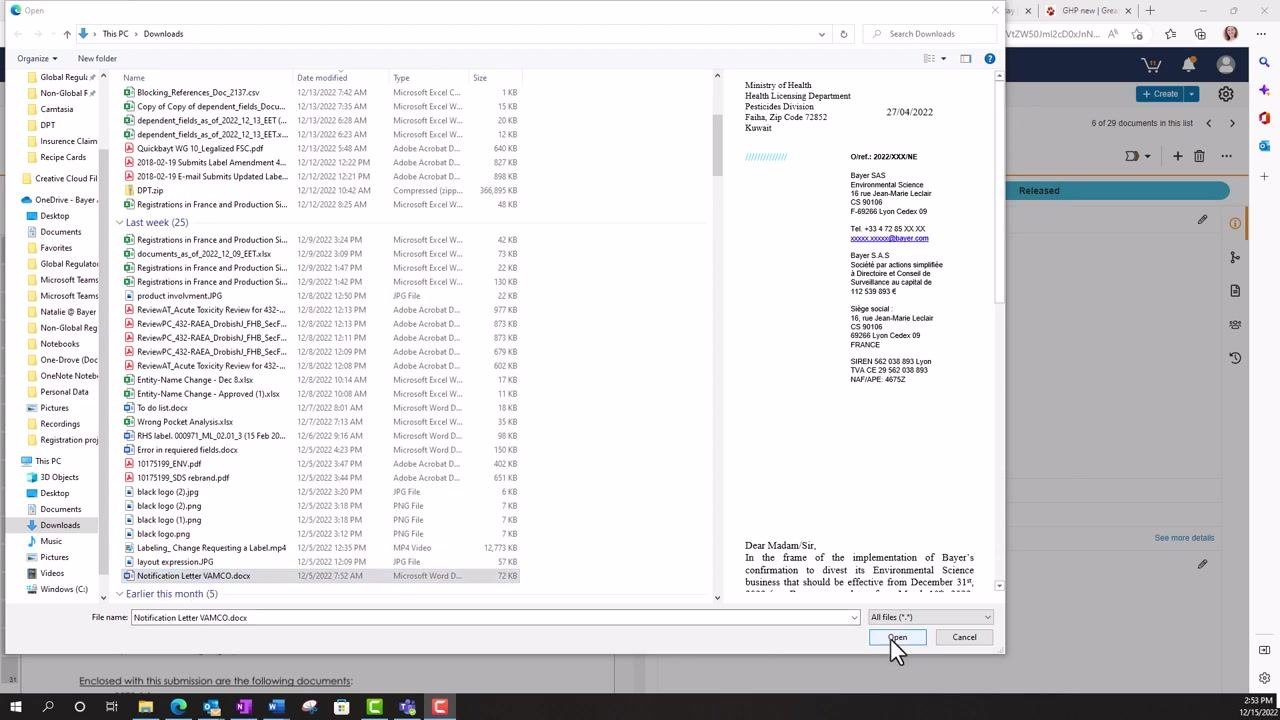
Option A: Edit the existing document
Confirm the new draft version
If you choose to edit the current version, click Create in the dialog to proceed. This lets you make changes directly to the document stored in Vault, eliminating the need to re-upload a file.
Wait for the system to generate the new draft version (for example, v8.1). The document status displays as "Draft" and the file becomes available for editing.
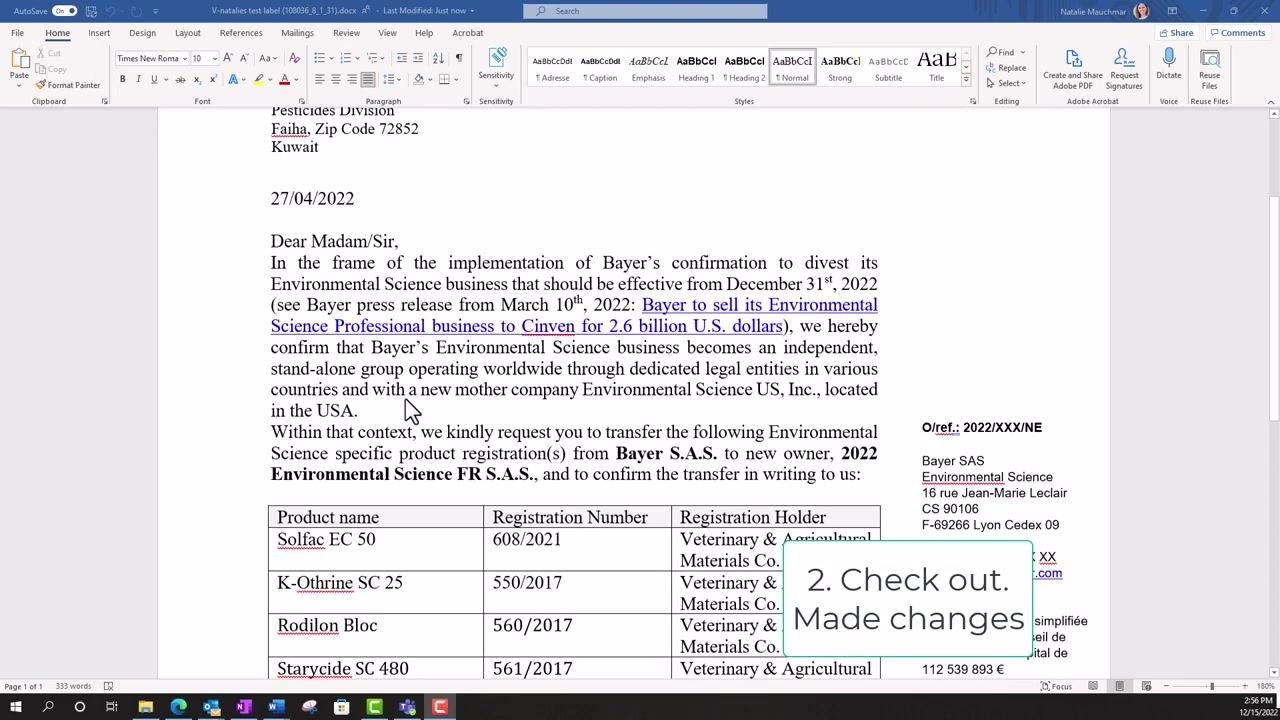
Edit the document in Microsoft Office
Click Edit in Microsoft Office in the Vault toolbar. The document opens in Microsoft Word (or the appropriate Office application). Make the necessary changes to the document, such as deleting a section or updating text, then save and close the document.
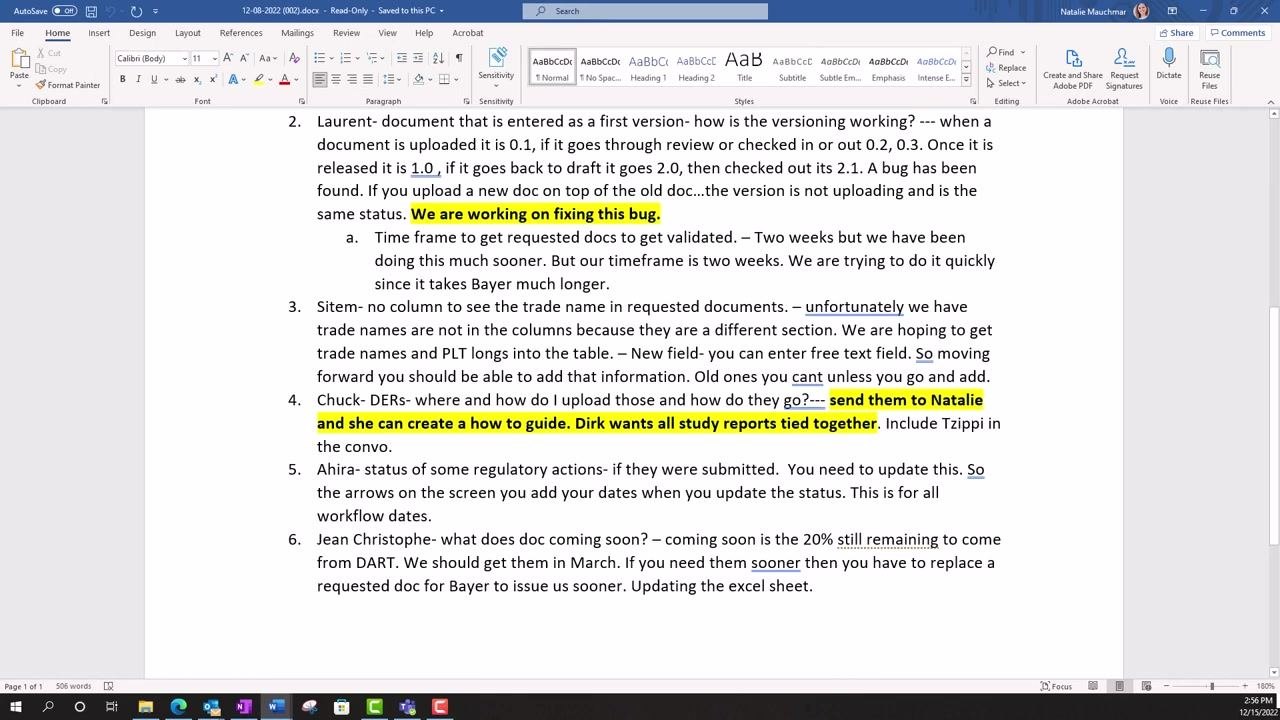
Check the document back in
Return to the Vault interface and check the document back in to save your changes to the system. This finalizes your edits and updates the draft version in Vault.
Confirm that the changes you made, such as deleted sections, are reflected in the document preview.
Option B: Upload a new file
Add a version description and create the draft
If you uploaded a new file instead of editing in place, enter a description of the changes in the Version Description field of the Create Draft dialog (for example, "changes to notification letter"). Click Create to finalize the draft creation.
Verify the new draft version
Confirm that the new document is now listed as a draft with an updated version number (for example, version 7.2). Check that the document number remains the same (for example, BES-095009) while the version has incremented. The document status should show "Draft," and the new file should appear in the viewer.
Release the new document version
Review and update metadata
Double-check all metadata fields in the INFORMATION panel on the right. Update any necessary fields, such as regulatory action, text date, or other document-specific metadata, to ensure accuracy for the new version.
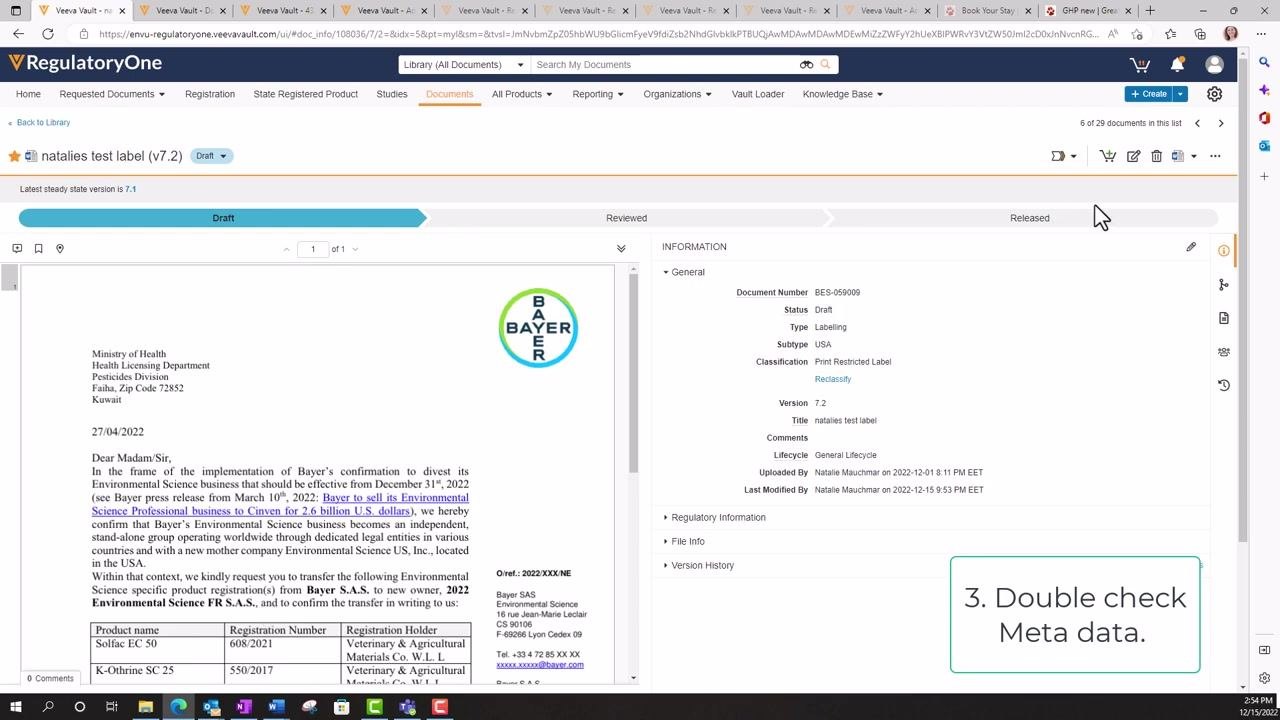
Release the document
Once you have verified your changes, release the draft:
- Click the action menu (three vertical dots) in the INFORMATION panel.
- Select the option to Release the document.
The version number increments (for example, from 8.1 to 9.0), the previous version is marked as superseded, and the document status updates to "Released" for the new version.
Verify version history and document status
Check the Version History section in the INFORMATION panel to confirm that the new version (for example, v9.0) is now the current released document, and that previous versions are listed as "Superseded." Ensure the document number remains the same while the version and status reflect your recent changes.
Summary
To create a document version in Veeva Vault:
- Use the action menu to create a draft from the released document.
- Choose to edit the existing file directly in Vault, or upload a corrected file.
- Make and save your changes in Microsoft Office, if editing directly.
- Check the document back in and verify your edits.
- Release the new version and confirm the version history for proper document control.
Generation details: cost, quality tiers
Docsie billed 3,000 credits ($2.10) to analyze this 6-minute video at standard quality. The rewrite, template fill and Word/PDF exports were included. The same video at each quality tier:
| Quality | Frames sampled | Credits | Approx. cost |
|---|---|---|---|
| Draft | every 16-30 s | 1,500 | $1.05 |
| Standard (this guide) | every 8-15 s | 3,000 | $2.10 |
| Detailed | every 4-7 s | 6,000 | $4.20 |
| Ultra | every 1-3 s | 12,000 | $8.40 |
Credits priced at $0.70 per 1,000; plans include a monthly allowance. Enterprise customers on on-premise or bring-your-own-model deployments run this on their own inference and pay no per-video credits.
Generated by Docsie Video-to-Docs on 2026-10-25 from a 5-minute video. Screenshots are frames from the source video and belong to their creator, Envu's Guide Through Veeva Vault, whose original is embedded above. If you own this video and want the guide removed or credited differently, contact us and we will act within one business day.