
How to Create a Membership in ServiceTitan
This guide walks you through how to create a membership in ServiceTitan, from naming the membership type to configuring billing, sales tasks, recurring services, and revenue recognition. Follow each step in order to build a fully functional membership offering, such as a Gold Plumbing Membership billed annually with recurring service visits.
Video: ServiceTitan Tutorial | How to Set Up a New Membership by The Graphite Lab (2024). All credit for the demonstration goes to the creator; watch the original on YouTube. The written guide below was generated from this video by Docsie. Creator? Request a change or removal.
This guide walks you through how to create a membership in ServiceTitan, from naming the membership type to configuring billing, sales tasks, recurring services, and revenue recognition. Follow each step in order to build a fully functional membership offering, such as a Gold Plumbing Membership billed annually with recurring service visits.
Prerequisites
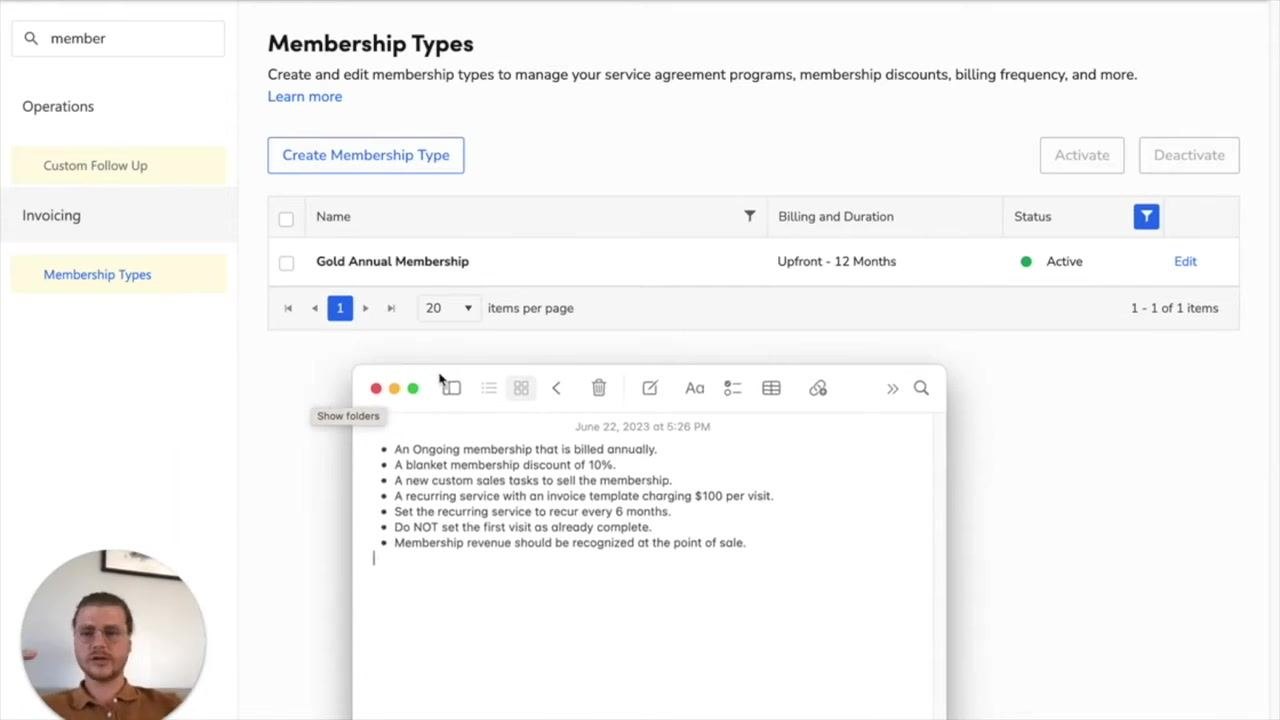
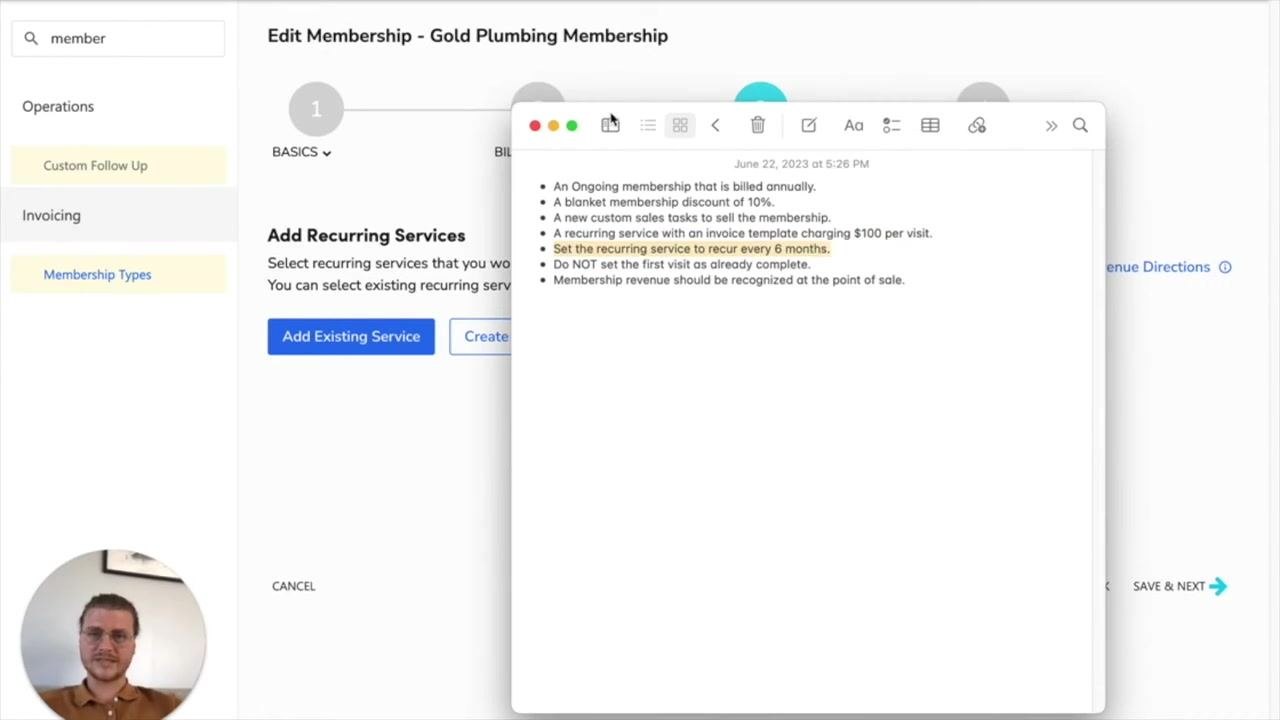
Before you create a membership in ServiceTitan, review the following requirements so your setup meets your organization's goals:
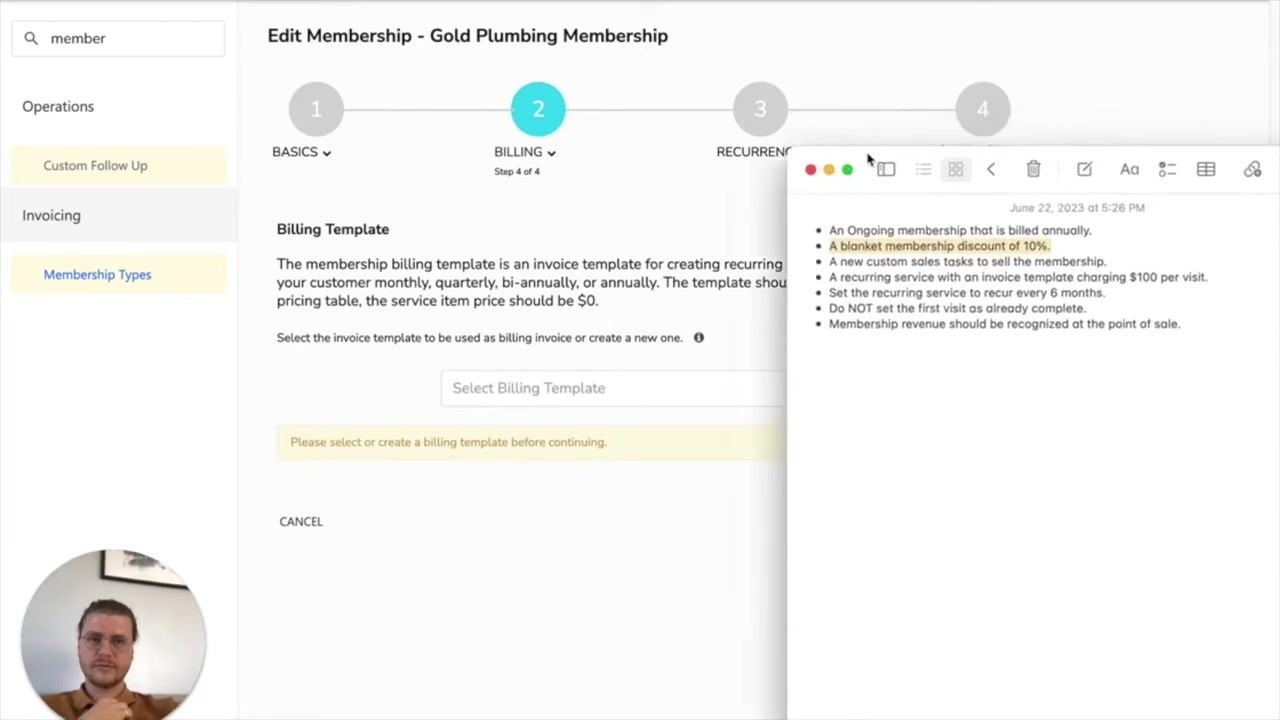
- The membership is an ongoing membership billed annually.
- A blanket membership discount of 10% applies.
- A new custom sales task is needed to sell the membership.
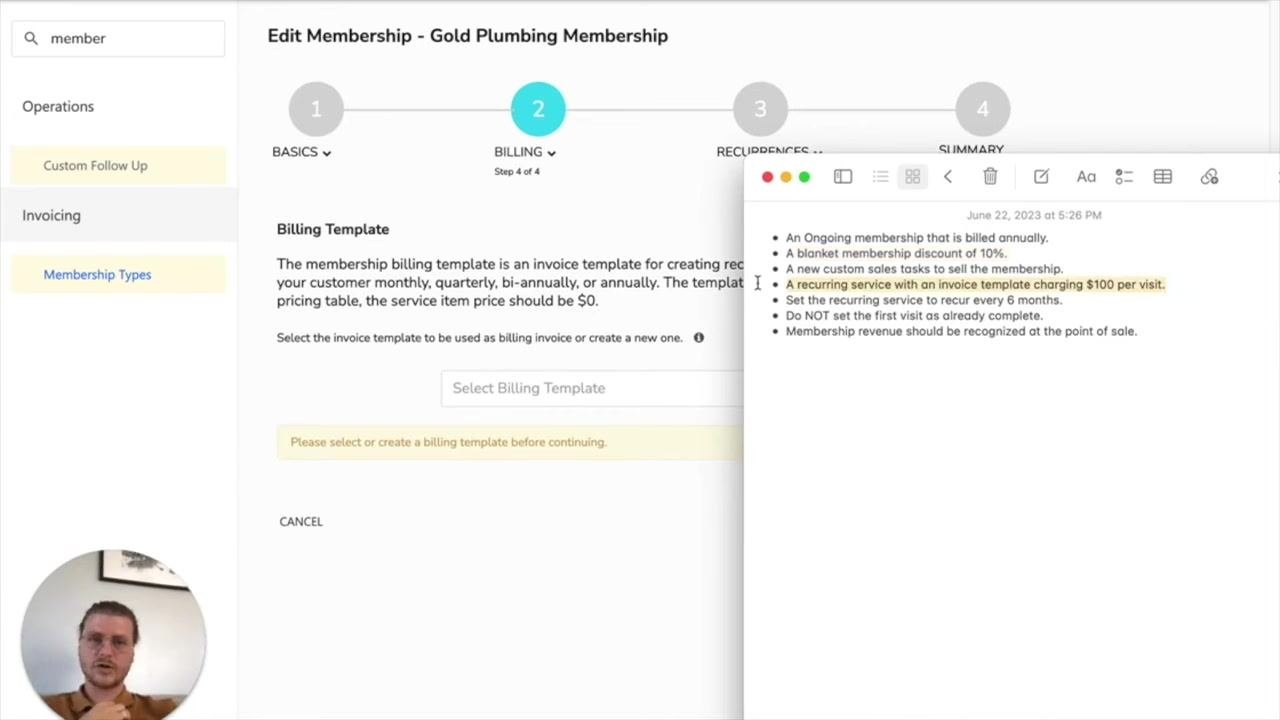
- The recurring service uses an invoice template that charges $100 per visit.
- The recurring service is set to recur every 6 months.
- The first visit must not be marked as already complete.
- Membership revenue is recognized at the point of sale.
Keep these requirements in mind as you work through the setup.
Membership types
Step 1: Navigate to Membership Types
Go to the left sidebar and select Membership Types under the Invoicing section. This displays a list of existing membership types. Click Create Membership Type to begin setting up a new membership.
Step 2: Name the membership
When prompted, enter a name for the new membership type. For this example, enter Gold Plumbing Membership. Click Save & Next to continue.
Step 3: Add a tag to the membership
Assign a tag to the membership so it's easier to identify and filter later. In the Tags section, select or create a tag — for this example, add a Maintenance tag. Click Save & Next to proceed.
Duration and billing
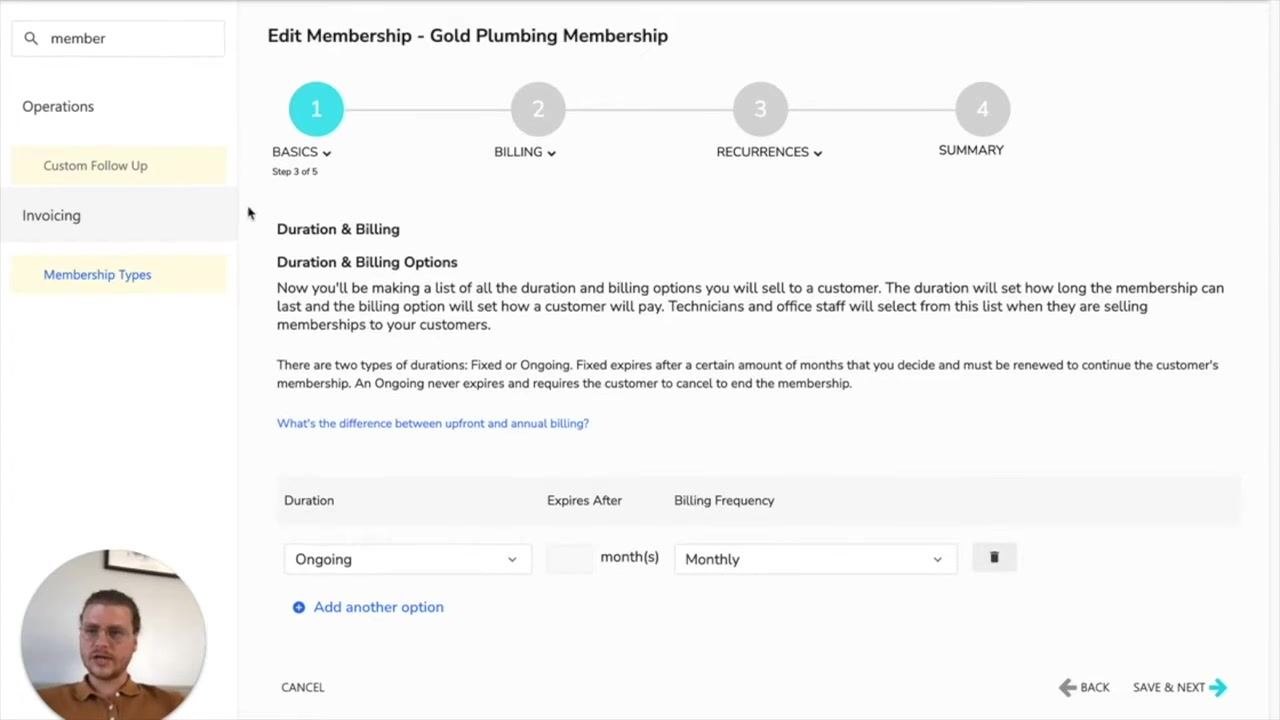
Step 4: Configure duration and billing settings
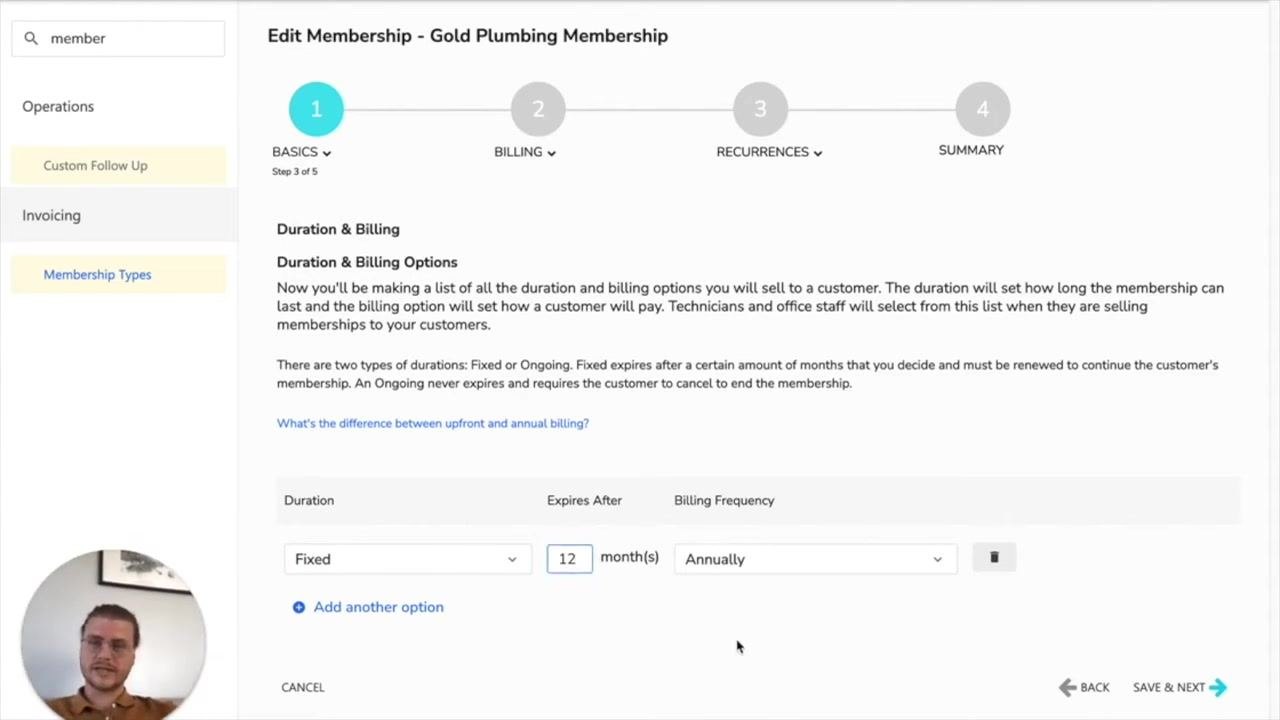
In the Duration & Billing section, set the following:
- Duration: Select Fixed.
- Expires After: Enter 12 months.
- Billing Frequency: Select Annually.
This configuration ensures the membership lasts 12 months and is billed once per year. Click Save & Next to continue.
Step 5: Set up the membership discount
In the Discount section, apply a blanket discount across all services. Check the box to Show membership savings on customer invoices, then set the discount to 10% for all services. Click Save & Next to proceed.
Step 6: Configure membership pricing table usage
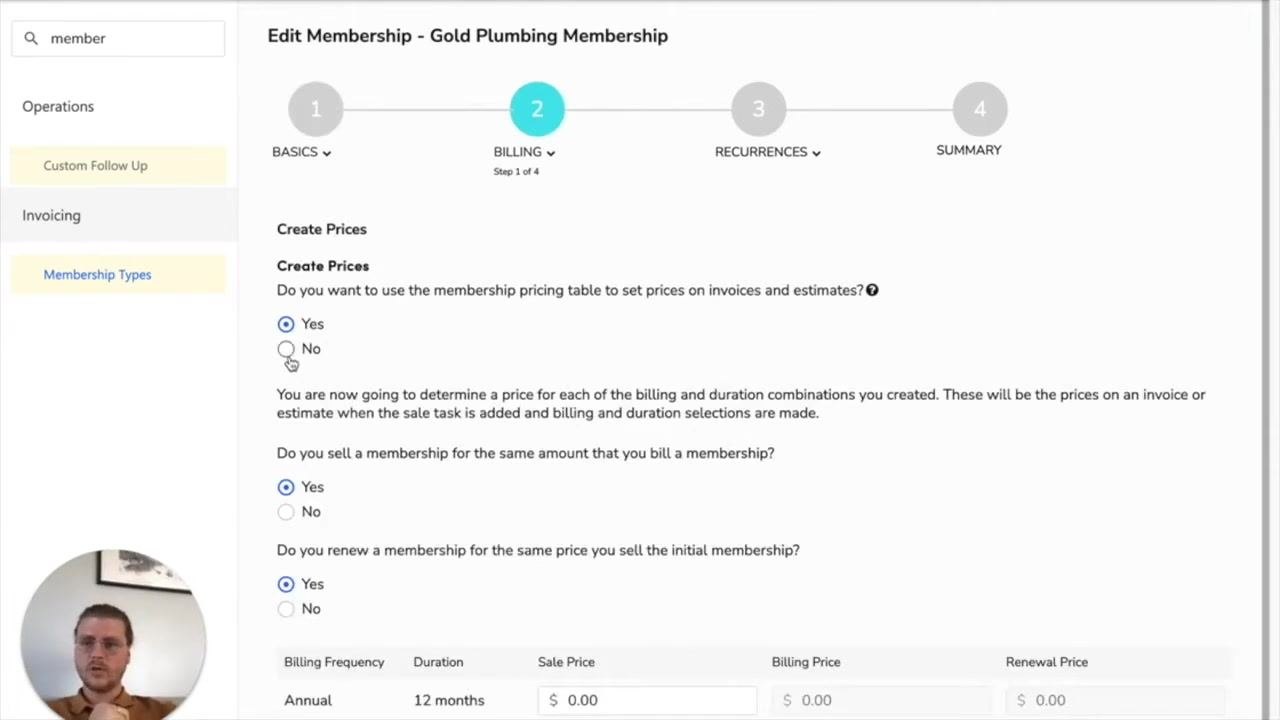
On the Edit Membership - Gold Plumbing Membership screen, under the BILLING step, answer the following:
- Do you want to use the membership pricing table to set prices on invoices and estimates? Select Yes.
- Do you sell a membership for the same amount that you bill a membership? Select Yes.
- Do you renew a membership for the same price you sell the initial membership? Select Yes.
This ensures pricing stays consistent and is managed centrally through the price book.
New sale tasks
Step 7: Create a new sales task for the membership sale
In the New Sale Tasks section, click Create New Task to add a custom sales task for selling the membership. In the Add Sale Task dialog:
- Enter Membership Sold for both the Code and Name fields.
- Enter New Membership in the Item Description field.
- Check Taxable, Allow Discounts Codes, and Allow Membership Discounts.
- Set the Price to 100.00.
- Set the General Ledger Account to Revenue.
- Leave other fields as default unless your organization requires additional details.
Click Save to add the new sales task.
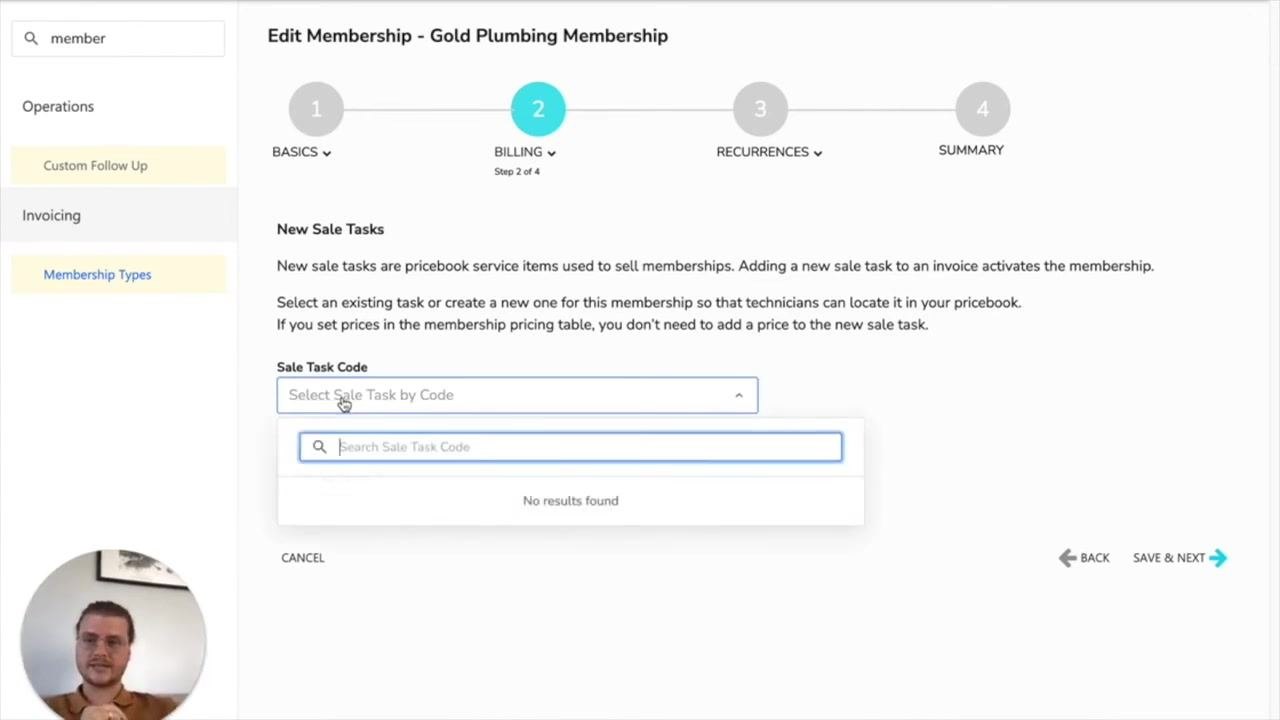
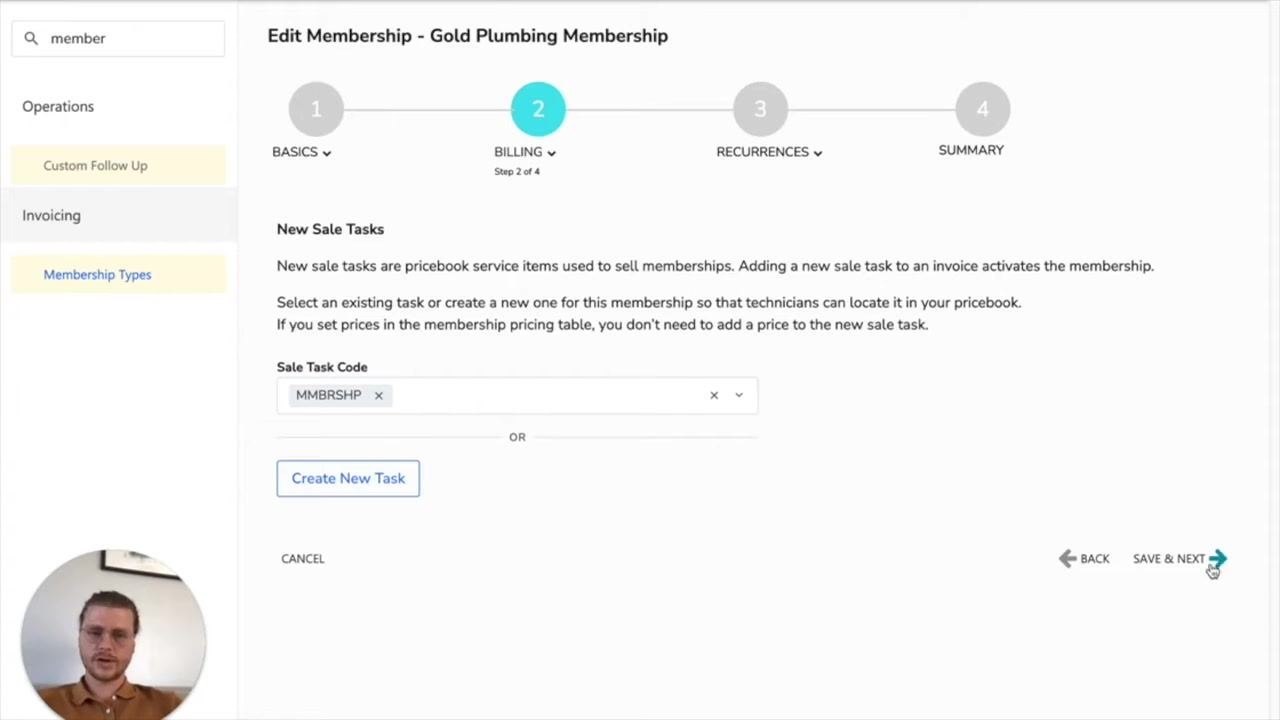
Step 8: Assign the sales task to the membership
After saving, confirm the new sales task (for example, MMBRSHP) appears in the Sale Task Code field. Click Save & Next to proceed.
Step 9: Set up the renewal task
In the Renewal Tasks section, use the search bar to find and select the renewal task. For this example, select Gold Points. You can also create a new renewal task if needed. Click Save & Next to continue.
Billing template
Step 10: Select or create a billing template
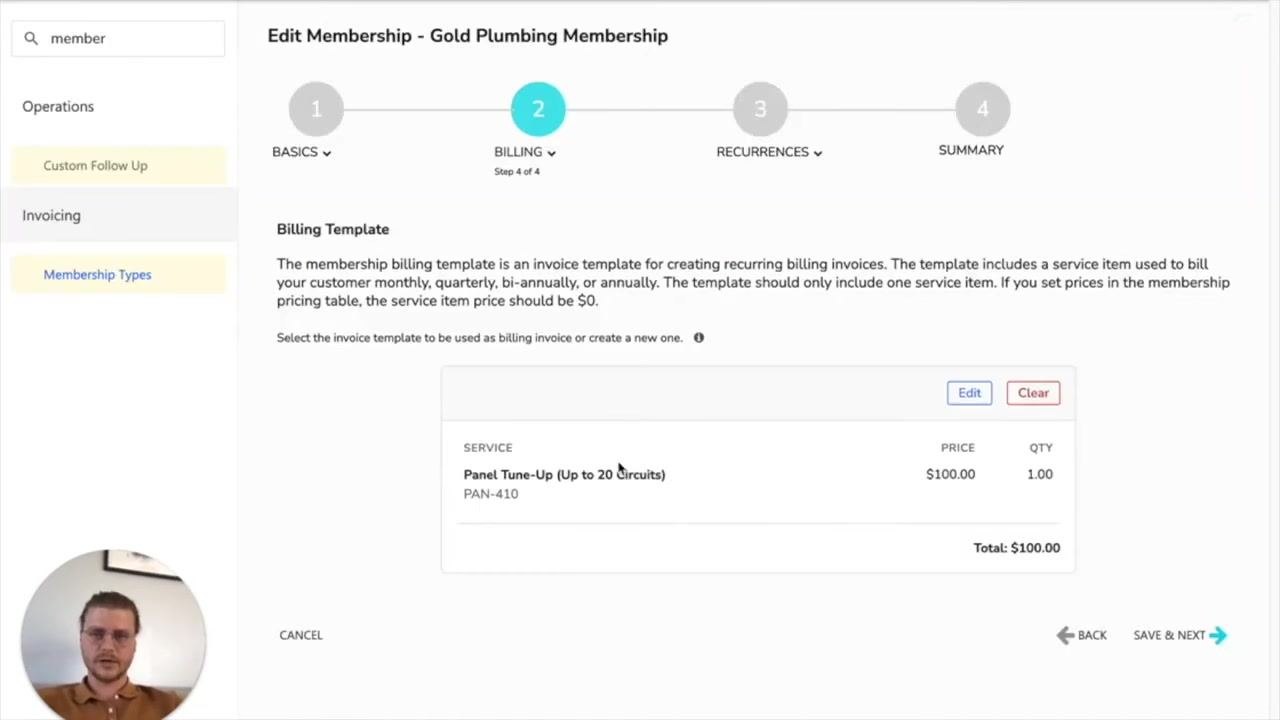
In the Billing Template section, review the instructions: the billing template is used to create recurring billing invoices, and it should include a service item priced at $0 if you're using the pricing table. Select an existing invoice template, or create a new one, to serve as the billing invoice for recurring services. Make sure the template charges $100 per visit as required. You must select or create a billing template before proceeding.
Step 11: Create the billing invoice template and add the service charge
On the Billing Template screen for the Gold Plumbing Membership, click Create Billing Template if a suitable template doesn't already exist. In the Billing Invoice Template window, under Services, click Select a Service:
- In the search bar, type tune.
- Select Panel Tune-Up (Up to 20 Circuits) with code PAN-410 from the dropdown.
- Set the Unit Price to $100.00 and Quantity to 1.
- Confirm the Total Price shows $100.00.
Click Save & Next to proceed. This ensures every recurring service invoice includes a $100 charge for the panel tune-up.
Recurring services
Step 12: Configure recurring service basics
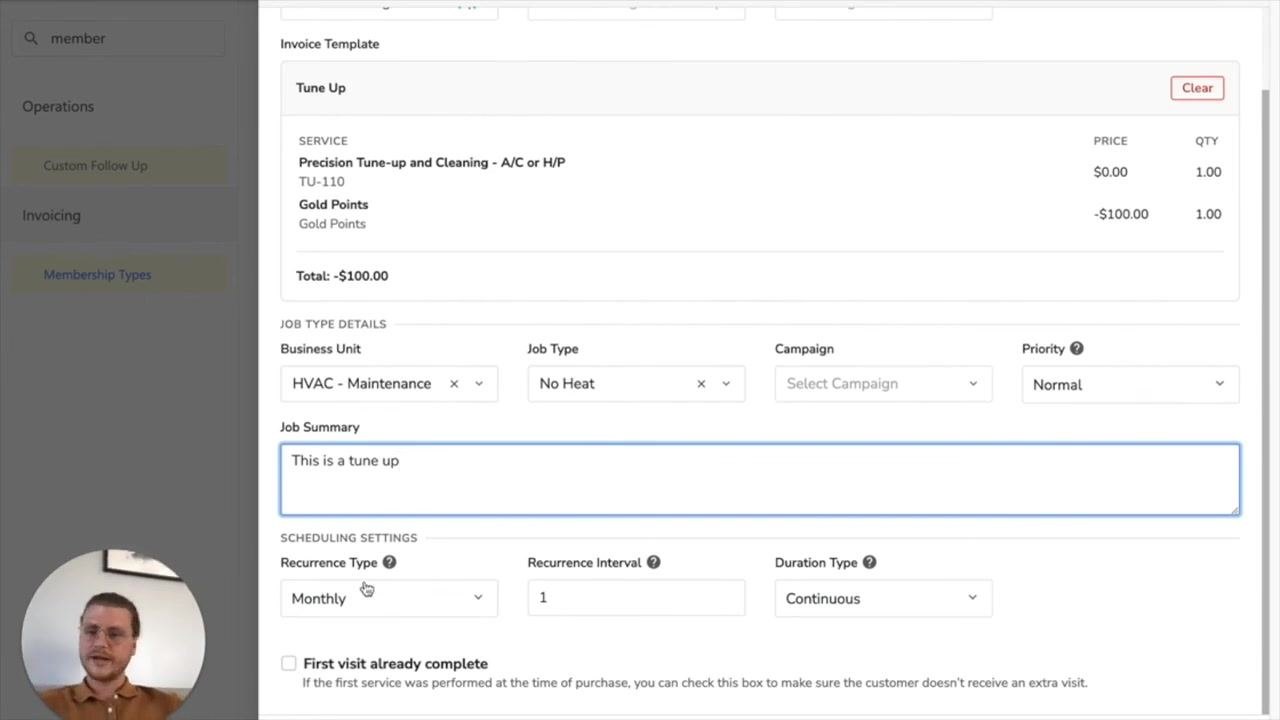
On the membership configuration page, enter the recurring service details. In the Recurring Service Basics section:
- Enter Gold Plumbing Membership as the Name and Display Name.
- Leave Tags blank or add as needed.
- Select the invoice template you just created from the Invoice Template dropdown.
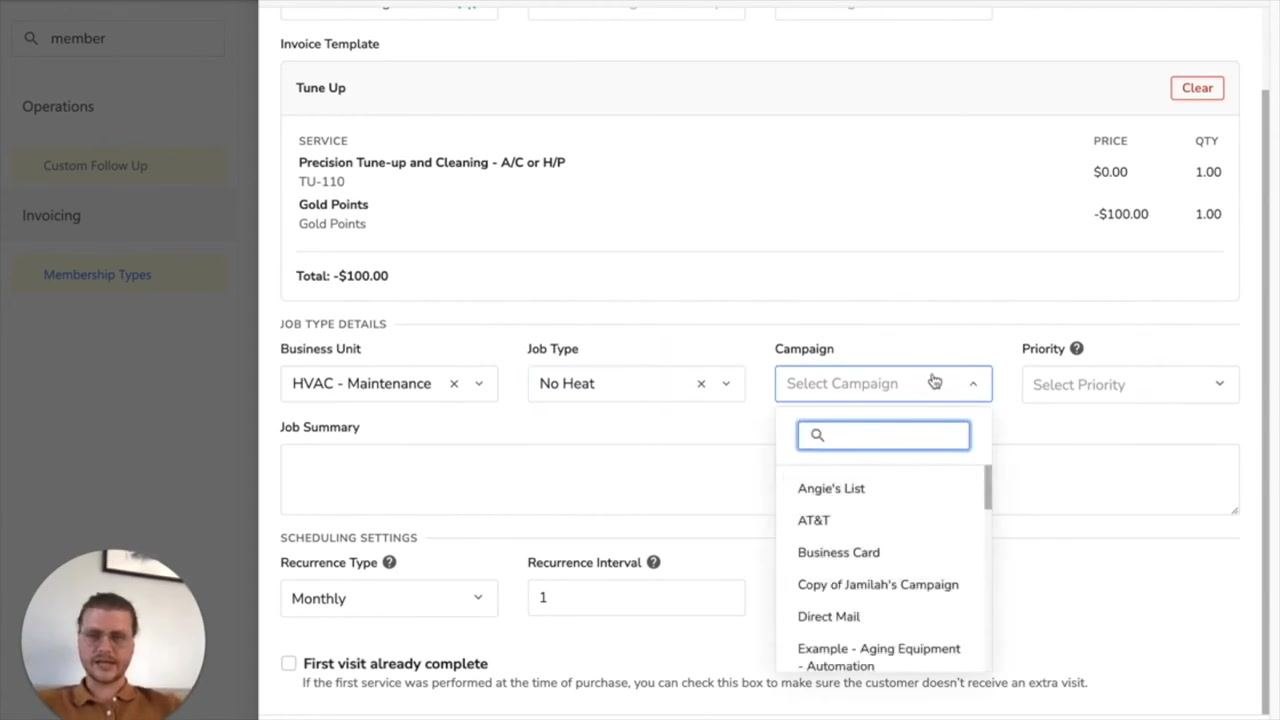
In the Job Type Details section:
- For Business Unit, select HVAC - Maintenance.
- For Job Type, search for and select Tune Up.
- For Campaign, select the appropriate campaign (for example, "Angie's List" or "Direct Mail").
- Set Priority to Normal.
- In Job Summary, enter a default summary such as "This is a tune-up. This will be what is populated into the tune-up section."
Step 13: Set the recurrence type
In the Scheduling Settings section, locate the Recurrence Type dropdown and select Monthly. This determines that the service recurs every month before the interval is applied.
Step 14: Specify the recurrence interval
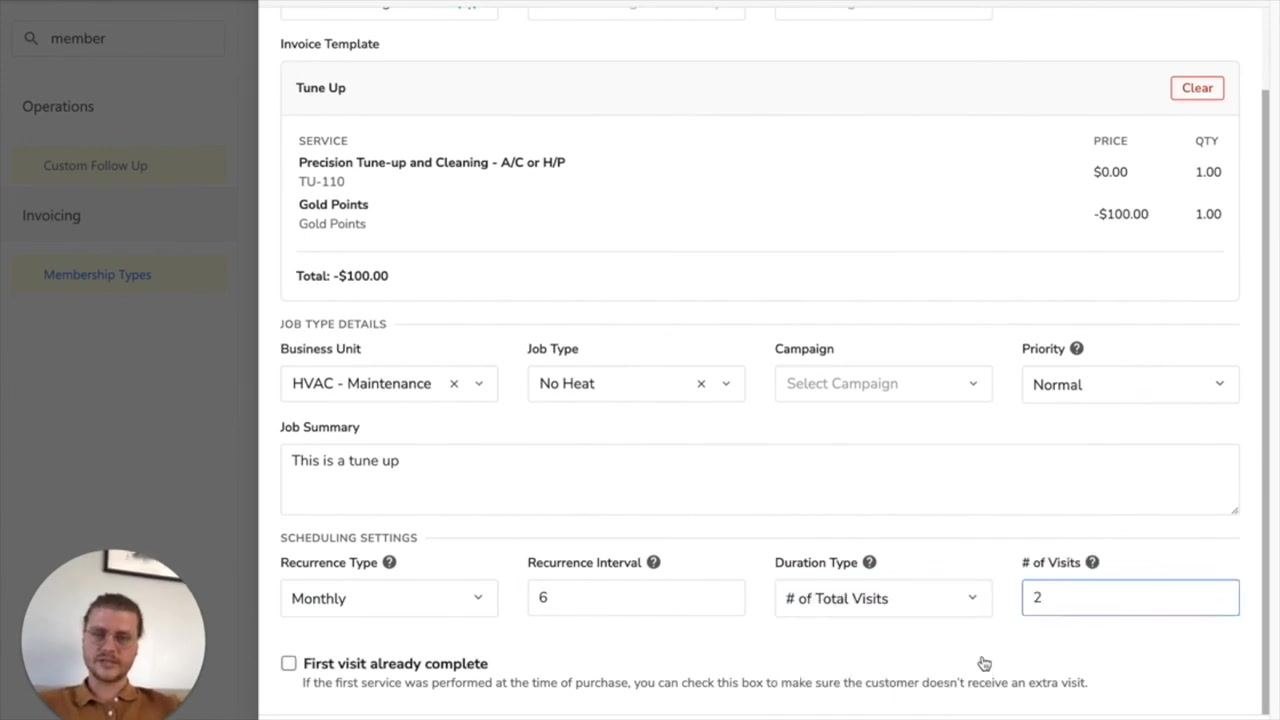
In the Recurrence Interval field, enter 6. This means the recurring service occurs every 6 months.
Step 15: Set the duration type
In the Duration Type dropdown, select # of Total Visits. In the # of Visits field, enter 2. This specifies that the membership includes a total of 2 visits.
Step 16: Review and finalize the recurring service setup
Review all entered details for accuracy:
- Name: Gold Plumbing Membership
- Invoice Template: Tune Up (or the template you created)
- Service: Panel Tune-Up (Up to 20 Circuits), $100 per visit
- Recurrence: Every 6 months
- Business Unit: HVAC - Maintenance
- Job Type: Tune Up
- Priority: Normal
- Job Summary: "This is a tune-up. This will be what is populated into the tune-up section."
Save the recurring service to complete this part of the configuration.
Step 17: Add recurring services
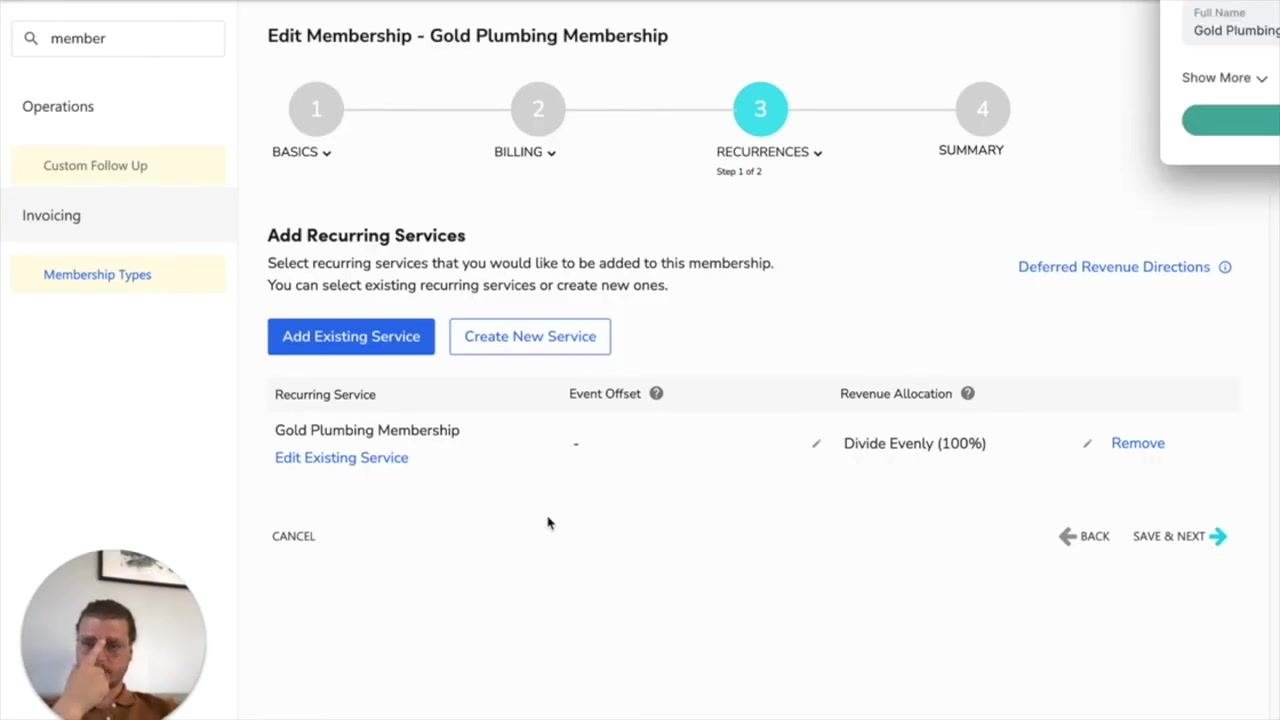
On the Add Recurring Services screen, click Create New Service if you need to define a new recurring service for this membership. Reference your checklist to confirm the service recurs every 6 months, and make sure the first visit is not marked as already complete.
Review the listed recurring service (for example, "Gold Plumbing Membership"). If needed, click Add Existing Service or Create New Service to add more services. Confirm the Revenue Allocation is set as desired (for example, "Divide Evenly (100%)"), then click Save & Next to proceed.
Revenue recognition
Step 18: Configure revenue recognition
On the Revenue Recognition screen, answer whether membership revenue is recognized at the point of sale or deferred:
- Select Point of sale to recognize revenue immediately.
- Select Deferred to recognize revenue over time. Choosing Deferred reveals additional options, including whether ServiceTitan should calculate deferred revenue automatically, whether revenue should be divided evenly between each recurring service, and how to recognize deferred revenue when dismissing a recurring service event.
For this example, select Point of sale.

Step 19: Save and complete the setup
Click Save & Next to finalize the configuration and proceed to the summary.
What's next
With these steps complete, your Gold Plumbing Membership is set up with a recurring service that charges $100 every six months, along with the business, job, and scheduling details defined in your checklist. Review the membership summary to confirm all settings match your requirements before making the membership available for sale.
Generation details: cost, quality tiers
Docsie billed 3,500 credits ($2.45) to analyze this 7-minute video at standard quality. The rewrite, template fill and Word/PDF exports were included. The same video at each quality tier:
| Quality | Frames sampled | Credits | Approx. cost |
|---|---|---|---|
| Draft | every 16-30 s | 1,750 | $1.22 |
| Standard (this guide) | every 8-15 s | 3,500 | $2.45 |
| Detailed | every 4-7 s | 7,000 | $4.90 |
| Ultra | every 1-3 s | 14,000 | $9.80 |
Credits priced at $0.70 per 1,000; plans include a monthly allowance. Enterprise customers on on-premise or bring-your-own-model deployments run this on their own inference and pay no per-video credits.
Generated by Docsie Video-to-Docs on 2026-10-25 from a 6-minute video. Screenshots are frames from the source video and belong to their creator, The Graphite Lab, whose original is embedded above. If you own this video and want the guide removed or credited differently, contact us and we will act within one business day.