
How to Determine Pricing Procedure in SAP
When creating a sales order in SAP SD, the system must automatically determine a pricing procedure based on the sales area, customer, and document type. If this configuration is incomplete, you will see the error "No pricing procedure could be determined" and will be unable to proceed with the order. This guide walks you through how to determine pricing procedure in SAP SD — from identifying the error in a sales order, through configuring customer and document pricing procedures in the Implementation Guide, to verifying the result with the pricing analysis tool.
Video: SAP SD PRICING PROCEDURE DETERMINATION by SAP Codes (2018). All credit for the demonstration goes to the creator; watch the original on YouTube. The written guide below was generated from this video by Docsie. Creator? Request a change or removal.
When creating a sales order in SAP SD, the system must automatically determine a pricing procedure based on the sales area, customer, and document type. If this configuration is incomplete, you will see the error "No pricing procedure could be determined" and will be unable to proceed with the order. This guide walks you through how to determine pricing procedure in SAP SD — from identifying the error in a sales order, through configuring customer and document pricing procedures in the Implementation Guide, to verifying the result with the pricing analysis tool.
Prerequisites
- Access to the SAP GUI with authorization to create sales orders (transaction
VA01) and display customer master records (transactionXD03). - Access to the SAP Customizing Implementation Guide (transaction
SPRO) with authorization to maintain pricing configuration. - A customer master record and sales area data already set up (this guide uses Customer 491000, Sales Organization 1000, Distribution Channel 10, Division 10).
- Condition records maintained for relevant condition types (for example, via transaction
VK11).
Part 1: Identify the pricing procedure error in a sales order
Step 1: Access the SAP Easy Access main menu
Launch the SAP GUI and wait for the SAP Easy Access screen to appear. The main menu displays folders such as Office, Logistics, Accounting, Human Resources, Information Systems, Tools, and WebClient UI Framework.
Step 2: Open the sales order transaction
In the command field at the top of the screen, enter transaction code VA01 (used to create a sales order), then press Enter.
Step 3: Select order type and enter organizational data
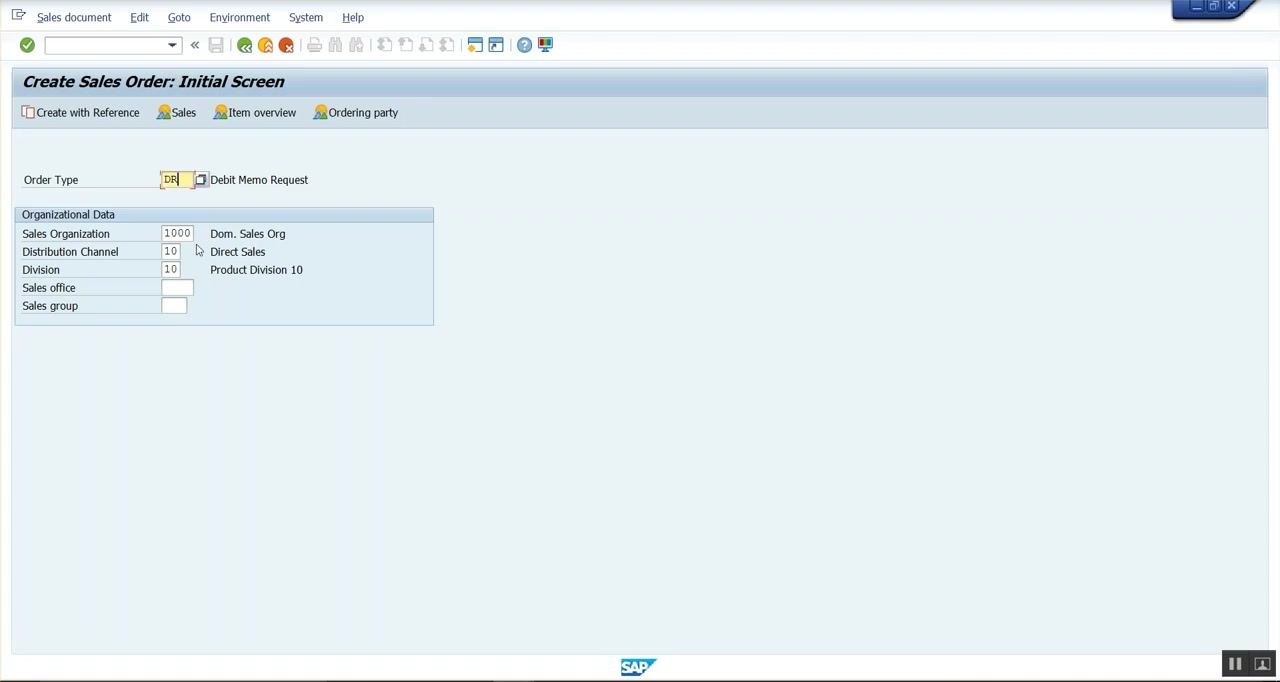
On the Create Sales Order: Initial Screen, set the Order Type to DR (Debit Memo Request) and enter the following organizational data:
- Sales Organization: 1000 (Dom. Sales Org)
- Distribution Channel: 10 (Direct Sales)
- Division: 10 (Product Division 10)
Leave Sales office and Sales group blank unless your scenario requires them, and confirm that the data matches the required sales area. Press Enter to continue.
Step 4: Enter the customer
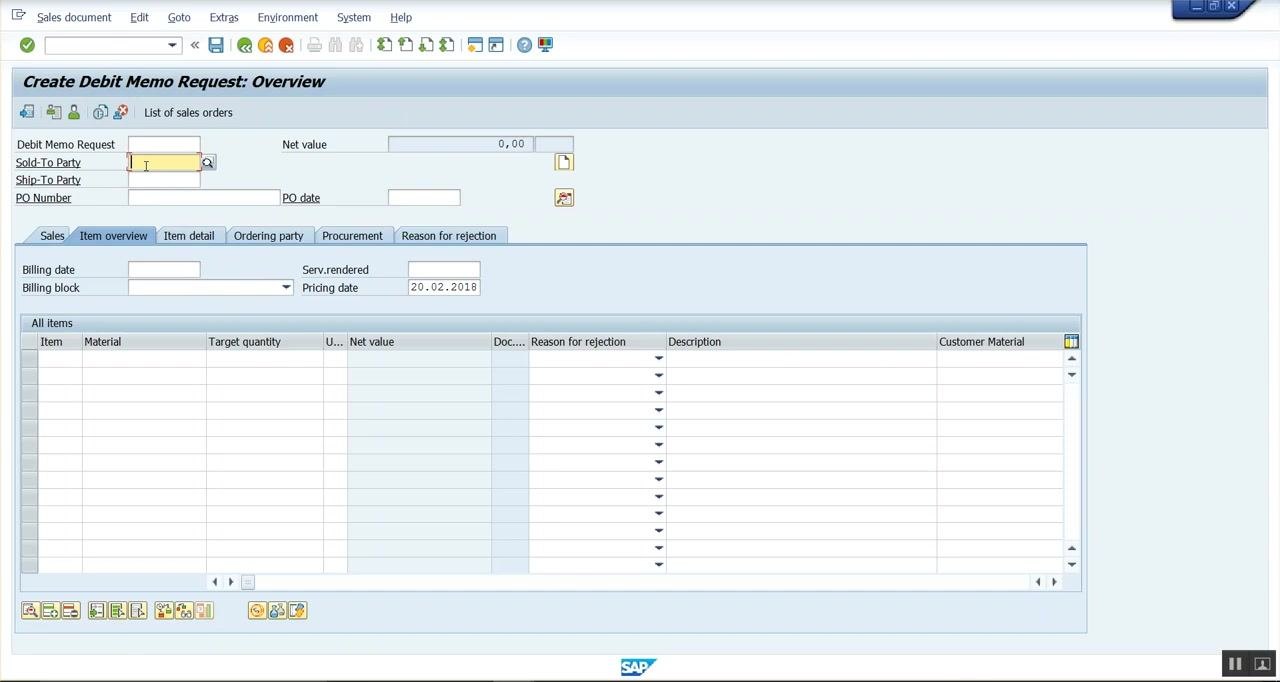
On the Create Debit Memo Request: Overview screen, enter the Sold-To Party customer number — for example, 491000 — in the Sold-To Party field. Fill in any other required fields, such as Ship-To Party, PO Number, or PO Date, as needed for your scenario.
Step 5: Confirm the pricing procedure error
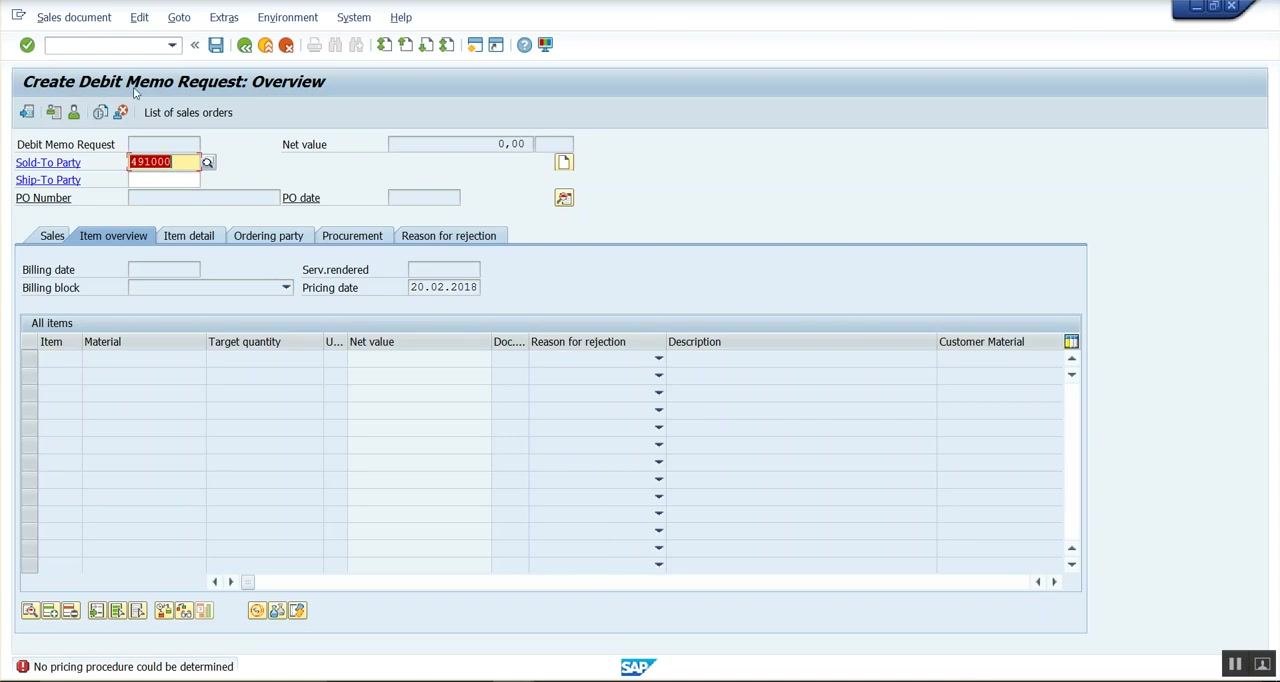
After entering the customer number, press Enter. If the pricing configuration is incomplete, the system displays the message "No pricing procedure could be determined" at the bottom of the screen. This indicates that pricing procedure determination has failed for the entered sales area and document type combination.
Part 2: Configure pricing control in the Implementation Guide
Step 6: Access the Implementation Guide and navigate to Pricing
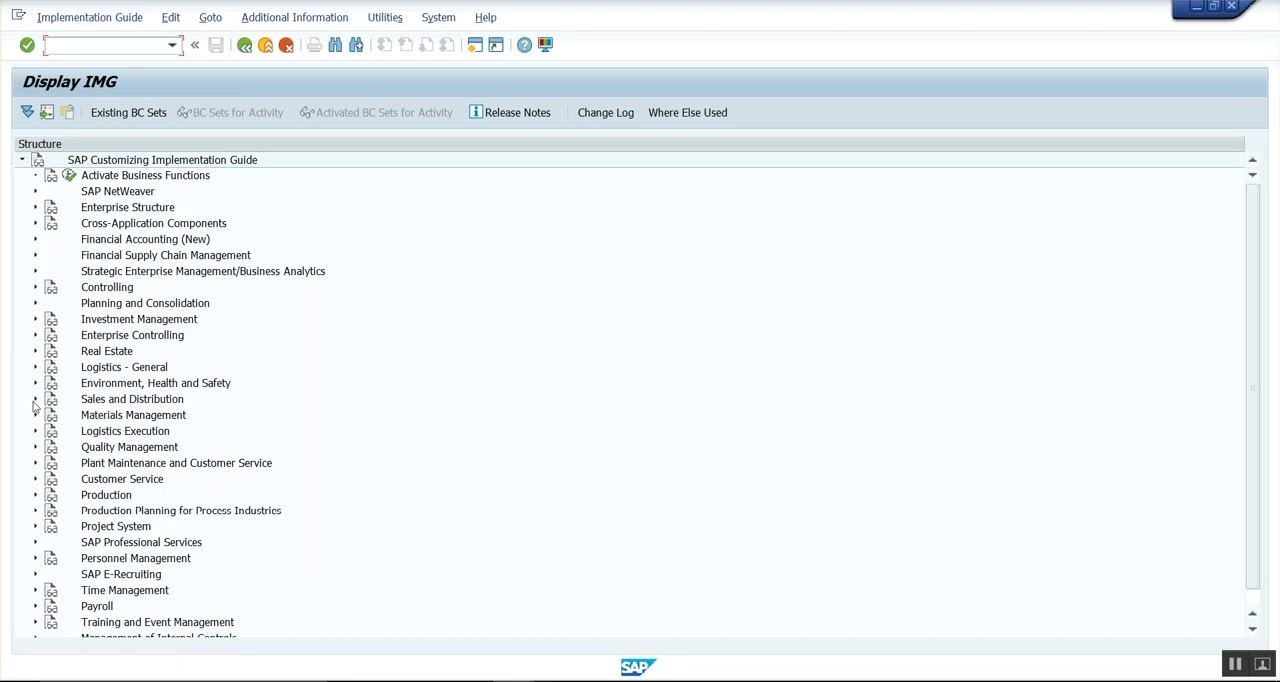
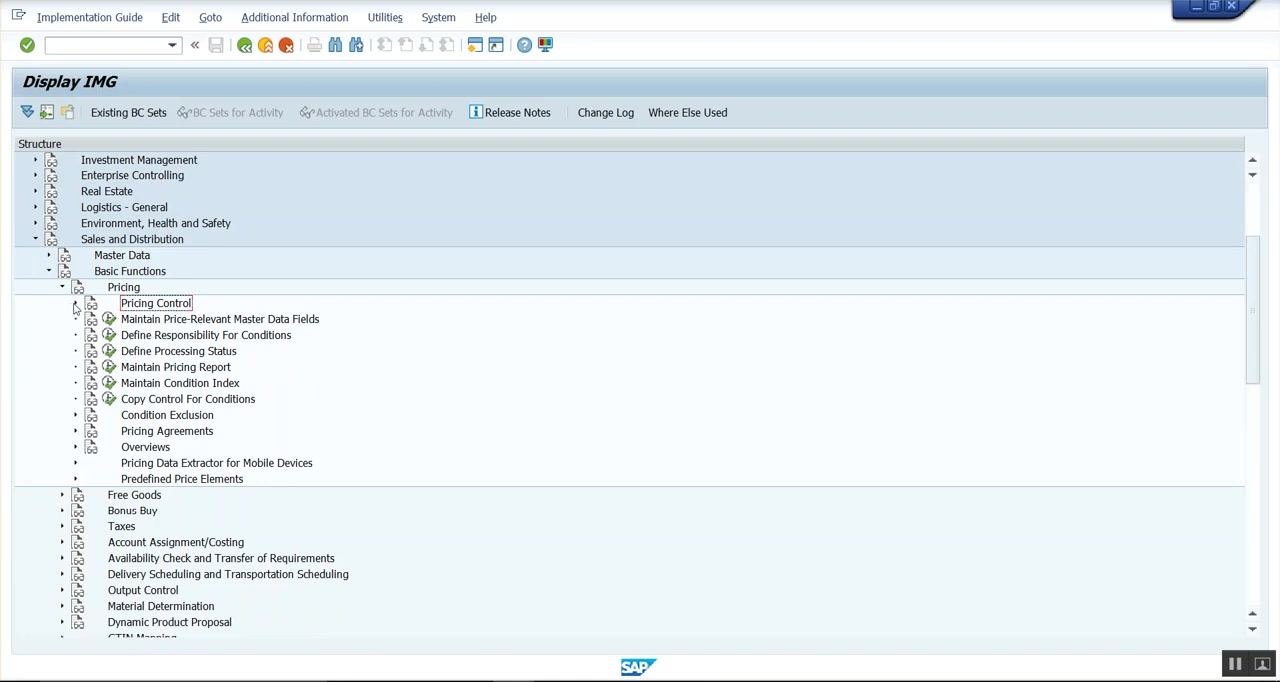
Open the SAP Customizing Implementation Guide (transaction SPRO) and select SAP Reference IMG. In the hierarchical menu, expand the following path:
- Sales and Distribution > Basic Functions > Pricing
Step 7: Open Pricing Control
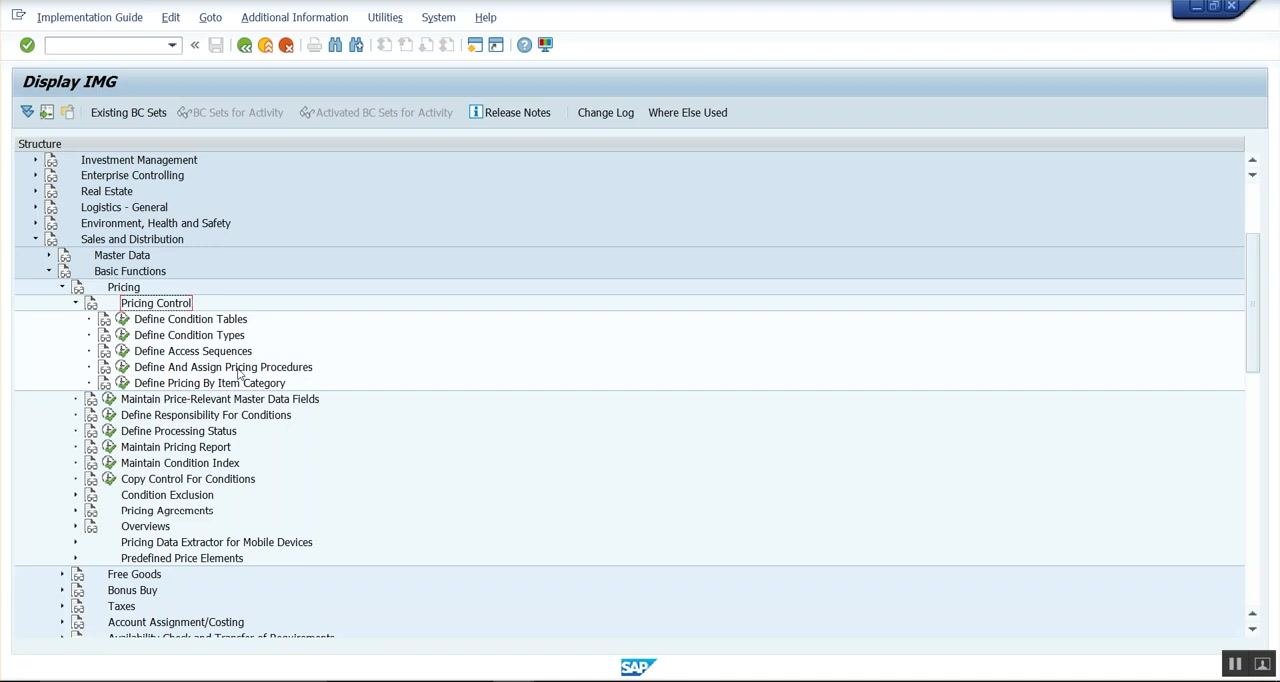
Under the Pricing node, select Pricing Control. This area contains the major configuration options for pricing, including condition tables, condition types, access sequences, and pricing procedures.
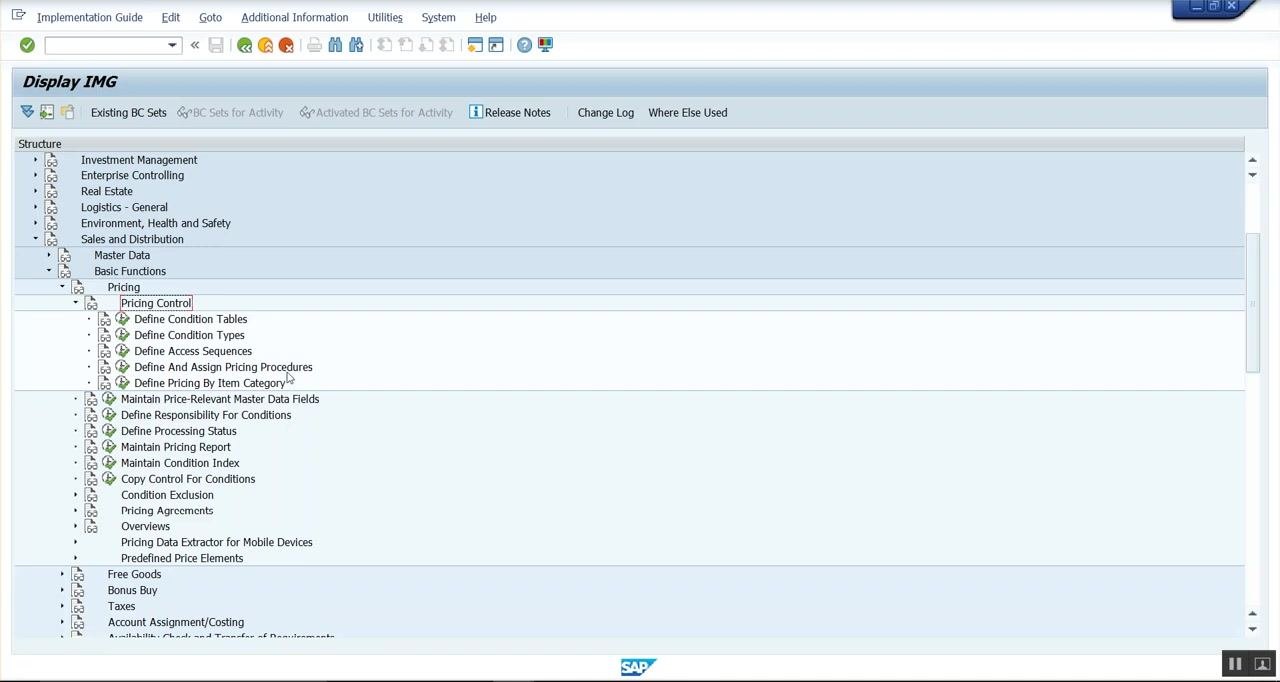
Step 8: Open Define And Assign Pricing Procedures
In the Pricing Control area, select Define And Assign Pricing Procedures. This section lets you define new pricing procedures and assign them to the relevant sales areas and document types.
Step 9: Select the Maintain pricing procedures activity
A dialog box lists the available activities. Select Maintain pricing procedures from the list, then click Choose to proceed. Related activities in this dialog include defining customer and document pricing procedures, assigning procedures to order types, and checking settings.
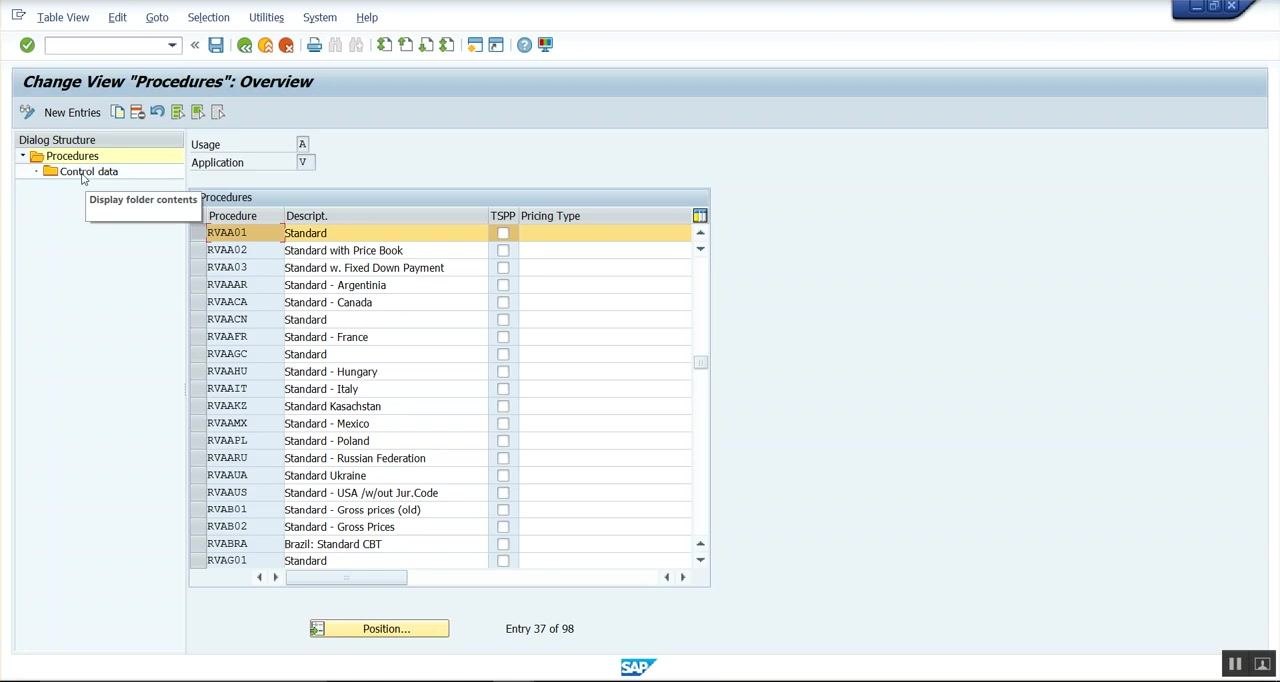
Step 10: Review the standard pricing procedure
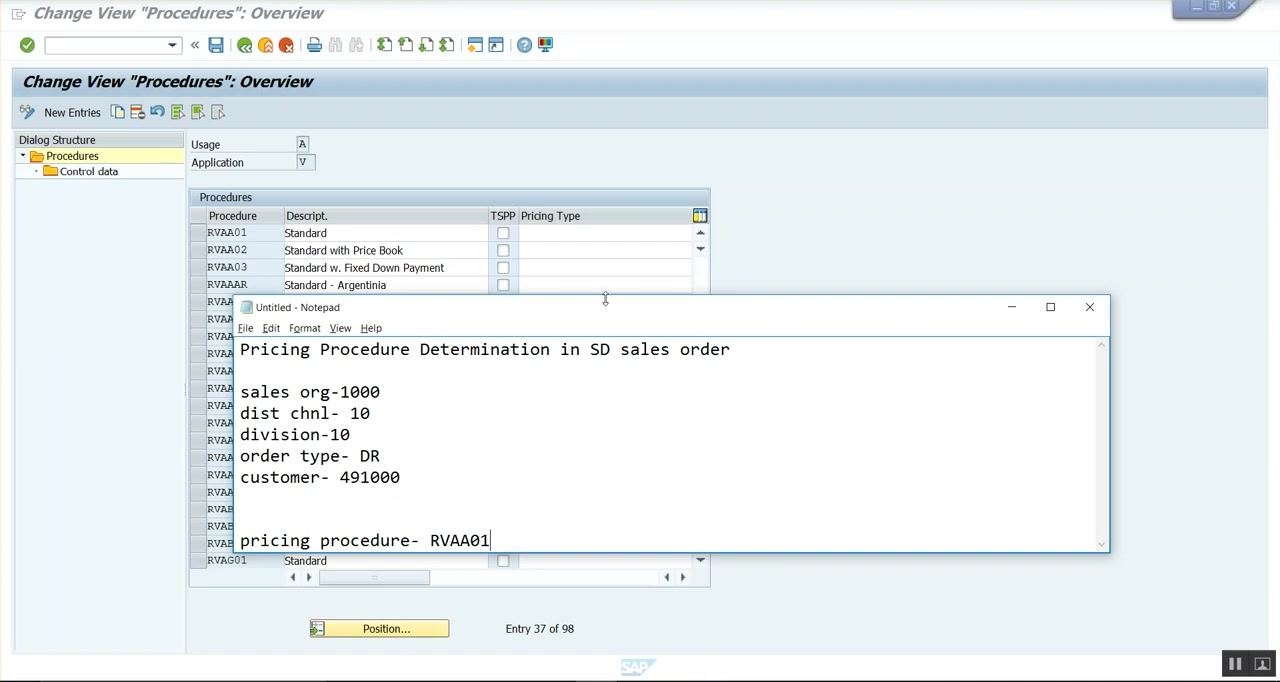
On the Change View 'Procedures': Overview screen, confirm that a standard pricing procedure is available for use. In this example, procedure RVAA01 is selected. Verify that it contains all the condition types required for your pricing needs.
Part 3: Define and assign the customer pricing procedure
Step 11: Open Define customer pricing procedure
In the SAP IMG Select Activity dialog, choose Define customer pricing procedure. This section lets you view and manage the different customer pricing procedures available in the system.
Step 12: Review available customer pricing procedures
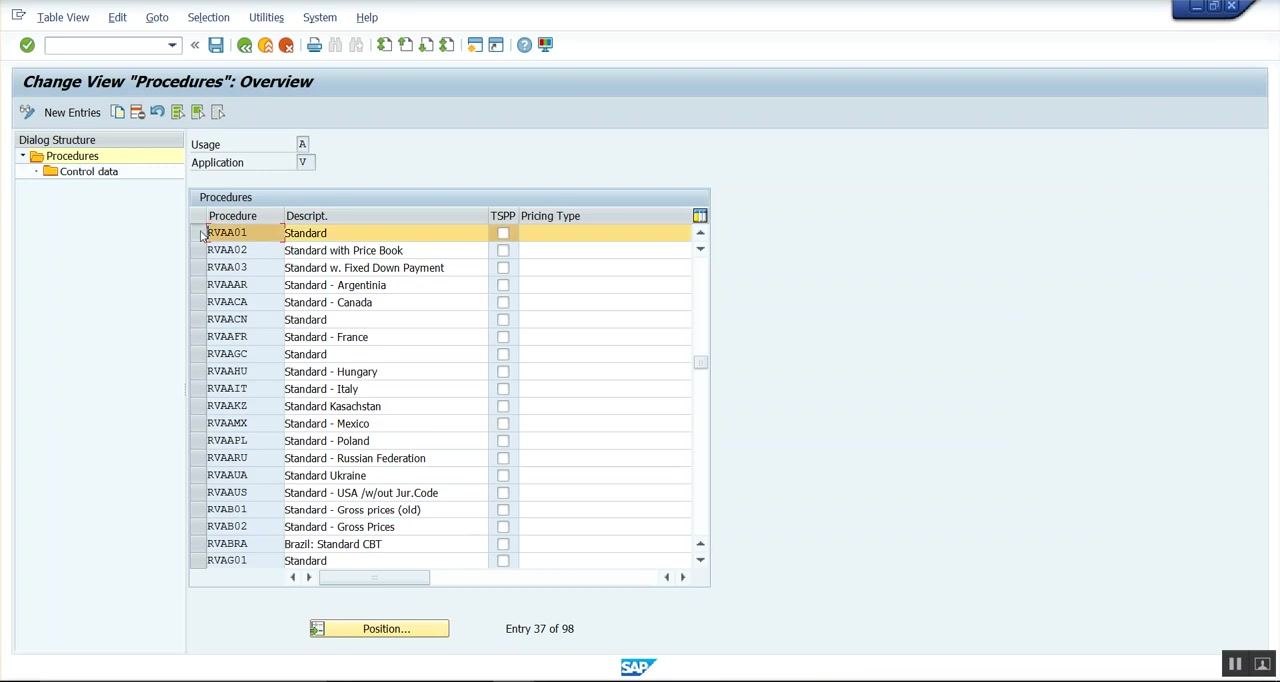
Examine the list of existing customer pricing procedures, which may include:
- Standard
- Stand Incl Sales Tax
- Refund
- GTM Standard
Different customers often require different pricing calculations, so customer pricing procedures let you tailor pricing logic to specific customers or customer groups. Decide which procedure is appropriate, or create a new one if needed.
Step 13: Open the customer master record
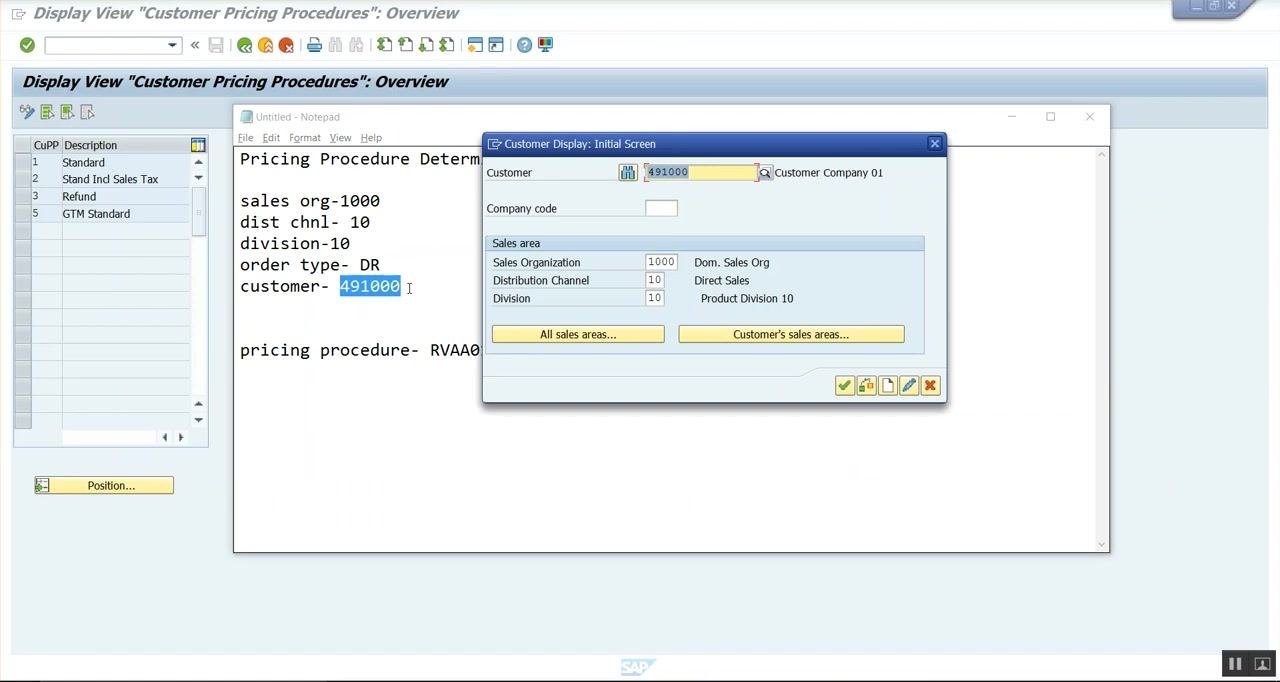
Open the customer master record using transaction code XD03 (Display Customer) and enter the following:
- Customer: 491000
- Sales Organization: 1000
- Distribution Channel: 10
- Division: 10
Click Customer's sales areas... to proceed.
Step 14: Verify the assigned customer pricing procedure
In the customer master, confirm that the correct customer pricing procedure is assigned. Update it if necessary so that it matches your configuration (for example, set to "Standard"), then save your changes.
Step 15: Review the customer's sales area data
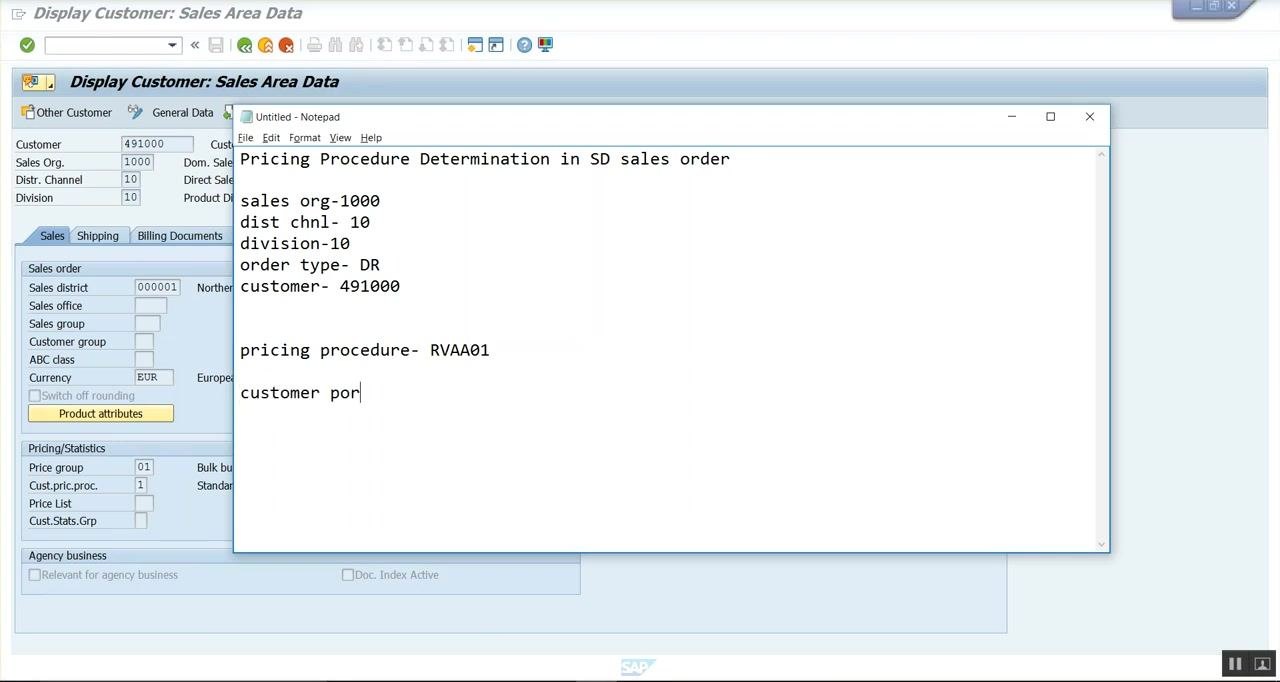
On the Display Customer: Sales Area Data screen, confirm the following fields:
- Customer: 491000 (Customer Company 01, Hamburg)
- Sales Org: 1000
- Distr. Channel: 10
- Division: 10
Under Pricing/Statistics, note the Price group (01 – Bulk buyer) and Cust.pric.proc. (1 – Standard). This is the first value needed for determining the customer pricing procedure.
Part 4: Define and assign the document pricing procedure
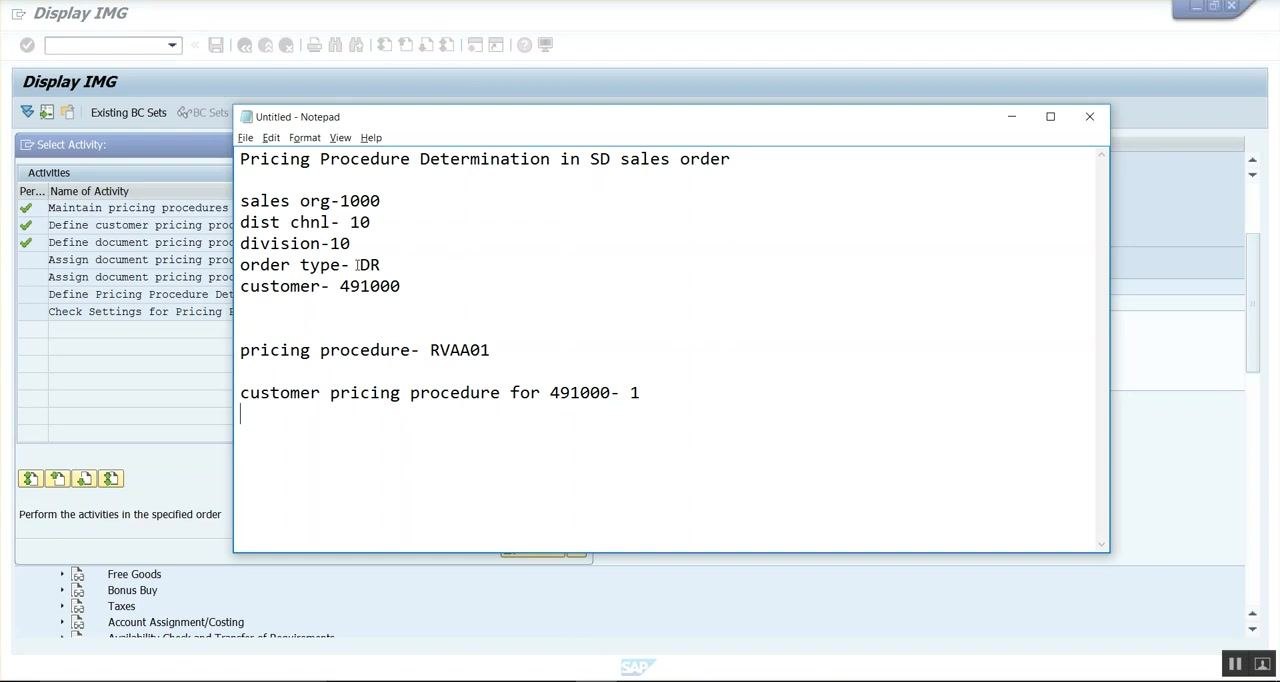
Step 16: Review document pricing procedure activities
In the IMG Select Activity dialog, confirm that the following activities are available:
- Maintain pricing procedures
- Define customer pricing procedure
- Define document pricing procedure
- Assign document pricing procedures to order types
- Assign document pricing procedures to billing types
- Define Pricing Procedure Determination
- Check Settings for Pricing Procedures
Select the activity relevant to defining or assigning document pricing procedures.
Step 17: Confirm the document pricing procedure for the order type
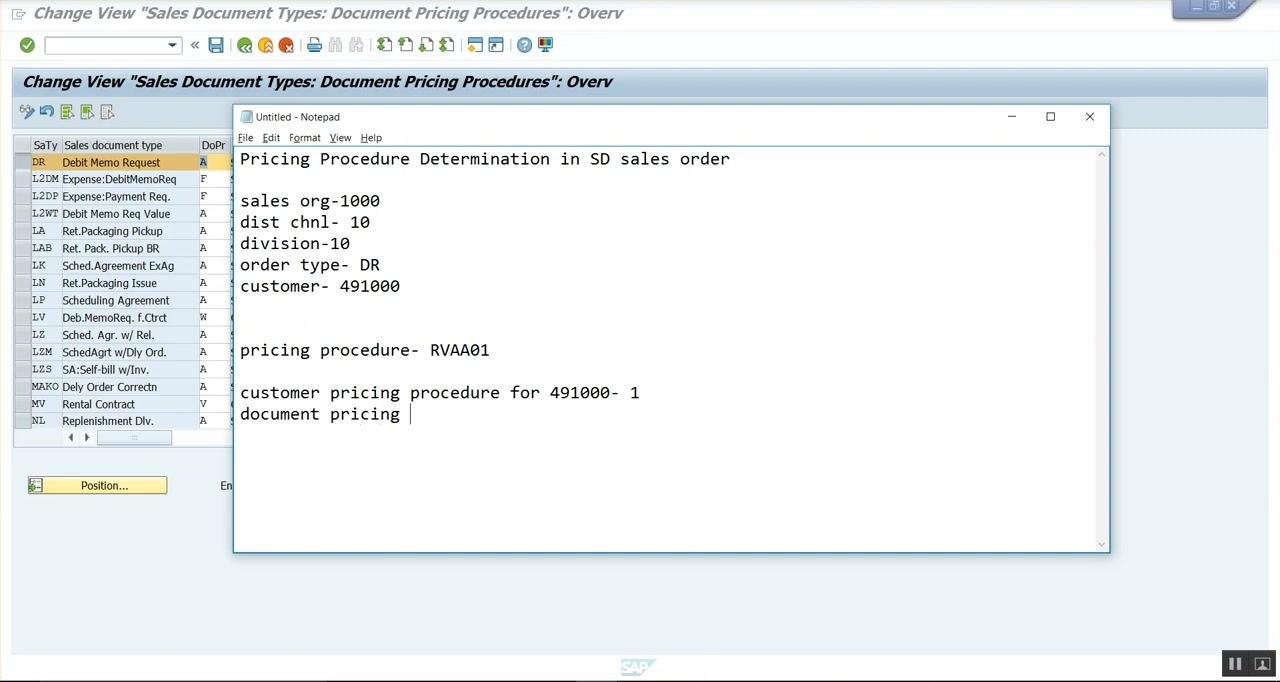
On the Change View 'Sales Document Types: Document Pricing Procedures': Overview screen, review the list of sales document types and their associated document pricing procedures. Locate the DR (Debit Memo Request) entry and confirm that its document pricing procedure is set to A – Standard.
Part 5: Define the pricing procedure determination entry
Step 18: Open Define Pricing Procedure Determination
In the IMG Select Activity dialog, confirm the list of available activities (Maintain pricing procedures, Define customer pricing procedure, Define document pricing procedure, Assign document pricing procedures to order types, Assign document pricing procedures to billing types, Define Pricing Procedure Determination, Check Settings for Pricing Procedures), and select Define Pricing Procedure Determination to proceed.
Step 19: Review the pricing procedure determination overview
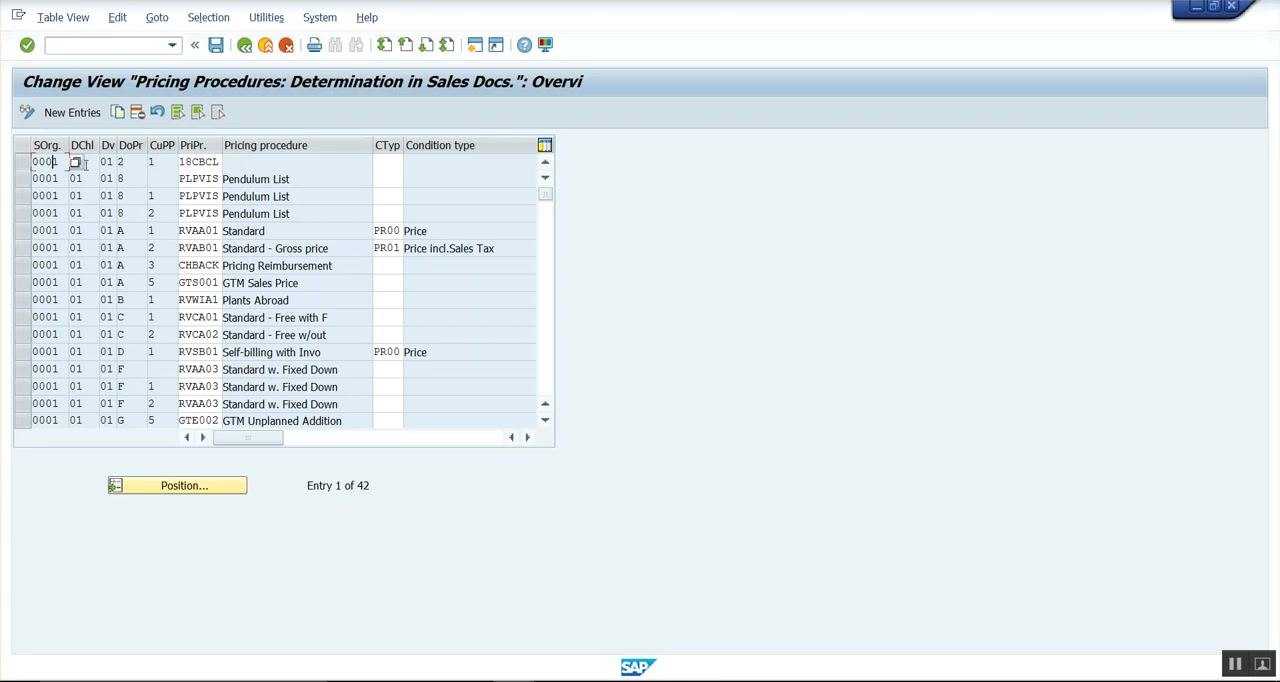
On the Change View 'Pricing Procedures: Determination in Sales Docs.': Overview screen, review the existing entries. The table shows columns for Sales Org. (SOrg.), Distribution Channel (DChl), Division (Dv), Document Pricing Procedure (DoPr), Customer Pricing Procedure (CuPP), Pricing Procedure (PrPr), and related condition types. Locate the relevant entry for your configuration, or prepare to add a new one.
Step 20: Prepare the values for a new entry
If your combination does not already exist, click New Entries to add a new row. Have the following values ready:
- Sales org: 1000
- Distribution channel: 10
- Division: 10
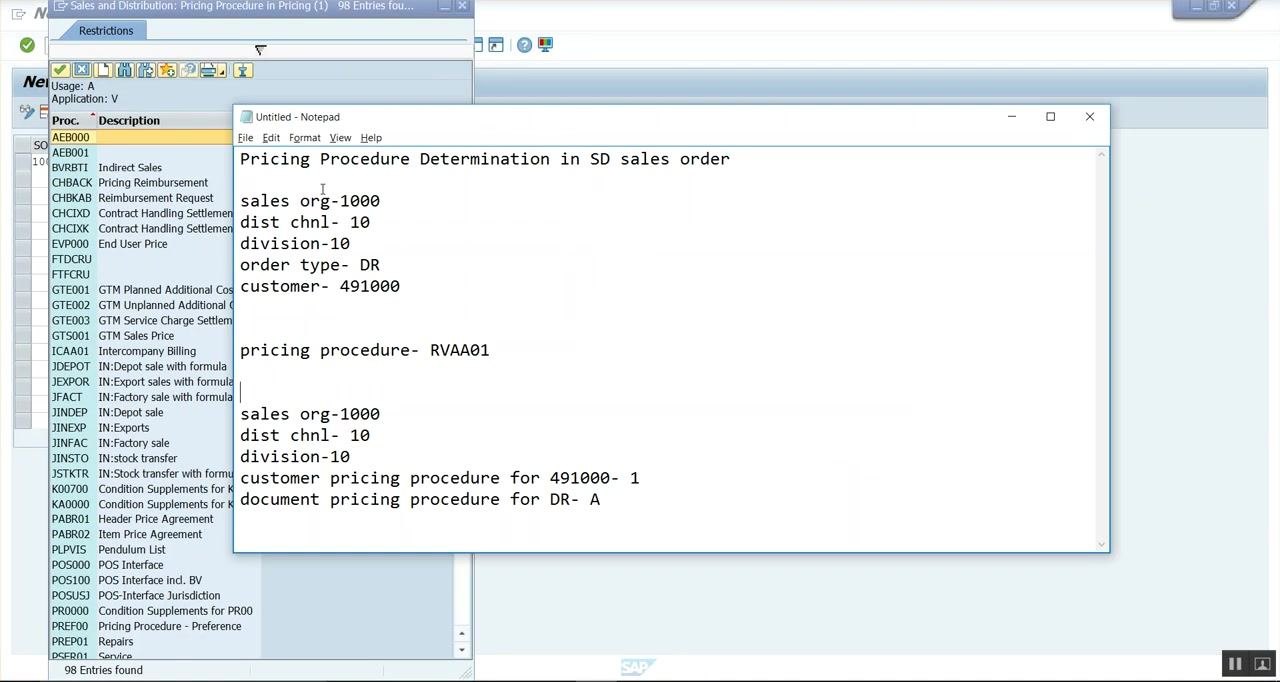
- Document pricing procedure: A
- Customer pricing procedure: 1
- Pricing procedure: RVAA01
Step 21: Enter the new pricing procedure determination
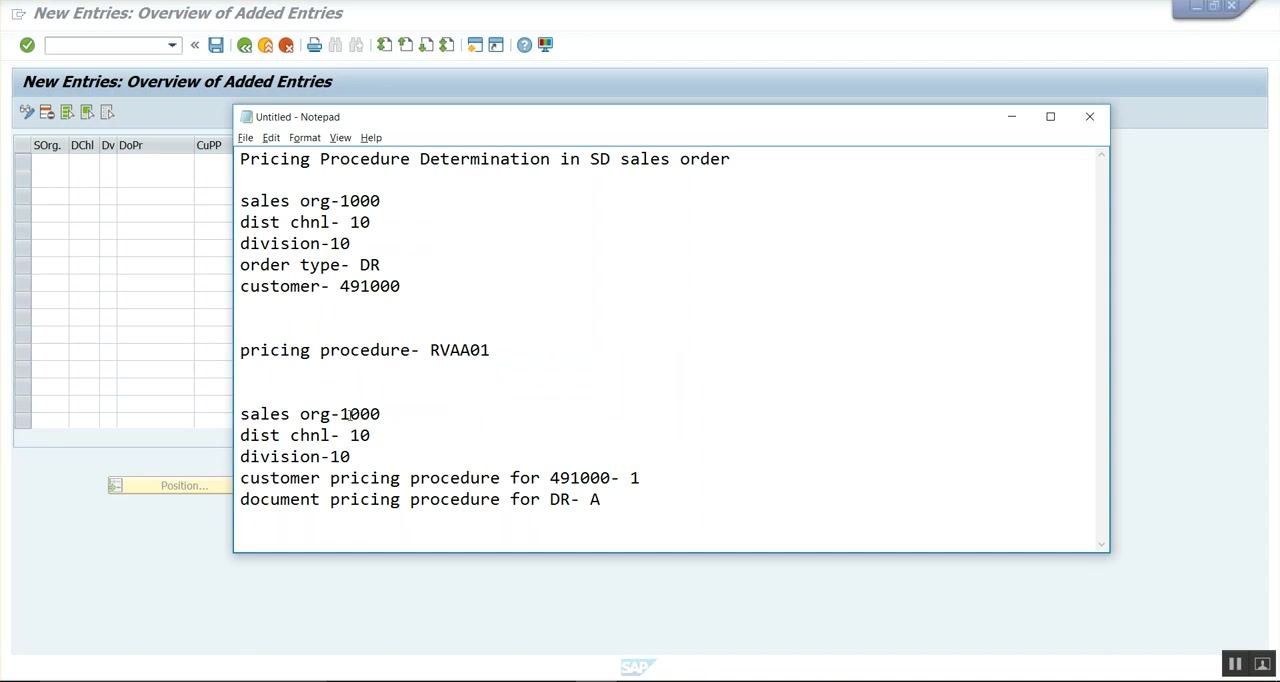
On the New Entries: Overview of Added Entries screen, input the following values and confirm they match your documentation:
- SOrg.: 1000
- DChl: 10
- Dv: 10
- DoPr: A
- CuPP: 1
Then set the Pricing procedure field to RVAA01.
Step 22: Select the pricing procedure from the list
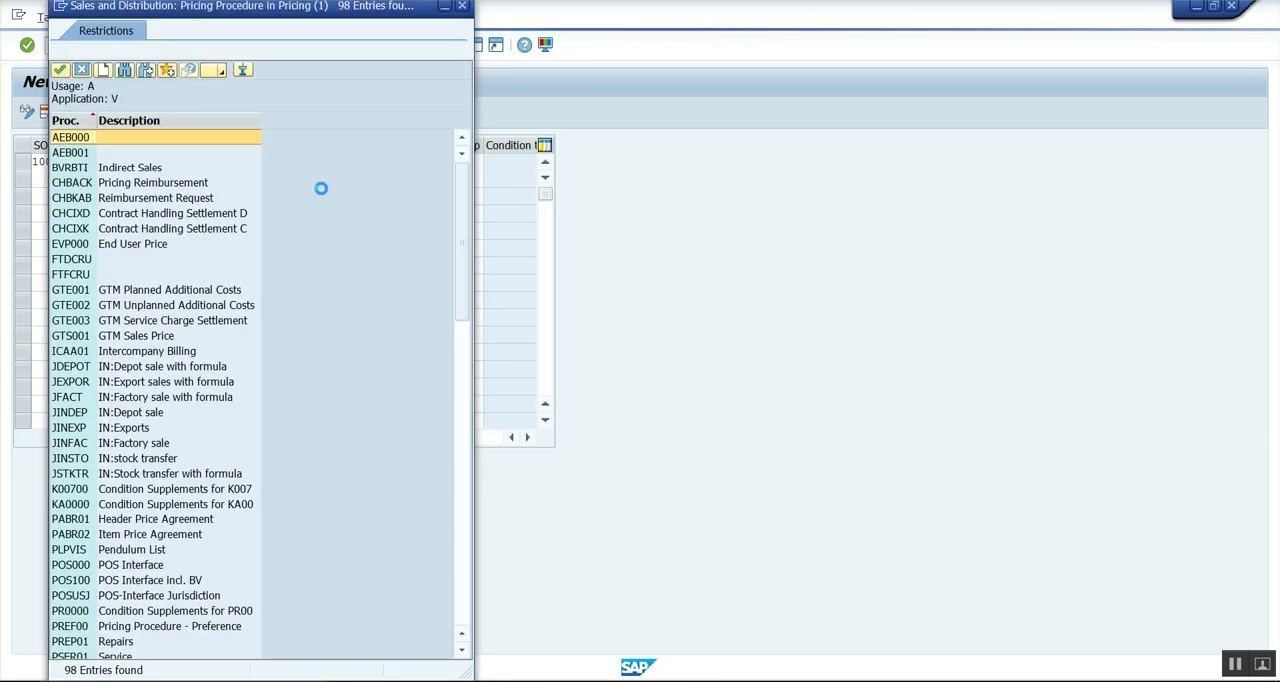
If prompted, open the list of available pricing procedures, locate RVAA01 (Standard), and select it. Confirm that the selection matches your documentation.
Step 23: Save the entry with a customizing request
After entering all required values, save your entry. If prompted, enter a customizing request — for example, Request: ZQHK900014, Short Description: ZQH Customizing for Testing — then confirm the request to proceed.
Step 24: Verify that the data was saved
Check for a confirmation message, such as "Data was saved," at the bottom of the screen, and confirm that your new entry appears in the overview table. Once this entry is in place, the correct pricing procedure (RVAA01) will be automatically determined for this sales area, order type, and customer combination.
Part 6: Verify the pricing procedure in a new sales order
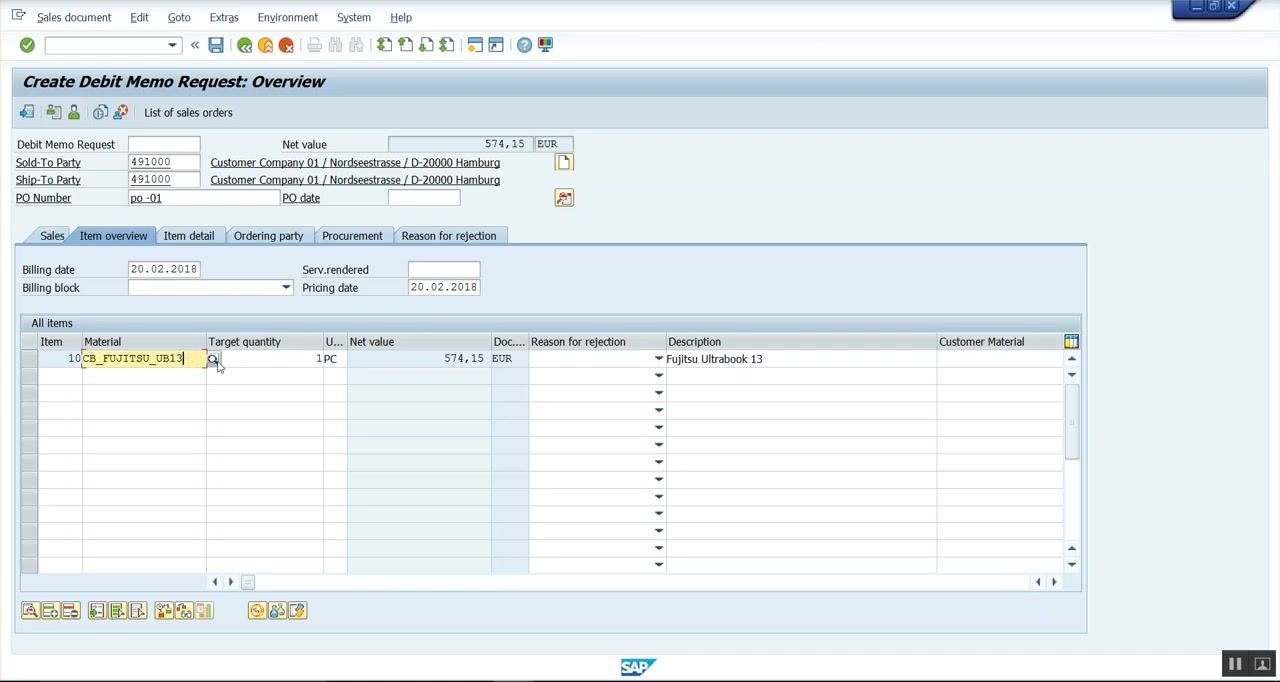
Step 25: Enter the debit memo request header data
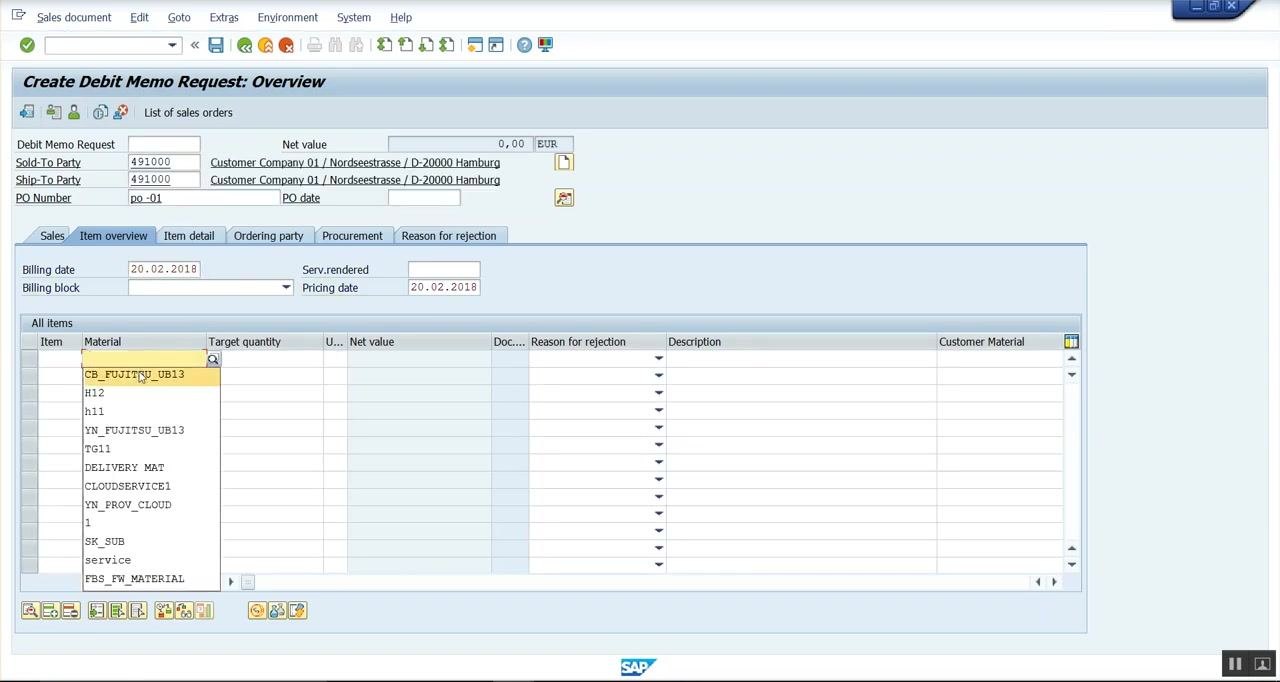
On the Create Debit Memo Request: Overview screen, enter:
- Sold-To Party: 491000
- Ship-To Party: 491000
- PO Number: po-01
- Billing date: 20.02.2018
- Pricing date: 20.02.2018
Select the customer from the dropdown if needed.
Step 26: Enter the material and quantity
In the "All items" section, select the material CB_FUJITSU_UB13 from the dropdown and enter the target quantity as 1 PC. Confirm that the net value is calculated automatically.
Step 27: Review the item details and pricing
Verify that the item details are populated correctly:
- Material: CB_FUJITSU_UB13
- Target quantity: 1 PC
- Net value: 574,15 EUR
- Description: Fujitsu Ultrabook 13
Confirm that all relevant fields are filled and that the pricing matches the condition records maintained in VK11.
Part 7: Analyze the pricing procedure determination
Step 28: Open the pricing analysis
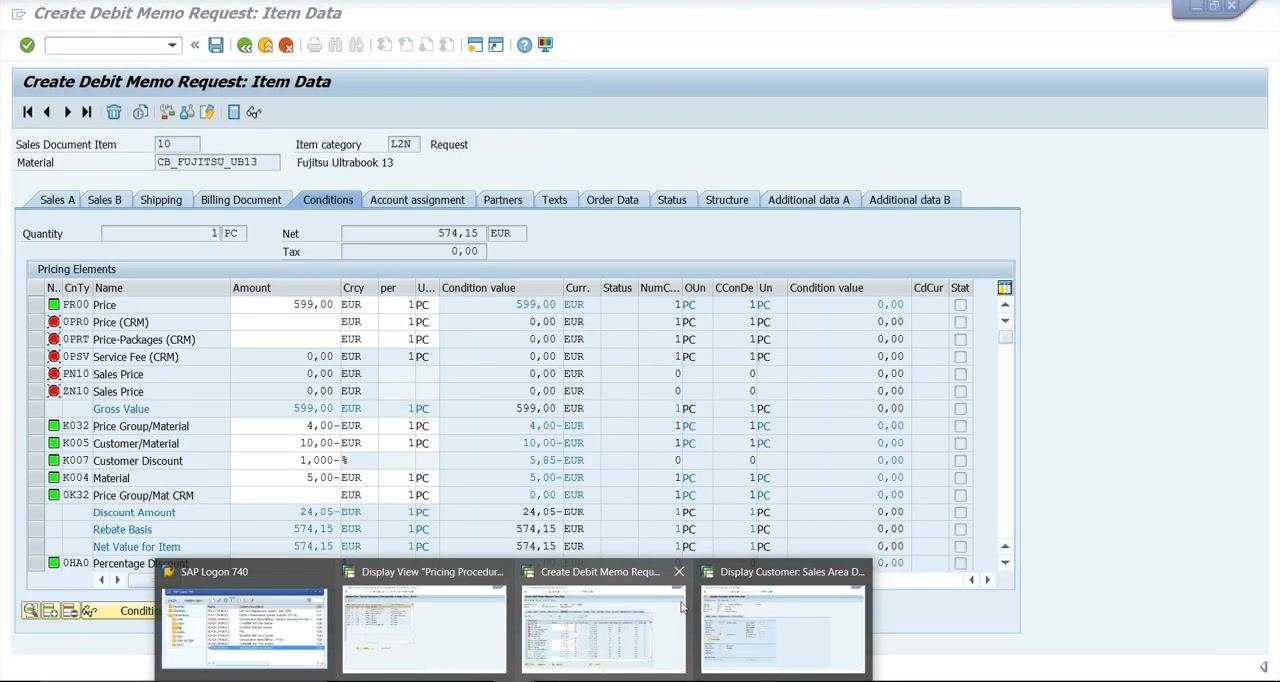
On the Create Debit Memo Request: Item Data screen, go to the Conditions tab and review the pricing elements for item CB_FUJITSU_UB13 (Fujitsu Ultrabook 13):
- PR00 (Gross Value): 599,00 EUR
- K032 (Price Group/Material): -4,00 EUR
- K005 (Customer/Material): -10,00 EUR
- K007 (Customer Discount): -5,85 EUR
- K004 (Material): 0,00 EUR
- Net Value for Item: 574,15 EUR
- MWST (Output Tax): 0,00 EUR
- SKTO (Cash Discount): 0,00 EUR
- VRPRS (Internal price): 1.200,00 EUR
- Profit Margin: 625,85 EUR
Confirm that the net value and discounts are calculated as expected, then click the Analysis button at the bottom of the screen to open the pricing analysis for this item.
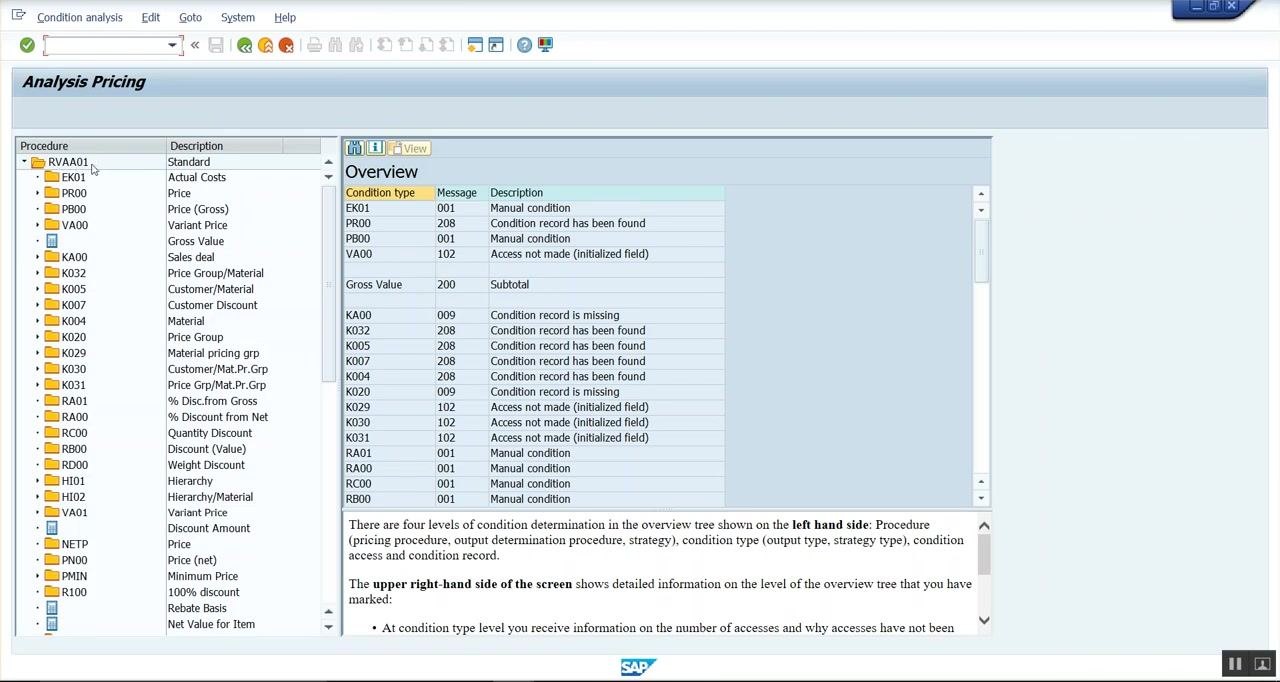
Step 29: Interpret the pricing procedure determination results
In the Analysis Pricing window, the pricing procedure tree on the left shows procedure RVAA01 (Standard) selected, listing all condition types (PR00, K032, K005, K007, K004, and others) under this procedure. The right pane ("Overview") shows the status for each condition type, for example:
- EK01: Manual condition
- PR00: Condition record has been found
- PB00: Manual condition
- VA00: Access not made (initialized field)
- KA00: Subtotal
- K032: Condition record has been found
- K005: Condition record has been found
- K007: Condition record has been found
- K004: Condition record is missing
- K029: Access not made (initialized field)
Use the following interpretation to review each status:
- "Condition record has been found" means the system found a valid condition record for that type.
- "Condition record is missing" or "Access not made" means no valid record was found, or the field was not initialized.
- "Manual condition" means the value was entered manually.
Review the Overview section to confirm the pricing setup or to troubleshoot any discrepancies.
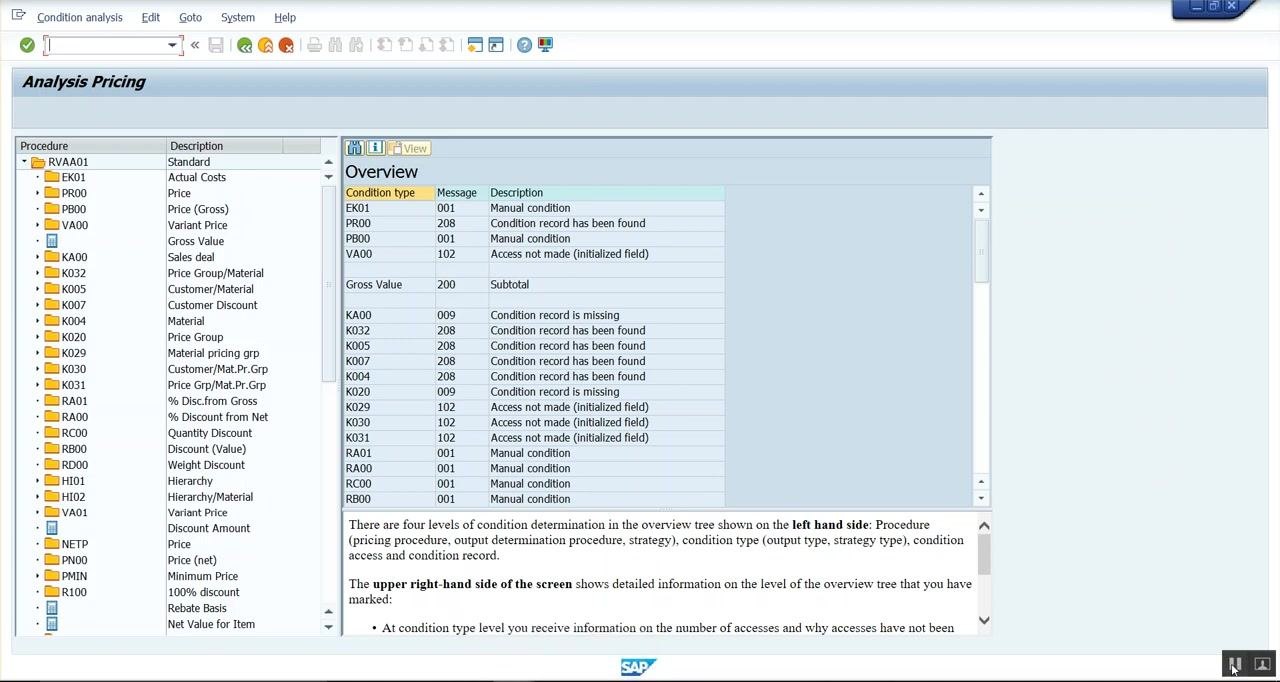
Step 30: Close the pricing analysis
Once you have reviewed the analysis and confirmed the correct determination of pricing elements, close the Analysis Pricing window. The session ends with a confirmation or closing message.
Summary
You have learned how to determine pricing procedure in SAP SD by identifying a missing pricing procedure error, navigating the Implementation Guide path Sales and Distribution > Basic Functions > Pricing > Pricing Control > Define And Assign Pricing Procedures, and configuring the customer pricing procedure, document pricing procedure, and pricing procedure determination entry (Sales org 1000, Distribution channel 10, Division 10, Document pricing procedure A, Customer pricing procedure 1, Pricing procedure RVAA01). You then verified the configuration by creating a debit memo request and using the pricing analysis tool to confirm that each condition type was correctly determined.
What's next
With the pricing procedure determination configured and verified, you can create further sales documents for this sales area, customer, and order type combination, confident that the system will automatically apply the correct pricing procedure. If you encounter missing condition records (such as the K004 status shown in the analysis), review and maintain the relevant condition records using transaction VK11.
Generation details: cost, quality tiers
Docsie billed 6,500 credits ($4.55) to analyze this 13-minute video at standard quality. The rewrite, template fill and Word/PDF exports were included. The same video at each quality tier:
| Quality | Frames sampled | Credits | Approx. cost |
|---|---|---|---|
| Draft | every 16-30 s | 3,250 | $2.27 |
| Standard (this guide) | every 8-15 s | 6,500 | $4.55 |
| Detailed | every 4-7 s | 13,000 | $9.10 |
| Ultra | every 1-3 s | 26,000 | $18.20 |
Credits priced at $0.70 per 1,000; plans include a monthly allowance. Enterprise customers on on-premise or bring-your-own-model deployments run this on their own inference and pay no per-video credits.
Generated by Docsie Video-to-Docs on 2026-10-14 from a 12-minute video. Screenshots are frames from the source video and belong to their creator, SAP Codes, whose original is embedded above. If you own this video and want the guide removed or credited differently, contact us and we will act within one business day.