
How to Cancel a PO in SAP
If you need to cancel a PO in SAP, you cannot delete the purchase order record itself — instead, you cancel it by deleting its line items and any associated service entries. This guide walks you through how to cancel a PO in SAP using transaction ME22N, including removing service line items and flagging the PO line item for deletion.
Video: How to Delete Purchase Order SAP MM using ME22N by ERP SAP Team . All credit for the demonstration goes to the creator; watch the original on YouTube. The written guide below was generated from this video by Docsie. Creator? Request a change or removal.
If you need to cancel a PO in SAP, you cannot delete the purchase order record itself — instead, you cancel it by deleting its line items and any associated service entries. This guide walks you through how to cancel a PO in SAP using transaction ME22N, including removing service line items and flagging the PO line item for deletion.
Prerequisites
- You must have the necessary authorization in SAP to delete purchase orders and line items.
- Deletions are typically irreversible and may impact downstream processes, so proceed carefully.
- If the PO is in an approved state, you will need to cancel its release before making changes.
Understanding SAP deletion logic
Before you begin, it helps to understand how SAP handles PO cancellations. Purchase orders are not physically deleted from the system. Only the line items within a PO can be deleted, by setting a deletion flag.
If services are maintained against a PO line item, you must delete those services first before you can delete the PO line item itself. After deletion, the PO remains in the system for audit and traceability purposes, but the flagged items are excluded from further processing.
Open the SAP Easy Access screen
Launch SAP and make sure you are on the SAP Easy Access main menu. Confirm that you see the navigation tree (Favorites, SAP Menu) along with your organization's welcome screen.
Navigate to transaction ME22N
In the command field at the top of the screen, enter ME22N and press Enter. This opens the Change Purchase Order screen, which is the starting point to cancel a PO in SAP.
Open the purchase order you want to cancel
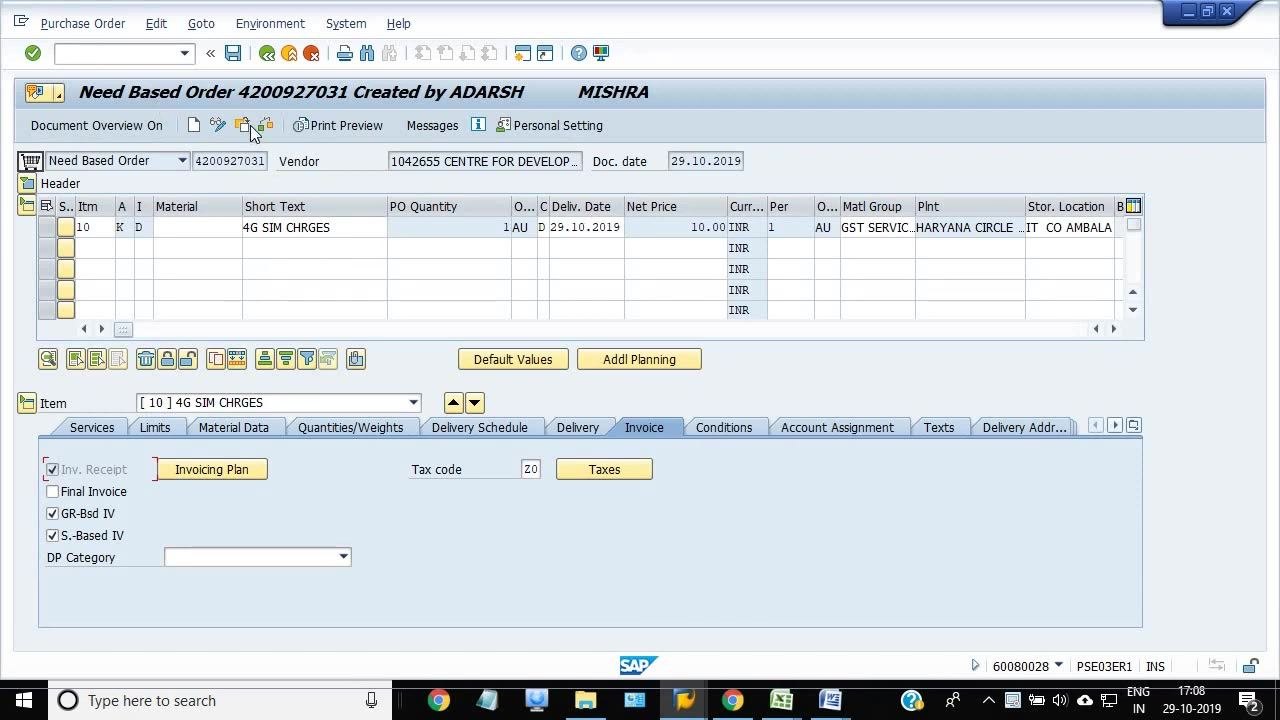
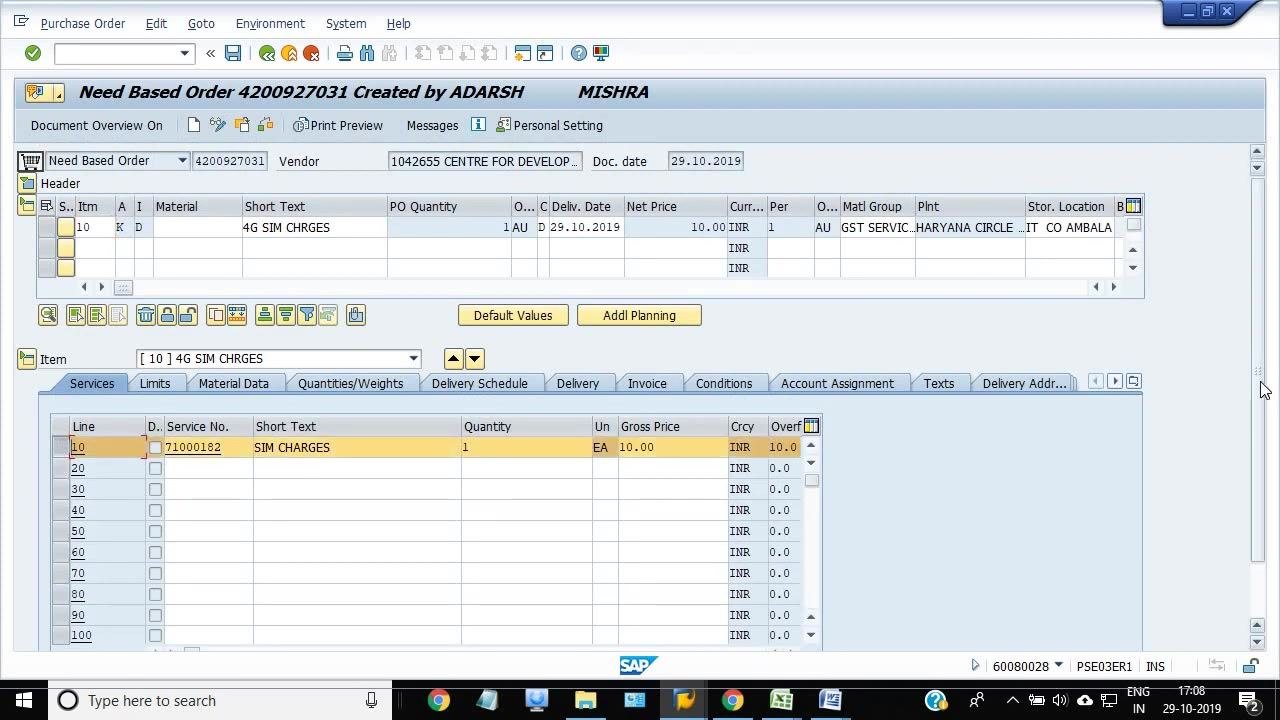
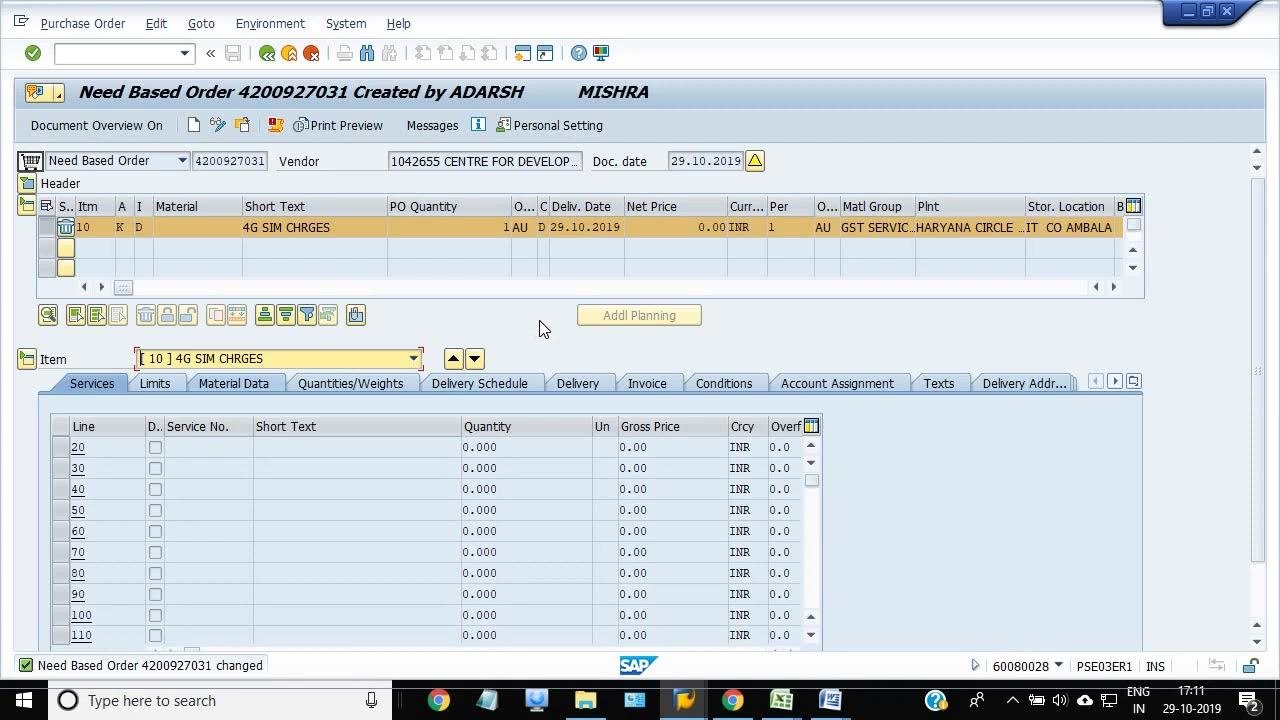
In the Change Purchase Order screen, enter the PO number you wish to delete (for example, 4200927031). Verify the PO details, such as the Vendor (1042655 CENTRE FOR DEVELOP...), Document Date (29.10.2019), and Material (4G SIM CHRGES).
Switch to change mode
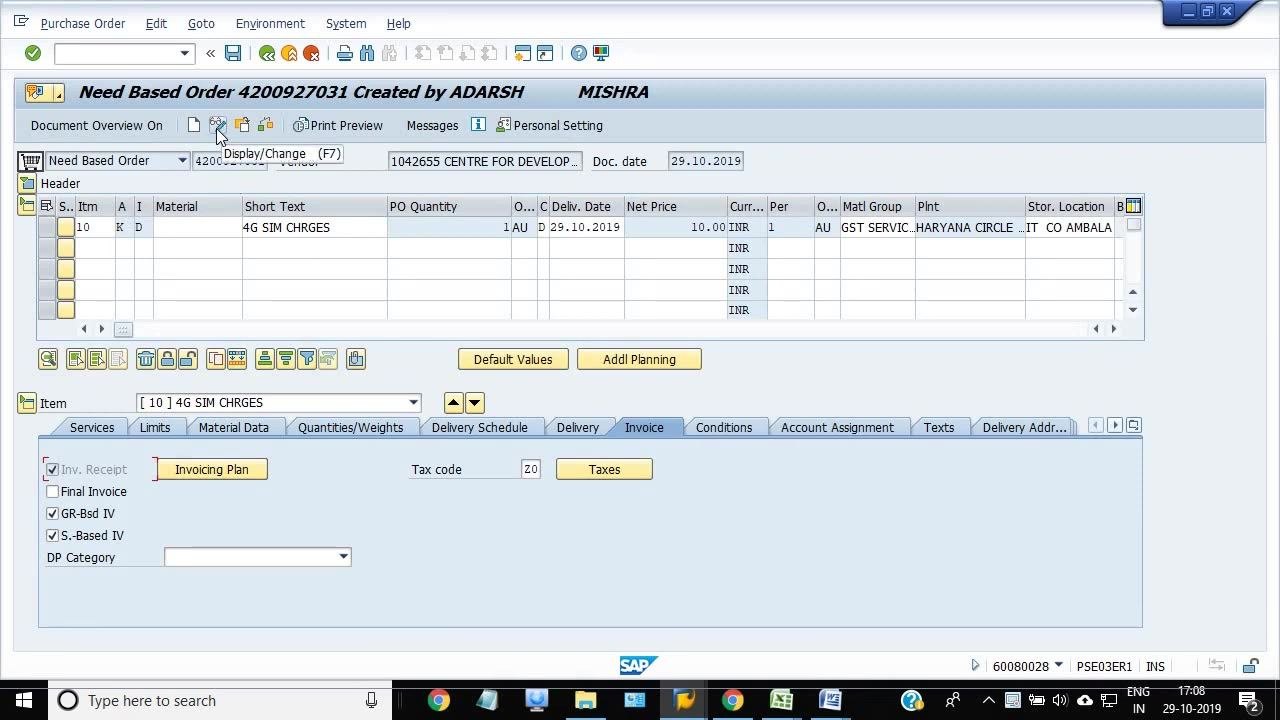
If the PO opens in display mode, click the Display/Change button (or press F7) to enable editing. Confirm that the button is highlighted and that the editable fields are now active.
Cancel the release if the PO is approved
If your PO is in an approved state, use transaction code GenVMP_INI_AMNT to cancel the release. This step is necessary before you can make changes or delete PO line items. Make sure the release is fully cancelled before you proceed.
Select the service line items to delete
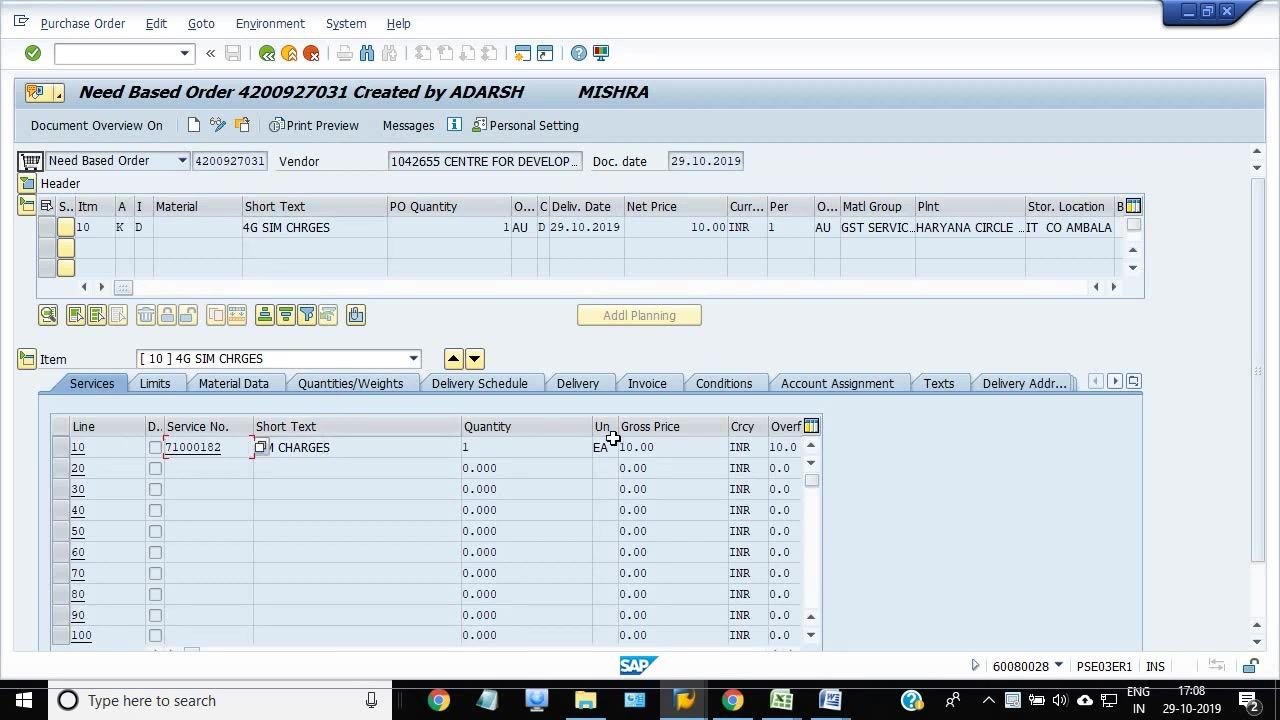
Click the Services tab under the Item section. Review the list of service line items — for example, Service No. 71000182, Short Text SIM CHARGES, Quantity 1, Gross Price 10.00 INR. Select the checkbox next to the service line(s) you want to delete.
Delete the selected service line items
With the relevant service line(s) selected, initiate the delete action, typically by clicking a Delete button or using the menu. The selected line(s) will be highlighted for deletion.
Confirm deletion of the service line items
A confirmation dialog appears, stating "Delete Lines – The selected items will be deleted." Click Yes to confirm and proceed with the deletion.
Verify that the service lines have been deleted
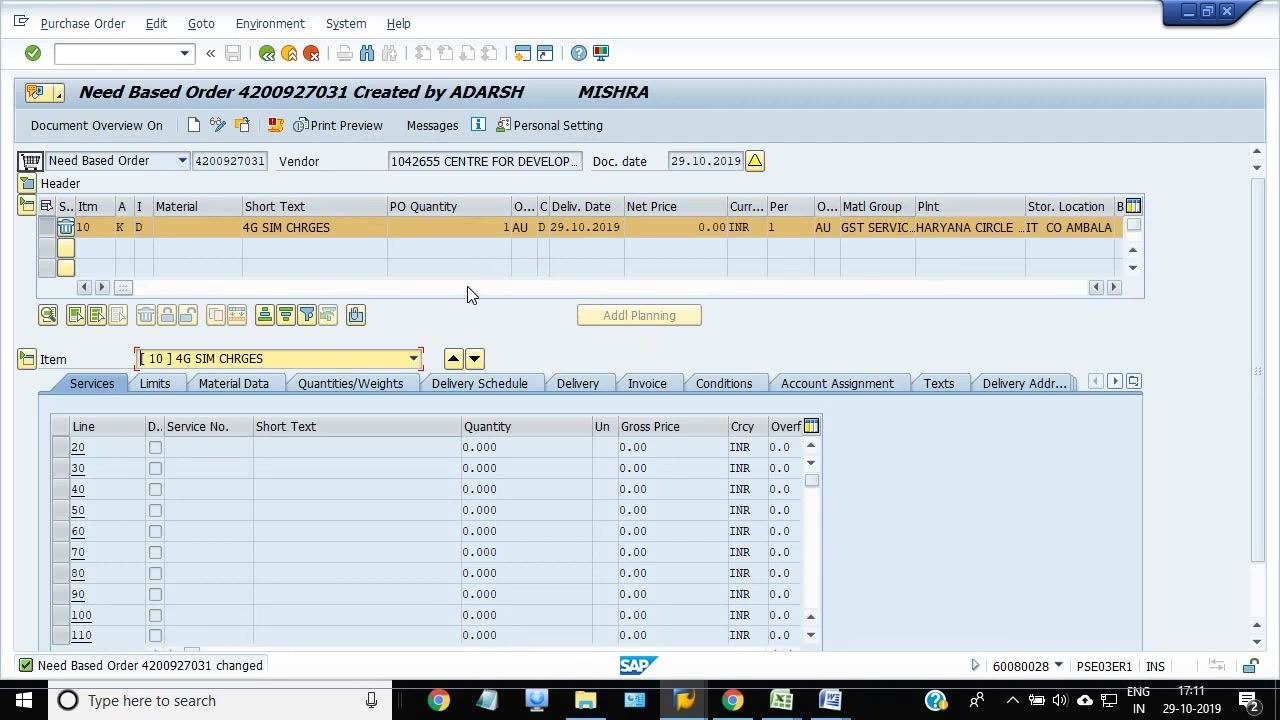
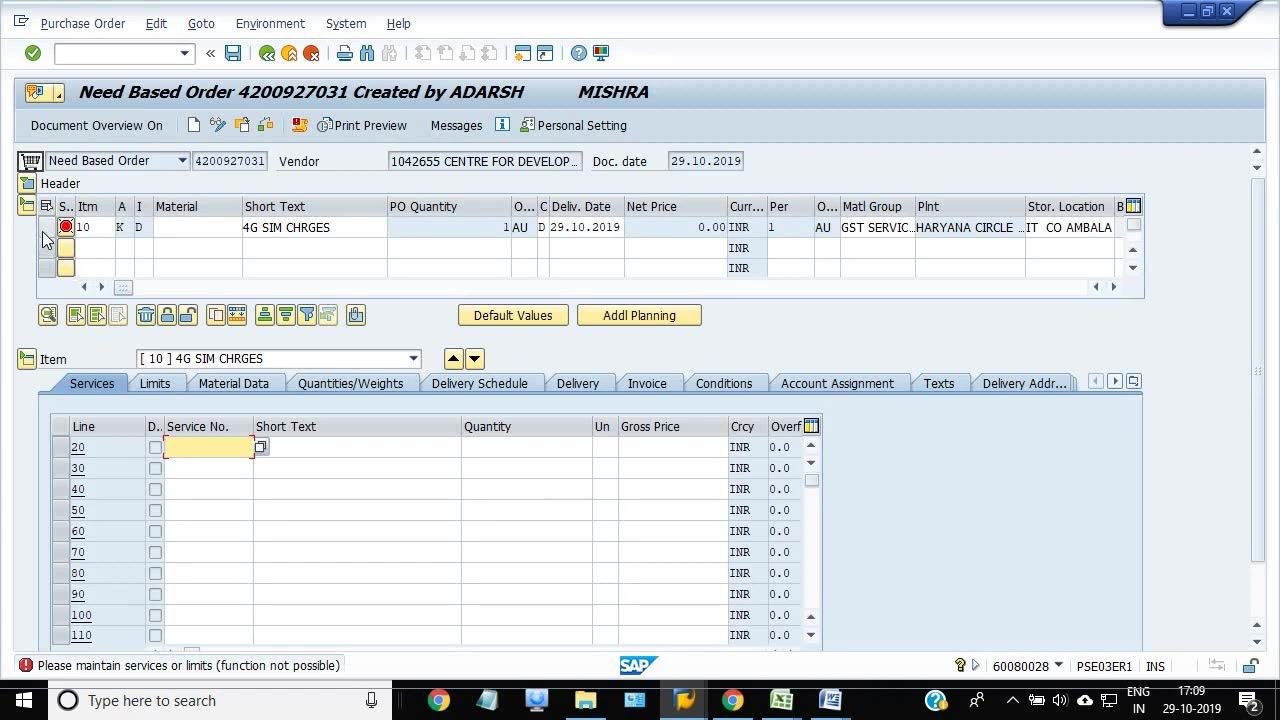
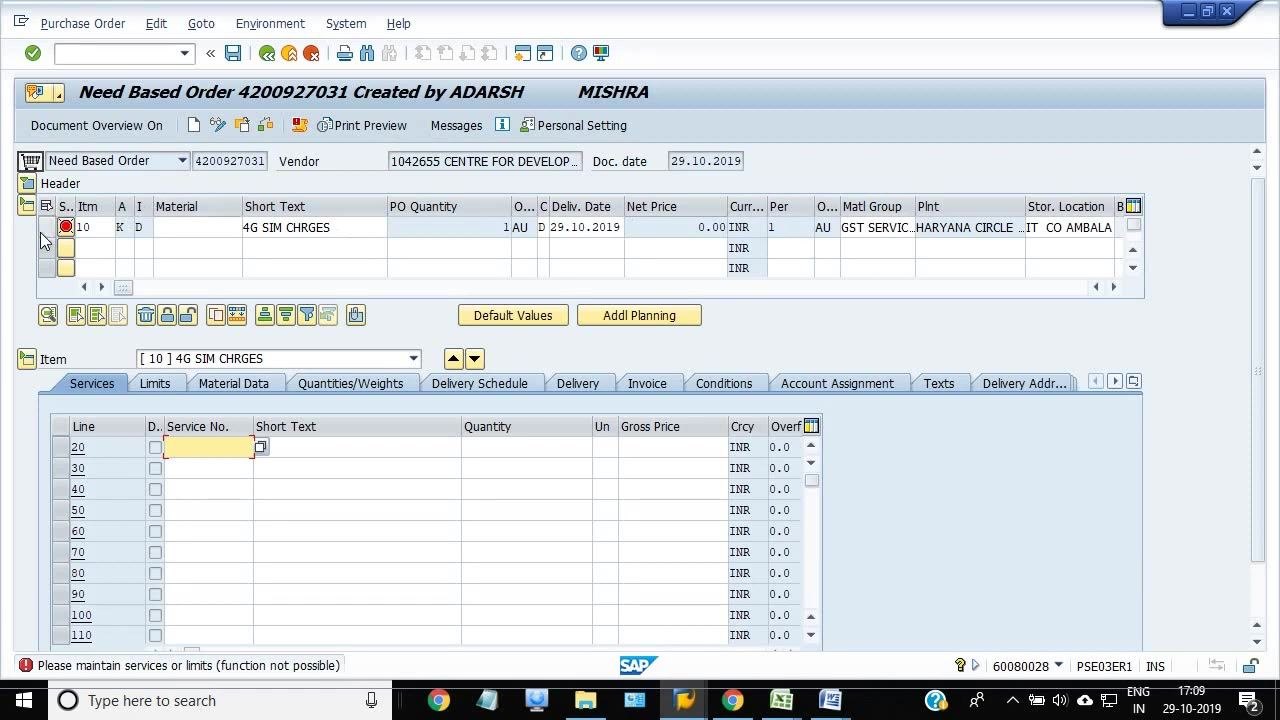
Click the Services tab under the Item section again. Confirm that all service lines previously associated with the PO line item are now removed — the list should be empty or show zero values for all fields. This confirms that the service lines have been deleted, which is required before you can delete the PO line item.
Delete the PO line item
If you need to delete the entire PO line item, select the line item in the header section (for example, Item 10). Mark the deletion flag, or use the delete function according to your organization's SAP configuration.
Confirm deletion of the PO line item
If prompted, confirm the deletion action. The PO line item will then be marked as deleted, often indicated by a deletion flag or a change in color or status.
Save your changes
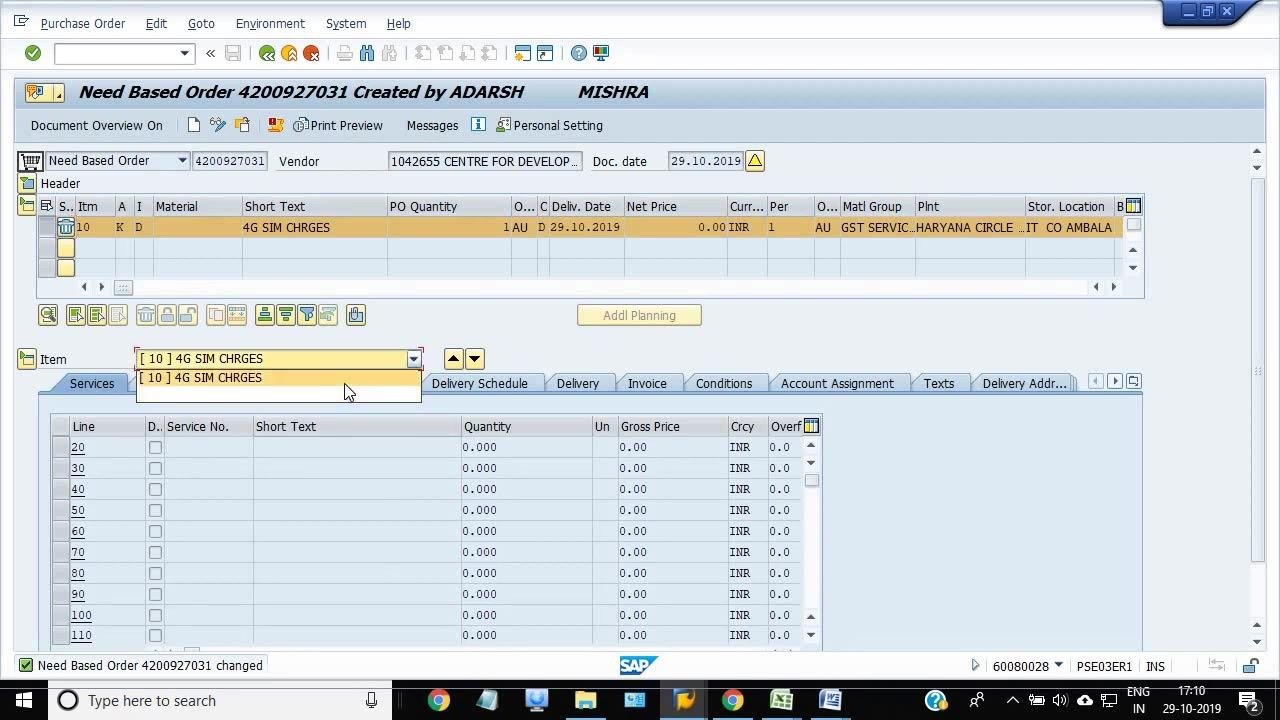
Save the changes after deleting the service lines and marking the PO line item for deletion. Look for a confirmation message at the bottom of the screen, such as "Need Based Order 4200927031 changed".
Verify the deletion status
Confirm that the PO line item shows a net price of 0.00 INR and is flagged as deleted. Make sure the Services tab is empty or that all values are zeroed out. The confirmation message "Need Based Order 4200927031 changed" should appear at the bottom of the screen.
Summary
By following these steps, you can cancel a PO in SAP by deleting its service line items and flagging the PO line item for deletion using transaction ME22N. Keep in mind that the purchase order itself remains in the system for audit and traceability, even after cancellation, and that these deletions are typically irreversible.
Generation details: cost, quality tiers
Docsie billed 2,000 credits ($1.40) to analyze this 4-minute video at standard quality. The rewrite, template fill and Word/PDF exports were included. The same video at each quality tier:
| Quality | Frames sampled | Credits | Approx. cost |
|---|---|---|---|
| Draft | every 16-30 s | 1,000 | $0.70 |
| Standard (this guide) | every 8-15 s | 2,000 | $1.40 |
| Detailed | every 4-7 s | 4,000 | $2.80 |
| Ultra | every 1-3 s | 8,000 | $5.60 |
Credits priced at $0.70 per 1,000; plans include a monthly allowance. Enterprise customers on on-premise or bring-your-own-model deployments run this on their own inference and pay no per-video credits.
Generated by Docsie Video-to-Docs on 2026-10-12 from a 3-minute video. Screenshots are frames from the source video and belong to their creator, ERP SAP Team , whose original is embedded above. If you own this video and want the guide removed or credited differently, contact us and we will act within one business day.