
How to Reconcile a Bank Account in Sage Intacct
Bank reconciliation is a critical process for any business. It should be performed at least once per month, or more frequently depending on the size of your business, to maintain accurate financial records and detect discrepancies early. This guide explains how to reconcile a bank account in Sage Intacct by comparing the transactions recorded in Sage Intacct against the actual transactions in your real bank account, catching erroneous entries caused by user error or fraudulent activity along the way.
Video: Sage Intacct - Bank Reconciliation User Guide by Acuity Solutions - Sage (2023). All credit for the demonstration goes to the creator; watch the original on YouTube. The written guide below was generated from this video by Docsie. Creator? Request a change or removal.
Bank reconciliation is a critical process for any business. It should be performed at least once per month, or more frequently depending on the size of your business, to maintain accurate financial records and detect discrepancies early. This guide explains how to reconcile a bank account in Sage Intacct by comparing the transactions recorded in Sage Intacct against the actual transactions in your real bank account, catching erroneous entries caused by user error or fraudulent activity along the way.
Prerequisites
Confirm where your bank account was created
Before you reconcile a bank account in Sage Intacct, determine whether the account was created at the top level or at the entity level, since this affects which permissions you need.
- If the bank account was created at the top level, you must have access to the top-level company to process the reconciliation.
- If the bank account was created at the entity level, you must have the correct permissions within that specific entity to perform the reconciliation.
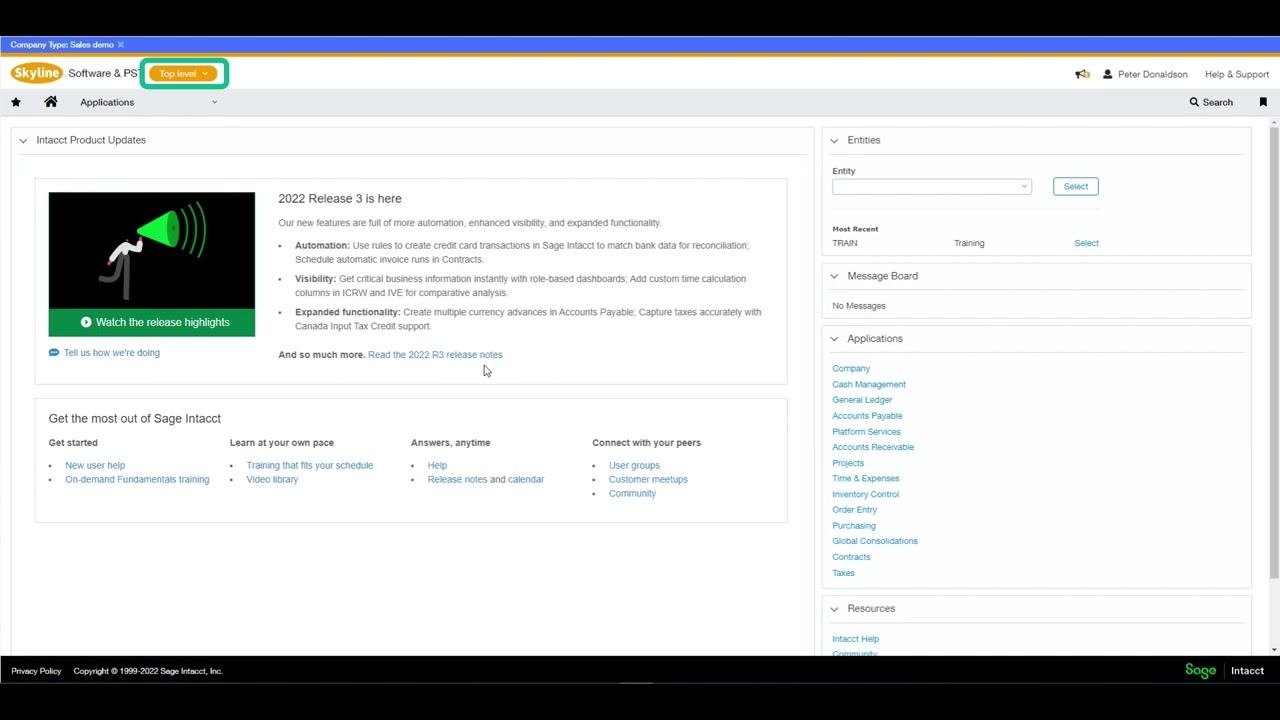
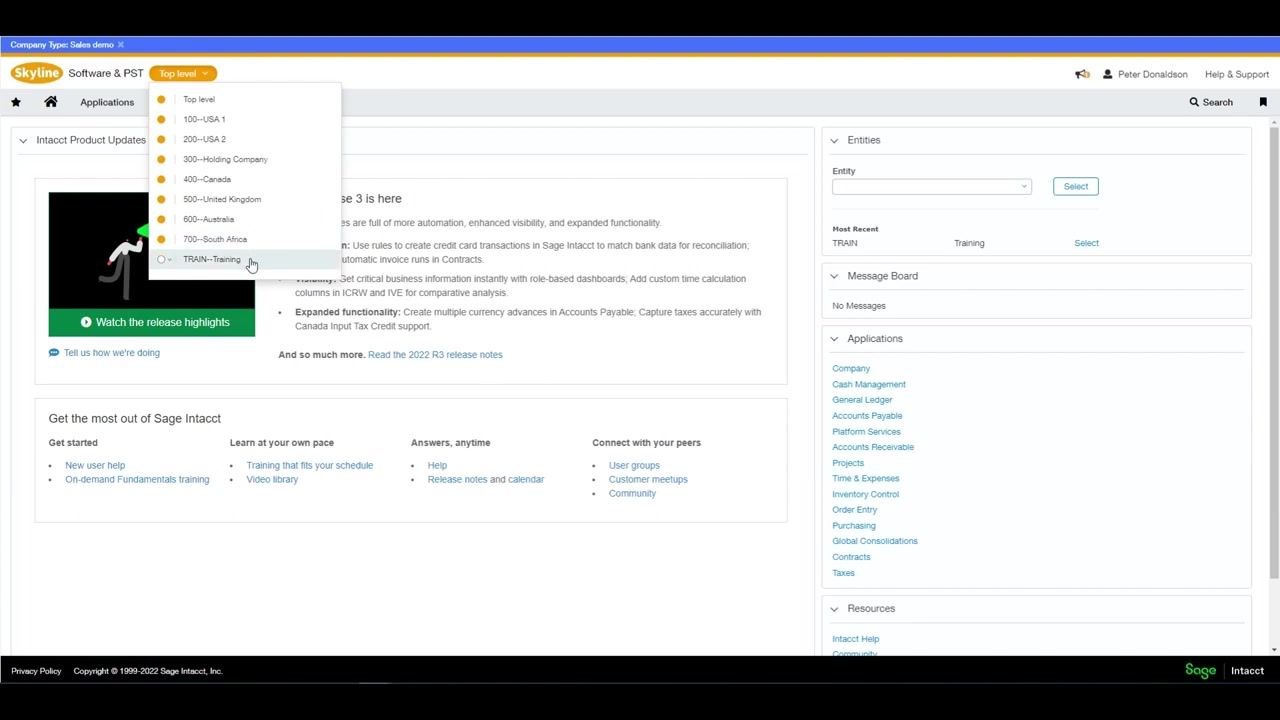
Switch between top-level and entity-level views
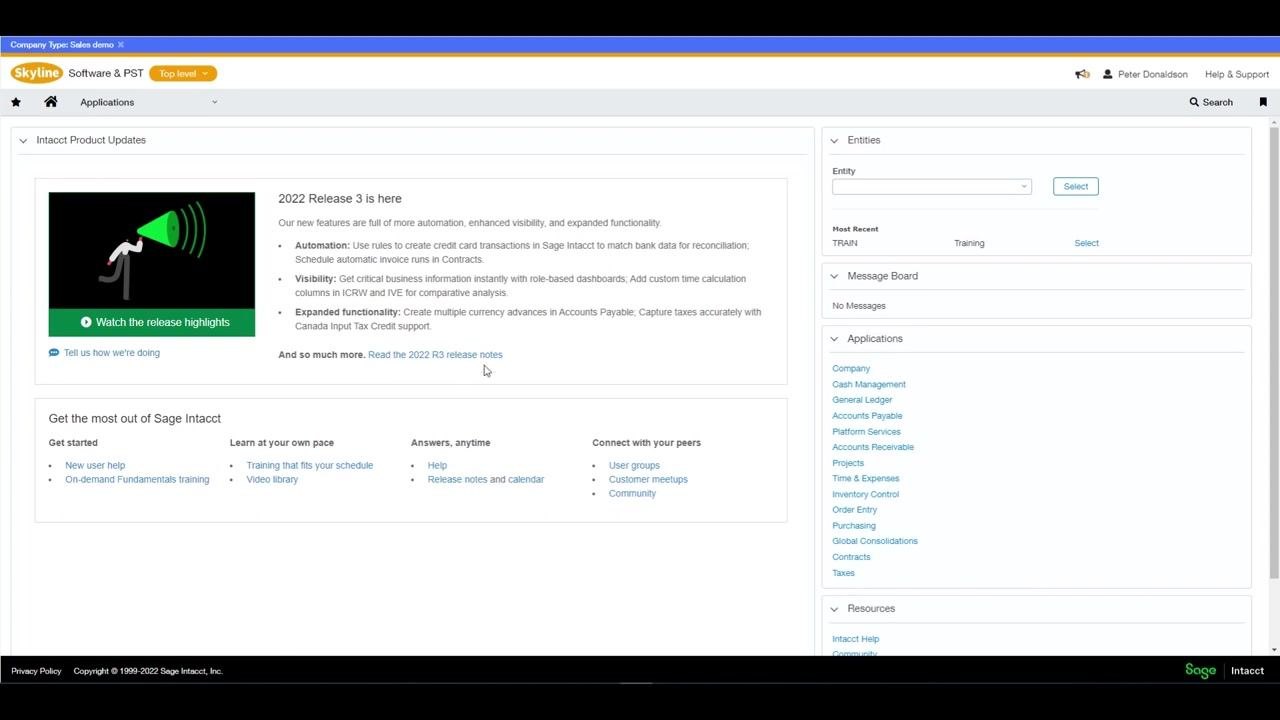
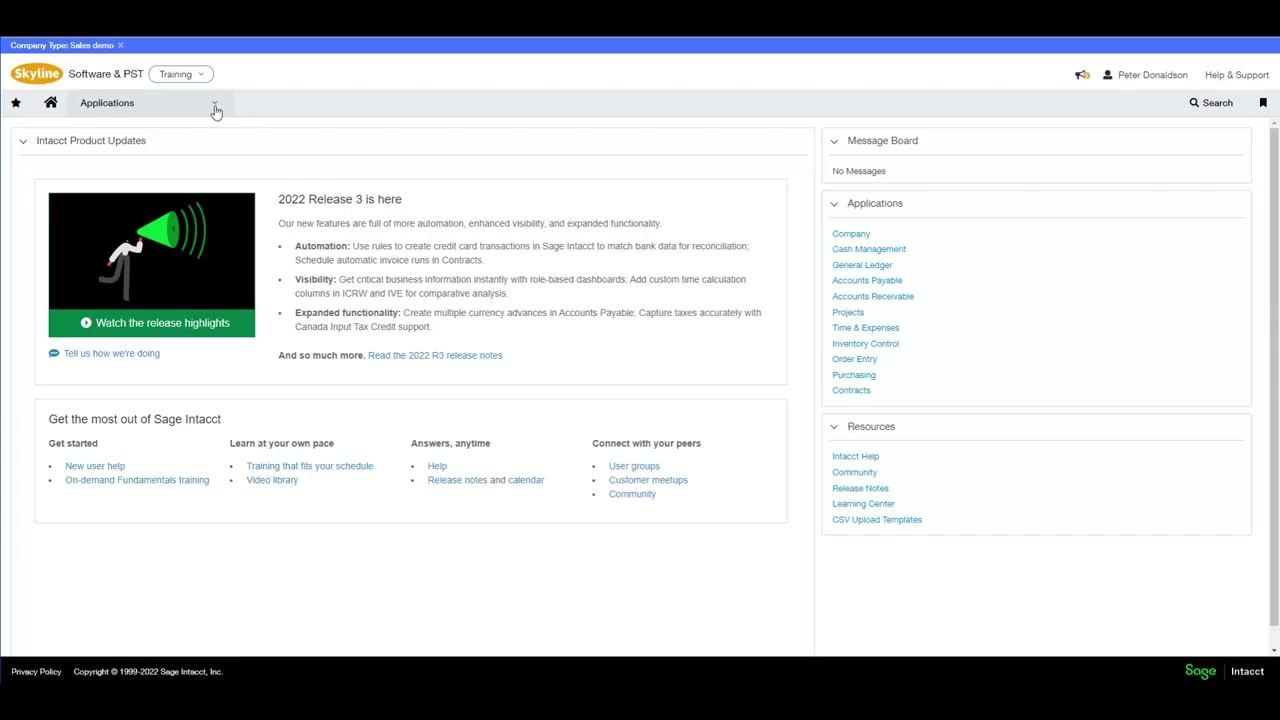
Use the company/entity dropdown menu to select the appropriate level, such as Top level or a specific entity like TRAIN—Training. Make sure you have the necessary permissions for whichever level you select.
Review the required permissions
Each reconciliation task requires a specific permission:
- Match transactions: Requires "Reconcile Bank – List, View, Add, Edit, Delete" or the equivalent for credit cards.
- Reconcile the account: Requires "Reconcile Bank – Reconcile".
- View reconciliation history reports: Requires "Reconcile Bank – Report".
- Reopen a reconciliation: Requires both "Reconcile Bank – Reopen" and "Report".
- Create and manage rules: Requires "Bank Transaction Rules – List, View, Add, Edit, Delete".
- Create and manage rule sets: Requires "Bank Transaction Rule Sets – List, View, Add, Edit, Delete".
If your company uses bank feeds, confirm the following additional permissions are set:
- Viewing bank feed transactions: Requires "Bank Transactions – List, View".
- Ignoring a bank feed transaction: Requires "Bank Transactions – Ignore".
- Manually matching transactions: Requires "Bank Transactions – List, View, Manual Match".
- API calls: Requires "Bank Transactions for Integrations – View, Add, Delete".
Reconciling a bank account
Step 1: Navigate to the reconciliation module
From the Sage Intacct dashboard, select the correct company or entity. Click Cash Management in the top navigation bar, select All, then choose Reconciliation and Bank from the dropdown menu.
Step 2: Select the account to reconcile
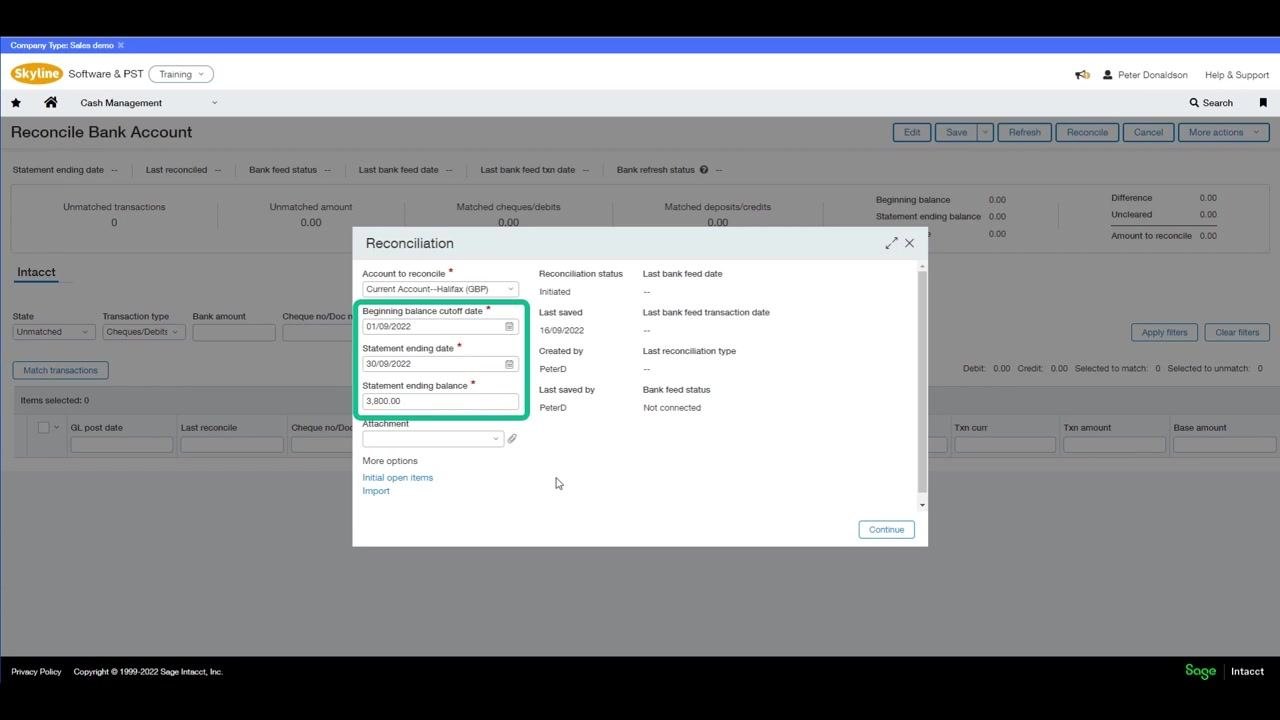
In the Reconcile Bank Account window, choose the appropriate bank account from the Account to reconcile dropdown, for example "Current Account--Halifax (GBP)".
Step 3: Enter the statement information
Fill in the following fields exactly as they appear on your bank statement:
- Beginning balance cutoff date: The opening date from your bank statement (e.g., 01/09/2022).
- Statement ending date: The closing date from your bank statement (e.g., 30/09/2022).
- Statement ending balance: The closing balance from your bank statement (e.g., 3,800.00).
These values must match your bank statement exactly. Errors here can prevent successful reconciliation, cause missing or extra transactions, or make it impossible to reconcile to zero.
Step 4: Attach supporting documentation (optional)
Use the Attachment field to upload relevant documents, such as a PDF copy of your bank statement, for audit and reference purposes.
Step 5: Continue to the reconciliation screen
Click Continue to proceed to the main reconciliation screen.
Step 6: Review the difference and amount to reconcile
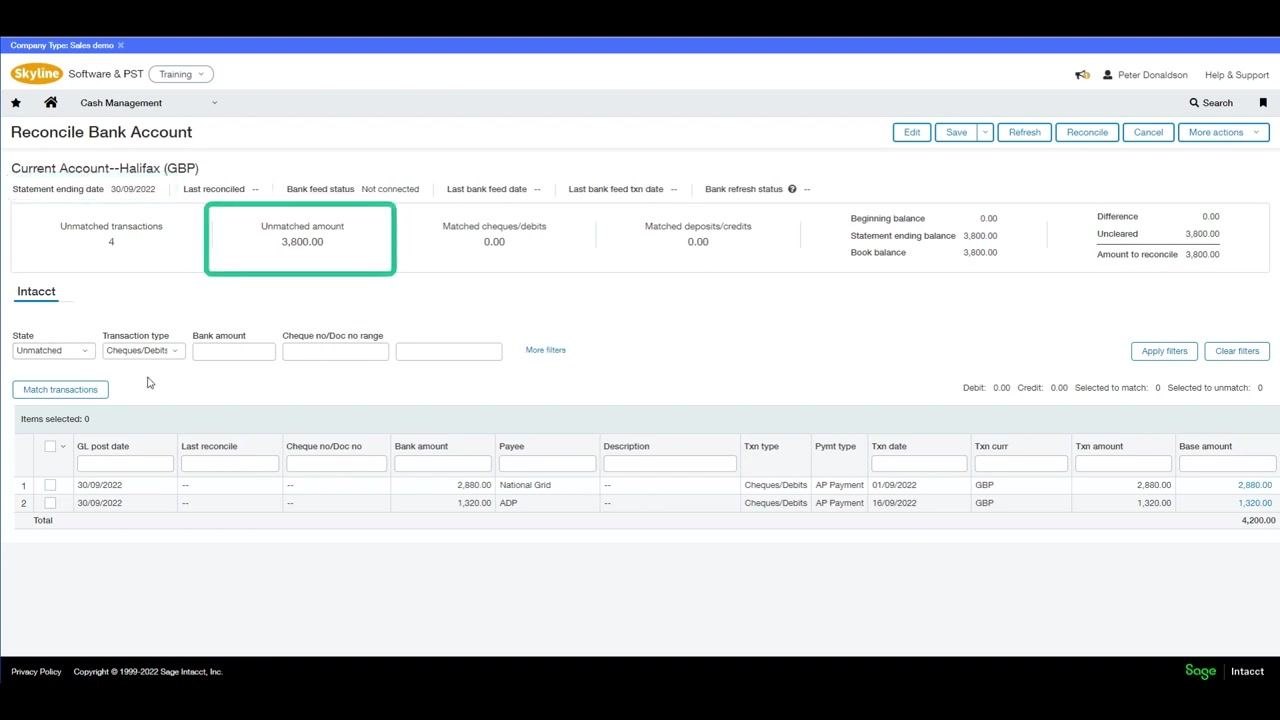
On the Reconcile Bank Account screen, review the list of unreconciled transactions up to the statement ending date you entered. The screen displays:
- Unmatched transactions: Number of transactions not yet reconciled (e.g., 4).
- Unmatched amount: Total value of unmatched transactions (e.g., 3,800.00).
- Matched cheques/debits and deposits/credits: Amounts already matched (e.g., 0.00).
- Beginning balance, statement ending balance, book balance: Key balances for reference.
- Difference: The amount remaining after the ending book balance is compared to the statement ending balance.
- Uncleared: Total value of uncleared items affecting the general ledger (e.g., 3,800.00).
- Amount to reconcile: Total amount that still needs to be reconciled (e.g., 3,800.00).
The Difference field is calculated as the difference between the book balance and the statement ending balance, and it should read 0.00 once all transactions are matched. If it doesn't, review your unmatched or uncleared items. The Amount to reconcile field shows the total value of transactions that still need to be matched, and this must also reach 0.00 before you can finish the reconciliation.
Step 7: Review the transaction list
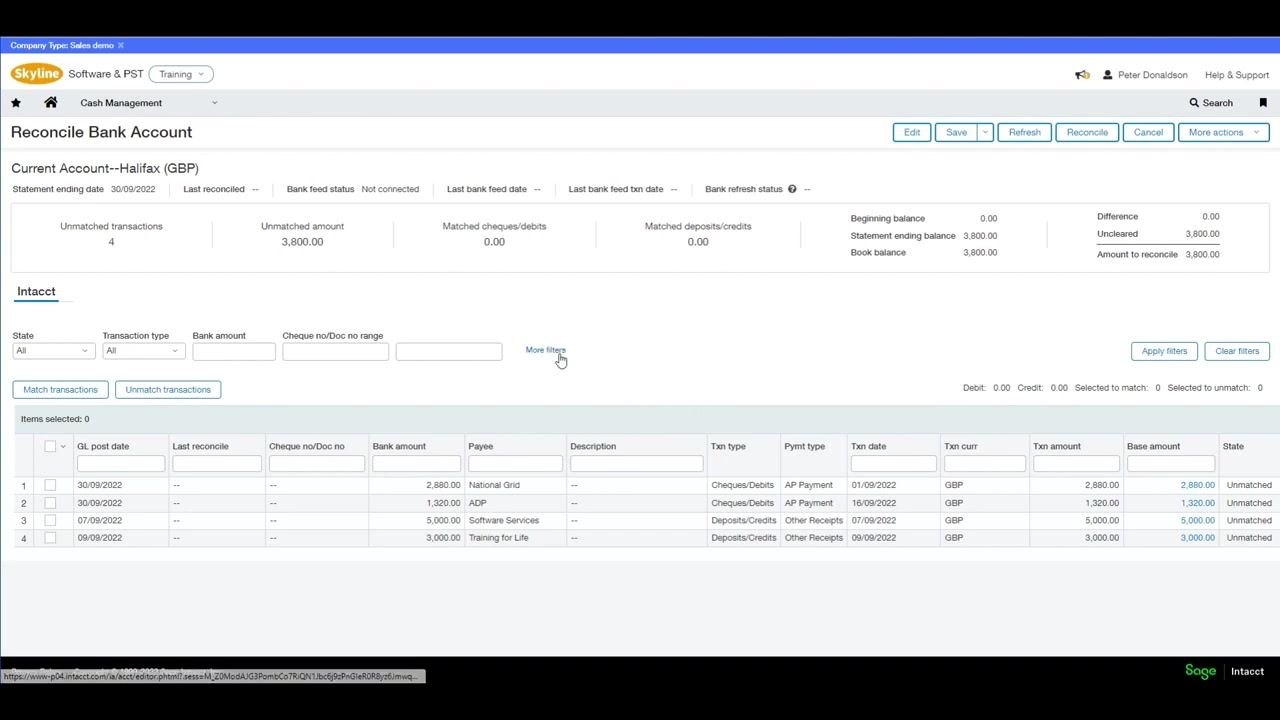
Below the summary, the detailed transaction list shows:
- GL post date
- Bank amount
- Payee
- Transaction type (e.g., Cheques/Debits)
- Payment type (e.g., AP Payment)
- Transaction date
- Transaction currency and amount
- Base amount
Step 8: Apply filters to locate transactions
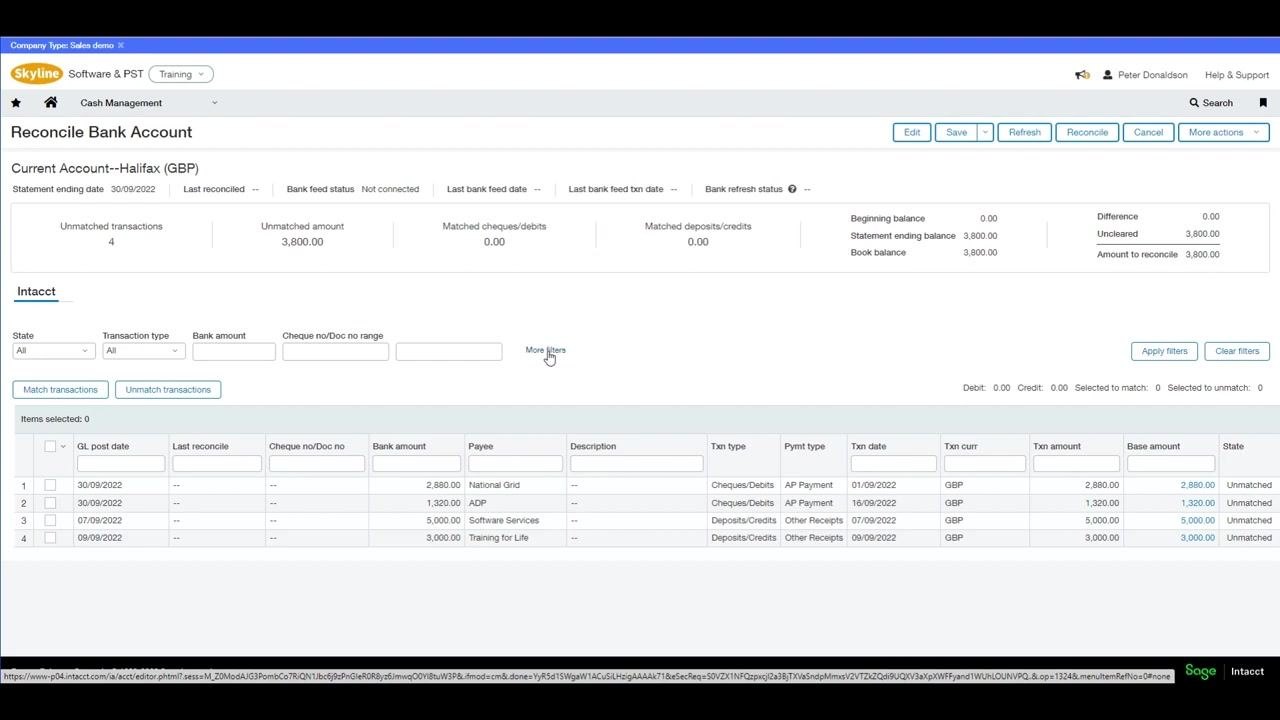
Use the filter options above the transaction list to narrow down the displayed transactions:
- State: Filter by Unmatched, Matched, or All.
- Transaction type: Filter by Cheques/Debits, Deposits/Credits, or All.
- Bank amount: Enter a specific amount or range.
- Cheque no/Doc no range: Specify a range to filter by document or cheque number.
Click Apply filters to update the transaction list based on your criteria, or Clear filters to return to the original, unfiltered view. For more advanced filtering, click More filters to access options such as filtering by general ledger posting date or setting a value range.
Step 9: Match transactions with your bank statement
Once you have filtered and reviewed the transactions, compare them with your bank statement. Select the checkboxes next to each transaction that matches your statement, then click Match transactions to mark them as reconciled. Confirm that every transaction is matched so that the Amount to reconcile becomes 0.00.
Automating reconciliation with bank transaction rules
Sage Intacct lets you import bank transactions from a CSV or QIF file, or via a bank feed, to speed up the reconciliation process. After importing, you can use rulesets to automatically match incoming transactions to those already in your ledger.
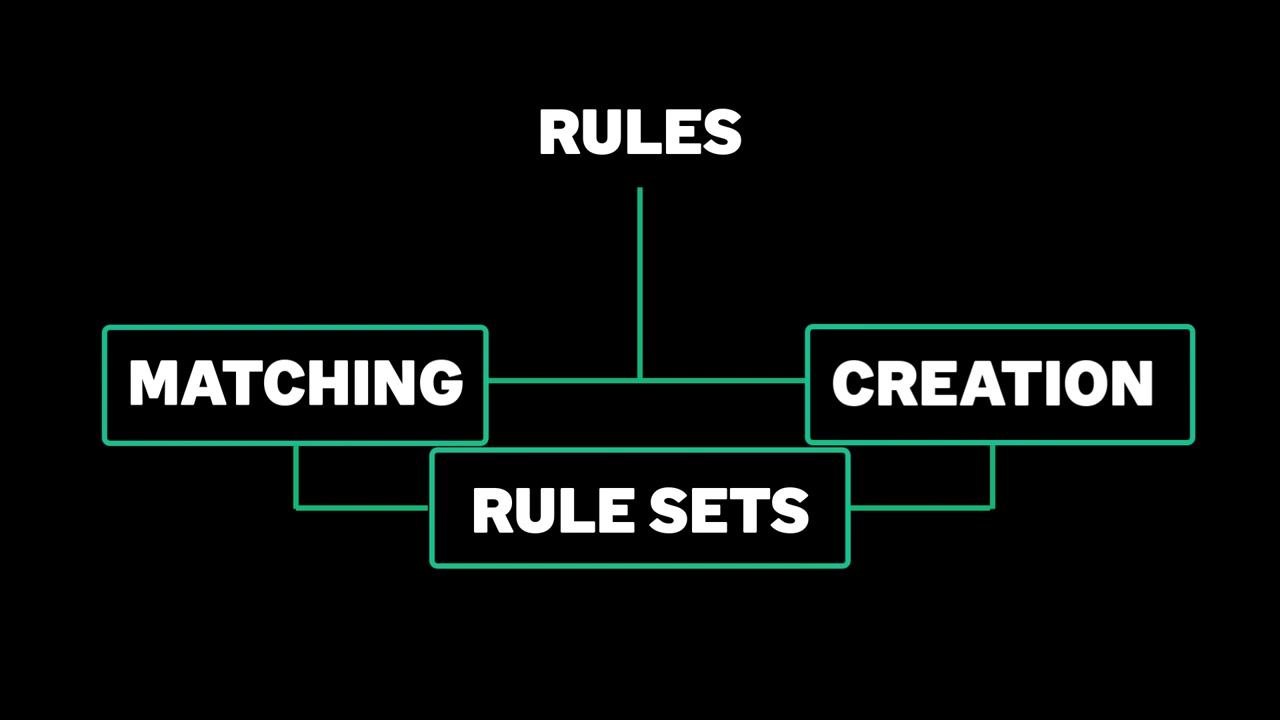
To match imported transactions automatically, create a ruleset and assign it to the relevant bank account. Rulesets contain individual instructions, called rules, that tell Sage Intacct how to handle imported transactions. There are two types of rules:
- Matching rules: Define how to identify and match imported transactions to existing records.
- Creation rules: Specify how to create new transactions in Sage Intacct from imported data.
After applying a ruleset, you can manually match any remaining transactions to complete the reconciliation.
Understand the structure of rules
Rules are divided into two main types: Matching and Creation. Matching rules match imported bank transactions to existing transactions, while creation rules generate new transactions based on imported information. Rules are organized into Rule Sets, which can contain multiple rules prioritized to prevent unintentional matches.
Step 1: Navigate to the rule creation screen
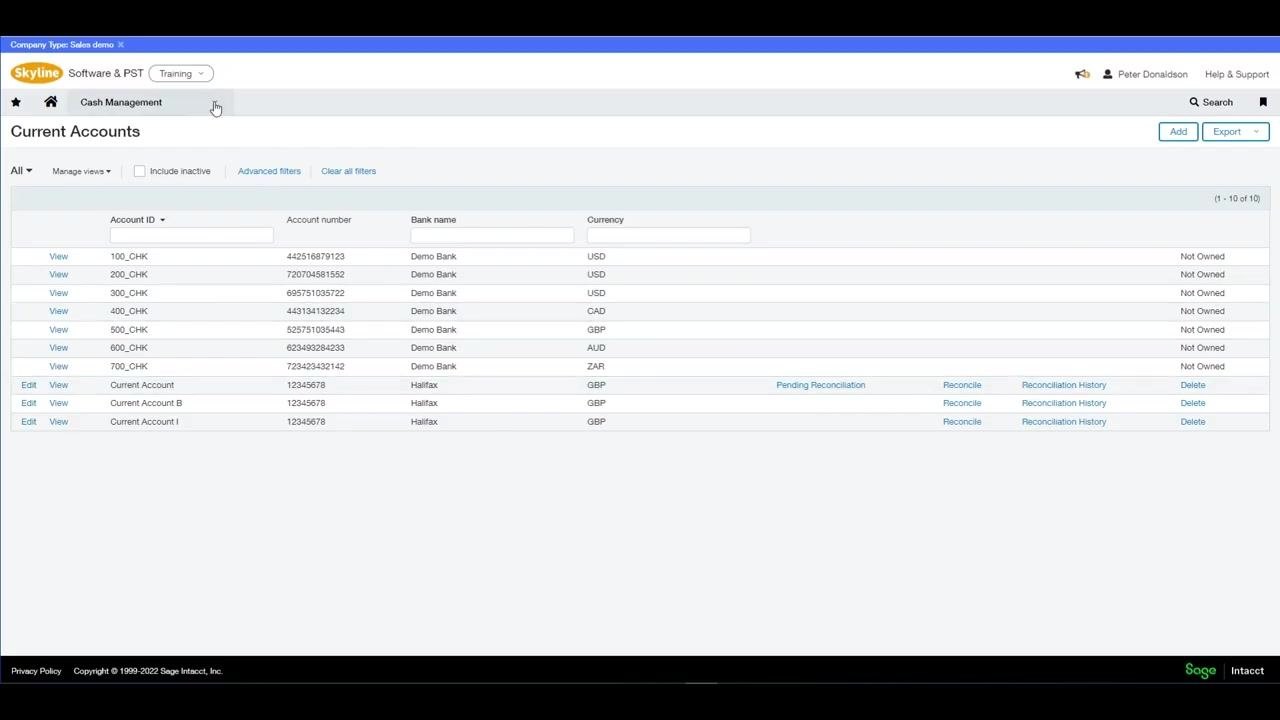
Go to the Cash Management module, then from the main dashboard select Setup > Reconciliation Rules > Rules. The "Current Accounts" screen displays a list of accounts, including account IDs, numbers, bank names, currencies, and reconciliation statuses.
Step 2: Start creating a matching rule
On the "Rule" creation screen, fill in the following details:
- Type: Select "Match rule" from the dropdown menu.
- ID: Enter a unique identifier, e.g., "Matching Rule Example".
- Name: Enter a descriptive name, e.g., "Matching Rule Example".
- Description: Provide a brief description, e.g., "Matching Rule Example".
- Status: Set to "Active".
Step 3: Configure transaction matching criteria
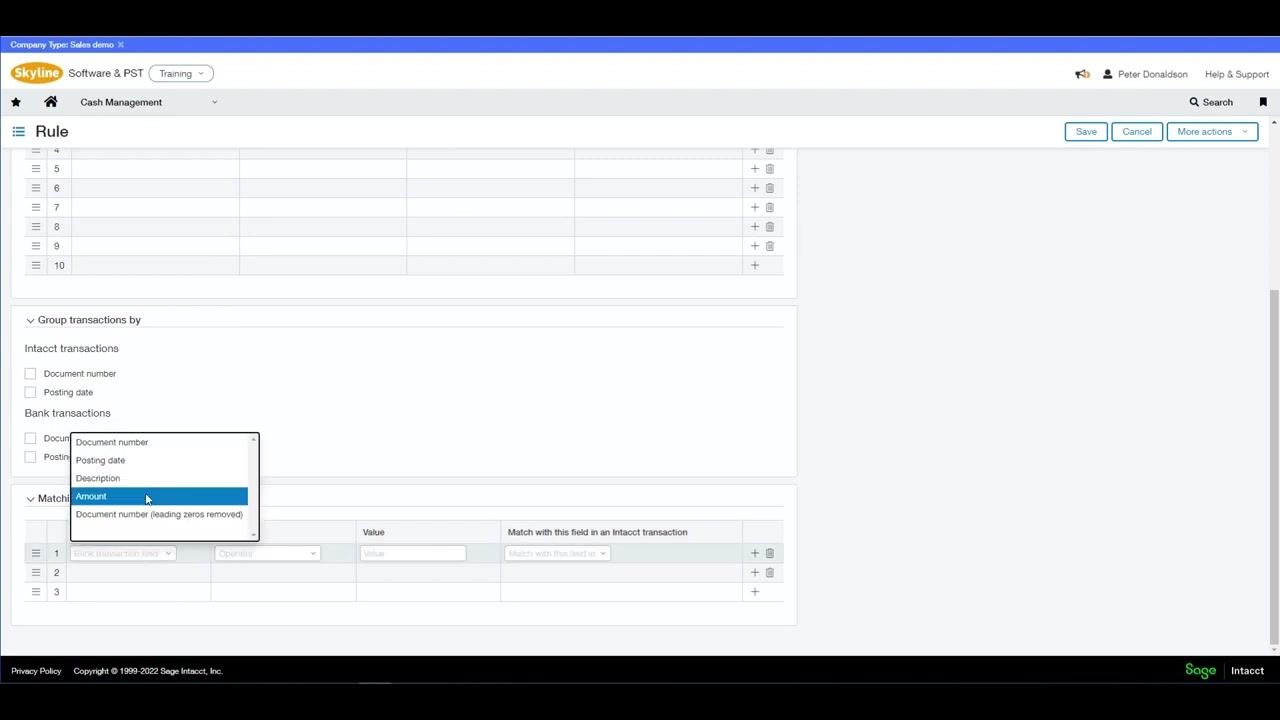
In the "Filter transaction by" section, specify criteria to determine which transactions the rule applies to. In "Group transactions by," you can group by document number or posting date for both Intacct and bank transactions. In "Matching conditions," set the first row's Bank transaction field to "Amount," the Operator to "equals," and the corresponding Intacct field to "Amount."
Step 4: Set date matching options
Add a second matching condition: set Bank transaction field to "Posting date," choose the operator "equals" for exact date matching or "within" to match transactions within a date range, and select the corresponding Intacct field, such as "Posting date."
Step 5: Apply additional filters (optional)
Use the "Filter transaction by" section to further refine which transactions are included. For example, filter by Data source to include only debit transactions, or by Field to filter by currency or other transaction attributes. Add as many filters as needed to target specific transaction types.
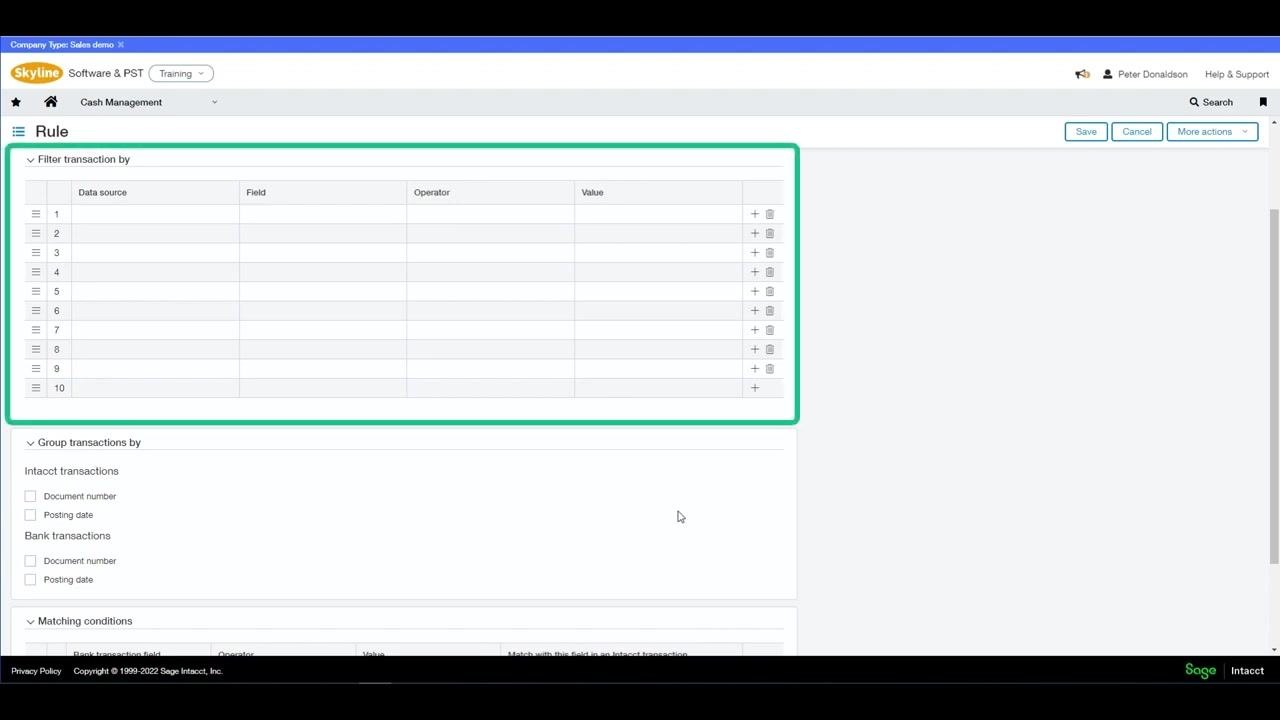
By following these steps, you create a matching rule that identifies and matches imported bank transactions to existing records based on amount, date, and any additional filters you specify, ensuring accurate and efficient reconciliation of your bank data.
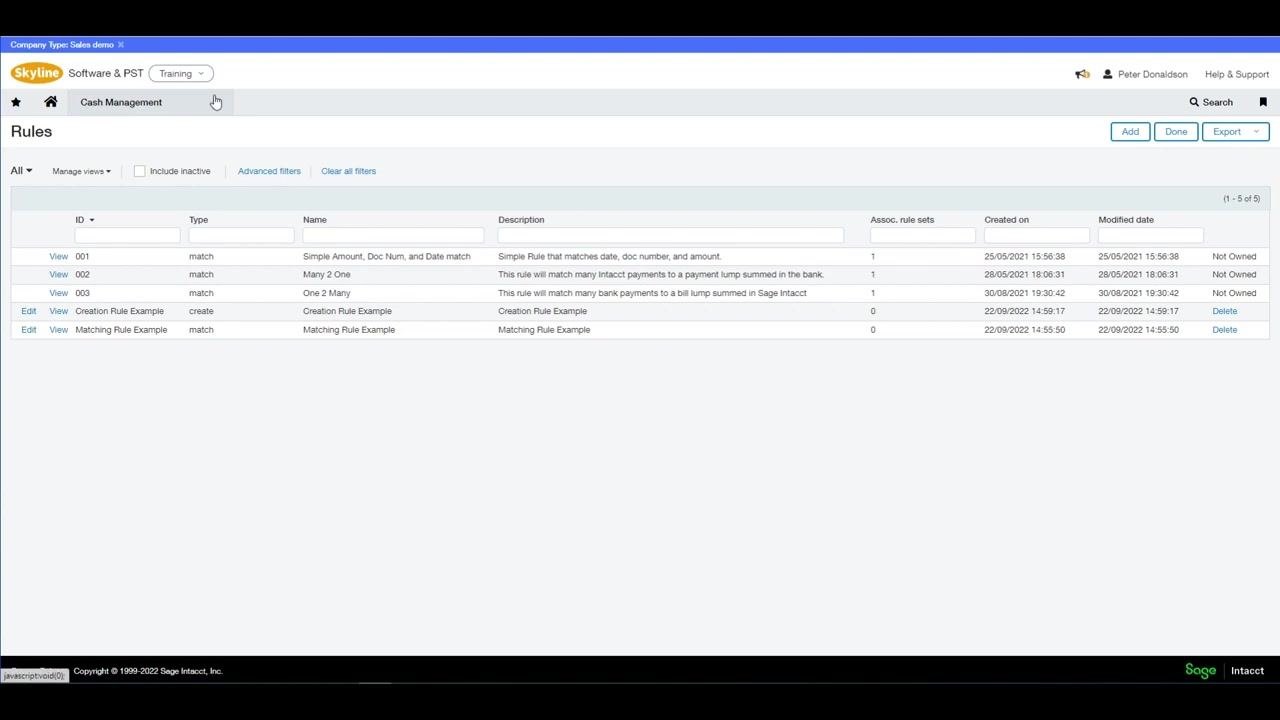
Step 6: Save and review existing rules
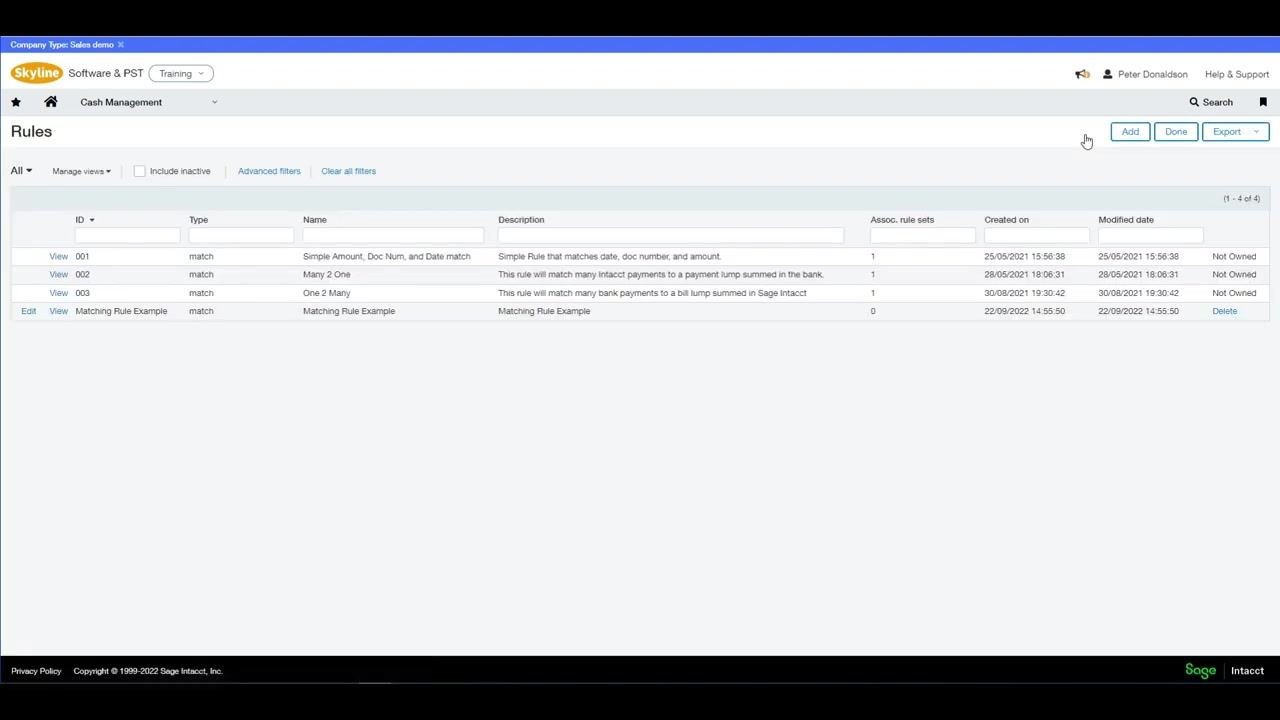
Click Save to add your configured rule to the list of existing rules. The "Rules" screen displays all current rules in a table, with columns for:
- ID (e.g., 001, 002, 003, Matching Rule Example)
- Type (e.g., match)
- Name (e.g., Simple Amount, Doc Num, and Date match)
- Description (e.g., Simple Rule that matches date, doc number, and amount)
- Assoc. rule sets (number of associated rule sets)
- Created on and Modified date
- Ownership status (e.g., Not Owned)
Use the Add button to create a new rule.
Creating transaction creation rules
Step 1: Enter creation rule details
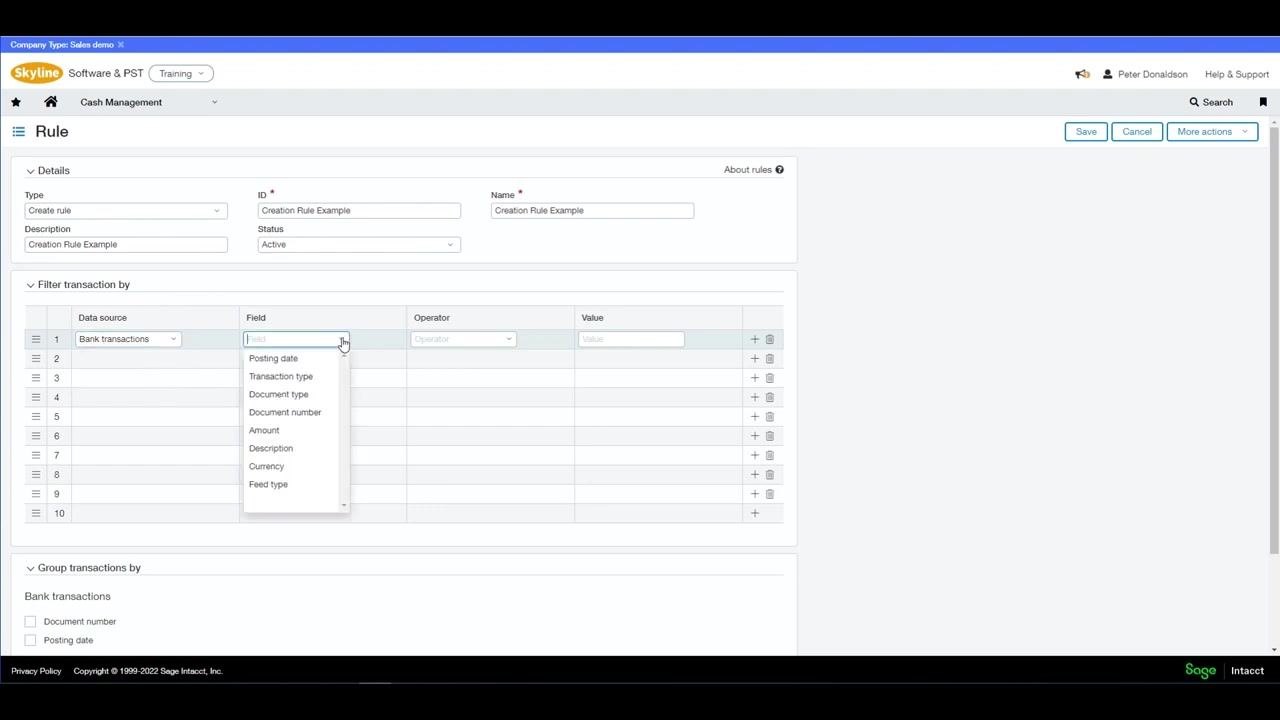
On the "Rule" creation screen, fill in the Details section:
- Type: Select "Create rule" from the dropdown.
- ID: Enter a unique identifier, e.g., "Creation Rule Example".
- Name: Enter a descriptive name, e.g., "Creation Rule Example".
- Description: Provide a brief description, e.g., "Creation Rule Example".
- Status: Set to "Active".
Step 2: Set transaction filters
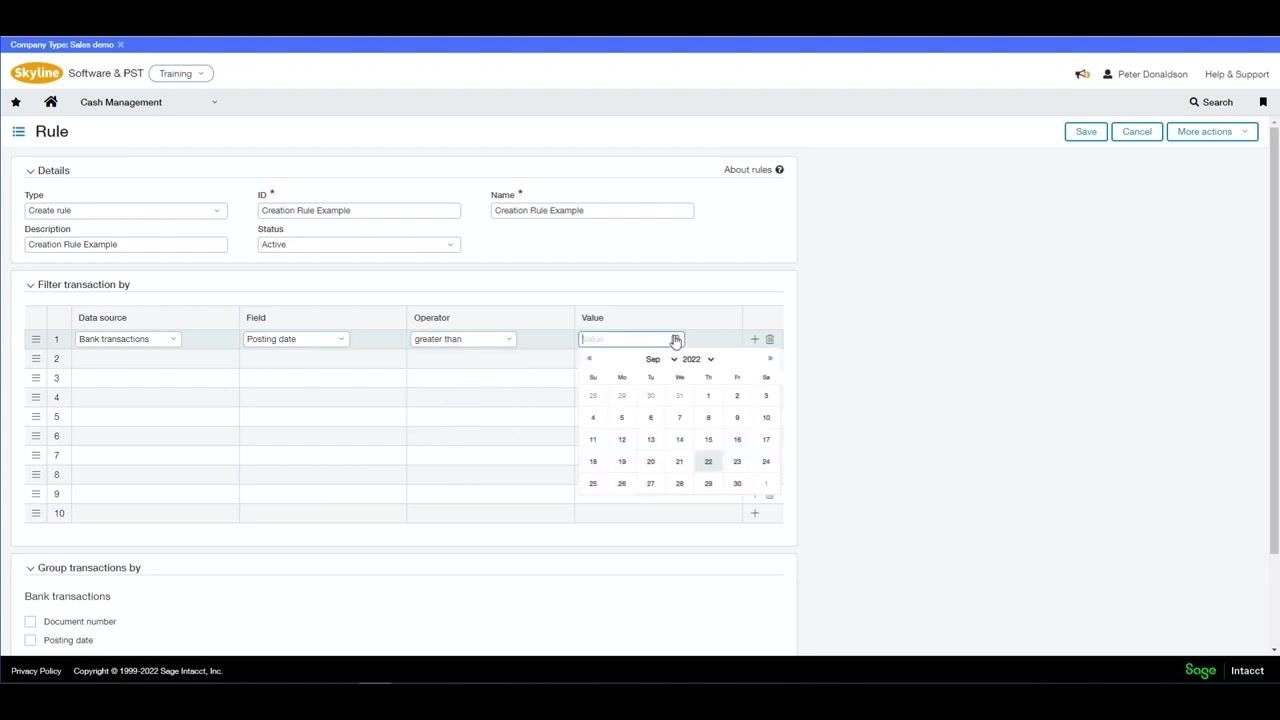
In the Filter transaction by section, configure the criteria that determine which imported bank transactions trigger the creation rule. Set Data source to "Bank transactions" and click the Field dropdown to select "Posting date."
Choose "greater than" for the Operator to specify transactions after a certain date, then click the calendar icon and select the desired start date for the Value, e.g., 01/09/2022.
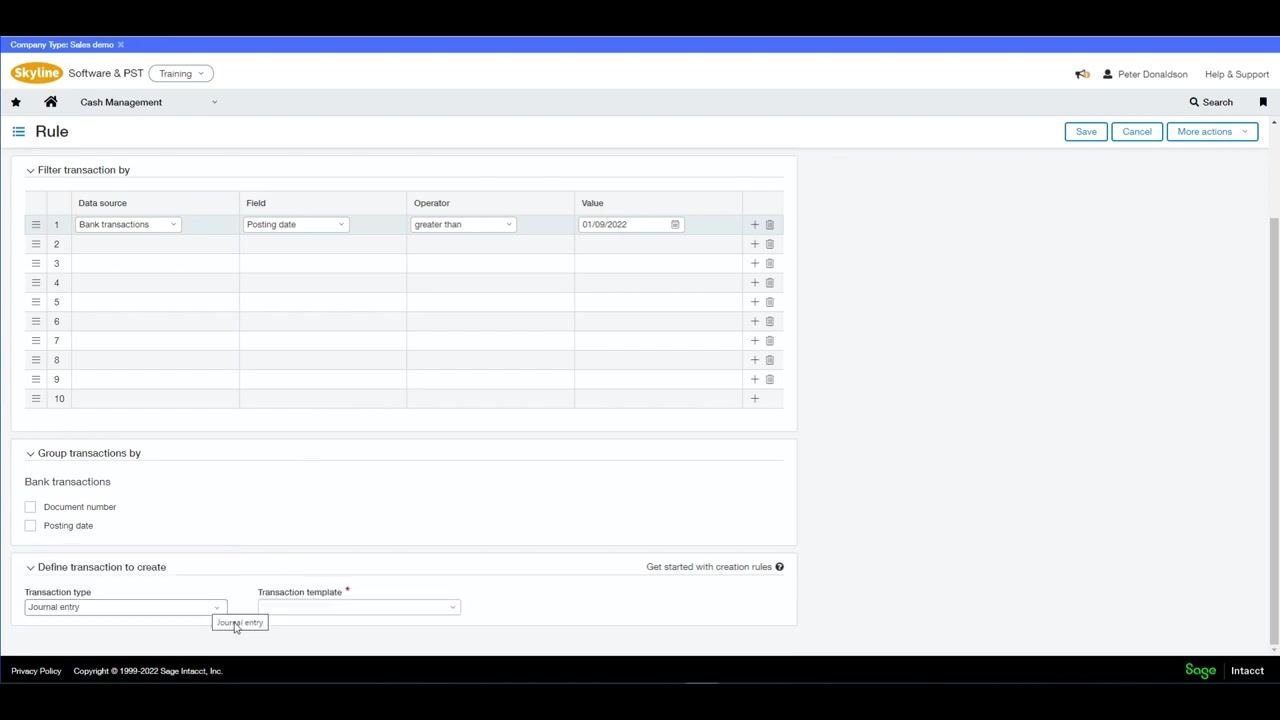
Step 3: Define the transaction to create
In the Define transaction to create section, select "Journal entry" from the Transaction type dropdown. The Transaction template field is required for all creation rules; if you don't have one set up, you'll need to create it.
Step 4: Create a transaction template
If you need a new template, a "Transaction Template for Journal Entry" dialog appears. Fill in:
- ID: Enter a unique template ID, e.g., "Transaction Template Example".
- Name: Enter a template name, e.g., "Transaction Template Example".
- Description: Provide a description, e.g., "Transaction Template Example".
- Posting state: Choose "Draft" (default) or "Posted".
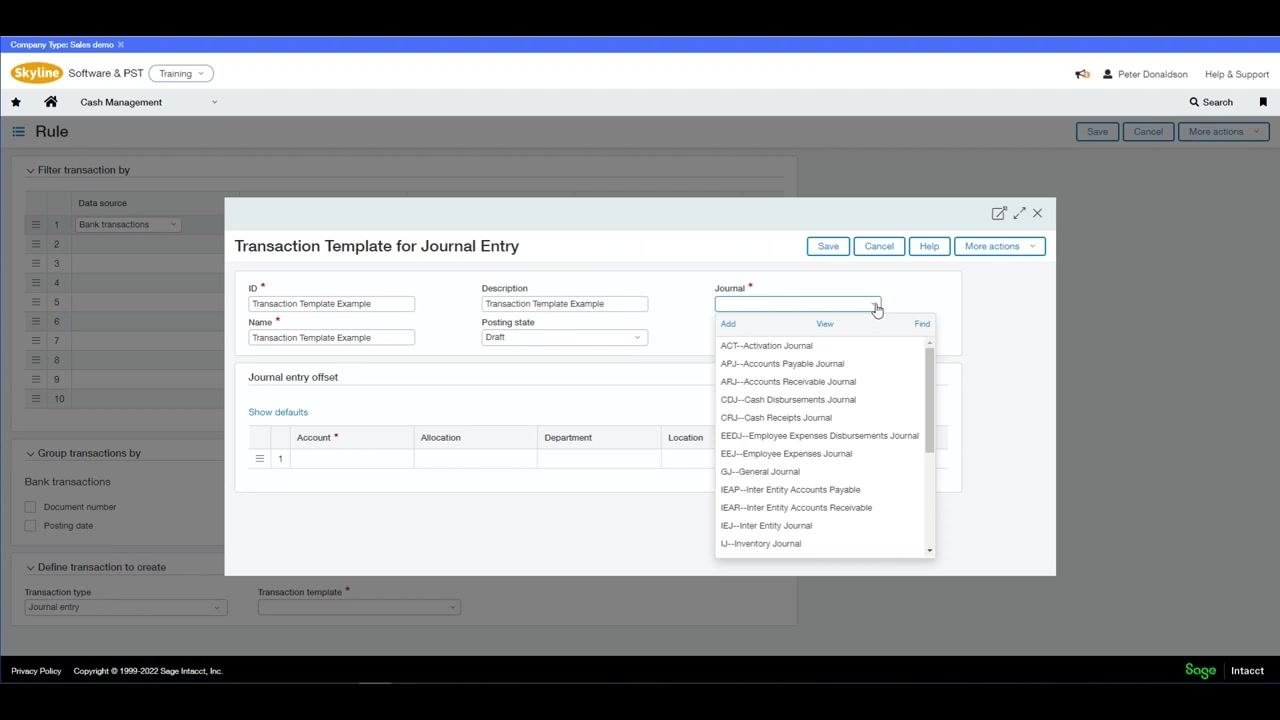
Select the appropriate Journal from the dropdown, such as General Journal, Cash Receipts Journal, or Accounts Payable Journal. You can also optionally specify account, allocation, department, location, and memo details for the journal entry offset.
Step 5: Select the account for the journal entry
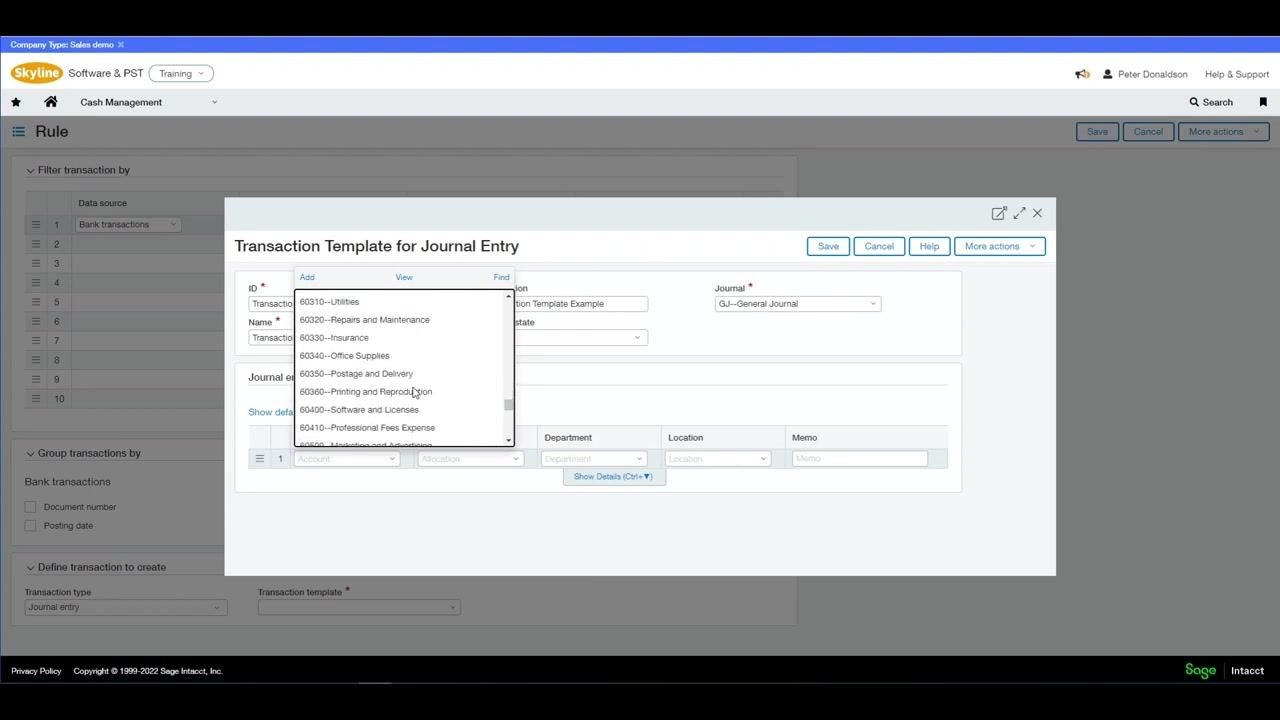
Click the Account dropdown in the Journal entry offset section and select the appropriate account from the list, for example 60300--Rent, 60310--Utilities, or 60320--Repairs and Maintenance. If you have allocations set up, you can also select the desired allocation method here.
Step 6: Specify department, location, and memo
Select the Department from the dropdown, such as 100--Sales, 200--Services, 300--Admin, 400--Marketing, or 500--IT. Choose the Location, for example TRAIN--Training, and enter a Memo if desired, such as "Transaction Template Example." The completed row displays all selected values for Account, Department, Location, and Memo.
Step 7: Save the transaction template
Click Save to create the transaction template. It will now be available for selection in the "Transaction template" field of your creation rule.
By following these steps, you create a creation rule that automatically generates new transactions in Sage Intacct based on imported bank data, using your specified filters and transaction templates.
Building a rule set
Step 1: Navigate to rule sets
To associate your new rule with a rule set, go to Cash Management > Setup.
Step 2: Create or edit a rule set
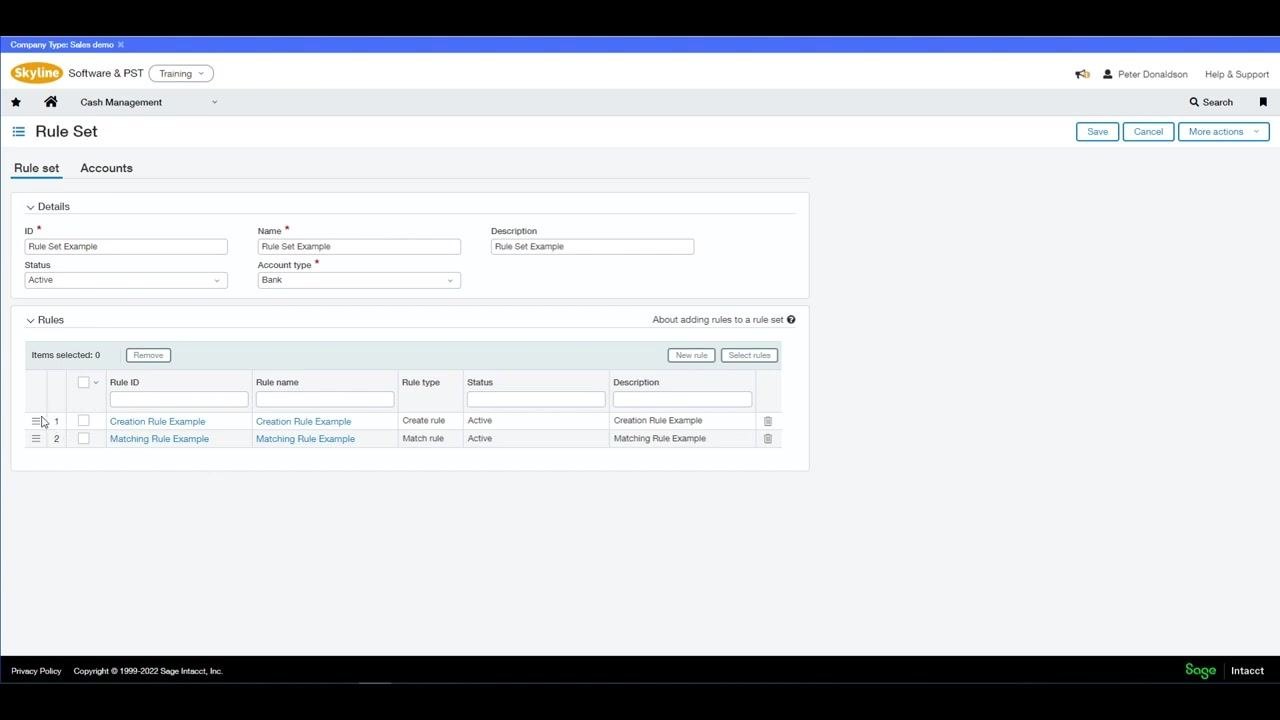
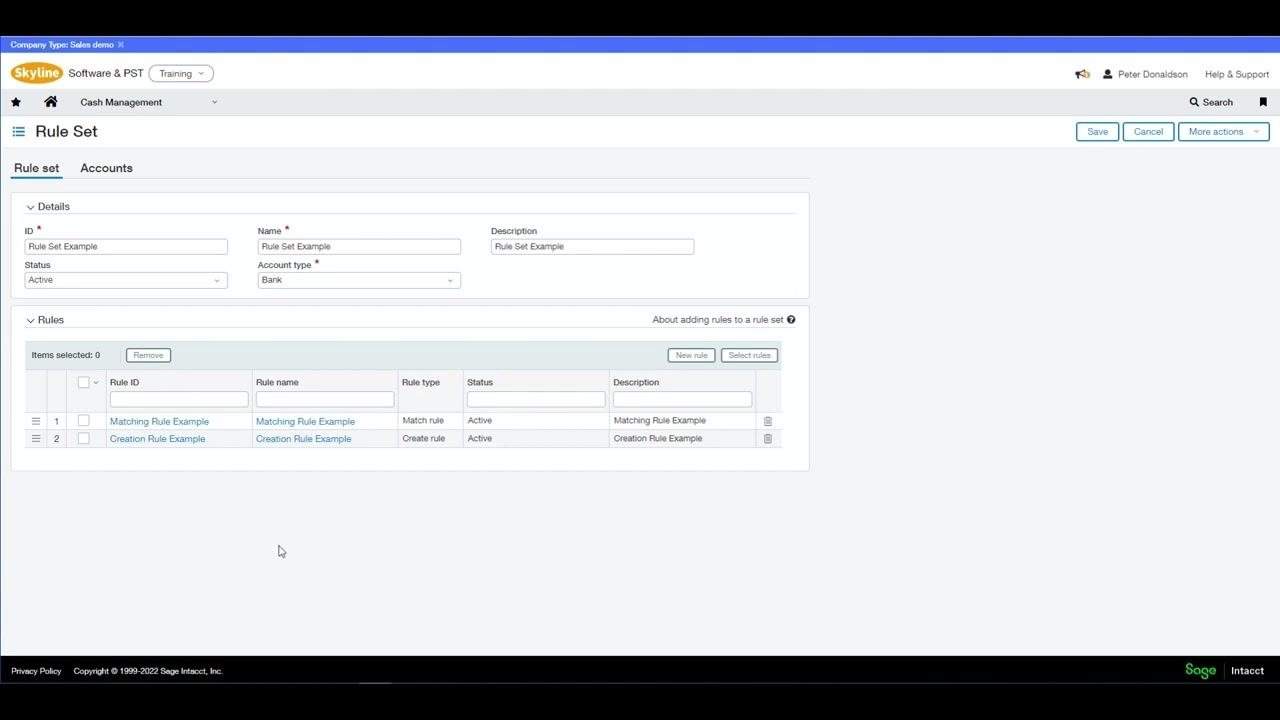
In the Rule Set screen, fill in:
- ID: Rule Set Example
- Name: Rule Set Example
- Description: Rule Set Example
- Status: Active
- Account type: Bank (selected from dropdown)
The Rules section initially shows "No records to display." Click Select rules to add rules to this rule set.
Step 3: Select and add rules to the rule set
In the Select rules dialog, check the boxes for the rules you want to include, such as Matching Rule Example and Creation Rule Example. Click Add or Add & close to associate the selected rules with the rule set.
Step 4: Prioritize rules within the rule set
The order of rules in a rule set matters: rules are evaluated in sequence, and prioritization helps prevent unintentional matches or erroneous transaction creation. Use the drag-and-drop handles (three horizontal lines) to reorder rules, placing matching rules above creation rules so Sage Intacct attempts to match existing transactions before creating new ones.
For example, in the Rule Set Example, the rules might initially list as:
- Creation Rule Example (Create rule, Active)
- Matching Rule Example (Match rule, Active)
Adjust the order so that Matching Rule Example is listed first, followed by Creation Rule Example.
Step 5: Save the rule set
Click Save in the upper right corner to finalize your rule set configuration. This ensures your prioritized rules apply automatically during bank reconciliation, reducing the risk of errors.
Step 6: Confirm associated accounts
Click the Accounts tab next to "Rule set." Under "Associated accounts," confirm Account type is set to Bank, and verify the following account is listed:
- Account ID: Current Account I
- Account name: Halifax
- Status: Active
- Currency: GBP
Importing bank transactions
Step 1: Navigate to the import screen
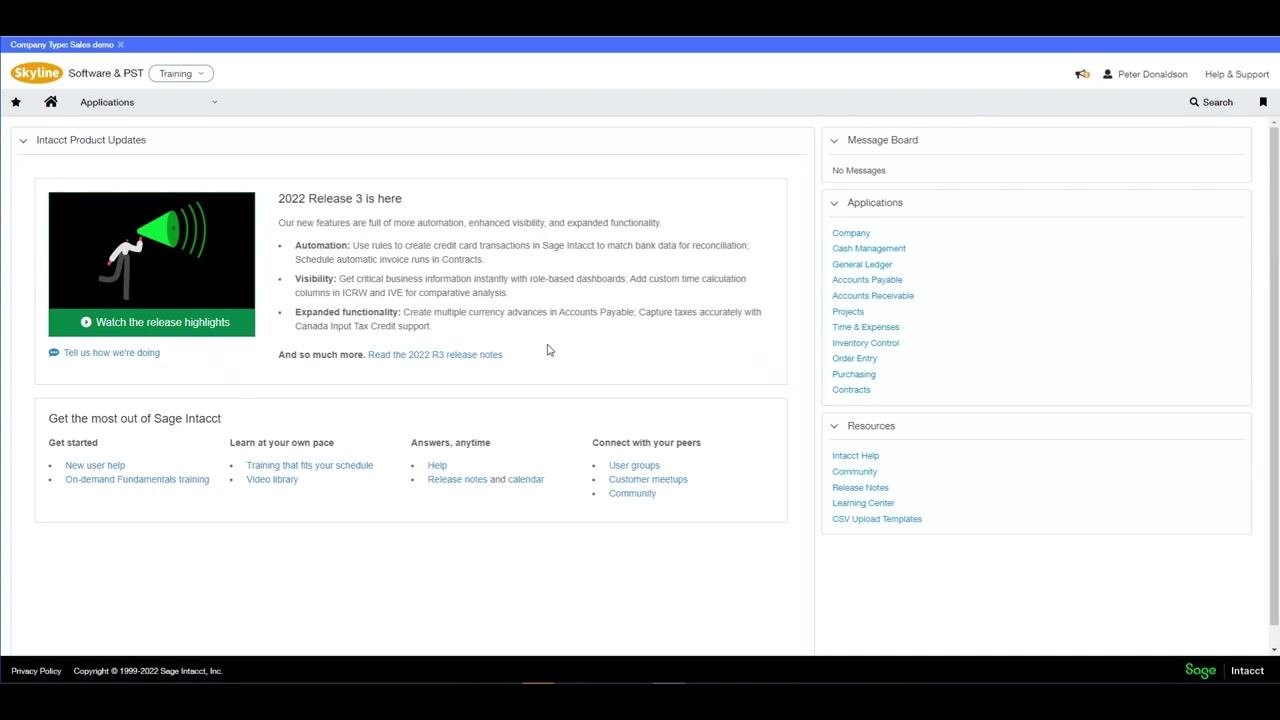
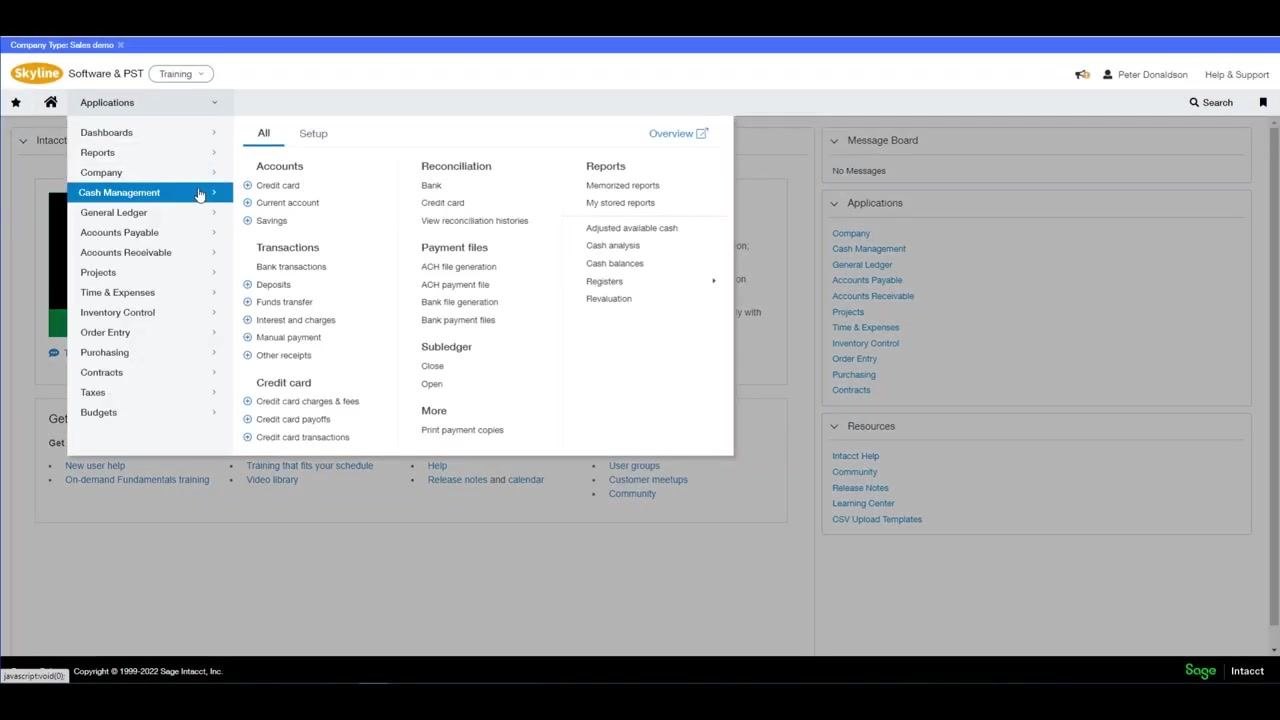
Return to the Sage Intacct home dashboard. Always download a new blank template from Sage Intacct before importing information. Locate the Applications menu on the left.
Click the Applications dropdown, select Cash Management, then under "Reconciliation," choose Bank.
Step 2: Begin the bank reconciliation process
In the "Reconcile Bank Account" screen, a "Reconciliation" dialog appears. Select the account to reconcile, for example Current Account I – Halifax (GBP), then click the Import link under "More options."
Step 3: Download and prepare the bank transaction template
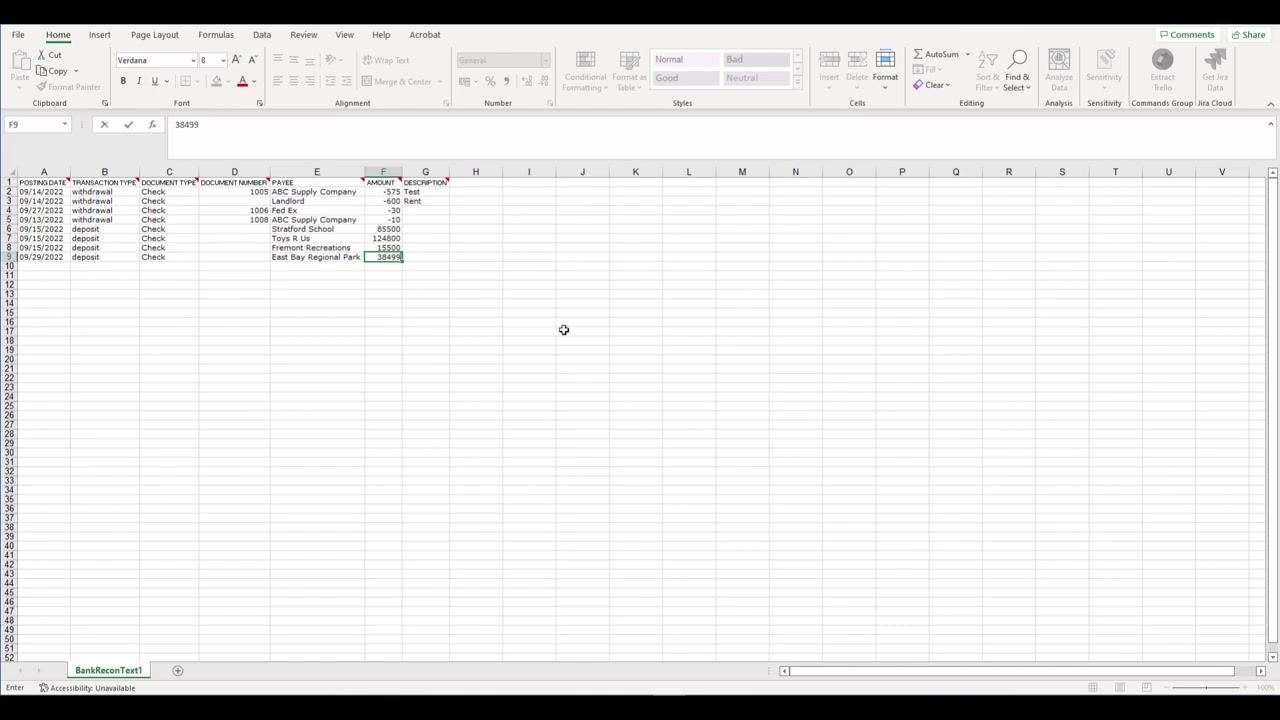
On the import screen, click the link to download the Bank transaction template and open the downloaded Excel file. Enter your bank transaction data, ensuring columns such as POSTING DATE, TRANSACTION TYPE, DOCUMENT TYPE, DOCUMENT NUMBER, PAYEE, AMOUNT, and DESCRIPTION are filled in. Save the completed file as a CSV.
Step 4: Import the completed CSV file
Return to the import dialog in Sage Intacct, click Choose Files, and select your saved CSV file, for example Bank_Reconciliation.csv. Click Open to upload the file.
Step 5: Confirm the applied rule set
After uploading, the "Reconciliation" dialog displays the Applied rule set option. Review the current rule set applied to the account and make any necessary changes. Confirm all reconciliation details are correct:
- Account to reconcile: Current Account I – Halifax (GBP)
- Beginning balance cutoff date: 01/09/2022
- Statement ending date: 30/09/2022
- Statement ending balance: 263,084.50
Click Continue to proceed.
By following these steps, you ensure your bank reconciliation process in Sage Intacct is accurate and uses the correct rule sets and templates for importing transactions.
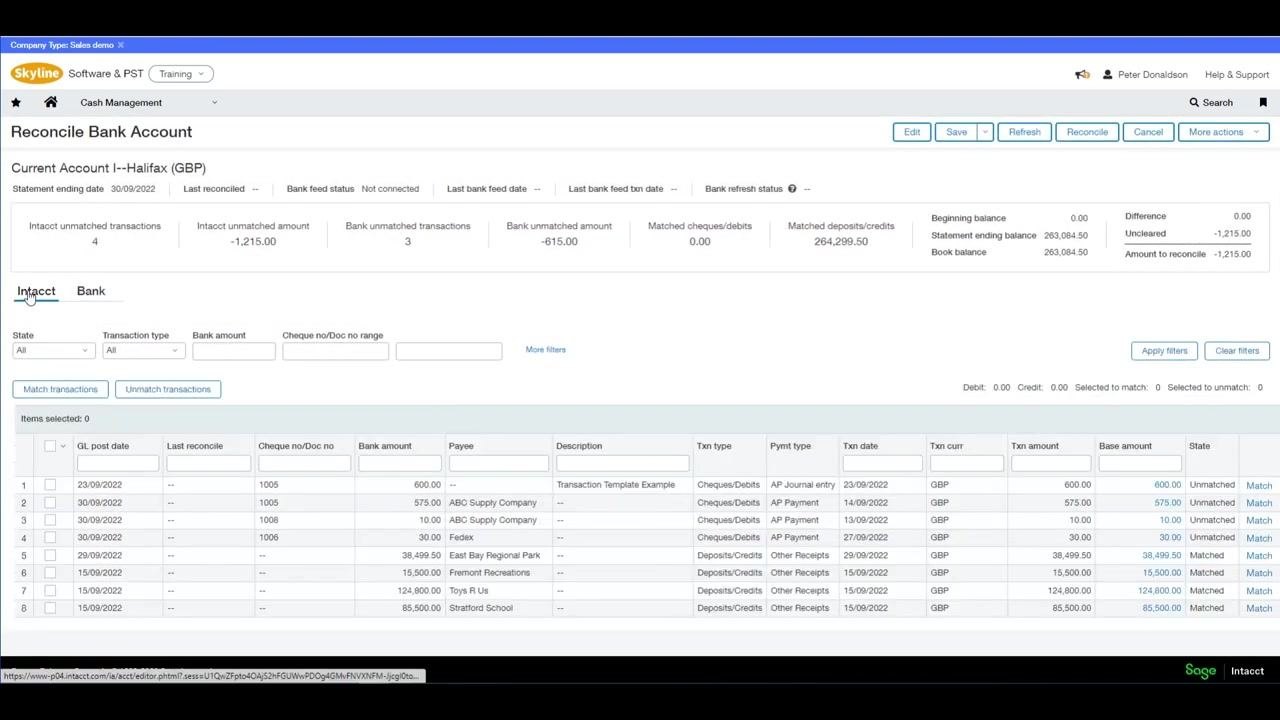
Step 6: Let Sage Intacct match or create transactions
After importing your bank transactions, Sage Intacct automatically matches or creates transactions according to the rules you configured. On the "Reconcile Bank Account" screen, review:
- Account details (e.g., Current Account I – Halifax (GBP))
- Statement ending date, last reconciled, unmatched transactions, matched deposits/credits, balances, and difference
Use the tabs to view "Intacct" and "Bank" transactions. Filter by state, transaction type, bank amount, cheque/document number, or use "More filters." Click Match transactions or Unmatch transactions as needed. The transaction list includes columns for GL post date, cheque/document number, bank amount, payee, description, transaction type, payment type, transaction date, currency, amount, and state.
Setting up bank feeds
Prerequisite: Enable ISO country codes
Before using bank feeds, ensure ISO country codes are enabled for your company. Navigate to Company Information under the "Company" menu, and in the "General information" tab, verify the Use ISO country codes checkbox is checked. This setting is required to receive bank feeds.
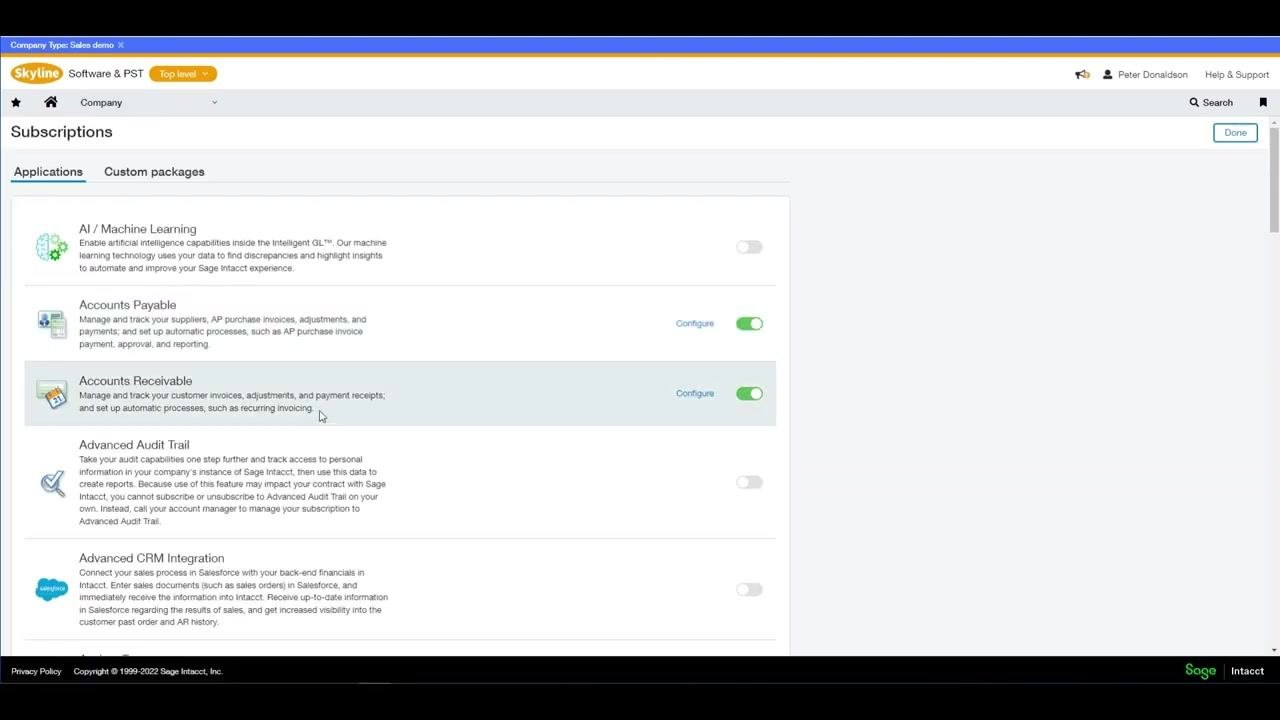
Step 1: Subscribe to Sage Cloud Services
Scroll down to the Sage Cloud Services section in the Subscriptions menu. If you're not already subscribed, enable the toggle to subscribe. If you are already subscribed, the Configure option will be visible.
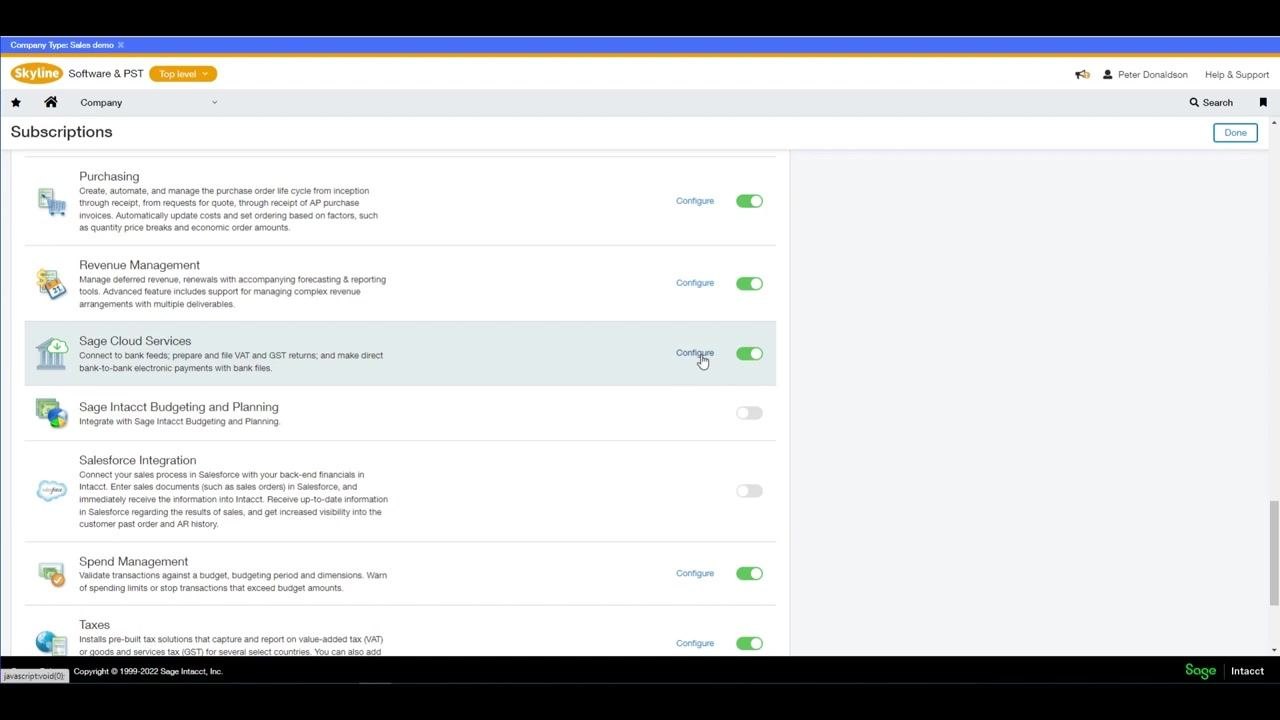
Step 2: Configure Sage Cloud Services and enable bank feeds
Click Configure next to Sage Cloud Services. In the configuration screen, check Enable bank feeds. Optionally, enable Enable bank file payment and Enable online VAT and GST filing if required. Review the list of entities and confirm the Status for each is "Subscribed," so every entity in your organization is automatically subscribed and can use bank feeds. Click Save to apply your changes.
By following these steps, you ensure Sage Intacct is properly configured to automate bank reconciliation using rule sets and bank feeds, with all necessary prerequisites and subscriptions enabled for your company and entities.
Step 3: Connect each account at the entity level
Each bank account must be connected separately for each entity within Sage Intacct. The dashboard displays a banner reading "NOW AT ENTITY LEVEL" to indicate you are working at the entity level. Make sure you are on the main Sage Intacct dashboard, where you can access applications and resources.
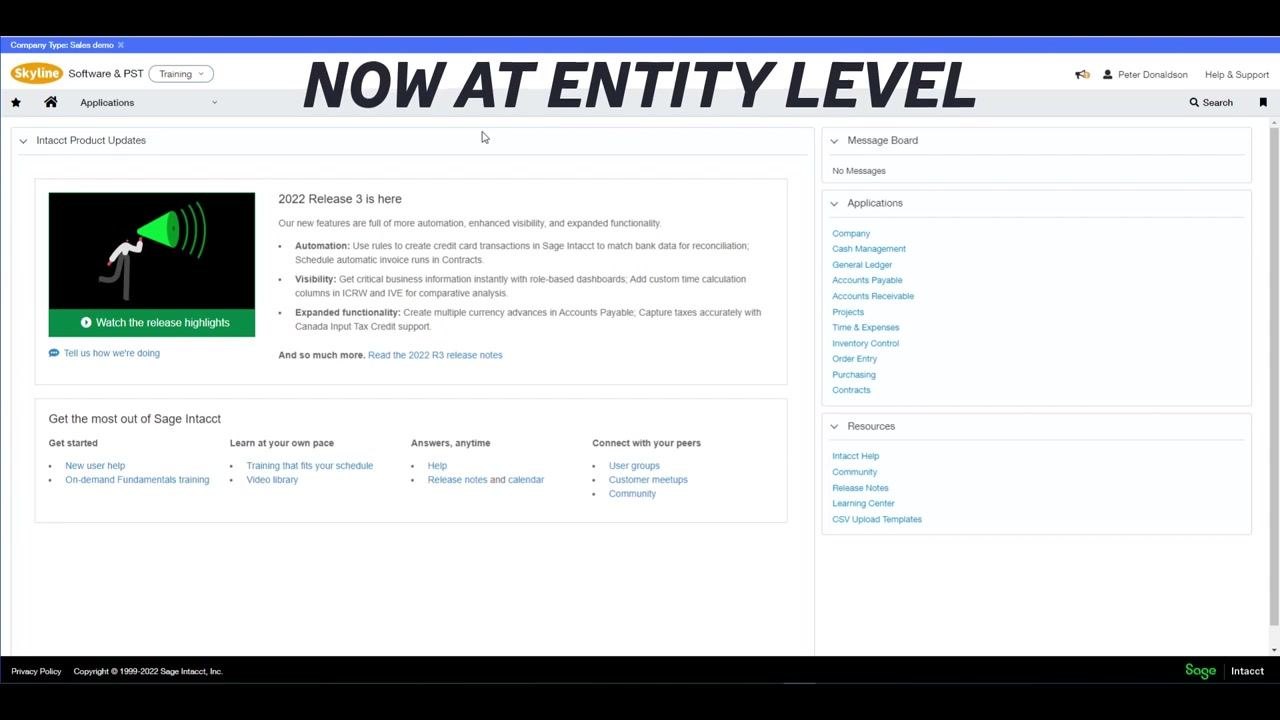
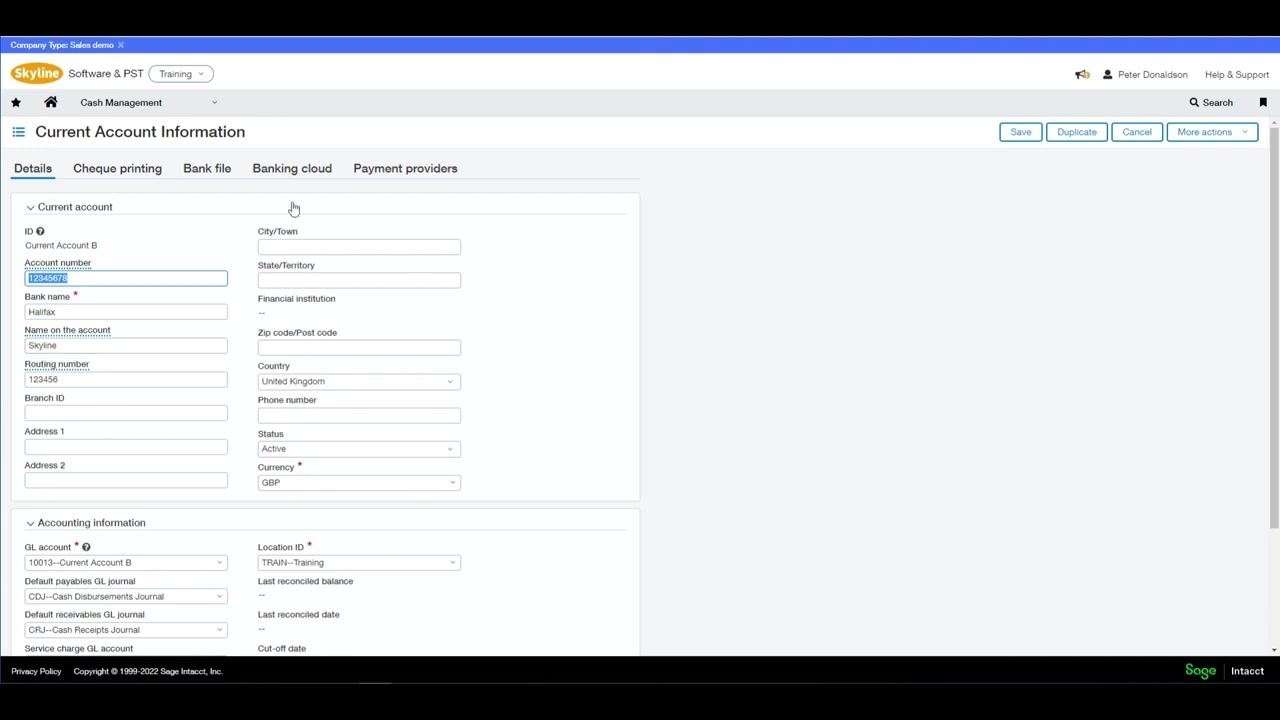
Go to the Cash Management application from the main menu, click Setup, then Accounts. Select the account type you want to connect to a bank feed, for example Current Account B. The screen displays account details such as account number, bank name, routing number, country, status, and currency.
Step 4: Connect to your bank via Banking Cloud
Click the Banking cloud tab within the account information screen, then click Connect to begin the bank connection process. A new screen prompts you to find your bank. Use the search bar to enter your bank's name, or select from the list of available banks, such as HSBC, Lloyds, Barclays, Santander, TSB, Starling, Tide, or Royal Bank of Scotland. Confirm the correct country is selected, for example United Kingdom.
Step 5: Sign in and select the account and start date
After clicking Connect, sign in to your online banking as prompted, select the appropriate bank account, and choose the start date for which you want to begin downloading bank transactions into Sage Intacct.
Step 6: Verify connection and review bank feed status
Once connected, the Banking cloud tab displays the connection status as "Connected," along with details such as:
- Account name and number (e.g., Current Account B – Halifax 12345678)
- Banking cloud provider (e.g., Sage Demo Bank Demo Bank)
- Last bank feed date (e.g., 27/09/2022)
- Status: Connected
Use the Refresh, Disconnect, or Edit sign-in info buttons as needed.
Understand automatic matching with bank feeds
Each time you refresh a bank feed, incoming transactions are automatically matched to existing transactions in Sage Intacct, reducing manual effort and increasing reconciliation accuracy.
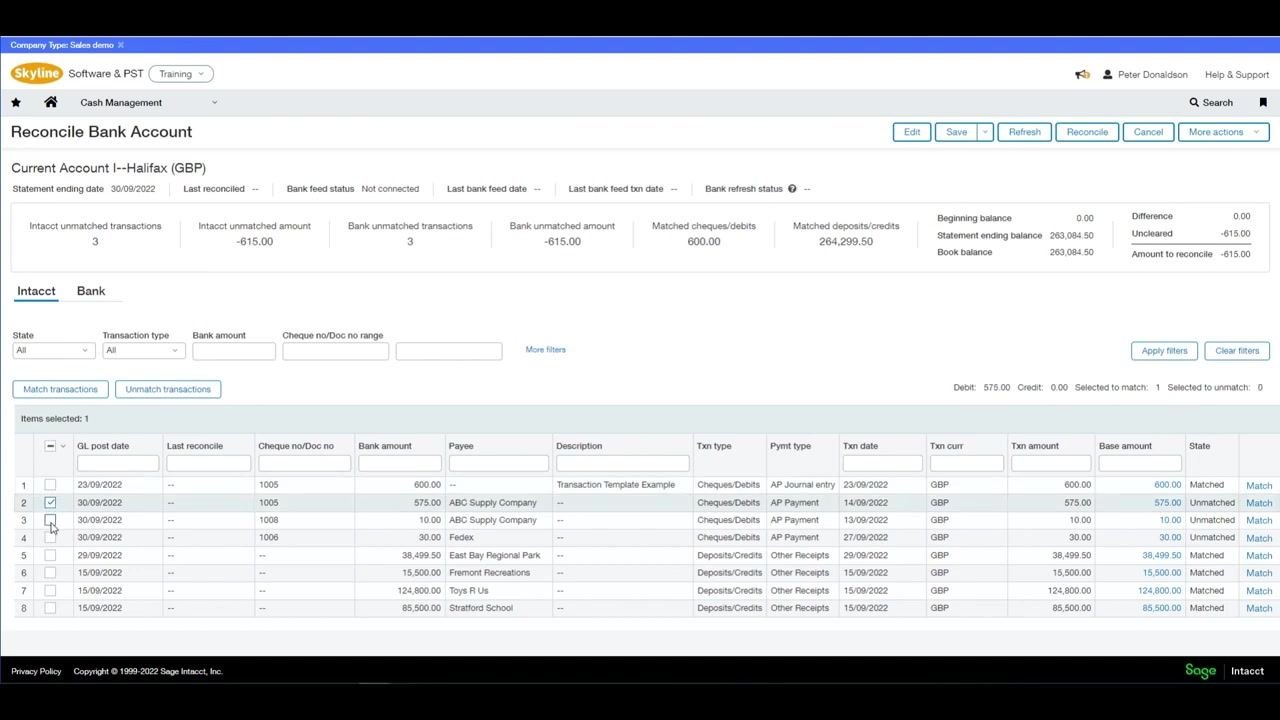
Bank feeds use the same rules and rule sets as when importing transactions manually, so transactions are matched or created automatically according to your configured rules.
What's next
Once you understand how to reconcile a bank account in Sage Intacct manually, consider setting up bank transaction rules and rule sets to automate matching and transaction creation. From there, you can import transactions via CSV/QIF files or connect a live bank feed through Banking Cloud, so that each refresh automatically matches incoming transactions against your rules and reduces the manual work required for future reconciliations.
Generation details: cost, quality tiers
Docsie billed 7,500 credits ($5.25) to analyze this 15-minute video at standard quality. The rewrite, template fill and Word/PDF exports were included. The same video at each quality tier:
| Quality | Frames sampled | Credits | Approx. cost |
|---|---|---|---|
| Draft | every 16-30 s | 3,750 | $2.62 |
| Standard (this guide) | every 8-15 s | 7,500 | $5.25 |
| Detailed | every 4-7 s | 15,000 | $10.50 |
| Ultra | every 1-3 s | 30,000 | $21.00 |
Credits priced at $0.70 per 1,000; plans include a monthly allowance. Enterprise customers on on-premise or bring-your-own-model deployments run this on their own inference and pay no per-video credits.
Generated by Docsie Video-to-Docs on 2026-10-25 from a 14-minute video. Screenshots are frames from the source video and belong to their creator, Acuity Solutions - Sage, whose original is embedded above. If you own this video and want the guide removed or credited differently, contact us and we will act within one business day.