
How to Void a Check in Sage Intacct
This guide shows you how to void a check in Sage Intacct and, when necessary, reverse the associated bill in the same transaction. You'll learn two approaches: voiding a check from the Accounts Payable Check Register, and voiding a non-check payment (such as a wire transfer) from the Cash Management Bank Register.
Video: How to Void a Check or Payment and Reverse the Bill in Accounts Payable with Intacct by Armanino (2017). All credit for the demonstration goes to the creator; watch the original on YouTube. The written guide below was generated from this video by Docsie. Creator? Request a change or removal.
This guide shows you how to void a check in Sage Intacct and, when necessary, reverse the associated bill in the same transaction. You'll learn two approaches: voiding a check from the Accounts Payable Check Register, and voiding a non-check payment (such as a wire transfer) from the Cash Management Bank Register.
Prerequisites
- You need access to a multi-entity shared environment with permissions for the relevant entity.
- You need access to the Accounts Payable module (for checks) or the Cash Management module (for other payment types).
- You should know the vendor, document number, or amount of the payment you want to void.
Log in and select the correct entity
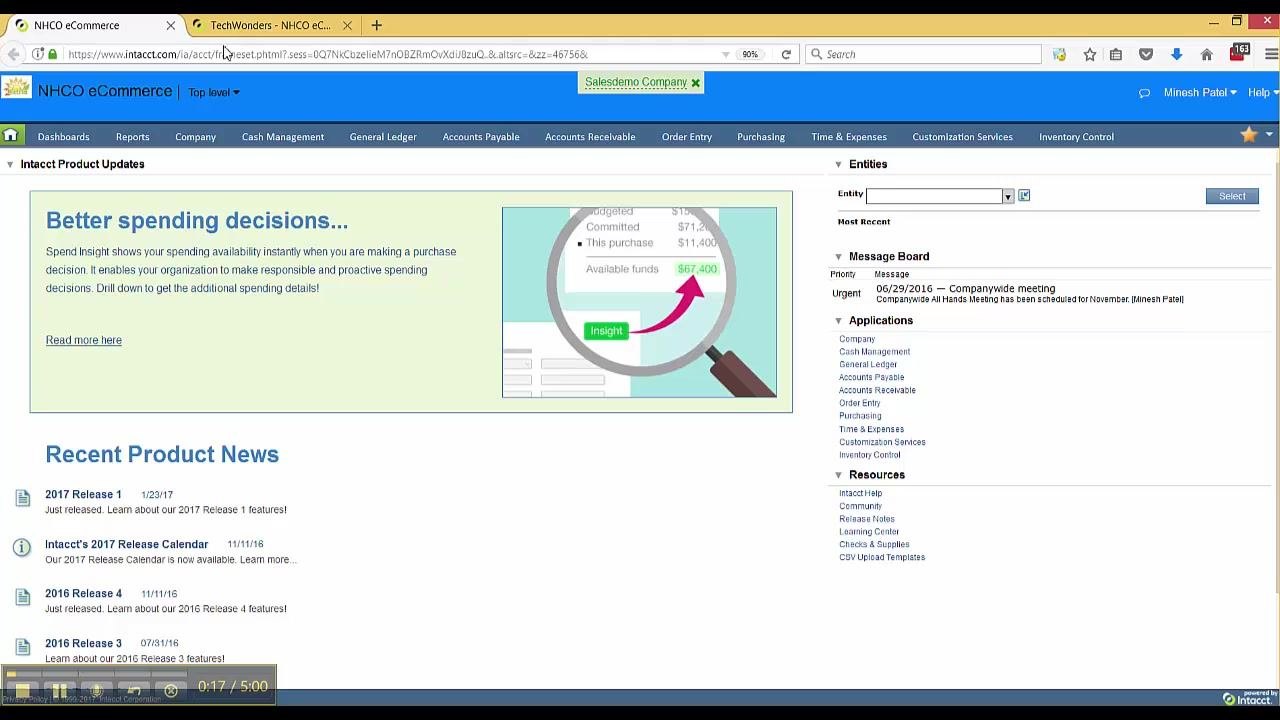
Log in to your multi-entity shared environment, making sure you have access to the entity where the check or payment was processed.
If you are currently at the top level, switch to the specific entity associated with the transaction using the entity dropdown.
Voiding a check using the Check Register
Step 2: Open the Accounts Payable module
From the main navigation bar, click Accounts Payable. The Accounts Payable dashboard appears, with sections for Data, Tasks, and Reports.
Step 3: Open the Check Register
Hover over Accounts Payable in the navigation bar, then hover over Registers in the dropdown menu. Click Check Register from the list.
Step 4: Set the report parameters
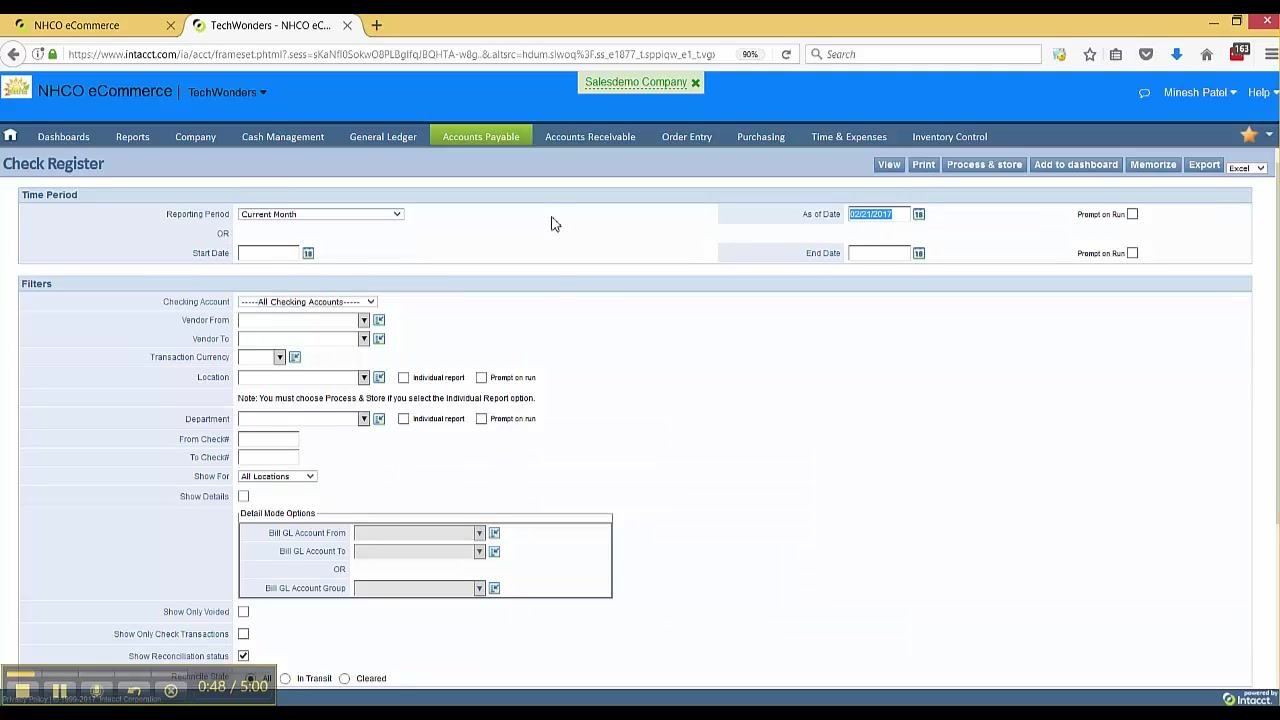
On the Check Register screen, set the Reporting Period to Current Month and the As of Date to today's date (for example, 02/21/2017). You can leave other filters at their default values unless you need to narrow your search. Click View to generate the report.
Step 5: Review the Check Register results
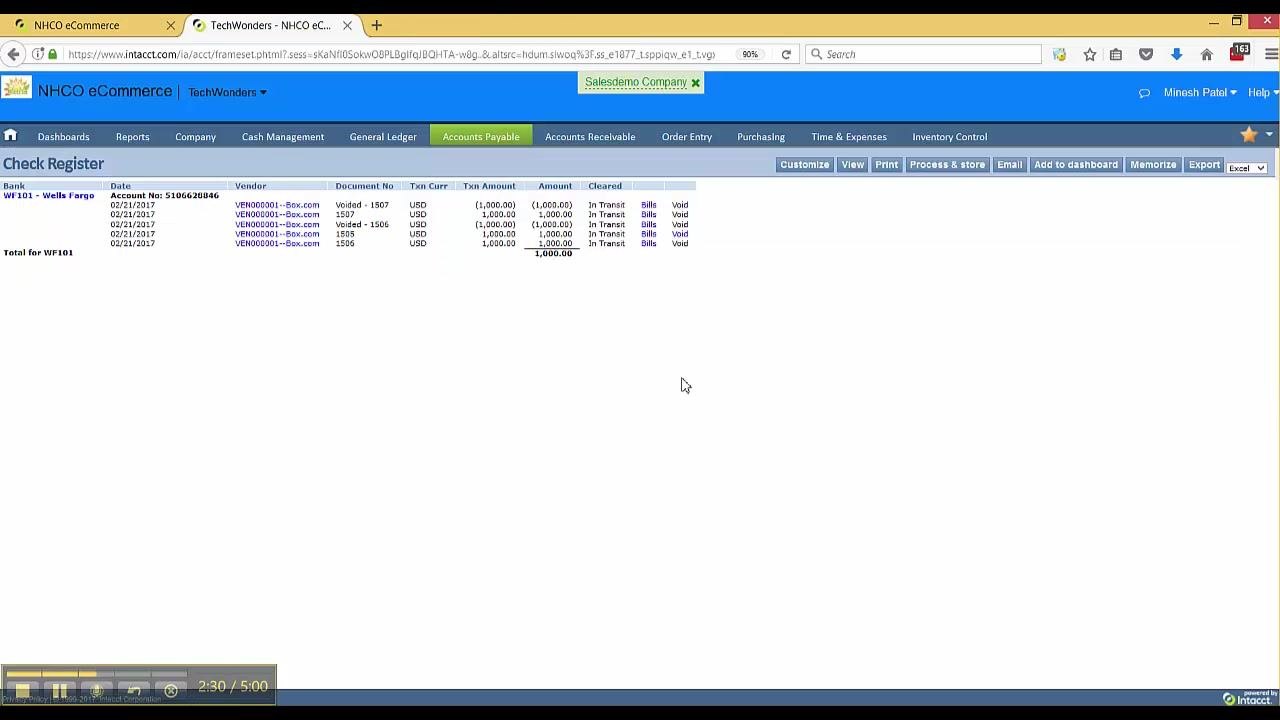
The report displays a list of checks with details such as Bank, Date, Vendor, Document No., Amount, Cleared status, and hyperlinks for related actions. Locate the check you want to void and confirm its status (for example, "In Transit") and other details. Find the Void hyperlink next to that check.
Step 6: Start the void process
Click the Void hyperlink for the check you want to void. The Void Payment Date screen opens in a new tab.
Step 7: Enter the void details and optionally reverse the bill
On the Void Payment Date screen, review the pre-filled details:
- Date: 02/21/2017
- Document number: 1507
- Vendor: VEN000001--Box.com
- Amount: USD 1,000.00
In the Void the payment on date field, enter the date you want the void to take effect (for example, 02/21/2017). You can optionally enter a memo for reference.
If the check should not have been issued because the original bill was incorrect, select the Reverse checkbox next to the bill (for example, Bill: ARREC000015, Date: 02/15/2015, Due Date: 03/16/2016, Amount: 1,000.00). You can also enter a Reverse as of date to specify when the reversal should be recorded.
Click Submit to void the payment and, if selected, reverse the bill in a single step.
Step 8: Confirm the void in the Check Register
Return to the Check Register. Confirm that the check now shows as "Voided" and that the amount is updated (for example, -1,000.00). If you selected the reversal option, the related bill should also show as reversed.
Voiding a non-check payment using the Bank Register
If you need to void a payment that was not a check, such as a wire transfer, use the Bank Register in the Cash Management module instead.
Step 9: Open the Bank Register
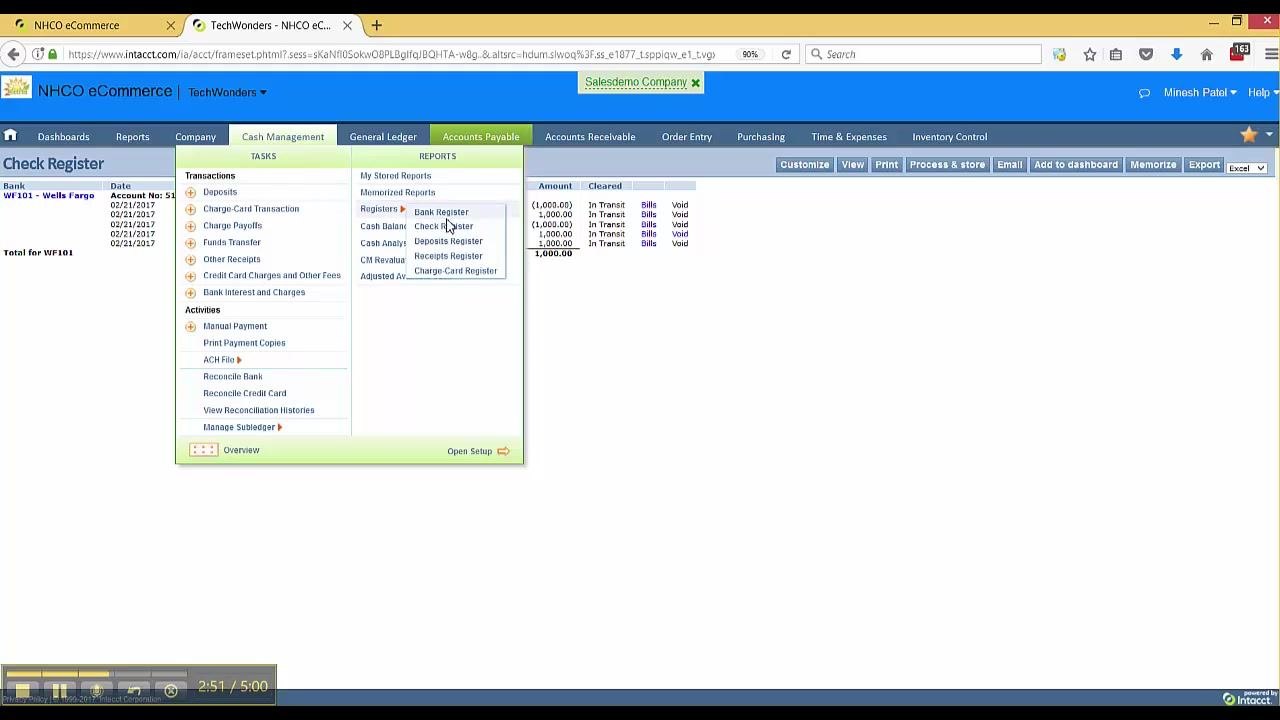
From the main navigation bar, click Cash Management. Hover over Registers in the dropdown menu, then click Bank Register.
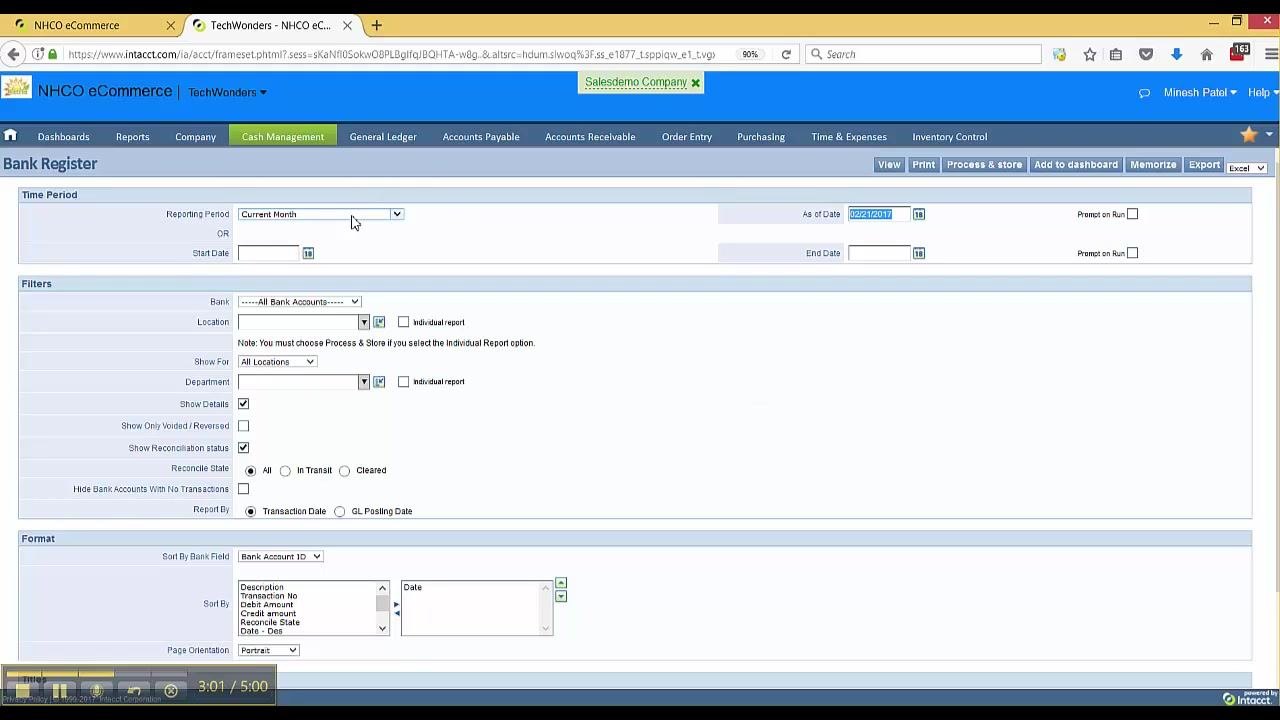
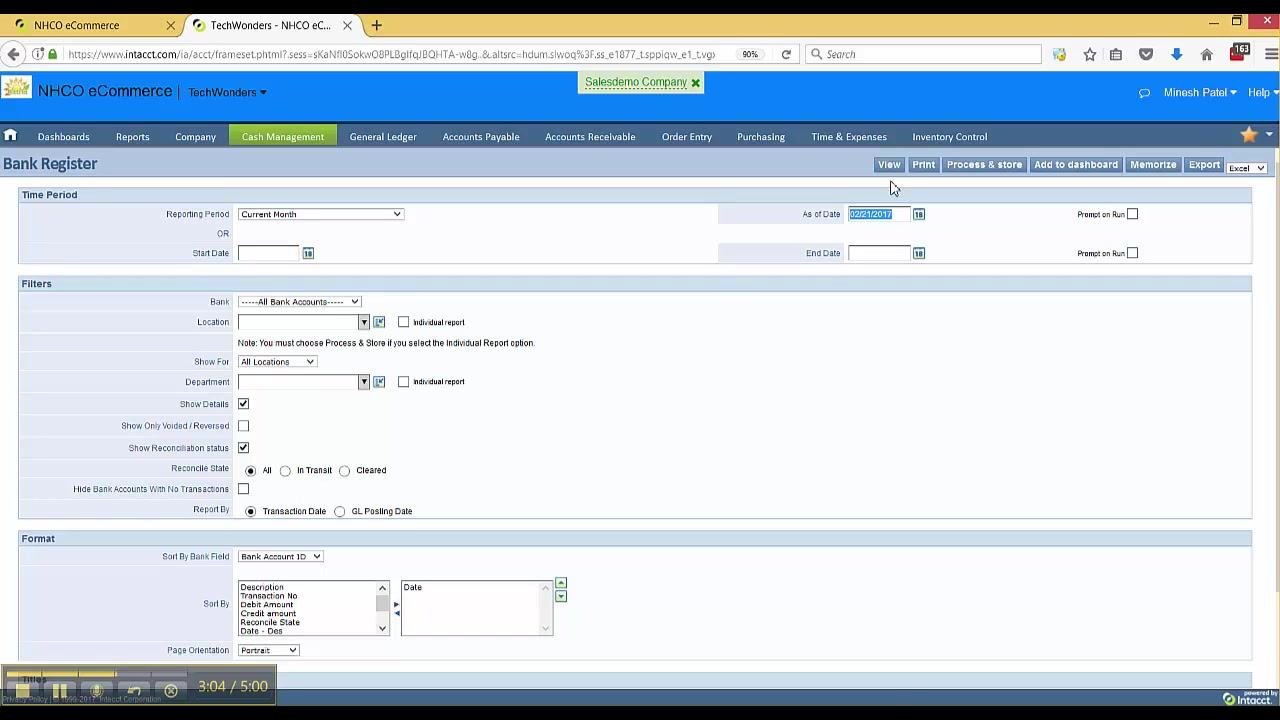
Step 10: Set the report parameters
On the Bank Register screen, set the Reporting Period to Current Month and the As of Date to 02/21/2017. You can leave other filters at their default values unless you need to narrow your search. Click View to generate the report.
Step 11: Review the Bank Register results
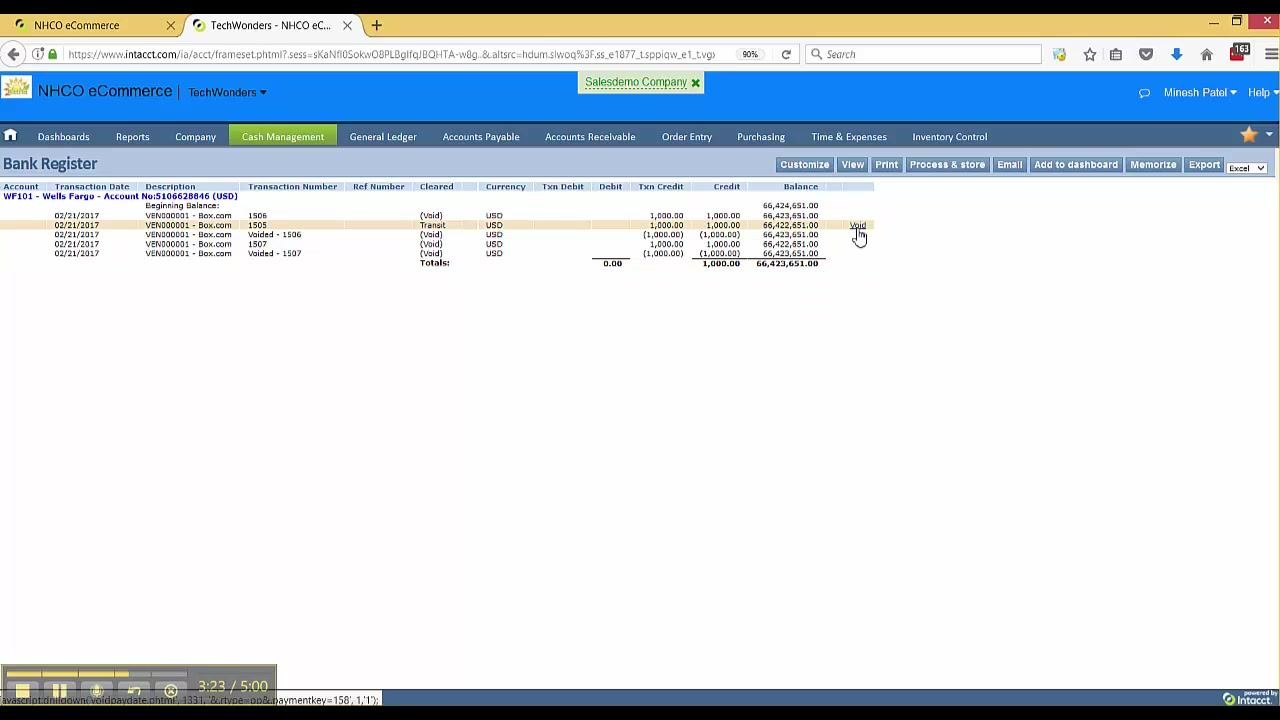
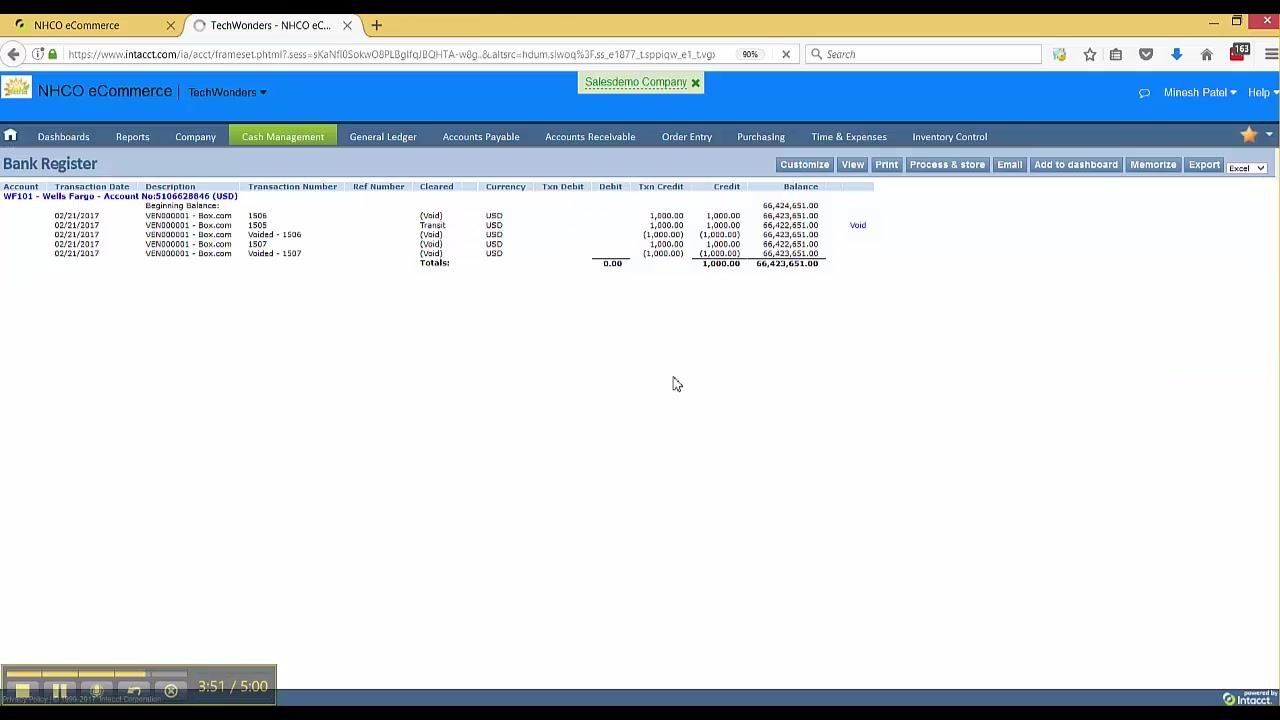
The Bank Register displays all payment activity, including checks, wire transfers, and other transactions. Use this register as a staging area to view and manage all payment activities, including voids and reversals.
Step 12: Identify the payment to void
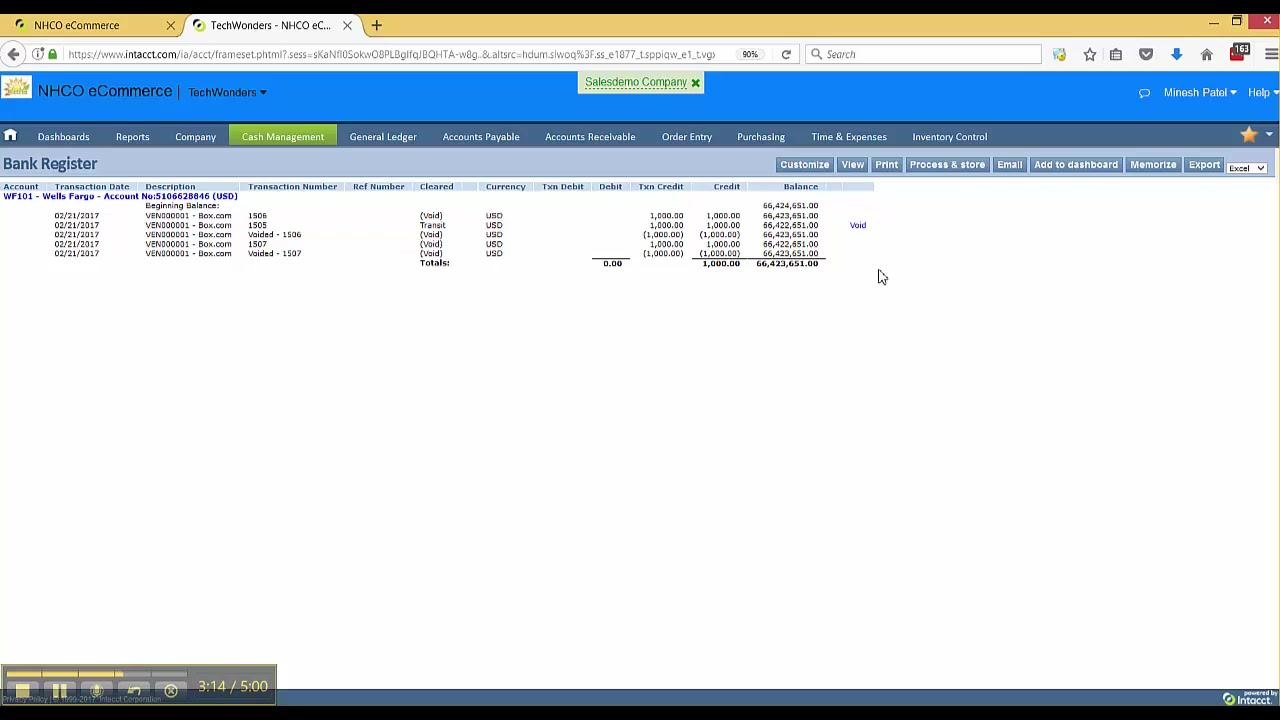
In the Bank Register screen, locate the payment you want to void. The register lists transactions with columns for Account, Transaction Date, Description, Transaction Number, Ref Number, Cleared, Currency, Debit, Credit, and Balance.
For example, you might locate a check for VEN000001--Box.com, Transaction Number 1505, Amount USD 1,000.00.
Step 13: Start the void process
Click the Void link next to the payment you want to void. The Void Payment Date screen opens for the selected transaction.
Step 14: Enter the void date and optional memo
On the Void Payment Date screen, review the pre-filled details:
- Date: 02/21/2017
- Document number: 1505
- Vendor: VEN000001--Box.com
- Amount: USD 1,000.00
In the Void the payment on date field, enter the date you want the void to take effect (for example, today's date). You can optionally enter a memo in the Memo field for reference.
Do not select the Reverse checkbox if you do not want to reverse the bill. Leaving the bill unreversed is useful if you plan to pay it on a different date.
Step 15: Submit the void request
Click Submit to void the payment. The system processes the void without reversing the associated bill.
Step 16: Confirm the void in the Bank Register
Return to the Bank Register screen. Confirm that the check is now marked as "(Void)" and that the amount is updated accordingly. The bill remains unpaid and available for future payment.
What's next
By following these steps, you can void checks or other payment types and reverse associated bills in Sage Intacct. Use the Check Register when voiding checks issued through Accounts Payable, and use the Bank Register when voiding other payment types, such as wire transfers, managed through Cash Management.
Generation details: cost, quality tiers
Docsie billed 2,500 credits ($1.75) to analyze this 5-minute video at standard quality. The rewrite, template fill and Word/PDF exports were included. The same video at each quality tier:
| Quality | Frames sampled | Credits | Approx. cost |
|---|---|---|---|
| Draft | every 16-30 s | 1,250 | $0.88 |
| Standard (this guide) | every 8-15 s | 2,500 | $1.75 |
| Detailed | every 4-7 s | 5,000 | $3.50 |
| Ultra | every 1-3 s | 10,000 | $7.00 |
Credits priced at $0.70 per 1,000; plans include a monthly allowance. Enterprise customers on on-premise or bring-your-own-model deployments run this on their own inference and pay no per-video credits.
Generated by Docsie Video-to-Docs on 2026-10-11 from a 4-minute video. Screenshots are frames from the source video and belong to their creator, Armanino, whose original is embedded above. If you own this video and want the guide removed or credited differently, contact us and we will act within one business day.