
How to Create a Journal Entry in Sage Intacct
Journal entries let you record financial transactions directly in the general ledger, ensuring your accounting data stays accurate and well documented. This guide walks you through how to create a journal entry in Sage Intacct, from opening the entry screen to posting a fully balanced transaction.
Video: Creating a Journal Entry in the General Ledger of Sage Intacct by Bangert, Inc. (2023). All credit for the demonstration goes to the creator; watch the original on YouTube. The written guide below was generated from this video by Docsie. Creator? Request a change or removal.
Journal entries let you record financial transactions directly in the general ledger, ensuring your accounting data stays accurate and well documented. This guide walks you through how to create a journal entry in Sage Intacct, from opening the entry screen to posting a fully balanced transaction.
Prerequisites
- Access to the Applications menu in Sage Intacct.
- Permissions to view and post entries in the General Ledger module.
- Relevant project, cost code, and account information for the transaction you want to record.
Open the journal entries screen
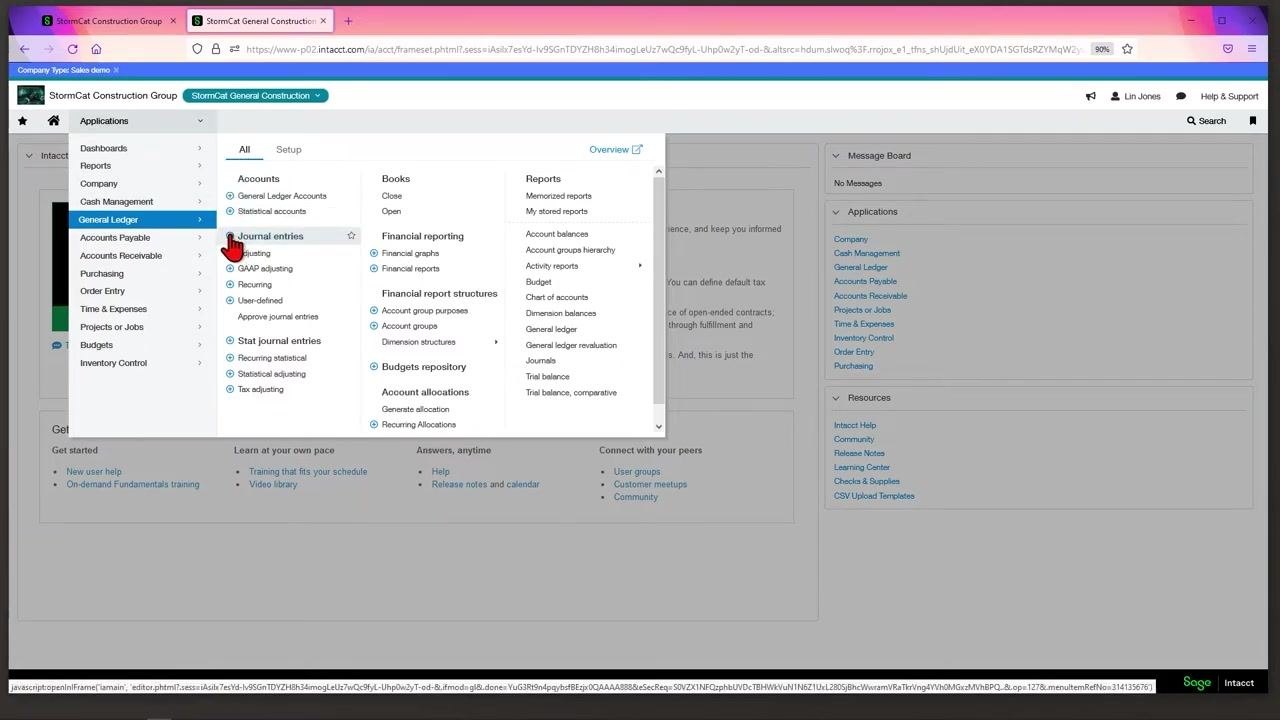
Click the Applications menu at the top left of the Sage Intacct interface. From the list on the left, select General Ledger.
Under the General Ledger section, locate Journal entries in the center column. Make sure you are on the All tab at the top of the menu, then click the small plus sign (+) next to Journal entries to start a new entry.
Fill out the header information
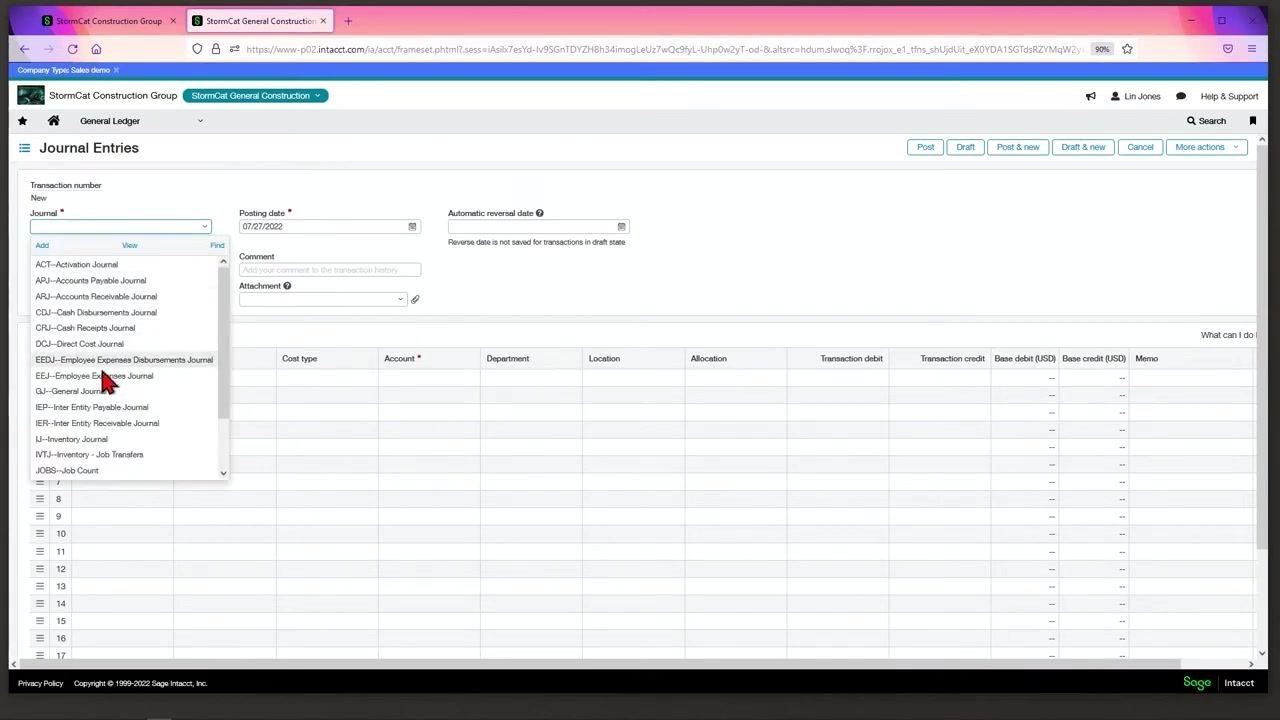
On the Journal Entries screen, select the journal you want to post to from the Journal dropdown—for example, GJ–General Journal.
Enter the Posting date (for example, 07/27/2022). If the entry needs to reverse at a later date, enter an Automatic reversal date; Sage Intacct will automatically generate the reversing entry on that date.
Enter a description and reference number
In the Description field, enter a description for the entry, such as "Permits Fees." If needed, add internal notes in the Comment field.
Enter a Reference number if one is available, such as "Permit 1234."
Attach supporting documents
Use the Attachment field to upload any backup documents or supporting files that should remain associated with the entry.
Tag dimensions and enter line item details
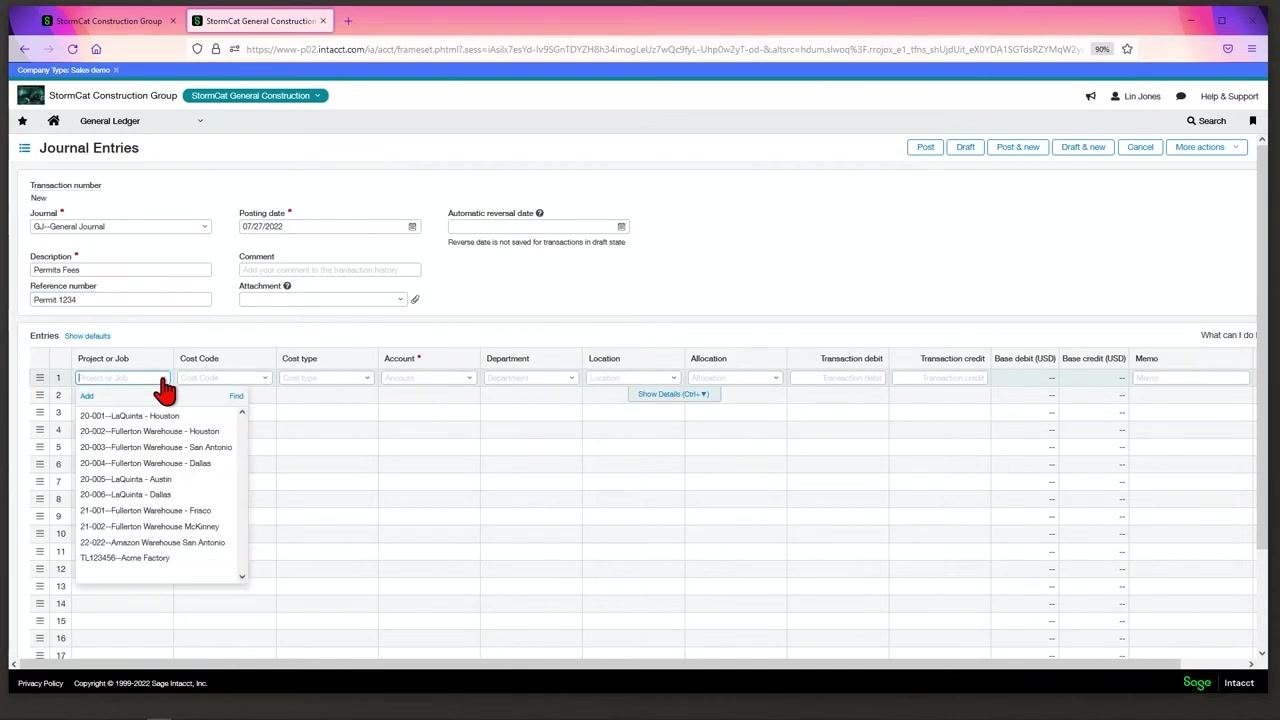
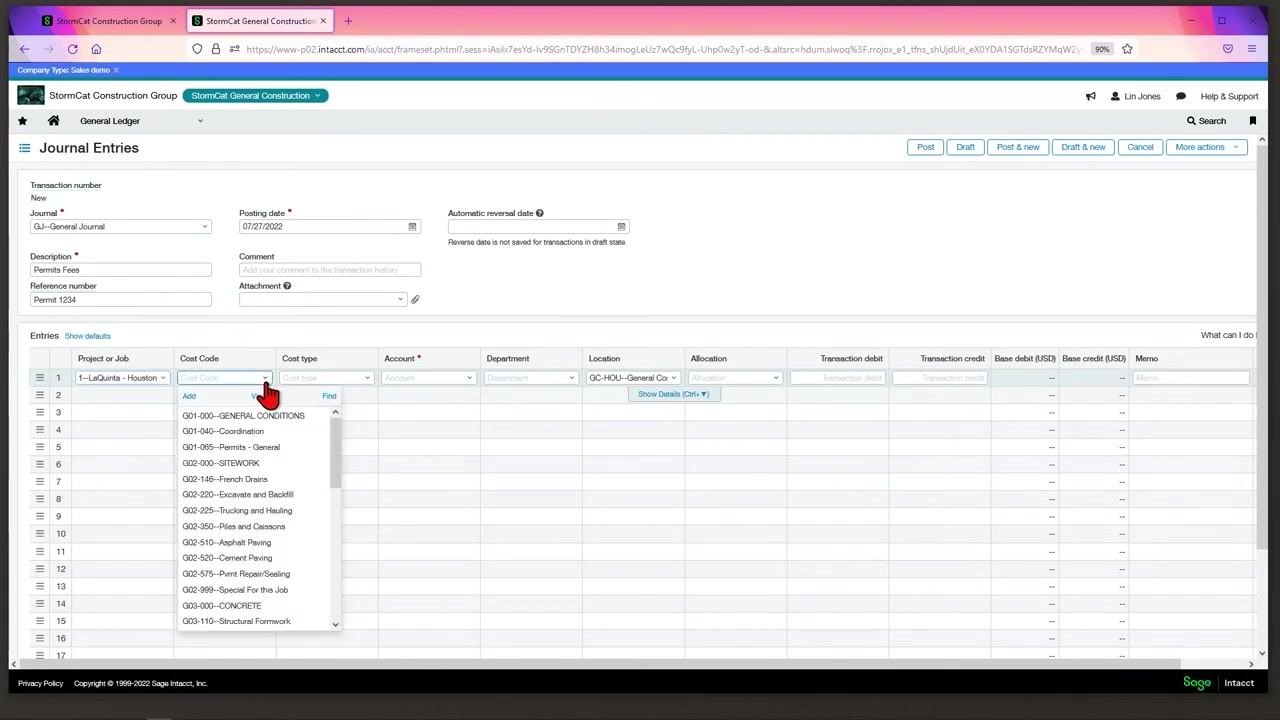
In the Entries section, tag the required dimensions for the line:
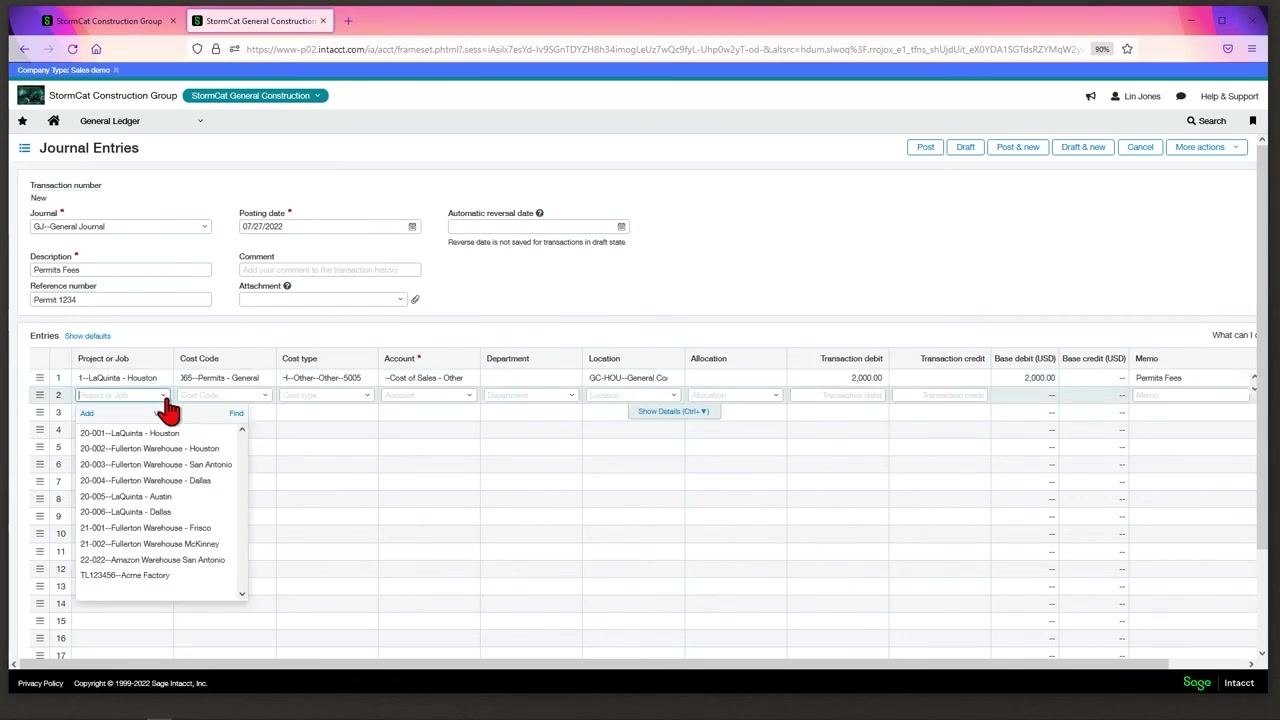
- Project or Job: select the relevant project (e.g., "1--LaQuinta - Houston").
- Cost Code: select the appropriate code (e.g., "J65--Permits - General").
- Cost type: select the type (e.g., "1--Other--Other").
- Account: enter the GL account number (e.g., "5005" for "Cost of Sales - Other").
- Department: leave blank if not needed.
- Location: this field may auto-populate based on the project or job.
Enter the transaction amount
In the Transaction debit field, enter the amount, such as "2,000.00." The Base debit (USD) field will reflect the same amount if the transaction is in USD.
Add a memo (optional)
If you need a memo different from the description, enter it in the Memo field for the line item, such as "Permits Fees."
Select the checking account for the credit entry
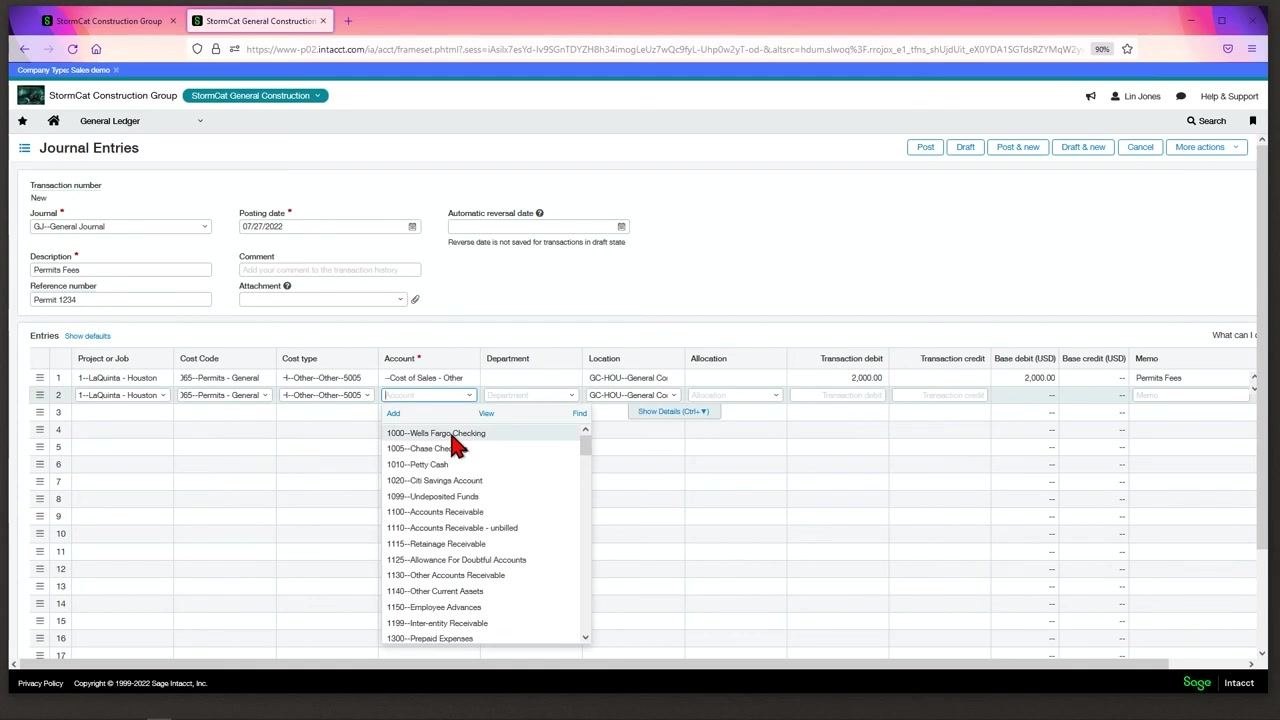
For the credit line, click the Account dropdown and select the checking account from which the expense will be paid, such as "1000--Wells Fargo Checking." Ensure all other required fields—Project or Job, Cost Code, Cost Type, Location, and Memo—are completed as needed.
Confirm debits and credits are equal
Sage Intacct uses double-entry accounting, which requires total debits and credits for your journal entry to match. In the Entries section, verify that the Transaction debit and Transaction credit columns show the same amount (for example, 2,000.00).
Make sure the dimensions—Project or Job, Cost Code, Cost Type, Account, and so on—are consistent across both the debit and credit lines.
Post the journal entry
Once you have verified all the information, click the Post button at the top right of the Journal Entries screen. This posts the journal entry into the system.
Summary
By following these steps, you will complete and post a balanced journal entry in Sage Intacct, ensuring compliance with double-entry accounting principles and proper documentation of all required details.
Generation details: cost, quality tiers
Docsie billed 1,500 credits ($1.05) to analyze this 3-minute video at standard quality. The rewrite, template fill and Word/PDF exports were included. The same video at each quality tier:
| Quality | Frames sampled | Credits | Approx. cost |
|---|---|---|---|
| Draft | every 16-30 s | 750 | $0.52 |
| Standard (this guide) | every 8-15 s | 1,500 | $1.05 |
| Detailed | every 4-7 s | 3,000 | $2.10 |
| Ultra | every 1-3 s | 6,000 | $4.20 |
Credits priced at $0.70 per 1,000; plans include a monthly allowance. Enterprise customers on on-premise or bring-your-own-model deployments run this on their own inference and pay no per-video credits.
Generated by Docsie Video-to-Docs on 2026-10-25 from a 2-minute video. Screenshots are frames from the source video and belong to their creator, Bangert, Inc., whose original is embedded above. If you own this video and want the guide removed or credited differently, contact us and we will act within one business day.