
How to Process Accounts Payable ACH Payments in Sage Intacct
This guide walks you through the complete process of configuring and processing accounts payable ACH payments in Sage Intacct. You'll learn how to set up your bank account for ACH, configure vendors to receive electronic payments, enter and pay bills, and generate and confirm the ACH payment file with your bank.
Video: How to Set Up and Process Accounts Payable ACH Payments in Sage Intacct by Bangert, Inc. (2024). All credit for the demonstration goes to the creator; watch the original on YouTube. The written guide below was generated from this video by Docsie. Creator? Request a change or removal.
This guide walks you through the complete process of configuring and processing accounts payable ACH payments in Sage Intacct. You'll learn how to set up your bank account for ACH, configure vendors to receive electronic payments, enter and pay bills, and generate and confirm the ACH payment file with your bank.
Prerequisites
Before you begin, make sure you have:
- Administrator access to Cash Management and Accounts Payable modules in Sage Intacct
- Your company's bank account details, including account number, bank name, and routing number
- Vendor bank details (routing number, account number, account type, and account classification) for any vendors you want to pay via ACH
- A relationship with your bank that supports ACH file testing and confirmation
Configure your bank account for ACH payments
Open Cash Management
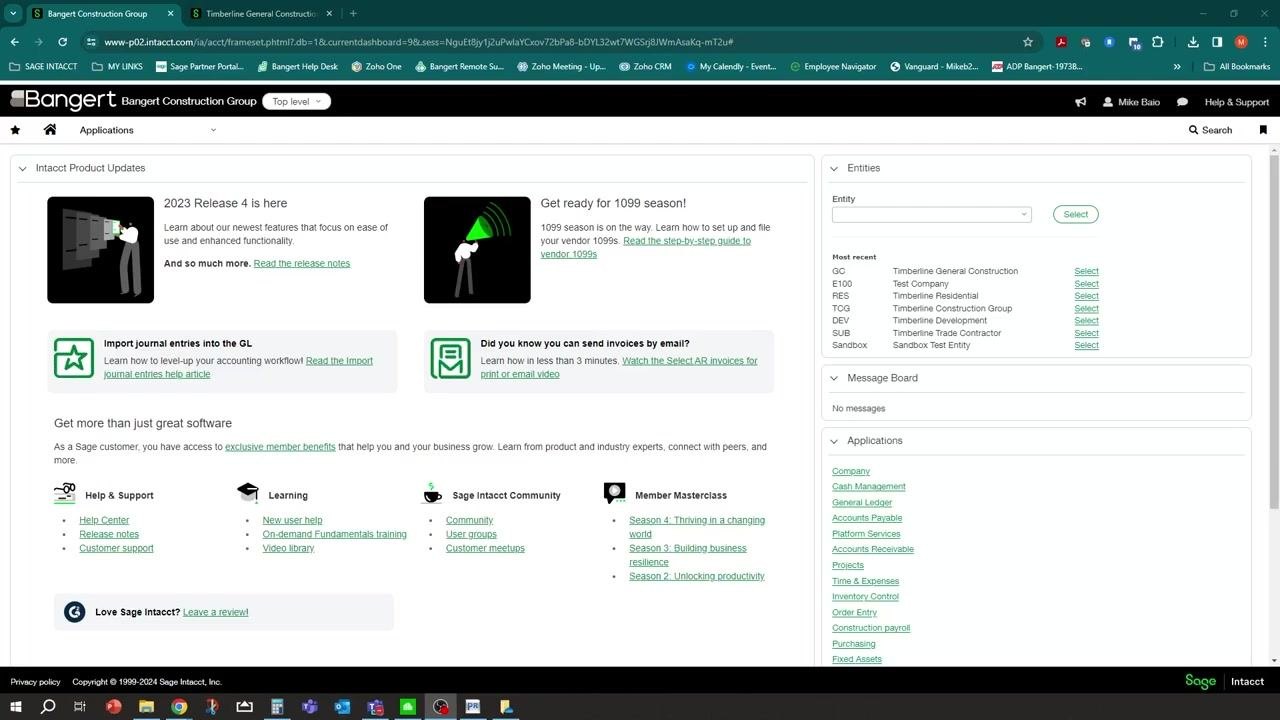
Log in to Sage Intacct and confirm you're at the top-level dashboard. The dashboard displays product updates, quick links, entities, and applications.
Under the Applications section on the right side of the dashboard, locate and click Cash Management.
Open your checking account list
In the Cash Management module, locate the section labeled Checking account information. You'll see a list of your available checking accounts here.
Select the bank account for ACH payments
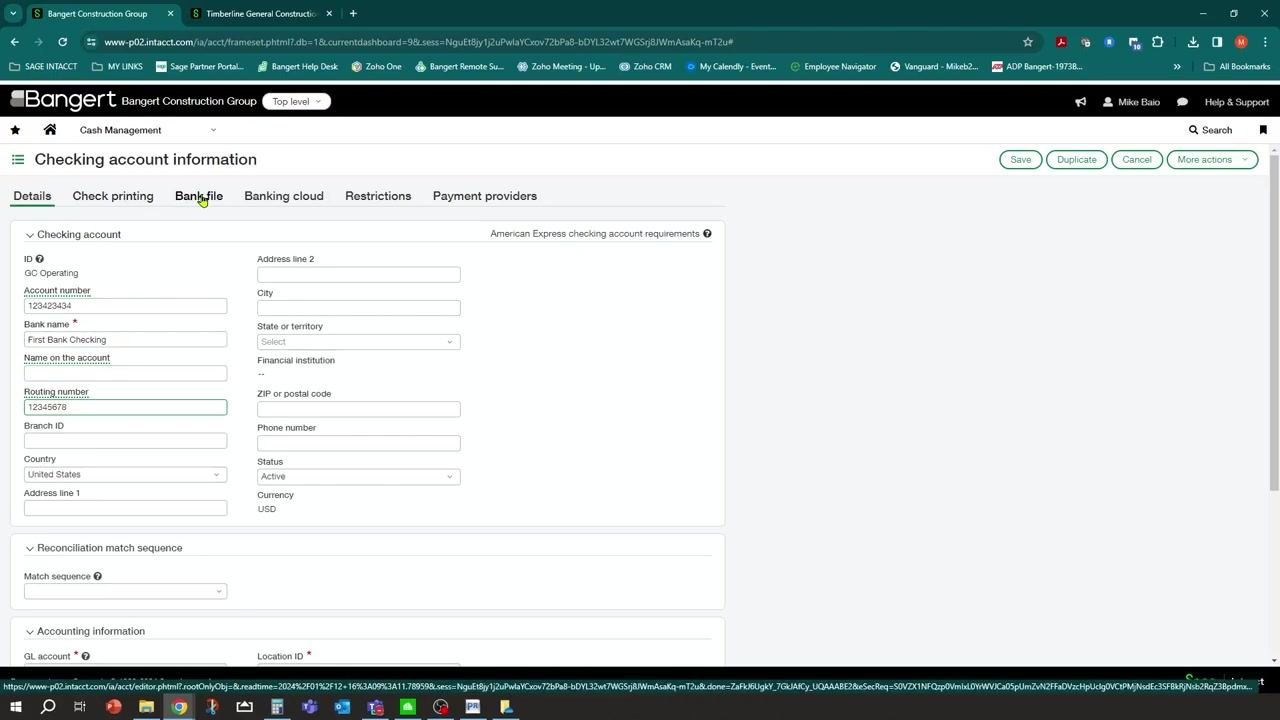
Identify the account you want to configure (for example, GC Operating), then click Edit to open its configuration.
Fill in required bank account details
Enter the following information for the account:
- Account number: the full bank account number (for example, 123423434)
- Bank name: the name of the bank (for example, First Bank Checking)
- Routing number: the bank's routing number (for example, 12345678)
- Country: the country associated with the account (for example, United States)
Fill in any additional fields as required, such as branch ID, address, city, state, ZIP, and phone number.
Save the bank account information
Click Save to store the updated bank account details.
Set up ACH bank configuration
Open the Bank file tab
Within the checking account configuration, click the Bank file tab at the top of the screen.
Enable ACH payments
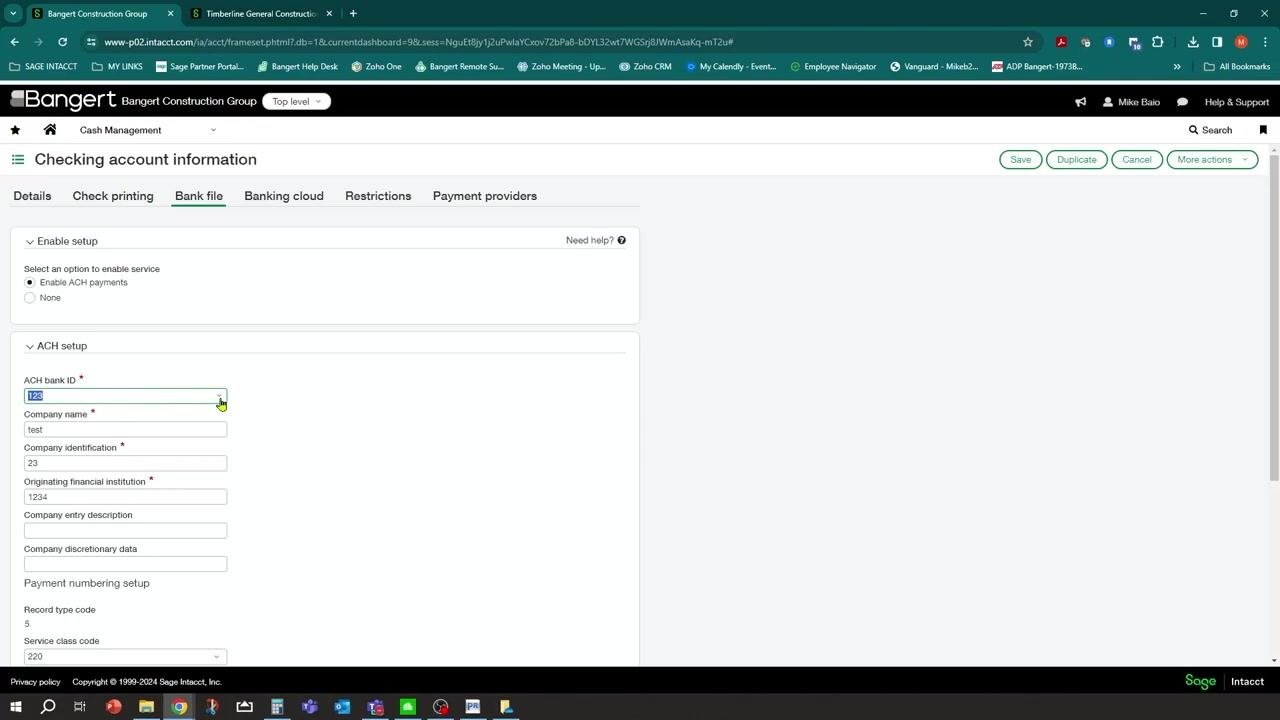
Under Enable setup, select the radio button for Enable ACH payments. If this isn't already enabled, switch the setting from None to Enable ACH payments.
Enter an ACH bank ID
In the ACH setup area, click into the ACH bank ID field and type your desired ACH bank ID (for example, "123"). This ID is for your own reference and can match your bank name or another identifier. If the ID doesn't already exist, Sage Intacct prompts you to create a new one.
Create a new ACH bank configuration
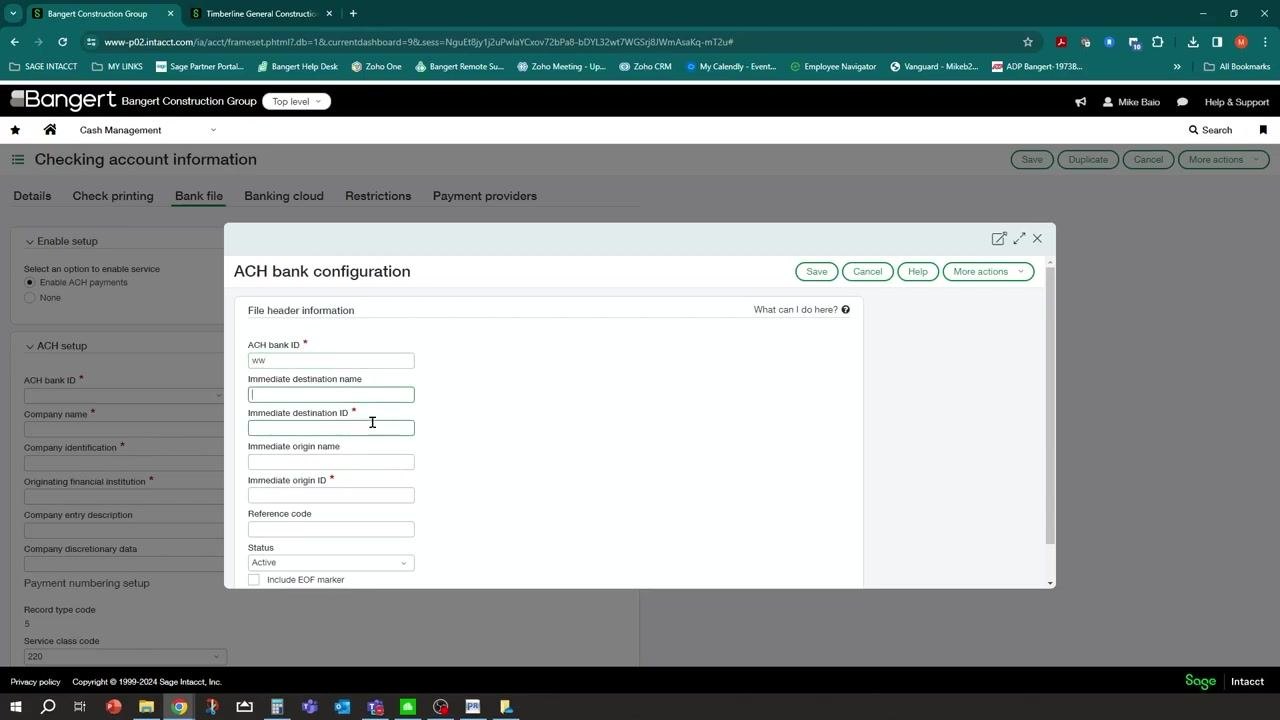
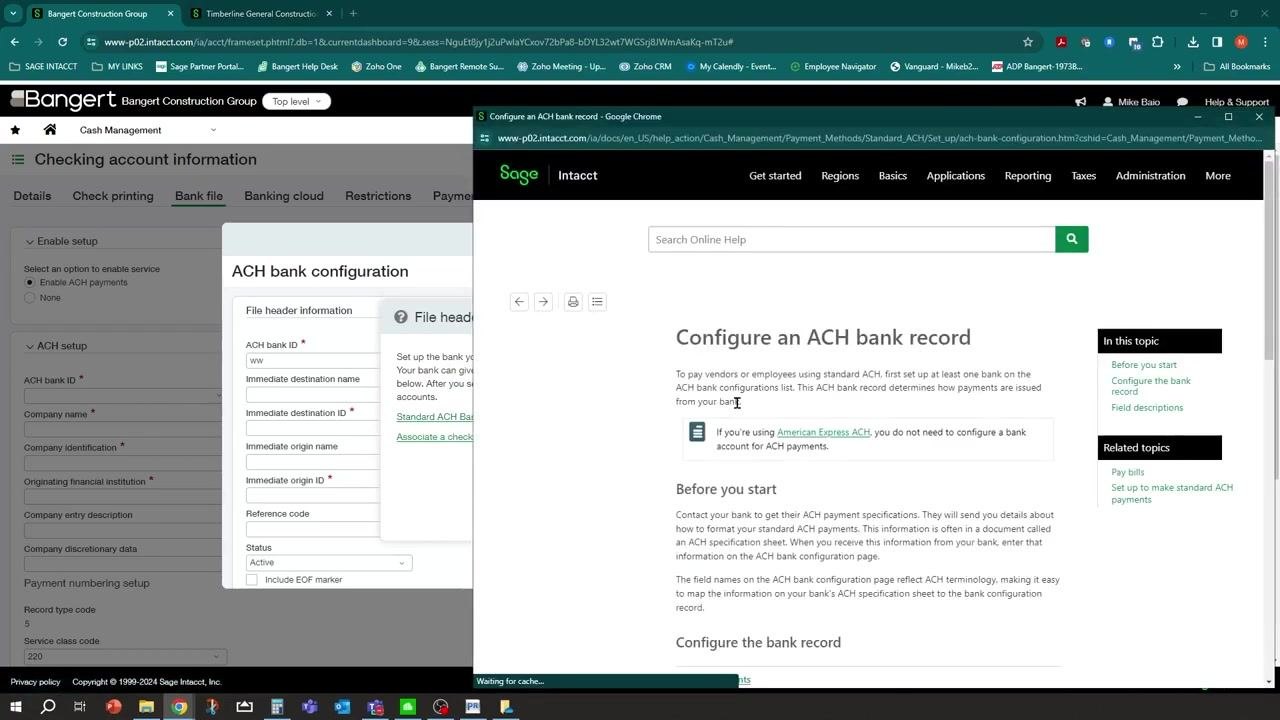
If you enter a new ACH bank ID value (for example, "www") and press Tab, a dialog appears prompting you to create a new ACH bank configuration.
Complete the required fields, marked with an asterisk (*):
- ACH bank ID: the new ID you entered (for example, "www")
- Immediate destination name: the name of the destination bank
- Immediate destination ID: the bank's routing number
- Immediate origin name: your company name
- Immediate origin ID: your 10-digit company number as specified by your bank
- Reference code: optional, enter if provided by your bank
- Status: set to Active unless otherwise instructed
- Include EOF marker: select if your bank requires a carriage return at the end of the ACH file
Click Save to store the configuration.
Get help with any field
If you're unsure about any field in the dialog, click the What can I do here? link for guidance.
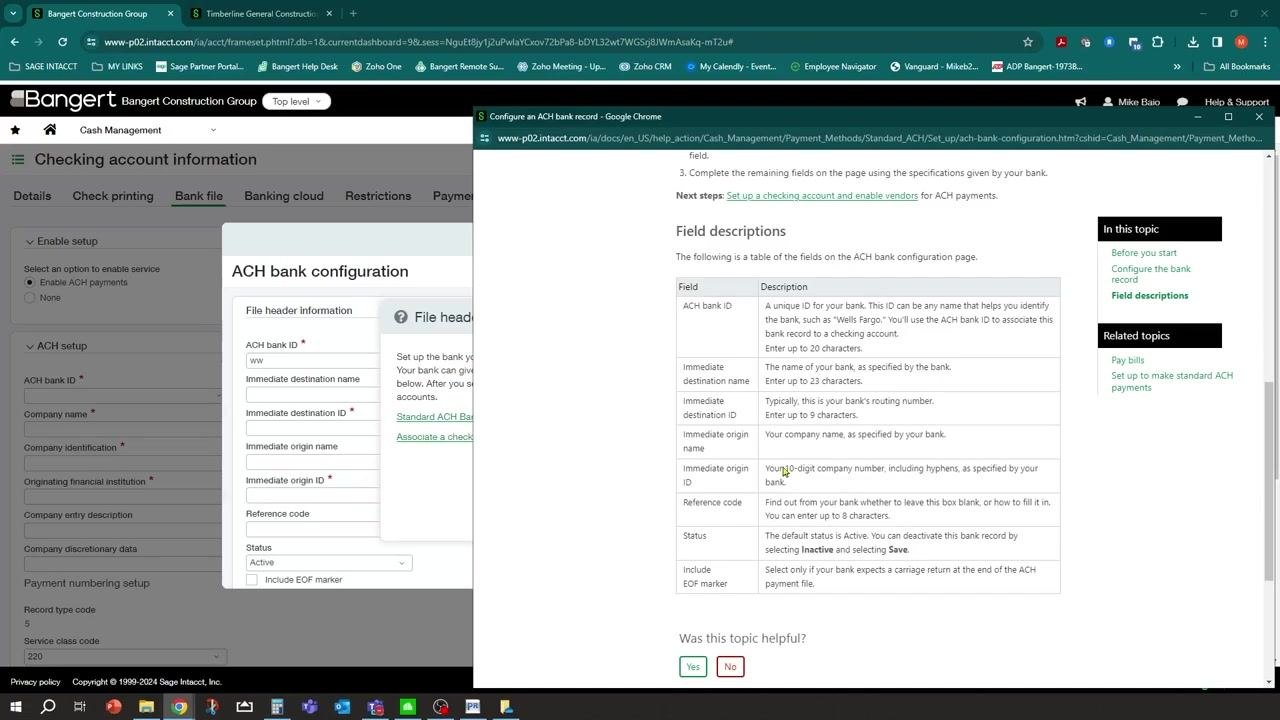
The help window opens a table that explains each field in detail:
- ACH bank ID: unique identifier for your bank (up to 20 characters)
- Immediate destination name: name of your bank (up to 23 characters)
- Immediate destination ID: bank's routing number (up to 9 characters)
- Immediate origin name: your company name
- Immediate origin ID: your 10-digit company number
- Reference code: up to 8 characters, as specified by your bank
- Status: Active or Inactive
- Include EOF marker: select if required by your bank
Complete the ACH setup section
Back on the Bank file tab, fill in the remaining ACH setup fields:
- ACH bank ID: the bank ID (for example, 123)
- Company name: your company name (for example, test)
- Company identification: the company identification number (for example, 23)
- Originating financial institution: the originating institution number (for example, 1234)
Fill in any additional required fields, such as company entry description, discretionary data, record type code (for example, 5), and service class code (for example, 220).
Review your entries
Review all entered information for accuracy before saving.
Save the ACH configuration
Click Save to apply the ACH configuration to your bank account.
Once you complete these steps, your bank account is configured in Sage Intacct to process ACH payments through the Accounts Payable module.
Configure vendors for ACH payments
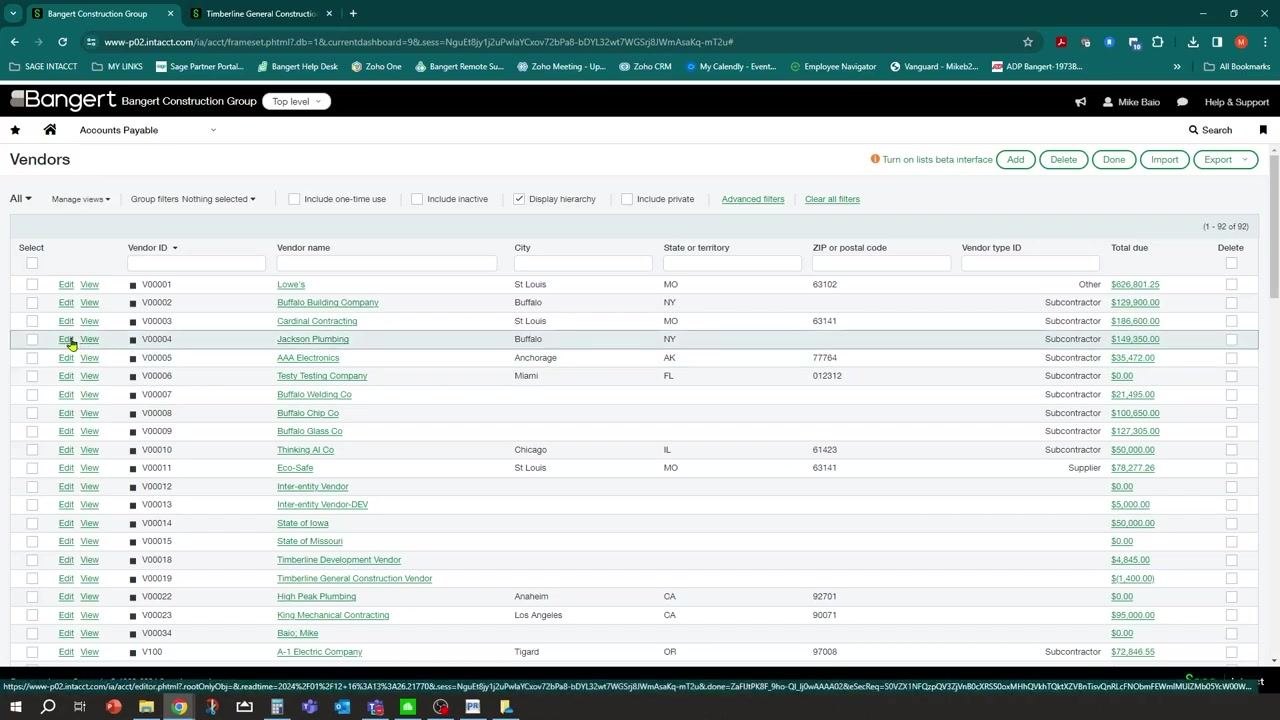
Navigate to your vendor list
Go to the Accounts Payable module. Depending on your organization, vendors may be set up at the entity level or the top level. In this example, vendors are set up at the top level.
Open the vendor record
In the Vendors list, locate the vendor you want to configure (for example, "Jackson Plumbing") and click Edit next to the vendor name to open the record.
Set the vendor's preferred payment method
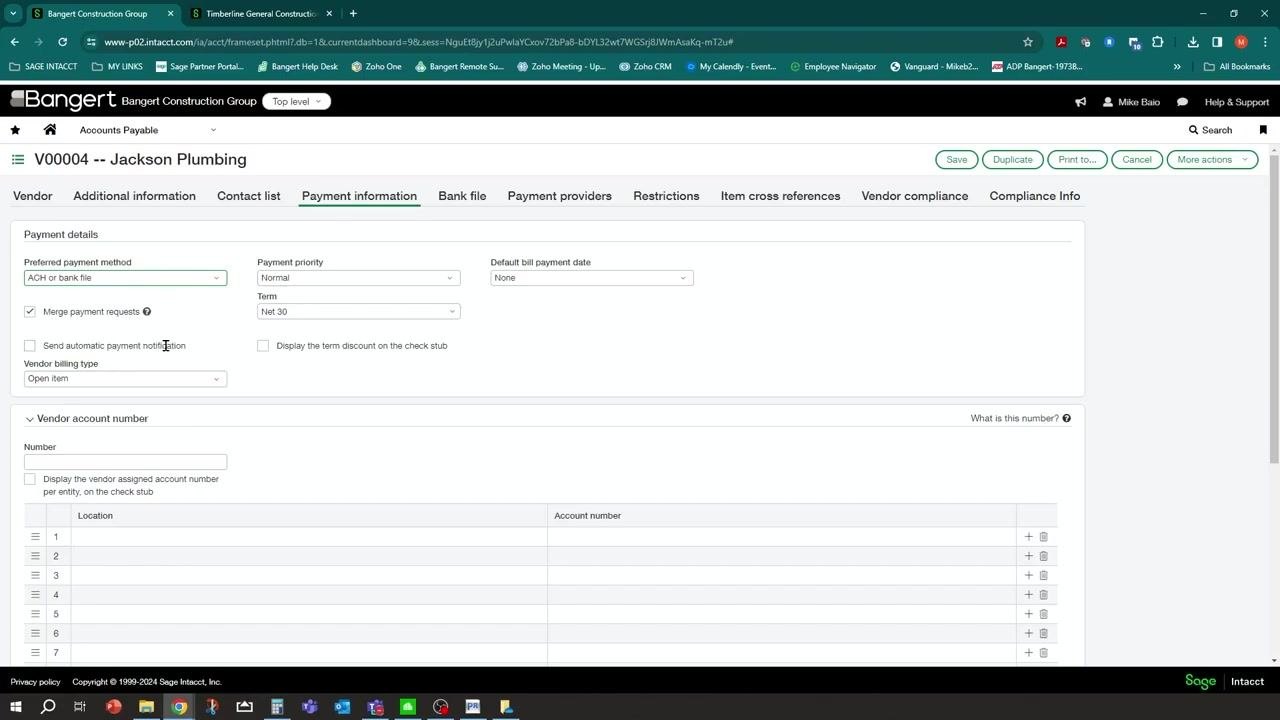
In the vendor record, go to the Payment information tab. Under Payment details, set Preferred payment method to ACH or bank file.
Optionally, check Send automatic payment notification if you want the vendor to receive an email when paid electronically. Adjust other payment settings as needed, such as payment priority and term.
Enable ACH payments for the vendor
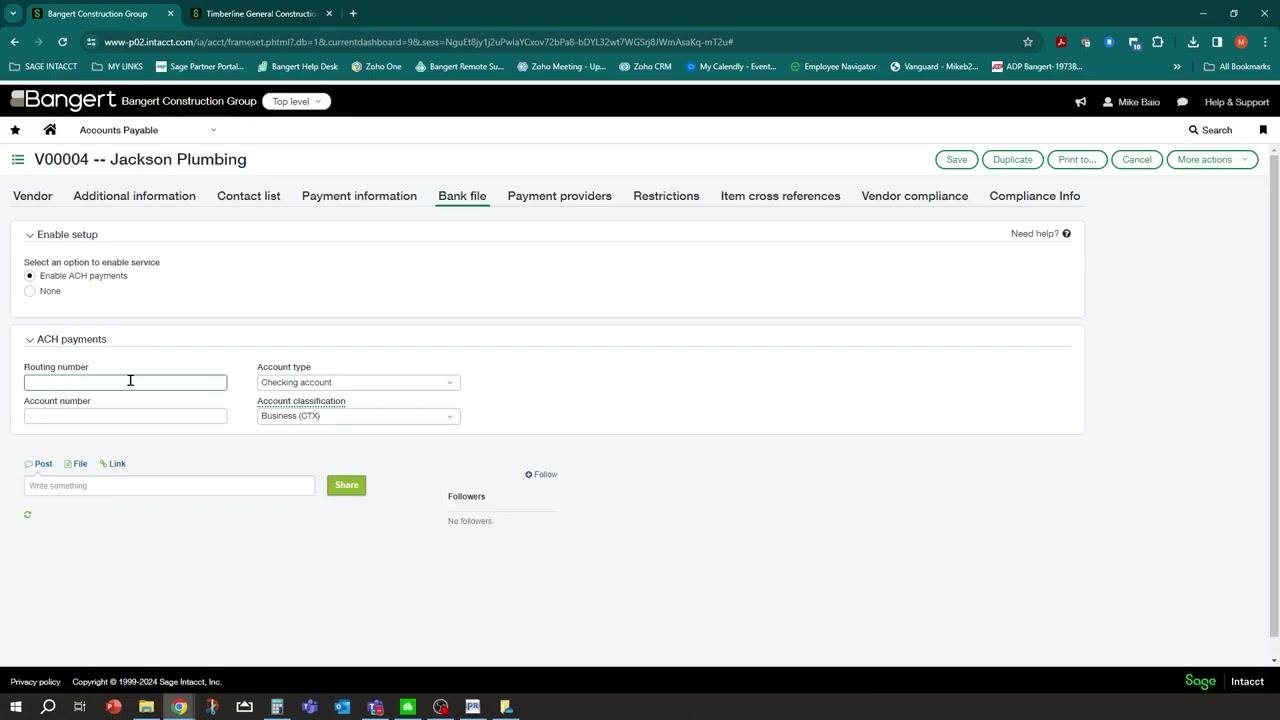
Click the Bank file tab in the vendor record. Under Enable setup, select Enable ACH payments.
In the ACH payments section, enter the vendor's bank details:
- Routing number: the vendor's 9-digit bank routing number
- Account number: the vendor's bank account number
- Account type: the appropriate account type (for example, Checking account)
- Account classification: the correct classification (for example, Business (CTX))
Note that less information is required here compared to the bank account setup.
Save the vendor's ACH setup
Review all entered information for accuracy, then click Save at the top right of the vendor record to apply the changes.
Completing these steps ensures vendors such as Jackson Plumbing are properly configured to receive ACH payments through Sage Intacct, which streamlines electronic payments and enables automated notifications if desired.
Enter a new bill
Create a bill for a vendor
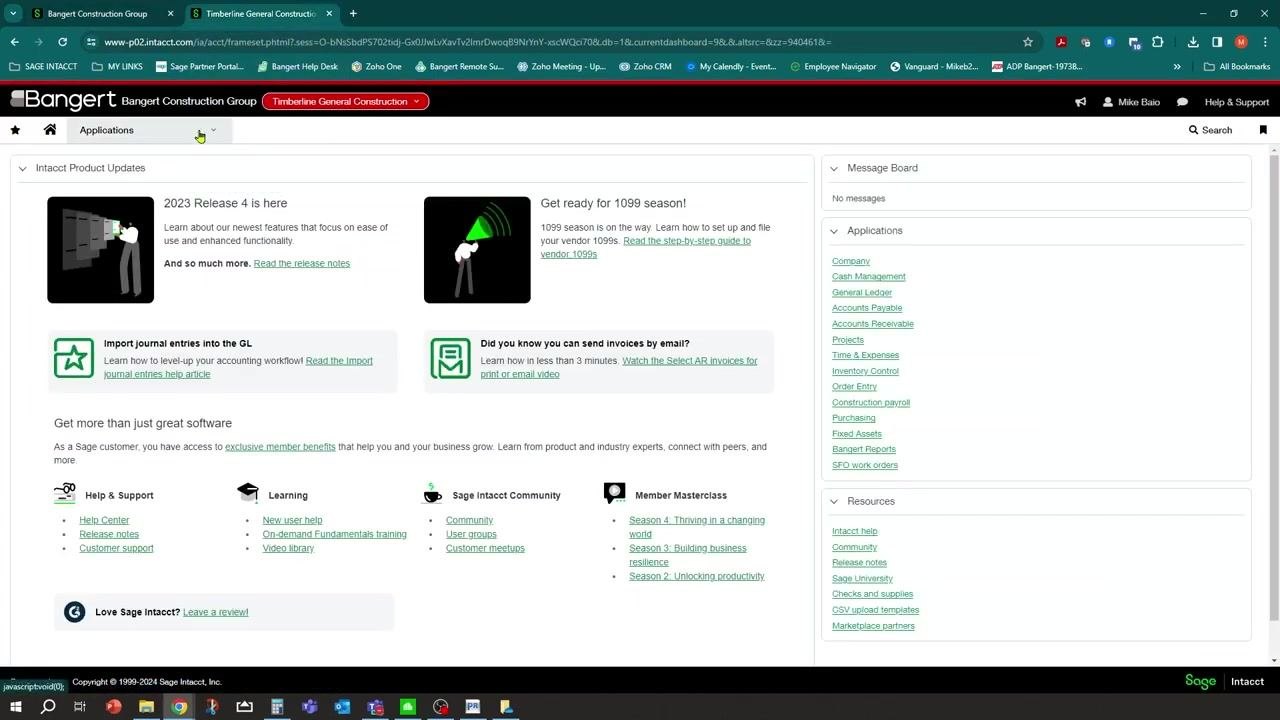
From the main dashboard, locate and click Accounts Payable in the Applications menu.
In Accounts Payable, select the option to enter a new bill, then fill in the bill details:
- Date: 01/12/2024
- Vendor: V00004--Jackson Plumbing
- Pay to: Jackson Plumbing (V00004)
- Bill number: 78980
- Term: Net 30
- Due date: 2/11/2024
- Account: 5002--Cost of Sales
- Amount: 780.00
- Location: GC--Timberline Gener
Add any additional information required, such as attachments or descriptions.
Review bills for payment
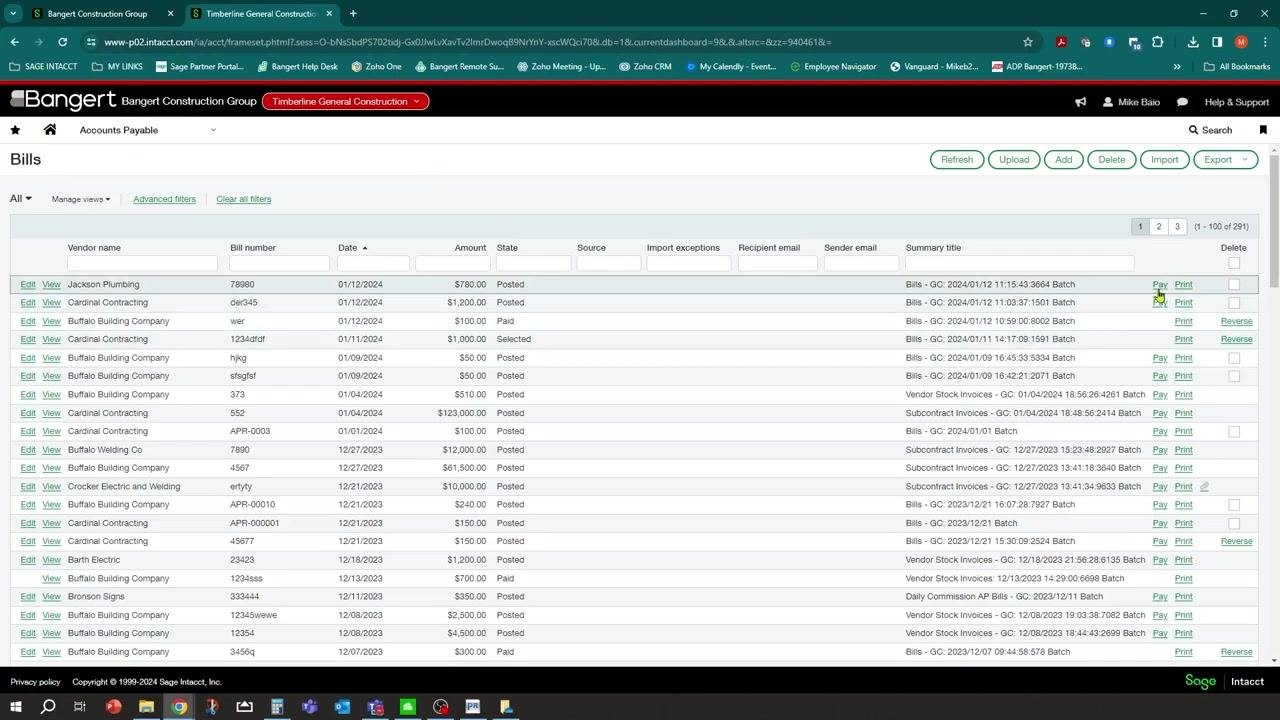
On the Bills screen, review the list of all vendor bills. Use the filter fields at the top (vendor name, bill number, date, amount, state, and so on) to narrow the list if needed.
Confirm that the bill for Jackson Plumbing (bill number 78980, amount $780.00, state Posted) appears in the list. The table lists all bills with columns for vendor name, bill number, date, amount, state, and actions (Pay, Print, Reverse).
Pay bills via ACH
Open the Pay bills screen
After posting the bill, proceed to process payments. You can pay a vendor individually or use the Pay Bills function to process payments for multiple vendors at once.
Select Pay Bills in the Accounts Payable module, then choose all vendors you want to pay via ACH in this run (for example, Jackson Plumbing and others). The system lets you select multiple vendors and generate a single ACH file containing payments for all of them.
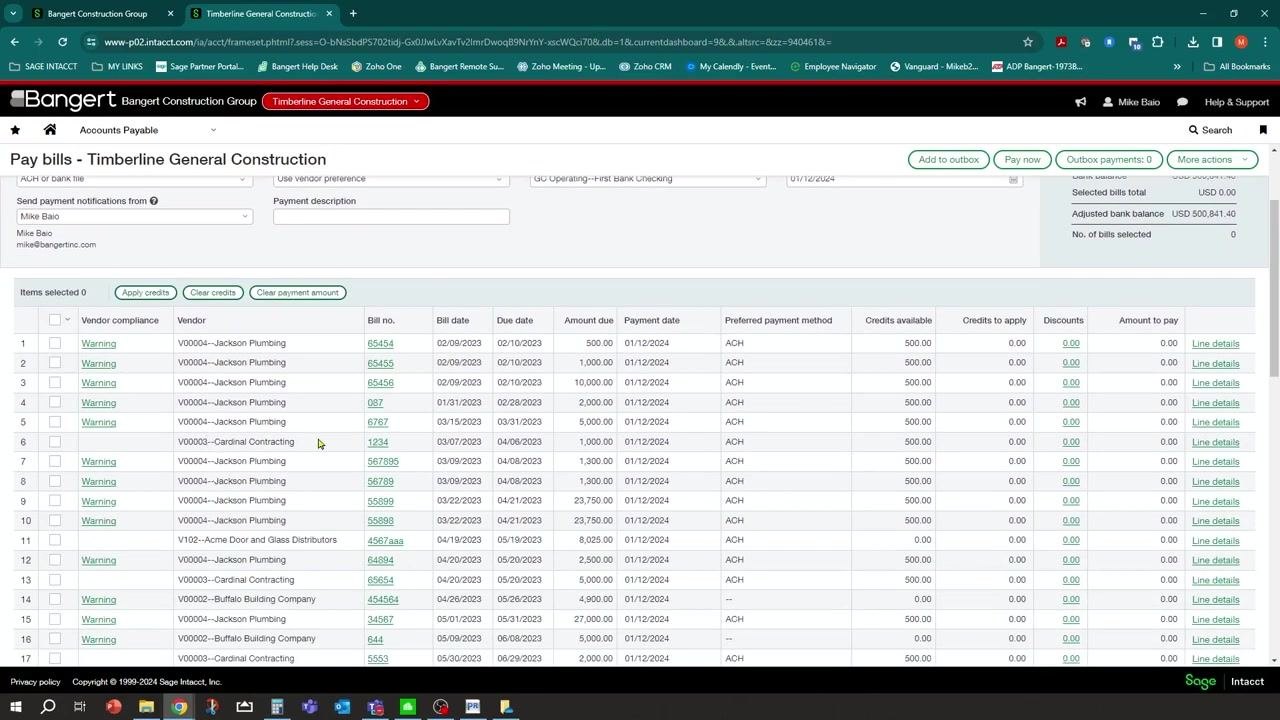
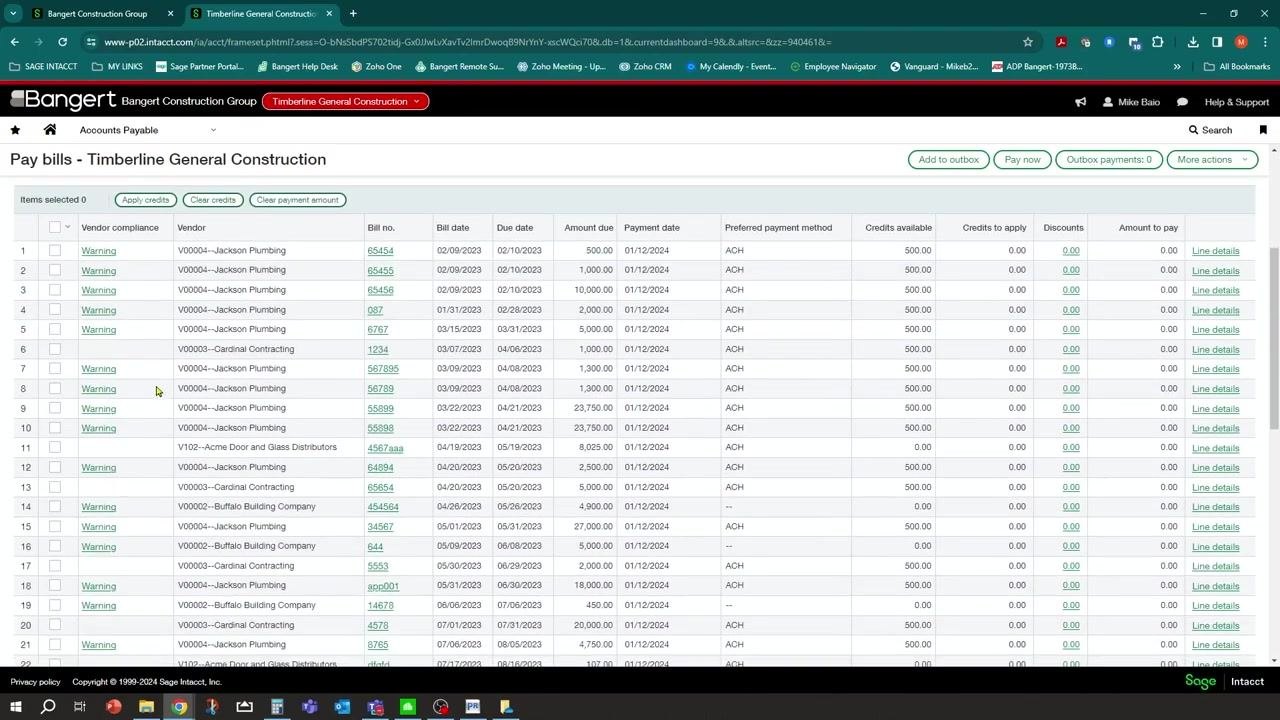
Navigate to the Pay bills section under Accounts Payable. The "Pay bills" screen for Timberline General Construction displays a list of bills eligible for payment, with columns for vendor compliance, vendor, bill number, bill date, due date, amount due, payment date, preferred payment method, credits available, credits to apply, discounts, and amount to pay.
Vendors such as Cardinal Contracting and Buffalo Building Company appear with "ACH" in the preferred payment method column.
Select the bank account for the ACH payment
In the Pay bills screen, locate the Bank dropdown menu and select the appropriate account for generating the ACH file (for example, "GC Operating--First Bank Checking"). Confirm the Set payment date to field is set to the desired date (for example, 01/12/2024).
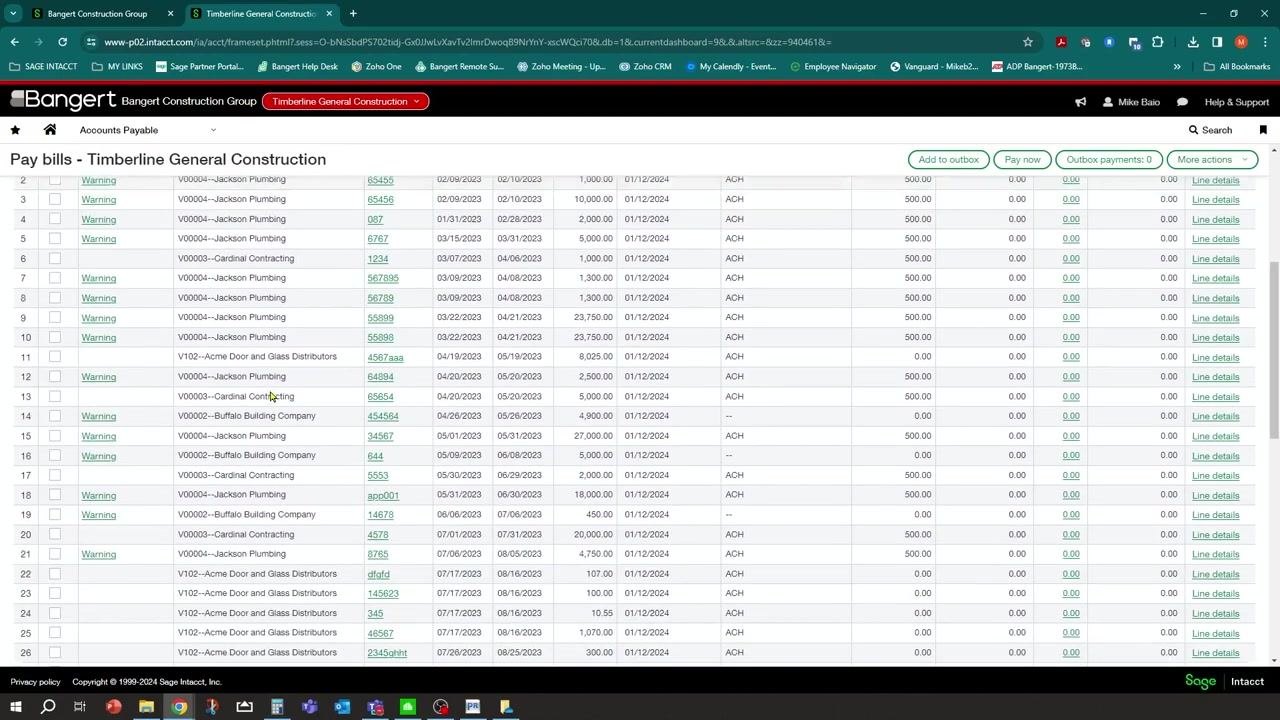
Locate the bills to pay
Scroll through the bill list to find the specific bills you want to pay. Confirm the Jackson Plumbing bill for $780.00 (bill number 78980) appears in the list.
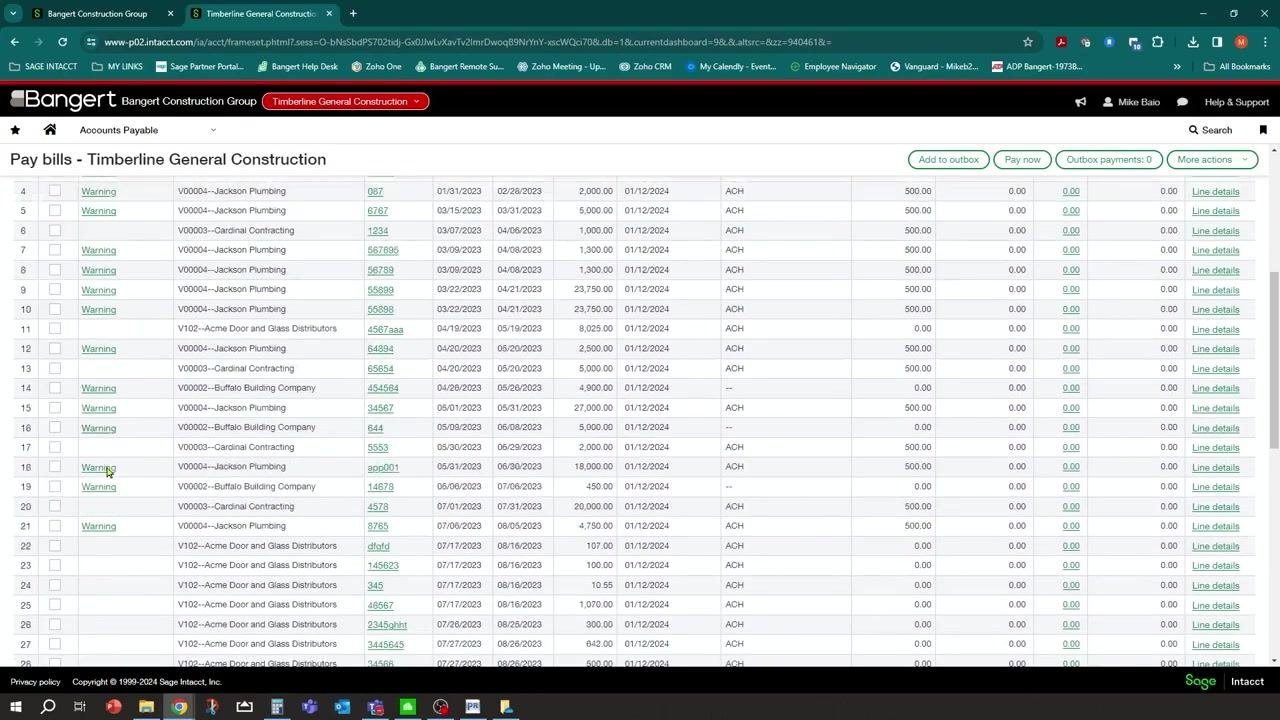
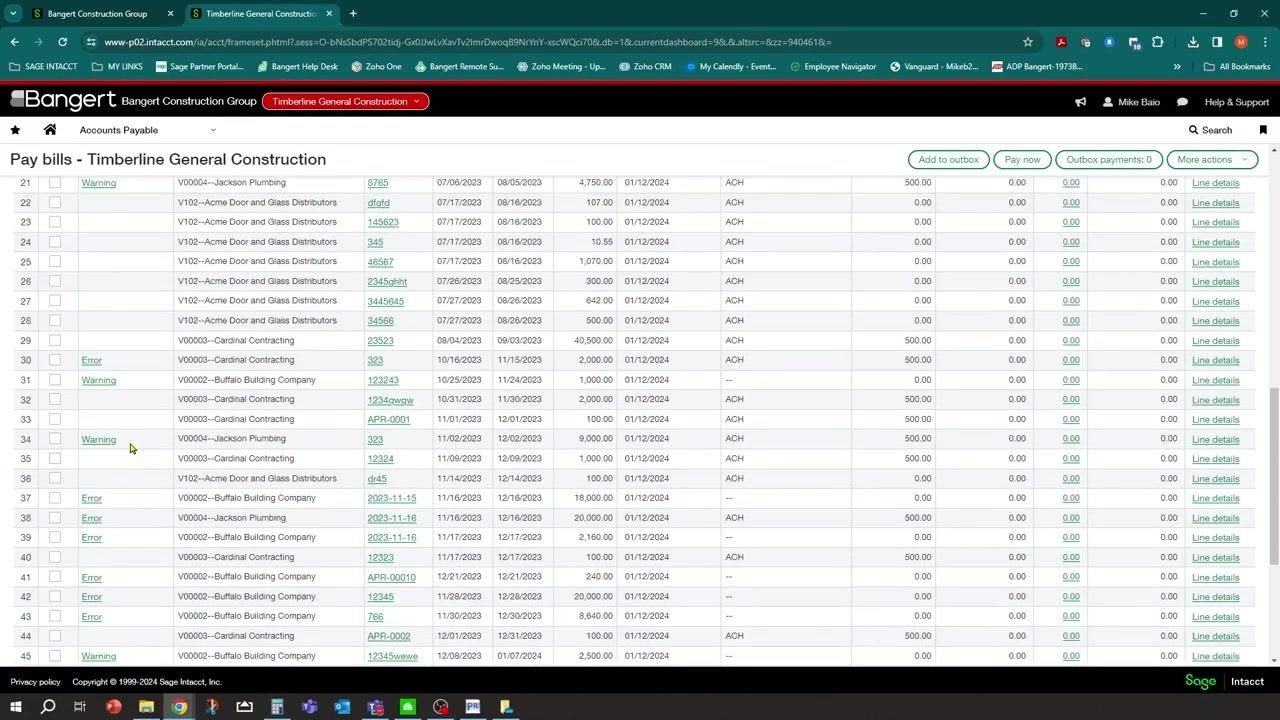
Review vendor compliance warnings and errors
Check the Vendor compliance column, which may display "Warning" or "Error" for certain bills. If a warning or error appears, click the link to view more details about the compliance issue before proceeding.
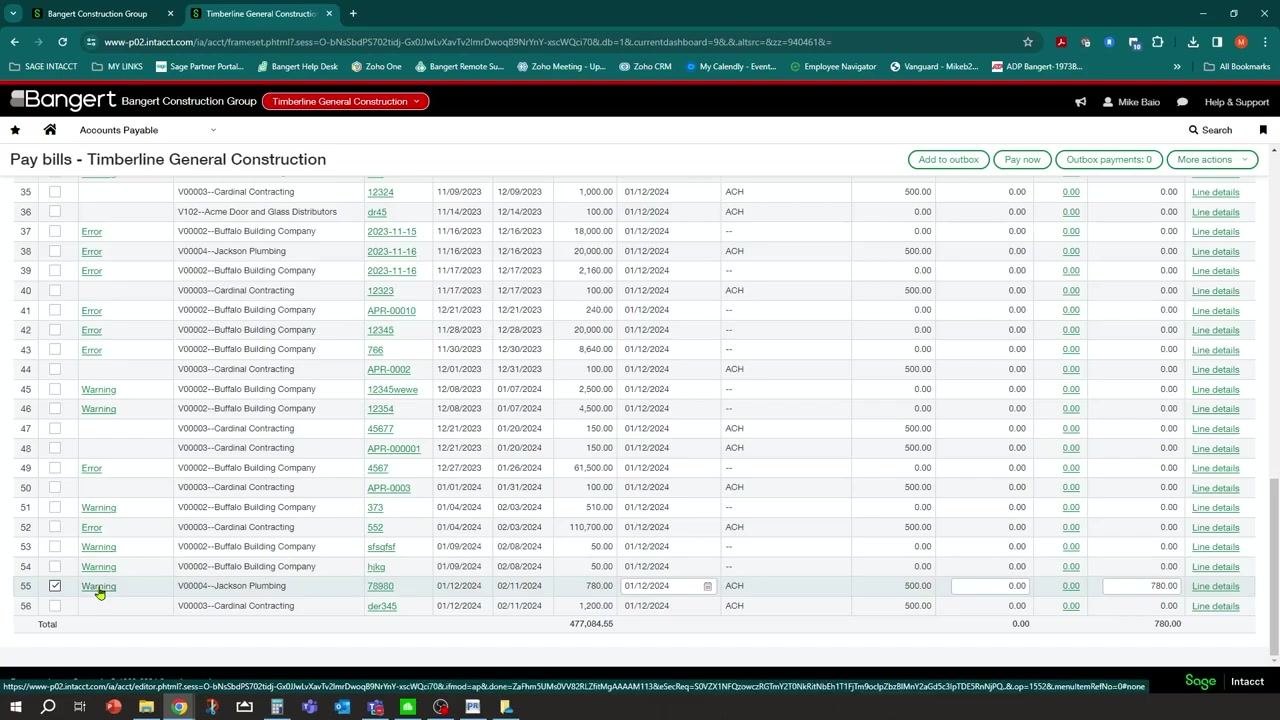
Select the bills for payment
Check the boxes next to the bills you want to pay, for example:
- Jackson Plumbing (bill number 78980, amount $780.00)
- Additional bills as needed, such as Buffalo Building Company and Cardinal Contracting
Selected bills are highlighted, and the total amount to pay updates at the bottom of the list.
Verify the payment method and bank account
As you select bills, verify that the Payment method dropdown is set to ACH or bank file, and confirm the selected bills display "ACH" in the preferred payment method column.
Confirm the Bank field remains set to the correct account (for example, "GC Operating--First Bank Checking") and the Set payment date to field reflects the intended payment date (for example, 01/12/2024).
Submit the payment request
On the "Pay bills – Timberline General Construction" screen, review your selected bills and payment details, then click Pay now at the top right of the bill list to begin processing payments.
A loading indicator appears while the system writes the payment request for the selected bills. The payment method remains set to "ACH or bank file" and the bank account to "GC Operating--First Bank Checking."
After clicking Pay now, a status message indicates the number of payment requests created (for example, "three payment requests" for "four invoices"). The system groups the selected bills by vendor, resulting in one payment request per vendor.
Confirm payment requests were created
Once processing completes, confirm that payment requests were created for the correct number of vendors (for example, three vendors processed). The bill selection checkboxes clear and the "Items selected" count returns to zero. The bill list remains visible with all vendor bills and their compliance status.
Generate the ACH file
Navigate to Payment files
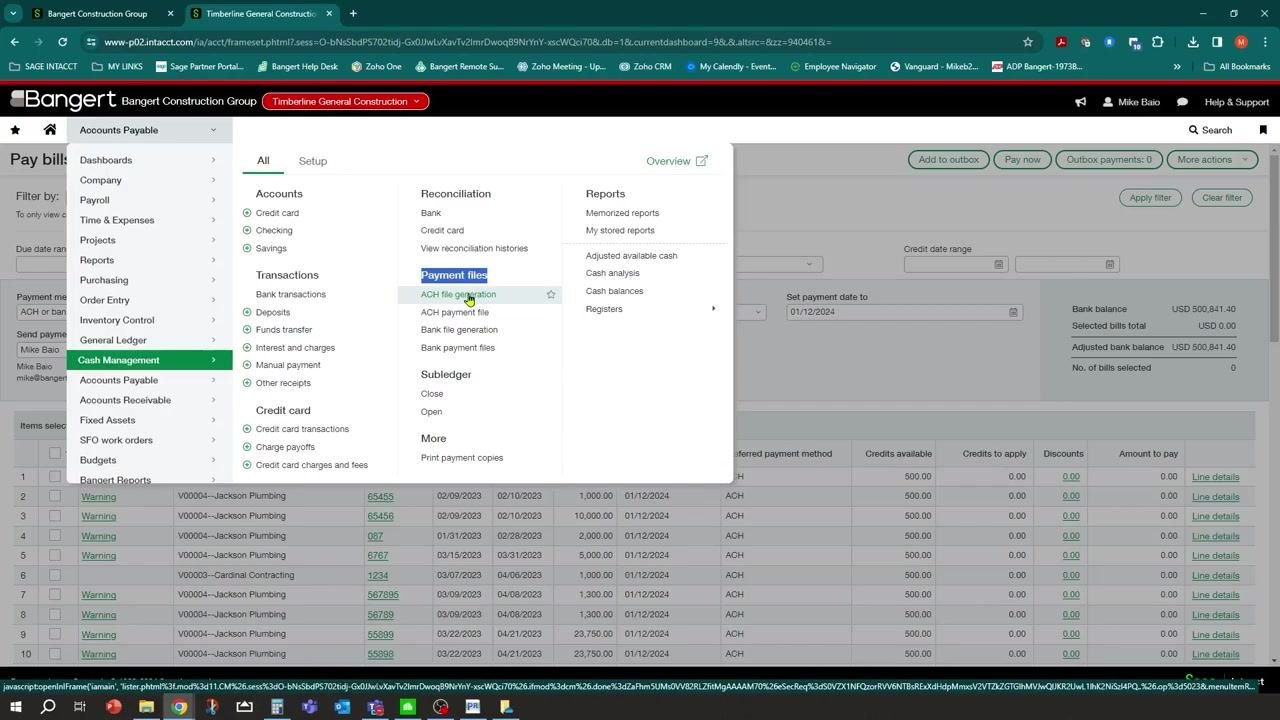
Open the main navigation menu on the left and select Cash Management to expand its submenu. Under Payments, locate and select Payment files. This prepares you to generate the ACH file for the processed payments.
In the expanded Cash Management menu, under Payment files, select ACH file generation to open the ACH file generation interface.
Handle the unsaved changes prompt
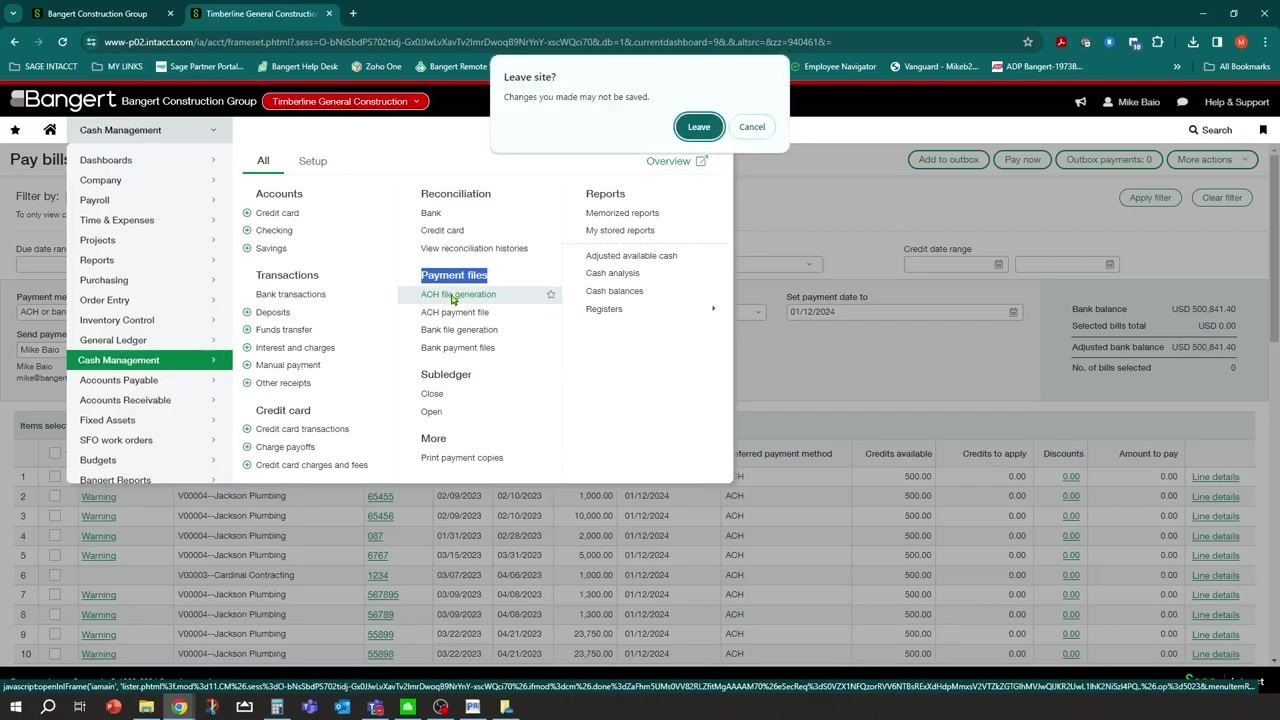
If you're prompted with a "Leave site?" dialog (for example, "Changes you made may not be saved"), click Leave to proceed to the ACH file generation screen without saving changes on the previous screen.
Select payments for the ACH file
On the Generate ACH file screen, review the list of payees eligible for ACH payment. The table displays columns for Select, Payee ID, Payee name, Bank account, Payment date, and Payment amount.
Select the checkboxes for each payee you want to include in the ACH file, for example:
- Buffalo Building Company (Payee ID: V00002, Amount: $5,010.00)
- Cardinal Contracting (Payee ID: V00003, Amount: $1,200.00)
- Jackson Plumbing (Payee ID: V00004, Amount: $780.00)
You can select all payees or only individual ones as needed.
Generate the file
After selecting the desired payees, click Generate file at the top right of the screen. The system processes your selections and creates the ACH payment file.
Review the ACH payment file list
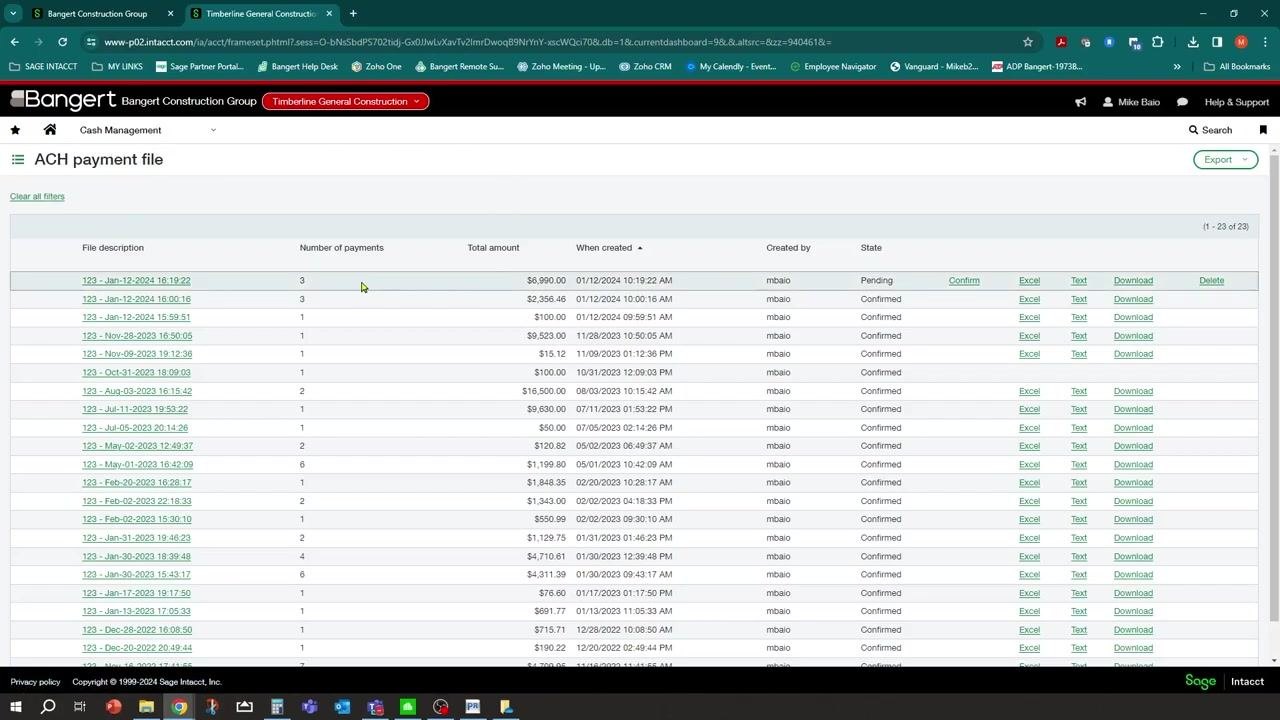
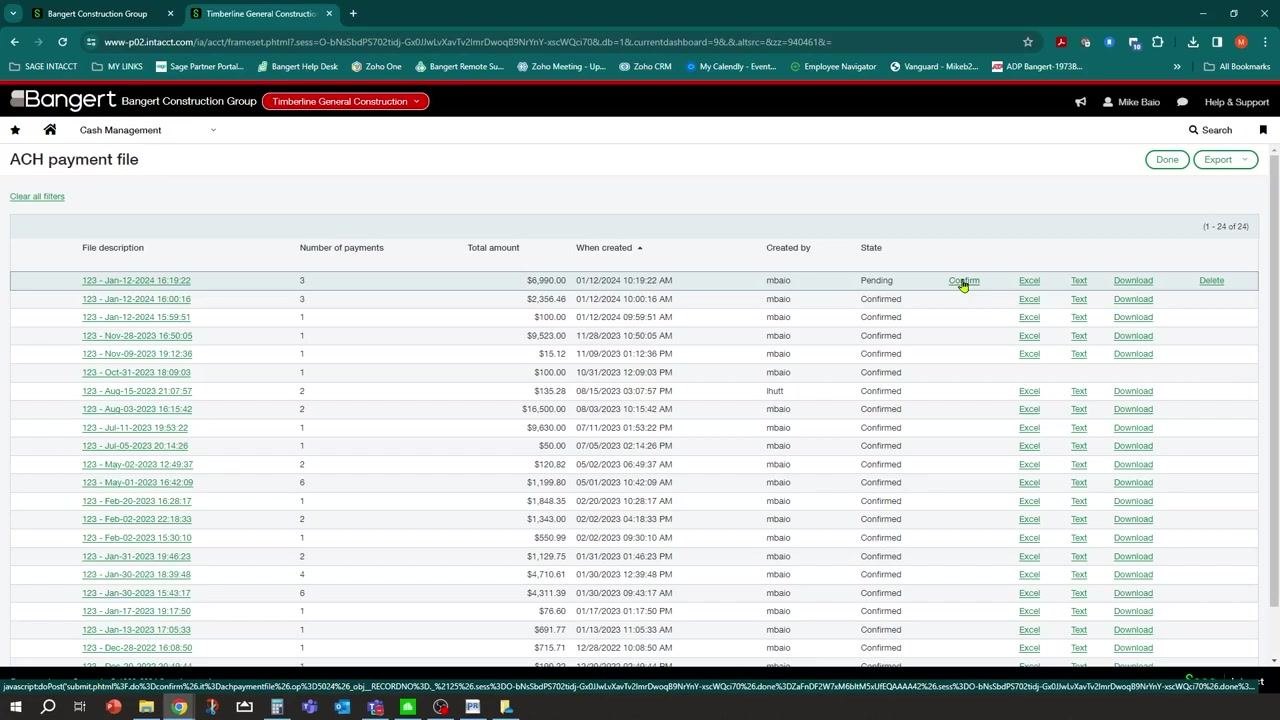
The system navigates to the ACH payment file screen, displaying a list of all generated ACH files. Locate the newly created file at the top of the list, which shows:
- File description (for example, "123 - Jan-12-2024 16:19:22")
- Number of payments (for example, 3)
- Total amount (for example, $6,990.00)
- When created (for example, 01/12/2024 10:19:22 AM)
- Created by (for example, mbaio)
- State (for example, Pending or Confirmed)
Additional actions are available for each file: Confirm, Excel, Text, Download, and Delete.
With these steps complete, you've initiated ACH payment processing, generated the ACH file, and verified its creation in Sage Intacct.
Manage ACH payment files and confirm with your bank
Delete and recreate a payment file if needed
If you need to redo a payment file, click the Delete link next to the relevant file while it's in the Pending state. Deleting a file reverts it to the prior step, allowing you to recreate or adjust the payment as necessary. Confirm the deletion if prompted.
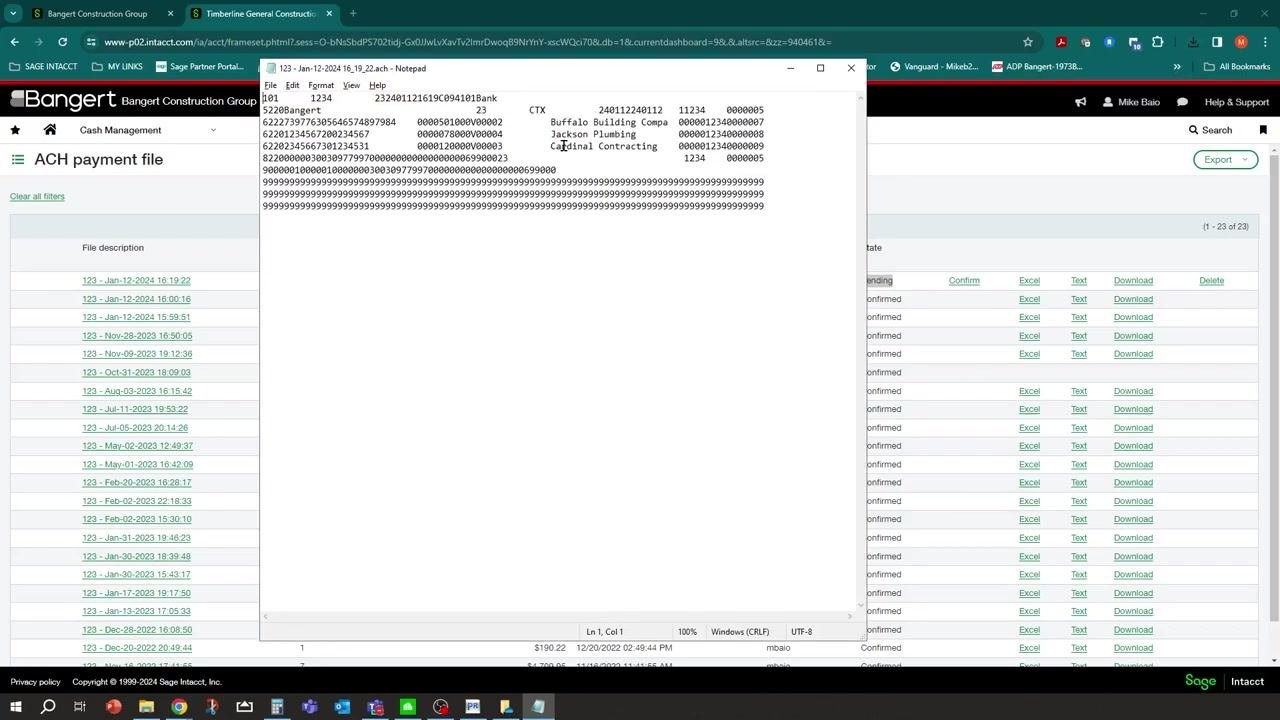
View ACH payment file details
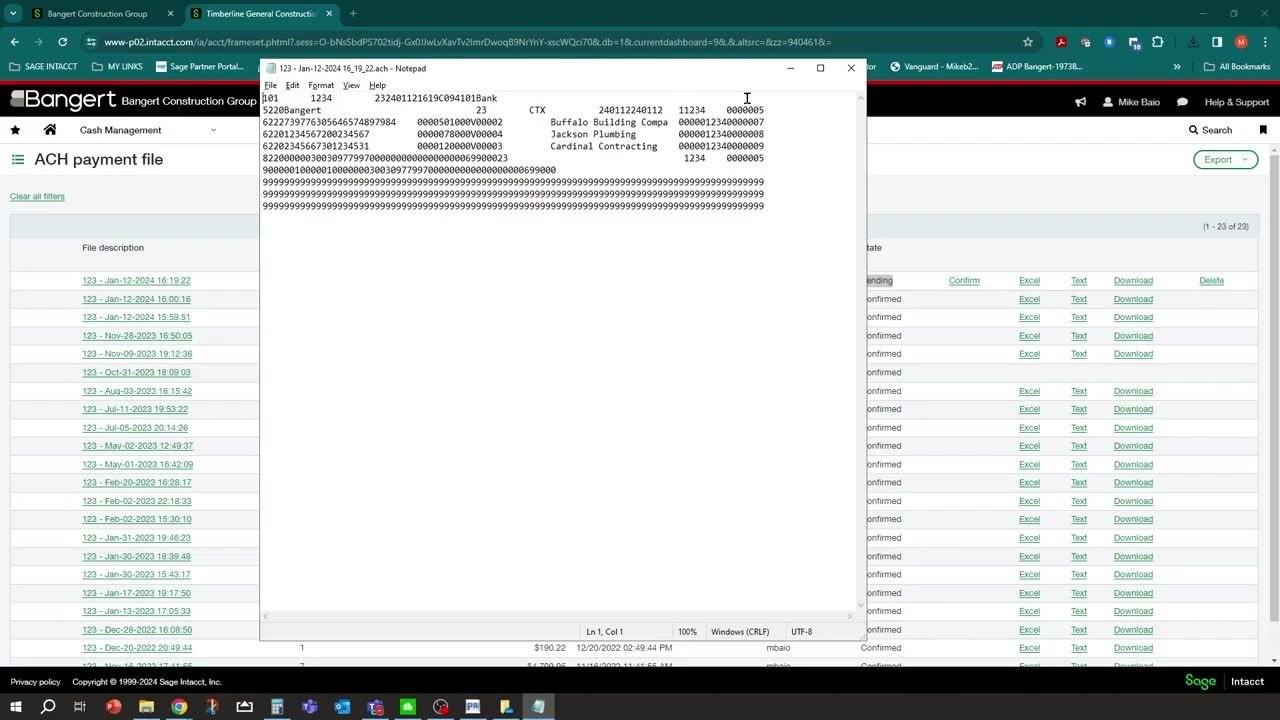
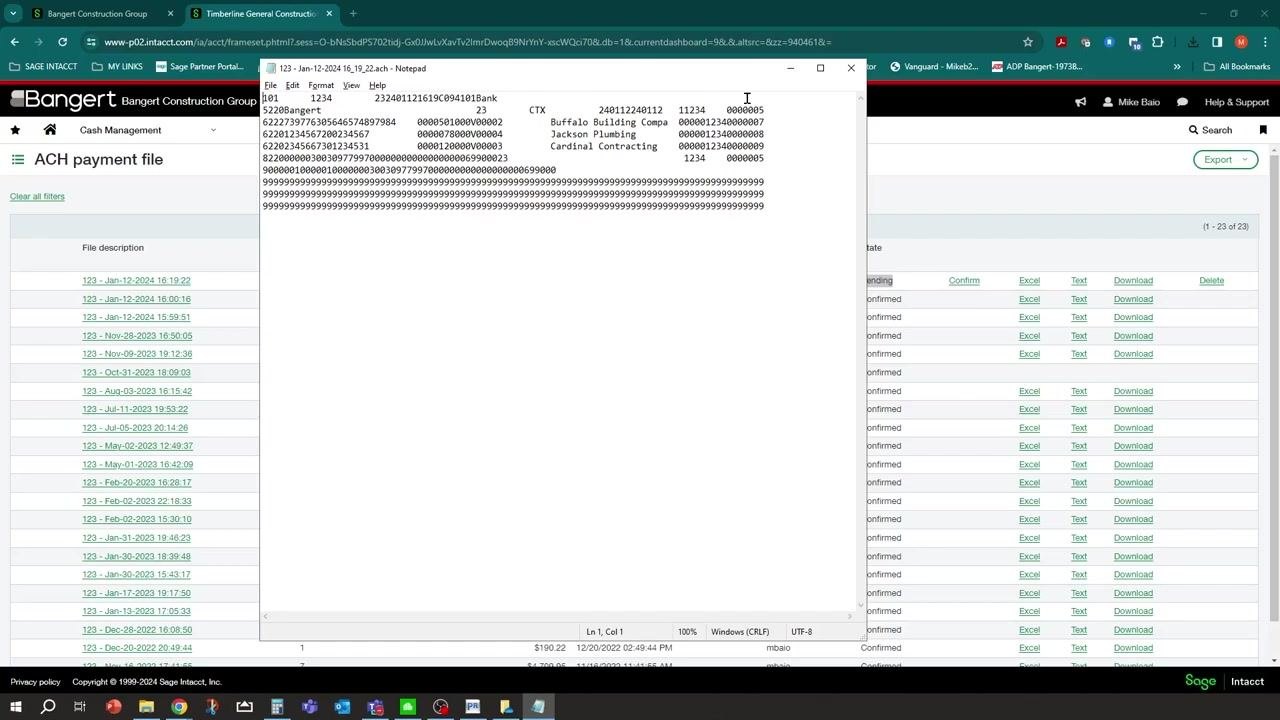
To review the contents of a payment file, click the Text link next to the file. The file opens in a text editor, displaying detailed ACH transaction information, including:
- File header and control records
- Company and bank information
- Vendor names (for example, Buffalo Building Company, Jackson Plumbing, Cardinal Contracting)
- Transaction codes and reference numbers
Use this information to verify the file contents or provide it to your bank as needed.
Coordinate with your bank
Follow your bank's process for ACH file submission and testing. Many banks require you to generate a test ACH file with a few invoices and send it to them for validation. Wait for confirmation from your bank that the test file processed successfully before proceeding.
Leave the file in Pending state
After generating and submitting the ACH file, leave it in the Pending state within Sage Intacct until you receive confirmation from your bank. Don't confirm or finalize the payment file until the bank has verified successful processing.
Identify pending ACH payment files
In the ACH payment file list, review the columns: File Description, Number of Payments, Total Amount, When Created, Created By, and State. Locate the file with the "Pending" state—for example, "123 - Jan-12-2024 16:19:22" with 3 payments totaling $6,990.00, created by "mbaio." The Confirm action is available for files in the Pending state.
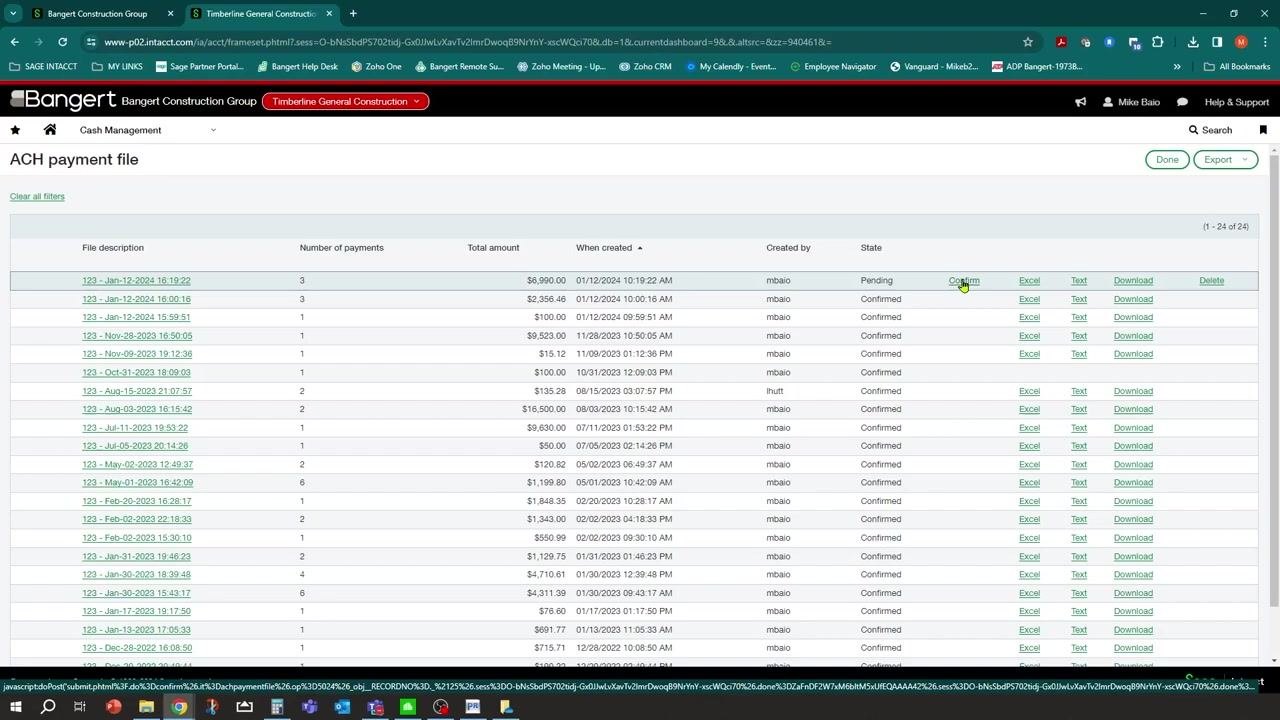
Confirm the pending ACH payment file
Click the Confirm link next to the pending payment file. This action finalizes the payment file, marking it as "Confirmed" in the State column. Make sure you've received confirmation from your bank before performing this step.
Verify the confirmation status
After confirming, the payment file's state updates from "Pending" to "Confirmed." All files in the list should now display "Confirmed" in the State column.
What's next
With your bank account and vendors configured, you can repeat the Enter a new bill and Pay bills via ACH steps for each payment cycle. Continue coordinating with your bank on file submission timing, and always confirm test files before relying on production ACH runs. You have now completed the ACH payment process through Sage Intacct.
Generation details: cost, quality tiers
Docsie billed 6,500 credits ($4.55) to analyze this 13-minute video at standard quality. The rewrite, template fill and Word/PDF exports were included. The same video at each quality tier:
| Quality | Frames sampled | Credits | Approx. cost |
|---|---|---|---|
| Draft | every 16-30 s | 3,250 | $2.27 |
| Standard (this guide) | every 8-15 s | 6,500 | $4.55 |
| Detailed | every 4-7 s | 13,000 | $9.10 |
| Ultra | every 1-3 s | 26,000 | $18.20 |
Credits priced at $0.70 per 1,000; plans include a monthly allowance. Enterprise customers on on-premise or bring-your-own-model deployments run this on their own inference and pay no per-video credits.
Generated by Docsie Video-to-Docs on 2026-10-25 from a 12-minute video. Screenshots are frames from the source video and belong to their creator, Bangert, Inc., whose original is embedded above. If you own this video and want the guide removed or credited differently, contact us and we will act within one business day.