
How to Write Off Bad Debt in Sage 100
When a customer invoice becomes uncollectible, you can write off the bad debt directly in the Accounts Receivable module of Sage 100. This guide walks you through creating a cash receipts batch, applying the write-off to the correct invoice, posting the entry to the correct bad debt GL account, and verifying that the write-off was recorded correctly on the customer account.
Video: Sage 100 How to Write Off Bad Debt in Accounts Receivable by Acute Data (2017). All credit for the demonstration goes to the creator; watch the original on YouTube. The written guide below was generated from this video by Docsie. Creator? Request a change or removal.
When a customer invoice becomes uncollectible, you can write off the bad debt directly in the Accounts Receivable module of Sage 100. This guide walks you through creating a cash receipts batch, applying the write-off to the correct invoice, posting the entry to the correct bad debt GL account, and verifying that the write-off was recorded correctly on the customer account.
Prerequisites
- Access to the Accounts Receivable module in Sage 100.
- The customer account and specific invoice you intend to write off.
- The GL account number designated for bad debt expense (e.g., 61500-01-000-000-000).
Open the Accounts Receivable module
Open Sage 100 and make sure you are on the main dashboard. In the left navigation pane, select Accounts Receivable. This displays the module's main options, including Cash Receipts Entry, Customer Inquiry, and Customer Maintenance.
Start a new cash receipts entry batch
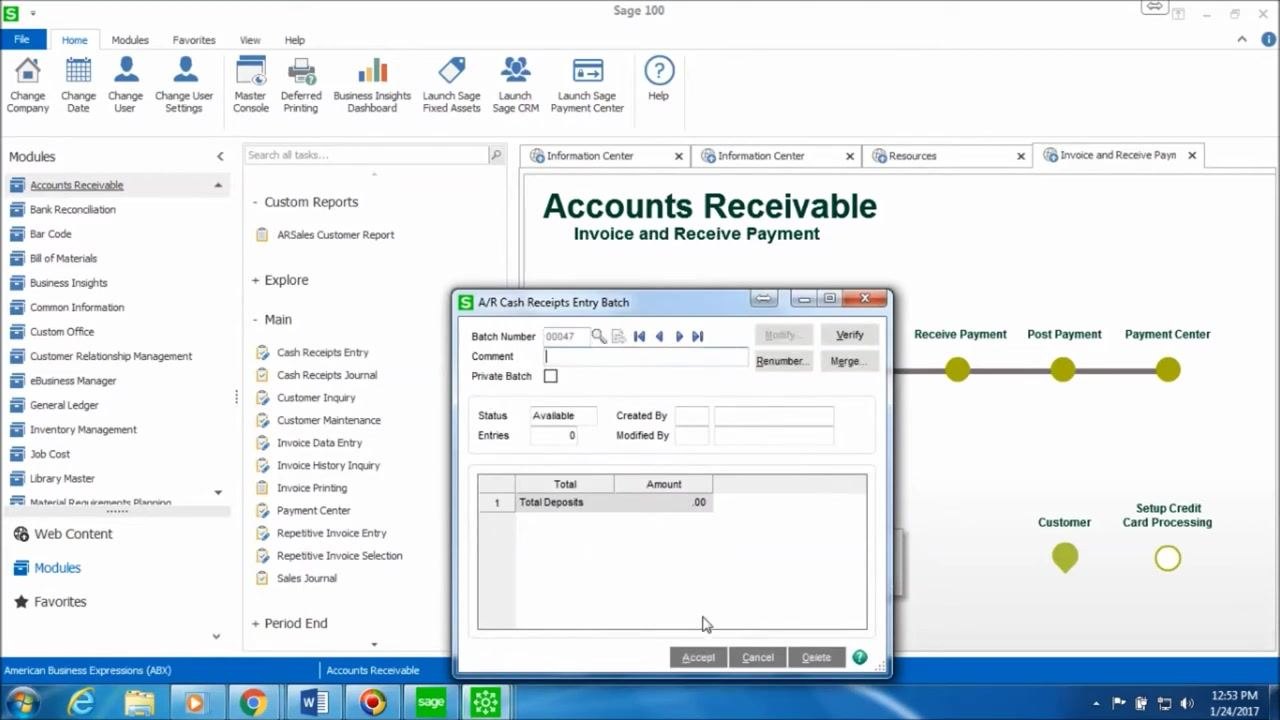
In the Main section under Accounts Receivable, click Cash Receipts Entry. In the A/R Cash Receipts Entry Batch window, click the Next Batch Number field (for example, 00047), optionally enter a comment for reference, and click Accept to proceed.
Create a new cash receipts deposit
In the Cash Receipts Deposit window, click the Next Deposit Number field (for example, 00069) and enter a description such as Writeoff. Make sure both the Cash Deposit Amount and Credit Card Deposit Amount are set to 0.00, since no actual payment is being received. Click Accept to continue.
Select the customer for the write-off
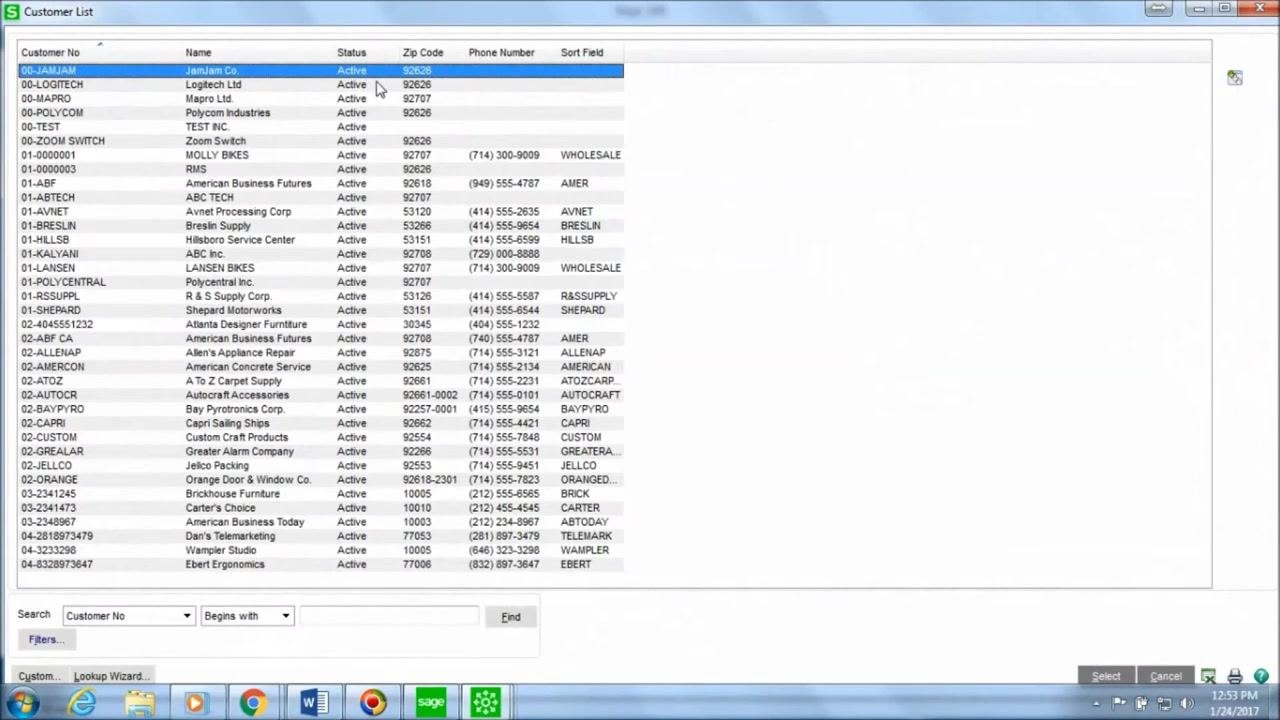
In the customer lookup window, search for and select the customer associated with the invoice you are writing off. In this example, the customer is Polycom Industries (Customer No: 00-POLYCOM).
Enter write-off details in Cash Receipts Entry
In the Cash Receipts Entry window, confirm that the Customer No field shows 00-POLYCOM. Set the Deposit Type to Cash, and in the Check No. field, enter WRITE OFF. Leave the Amount Received field on the Header tab set to 0.00, since this entry does not represent an actual cash payment.
Select the invoice to write off
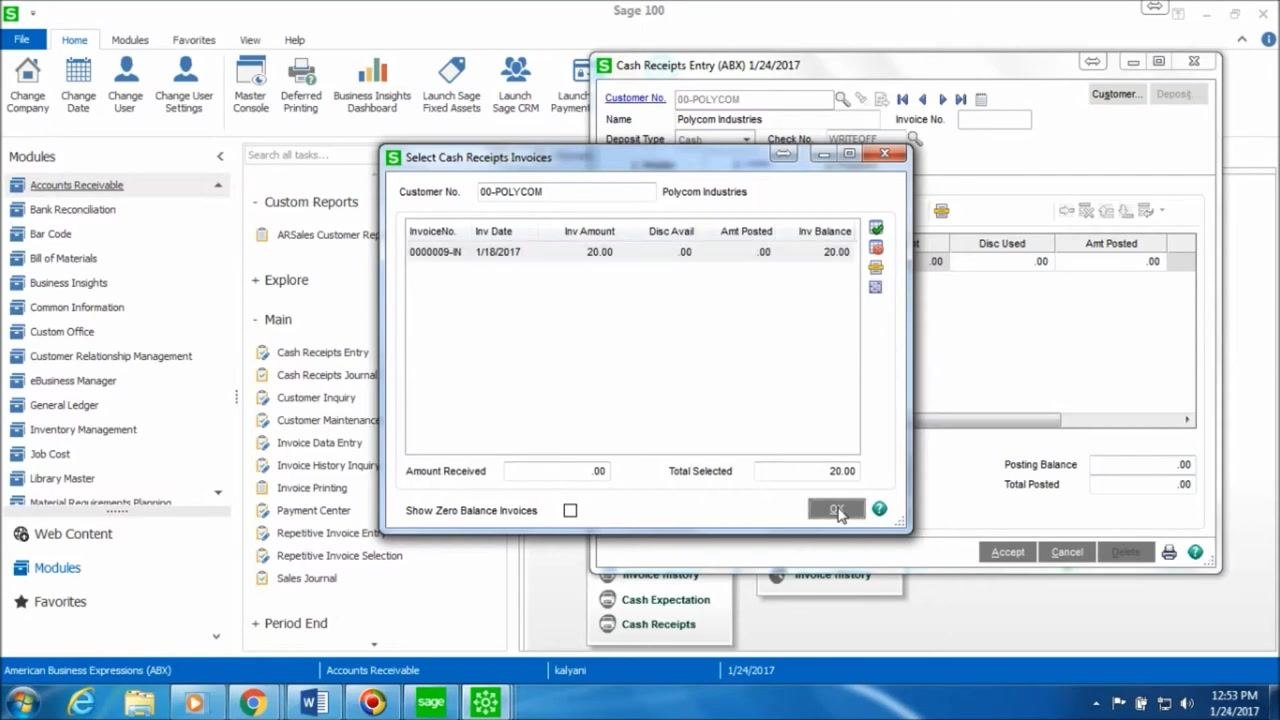
Go to the Lines tab. In the first line, click the lookup icon under Invoice No. to open the Select Cash Receipts Invoices window. Choose the invoice you want to write off (for example, Invoice No: 0000009-N, Inv Date: 1/18/2017, Inv Amount: 20.00), then click OK.
Enter the write-off amount
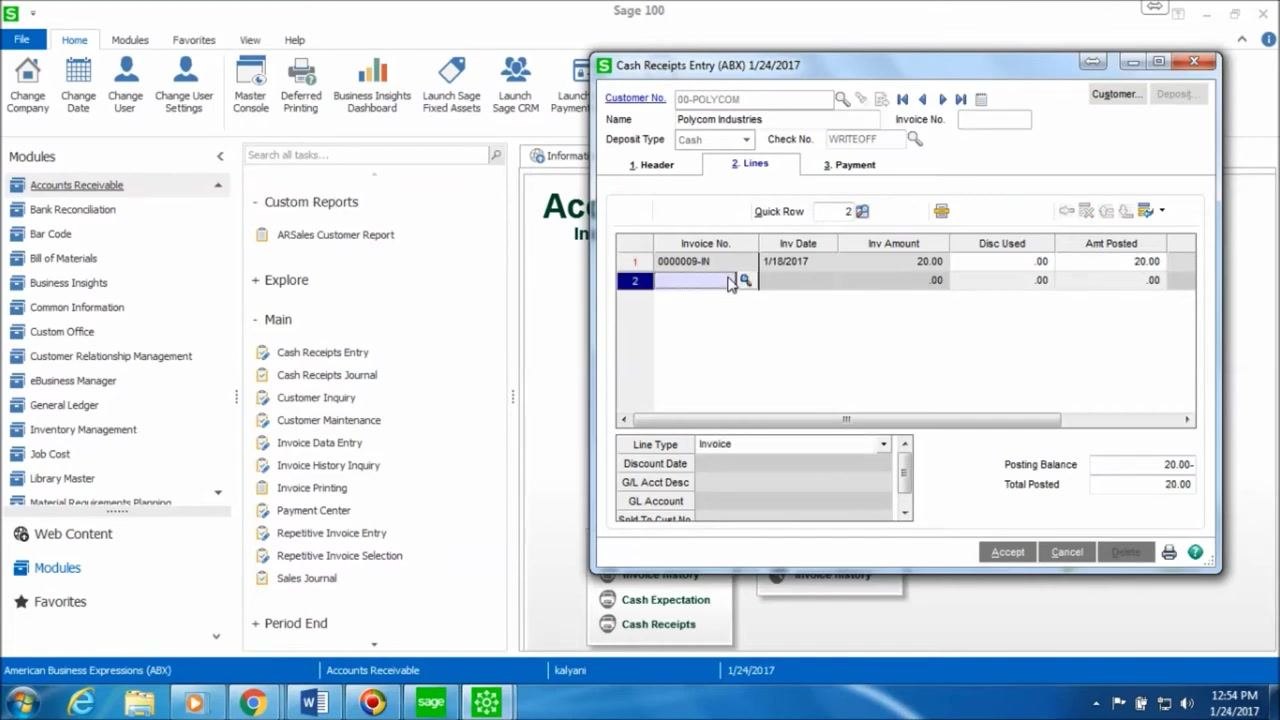
In the Amt Posted field for the selected invoice, enter the full amount you want to write off (for example, 20.00). Confirm that the Posting Balance and Total Posted fields reflect this write-off amount.
Select the bad debt GL account and post the entry
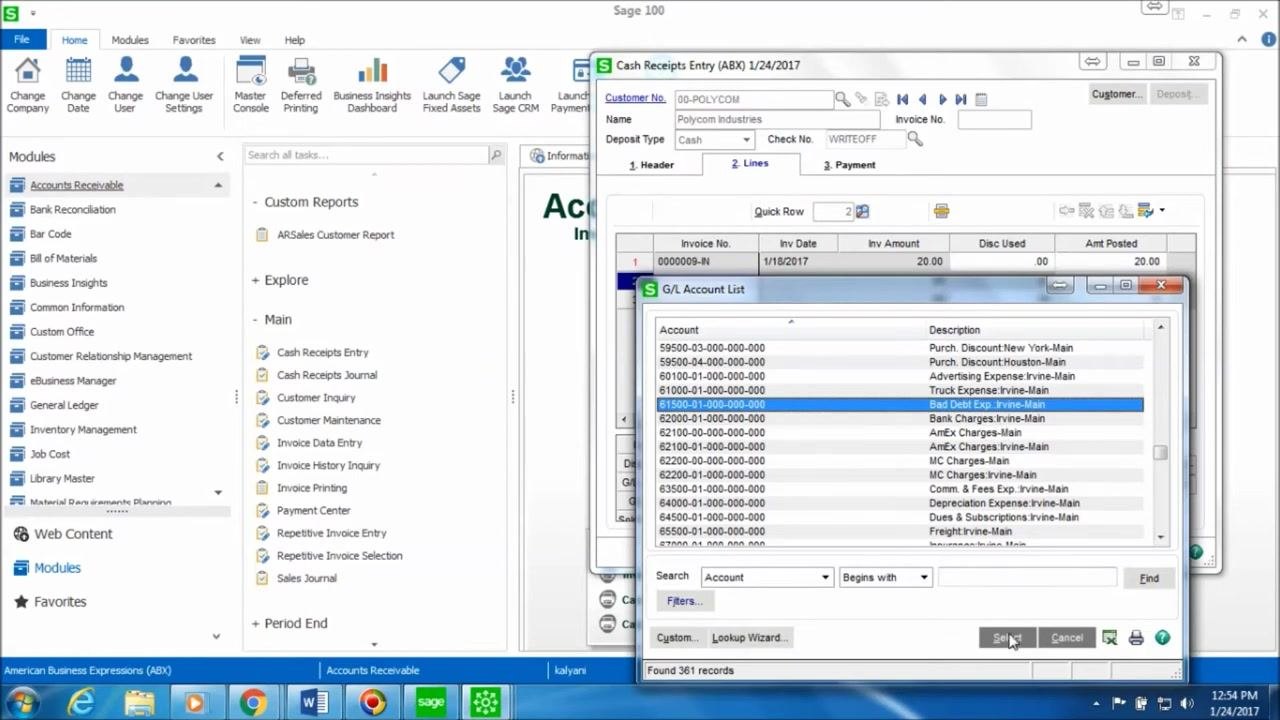
Move to the next line in the Cash Receipts Entry window and change the Line Type to GL Account. In the G/L Account List window, search for and select the appropriate bad debt expense account (for example, 61500-01-000-000-000, Description: Bad Debt Exp.: Irvine-Main), then click Select to confirm.
Enter the write-off amount as a negative value (for example, -20.00) in the Amt Posted field for the GL account line. Confirm that the posting balance is zero, which indicates the entry is balanced. Click Accept to save the entry.
Print and preview the Cash Receipts Journal
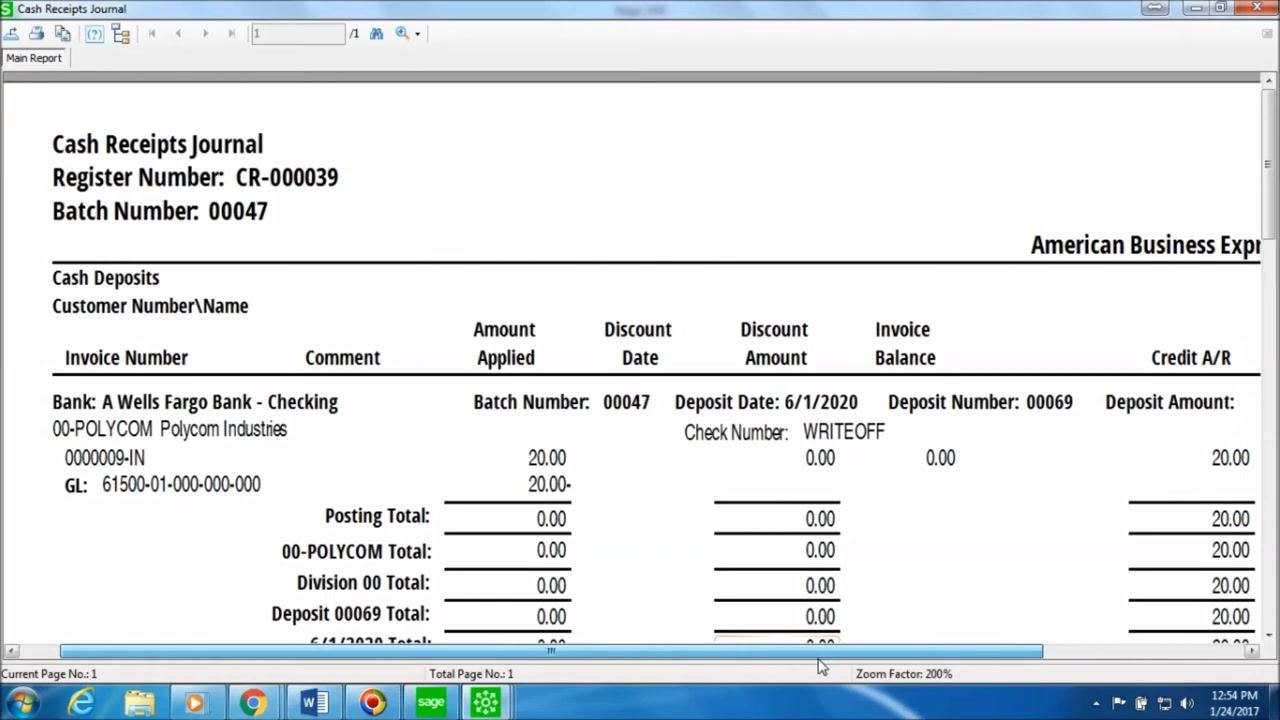
To post the entry, click the printer icon at the bottom right of the Cash Receipts Entry window. In the print dialog, select the batch to print (for example, Batch Number: 00047) and click Proceed. Choose to Preview the Cash Receipts Journal.
Review the generated report, which displays the amount being written off, the customer and company details (Polycom Industries, Customer No: 00-POLYCOM), and the invoice number, GL account, and check number (WRITE OFF).
Review the Accounts Receivable Recap report
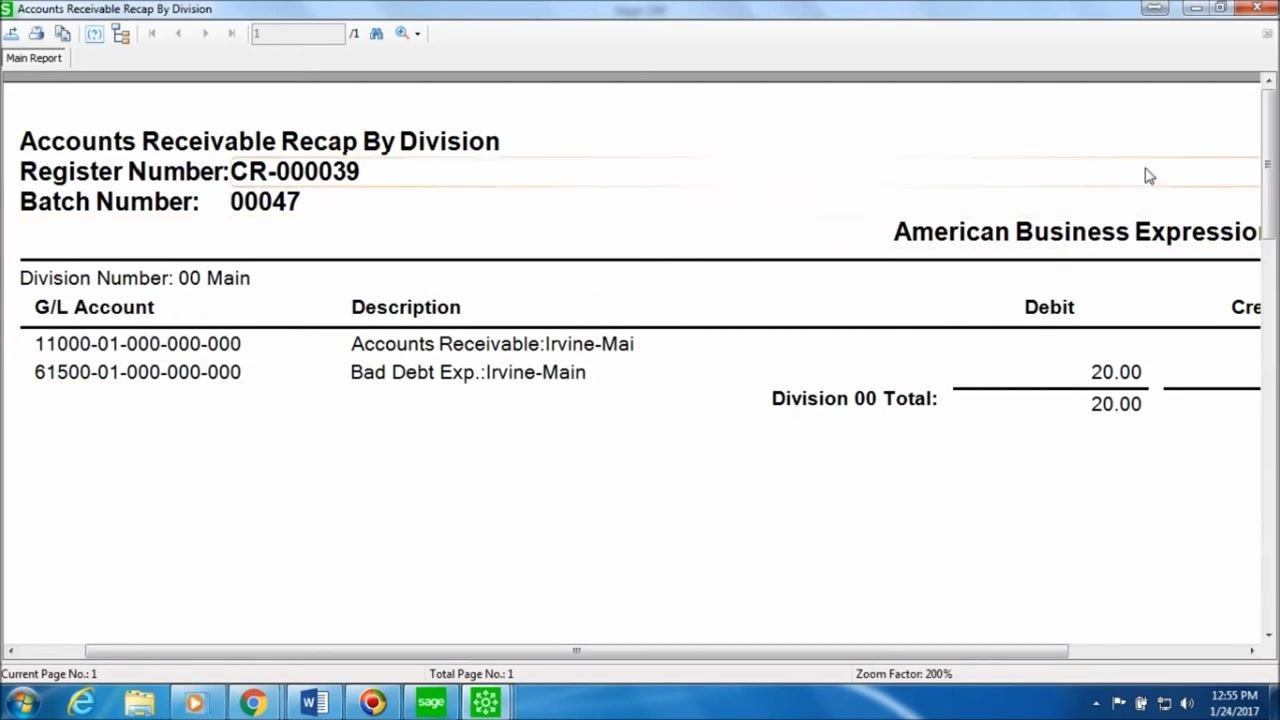
After closing the Cash Receipts Journal preview, the Accounts Receivable Recap By Division report appears. Review it to see the debits and credits for the accounts involved, including Accounts Receivable: Irvine-Main and Bad Debt Exp.: Irvine-Main. Confirm the division totals show the write-off posted correctly, for example a debit of 20.00 to Bad Debt Expense and a credit of 20.00 to Accounts Receivable.
Update the Cash Receipts Journal
When prompted, click Yes to update the Cash Receipts Journal and finalize the posting of the write-off entry.
Verify the write-off in Customer Maintenance
Return to the Main section of the Accounts Receivable module and click Customer Maintenance. Search for and select the customer (for example, 00-POLYCOM, Polycom Industries), then go to the Transactions tab.
Verify that an entry appears with the amount shown as negative (for example, -20.00), that the Check No. field displays WRITE OFF, and that the correct invoice number is referenced. This confirms the write-off has been recorded correctly for the customer and invoice.
Summary
You have now learned how to write off bad debt in Sage 100 by creating a zero-dollar cash receipts batch, applying the write-off to the invoice, offsetting it against a bad debt expense GL account, posting the Cash Receipts Journal, and confirming the write-off on the customer's transaction history.
Generation details: cost, quality tiers
Docsie billed 2,000 credits ($1.40) to analyze this 4-minute video at standard quality. The rewrite, template fill and Word/PDF exports were included. The same video at each quality tier:
| Quality | Frames sampled | Credits | Approx. cost |
|---|---|---|---|
| Draft | every 16-30 s | 1,000 | $0.70 |
| Standard (this guide) | every 8-15 s | 2,000 | $1.40 |
| Detailed | every 4-7 s | 4,000 | $2.80 |
| Ultra | every 1-3 s | 8,000 | $5.60 |
Credits priced at $0.70 per 1,000; plans include a monthly allowance. Enterprise customers on on-premise or bring-your-own-model deployments run this on their own inference and pay no per-video credits.
Generated by Docsie Video-to-Docs on 2026-10-25 from a 3-minute video. Screenshots are frames from the source video and belong to their creator, Acute Data, whose original is embedded above. If you own this video and want the guide removed or credited differently, contact us and we will act within one business day.