
How to Create a New GL Account in Sage 100
This guide walks you through how to create a new GL account in Sage 100 ERP, including setting up the main account, configuring a sub account, and verifying that the new account has been created correctly. Follow each step in order to ensure all required fields are completed before you save your entries.
Video: Sage 100 ERP (MAS90) Adding a GL Account by Faye Digital (2013). All credit for the demonstration goes to the creator; watch the original on YouTube. The written guide below was generated from this video by Docsie. Creator? Request a change or removal.
This guide walks you through how to create a new GL account in Sage 100 ERP, including setting up the main account, configuring a sub account, and verifying that the new account has been created correctly. Follow each step in order to ensure all required fields are completed before you save your entries.
Prerequisites
- Access to the Sage ERP MAS 90 Desktop application.
- Permissions to open and edit General Ledger setup screens.
- Knowledge of the account group, category, and type you want to assign to the new account.
Open General Ledger setup
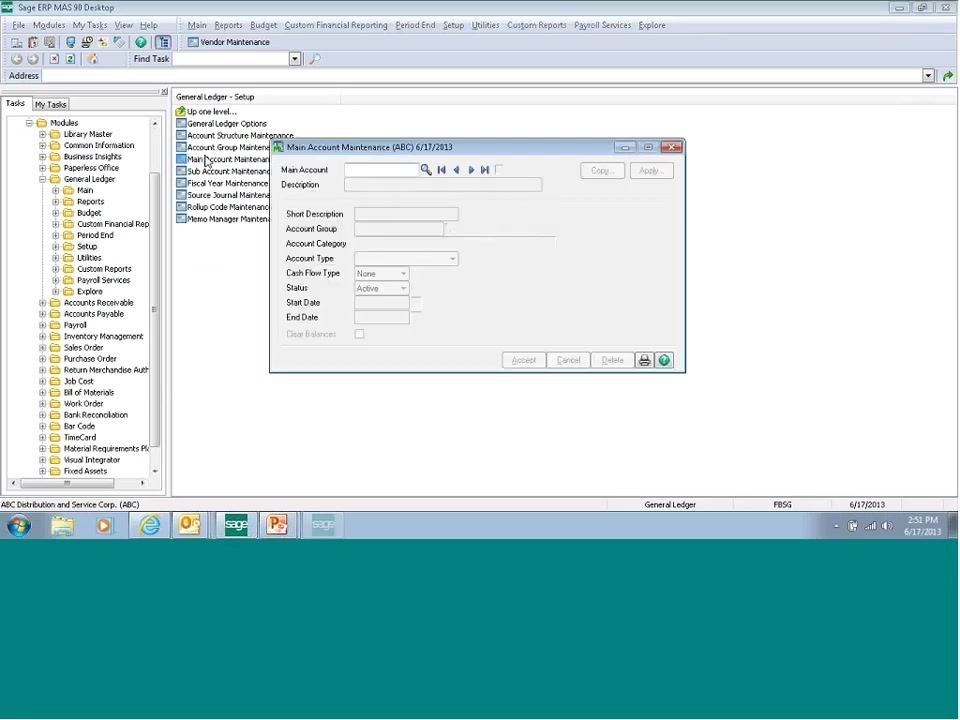
In the left navigation pane of the Sage ERP MAS 90 Desktop, click the + next to General Ledger to expand its subfolders. Then click the + next to Setup to display the available setup options.
Open Main Account Maintenance
Click Main Account Maintenance in the Setup list to open the account maintenance window. This is where you will define the new main account.
Enter the main account number
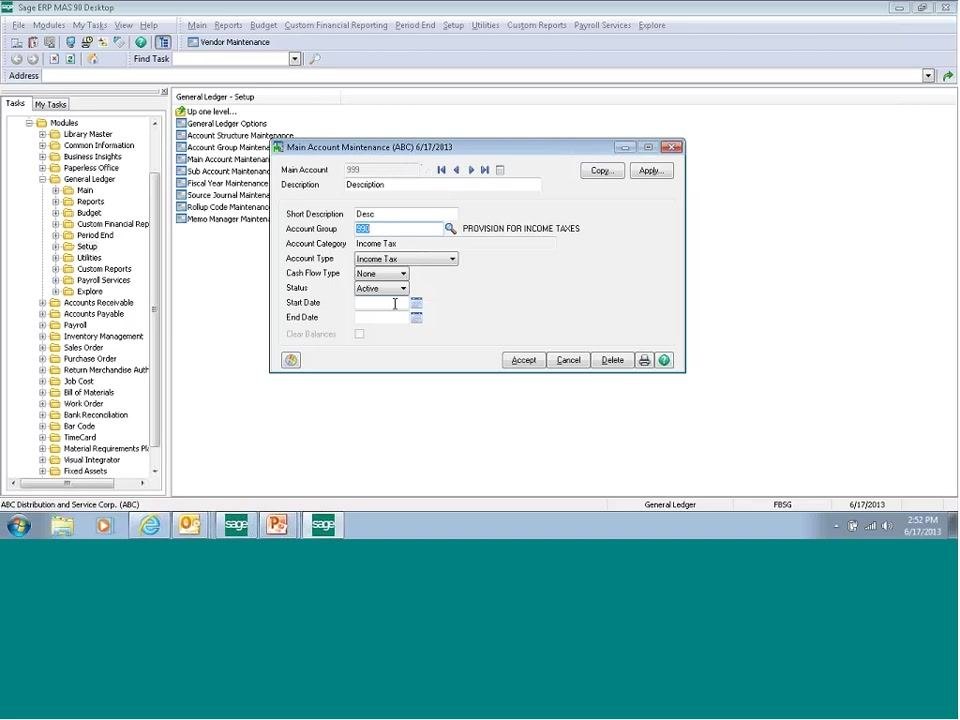
In the Main Account field, type the account number you want to add (for example, 999).
Enter a description
In the Description field, type a full description for the account (for example, "PROVISION FOR INCOME TAXES").
Enter a short description (optional)
In the Short Description field, you may enter an abbreviated version of the description (for example, "Desc").
Review or modify the Account Group
The Account Group field defaults to the group you have already set up (for example, 990). To change it, click the magnifying glass icon to open the lookup and select a different group if needed.
Set the Account Category and Account Type
Choose the appropriate category (for example, "Income Tax") and type (for example, "Income Tax") from the respective dropdown menus.
Set the Cash Flow Type (optional)
Select a cash flow type if applicable, or leave this field set to "None."
Confirm the account status
Use the Status dropdown to select Active, unless the account should remain inactive.
Enter start and end dates (optional)
Only enter a Start Date and End Date if this is a temporary account. For permanent accounts, leave both fields blank.
Save the new main account
Click Accept to save the new main account. Review all fields before saving to confirm accuracy.
Close Main Account Maintenance
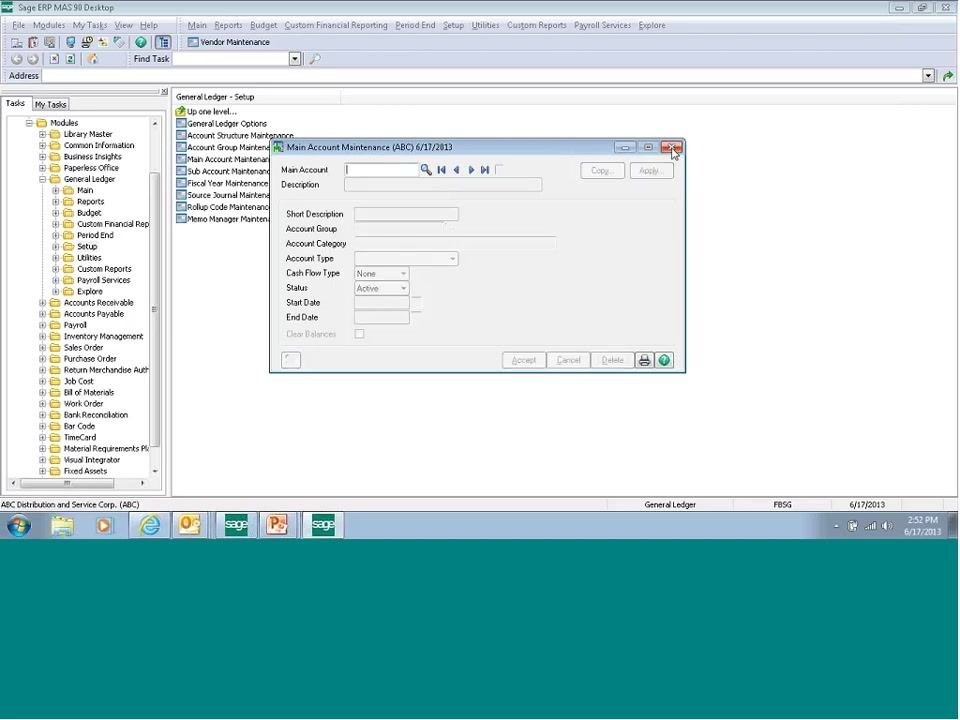
Click the X in the upper right corner of the window to close Main Account Maintenance.
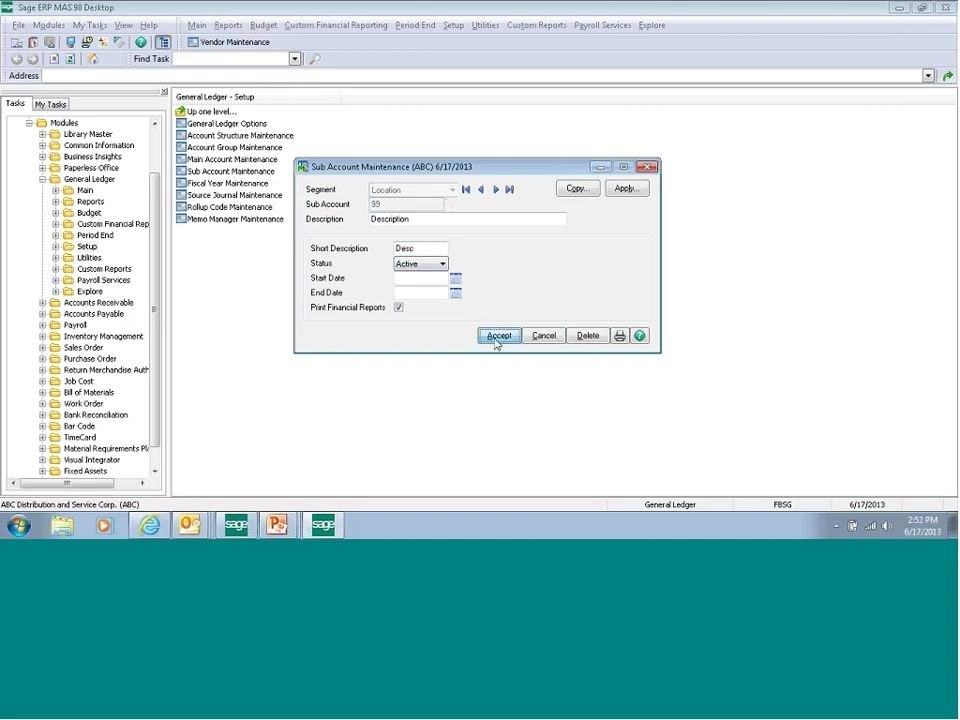
Open Sub Account Maintenance
Under the Setup tab, click Sub Account Maintenance to open the sub account window.
Verify the segment setup
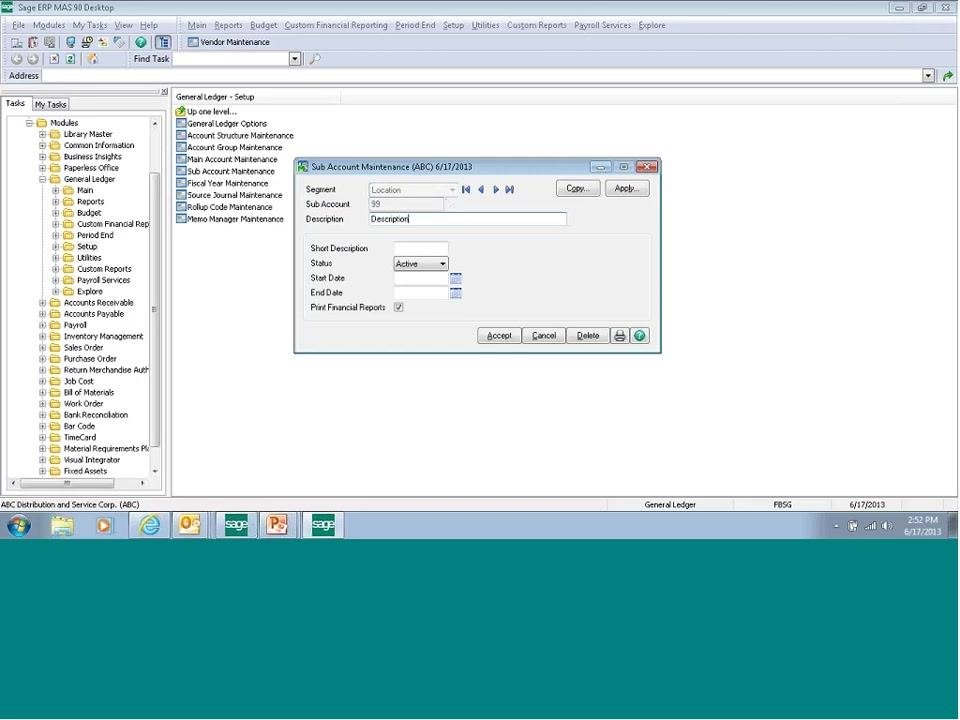
Check the Segment field to confirm it reflects the correct segment (for example, "Department" or "Location").
Enter the sub account number
In the Sub Account field, type the sub account number (for example, 99).
Enter a description for the sub account
In the Description field, type a description for the sub account (for example, "Desc" or "Description").
Enter a short description (optional)
In the Short Description field, you may enter an abbreviated description.
Confirm the sub account status
Use the Status dropdown to select Active.
Enter start and end dates for temporary sub accounts (optional)
Only enter a Start Date and End Date if this is a temporary sub account. Leave these fields blank for permanent sub accounts.
Include the sub account in financial reports (optional)
Select Print Financial Reports if you want this sub account included in your financial reports.
Save the sub account
Click Accept to save the sub account.
Close Sub Account Maintenance
Click the X in the upper right corner of the window to close Sub Account Maintenance.
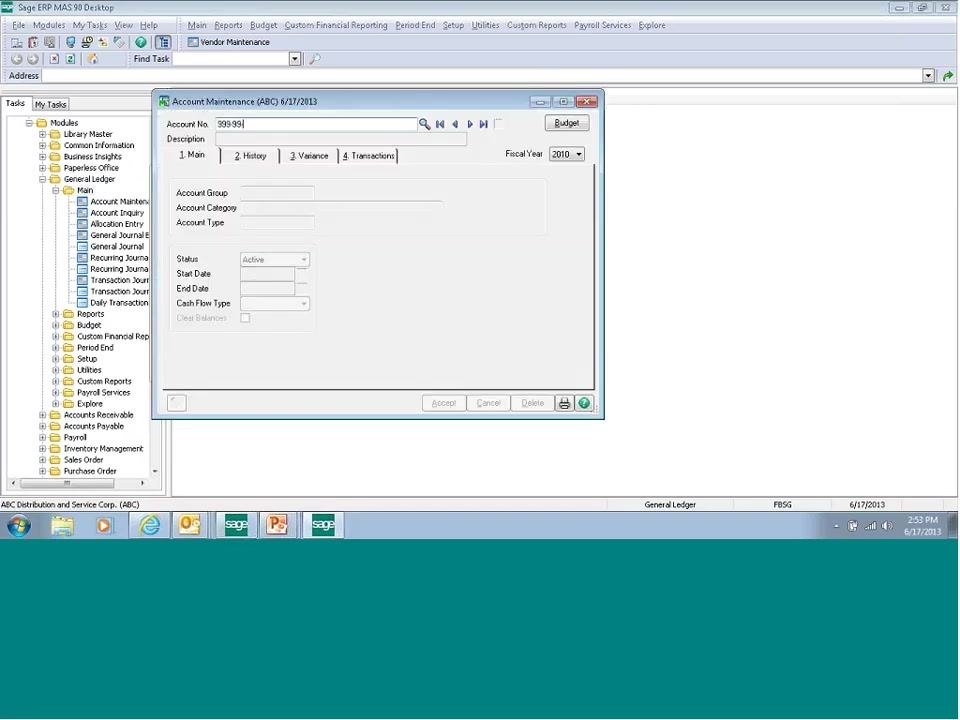
Open Account Maintenance
In the left navigation pane, expand General Ledger, select Main, and click Account Maintenance to open the Account Maintenance window.
Enter the new account number
In the Account No. field, type the full new account number (for example, 999-99-99). The system automatically pulls over the descriptions and settings from your main and sub account setup.
Review and finalize account details
Confirm that the Description field is pre-filled based on your setup, and edit it as needed (for example, change it to "Desc Desc Desc"). Confirm that the Account Group, Account Category, and Account Type fields are correct (for example, Account Group: 990, Account Category: Income Tax, Account Type: Income Tax).
Ensure Status is set to Active, leave Start Date and End Date blank unless this is a temporary account, and set Cash Flow Type as needed (for example, "None"). Click Accept to save the new account.
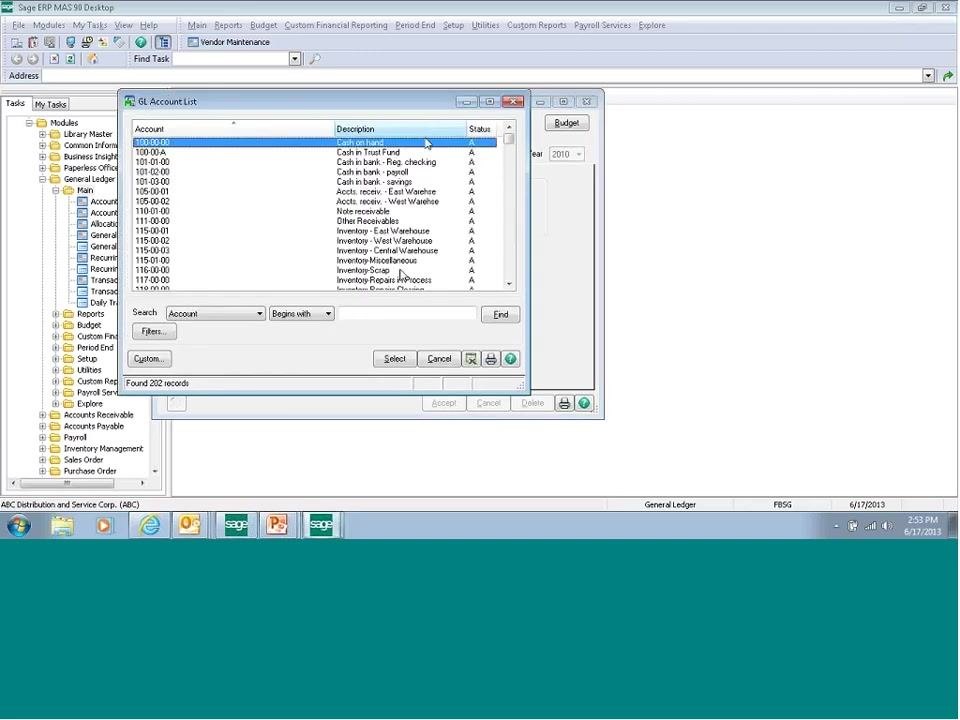
Look up the new account to verify it
Click the lookup (magnifying glass) icon next to the Account No. field. In the GL Account List window, set the search to Account and Begins with, enter "9" to filter for accounts beginning with 9, and click Find.
Confirm the new account appears correctly
Verify that your new account number (for example, 999-99-99) and its description appear among the results. Check that the Status column shows "A" for Active.
Summary
By completing these steps, you have successfully added and verified a new GL account and sub account in Sage 100 ERP. Always fill in all required fields and review your entries before saving, and use the lookup feature to confirm that your new account has been created and is active in the system.
Generation details: cost, quality tiers
Docsie billed 1,500 credits ($1.05) to analyze this 3-minute video at standard quality. The rewrite, template fill and Word/PDF exports were included. The same video at each quality tier:
| Quality | Frames sampled | Credits | Approx. cost |
|---|---|---|---|
| Draft | every 16-30 s | 750 | $0.52 |
| Standard (this guide) | every 8-15 s | 1,500 | $1.05 |
| Detailed | every 4-7 s | 3,000 | $2.10 |
| Ultra | every 1-3 s | 6,000 | $4.20 |
Credits priced at $0.70 per 1,000; plans include a monthly allowance. Enterprise customers on on-premise or bring-your-own-model deployments run this on their own inference and pay no per-video credits.
Generated by Docsie Video-to-Docs on 2026-10-25 from a 2-minute video. Screenshots are frames from the source video and belong to their creator, Faye Digital, whose original is embedded above. If you own this video and want the guide removed or credited differently, contact us and we will act within one business day.