
How to Export Data to Excel in Sage 100
Sage 100 lets you export customer records, transaction history, sales orders, and reports directly to Microsoft Excel for further analysis. This guide walks you through exporting data to Excel in Sage 100 from several areas of the application, including Customer Maintenance, the Business Insights Explorer, and the Accounts Receivable Aged Invoice Report, along with tips for formatting the exported data in Excel.
Video: Export Sage 100 data to Excel by SWK Technologies, Inc. (2020). All credit for the demonstration goes to the creator; watch the original on YouTube. The written guide below was generated from this video by Docsie. Creator? Request a change or removal.
Sage 100 lets you export customer records, transaction history, sales orders, and reports directly to Microsoft Excel for further analysis. This guide walks you through exporting data to Excel in Sage 100 from several areas of the application, including Customer Maintenance, the Business Insights Explorer, and the Accounts Receivable Aged Invoice Report, along with tips for formatting the exported data in Excel.
Prerequisites
- Access to Sage 100 (subscription version 2020 or similar).
- Microsoft Excel installed on your computer.
- Customer and transaction data already set up in Sage 100.
Exporting customer data from Customer Maintenance
Open Customer Maintenance
Launch Sage 100 and confirm you are on the main dashboard. The left Favorites panel displays options such as Customer Maintenance, Customer View, and Accounts Receivable Aged Invoice Report. Click Customer Maintenance in the Favorites panel to open it.
Access the customer lookup list
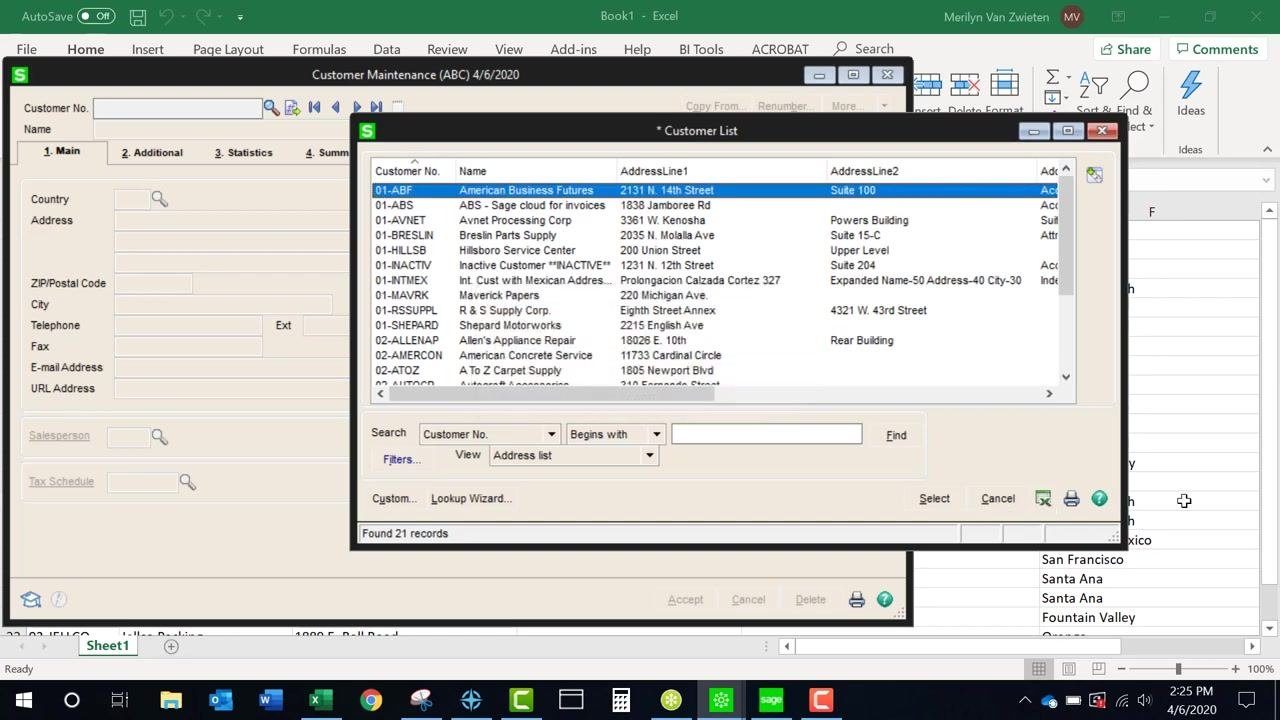
Selecting Customer Maintenance opens a Customer List window. Use the View dropdown to choose the list type you want, such as Standard, Address list, or Stats. The list shows columns including Customer No., Name, Status, ZIP/Postal Code, and Phone Number. Locate the Excel export button, typically shown as an Excel icon, in the lookup list window.
Export the lookup list to Excel
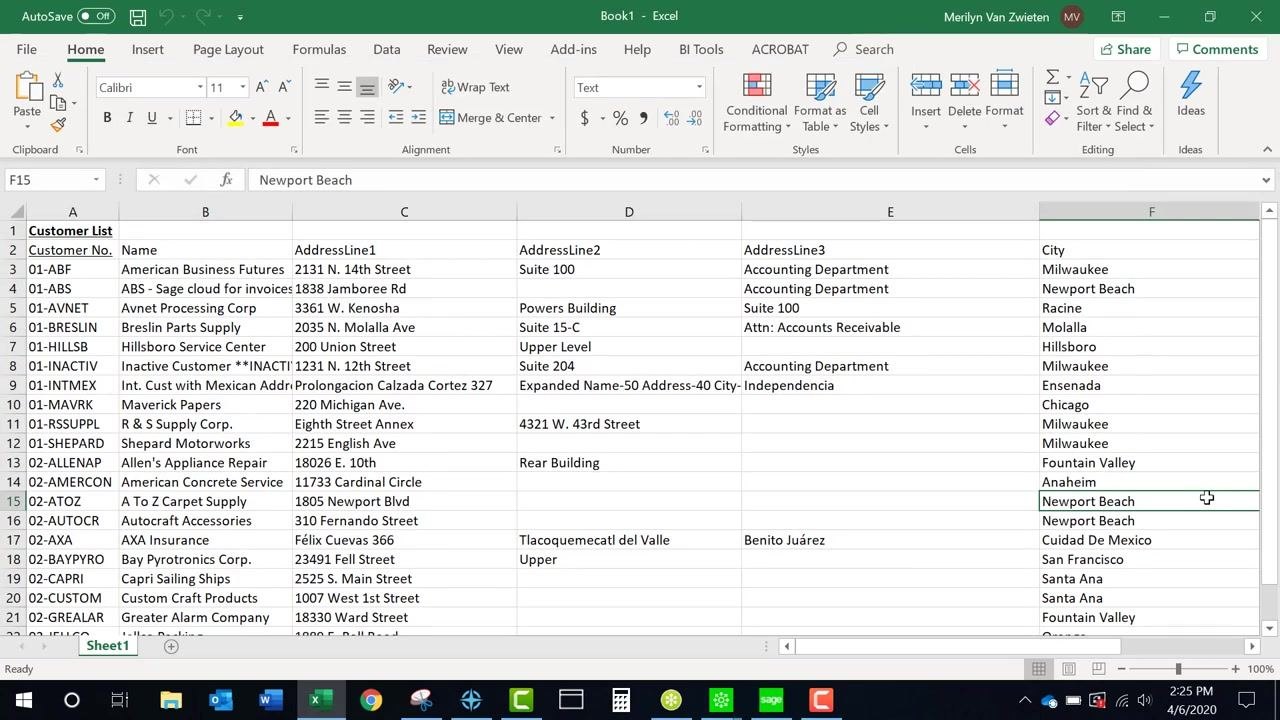
Click the Excel export button to send the lookup list data to Microsoft Excel. The exported file opens automatically and includes columns such as Customer No., Name, AddressLine1, AddressLine2, AddressLine3, and City.
Export data from the Customer History tab
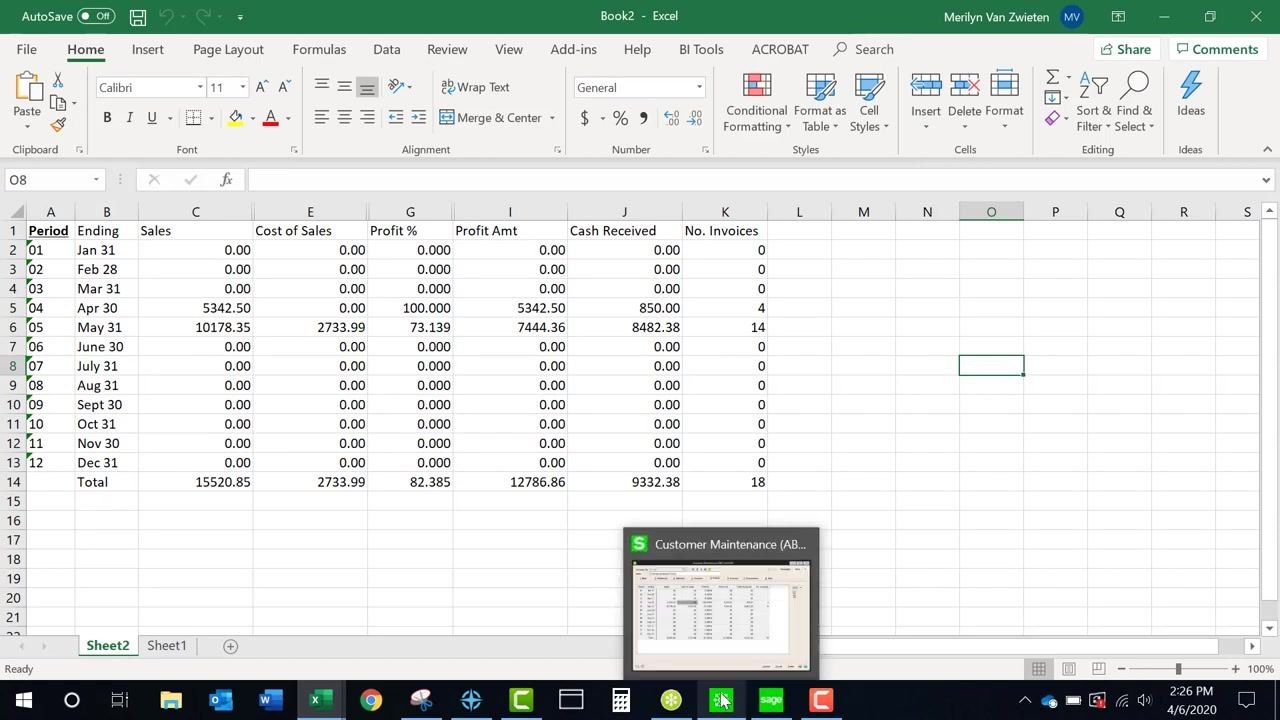
In the Customer Maintenance window, select a customer from the list and click the History tab. Right-click anywhere in the list or grid, then choose Export to Excel from the context menu. The exported data includes fields such as Period, Ending, Sales, Cost of Sales, Profit %, Profit Amt, Cash Received, and No. Invoices.
Export data from the Invoices, Transactions, or Sales Orders tabs
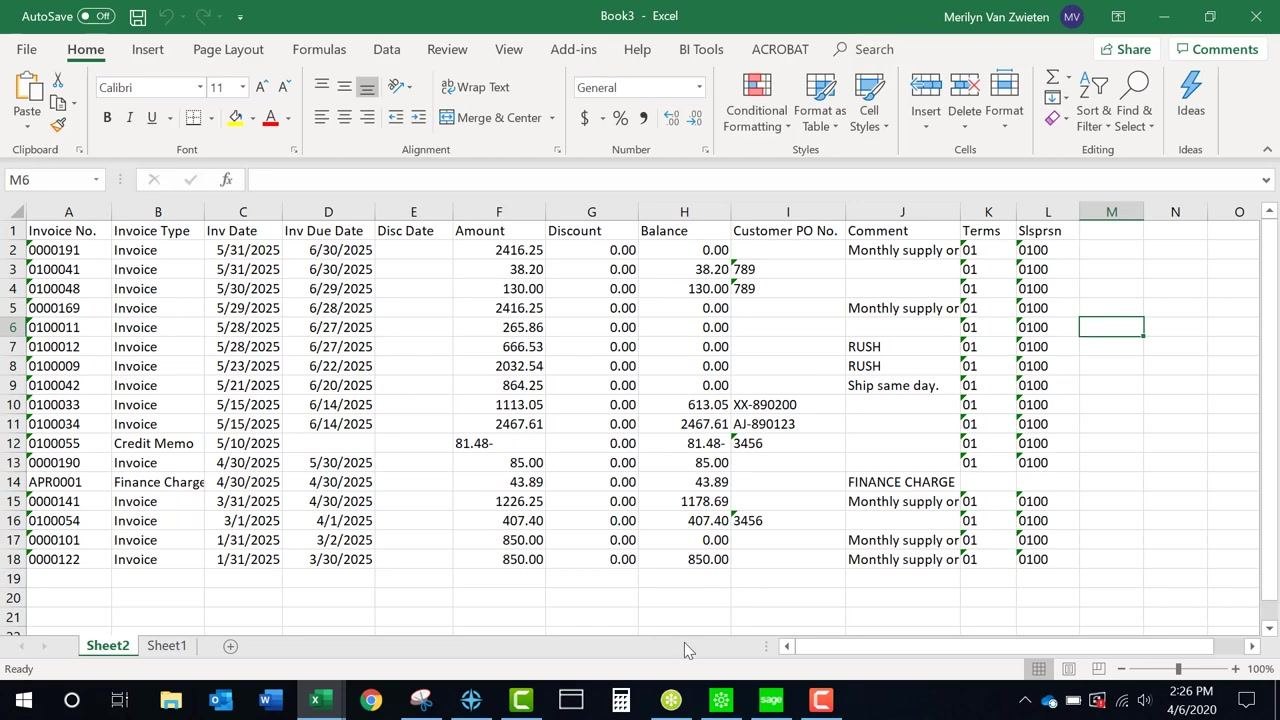
Navigate to the Invoices, Transactions, or S/Os (Sales Orders) tab in Customer Maintenance. If the Excel export button is not active, click any line item in the list to enable it. Click the Excel export button to send the tab's data to Excel. The exported file is formatted according to the tab's columns, such as Invoice No., Invoice Type, Inv Date, Amount, Discount, Balance, Customer PO No., and Comments.
Note: The export to Excel feature works the same way across different list views and data tabs in Sage 100. If the export button is not enabled, select or highlight a line item first.
Review sales order lines
In Customer Maintenance, open the S/Os (Sales Orders) tab to review the sales orders for the selected customer. The list includes columns such as Number, Type, Order Date, Ship/Expire, Customer PO No., Ship To, Order Amount, and Last Inv/Order.
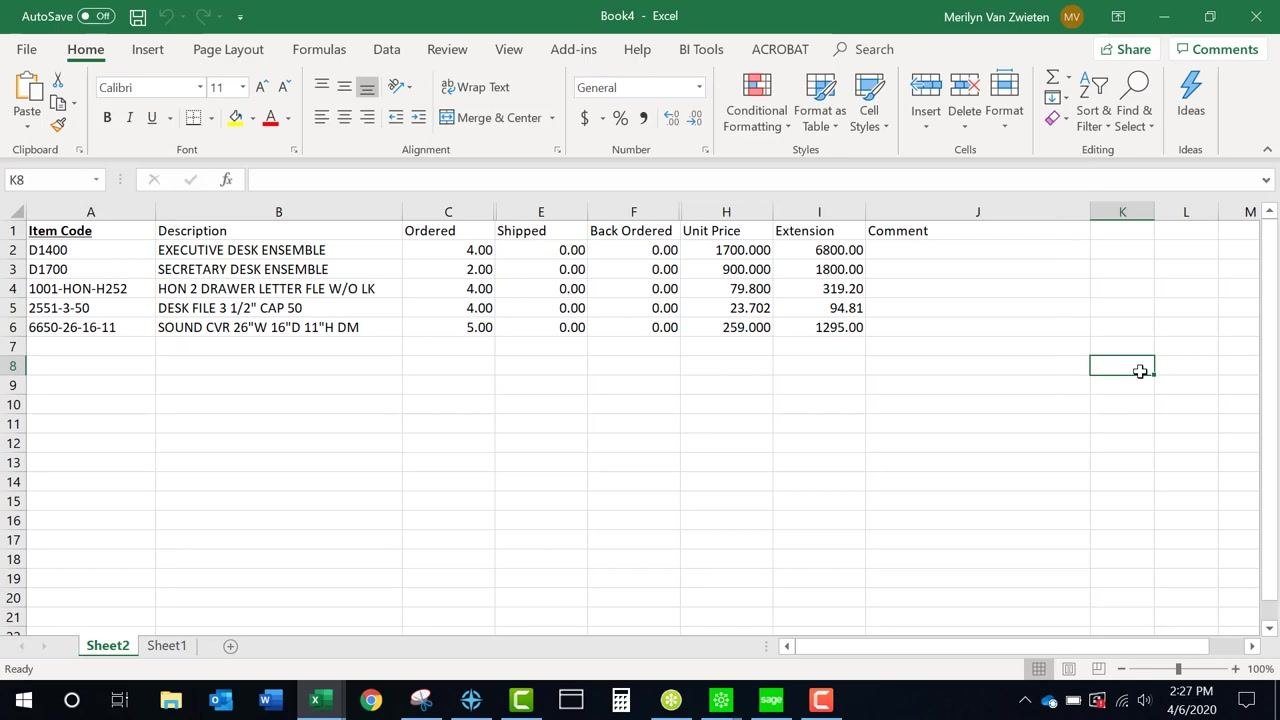
Export sales order line items
Right-click anywhere in the sales order list or grid, then select Export to Excel from the context menu. This creates a worksheet containing all line items of the sales order, including Item Code, Description, Ordered, Shipped, Back Ordered, Unit Price, Extension, and Comment.
Exporting data from the Business Insights Explorer
Open the Customer View Explorer
Return to the Sage 100 main dashboard. In the left Favorites panel, scroll to the bottom of each module's menu list to find the Explorer view, then click Customer View under the Explorer section.
Review data in the Explorer view
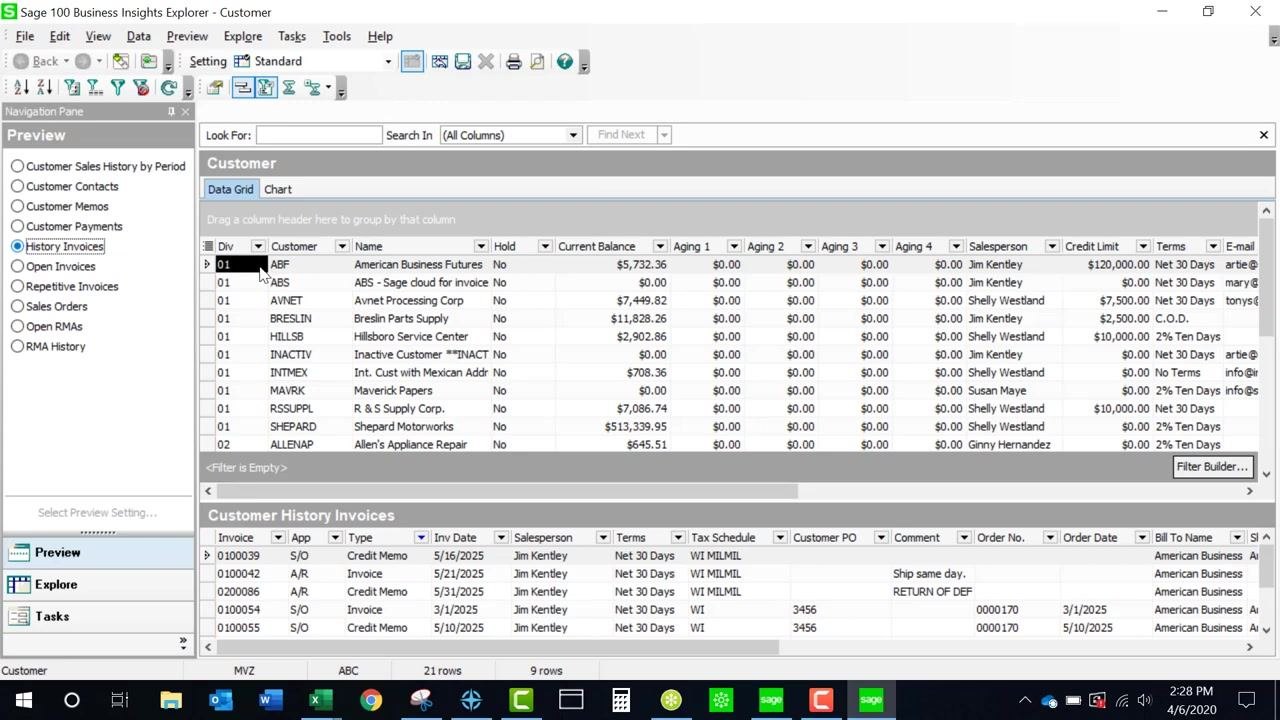
The Explorer view displays a data grid with customer information, including Div, Customer, Name, Hold, Current Balance, Aging 1-4, Salesperson, Credit Limit, Terms, and E-mail Address. Related panels, such as Customer Sales History by Period, show Fiscal Year, Dollars Sold, Cost of Goods Sold, Cash Received, Finance Charges, and Number of Invoices.
Export Explorer data to Excel
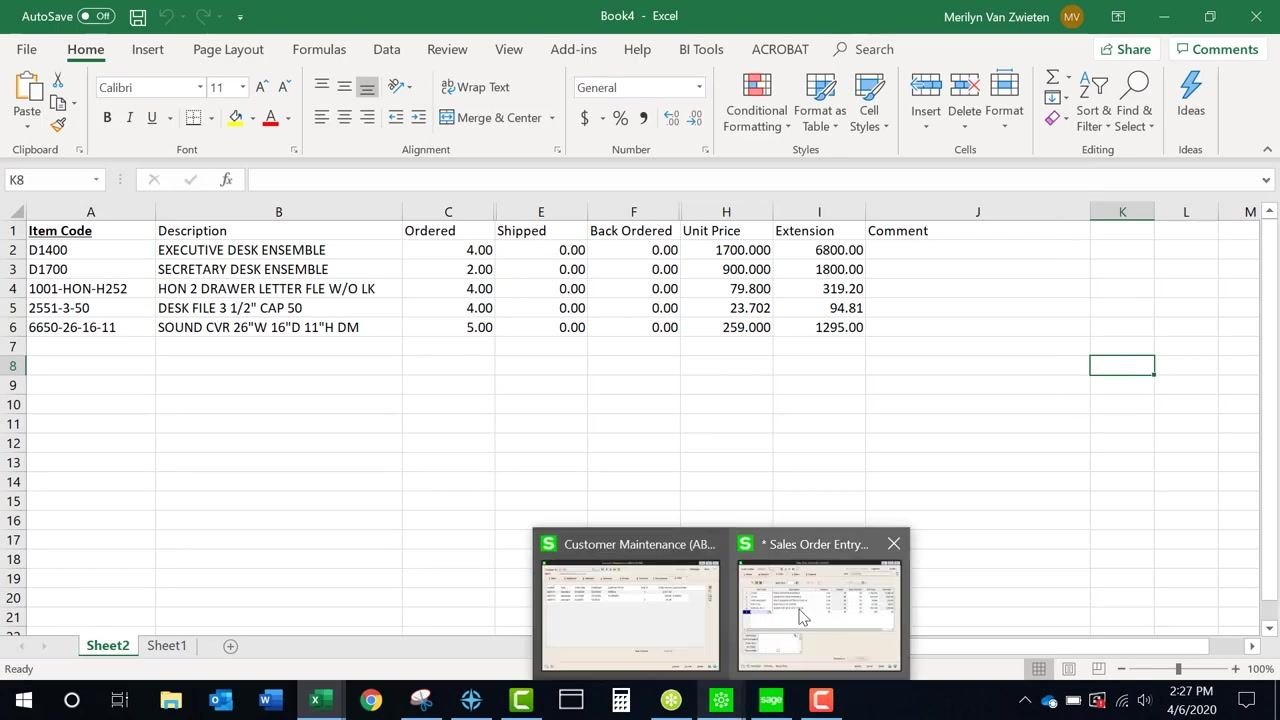
In the Explorer window, click File in the top menu, select Export Options, and choose Excel from the list of formats. The data grid is exported to an Excel worksheet.
Adjust exported Explorer data in Excel
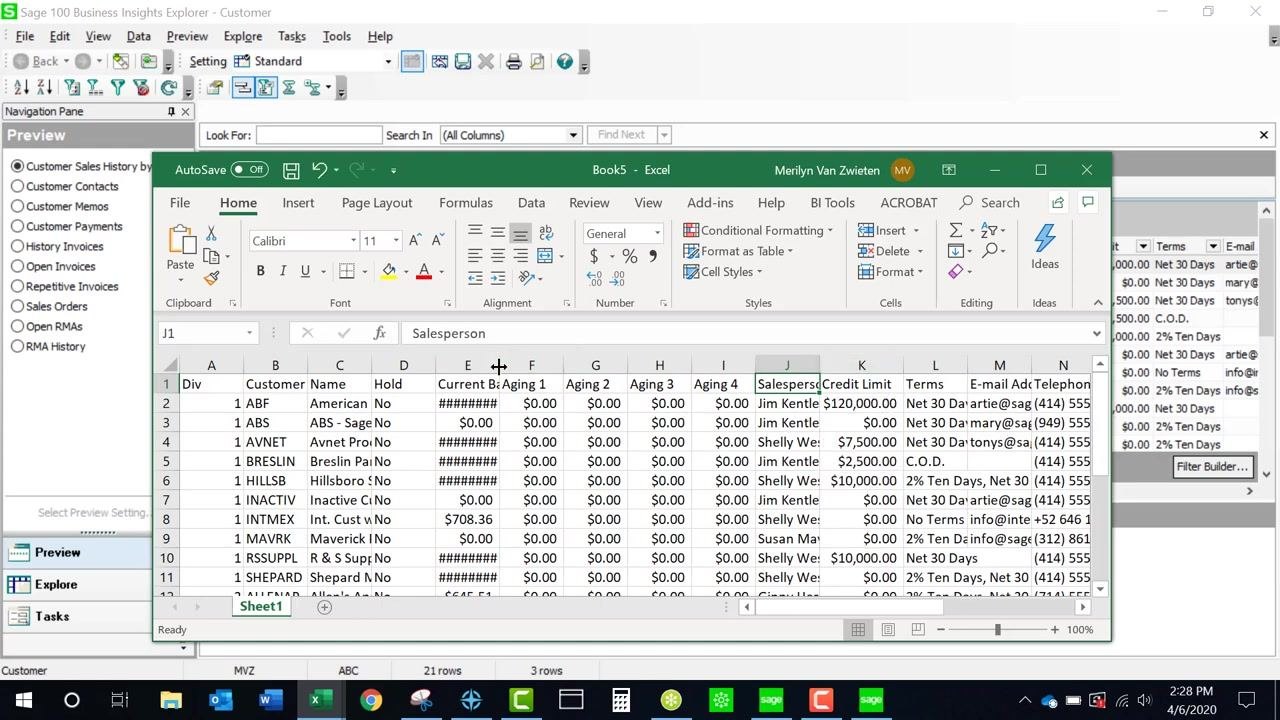
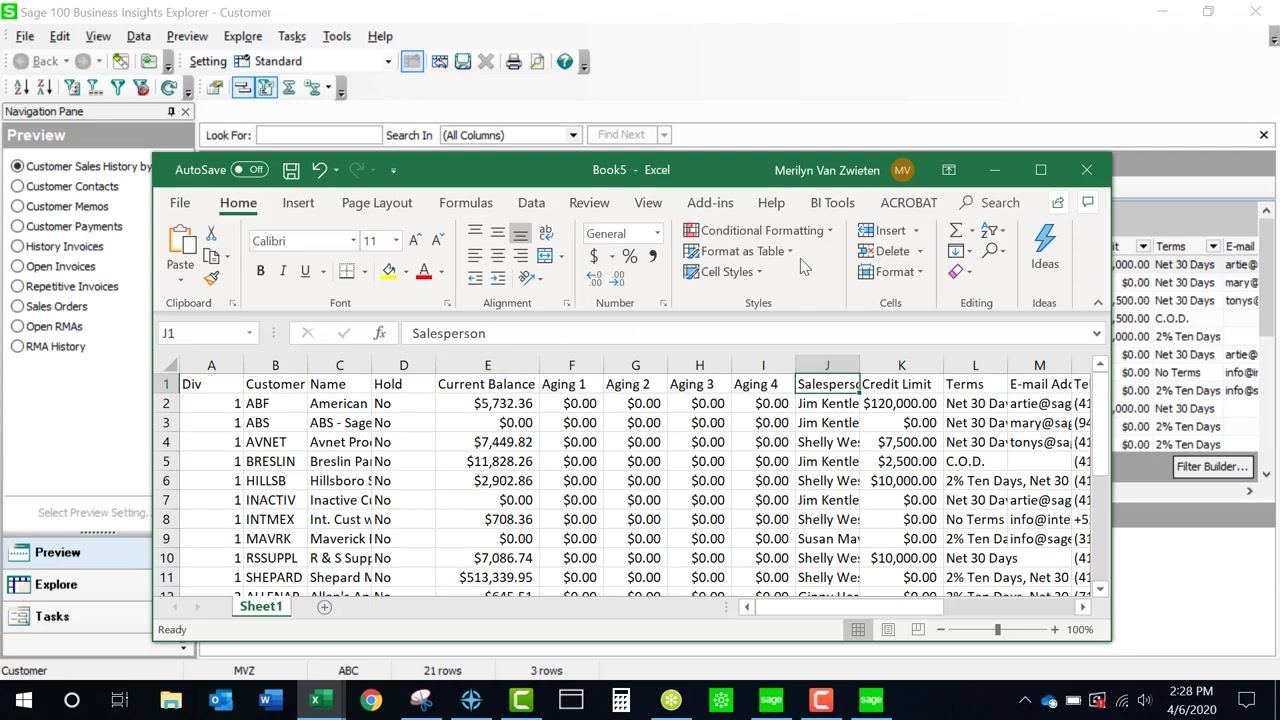
Open the exported Excel file and review the data to confirm all columns are present. If a column shows "#######" (for example, in the Current Balance column), expand the column width in Excel to display the full value.
Tip: When exporting from the Explorer view, you may need to manually widen columns in Excel for readability. The export process is similar across data grids in Sage 100—look for a right-click context menu or the File > Export Options menu.
Select secondary grid data
In the Business Insights Explorer, locate the Preview panel on the left and select History Invoices to display historical invoice data for customers.
Move secondary grid data to the primary grid
Double-click the desired customer in the main customer data grid. The secondary grid, History Invoices, is promoted to the primary grid and becomes available for export.
Export the promoted data to Excel
With the History Invoices data now in the primary grid, click File in the top menu, select Export Options, and choose Microsoft Excel from the list of formats. You can choose to export all records or only the selected ones.
Exporting the Accounts Receivable Aged Invoice Report
Configure the report settings
From the Sage 100 main dashboard, select Accounts Receivable Aged Invoice Report from the Favorites panel. In the report setup window, configure the following options:
- Report Setting: SWK
- Description: Accounts Receivable Aged Invoice Report
- Aging Date: 4/6/2020
- Report Detail Option: Invoice
- Aging Option to Print: All Open Invoices
- Future Transactions: Include All
- Include Paid Invoices: Checked
- Age Credit Memos: Checked
- Print Transaction Date: Checked
- Print Condensed: Checked
Add any additional filters you need, such as Customer Number, Customer Name, or Salesperson.
Preview and export the report
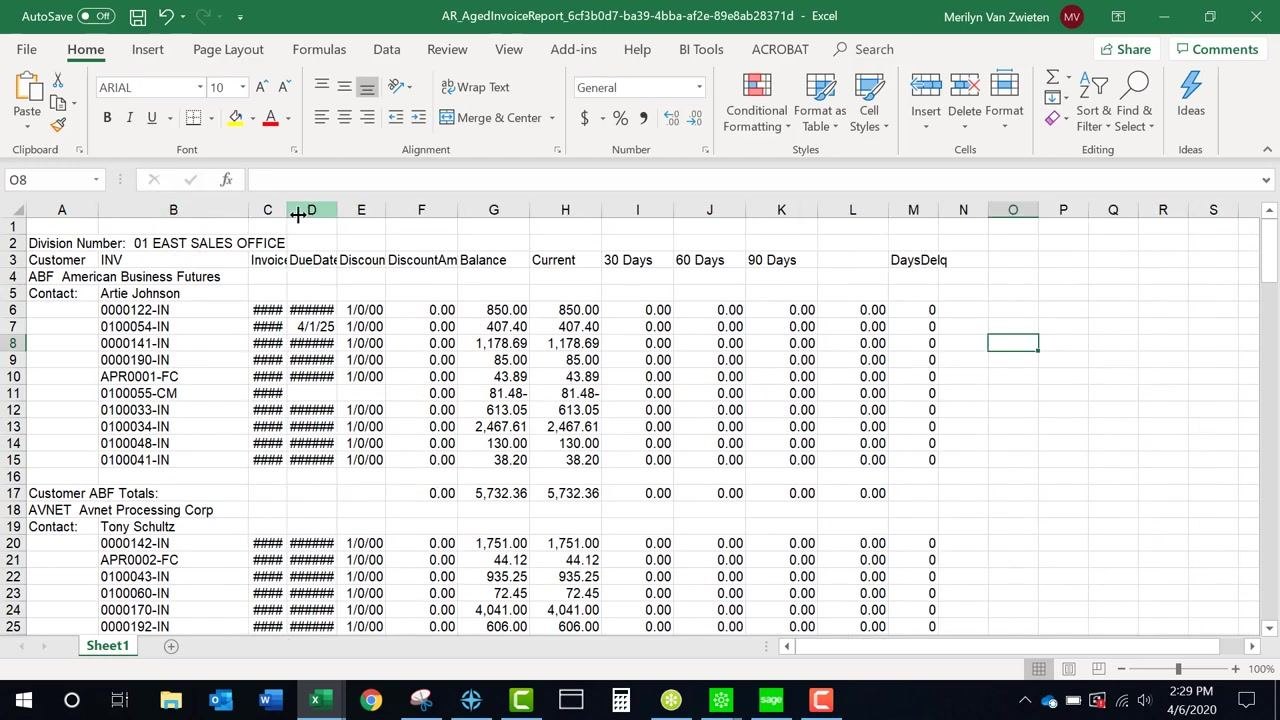
Click Preview to generate the report. In the preview window, click the export icon or select File > Export. In the Export dialog, choose Microsoft Excel (97-2003) Data-Only as the format, then click OK to export.
Adjust the exported report in Excel
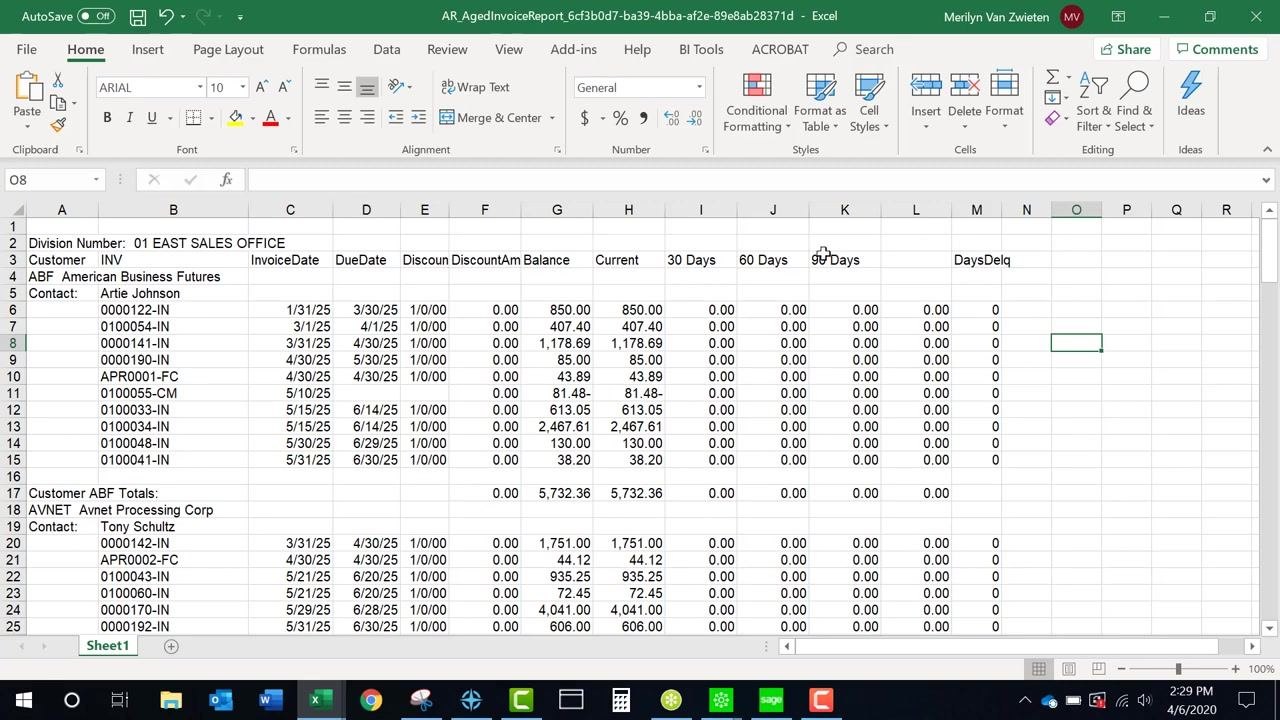
Open the exported Excel file and review the data for completeness. If you see "#######" in any column, expand the column width to reveal the full data, and adjust row heights as needed for readability.
Review special columns and headers
Some columns may not have headers—for example, a retention column if retentions are not used. Confirm that all relevant data is present and that column headers align correctly with the data below them.
Tips: - Use the Maintain Relative Object Position option, if available, to keep column headers aligned with their data. - You may need to make minor adjustments in Excel, such as expanding columns or modifying row heights, to ensure all data is visible. - Some report layouts may require changes in Crystal Reports, such as separating combined headers, for optimal export results.
Adjusting Crystal Reports column headers
Review the exported report for combined headers
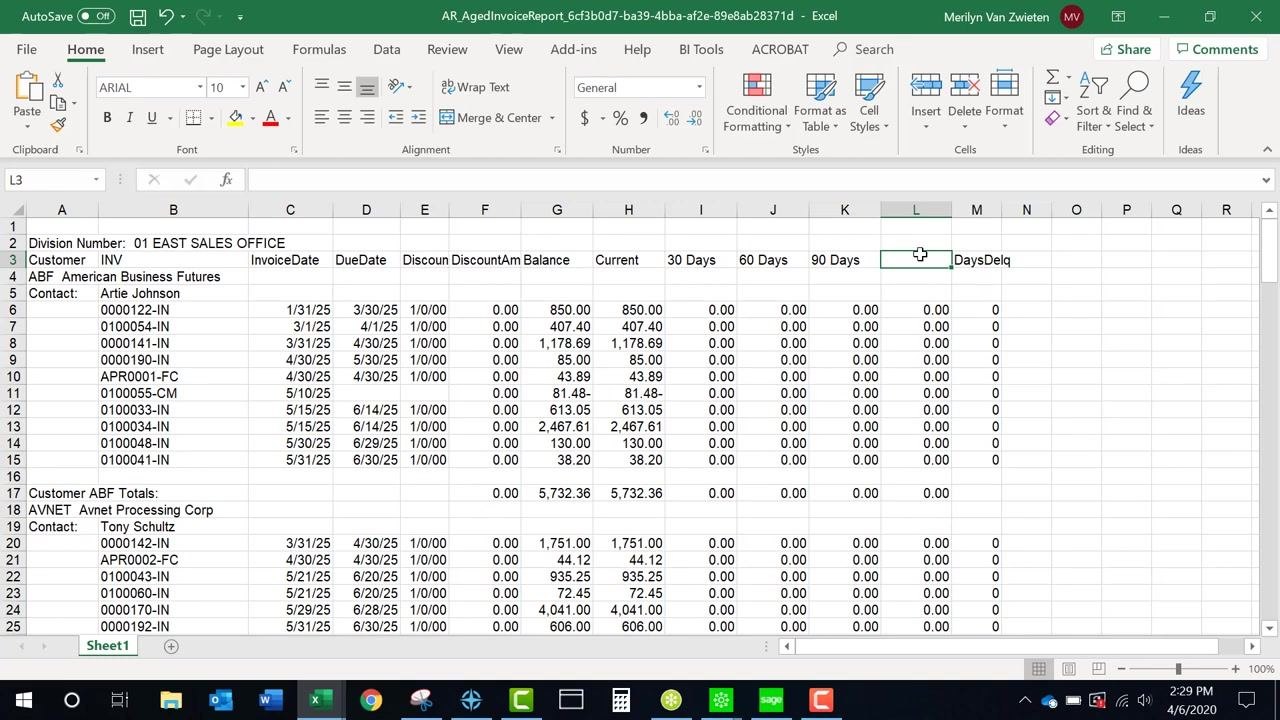
Open the exported Accounts Receivable Aged Invoice Report in Excel and examine the column headers in row 3. Confirm that headers such as "Customer" and "INV" (Invoice) appear as separate columns, and that each data column—InvoiceDate, DueDate, Discount, Balance, Current, 30 Days, 60 Days, 90 Days, DaysDelq—has its own header. Check that data rows align under the correct headers and that customer and contact information, along with totals and subtotals, are clearly labeled.
Modify combined headers in Crystal Reports
If your exported report still shows combined headers, such as "Customer/Invoice," open the report layout in Crystal Reports. Locate the column header section and separate the combined header into individual fields—for example, one header for "Customer" and another for "INV." Make sure each data field has a corresponding, clearly labeled header, then save your changes and re-export the report to Excel to verify the improvement.
Add additional fields if needed
If you need additional fields, such as a phone number, insert a new header and corresponding data column. For example, add "Telephone Number" as a header and enter the relevant data for each customer, such as "973.758.6100."
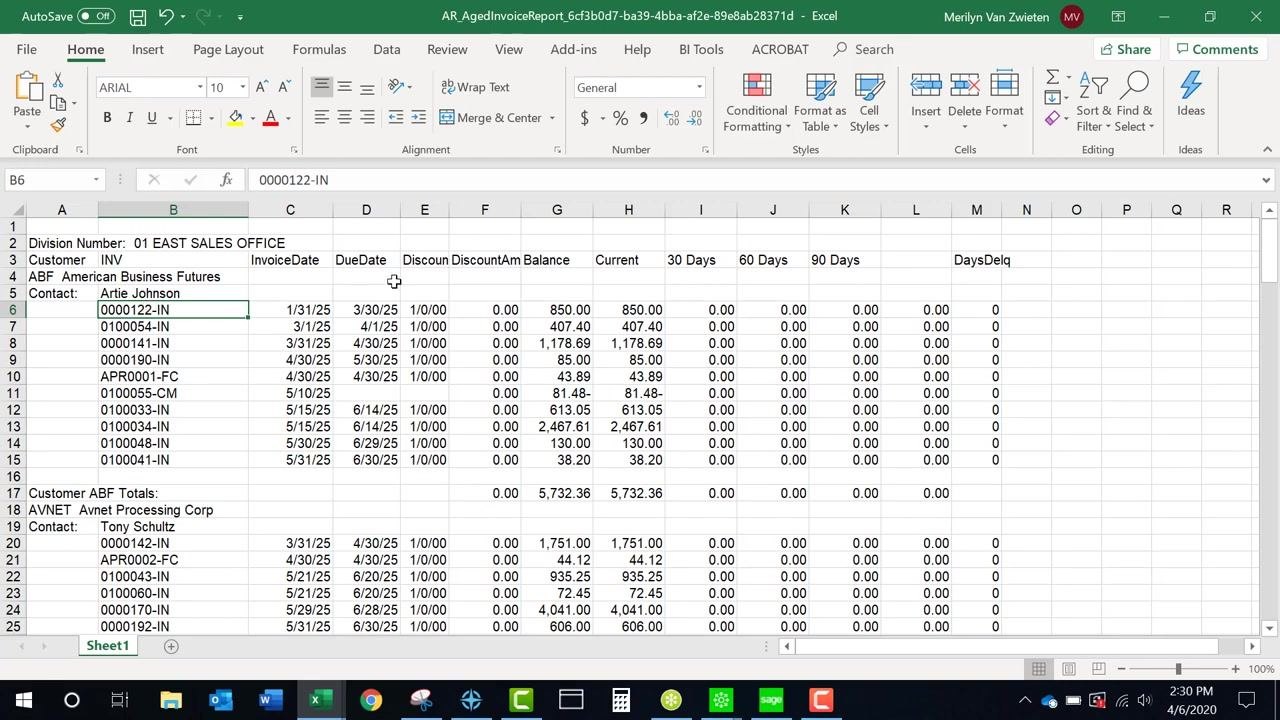
Remove unnecessary fields for proper alignment
Delete any columns or headers that are not needed for your report. Removing extra fields helps ensure that all remaining columns line up correctly and are easy to read.
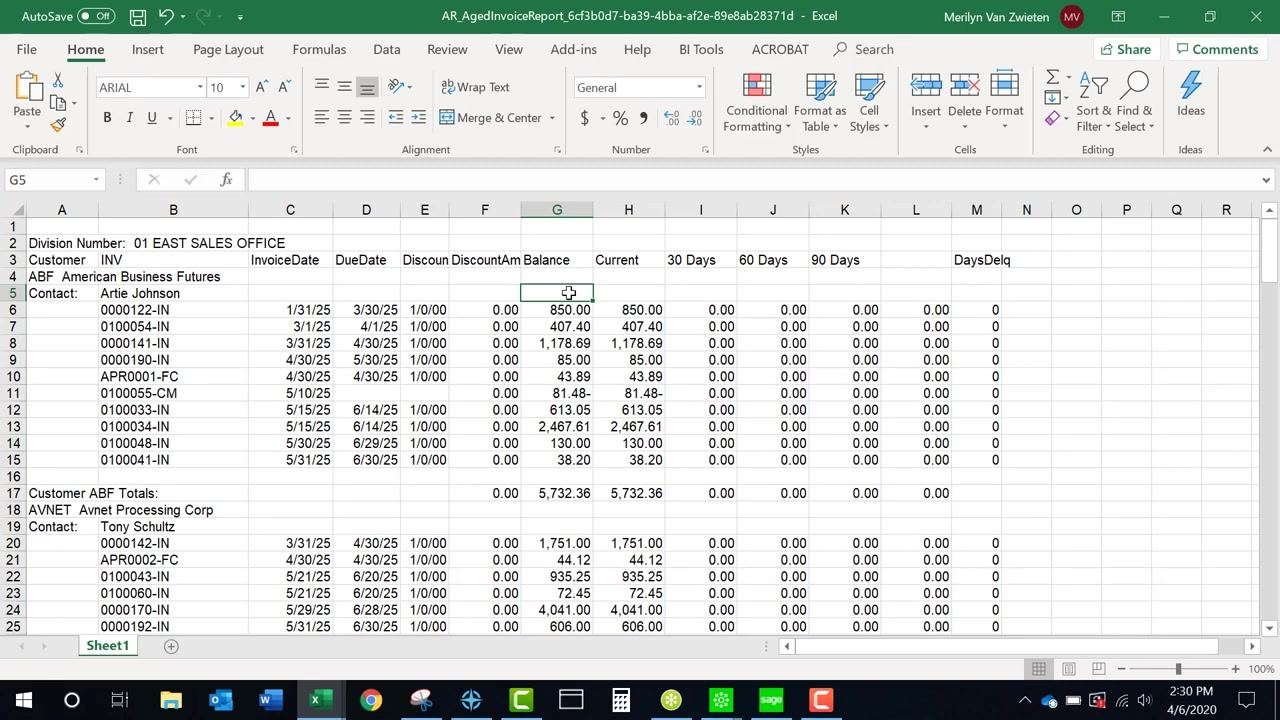
Reposition important fields under their headers
If a specific field, such as the phone number, is important, move it so it appears directly under its header and adjacent to related customer information. Confirm that all headers sit directly above their corresponding data.
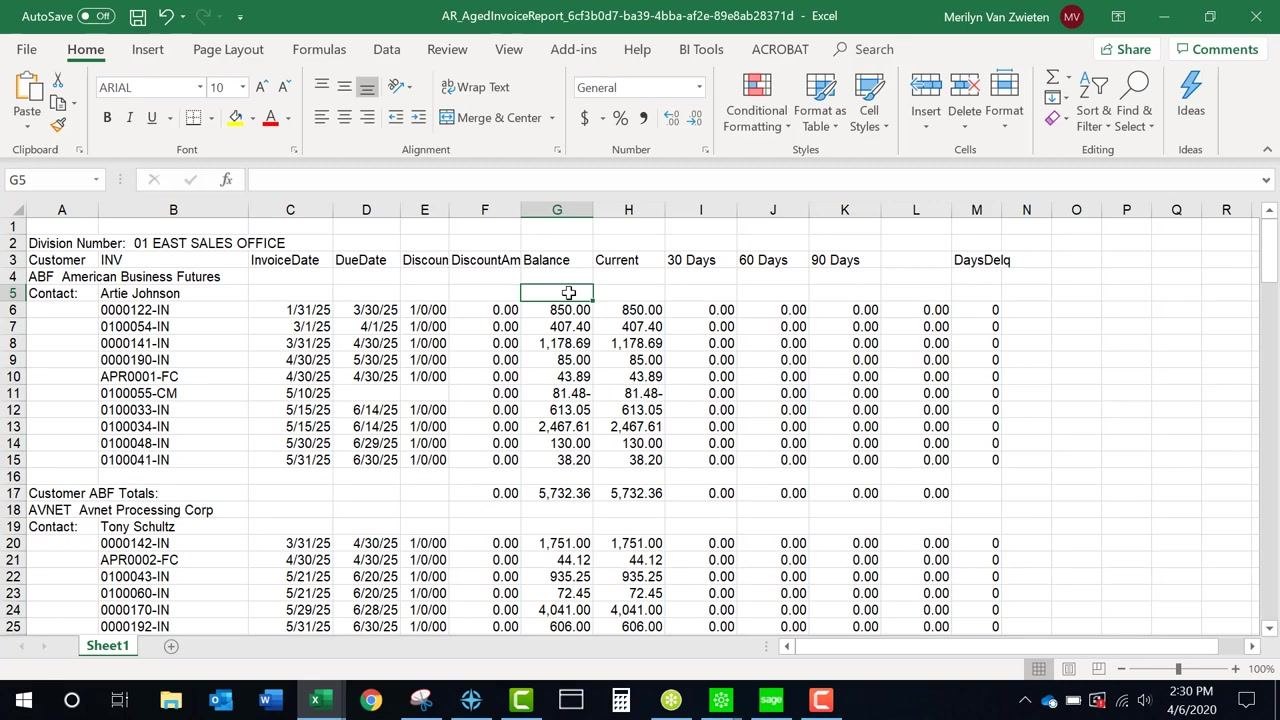
Getting help
If you need further assistance exporting data in Sage 100, you can reach support through the following channels:
- Phone (direct): 973.758.6100
- Phone (toll free): 877.979.5462
- Fax: 973.758.6120
- Email: info@swktech.com
Call the direct or toll-free number for immediate assistance, send an email for support requests or inquiries, or use the fax number to send documents.
What's next
With these steps, you can export customer records, transaction history, sales order lines, Explorer grid data, and formatted reports from Sage 100 into Excel. Once exported, use the formatting tips above—adjusting column widths, row heights, and header alignment—to prepare your data for analysis or reporting.
Generation details: cost, quality tiers
Docsie billed 3,500 credits ($2.45) to analyze this 7-minute video at standard quality. The rewrite, template fill and Word/PDF exports were included. The same video at each quality tier:
| Quality | Frames sampled | Credits | Approx. cost |
|---|---|---|---|
| Draft | every 16-30 s | 1,750 | $1.22 |
| Standard (this guide) | every 8-15 s | 3,500 | $2.45 |
| Detailed | every 4-7 s | 7,000 | $4.90 |
| Ultra | every 1-3 s | 14,000 | $9.80 |
Credits priced at $0.70 per 1,000; plans include a monthly allowance. Enterprise customers on on-premise or bring-your-own-model deployments run this on their own inference and pay no per-video credits.
Generated by Docsie Video-to-Docs on 2026-10-25 from a 6-minute video. Screenshots are frames from the source video and belong to their creator, SWK Technologies, Inc., whose original is embedded above. If you own this video and want the guide removed or credited differently, contact us and we will act within one business day.