
How to Adjust an AP Invoice in Sage 100
This guide walks you through how to adjust an AP invoice in Sage 100 using Invoice Data Entry. You'll learn how to locate an existing invoice, apply an adjustment amount, update the Accounts Payable Invoice Register, and confirm the change in Vendor Inquiry.
Video: Sage 100 - How to Adjust an Invoice in Accounts Payable (formerly MAS 90 / 200) by Acute Data (2016). All credit for the demonstration goes to the creator; watch the original on YouTube. The written guide below was generated from this video by Docsie. Creator? Request a change or removal.
This guide walks you through how to adjust an AP invoice in Sage 100 using Invoice Data Entry. You'll learn how to locate an existing invoice, apply an adjustment amount, update the Accounts Payable Invoice Register, and confirm the change in Vendor Inquiry.
Prerequisites
- Access to the Accounts Payable module in Sage 100.
- The vendor number and invoice number for the invoice you need to adjust.
- The adjustment amount you want to apply to the invoice.
Navigate to Invoice Data Entry
Open the Tasks pane in Sage 100, then expand the Modules tab. Click Accounts Payable, open the Main folder, and select Invoice Data Entry.
Select the vendor
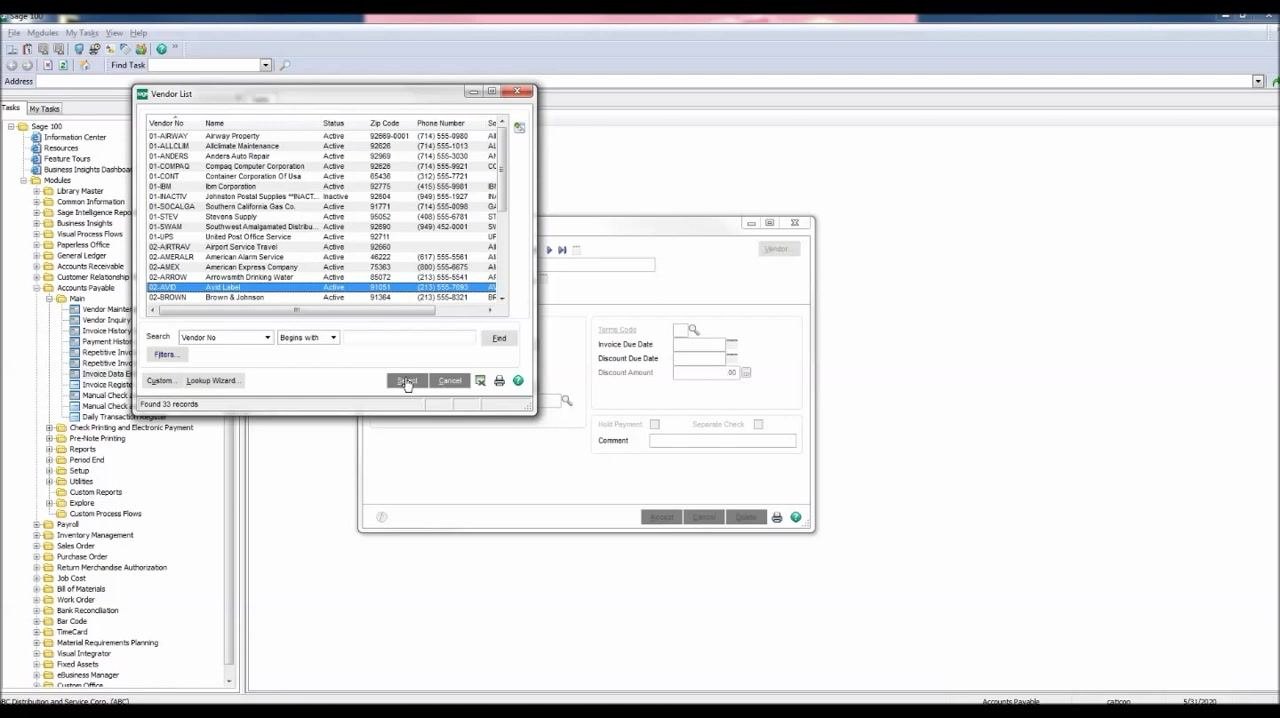
In the A/P Invoice Data Entry window, click the lookup button next to the Vendor No. field to open the vendor list.
In the Vendor List window, locate and select vendor number 02-AVID for AVID Label, then click Select.
Enter the invoice number and start the adjustment
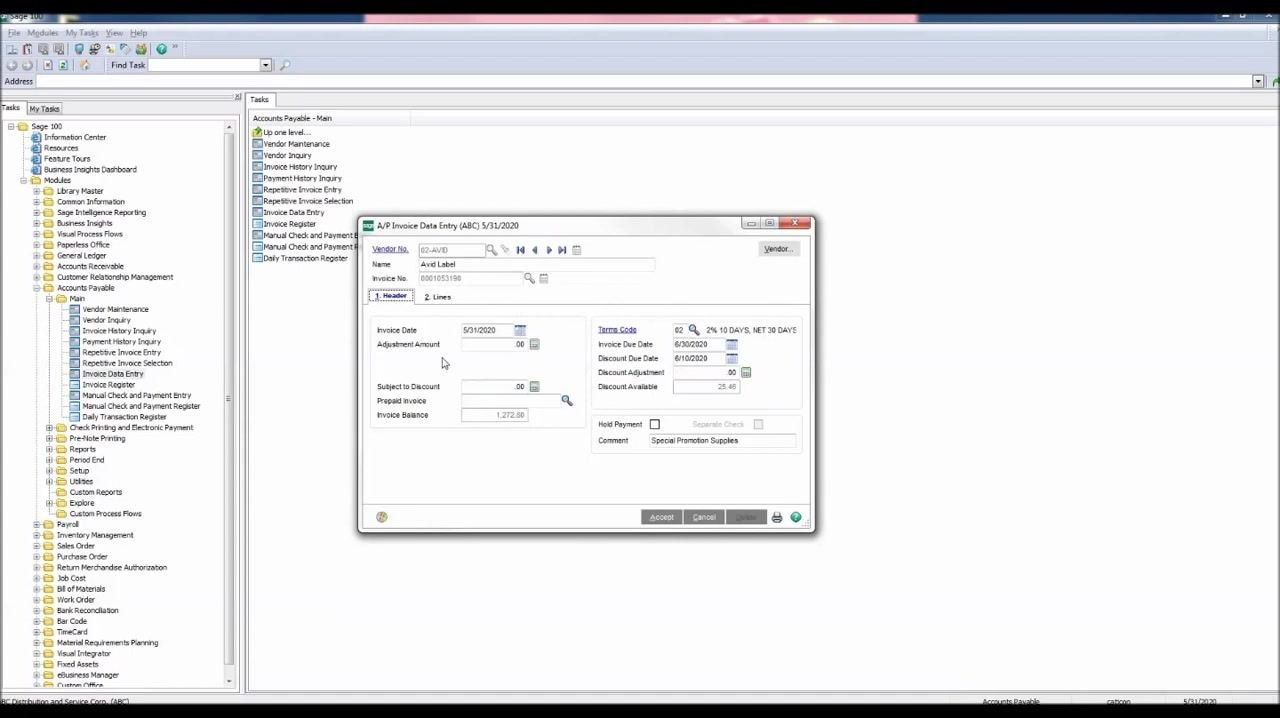
Enter the invoice number you want to adjust in the Invoice No. field and press Enter. When the Adjust Invoice on File window appears with a warning that the invoice is already on file, click the Adjust button in the bottom left.
Enter the adjustment amount
On the Header tab, select the Adjustment Amount field and enter the amount of the adjustment. In this example, the invoice is increased by $27.20.
Enter the line details
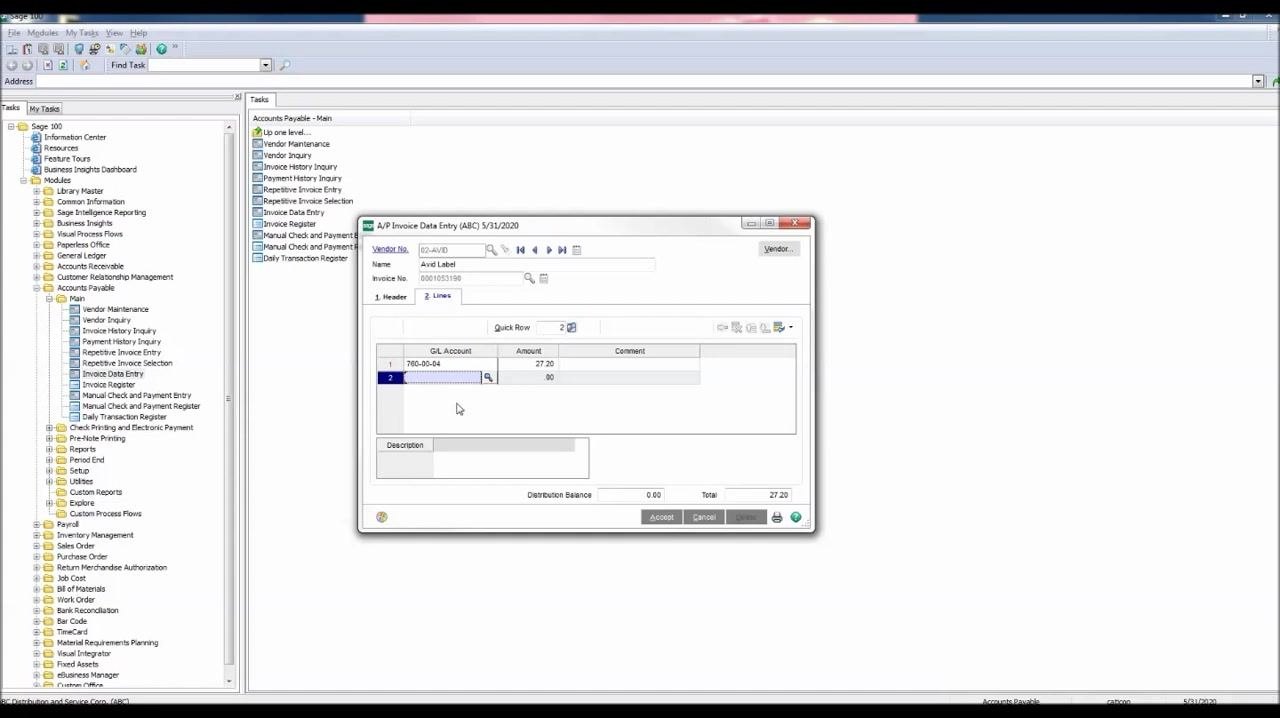
Click the Lines tab and confirm that the vendor (AVID Label) has a General Ledger (GL) account assigned by default. If you need a different GL account, click the lookup button next to the GL Account field. Check that the Amount field retrieves the adjusted amount from the Header tab; if it does not, enter $27.20 manually.
Verify and accept the invoice adjustment
Carefully review all the information entered in the A/P Invoice Data Entry window. Confirm that the Vendor No. is 02-AVID for AVID Label, the GL Account is 760-00-04, and the Amount is $27.20. Click Accept at the bottom right of the window to save the adjustment.
Update the Accounts Payable Invoice Register
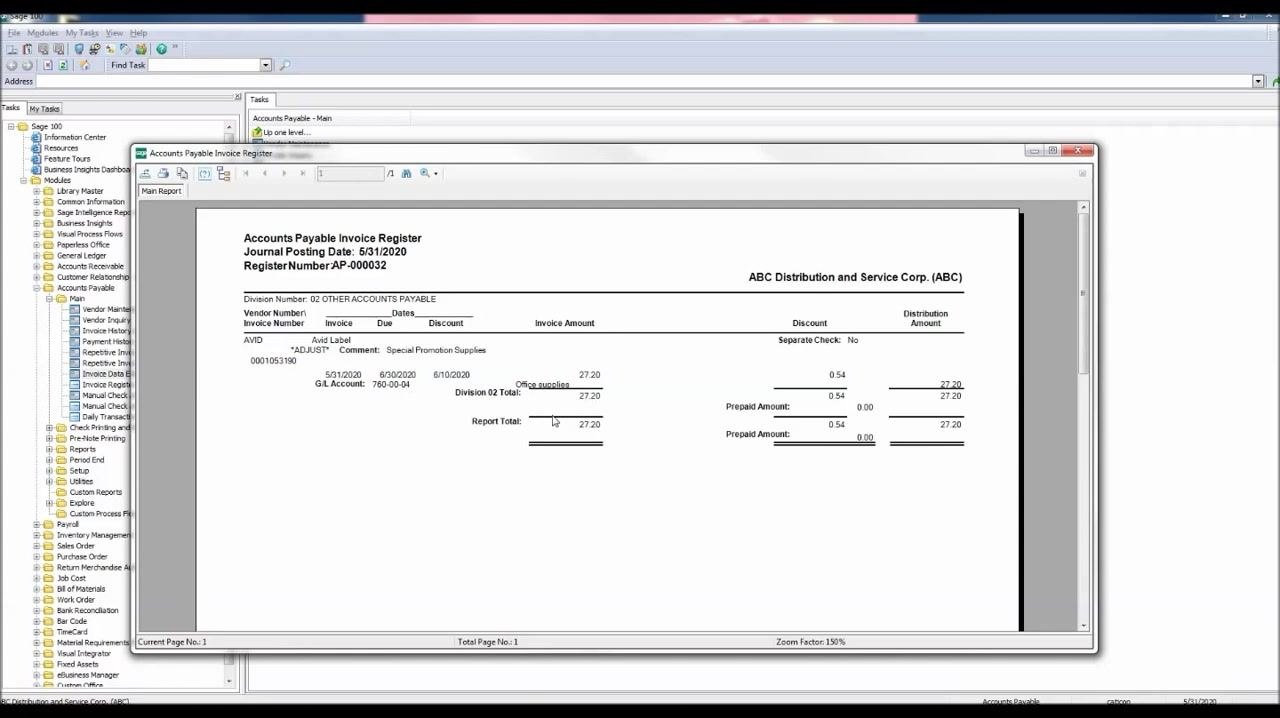
Click the printer icon to proceed with updating Accounts Payable. When the Accounts Payable Invoice Register dialog appears, review the Current General Ledger Period (05, ending 5/31/2020) and the Accounts Payable Posting Date (5/31/2020). Choose whether to print or preview the register; in this example, click Preview.
Review the Accounts Payable Invoice Register report
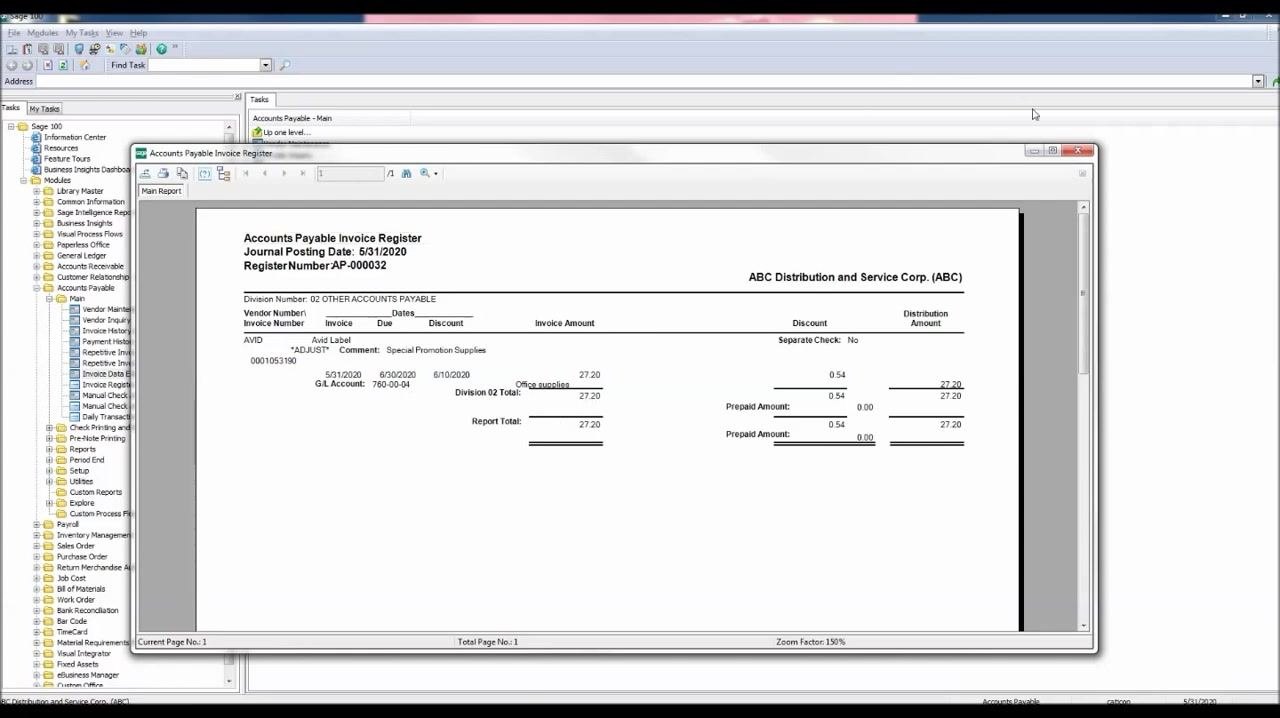
Review the Accounts Payable Invoice Register report that appears. Verify that the word ADJUST appears under the vendor number, confirming the adjustment, and that the adjusted amount of $27.20 is displayed for the invoice. Check that the Division and Report Totals reflect the adjustment.
Review the Recap by Division report
In the same report window, review the Recap by Division section. Confirm that the debits and credits shown for the adjustment match the adjustment amount.
Finalize the update
When prompted to update the Invoice Register, click Yes. Wait for the Update in Progress bar to complete, which confirms that the adjustment has been posted.
Verify the adjustment in Vendor Inquiry
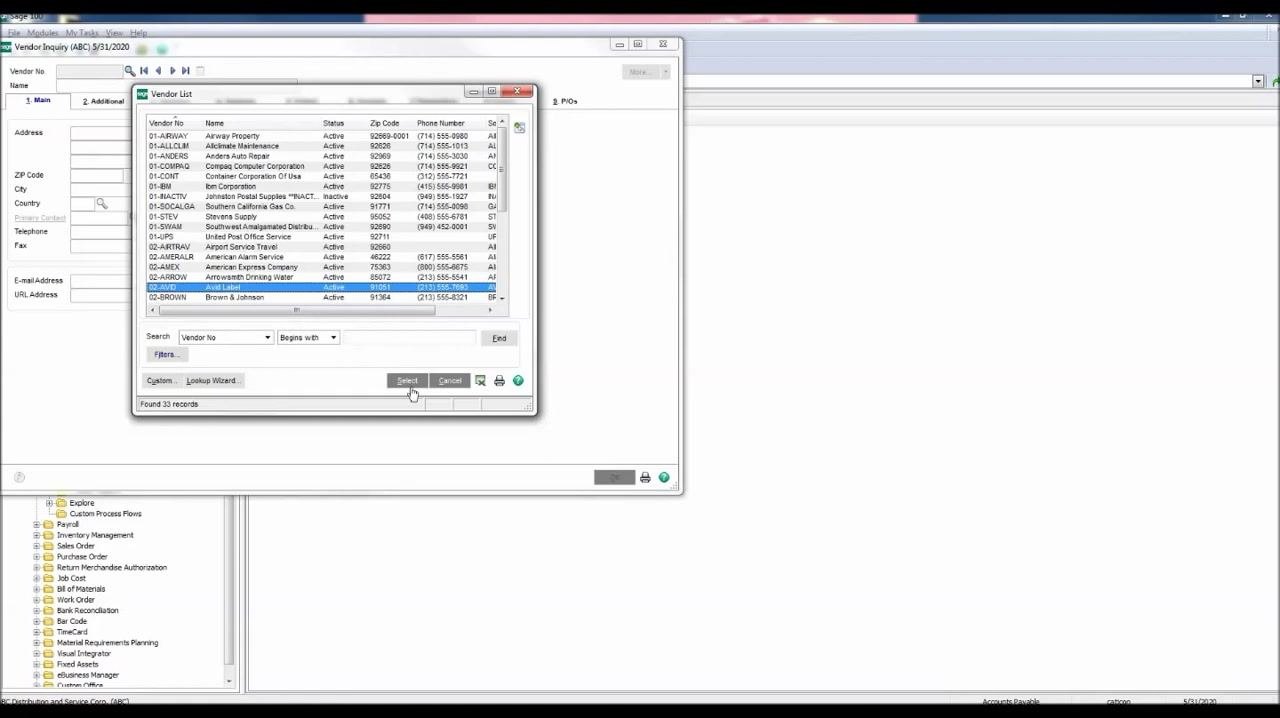
Go to the Main folder in the navigation pane and select Vendor Inquiry. In the Vendor List window, locate and select vendor number 02-AVID for AVID Label, then click Select.
In the Vendor Inquiry window, click the Invoices tab and locate the invoice you adjusted (Invoice No. 0001053190) at the top of the list. In the lower window, verify that the transaction type is Adjustment, the amount is $27.20, and the current balance is $1,375.00.
Summary
You have now adjusted an AP invoice in Sage 100 by entering an adjustment amount in Invoice Data Entry, updating the Accounts Payable Invoice Register, and confirming the adjustment in Vendor Inquiry. This process ensures that the invoice amount, GL account, and vendor balance all reflect the change accurately.
Generation details: cost, quality tiers
Docsie billed 2,000 credits ($1.40) to analyze this 4-minute video at standard quality. The rewrite, template fill and Word/PDF exports were included. The same video at each quality tier:
| Quality | Frames sampled | Credits | Approx. cost |
|---|---|---|---|
| Draft | every 16-30 s | 1,000 | $0.70 |
| Standard (this guide) | every 8-15 s | 2,000 | $1.40 |
| Detailed | every 4-7 s | 4,000 | $2.80 |
| Ultra | every 1-3 s | 8,000 | $5.60 |
Credits priced at $0.70 per 1,000; plans include a monthly allowance. Enterprise customers on on-premise or bring-your-own-model deployments run this on their own inference and pay no per-video credits.
Generated by Docsie Video-to-Docs on 2026-10-25 from a 3-minute video. Screenshots are frames from the source video and belong to their creator, Acute Data, whose original is embedded above. If you own this video and want the guide removed or credited differently, contact us and we will act within one business day.