
How to Set Up Bank Rules in QuickBooks Online
Learn how to set up bank rules in QuickBooks Online to speed up the way you categorize bank and credit card transactions. Bank rules can pre-categorize transactions for your review, or automatically add them to your books, saving you time on routine bookkeeping tasks.
Video: How to use bank rules in QuickBooks Online by Intuit QuickBooks (2026). All credit for the demonstration goes to the creator; watch the original on YouTube. The written guide below was generated from this video by Docsie. Creator? Request a change or removal.
Learn how to set up bank rules in QuickBooks Online to speed up the way you categorize bank and credit card transactions. Bank rules can pre-categorize transactions for your review, or automatically add them to your books, saving you time on routine bookkeeping tasks.
Why use bank rules
Bank rules in QuickBooks Online help speed up categorizing transactions. They can pre-categorize transactions for your review or automatically add them to your books, reducing the manual work involved in reviewing each transaction individually.
Prerequisites
- Access to your QuickBooks Online company with bank or credit card accounts connected.
- Permission to access the Accounting menu and create rules.
Navigate to the bank rules section
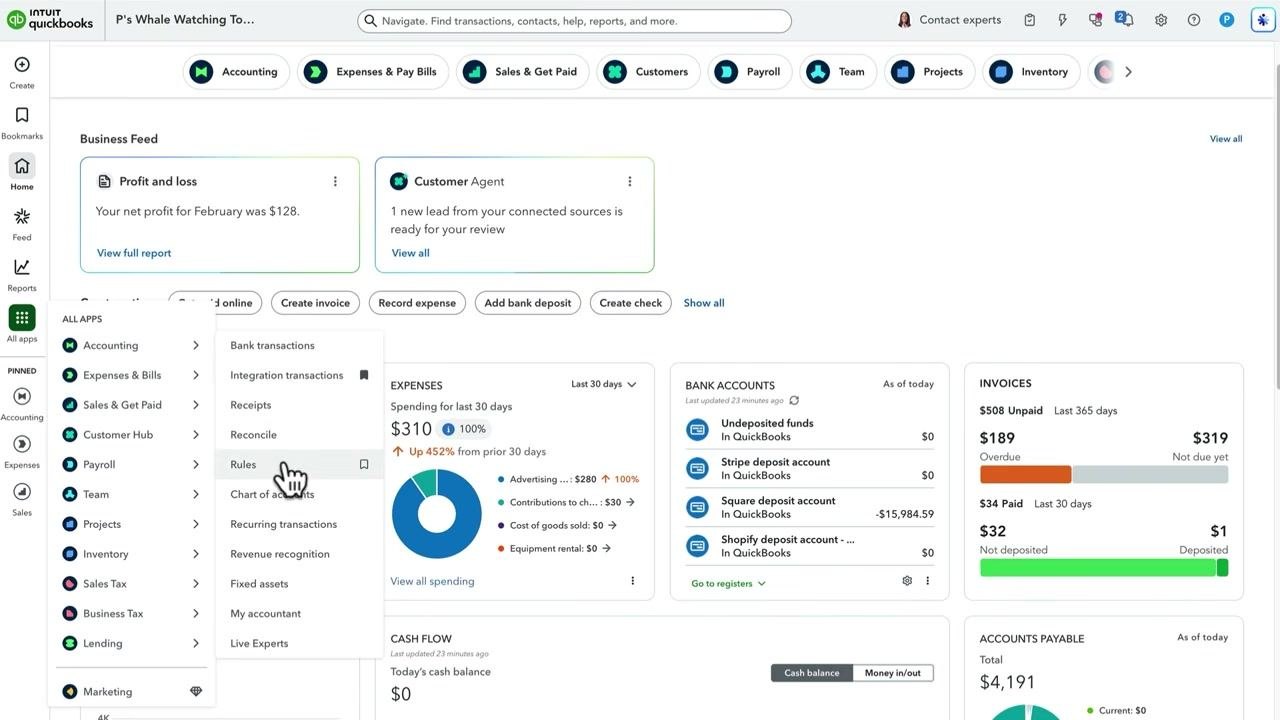
Select All Apps from the left navigation menu, then go to Accounting. Hover over Accounting and select Rules from the dropdown menu to open the Rules Center.
Create a new bank rule
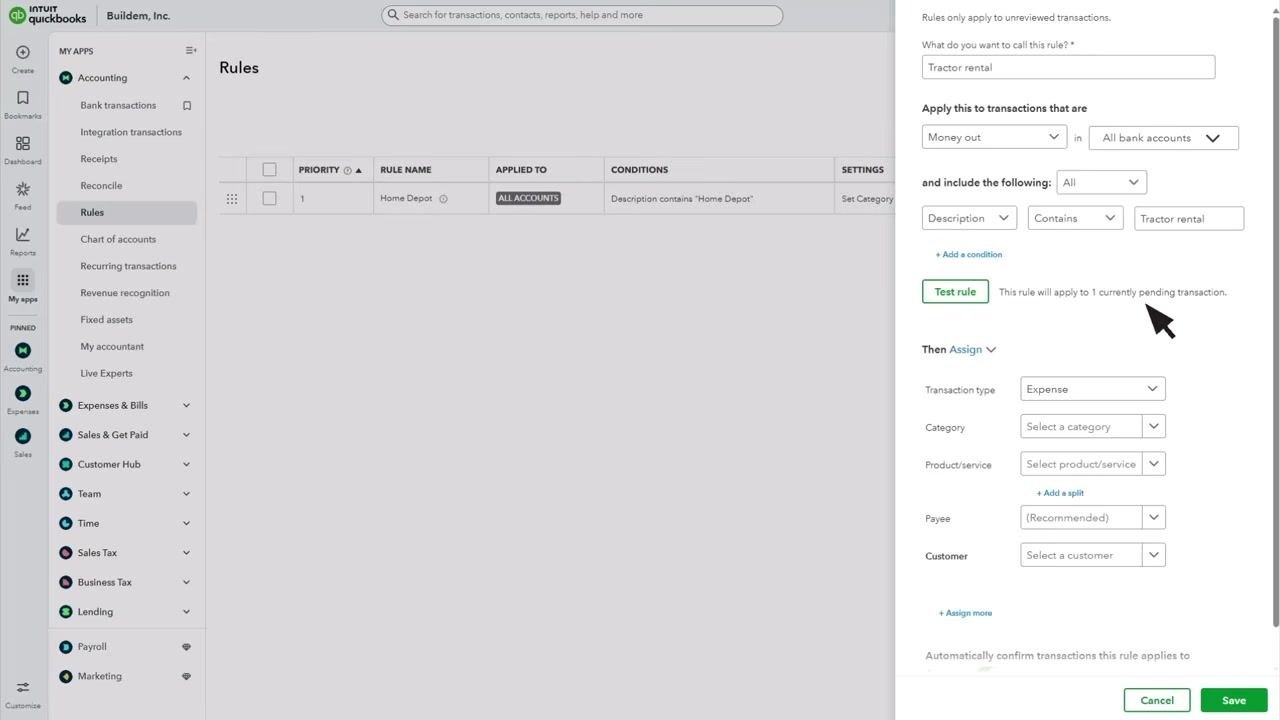
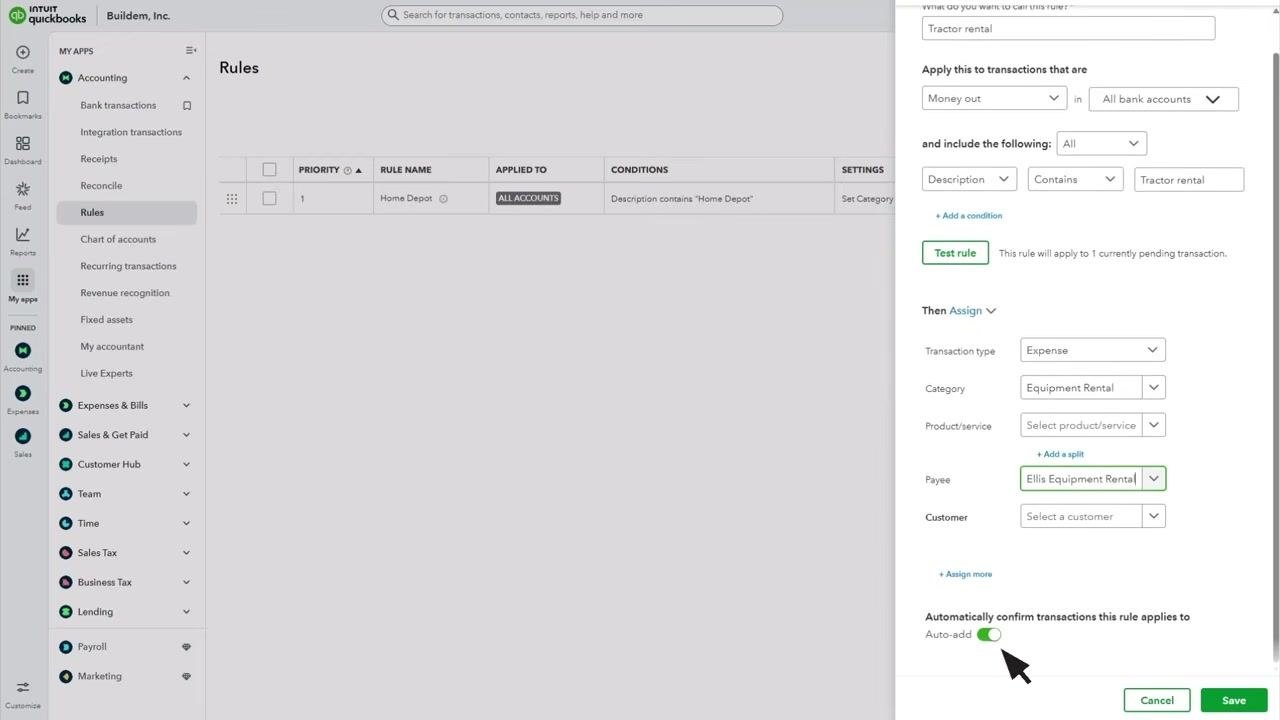
Click New Rule to begin creating a rule. Enter a name for your rule in the "What do you want to call this rule?" field — for example, Tractor rental.
Set the rule criteria
Choose whether the rule applies to Money in or Money out transactions, then select which bank and credit card accounts it should apply to (for example, "All bank accounts").
Add conditions to define when the rule applies:
- Filter by Description or Bank text (the details sent by your bank).
- Specify whether the text Contains or Does not contain certain words — for example, "Tractor rental".
- Click + Add a condition to add more conditions if needed.
- You can also base the rule on the transaction Amount.
Test the rule
Click Test rule to check whether it applies to any currently unreviewed transactions. Review the feedback message, such as "This rule will apply to 1 currently pending transaction." If the rule doesn't behave as expected, adjust the conditions and test again.
Assign transaction details
Decide what QuickBooks should do with transactions that meet your rule criteria:
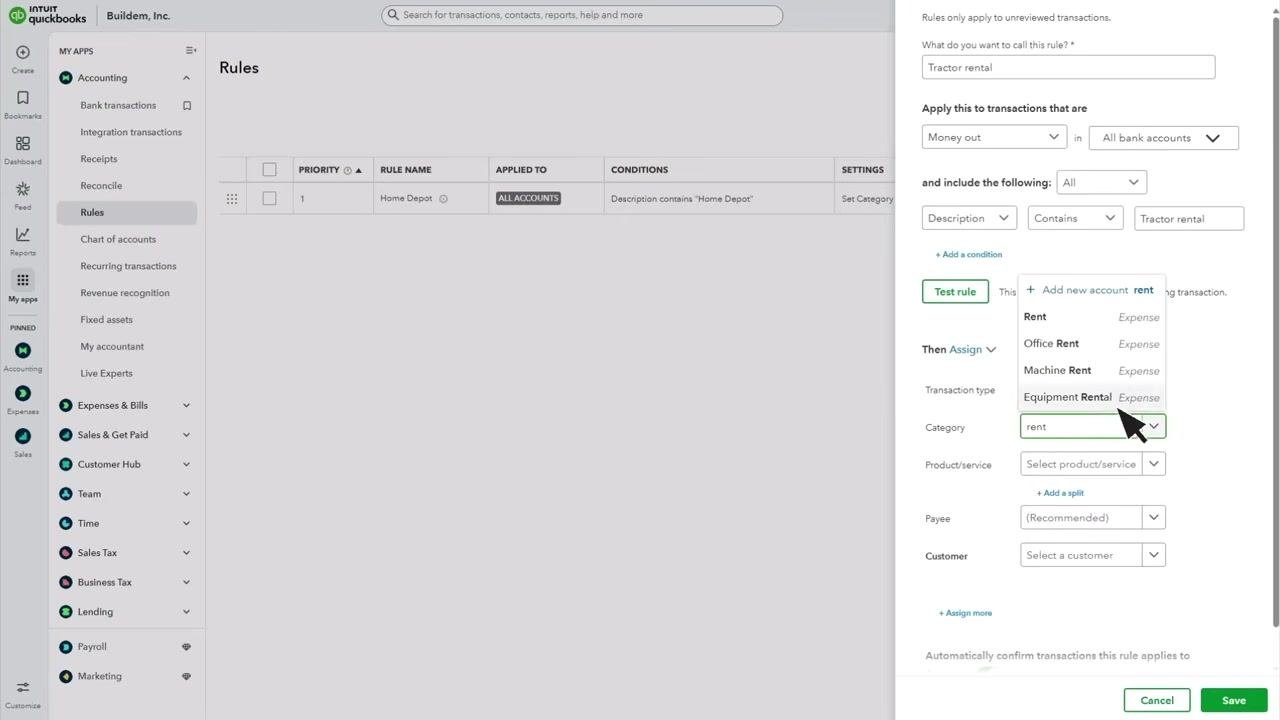
- Select the Transaction type (for example, Expense).
- Enter the Category you want QuickBooks to apply (for example, Rent, Office Rent, Machine Rent, or Equipment Rental).
- Optionally, select a Product/service.
- Click + Add a split if you want to divide the transaction between multiple categories by percentage or amount.
- Optionally, assign a Payee and Customer.
Add payee and customer information
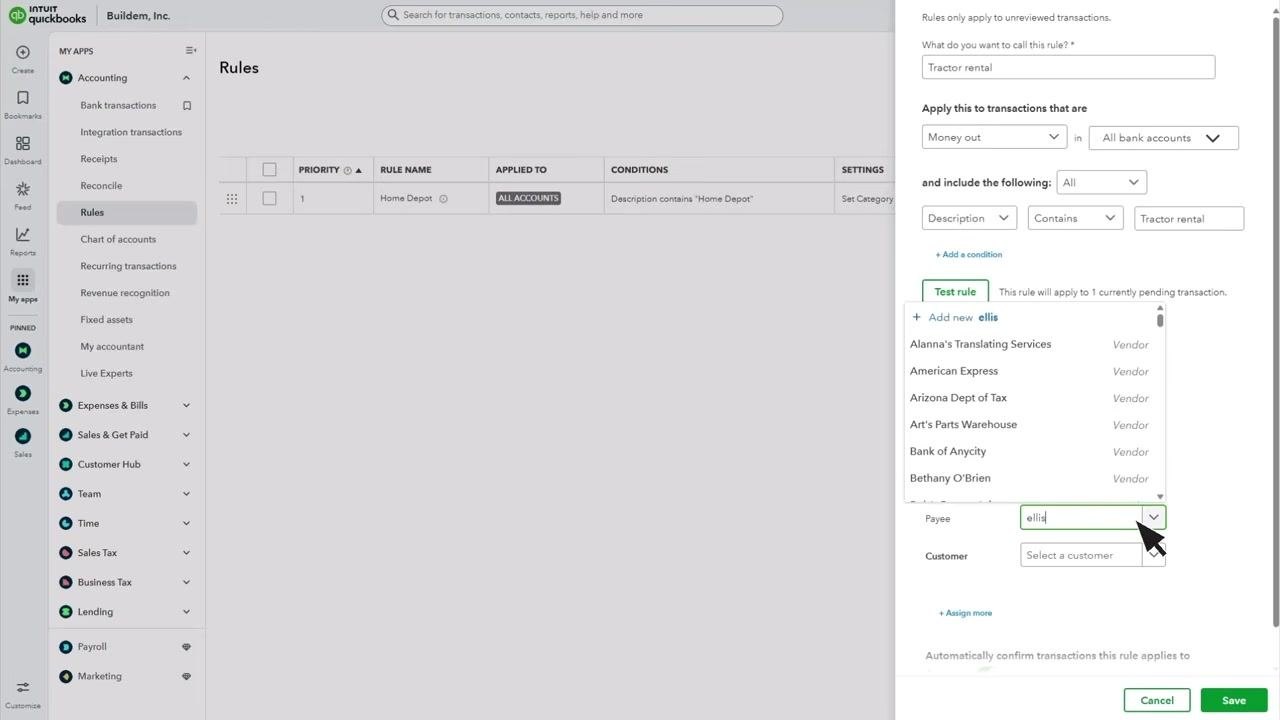
Assigning a Payee to your rule improves record accuracy and makes reconciliation easier. If your company settings allow it, you can also assign a Customer or Project.
Type in the Payee field and select from the dropdown, or add a new payee if one doesn't already exist. Adding this information ensures your records are complete and supports better reporting and reconciliation.
Enable Auto-add for your rule (optional)
Locate the Automatically confirm transactions this rule applies to section. Toggle Auto-add to ON if you want QuickBooks to automatically add matching transactions to your books without review.
Warning: Use Auto-add with caution. Once enabled, you will not have a chance to review transactions before they are posted.
Save the rule
After entering all required information and confirming the rule works as intended, click Save to activate it.
Following these steps lets you automate and streamline how you categorize bank and credit card transactions in QuickBooks Online.
Managing existing bank rules
Edit, copy, disable, or delete a rule
- Click Edit in the Actions column to make changes to an existing rule.
- Select Disable from the Actions dropdown to temporarily stop a rule from applying.
- Select Delete from the Actions dropdown to permanently remove a rule.
- Use Copy to quickly create a similar rule based on an existing one.
Change rule priority
QuickBooks applies rules in the order they appear in the Rules Center. To change a rule's priority, click and drag the grid icon next to the rule and move it up or down the list.
Export or import rules
You can export rules to use in a different QuickBooks company, or import rules from another company if needed.
Review transactions processed by rules
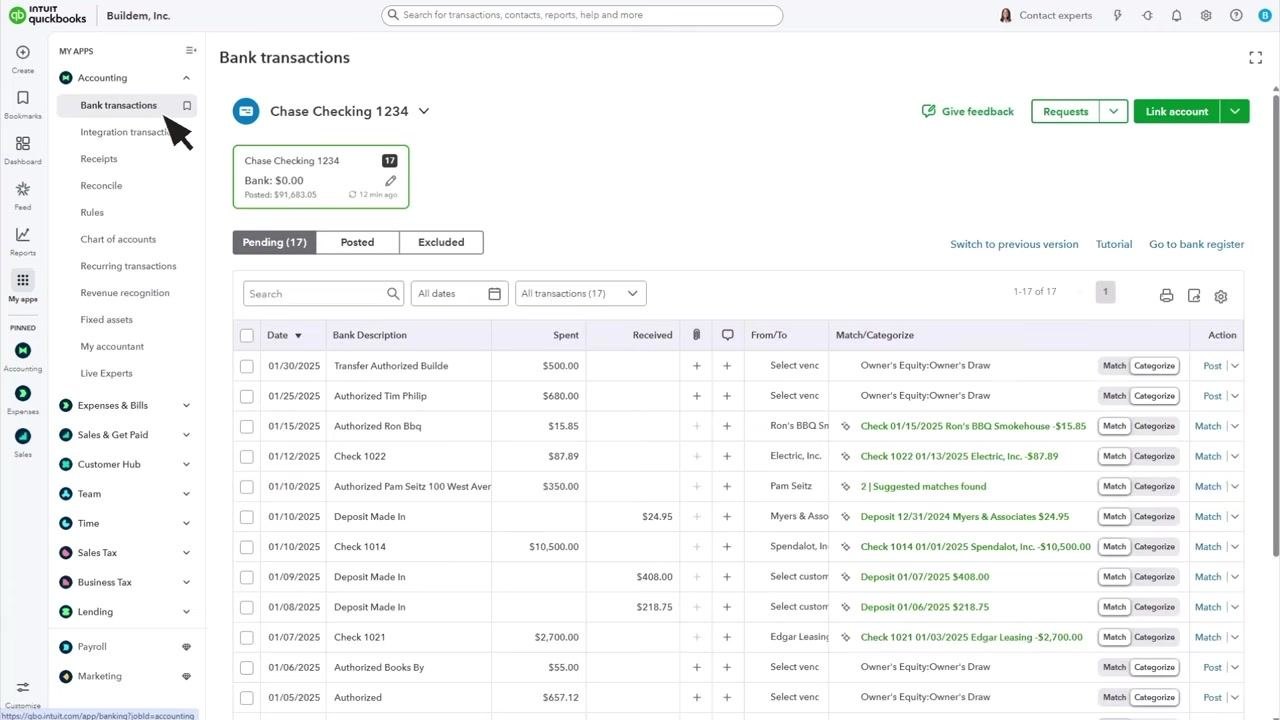
Go back to Bank Transactions from the left navigation menu. Whenever QuickBooks downloads a transaction, you can see whether a rule was applied to it.
Select the Posted tab to view transactions that have been confirmed by you or automatically by QuickBooks. Transactions confirmed automatically by a rule display an AUTO label in the Transaction Posted column.
Summary
By following these steps, you can efficiently manage, automate, and review your bank and credit card transactions in QuickBooks Online using bank rules. This ensures accurate records, streamlined reconciliation, and greater control over your financial data.
Generation details: cost, quality tiers
Docsie billed 2,000 credits ($1.40) to analyze this 4-minute video at standard quality. The rewrite, template fill and Word/PDF exports were included. The same video at each quality tier:
| Quality | Frames sampled | Credits | Approx. cost |
|---|---|---|---|
| Draft | every 16-30 s | 1,000 | $0.70 |
| Standard (this guide) | every 8-15 s | 2,000 | $1.40 |
| Detailed | every 4-7 s | 4,000 | $2.80 |
| Ultra | every 1-3 s | 8,000 | $5.60 |
Credits priced at $0.70 per 1,000; plans include a monthly allowance. Enterprise customers on on-premise or bring-your-own-model deployments run this on their own inference and pay no per-video credits.
Generated by Docsie Video-to-Docs on 2026-10-25 from a 3-minute video. Screenshots are frames from the source video and belong to their creator, Intuit QuickBooks, whose original is embedded above. If you own this video and want the guide removed or credited differently, contact us and we will act within one business day.