
How to Reconcile a Bank Account in QuickBooks Online
Reconciling a bank account in QuickBooks Online ensures that the records you keep in QuickBooks match your bank and credit card statements. This process helps you maintain accurate financial records and catch discrepancies before they become bigger problems. This guide walks you through preparing for reconciliation, matching transactions, resolving differences, and completing the process—including the AI-powered reconciliation workflow.
Video: How to reconcile your accounts in QuickBooks Online by Intuit QuickBooks (2026). All credit for the demonstration goes to the creator; watch the original on YouTube. The written guide below was generated from this video by Docsie. Creator? Request a change or removal.
Reconciling a bank account in QuickBooks Online ensures that the records you keep in QuickBooks match your bank and credit card statements. This process helps you maintain accurate financial records and catch discrepancies before they become bigger problems. This guide walks you through preparing for reconciliation, matching transactions, resolving differences, and completing the process—including the AI-powered reconciliation workflow.
Prerequisites
Before you reconcile a bank account in QuickBooks Online, complete the following preparation steps.
Connect your bank and credit card accounts
Use the Link account button to connect your financial institutions to QuickBooks. This allows QuickBooks to automatically import transactions, which makes categorizing and reconciling faster and more accurate.
Record your money in and money out
Record all your money coming in for the month in QuickBooks, as well as all your money going out. The fastest and most reliable way to keep your books accurate is to connect your bank and credit card accounts to QuickBooks and categorize every transaction.
Enter and categorize each transaction
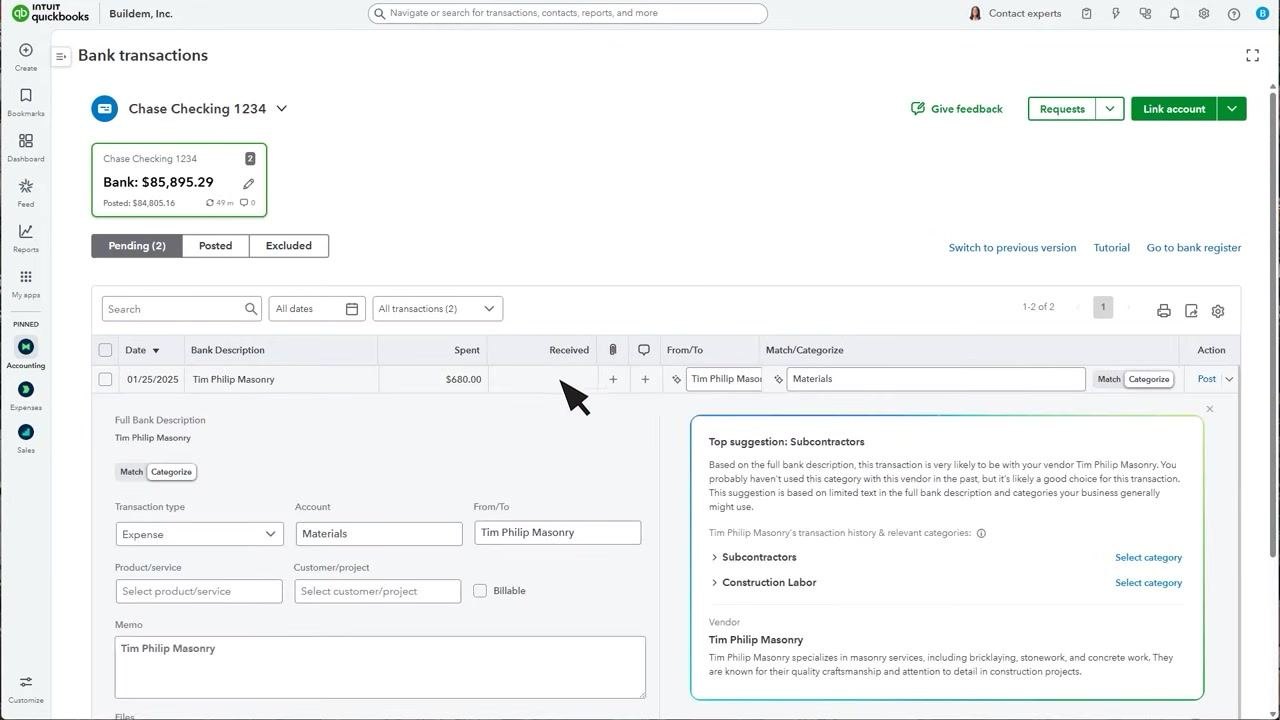
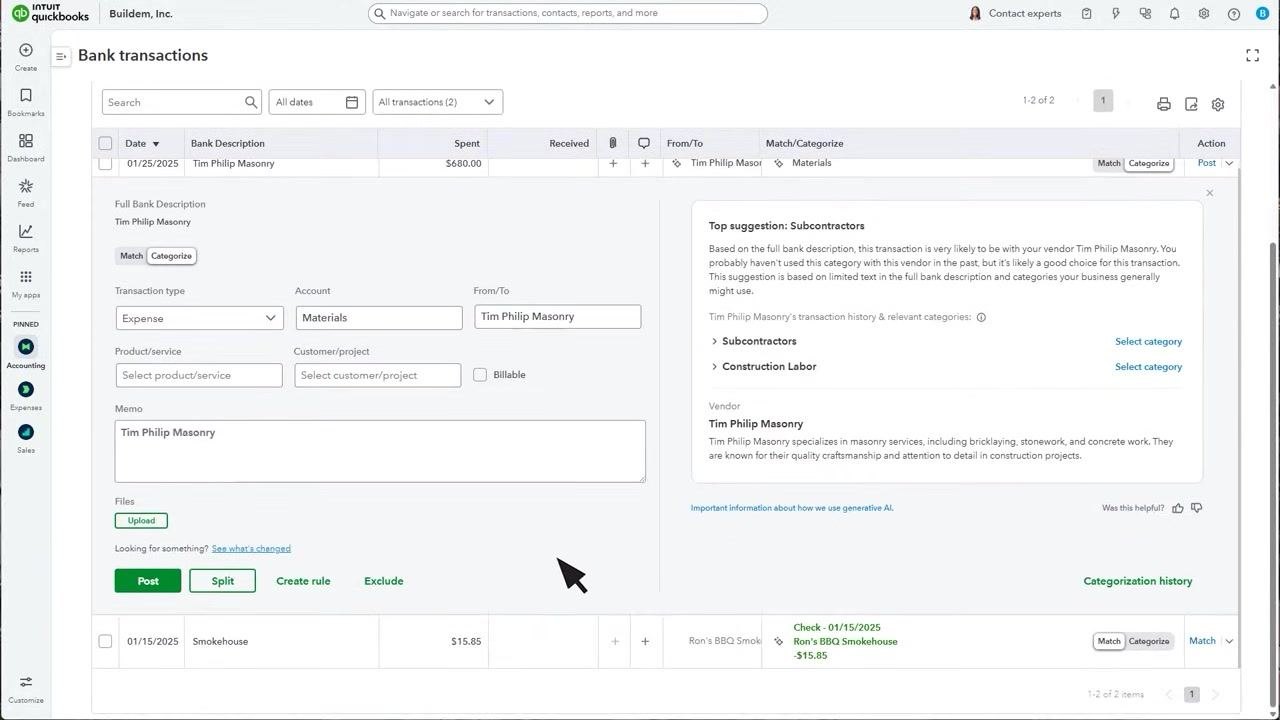
For each transaction, enter the correct details. For example, for a transaction dated 01/25/2025, you would enter "Tim Philip Masonry" as the payee, $680.00 as the amount spent, and categorize it as "Materials." Use the category suggestions QuickBooks provides to choose the most appropriate option for each transaction.
Review all transactions for the month
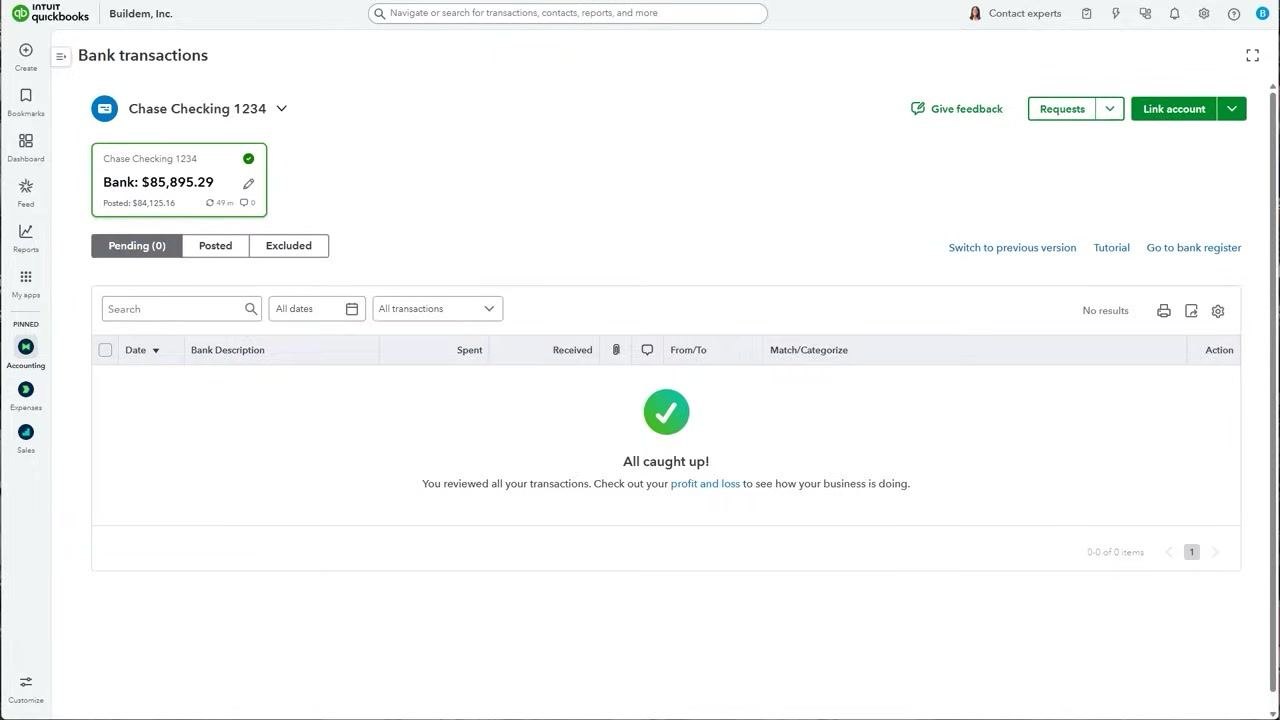
Make sure every transaction for the period has been reviewed and categorized. When you finish processing everything, QuickBooks displays an "All caught up!" message, confirming you have reviewed all transactions for the period.
Gather your bank or credit card statement
Before you begin reconciling, have your bank or credit card statement for the month on hand. You'll use it to match your records in QuickBooks.
Open the Reconcile tool
Go to the settings menu (gear icon) and select Reconcile from the Tools section.
Select the account to reconcile
On the Reconcile screen, choose the bank or credit card account you want to reconcile from the Account dropdown menu.
Enter statement details
Enter the ending balance and ending date from your bank or credit card statement. Double-check that your opening balance matches your statement. If everything looks correct, select Start reconciling.
Compare your statement to QuickBooks
Take your bank statement and compare each item against the information in QuickBooks, paying close attention to dates and amounts. Find every item on your statement and confirm it matches a transaction in QuickBooks.
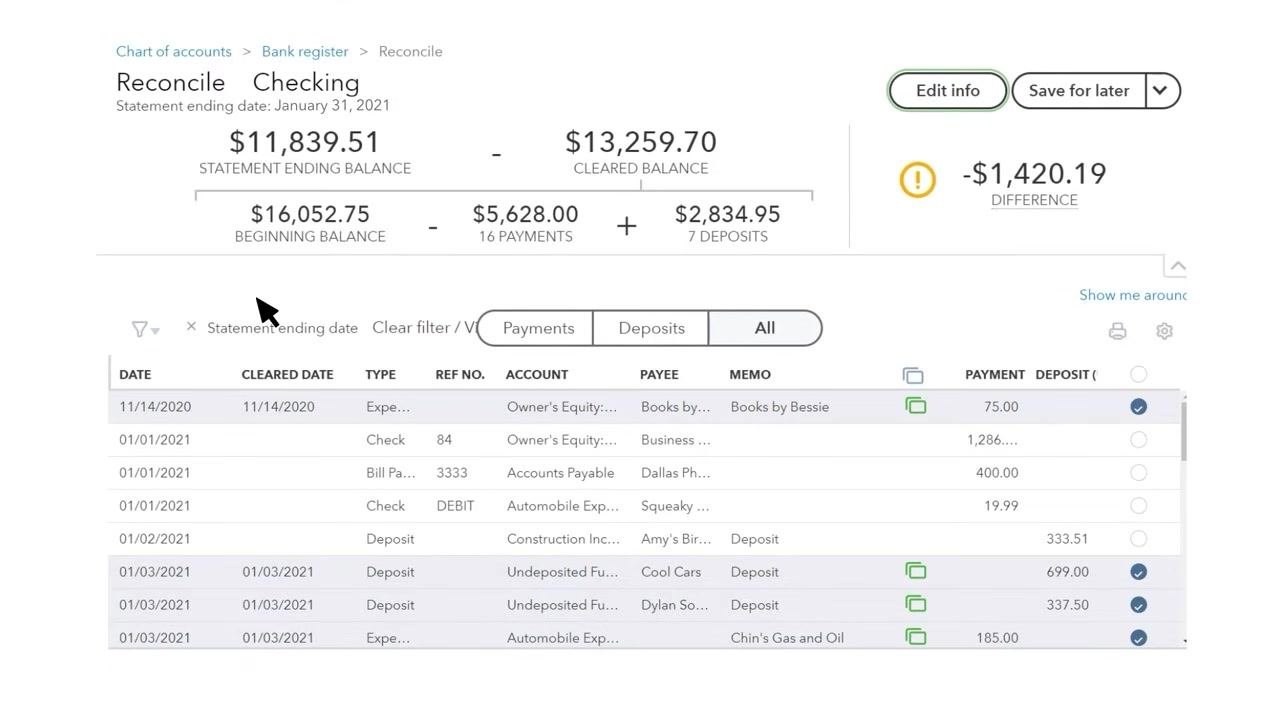
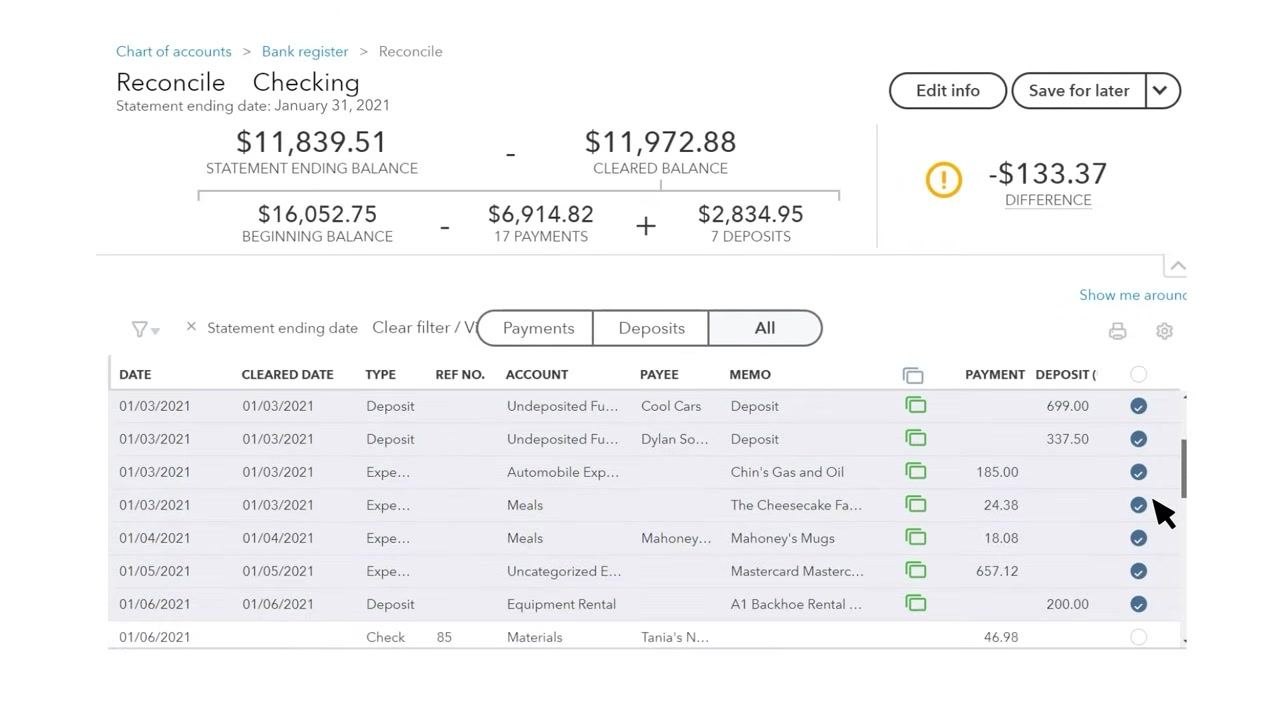
Mark matched and pre-cleared transactions
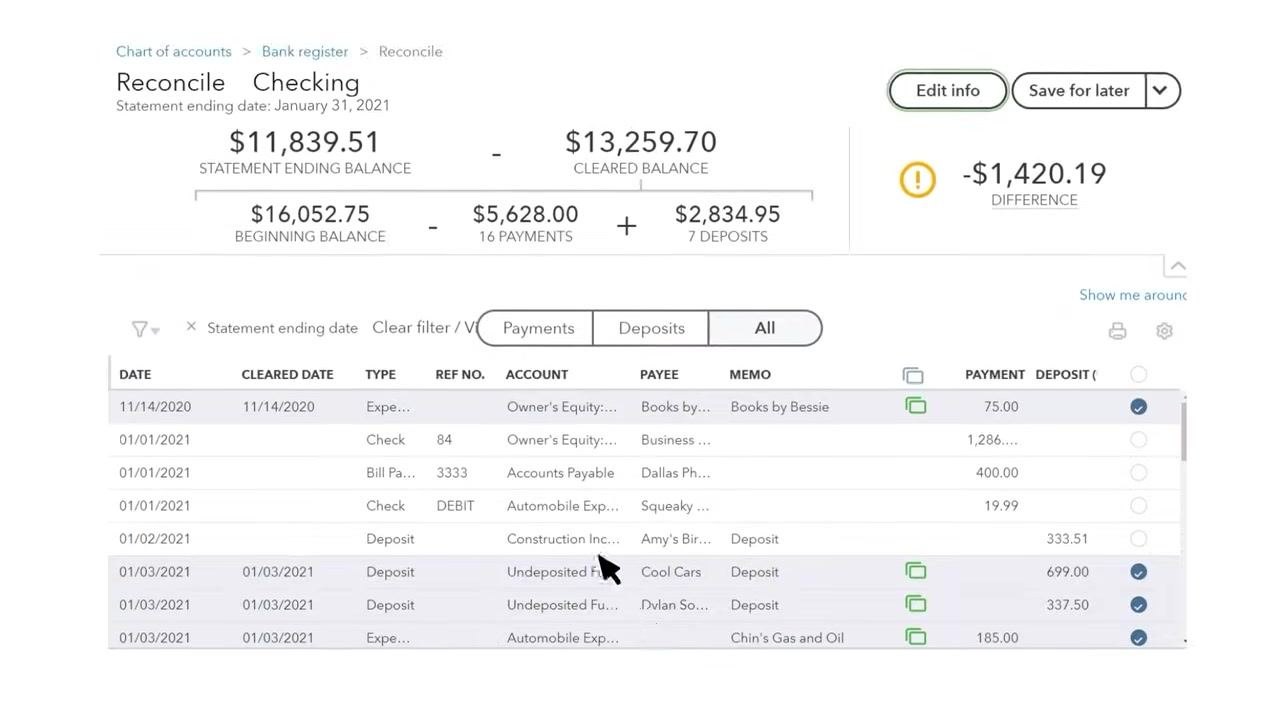
For every transaction that matches between your statement and QuickBooks, place a checkmark next to it in the reconciliation list. Do not check any item in QuickBooks that doesn't appear on your statement.
If your account is connected to QuickBooks, many transactions may already show checkmarks. These are pre-cleared items that QuickBooks automatically matched when it downloaded them during your review—no further action is needed on them.
Verify all statement items
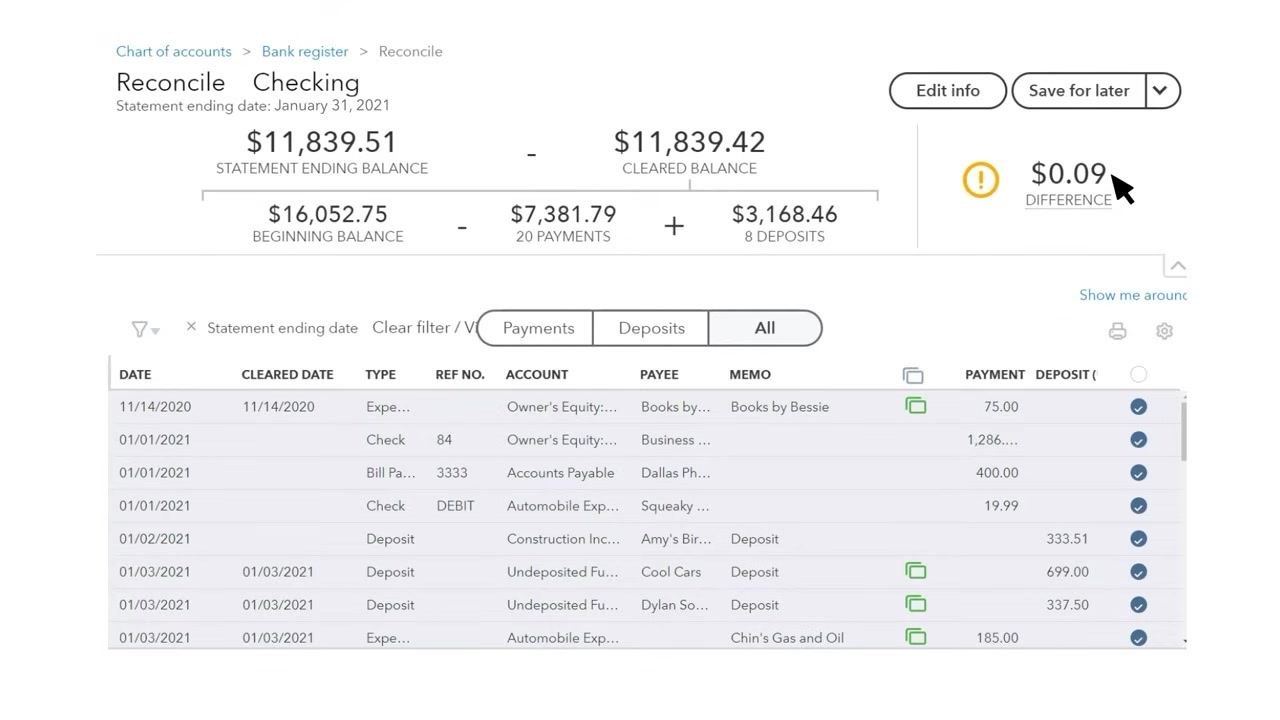
Continue matching and checking off transactions until every item from your statement is accounted for in QuickBooks. When all items are matched, the Difference amount at the top right should read $0.00, confirming your records are reconciled. If a difference remains, it will be displayed in the Difference field.
AI-powered reconciliation
QuickBooks also offers an AI-assisted reconciliation workflow that extracts statement data automatically.
Step 7: Upload your bank statement
Click Upload from this device to browse and select your bank statement file, or drag and drop the file into the upload area. Supported formats include PDF, JPEG, PNG, and HEIC.
After you upload the file, QuickBooks automatically extracts the data from your statement using AI. This process may take a few minutes, especially if the statement needs further review.
Step 8: View and select previously uploaded statements
Click View statements to open the Statements drawer and review the list of previously uploaded statements. Only statements with the status Extraction Completed can be selected for reconciliation. If you're enrolled in auto-import, statements may be imported automatically to save time.
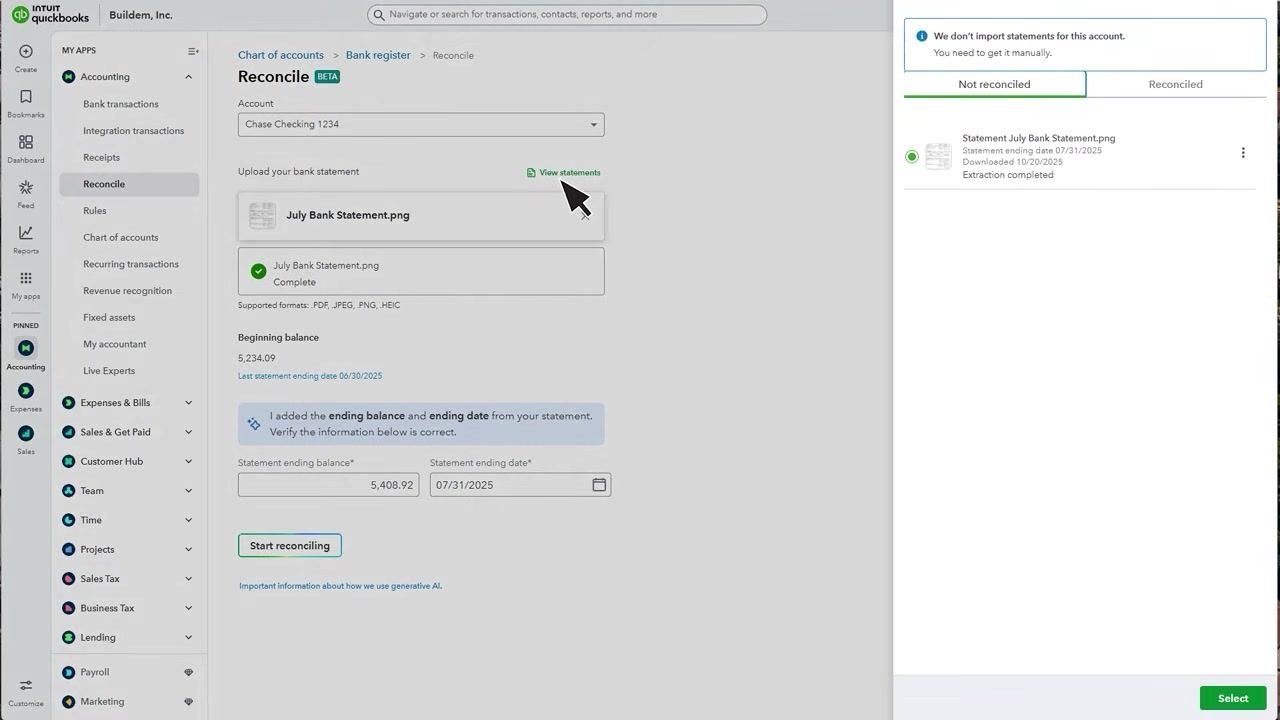
Step 9: Verify extracted statement details
Once extraction completes, QuickBooks pre-populates the Statement ending balance and Statement ending date fields. Double-check these numbers against your actual bank statement to confirm accuracy—for example, a statement ending balance of $5,408.92 and a statement ending date of 07/31/2025.
Start the reconciliation process
If all the information is correct, click Start reconciling to proceed. If you encounter an error, refer to the available help resources or video guides before continuing.
Review the Reconciliation page
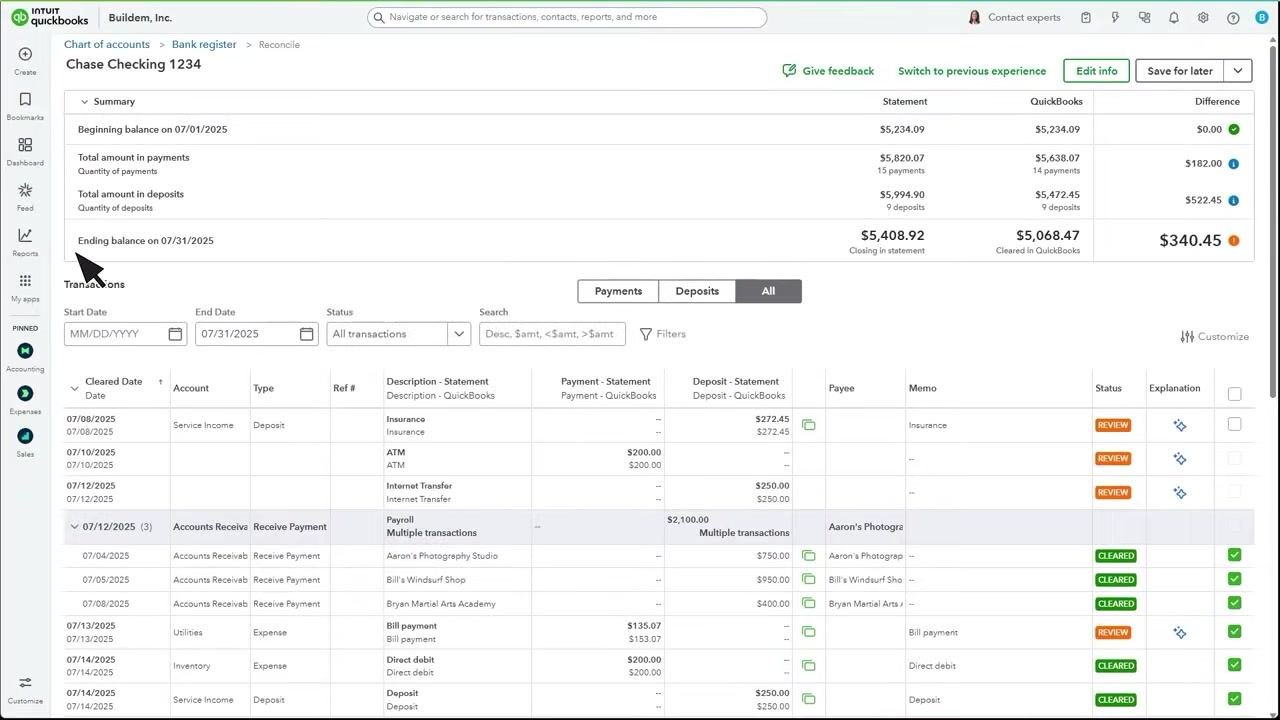
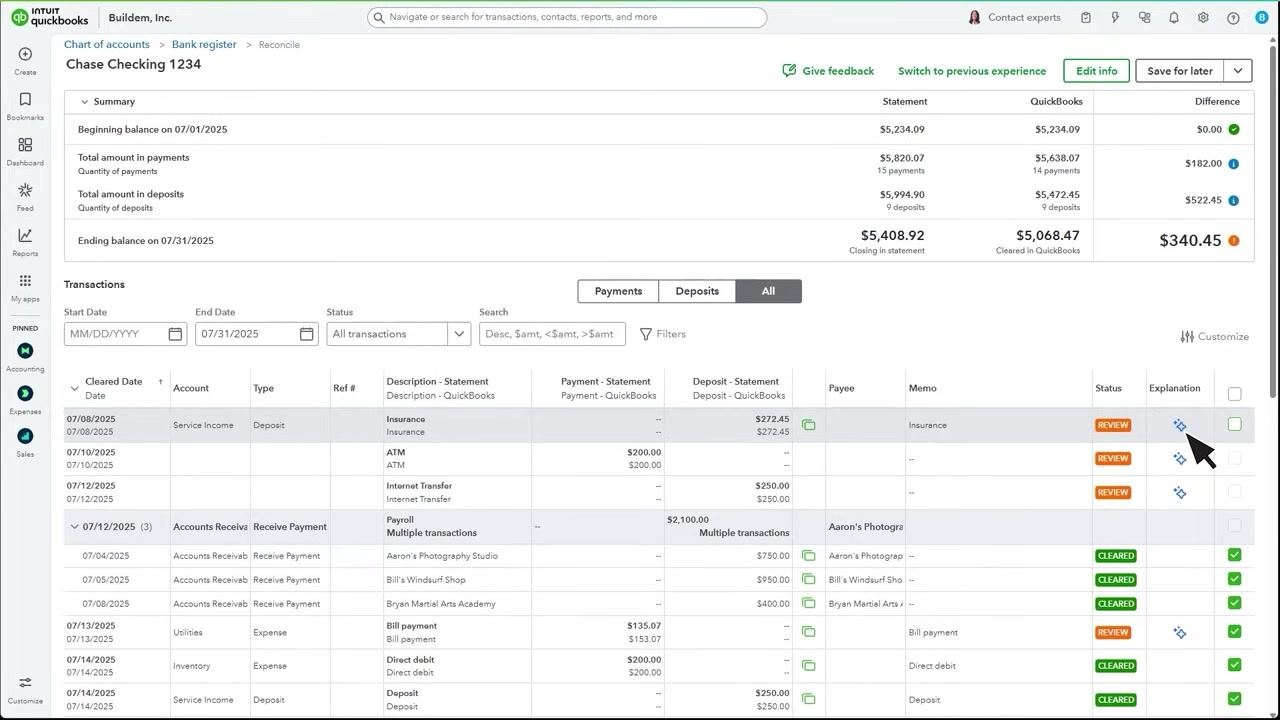
The Reconciliation page displays the period you're reconciling, including the beginning and ending balances (from your statement and QuickBooks), the total payments and deposits, and the difference between your statement and your QuickBooks records. Use the filters and search options to review transactions for the selected period.
For example, for an ending balance on 07/31/2025: statement closing balance = $5,408.92, cleared in QuickBooks = $5,068.47, difference = $340.45.
Analyze the reconciliation summary
The Summary section at the top of the Reconciliation page provides a detailed comparison between your bank statement and your QuickBooks records:
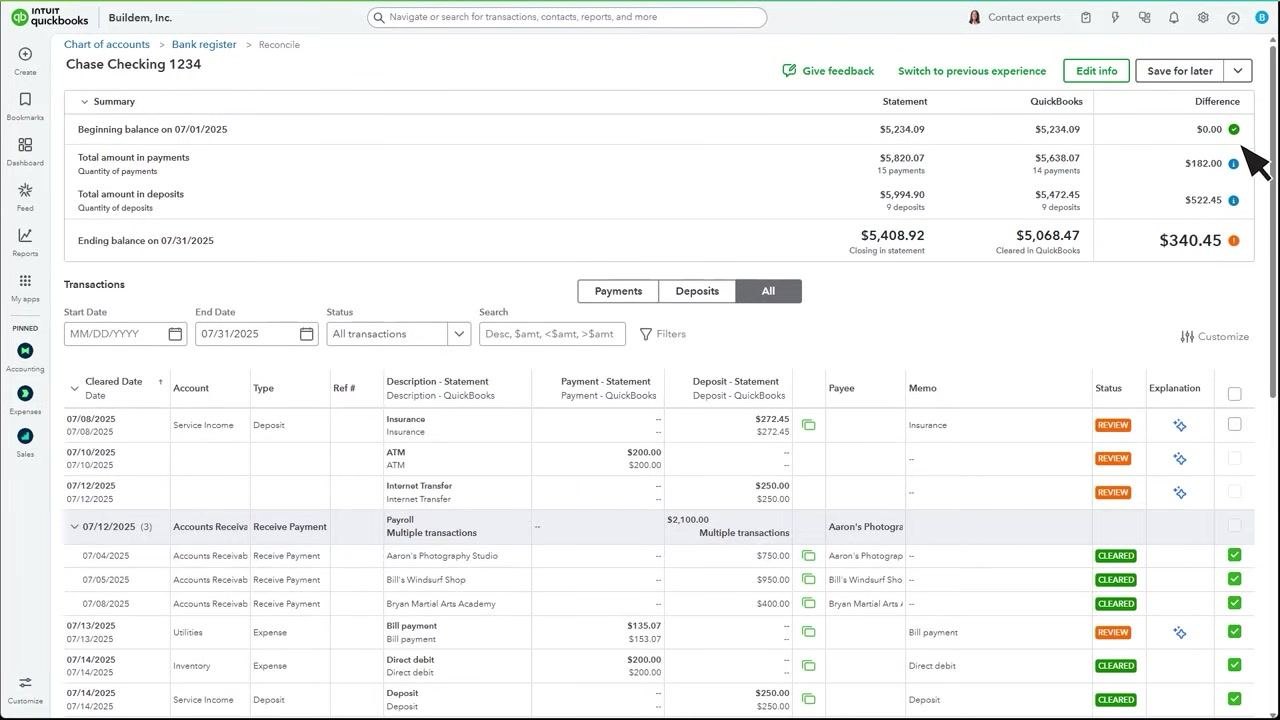
- Beginning balance on 07/01/2025: $5,234.09 (Statement), $5,234.09 (QuickBooks), Difference: $0.00 (green indicator)
- Total amount in payments: $5,820.07 (Statement, 15 payments), $5,638.07 (QuickBooks, 14 payments), Difference: $182.00 (blue indicator)
- Total amount in deposits: $5,994.90 (Statement, 9 deposits), $5,472.45 (QuickBooks, 9 deposits), Difference: $522.45 (blue indicator)
- Ending balance on 07/31/2025: $5,408.92 (Statement), $5,068.47 (QuickBooks), Difference: $340.45 (orange indicator)
Use the colored indicators to quickly spot which sections are balanced (green) and which have discrepancies (blue or orange).
Expand your workspace
If you need more room to view transactions, collapse the left menu or use the available layout options.
Review individual transactions for discrepancies
Scroll through the Transactions list to compare each entry between your bank statement and QuickBooks. Use the filters at the top to narrow results by date, status, or transaction type.
Pay attention to the Status column:
- REVIEW (orange): The transaction requires your attention and may need to be matched, edited, or explained.
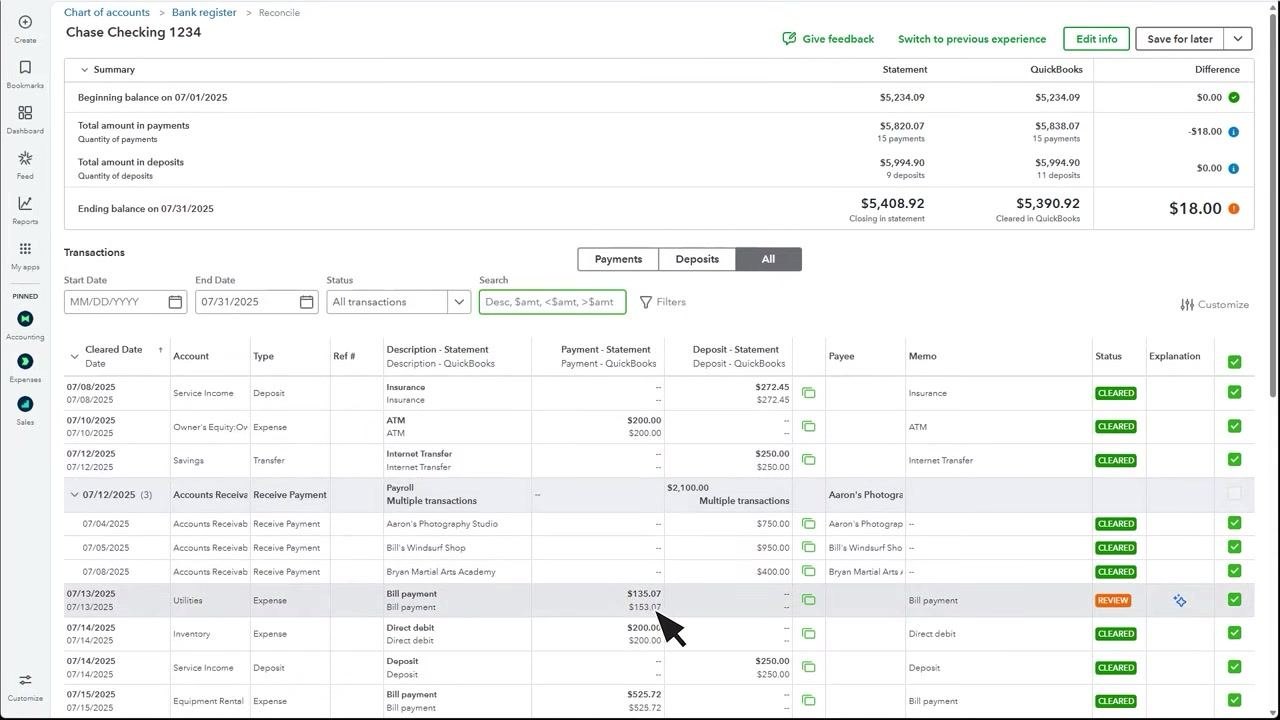
- CLEARED (green): The transaction has been matched and reconciled successfully.
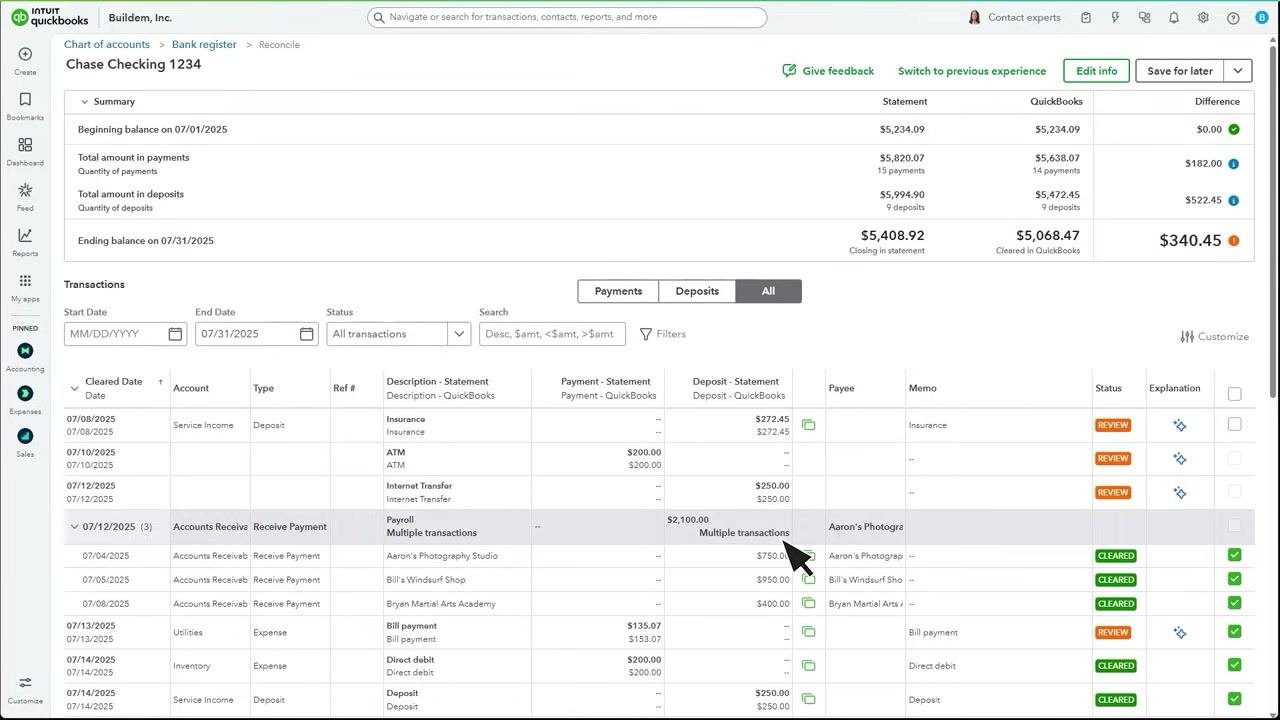
Examples of transactions requiring review include a 07/08/2025 Service Income deposit of $272.45, a 07/10/2025 ATM payment of $200.00, and a 07/12/2025 Internet Transfer deposit of $250.00. Examples of cleared transactions include a 07/12/2025 Accounts Receivable payment of $2,100.00 and a 07/04/2025 Accounts Receivable payment of $750.00 from Aaron's Photography Studio.
Review multi-payment deposits
Some deposits may be linked to multiple customer payments, indicated by "Multiple transactions" in the Description or Deposit columns. These transactions often require review to ensure they're correctly matched and categorized.
Take action on transactions marked for review
If a transaction is marked REVIEW, you must resolve it before completing reconciliation. Click the sparkle icon in the Explanation column next to the transaction to get help—this triggers the AI assistant to diagnose the issue and suggest a resolution.
Edit transaction details if needed
To change a transaction's details, select the transaction row, then click Edit to modify information such as the amount, payee, or memo.
Troubleshoot discrepancies
Step 17: Start with Edit info
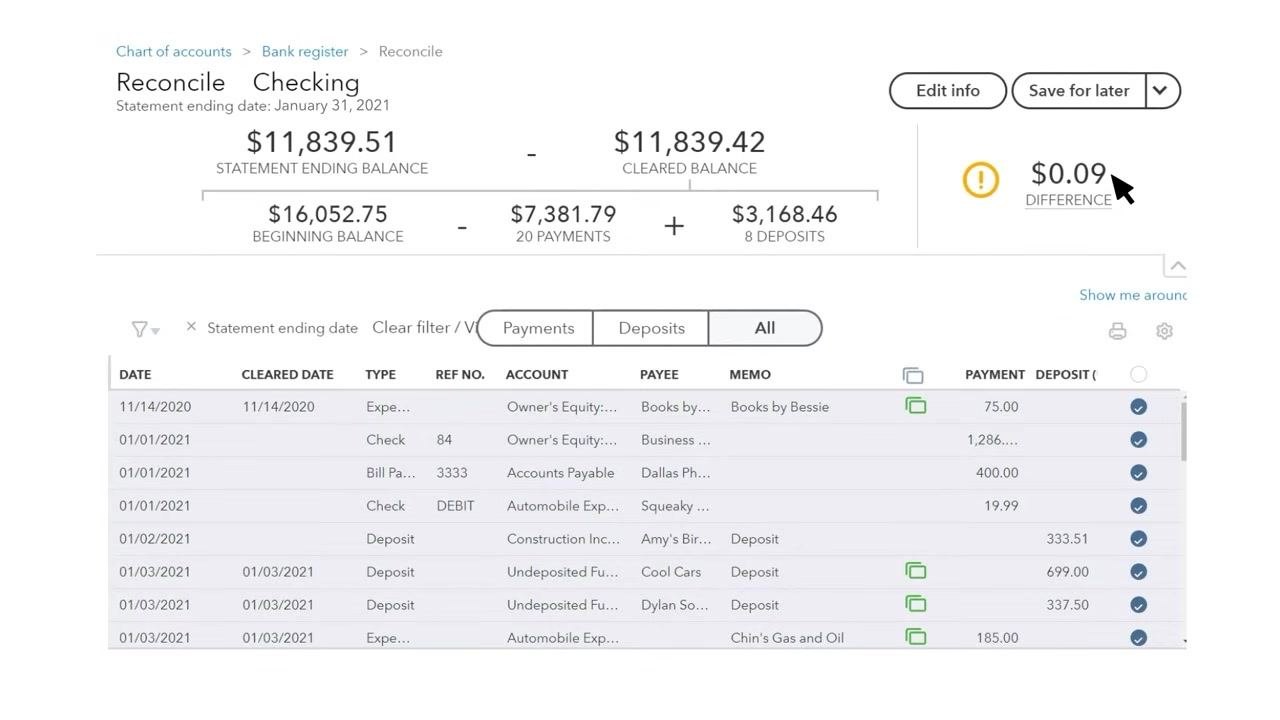
If you see a difference, first select Edit info. Verify that your beginning balance, ending balance, and ending date match your bank or credit card statement exactly.
Step 18: Review manually entered transactions
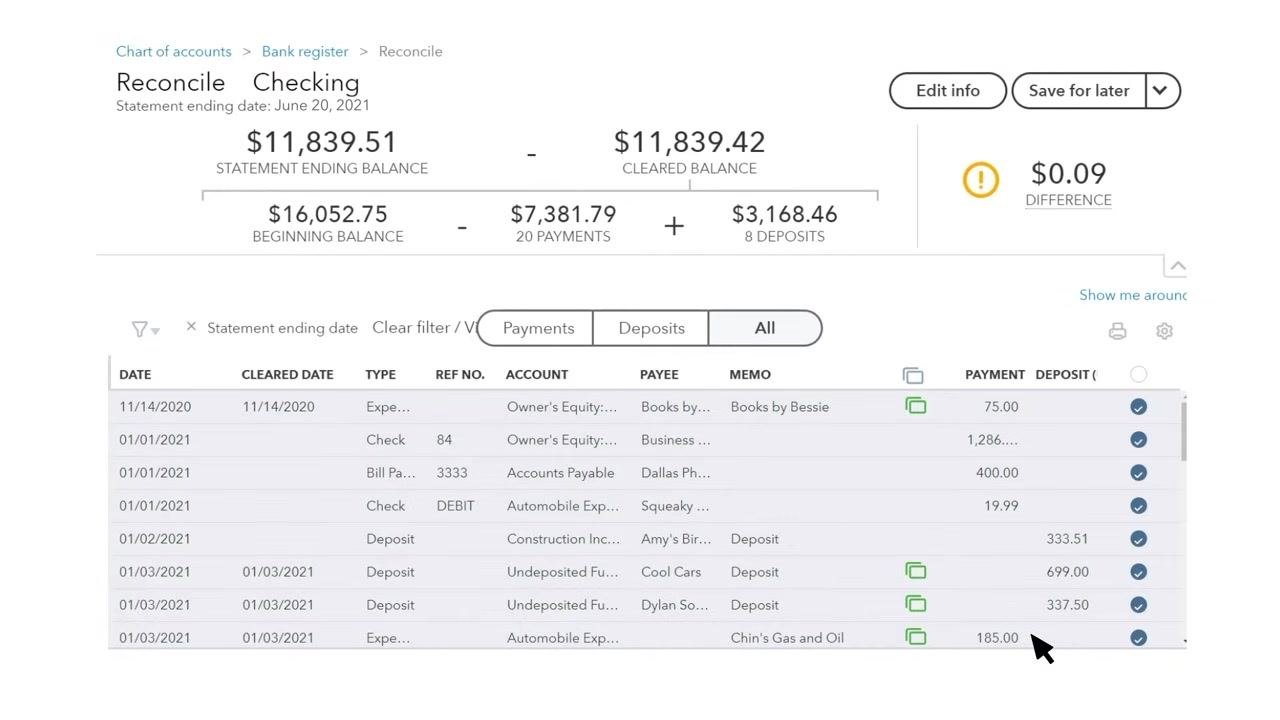
Check any transactions you entered manually that didn't already have a checkmark when you started. Look for errors in dates, amounts, or missing entries. Select any transaction for more detail, make corrections as needed, and save your changes.
Step 19: Investigate the difference
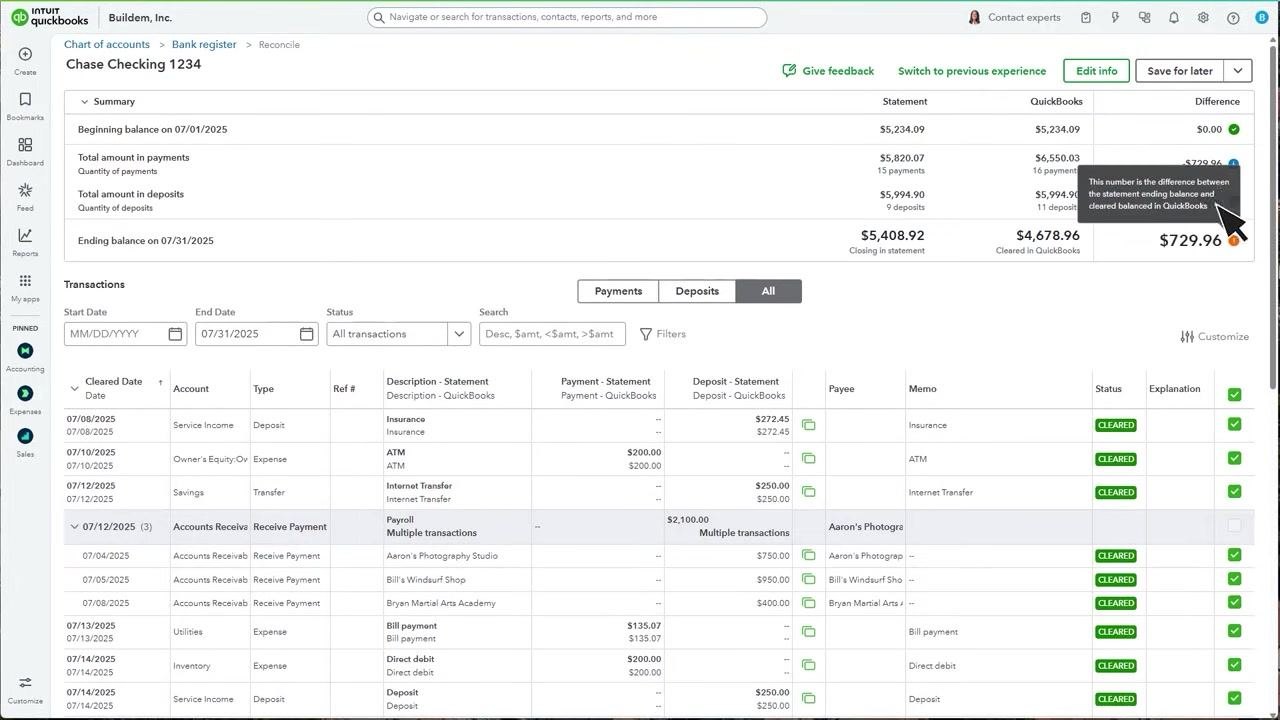
If the Difference column shows a value other than $0.00, you need to investigate further. Hover over the orange symbol next to the Difference amount for an explanation—the tooltip clarifies that this number represents the difference between the statement ending balance and the cleared balance in QuickBooks.
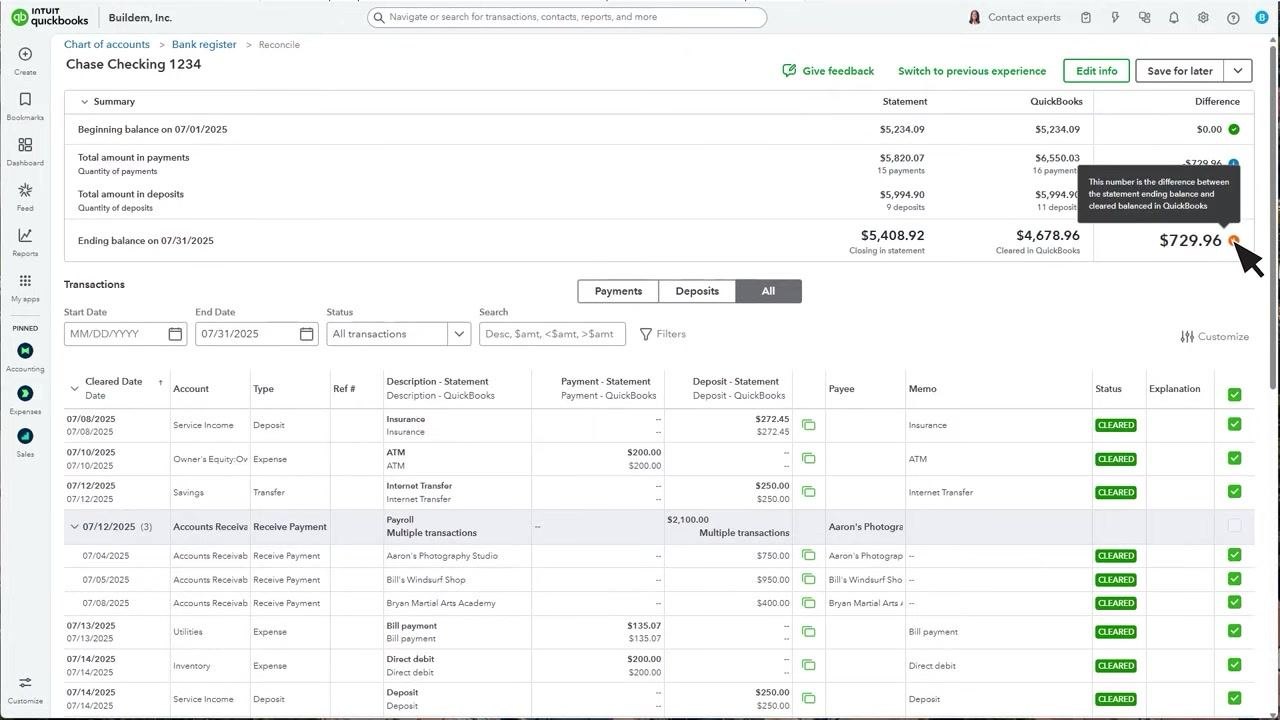
Step 20: Identify and uncheck duplicate transactions
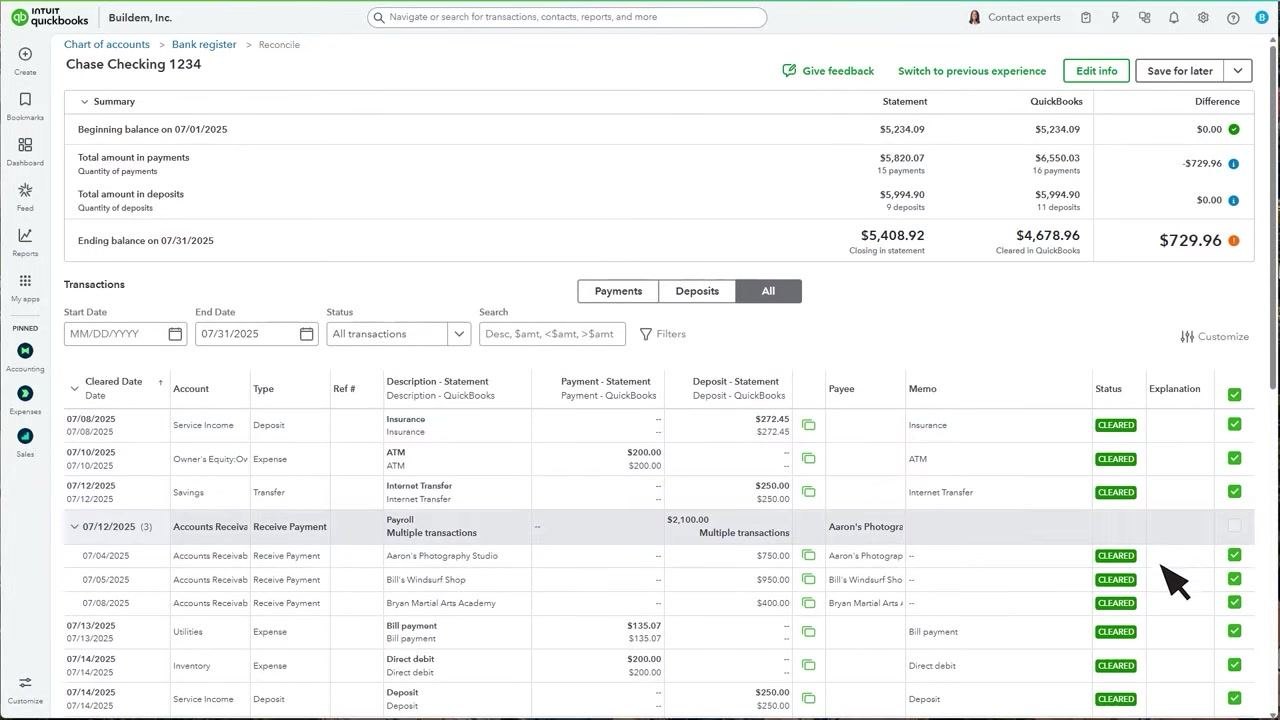
If you discover a duplicate transaction, uncheck it in the transaction list to remove it from the reconciliation. This updates the cleared balance and may resolve the difference. Scroll through the transaction list to locate and uncheck any duplicates.
Step 21: Consult your accountant before accepting a difference
Before proceeding with an adjustment, consult your accountant to confirm it's the best course of action for your records. If you decide to proceed, a warning dialog appears: "Hold on! Your difference isn't $0.00 yet." Confirm the adjustment date (for example, 07/31/2025), then click Add adjustment and finish to complete the reconciliation with the difference, or Go back to keep searching for the error.
Complete the reconciliation
Step 22: Finish reconciliation when the difference is zero
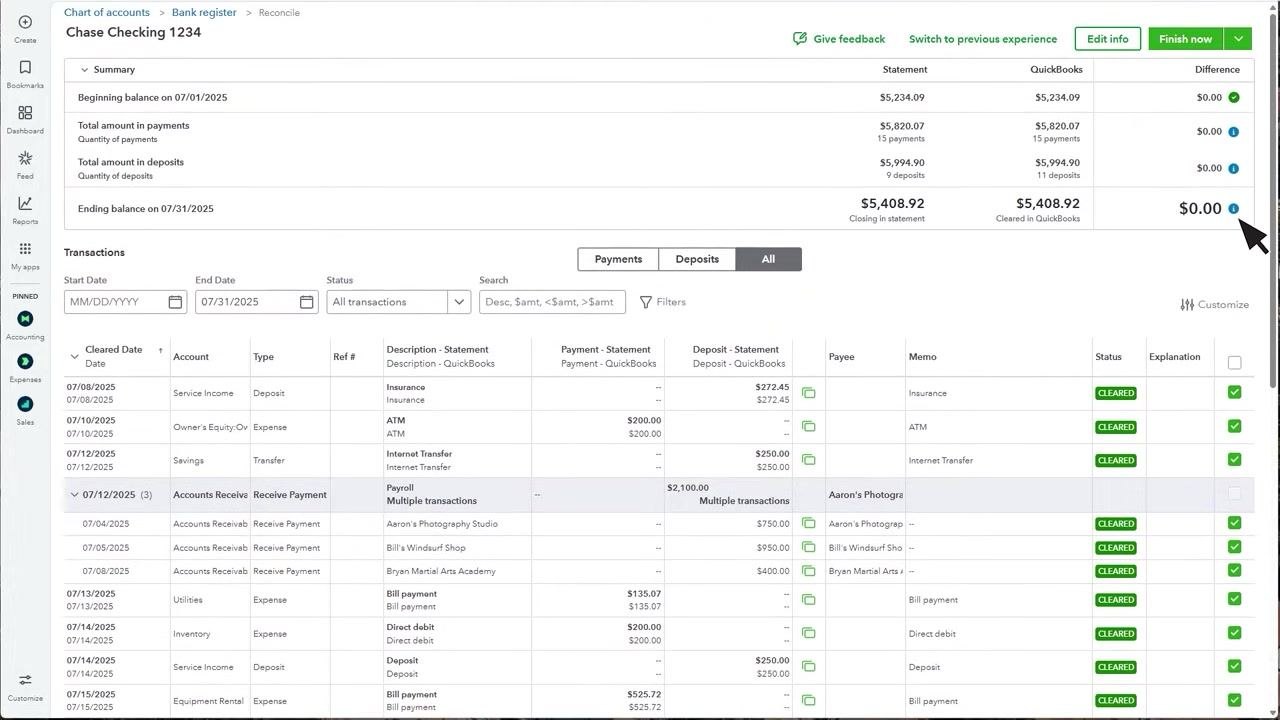
Once the Difference column shows $0.00, confirming your records match the statement, select Finish now at the top right, then click Done to complete the process. The summary at the top confirms that the closing balance on your statement matches the cleared balance in QuickBooks.
Review reconciliation history
Step 23: Access reconciliation history
Click History by Account in QuickBooks to view a detailed history of all your past reconciliations for each account.
What's next
Now that you know how to reconcile a bank account in QuickBooks Online, make it a regular habit each time you receive a new bank or credit card statement. Keeping your transactions categorized as they come in—rather than waiting until reconciliation time—will make each future reconciliation faster and reduce the chances of discrepancies. Use History by Account periodically to confirm your past reconciliations remain accurate.
Generation details: cost, quality tiers
Docsie billed 4,000 credits ($2.80) to analyze this 8-minute video at standard quality. The rewrite, template fill and Word/PDF exports were included. The same video at each quality tier:
| Quality | Frames sampled | Credits | Approx. cost |
|---|---|---|---|
| Draft | every 16-30 s | 2,000 | $1.40 |
| Standard (this guide) | every 8-15 s | 4,000 | $2.80 |
| Detailed | every 4-7 s | 8,000 | $5.60 |
| Ultra | every 1-3 s | 16,000 | $11.20 |
Credits priced at $0.70 per 1,000; plans include a monthly allowance. Enterprise customers on on-premise or bring-your-own-model deployments run this on their own inference and pay no per-video credits.
Generated by Docsie Video-to-Docs on 2026-10-25 from a 7-minute video. Screenshots are frames from the source video and belong to their creator, Intuit QuickBooks, whose original is embedded above. If you own this video and want the guide removed or credited differently, contact us and we will act within one business day.