
How to Create a Recurring Invoice in QuickBooks Online
If you bill customers on a regular schedule, you can save time by learning how to create a recurring invoice in QuickBooks Online. Recurring invoices let you automate the billing process, and with the AutoPay option, you can even collect payments automatically. This guide walks you through setting up a recurring invoice series, configuring payment options, and managing your templates afterward.
Video: How to set up recurring invoices with autopay in QuickBooks Online by Intuit QuickBooks (2025). All credit for the demonstration goes to the creator; watch the original on YouTube. The written guide below was generated from this video by Docsie. Creator? Request a change or removal.
If you bill customers on a regular schedule, you can save time by learning how to create a recurring invoice in QuickBooks Online. Recurring invoices let you automate the billing process, and with the AutoPay option, you can even collect payments automatically. This guide walks you through setting up a recurring invoice series, configuring payment options, and managing your templates afterward.
Prerequisites
- Access to the QuickBooks dashboard.
- A QuickBooks Payments account if you want to accept credit card or bank transfer payments through AutoPay.
Create a recurring invoice
Start a new invoice
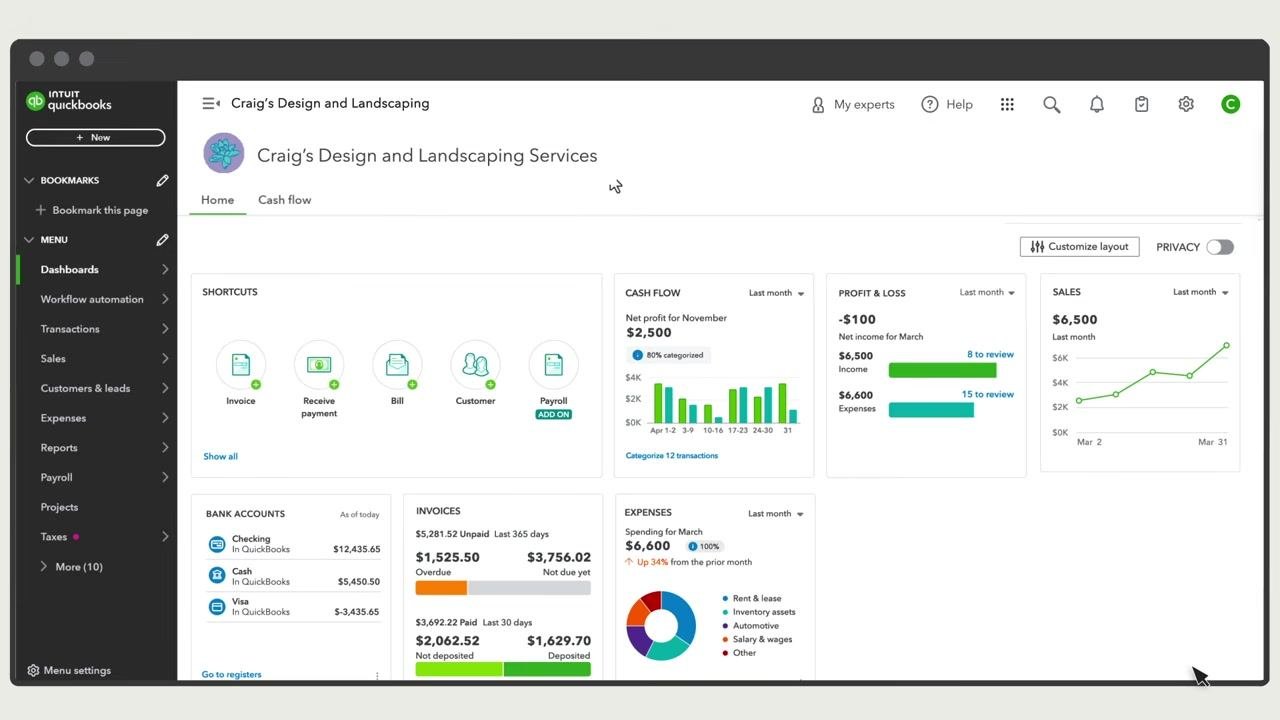
Go to the QuickBooks dashboard and click the + New button on the left sidebar. Select Invoice from the available options to begin creating your invoice.
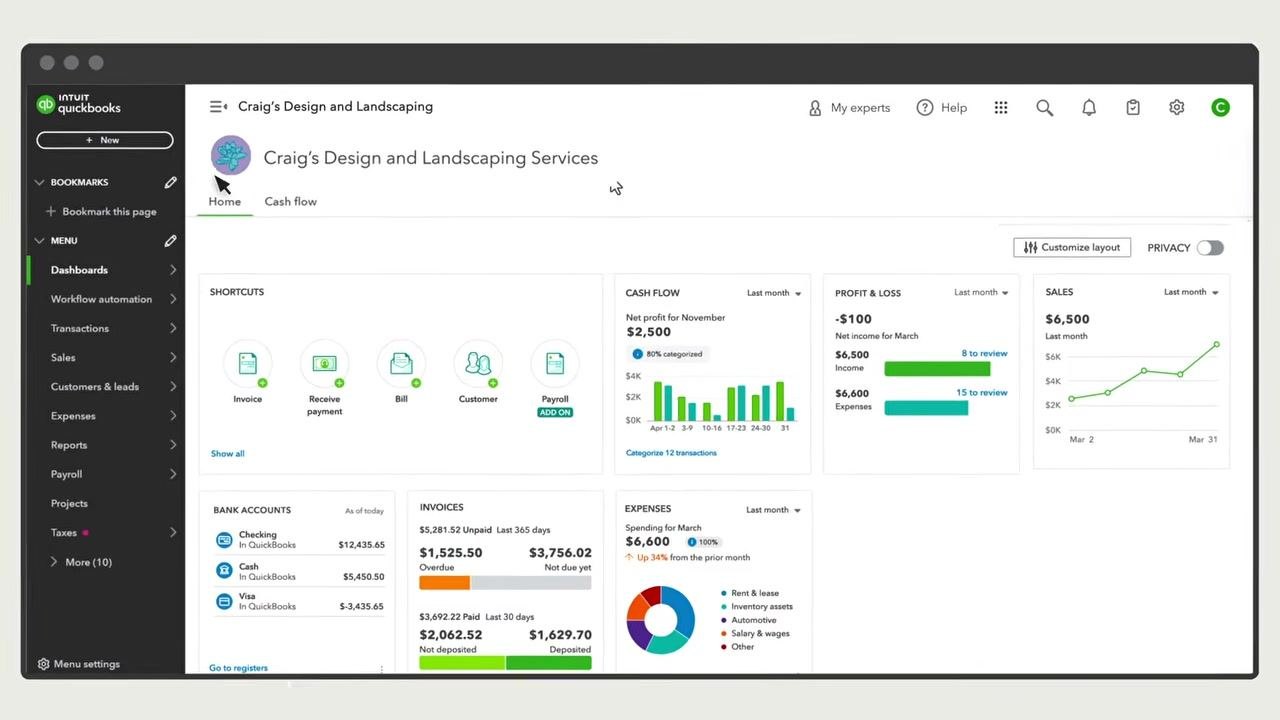
Open the invoice scheduling options
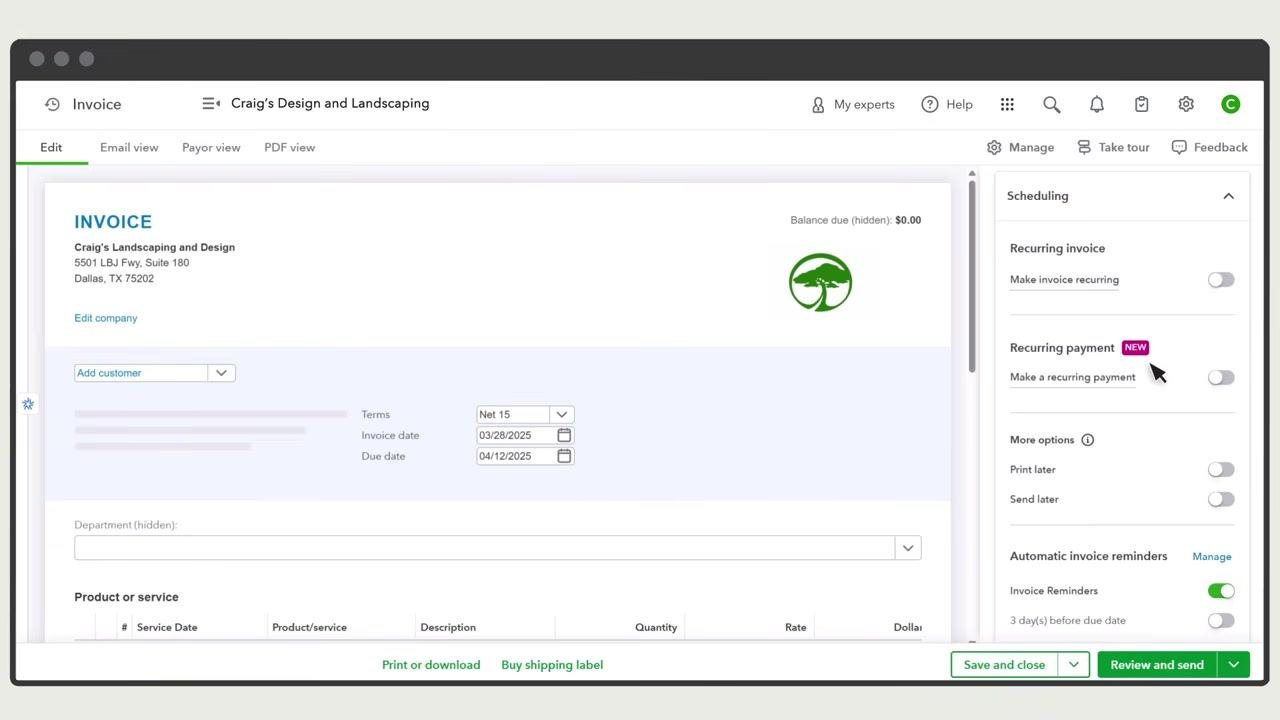
If the scheduling menu is not already open, select Manage in the upper right of the invoice screen. Locate the Scheduling section on the right side of the invoice creation screen.
Choose a recurring option
QuickBooks offers two recurring options:
- Recurring invoice: Creates invoices that repeat on a schedule. Customers pay each invoice individually.
- Recurring payment (NEW): Lets customers approve payment terms and enter their payment information through a secure online portal, with payments collected automatically on your schedule.
With recurring payments, you receive on-time payments automatically. With recurring invoices, you must wait for the customer to pay each invoice.
For this guide, select Make invoice recurring under the Recurring invoice section.
Name your recurring invoice series
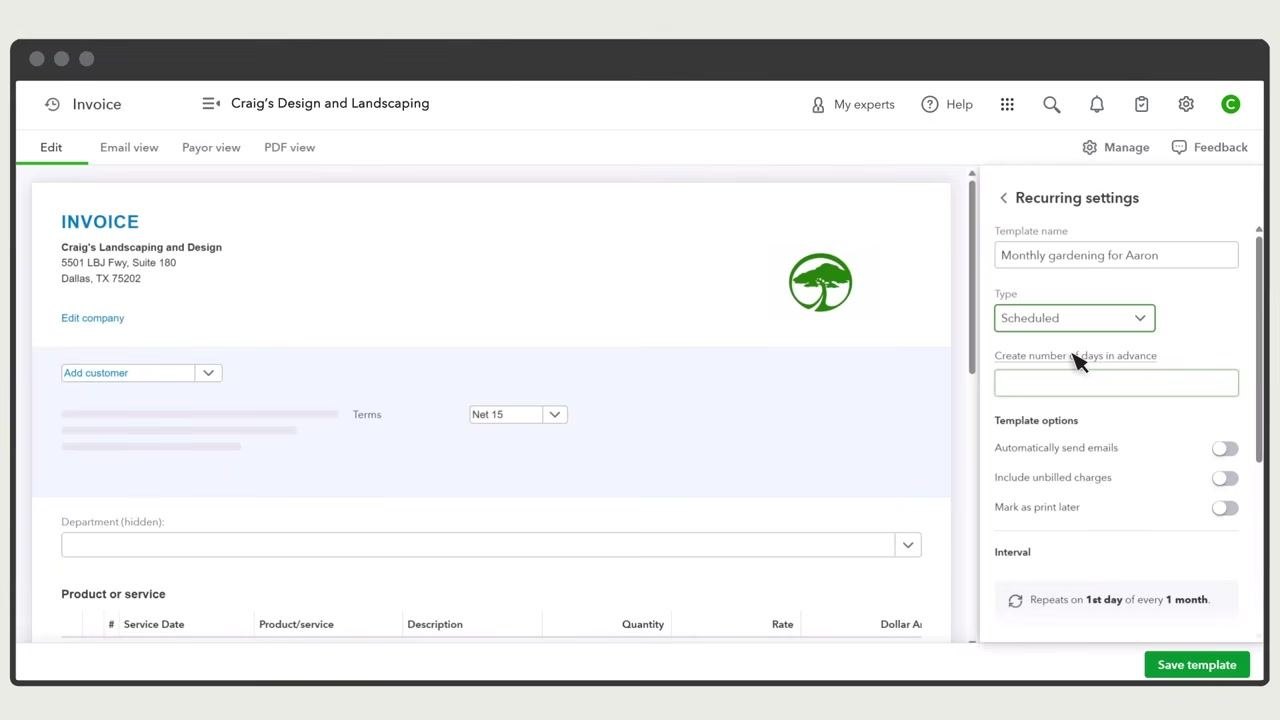
Enter a descriptive name in the Template name field, such as "Monthly gardening for Aaron." This helps you identify the series later.
Select the recurring type
Click the Type drop-down menu and choose one of the following:
- Scheduled: QuickBooks automatically creates invoices in this series on the schedule you set.
- Unscheduled: Creates a template saved with partial or complete data, but without a schedule.
- Reminder: QuickBooks reminds you to create your invoice but does not create it automatically.
For this guide, select Scheduled as the recurring type. In the Recurring settings panel, confirm the Type drop-down is set to Scheduled. Optionally, enter a value in the Create number of days in advance field — for example, enter 3 to have QuickBooks create the invoice three days ahead of the send date so you can review it first.
Enable automatic email delivery
Toggle Automatically send emails to the ON position if you want QuickBooks to email invoices to your customers automatically.
Configure additional template options (optional)
- Toggle Include unbilled charges ON if you want QuickBooks to add any unbilled charges for the customer to each invoice.
- Toggle Mark as print later ON if you want invoices queued for batch printing.
Set the invoice interval and schedule
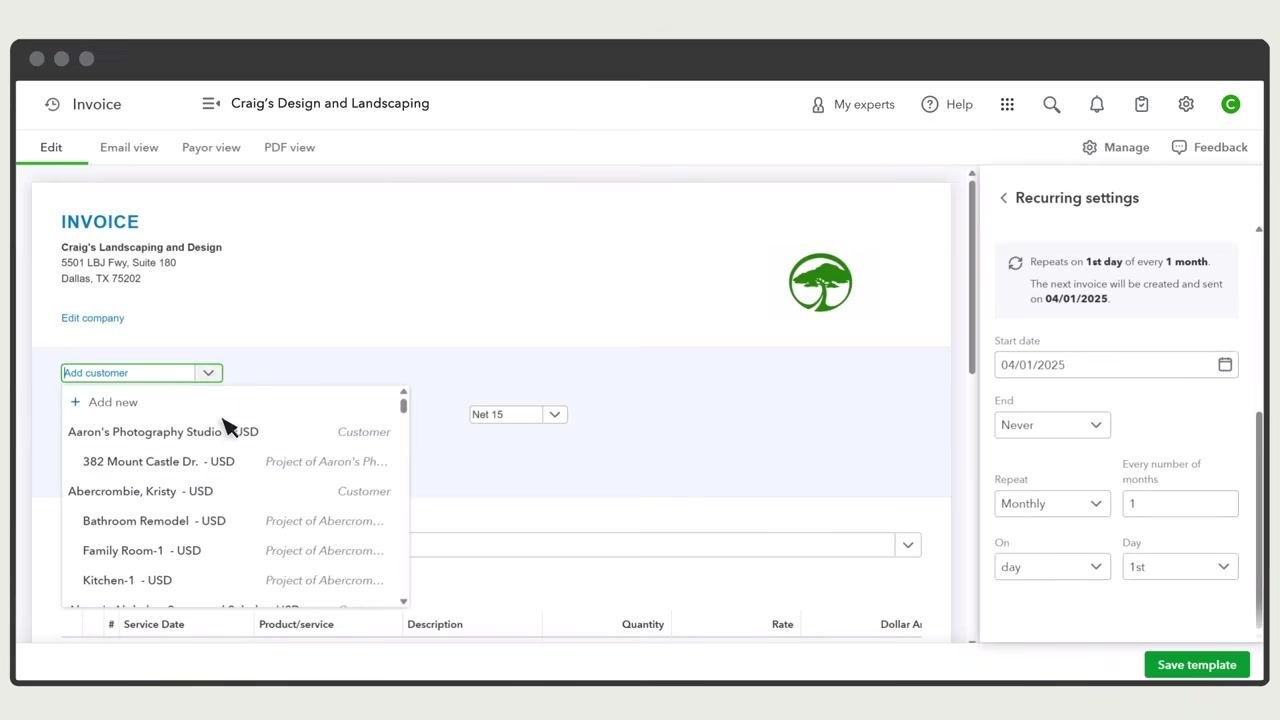
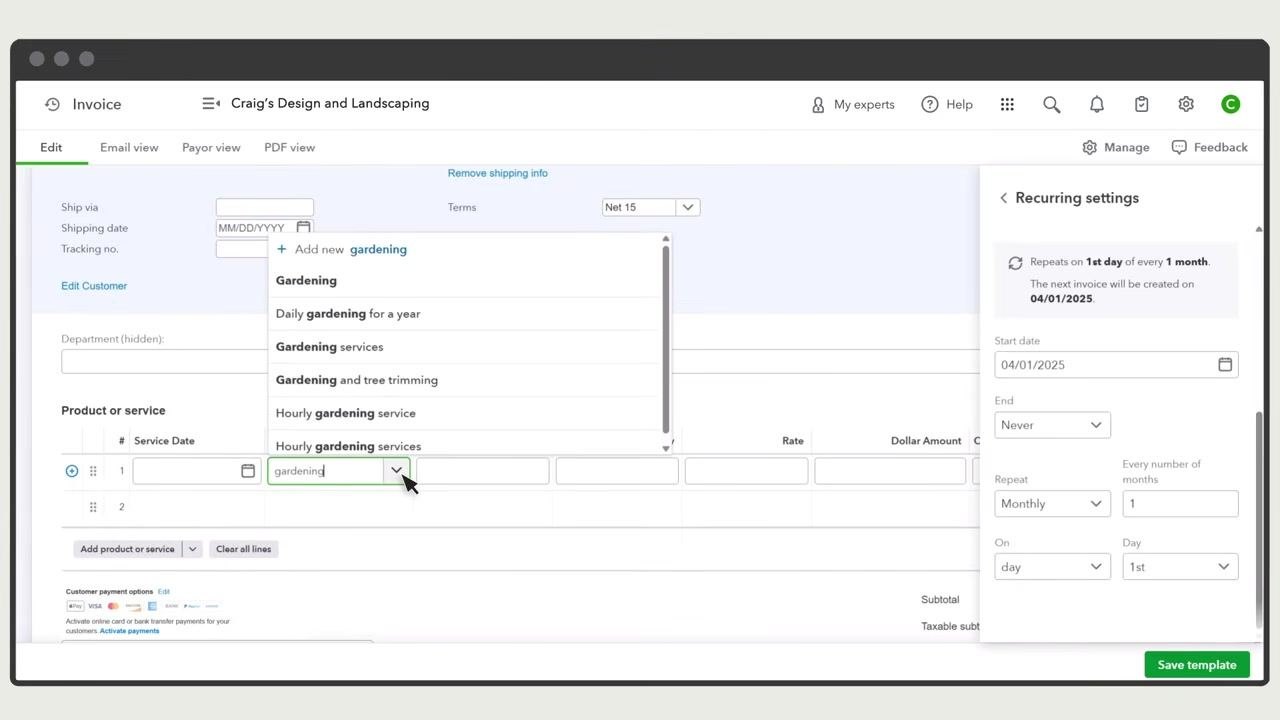
Under Interval, specify how often QuickBooks should send the invoice. In this example, the invoice repeats on the 1st day of every 1 month.
- Set the Start date (for example, 04/01/2025).
- Set the End date if you want the recurring series to stop after a certain date or number of occurrences. The default is Never.
- Confirm the Repeat frequency, such as Monthly, every 1 month.
- Confirm the On field is set to day and 1st.
Fill in the invoice details
In the invoice form, select the customer from the Add customer drop-down, such as "Aaron's Photography Studio." Add the product or service by typing in the Product or service field — for example, type "gardening" and select the appropriate service. Then enter the quantity, rate, and any other required details for the invoice line items.
Set up payment options and save your template
Configure payment options for AutoPay
In the Payment options section, make sure you have a QuickBooks Payments account. If you do not, follow the prompts to set one up. Then select the payment methods you want to accept for these invoices:
- Toggle Credit card ON to accept card payments (Visa, Mastercard, Discover, American Express, Apple Pay).
- Toggle Bank transfer ON to accept ACH payments.
AutoPay works for both card and ACH transactions.
When your customer receives the invoice by email, they can click Review and Pay and choose Set Up Autopay for future invoices. Customers can cancel AutoPay at any time.
Save your recurring invoice template
Review all details for accuracy, then click the Save template button at the bottom right of the screen to finish creating your recurring invoice.
Check invoices and AutoPay status
Identify recurring invoices in your invoice list
Go to the Invoices tab. All recurring invoices display a special symbol next to them for easy identification. The invoice list shows columns for Date, No., Customer/Project, Amount, Status, and Action. For example, Invoice #10348 for "Auldridge Windows" appears with its status and action options.
View or edit invoice details
Select any invoice in the list to view its activity details or edit it. Use the View/Edit link in the Action column to open the invoice for modifications. The status column indicates whether an invoice is overdue, paid, or scheduled for AutoPay.
Check AutoPay scheduled status
For invoices set to be auto-paid, the status column displays the AutoPay scheduled status, helping you quickly see which invoices are set up for automatic payment.
Manage your recurring invoice series
Access the Recurring Transactions page
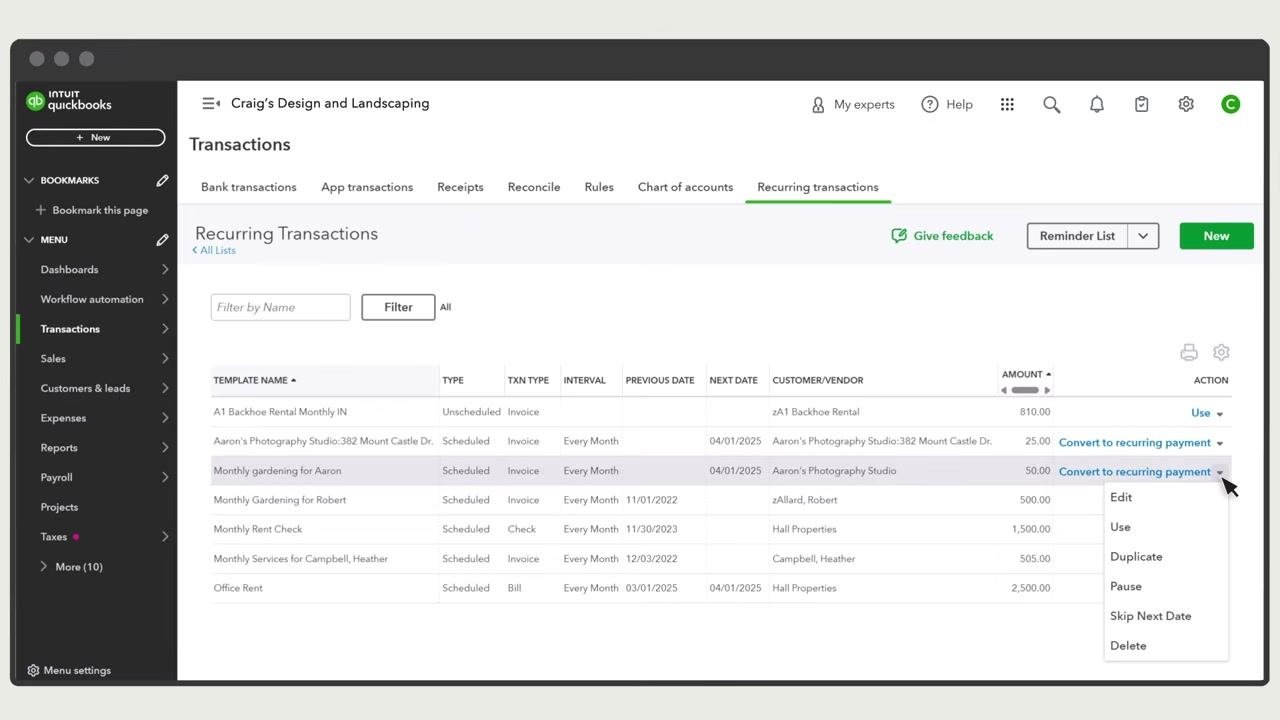
To manage all recurring invoice templates, go to the Settings menu and select Recurring Transactions. This page lists all templates, including their type, transaction type, interval, previous date, next date, customer/vendor, amount, and available actions.
Use the Filter by Name field to quickly locate a specific template. In the Action column, click the dropdown to access options such as Edit, Use, Duplicate, Pause, Skip Next Date, or Delete for each recurring template.
Edit a recurring invoice template
Select Edit from the action dropdown next to the template you want to modify. Make any necessary changes to the schedule, customer, products/services, or payment options, then save your changes to update the recurring invoice series.
What's next
Now that you know how to create a recurring invoice in QuickBooks Online, you can set up additional templates for other customers, adjust AutoPay settings as needed, or use the Recurring Transactions page to pause, duplicate, or delete series as your billing needs change.
Generation details: cost, quality tiers
Docsie billed 2,500 credits ($1.75) to analyze this 5-minute video at standard quality. The rewrite, template fill and Word/PDF exports were included. The same video at each quality tier:
| Quality | Frames sampled | Credits | Approx. cost |
|---|---|---|---|
| Draft | every 16-30 s | 1,250 | $0.88 |
| Standard (this guide) | every 8-15 s | 2,500 | $1.75 |
| Detailed | every 4-7 s | 5,000 | $3.50 |
| Ultra | every 1-3 s | 10,000 | $7.00 |
Credits priced at $0.70 per 1,000; plans include a monthly allowance. Enterprise customers on on-premise or bring-your-own-model deployments run this on their own inference and pay no per-video credits.
Generated by Docsie Video-to-Docs on 2026-10-25 from a 4-minute video. Screenshots are frames from the source video and belong to their creator, Intuit QuickBooks, whose original is embedded above. If you own this video and want the guide removed or credited differently, contact us and we will act within one business day.