
How to Submit an Inspection in Procore
Learning how to submit an inspection in Procore ensures that each required checklist item is properly reviewed, documented with photos and comments, and marked complete. This guide walks you through accessing the Inspections tool, completing checklist items, attaching evidence, and reviewing your overall progress.
Video: Procore Basics: How to Submit an Inspection by NSM Construction (2018). All credit for the demonstration goes to the creator; watch the original on YouTube. The written guide below was generated from this video by Docsie. Creator? Request a change or removal.
Learning how to submit an inspection in Procore ensures that each required checklist item is properly reviewed, documented with photos and comments, and marked complete. This guide walks you through accessing the Inspections tool, completing checklist items, attaching evidence, and reviewing your overall progress.
Prerequisites
- Access to the Procore app for your project
- An inspection already assigned to you (e.g., "1 - Drywall")
Access the project home screen
Open the Procore app and navigate to your project. The home screen displays your name at the top, the project name (for example, "Next Step Ministries"), and tabs for Home and Info.
Review the Project Overview section for items such as RFIs and Punch Items. These are shown with color-coded status indicators: Overdue, Next 7 Days, and Over 7 Days. At the bottom of the screen, you'll find a navigation bar with icons for Home, Tools, Drawings, and Settings.
Navigate to the Inspections tool
Tap the Tools icon (hammer symbol) in the bottom navigation bar, then select the Inspections tab from the list of available tools.
Open the assigned inspection
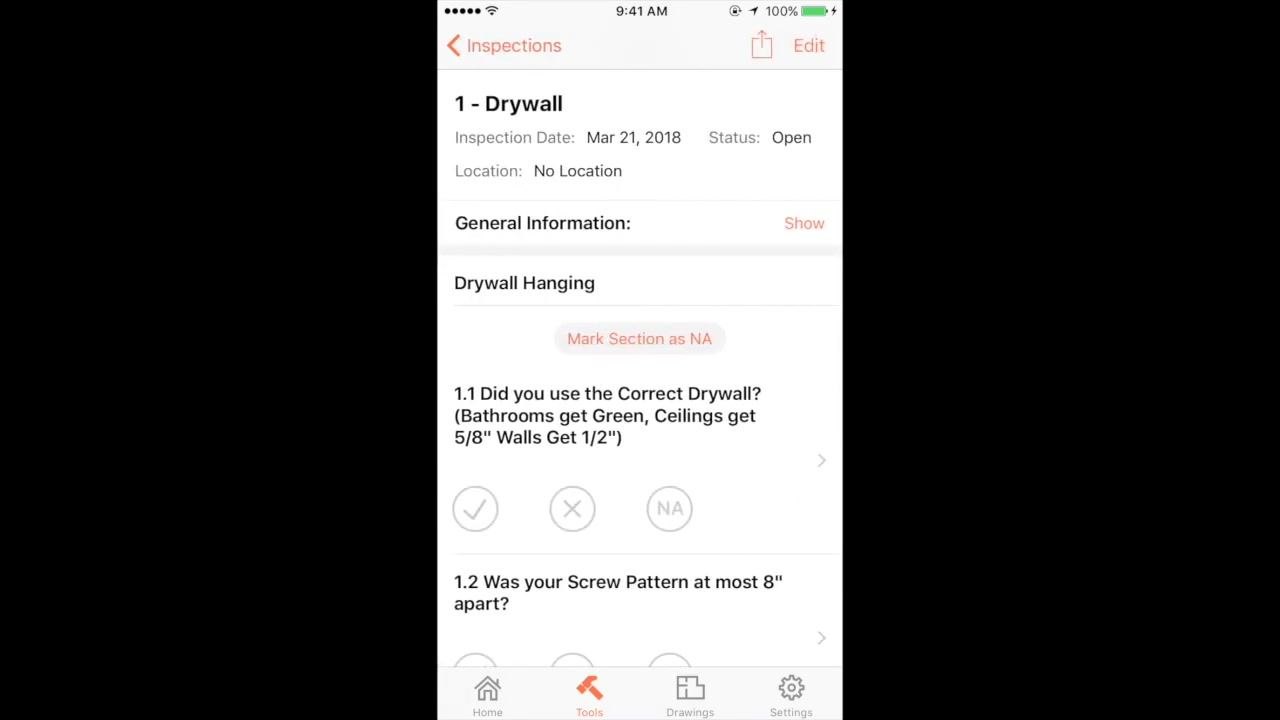
Locate the inspection you need to complete, such as "1 - Drywall," and tap it to open the inspection details.
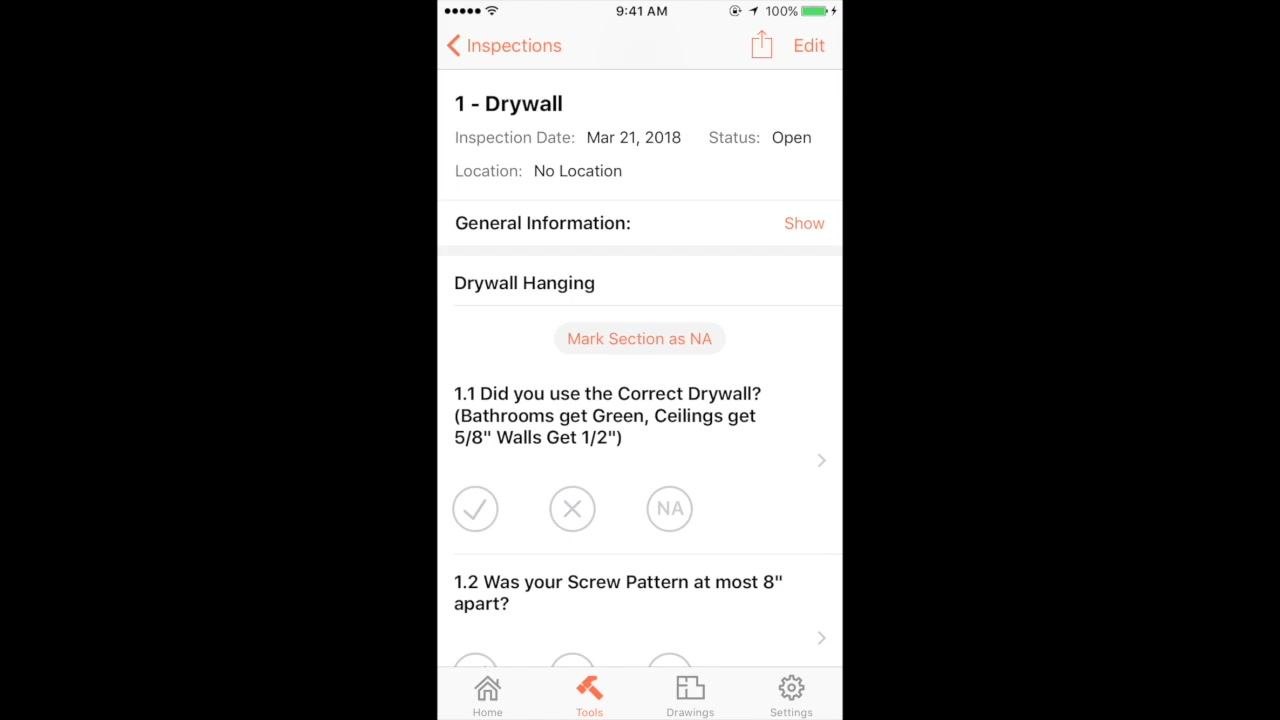
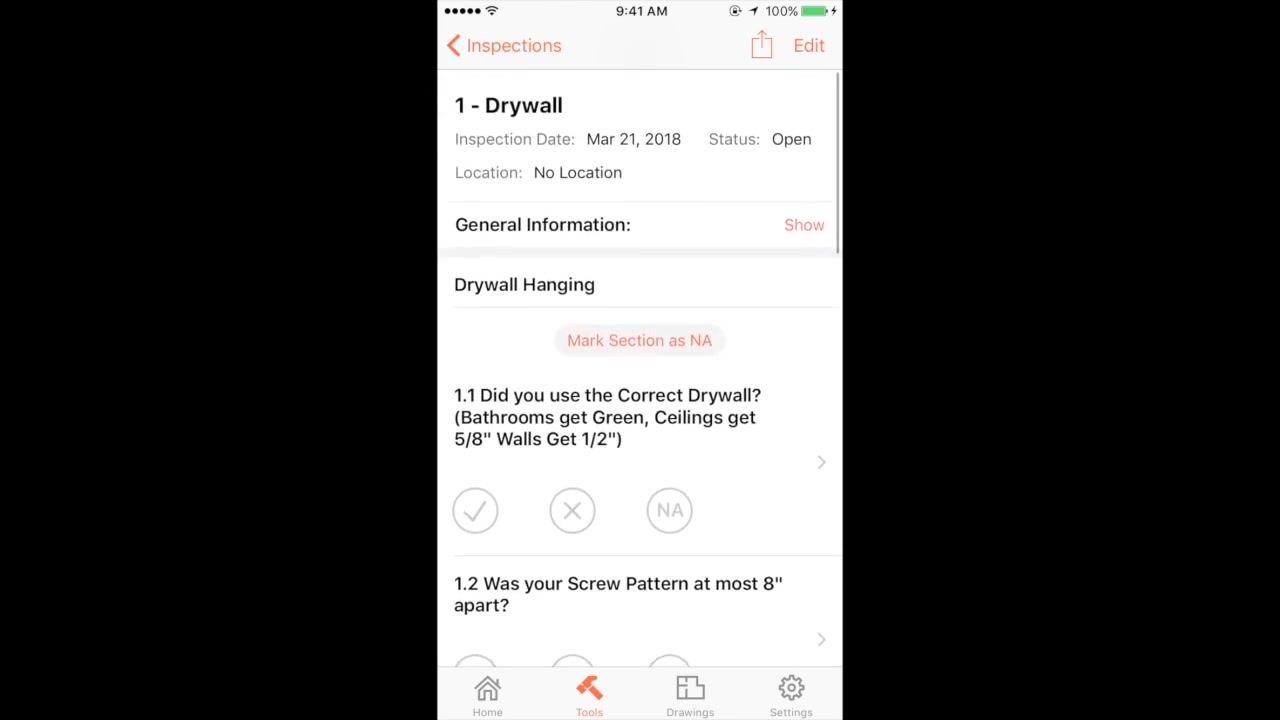
The inspection screen displays the following information:
- Inspection title (e.g., "1 - Drywall")
- Inspection date (e.g., Mar 21, 2018)
- Status (e.g., Open)
- Location (e.g., No Location)
- Section headers (e.g., "Drywall Hanging")
- Checklist items with options to mark as complete (✔), not complete (✖), or not applicable (NA)
Review and complete checklist items
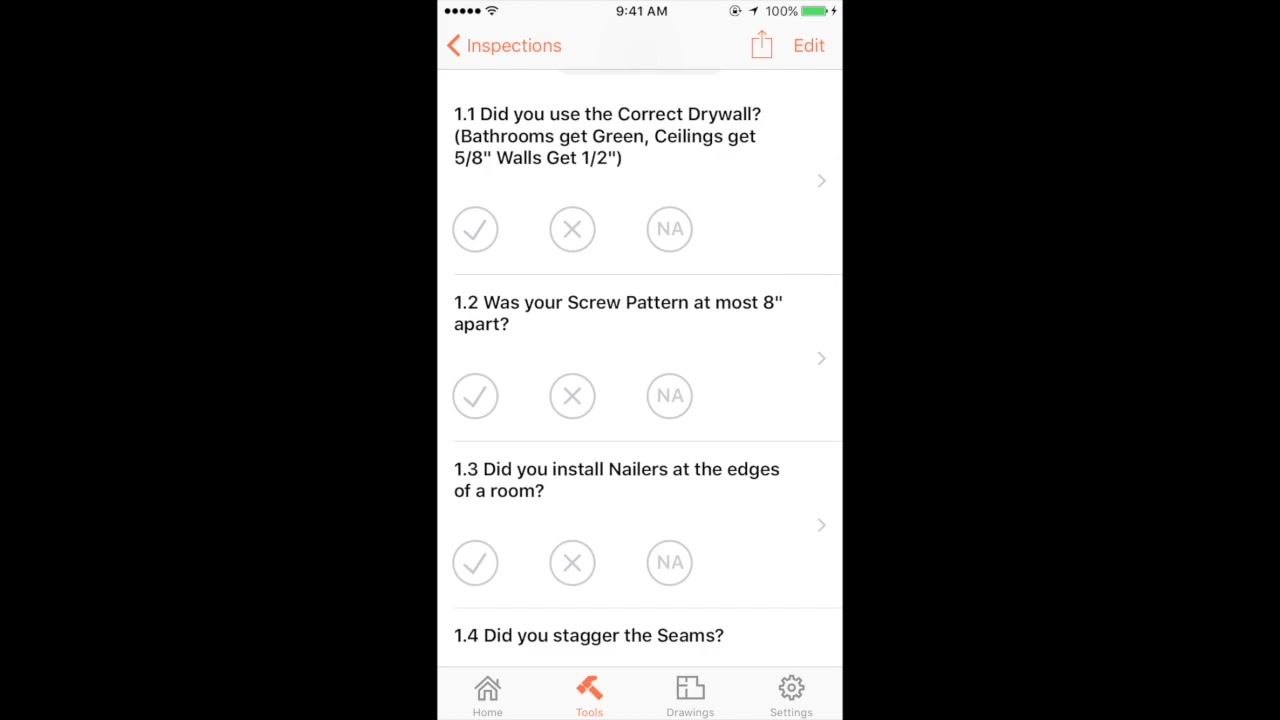
Use the checklist to verify each requirement in the section. For the "Drywall Hanging" section, this includes:
- 1.1 Did you use the Correct Drywall? (Bathrooms get Green, Ceilings get 5/8", Walls get 1/2")
- 1.2 Was your Screw Pattern at most 8" apart?
- 1.3 Did you install Nailers at the edges of a room?
- 1.4 Did you stagger the Seams?
For each item, tap the appropriate response: ✔ (Yes), ✖ (No), or NA (Not Applicable).
Scroll to additional sections
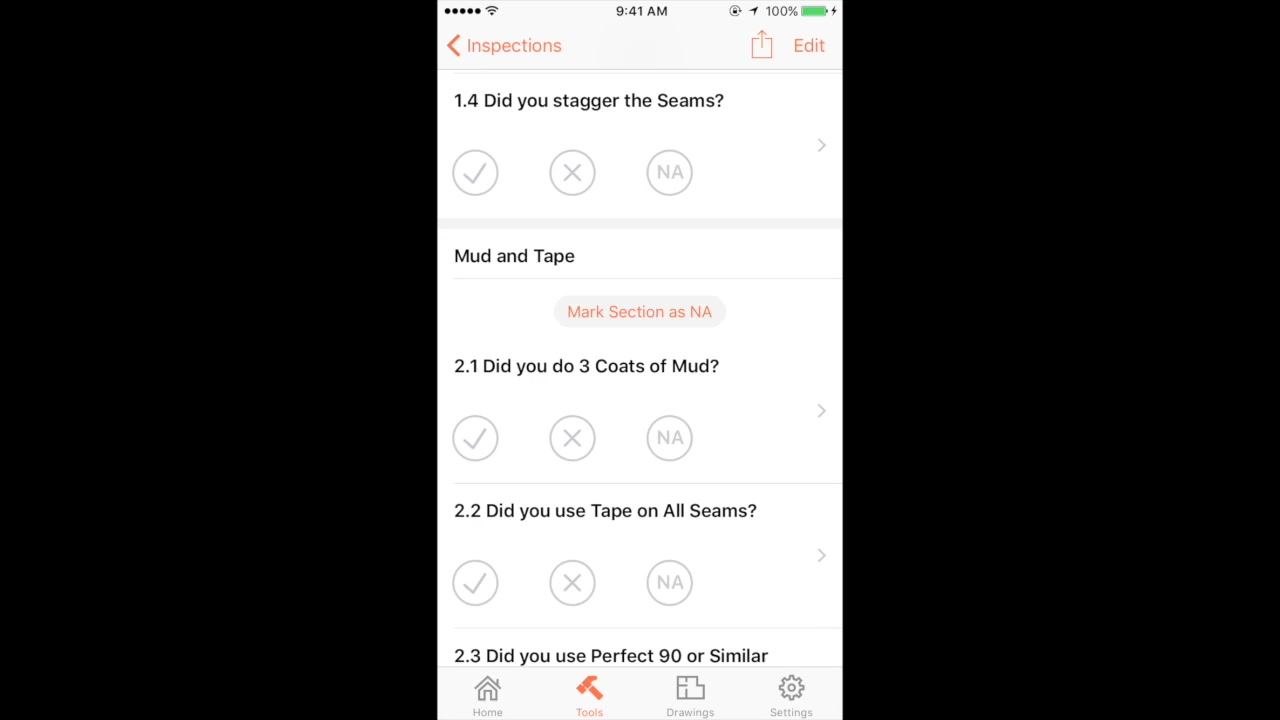
Continue to the "Mud and Tape" section and review the following items:
- 2.1 Did you do 3 Coats of Mud?
- 2.2 Did you use Tape on All Seams?
- 2.3 Did you use Perfect 90 or Similar?
Mark each item as appropriate using the same ✔, ✖, or NA options.
Provide evidence for checklist items
For items requiring documentation, such as "Did you do 3 Coats of Mud?", tap the item to open its detail view. Tap Photo at the bottom to add a photo as evidence, then take a photo of the relevant work — for example, drywall with three coats of mud — and attach it to the checklist item.
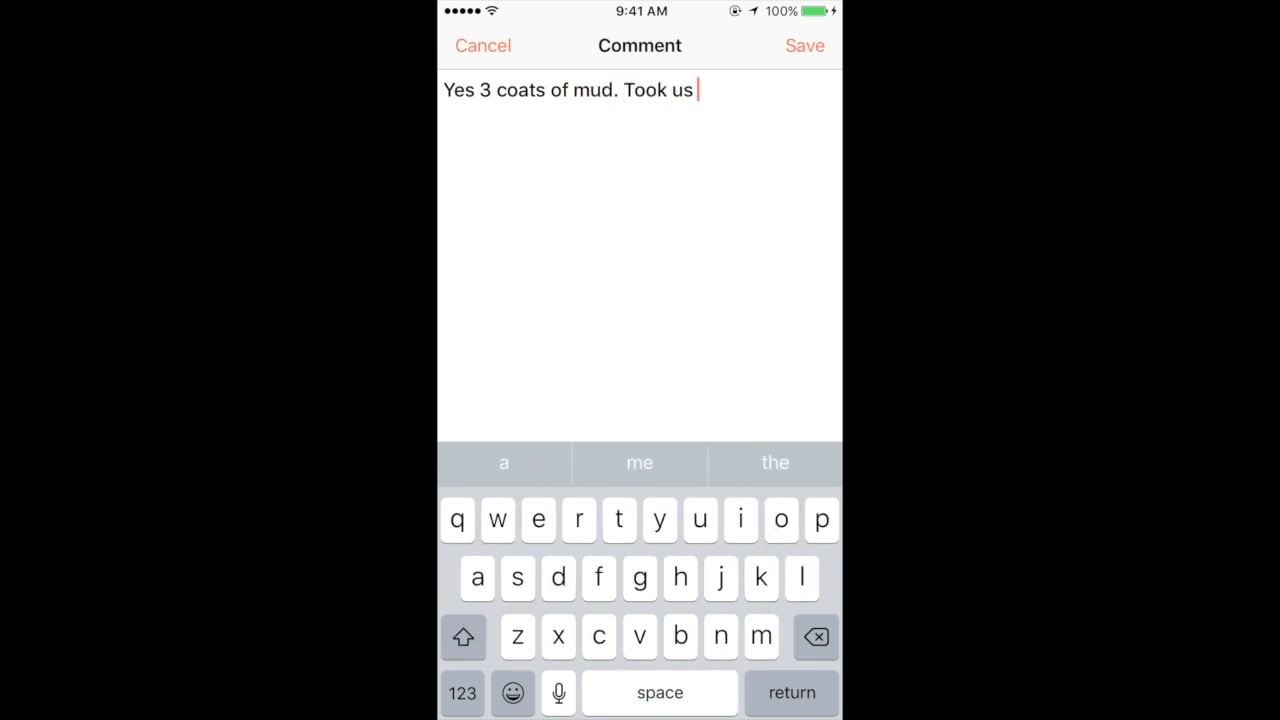
You can also tap Comment to add a note, such as "Yes, 3 coats of mud. Took us a long time."
Verify the attachment and add comments
Confirm that your photo is attached; the screen will show the file name and timestamp. Add any additional comments needed for documentation or clarification.
For example, you might enter a comment reading "Yes, 3 coats of mud. Took us..."
Mark the checklist item as done
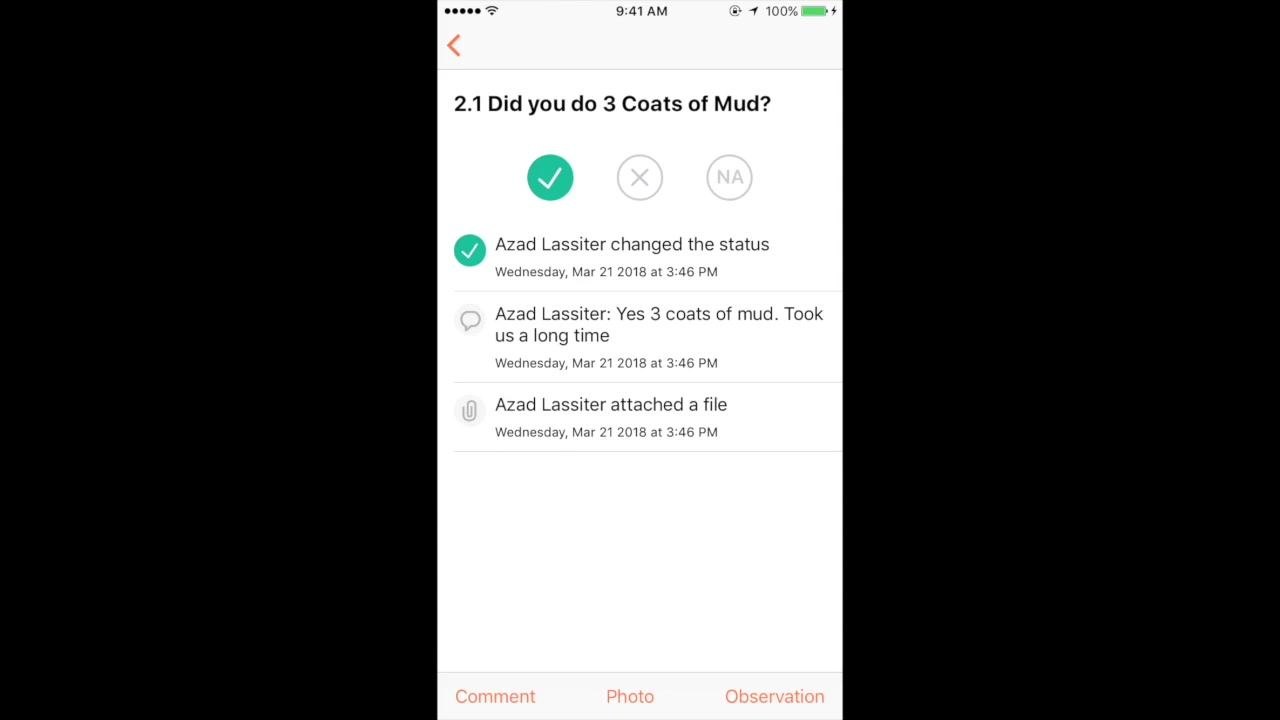
After attaching evidence and adding comments, mark the checklist item as complete by selecting the checkmark (✔) option.
The screen will then display:
- The checklist question (e.g., "2.1 Did you do 3 Coats of Mud?")
- Status indicators for ✔ (Yes), ✖ (No), and NA (Not Applicable)
- A record of actions, including status changes, comments, and attached files, with timestamps and user names (e.g., "Azad Lassiter changed the status," "Yes 3 coats of mud. Took us a long time," and "Azad Lassiter attached a file")
Repeat for all inspection items
Return to the main inspection checklist and complete each remaining item by following the same process: review the requirement, provide evidence if needed, add comments, and mark the item as done. The inspection overview will update to show your progress, such as "1/8" completed.
Review inspection progress
Navigate back to the inspections list to view your overall completion status. The inspections screen displays:
- Inspection title (e.g., "Drywall")
- Location (if specified)
- Date (e.g., 3/21/18)
- Progress indicator (e.g., "1/8" completed)
- A brief description or prompt (e.g., "Show us the Quality of the Drywall you Installed?...")
Summary
By following these steps to submit an inspection in Procore, you ensure that each inspection item is properly reviewed, documented with photos and comments, and marked complete. This maintains a clear, traceable record of your work and fulfills your coordinator's documentation requirements.
Generation details: cost, quality tiers
Docsie billed 1,500 credits ($1.05) to analyze this 3-minute video at standard quality. The rewrite, template fill and Word/PDF exports were included. The same video at each quality tier:
| Quality | Frames sampled | Credits | Approx. cost |
|---|---|---|---|
| Draft | every 16-30 s | 750 | $0.52 |
| Standard (this guide) | every 8-15 s | 1,500 | $1.05 |
| Detailed | every 4-7 s | 3,000 | $2.10 |
| Ultra | every 1-3 s | 6,000 | $4.20 |
Credits priced at $0.70 per 1,000; plans include a monthly allowance. Enterprise customers on on-premise or bring-your-own-model deployments run this on their own inference and pay no per-video credits.
Generated by Docsie Video-to-Docs on 2026-10-25 from a 2-minute video. Screenshots are frames from the source video and belong to their creator, NSM Construction, whose original is embedded above. If you own this video and want the guide removed or credited differently, contact us and we will act within one business day.